Navigation
Note: For more information, refer to the local Ford website.

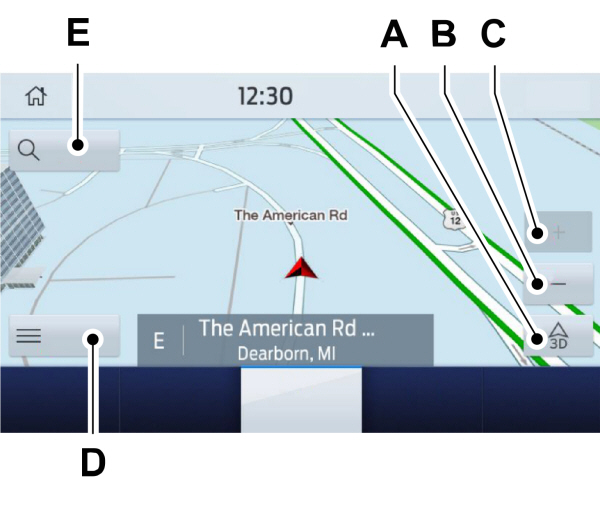
A Map view menu. Map view menu.B Zoom out.C Zoom in.D Route guidance menu.E Destination entry menu. |
Setting a Destination
Setting a Destination Using the Text Entry Screen
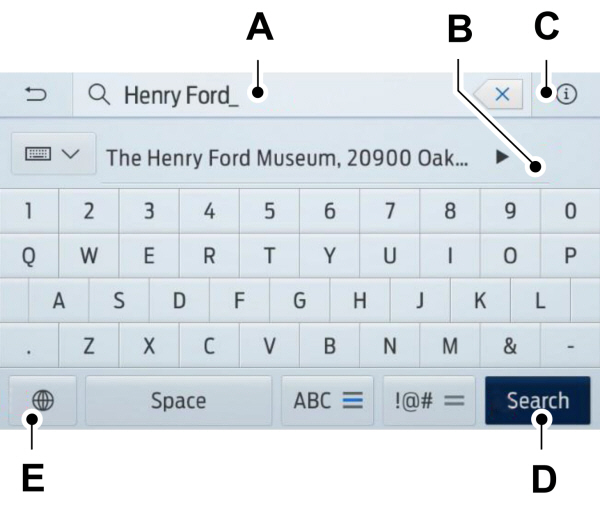
| AText entry field. B Automatic suggestions based on the text you enter.C Information icon.D Search.E Keyboard settings. |
Note: Select one of the suggestions to copy the detail to the text entry field.
Note: You can enter a destination in a number of formats, city street number, city number street, zip code or point of interest.
Note: You do not have to enter the destination country.
Note: To enter mutated vowels or accented characters, for example ä or é, press and hold the corresponding character on the keyboard.
Select Search.
Select Start to begin route guidance.
Setting a Destination Using the Map Screen
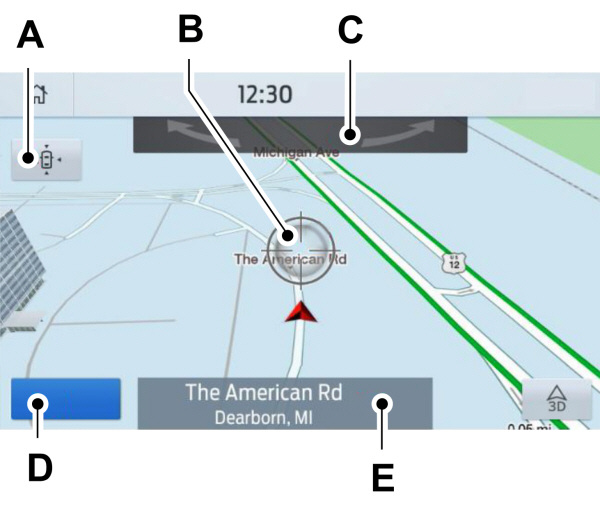
| ARe-center the map. B Selected location.C 3D map rotation. Swipe left or right.D Start route guidance.E Destination name. |
Select the location on the map.
Select Start to begin route guidance.
Changing the Format of the Map
Display the map in one of the following formats:
- A two-dimensional map with the direction you are traveling toward the top of the screen.
- A two-dimensional map with north toward the top of the screen.
- A three-dimensional map with the direction you are traveling toward the front.
Zoom
Display more or less detail on the map.
Note: You can use pinch gestures to zoom in and out. Place two fingers on the screen and move them apart to zoom in. Place two fingers on the screen and bring them together to zoom out.
Route Guidance
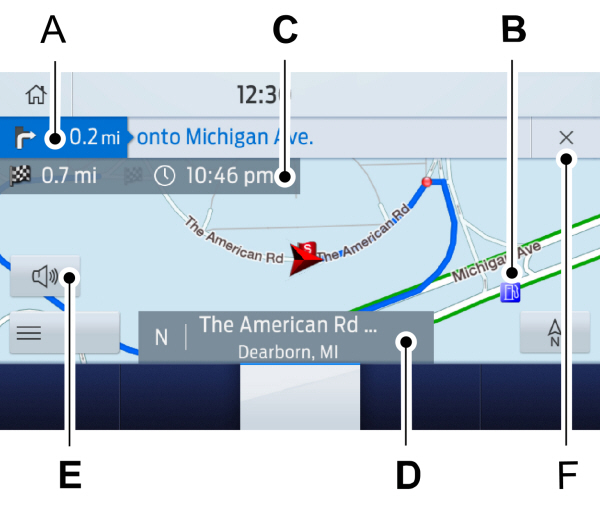
| ATurn indicator. Select to hear the last guidance prompt. B Point of interest.C Estimated time of arrival, distance to destination or time to destination.D Current road.E Mute guidance prompts.F Cancel route guidance. |
Note: To change guidance prompt volume, turn the volume control when a guidance prompt plays.
Route Guidance Menu
| Menu Item | Description |
|---|---|
|
Screen View |
Adjust your map preferences for when route guidance is active. |
|
Full Map |
View a full screen map when route guidance is active. |
|
Highway Exit Info |
View exit information for your current route. |
|
Turn List |
View the turn list for your current route. Select a road to avoid it. |
|
Traffic List |
View traffic nearby or on your current route.1 |
|
Navigation Settings |
Adjust navigation settings. |
|
Where Am I? |
View information about your current location. |
|
Cancel Route |
Cancel route guidance. |
|
View Route |
View the entire current route on the map. |
|
Detour |
View an alternative route compared to your current one. |
|
Edit Waypoints |
Change the order or remove waypoints. |
|
Optimize Order |
The system determines the order of waypoints for you. |
|
Go |
Go to the next screen and start the new route. |
|
Search |
Enter a destination address. |
|
Home |
Set your saved home address as your destination |
|
Work |
Set your saved place of work as your destination. |
|
Favorites |
Display and select from a list of favorite destinations. |
|
Previous Destinations |
Display and select from a list of previous destinations. |
|
POI |
Display the point of interest categories. |
1Reliant upon traffic message channel or live traffic.
Adjusting the Guidance Prompt Volume
Turn the volume control when a guidance prompt plays to adjust the volume.
Note: If you have inadvertently adjusted the volume to zero, press the turn indicator button to play the last voice prompt and then adjust the volume to the desired level.
Muting Guidance Prompts

Note: The system mutes the next and all future guidance prompts.
Adding Waypoints
You can add a waypoint to a navigation route as a destination along your route. You can add up to five waypoints.
- Select the search option on the map.
- Set a destination.
- Select the flag icon.
- Select Go.
Canceling Route Guidance
Canceling Route Guidance From the Route Guidance Menu

Select Cancel Route.
Canceling Route Guidance From the Main Map
 Select the icon in the upper right-hand corner of the main map to cancel route guidance. Select the icon in the upper right-hand corner of the main map to cancel route guidance. |
Live Traffic (If Equipped)
Live traffic provides near real-time traffic information to help you plan the fastest route to your destination. You must have an active subscription for Live Traffic.
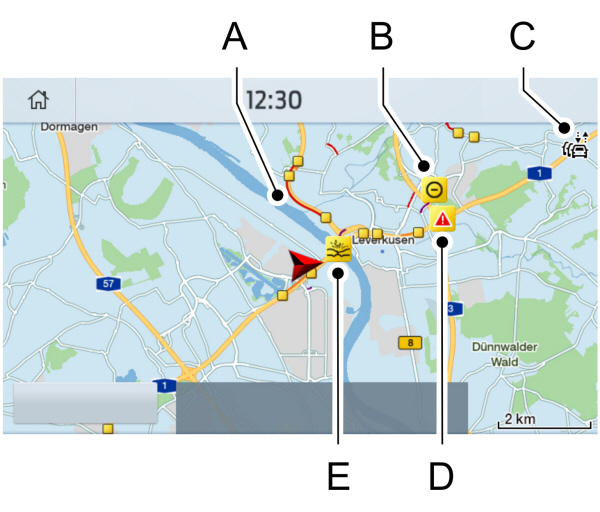
| ATraffic congestion. B Road closure.C Live traffic active.D Urgent warning.E Traffic incident. |
Switching Live Traffic On
Note: Make sure that the modem is enabled. See Connected Vehicle.
- Select Settings.
- Select FordPass Connect.
- Select Connectivity Settings.
- Switch Vehicle Connectivity on.
- Switch Location on.
- Switch Vehicle data & Remote ctrl on.
- Switch Live Traffic on.
Navigation Map Updates
Please check the local Ford website or contact your dealership for navigation map updates.
HERE is the digital map provider for the navigation application. If you find map data errors, you can report them directly to HERE by visiting www.here.com.HERE evaluates all reported map errors and responds with the result of their investigation by e-mail.
Download Manual