Entertainment

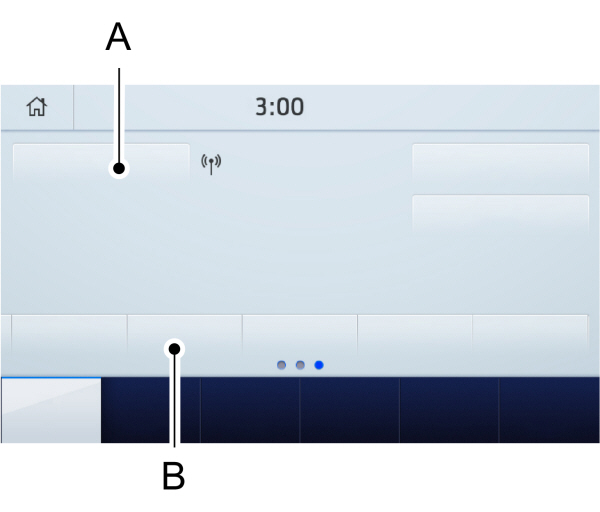
A Audio source. Select to choose a different audio source. Audio source. Select to choose a different audio source.B Presets. Swipe left to view more presets. |
You can access these options using the touchscreen or voice commands.
Using the Radio
Setting an AM/FM Radio Station
- Select Sources.
- Select AM or FM.
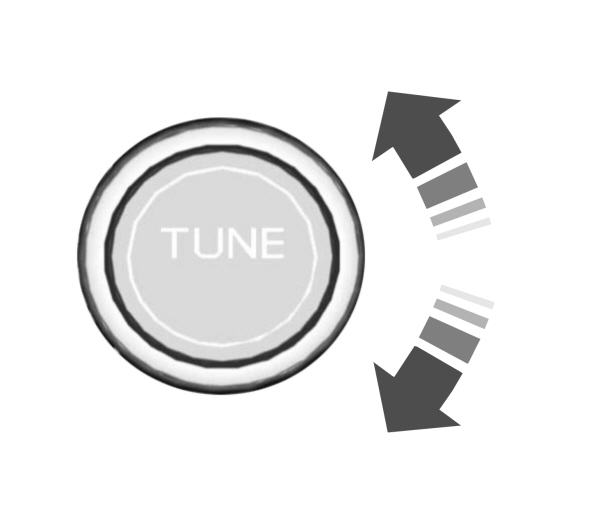
- Rotate the control to change the frequency.
Selecting a FM Radio Station From a List
- Select Sources.
- Select FM.
- Select Browse.
- Select a radio station from the list.
Selecting a Digital Radio Station From a List
- Select Sources.
- Select DAB.
- Select Browse.
- Select an ensemble.
- Select a radio station from the list.
Manually Changing Digital Radio Stations
Rotate the control to change the station.
Automatically Changing Radio Stations
 Press to seek the next station up the frequency band. Press to seek the next station up the frequency band.
Press and hold to quickly seek up the frequency band. |
 Press to seek the next station down the frequency band. Press to seek the next station down the frequency band.
Press and hold to quickly seek down the frequency band. |
Storing a Radio Station
Press and hold one of the preset buttons.
Note: The radio briefly mutes to indicate the station has been stored.
Note: You can add additional preset pages using the settings option on the feature bar.
Switching Traffic Announcements On
Select Traffic (TA).
Note: If you switch traffic announcements on, traffic announcements broadcast by radio stations interrupt the current audio source to help you plan your route.
Streaming Music From a Bluetooth® Device.
Check the compatibility of your device on the local Ford website.
Pair your device. See Phone.
Select Sources.

Searching for Tracks on Bluetooth® Device.
Select Browse.
Select a track.
Note: Select the cover art to view information about the current track.
Playing Tracks on Bluetooth® Device in a Random Order.
 Select to play tracks in a random order. Select to play tracks in a random order. |
Repeating Tracks on Bluetooth® Device.

Note: You can repeat one track or all tracks on an audio format Bluetooth® Device.You can repeat one track, all tracks or all tracks in one folder on a Bluetooth® Device.
Note: A small number one appears next to the repeat icon to indicate that a track is set to repeat. A small folder icon appears next to it to indicate that a folder is set to repeat.
Playing Music From a USB or Media Player
Connect your device to a USB port.
Select Sources.

Note: The system indexes your music before you can play it.
Searching for Tracks on a USB or Media Player
Select Browse.
Select a track.
Note: Select the cover art to view information about the current track.
Note: You can also browse by album, artist, audiobook, genre, playlist, podcast or track name.
Playing Tracks on a USB or Media Player in a Random Order
| Select to play tracks in a random order. |
Repeating Tracks on a USB or Media Player
Note: You can repeat one track or all tracks on an audio format USB or media player. You can repeat one track, all tracks or all tracks in one folder on a USB or media player.
Note: A small number one appears next to the repeat icon to indicate that a track is set to repeat. A small folder icon appears next to it to indicate that a folder is set to repeat.
Supported Devices
The system supports most USB and media players, including iOS and Android devices.
Supported File Formats
The system supports the following file formats:
- MP3, MP4, WMA, WAV, AAC, AIFF, APE, DSD, and FLAC audio file formats.
- MP3, WMA, WAV, M4A, M4B, AAC, and FLAC file extensions.
- FAT, exFAT, and NTFS file systems.
Audio File Metadata
The system organizes files on your USB or media player by metadata tags. Metadata tags contain information about the file. If the metadata tags for the files on your USB or media player contain no information, the system classifies them as unknown. The system can index up to 50000 tracks on a USB device or media player, and up to 10 devices.
Download Manual