Creating a MyKey - Vehicles With: 12.3 Inch Instrument Cluster Display Screen/Push Button Start
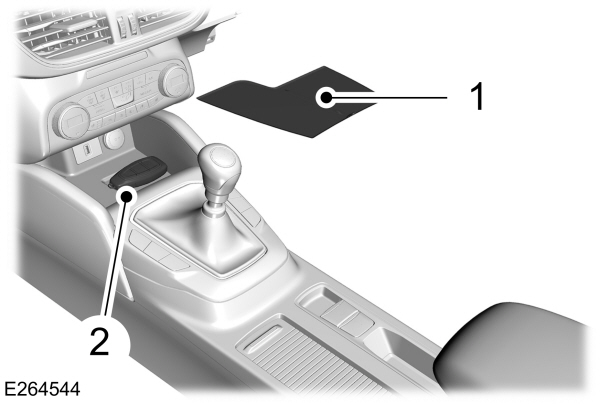
- Remove the rubber mat.
- Place the admin key in the position shown, with the buttons facing upward.
- Switch the ignition on.
- Press the menu button on the steering wheel to enter the information display main menu.
- Select Settings.
- Select MyKey.
- Select Create MyKey.
- Press and hold the OK button until a confirmation message appears in the information display.
- Switch the ignition off.
Note: We recommend that you label this key.
MyKey Information Messages
| Message | Description |
|---|---|
|
Place Key in Backup Location |
Displays when trying to create a MyKey and the key is not placed in the backup position. |
|
Key is Already a MyKey |
Displays when trying to create a MyKey with a key already designated as a MyKey. |
|
This Key restricted at Next Key Cycle. Label Key as MyKey |
Displays to confirm that the key is restricted after you switch the ignition off. |
PROGRAMMING A MYKEY - VEHICLES WITH: 4.2 INCH INSTRUMENT CLUSTER DISPLAY SCREEN
You can only program MyKeys to the same settings.
Switch the ignition on using an admin key.
To program a MyKey, use the information display controls on the steering wheel to select the following:
| Menu Item | Action |
|---|---|
|
Settings |
Press the menu button. |
|
MyKey |
Press the OK button. |
| Select a setting and press the OK button. | |
| Configure the setting. | |
| Switch the ignition off. |
PROGRAMMING A MYKEY - VEHICLES WITH: 12.3 INCH INSTRUMENT CLUSTER DISPLAY SCREEN
You can only program MyKeys to the same settings.
- Switch the ignition on using an admin key.
- Press the menu button on the steering wheel to enter the information display main menu.
- Select Settings.
- Select MyKey.
- Select a setting and press the OK button.
- Configure the setting.
- Switch the ignition off.
Download Manual