360 Degree Camera Guide Lines
Note: Active guide lines are only available when the transmission is in reverse (R).
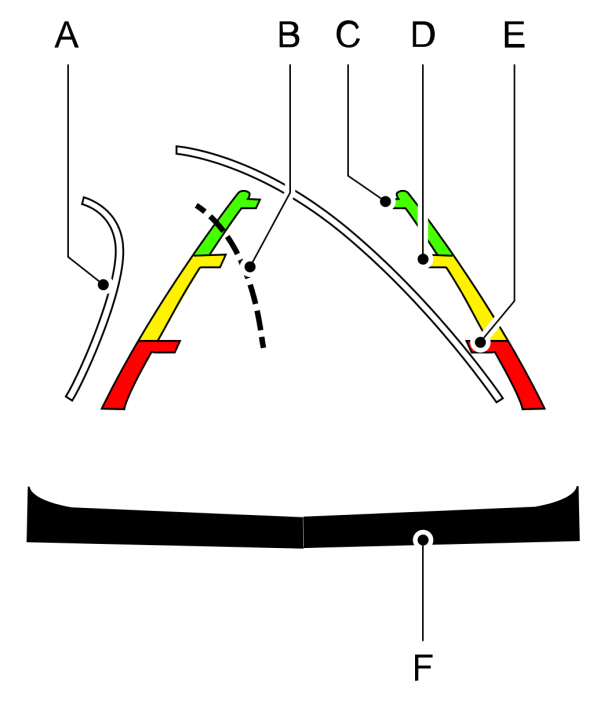
A Active guide lines. Active guide lines.B Centerline.C Fixed guide line: Green zone.D Fixed guide line: Yellow zone.E Fixed guide line: Red zone.F Rear bumper. |
Active guide lines only show with fixed guide lines. Turn the steering wheel to point the guide lines toward an intended path. If the steering wheel position changes when reversing, your vehicle could deviate from the intended path.
The fixed and active guide lines fade in and out depending on the steering wheel position. The active guide lines do not display when the steering wheel position is straight.
Objects in the red zone are closest to your vehicle and objects in the green zone are farther away. Objects get closer to your vehicle as they move from the green zone to the yellow or red zones. Use the side view mirrors and rear view mirror to get better coverage on both sides and rear of your vehicle.
Keep Out Zone
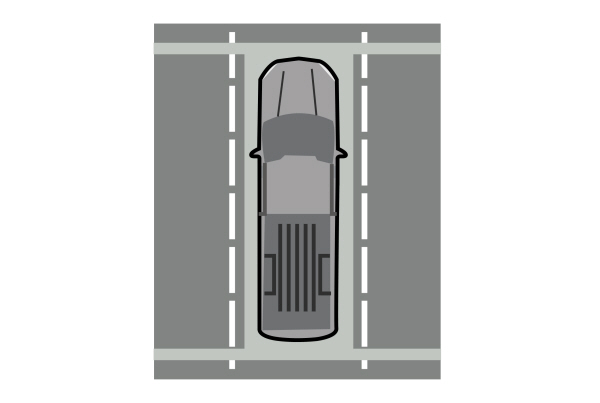
The keep out zone is represented by the yellow dotted lines running parallel to your vehicle.
SWITCHING THE 360 DEGREE CAMERA ON AND OFF

- Normal view.
- Normal view with 360.
- Split view.
Note: The rear view camera activates when you switch into reverse (R). Additional views are then accessible on the touchscreen.
When in park (P), neutral (N) or drive (D), only the front images display when you press the button. When in reverse (R), only the rear images display when you press the button.
Note: The 360 degree camera system remains on when your vehicle is in motion at low speed. The rear camera views remain on at all speeds when in reverse (R).
SWITCHING THE 360 DEGREE CAMERA VIEW
 Press to access the different camera views. Press to access the different camera views. |
 Normal + 360 view: Contains the normal camera view next to a 360 degree camera view. Normal + 360 view: Contains the normal camera view next to a 360 degree camera view. |
 Normal view: Provides an image of what is directly in front of or behind your vehicle. Normal view: Provides an image of what is directly in front of or behind your vehicle. |
 Split view: Provides an extended view of what is in front of or behind your vehicle. Split view: Provides an extended view of what is in front of or behind your vehicle. |
 Zooms in on the image. Zooms in on the image. |
Download Manual