USB input terminal
You can connect your USB memory device or iPod to play music files stored in the USB memory device or iPod.
The following explains how to connect and remove a USB memory device or iPod.
Refer to the following sections for details on how to play music files: Refer to “To play from a USB memory device”.
: “iPod” is a registered trademark of Apple Inc. in the United States and other countries.
How to connect a USB memory device
1. Park your vehicle in a safe place and turn the ignition switch to the “LOCK” position.
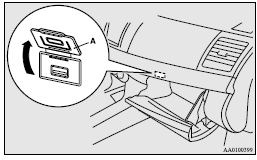
2. Open the USB input terminal cover (A) in the glove box.
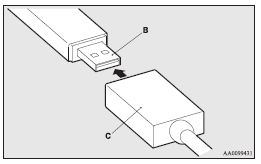
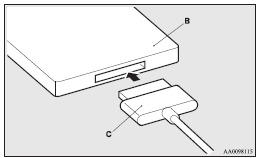
3. Connect a commercially available USB connector cable (C) to the USB memory device (B).
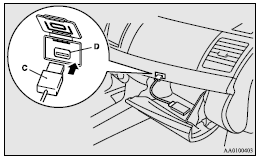
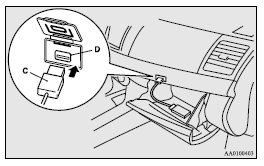
4. Connect the connector cable (C) to the USB input terminal (D).
 Caution
► Keep the lid of the glove box closed while driving the vehicle. A lid or the contents of the glove box could otherwise cause injuries.
 Note
Note
► Do not connect the USB memory device to the USB input terminal directly.
The USB memory device may be damaged.
► When closing the glove box, be careful not to trap the connector cable.
5. To remove the connector cable, turn the ignition switch to the “LOCK” position first and perform the installation steps in reverse.
How to connect an iPod
1. Park your vehicle in a safe place and turn the ignition switch to the “LOCK” position.
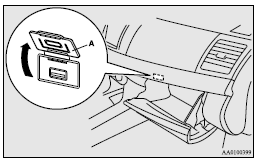
2. Open the USB input terminal cover (A) in the glove box.
3. Connect the Dock connector (C) to the iPod (B).
Note
► Use a genuine Dock connector from Apple Inc.
4. Connect the Dock connector (C) to the USB input terminal (D).
Caution
► Keep the lid of the glove box closed while driving the vehicle. A lid or the contents of the glove box could otherwise cause injuries.
Note
► When closing the glove box, be careful not to trap the connector cable.
5. To remove the Dock connector, turn the ignition switch to the “LOCK” position first and perform the installation steps in reverse.
Types of connectable devices and supported file specifications
Device types
Devices of the following types can be connected.
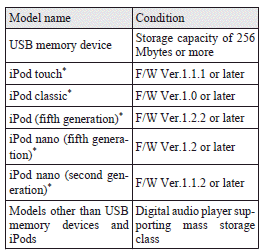
: “iPod touch,” “iPod classic,” “iPod” and “iPod nano” are registered trademarks of Apple Inc. in the United States and other countries.
Note
► Depending on the type of the USB memory device or other device connected, the connected device may not function properly or the available functions may be limited.
► Use the iPod whose firmware has been updated to the latest version.
► You can charge your iPod by connecting it to the USB input terminal when the ignition switch is in the “ON” or “ACC” position.
► Do not keep your USB memory device or iPod in your vehicle.
► It is recommended that you back up files in case of data damage.
► Do not connect to the USB input terminal any device (hard disk, card reader, memory reader, etc.) other than the connectable devices specified in the previous section.
The device and/or data may be damaged. If any of these devices was connected by mistake, remove it after turning the ignition switch to the “LOCK” position.
File specifications
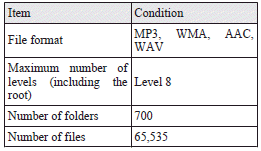
You can play music files of the following specifications that are saved in a USB memory device or other device supporting mass storage class.
Download Manual