To play tracks from USB device
You can connect your iPod or USB memory device to the USB input terminal and play music files stored in the iPod or USB memory device.
See the following section for the types of connectable devices and supported files. Refer to “Types of connectable devices and supported file specifications”.
See the following sections for the connecting methods, “How to connect an iPod” and “How to connect a USB memory device”.
If your vehicle is equipped with a Bluetooth® 2.0 interface, you can play music files in your iPod or USB memory device via voice operation. Refer to “To play iPod tracks via voice operation” and “To play USB memory device tracks via voice operation”.
 Note
Note
► The protected file by copyright might not be able to start playback.
► It is recommended to adjust the equalizer of the connected device is flat.
iPod control panel and display
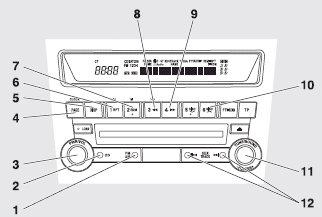
1- AM/FM button
2- CD (Mode change) button
3- PWR (On-Off) button
4- PAGE (Title scroll) button
5- DISP (Title display) button
6- RPT (Repeat) button
7- RDM (Random) button
8-  (Fast-reverse) button
9-  (Fast-forward) button
10- DISC UP button
11- FOLDER switch
12- TRACK (Track up/down) button
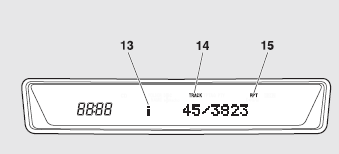
13- i (iPod) indicator
14- TRACK indicator
15- RPT/RDM/D-RDM indicator
To play from an iPod
1. Press the PWR button (3) to turn on the audio system. The system turns on in the last mode used.
2. Connect your iPod to the USB input terminal.
Refer to “How to connect an iPod”.
3. Press the CD button (2) several times to switch to the iPod mode. The input mode changes every time the CD button is pressed.
CD mode → iPod mode → Bluetooth® mode
Note
► If your vehicle is equipped with audio/video input RCA terminals, pressing and holding the CD button for 2 seconds or more switches the system to the AUX mode.
4. Once the device is selected, playback starts and “i” appears on the display.
Note
► Depending on the condition of your iPod, it may take a longer time before the playback starts.
5. To stop the playback, press the AM/FM button (1) or CD button (2) to switch to a different mode.
Note
► Buttons on the iPod are disabled while the iPod is connected to the audio system.
► To adjust the volume and tone, refer to “To adjust the volume” on pages 5-18, 5-32 and “To adjust the tone” on pages 5-18, 5-32
To fast-forward/reverse the
To fast-forward/reverse the current track, press the  button (9) or
  button (8).
Fast-forward
To fast-forward the current track, press the button (9). While the button is pressed, the track will be fast-forwarded.
Fast-reverse
To fast-reverse the current track, press the button (8). While the button is pressed, the track will be fast-reversed.
To select a desired track
Press the TRACK button (12) to select the desired track number.
Press  : The track number increases by one.
Press  : The track number decreases by one.
Press for a long period (approx. 2 seconds or more) : The track number increases continuously while the button is pressed.
Press for a long period (approx. 2 seconds or more) : The track number decreases continuously while the button is pressed.
If the side of the button is pressed once while a track is playing, playback returns to the start of that track.
Note
► Every time the track selection button is pressed, the track number in the display changes.
To find a track from the iPod menu
You can select desired tracks from the “Playlists”, “Artists”, “Albums”, “Songs” or “Genre” (vehicles with Bluetooth® 2.0 interface) menus on your iPod.
Operate the following switch to select desired tracks.
The selected menu or category or track is shown in the display.
Turn the FOLDER switch (11) : To show the menu or category or track.
Press the FOLDER switch (11) : To select the menu or category or track.
Note
► To cancel the selection, press the DISC UP button (10) to return to the previous step.
► If no operation is performed for 10 seconds or more or other button is operated after the FOLDER button has been pressed, searching of the desired tracks is cancelled.
► If no operation is performed for 5 seconds or more after the track is displayed, playback starts.
To play the same track repeatedly
Press the RPT button (6) during playback to show “RPT” in the display.
To exit this mode, press the button again.
To play tracks in random order
Press the RDM button (7) to show “RDM” in the display.
The iPod randomly selects tracks from the current category and plays the selected tracks.
To exit this mode, press the button again.
To play tracks in each album in random order
Press and hold the RDM button (7) until you hear a beep to show “D-RDM” in the display.
The iPod randomly selects tracks in the album from the current category and play the selected tracks.
To exit this mode, press the button again.
To switch the display
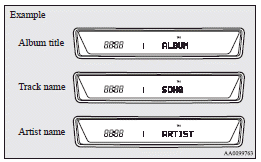
You can display the track titles, artist names and album titles recorded in the iPod.
The display changes as follows every time the DISP button (5) is pressed during playback.
Album title → Track name → Artist name → Normal display
Note
► Up to 10 characters are shown in the display at once. If the title is cut off in the middle, press the PAGE button (4). The next characters are displayed every time this button is pressed.
► If no title is stored, “NO TITLE” is shown in the display.
► Characters that cannot be displayed are substituted by “•”.
To play iPod tracks via voice operation (vehicles with Bluetooth® 2.0 interface)
Desired tracks can be selected and played from your iPod by “Artist”, “Album”, “Playlist” and “Genre” using voice commands.
For information concerning the voice recognition function or speaker registration function, refer to “Bluetooth® 2.0 interface”.
The following explains how to prepare for voice operation and play the tracks.
Preparation for voice operation
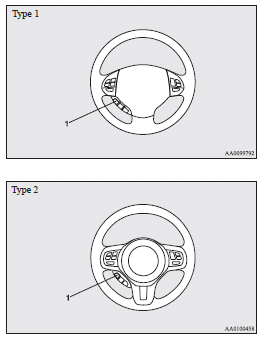
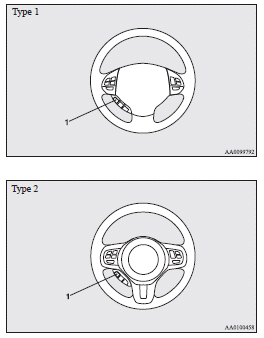
To use the voice operation, press the SPEECH button (1) first.
To search by artist name
1. Say “Play” on the main menu.
Note
► The Bluetooth® 2.0 interface starts recognizing the connected device.
If the connected device cannot be recognized or a connection error occurs, the Bluetooth® 2.0 interface starts an appropriate voice guide. Follow the voice guide.
2. After the voice guide says “Would you like to play by Artist, Album, Playlist or Genre?,” say “Artist”.
Note
► If you say “Artist <name>,” you can skip step 3.
3. After the voice guide says “What Artist would you like to play?,” say the artist name.
4. If there is only one match, the system proceeds to step 6.
5. If there are two or more matches, the voice guide will say “More than one match was found, would you like to play <artist name>?” If you say “Yes,” the system proceeds to step 6.
If you say “No,” the next matching artist is uttered by the system.
Note
► If you say “No” to three or all artist names uttered by the system, the voice guide will say “Artist not found, please try again” and the system returns to step 2.
► Search time is dependant on the number of songs on your connected device. Devices containing a large number of songs may take longer to return search results.
6. After the voice guide says “Playing <artist name>,” the system creates a playlist index for the artist.
Note
► If the confirmation function is active, the voice guide confirms if the artist name is correct.
If the artist name is correct, say “Yes”.
If not, say “No”. After the voice guide says “Artist not found, please try again,” the system returns to step 2.
7. The system exits the voice recognition mode and starts playback.
To search by album title
1. Say “Play” on the main menu.
Note
► The Bluetooth® 2.0 interface starts recognizing the connected device.
If the connected device cannot be recognized or a connection error occurs, the Bluetooth® 2.0 interface starts an appropriate voice guide. Follow the voice guide.
2. After the voice guide says “Would you like to play by Artist, Album, Playlist or Genre?,” say “Album”.
Note
► If you say “Album <title>,” you can skip step 3.
3. After the voice guide says “What Album would you like to play?” say the album title.
4. If there is only one match, the system proceeds to step 6.
5. If there are two or more matches, the voice guide will say “More than one match was found, would you like to play <album title>?” If you say “Yes,” the system proceeds to step 6.
If you say “No,” the next matching album is uttered by the system.
Note
► If you say “No” to three or all album titles uttered by the system, the voice guide will say “Album not found, please try again” and the system returns to step 2.
6. After the voice guide says “Playing <album title>,” the system creates a playlist index for the album title.
Note
► If the confirmation function is active, the voice guide confirms if the album title is correct.
If the album title is correct, say “Yes”.
If not, say “No”. After the voice guide says “Album not found, please try again,” the system returns to step 2.
7. The system exits the voice recognition mode and starts playback.
To search by playlist
1. Say “Play” on the main menu.
Note
► The Bluetooth® 2.0 interface starts recognizing the connected device.
If the connected device cannot be recognized or a connection error occurs, the Bluetooth® 2.0 interface starts an appropriate voice guide. Follow the voice guide.
2. After the voice guide says “Would you like to play by Artist, Album, Playlist or Genre?,” say “Playlist”.
Note
► If you say “Playlist <playlist>,” you can skip step 3.
If the device has no playlist, the voice guide will say “There are no playlists stored on device” and the system returns to step 2.
3. After the voice guide says “What Playlist would you like to play?,” say the playlist name.
4. If there is only one match, the system proceeds to step 6.
5. If there are two or more matches, the voice guide will say “More than one match was found, would you like to play <playlist>?” If you say “Yes,” the system proceeds to step 6.
If you say “No,” the next matching playlist name is uttered by the system.
Note
► If you say “No” to three or all playlist names uttered by the system, the voice guide will say “Playlist not found, please try again” and the system returns to step 2.
6. After the voice guide says “Playing <playlist>,” the system creates an index for the playlist.
Note
► If the confirmation function is active, the voice guide confirms if the playlist name is correct. If the playlist name is correct, say “Yes”. If not, say “No”. After the voice guide says “Playlist not found, please try again,” the system returns to step 2. Refer to “Confirmation function setting”.
7. The system exits the voice recognition mode and starts playback.
To search by genre
1. Say “Play” on the main menu.
Note
► The Bluetooth® 2.0 interface starts recognizing the connected device.
If the connected device cannot be recognized or a connection error occurs, the Bluetooth® 2.0 interface starts an appropriate voice guide. Follow the voice guide.
2. After the voice guide says “Would you like to play by Artist, Album, Playlist or Genre?,” say “Genre”.
Note
► If you say “Genre <type>,” you can skip step
3. After the voice guide says “What Genre would you like to play?,” say the music type.
4. If there is only one match, the system proceeds to step 6.
5. If there are two or more matches, the voice guide will say “More than one match was found, would you like to play <genre>?” If you say “Yes,” the system proceeds to step 6.
If you say “No,” the next matching genre is uttered by the system.
Note
► If you say “No” to three or all genres uttered by the system, the voice guide will say “Genre not found, please try again” and the system returns to step 2.
6. After the voice guide says “Playing <genre>,” the system creates an index for the genre.
Note
► If the confirmation function is active, the voice guide confirms if the genre is correct.
If the genre is correct, say “Yes”. If not, say “No”. After the voice guide says “Genre not found, please try again,” the system returns to step 2. Refer to “Confirmation function setting”.
7. The system exits the voice recognition mode and starts playback.
USB control panel and display
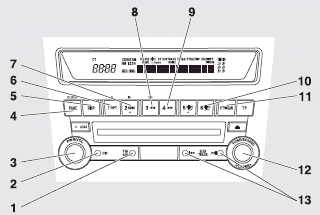
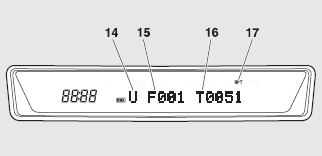
1- AM/FM button
2- CD (Mode change) button
3- PWR (On-Off) button
4- PAGE (Title scroll) button
5- DISP (Title display) button
6- RPT (Repeat) button
7- RDM (Random) button
8-  (Fast-reverse) button
9-  (Fast-forward) button
10- DISC UP button
11- SCAN button
12- FOLDER switch
13- TRACK (Track up/down) button
14- U (USB) indicator
15- FOLDER indicator
16- TRACK indicator
17- RPT/D-RPT/RDM/D-RDM/SCAN/F-SCAN indicator
To play from a USB memory device
1. Press the PWR button (3) to turn on the audio system. The system turns on in the last mode used.
2. Connect your USB memory device to the USB input terminal. Refer to “How to connect a USB memory device”.
3. Press the CD button (2) several times to switch to the USB mode. The input mode changes as follows every time the CD button is pressed.
CD mode → USB mode → Bluetooth® mode
Note
► If your vehicle is equipped with audio/video input RCA terminals, pressing and holding the CD button for 2 seconds or more switches the system to the AUX mode.
4. Once the device is selected, playback starts and “U” appears on the display.
Note
► Depending on the condition of your USB device, it may take a longer time before the playback starts.
5. To stop the playback, press the AM/FM button (1) or CD button (2) to switch to a different mode.
Note
► To adjust the volume and tone, refer to “To adjust the volume” on pages 5-18, 5-32 and “To adjust the tone” on pages 5-18, 5-32.
Supported compressed music files
This audio can play MP3, WMA, AAC and WAV files recorded in a USB memory device. This audio supports up to 65,535 files in 700 folders on 8 levels.
Folder selection order/file playback order (example)
The folder and file hierarchy in the USB memory device is shown below.
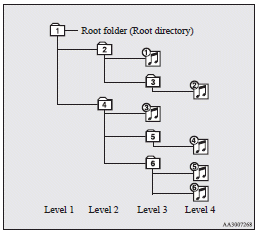
Folder selection
In the order

File selection
In the order

Note
► If a file protected by copyrights is played, the file will be skipped.
To fast-forward/reverse the track
To fast-forward/reverse the current track, press the  button (9) or
  button (8).
Fast-forward
To fast-forward the current track, press the button (9). While the button is pressed, the track will be fast-forwarded.
Fast-reverse
To fast-reverse the current track, press the button (8). While the button is pressed, the track will be fast-reversed.
To select a file
Press the TRACK button (13) to select the desired file number.
Press  : The file number increases by one.
Press  : The file number decreases by one.
Press for a long period (approx. 2 seconds or more) : The file number increases continuously while the button is pressed.
Press for a long period (approx. 2 seconds or more) : The file number decreases continuously while the button is pressed.
If the side of the button is pressed once after a few seconds, playback returns to the start of that track.
Note
► Every time the TRACK button (13) is pressed, the file number in the display changes.
To find a track
You can select a folder to find a desired track.
1. Turn the FOLDER switch (12) to show the desired folder in the display.
Note
► If no operation is performed for 10 seconds or more or other button is operated after the FOLDER switch has been turned, the selected track becomes unselected and the display returns to the playback display.
2. Press the FOLDER switch (12) to select the folder.
Note
► When the DISC UP button (10) is pressed, the track find mode will be cancelled.
3. Turn the FOLDER switch (12) to show the desired track in the display.
Note
► When the DISC UP button (10) is pressed, the selection is cancelled and returned to the previous step.
► If no operation is performed for 5 seconds or more after the FOLDER switch (12) is turned, the displayed track is played.
4. Press the FOLDER switch (12) to select the file.
To play the same file repeatedly
Press the RPT button (6) to show “RPT” in the display.
To cancel this mode, press the button again.
To play the files in the same folder repeatedly
Press and hold the RPT button (6) until you hear a beep to show “D-RPT” in the display.
All tracks in the current folder are played repeatedly.
To exit this mode, press the button again.
To play a folder in random order
Press the RDM button (7) to show “RDM” in the display.
The audio randomly selects tracks from the current folder and plays the selected tracks.
To exit this mode, press the button again.
To play all folders in random order
Press and hold the RDM button (7) until you hear a beep to show “D-RDM” in the display.
The audio randomly selects tracks from all folders and plays the selected tracks.
To exit this mode, press the button again.
To find the start of each track in a folder for playback (vehicles without Bluetooth® 2.0 interface)
Press the SCAN button (11). “SCAN” is shown in the display and the tracks in the current folder are played for several seconds from the beginning.
The file number will blink while the scan mode is selected.
To exit this mode, press the button again.
Note
► Once all tracks in the folder have been cued playback will restart from the beginning of the track that was playing when cueing started.
To find the start of each track in all folders for playback (vehicles with Bluetooth® 2.0 interface)
Press the SCAN button (11). “SCAN” is shown in the display and all tracks in all folders are played for several seconds from the beginning.
The file number will blink while the scan mode is selected.
To exit this mode, press the button again.
To find the start of first tracks in all folders for playback
Press and hold the SCAN button (11) until you hear a beep to show “F-SCAN” in the display.
The first tracks in all folders are played for several seconds from the beginning.
Playback starts from the folder next to the one currently playing.
The folder number will blink while the scan mode is selected.
To exit this mode, press the button again.
Note
► Once the cueing playback ends, playback will start from the track at the beginning of the folder next to the one that was playing when the cueing started.
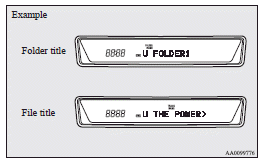
To switch the display
You can display titles with tag information.
Folder title
The display changes as follows every time the DISP button (5) is pressed during playback.
Folder title → File title → Normal display
Tag information
1. Press and hold the DISP button (5) until you hear a beep to show “TAG” in the display.
2. The display changes as follows every time the DISP button (5) is pressed briefly.
Album title → Track title → Artist name → Genre (vehicles with Bluetooth® 2.0 interface) → Normal display
Note
► Press and hold the DISP button (5) again until you hear a beep, and the tag information display returns to the folder title display.
► Up to 10 characters are shown in the display at once. If the title is cut off in the middle, press the PAGE button (4). The next characters are displayed every time this button is pressed.
► If no title is stored, “NO TITLE” is shown in the display.
► Characters that cannot be displayed are substituted by “•”.
To play USB memory device tracks via voice operation (vehicles with Bluetooth ® 2.0 interface)
Desired tracks can be selected and played from your USB memory device by “Artist”, “Album”, “Playlist” and “Genre” using voice commands.
For information concerning the voice recognition function or speaker registration function, refer to “Bluetooth® 2.0 interface”.
The playback sequence of tracks is the same as when an iPod is connected. Refer to the “To play iPod tracks via voice operation”.
Preparation for voice operation
To use the voice operation, press the SPEECH button (1) first.
Download Manual