Bluetooth® 2.0 interface
The Bluetooth® 2.0 interface allows for making/receiving hands-free calls in the vehicle using a Bluetooth ® compatible cellular phone based on the wireless communication technology commonly known as Bluetooth®. It also allows the user to play music, saved in a Bluetooth® music player, from the vehicle’s speakers.
The system is equipped with a voice recognition function, which allows you to make hands-free calls by simple switch operations and voice command operations using a defined voice tree.
The Bluetooth® 2.0 interface can be used when the ignition switch is in the “ON” or “ACC” position.
Before you can use the Bluetooth® 2.0 interface, you must pair the Bluetooth® device and Bluetooth ® 2.0 interface. Refer to “Connecting the Bluetooth ® 2.0 interface and Bluetooth® device”.
Bluetooth® is a registered trademark of BLUETOOTH SIG, INC.
 Warning
► Although the Bluetooth® 2.0 interface allows you to make hands-free calls, if you choose to use the cellular phone while driving, you must not allow yourself to be distracted from the safe operation of your vehicle.
Anything, including cellular phone usage, that distracts you from the safe operation of your vehicle increases your risk of an accident.
► Refer to and comply with all state and local laws in your area regarding cellular phone usage while driving.
 Note
Note
► If the ignition switch is left in the “ACC” position, the accessory power will automatically turn off after a certain period of time and you will no longer be able to use the Bluetooth ® 2.0 interface. The accessory power comes on again if the ignition switch is turned from the “ACC” position.
Refer to “ACC power auto-cutout function”.
► The Bluetooth® 2.0 interface cannot be used if the Bluetooth® device has a flat battery or the device power is turned off.
► Hands-free calls will not be possible if your phone does not have service available.
► If you place the Bluetooth® device in the luggage compartment, you may not be able to use the Bluetooth® 2.0 interface.
► Some Bluetooth® devices are not compatible with the Bluetooth® 2.0 interface.
► For details on the Bluetooth® 2.0 interface, you can see them by accessing the MITSUBISHI MOTORS website.
Please read and agree on the “Warning about Links to the Web Sites of Other Companies” because it connects to other than MITSUBISHI MOTORS website.
Steering control switch
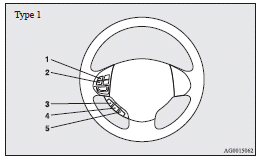
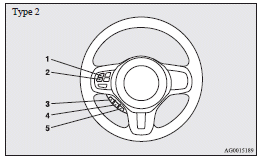
1- Volume up button
2- Volume down button
3- SPEECH button
4- PICK-UP button
5- HANG-UP button
Volume up button
Press this button to increase the volume.
Volume down button
Press this button to decrease the volume.
SPEECH button
► Press this button to change to voice recognition mode.
While the system is in voice recognition mode, “Listening” will appear on the audio display.
► If you press the button briefly while in voice recognition mode, it will interrupt prompting and allow voice command input.
Pressing the button longer will deactivate the voice recognition mode.
► Pressing this button briefly during a call will enable voice recognition and allow voice command input.
PICK-UP button
► Press this button when an incoming call is received to answer the telephone.
► When another call is received during a call, press this button to put the first caller on hold and talk to the new caller.
• In such circumstances, you can press the button briefly to switch between callers.
You will switch to the first caller and the other caller will be put on hold.
• To establish a three-way call in such situations, press the SPEECH button to enter voice recognition mode and then say “Join calls”.
HANG-UP button
► Press this button when an incoming call is received to refuse the call.
► Press this button during a call to end the current call.
When another call is on hold, you will switch to that call.
► If this button is pressed in the voice recognition mode, the voice recognition mode will be deactivated.
Note
► When you press the SPEECH button to enter voice recognition mode with a cellular phone paired to the system, current information on the cellular phone, such as “remaining battery life,” “signal strength” or “roaming,” will be displayed on the audio display.
: Some cellular phones will not send this information to the Bluetooth® 2.0 interface.
► Call waiting and three-way calls can be used by the Bluetooth® 2.0 interface, only if it is possible to use those services with your cellular phone.
Voice recognition function
The Bluetooth® 2.0 interface is equipped with a voice recognition function.
Simply say voice commands and you can perform various operations and make or receive hands-free calls.
With the Bluetooth® 2.0 interface, voice recognition is possible for English, French, Spanish, Italian, German, Dutch, Portuguese and Russian. The factory setting is English.
Note
► If the voice command that you say differs from the predefined command or cannot be recognised due to ambient noise or some other reason, the Bluetooth® 2.0 interface will ask you for the voice command again up to 3 times.
► For best performance and further reduction of ambient noise, the vehicle windows should be closed while engaging the voice recognition function.
► Some voice commands have alternative commands.
► Depending on the selected language, some functions may not be available.
Selecting the Language
1. Press the SPEECH button.
2. Say “Setup”.
3. Say “Language.”
4. The voice guide will say “Select a language: English, French, Spanish, Italian, German, Dutch, Portuguese or Russian” Say the desired language. (Example: Say “English.”) 5. The voice guide will say “English (French, Spanish, Italian, German, Dutch, Portuguese or Russian) selected. Is this correct?” Say “Yes.”
Answer “No” to return to Step 4.
Note
► The voice guide will repeat the same message twice. The first message is in the current language, and the second message is in the selected language.
► If many entries are registered in the vehicle phone book, changing the language will take longer.
► Changing the language deletes the mobile phone book imported to the Bluetooth® 2.0 interface. If you wish to use it, you will have to import it again.
6. When the voice guide says “English (French, Spanish, Italian, German, Dutch, Portuguese or Russian) selected,” the language change process will be completed and the system will return to the main menu.
Useful voice commands
Help function
The Bluetooth® 2.0 interface is equipped with a help function.
If you say “Help” when the system is waiting for a voice command input, the system will tell you a list of the commands that can be used under the circumstances.
Cancelling
There are two cancel functions.
If you are at the main menu, say “Cancel” to exit from the Bluetooth® 2.0 interface.
If you are anywhere else within the system, say “Cancel” to return to the main menu.
Confirmation function setting
The Bluetooth® 2.0 interface is equipped with a confirmation function.
With the confirmation function activated, you are given more opportunities than normal to confirm a command when making various settings to the Bluetooth ® 2.0 interface. This allows you to decrease the possibility that a setting is accidentally changed.
The confirmation function can be turned on or off by following the steps below.
1. Press the SPEECH button.
2. Say “Setup”.
3. Say “Confirmation prompts”.
4. The voice guide will say “Confirmation prompts are <on/off>. Would you like to turn confirmation prompts <off/on>”.
Answer “Yes” to change the setting or answer “No” to keep the current setting.
5. The voice guide will say “Confirmation prompts are <off/on>” and then the system will return to the main menu.
Security function
It is possible to use a password as a security function by setting a password of your choice for the Bluetooth® 2.0 interface.
When the security function is turned on, it is necessary to make a voice input of a 4-digit password in order to use all functions of the Bluetooth® 2.0 interface, except for reception.
Setting the password
Use the following procedure to turn on the security function by setting a password.
1. Press the SPEECH button.
2. Say “Setup”.
3. Say “Password.” 4. The voice guide will say “Password is disabled.
Would you like to enable it?” Answer “Yes.” Answer “No” to cancel the setting of the password and return to the main menu.
5. The voice guide will say “Please say a 4-digit password. Remember this password. It will be required to use this system”.
Say a 4-digit number which you want to set as a password.
6. For confirmation purposes, the voice guide will say “Password <4-digit password>. Is this correct?” Answer “Yes.” Answer “No” to return to the password input in Step 5.
7. When the registration of the password is completed, the voice guide will say “Password is enabled” and the system will return to the main menu.
Note
► Password will be required to access the system after the next ignition cycle.
► It is required for a little time after engine stop that the entered password is actually recorded in the system.
If the ignition switch is made to the “ON” or “ACC” position or the engine is started immediately after engine stop, there is a case when the entered password is not recorded in the system. At this time, please try to enter the password again.
Entering the password
If a password has been set and the security function is enabled, the voice guide will say “Hands-free system is locked. State the password to continue” when the SPEECH button is pressed to enter voice recognition mode. Say the 4-digit password number to enter the password.
If the entered password is wrong, the voice guide will say “<4- digit password>, Incorrect password.
Please try again”. Enter the correct password.
Note
► You can re-enter the password as many times as you want.
► If you have forgotten your password, say “Cancel” to quit the voice input mode and then check with a MITSUBISHI MOTORS Authorized Service Point.
Disabling the password
Use the following procedure to turn off the security function by disabling the password.
Note
► System must be unlocked to disable the password.
1. Press the SPEECH button.
2. Say “Setup”.
3. Say “Password.” 4. The voice guide will say “Password is enabled.
Would you like to disable it?” Answer “Yes.” Answer “No” to cancel the disabling of the password and return to the main menu.
5. When the disabling of the password is completed, the voice guide will say “Password is disabled” and the system will return to the main menu.
Speaker enrollment function
The Bluetooth® 2.0 interface can use the speaker enrollment function to create a voice model for one person per language.
This makes it easier for the Bluetooth® 2.0 interface to recognise voice commands said by you.
You can turn a voice model registered with the speaker enrollment function on and off whenever you want.
Speaker enrollment
It takes about 2 to 3 minutes to complete the speaker enrollment process.
To ensure the best results, run through the process while in the driver’s seat, in an environment that is as quiet as possible (when there is no rain or strong winds and the vehicle windows are closed). Please turn off your phone while in speaker enrollment to prevent interruption of the process.
Use the following procedure for speaker enrollment.
1. Stop your vehicle in a safe area, put the gearshift lever (M/T) in the “N” (Neutral) position, or the selector lever (CVT) or gearshift lever (Twin Clutch SST) in the “P” (PARK) position, and pull the parking brake lever.
Note
► Speaker enrollment is not possible unless the vehicle is parked. Make sure you park the vehicle in a safe area before attempting speaker enrollment.
2. Press the SPEECH button.
3. Say “Voice training”.
4. The voice guide will say “This operation must be performed in a quiet environment while the vehicle is stopped. See the owner’s manual for the list of required training phrases.
Press and release the SPEECH button when you are ready to begin. Press the HANGUP button to cancel at any time”.
Press the SPEECH button to start the speaker enrollment process.
Note
► If you do not start the speaker enrollment process within 3 minutes of pressing the SPEECH button, the speaker enrollment function will time out.
The voice guide will say “Speaker Enrollment has timed out”. The system will then beep and the voice recognition mode will be deactivated.
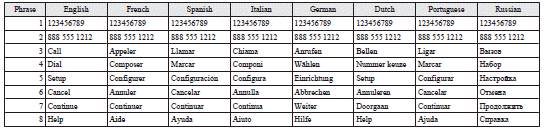
5. The voice guide will prompt for phrase 1. Repeat the corresponding phrase listed in table “Enrollment commands”.
The system will register your voice and then move on to the registration of the next command.
Continue the process until all phrases have been registered.
Note
► To repeat the most recent voice training command, press and release the SPEECH button.
► If you press the HANG-UP button anytime during the process, the system will beep and stop the speaker enrollment process.
6. When all enrollment commands have been read out, the voice guide will say “Speaker enrollment is complete”. The system will then end the speaker enrollment process and return to the main menu.
Note
► Completing the speaker enrollment process will turn on the voice model automatically.
► The commands “Help” and “Cancel” will not work in this mode.
Enabling and disabling the voice model and retraining
You can turn a voice model registered with the speaker enrollment function on and off whenever you want.
You can also retrain the system.
Use the following procedure to perform these actions.
1. Press the SPEECH button.
2. Say “Voice training”.
3. If you have completed a speaker enrollment process once already, the voice guide will say either “Enrollment is enabled. Would you like to disable or retrain?” or “Enrollment is disabled. Would you like to enable or retrain?” 4. When enrollment is “enabled”, the voice model is on; when enrollment is “disabled”, the voice model is off. Say the command that fits your needs.
Say “Retrain” to start the speaker enrollment process and recreate a new voice model. (Refer to “Speaker enrollment”.)
Connecting the Bluetooth® 2.0 interface and Bluetooth® device
Before you can make or receive hands-free calls or play music using the Bluetooth® 2.0 interface function, you must pair the Bluetooth® device and Bluetooth ® 2.0 interface.
Note
► Pairing is required only when the device is used for the first time. Once the device has been paired with the Bluetooth® 2.0 interface, you only need to bring the device into the vehicle next time and the device will automatically connect to the Bluetooth® 2.0 interface (if supported by the device). The device must have Bluetooth® turned ON to connect.
Up to 7 Bluetooth® devices can be paired with the Bluetooth® 2.0 interface.
If multiple paired Bluetooth® devices are available in the vehicle, the cellular phone or music player most recently connected is automatically connected to the Bluetooth® 2.0 interface.
You can also change a Bluetooth® device to be connected.
To pair
To pair a Bluetooth® device with the Bluetooth® 2.0 interface, follow the steps below.
1. Stop your vehicle in a safe area, put the gearshift lever (M/T) in the “N” (Neutral) position, or the selector lever (CVT) or gearshift lever (Twin Clutch SST) in the “P” (PARK) position, and pull the parking brake lever.
Note
► You cannot pair Bluetooth® devices with the Bluetooth® 2.0 interface unless the vehicle is parked. Before pairing a Bluetooth® device with the Bluetooth® 2.0 interface, confirm that the vehicle is parked in a safe location.
2. Press the SPEECH button.
3. Say “Setup”.
4. Say “Pairing options.” 5. The voice guide will say “Select one of the following: pair, edit, delete, or list.” Say “Pair.”
Note
► If 7 devices have already been paired, the voice guide will say “Maximum devices paired” and then the system will end the pairing process. To register a new device, delete one device and then repeat the pairing process.
(Refer to “Deleting a device”.)
6. The voice guide will say “Please say a 4-digit pairing code.” Say a 4-digit number.
When the confirmation function is on, the system will confirm whether the number said is acceptable. Answer “Yes.” Answer “No” to return to pairing code selection.
Note
► Some Bluetooth® devices require a specific pairing code. Please refer to the device manual for pairing code requirements.
► The pairing code entered here is only used for the Bluetooth® connection certification.
It is any 4-digit number the user would like to select.
Remember the pairing code as it needs to be keyed into the Bluetooth® device later in the pairing process.
Depending on the connection settings of the Bluetooth® device, this code may have to be entered each time you connect the Bluetooth ® device to the Bluetooth® 2.0 interface.
For the default connection settings, refer to the instructions for the device.
7. The voice guide will say “Start pairing procedure on the device. See the device manual for instructions.” Enter in the Bluetooth® device the 4-digit number you have registered in Step 6.
Note
► According to the corresponding device to Bluetooth®, it might take a few minutes to pair the Bluetooth® device with the Bluetooth ® 2.0 interface.
► If the Bluetooth® 2.0 interface cannot recognize the Bluetooth® device, the voice guide will say “Pairing has timed out” and the pairing process will be cancelled.
Confirm that the device you are pairing supports Bluetooth®, and try pairing it again.
► If you enter the wrong number, the voice guide will say “Pairing failed” and the pairing process will be cancelled.
Confirm the number is right, and try pairing it again.
8. The voice guide will say “Please say the name of the device after the beep.” You can assign a desired name for the Bluetooth® device and register it as a device tag. Say the name you want to register after the beep.
Note
► When the confirmation function is on, after repeating the device tag you have said, the voice guide will ask “Is this correct?” Answer “Yes.” To change the device tag, answer “No” and then say the device tag again.
9. The voice guide will say “Pairing complete,” after which a beep will be played and the pairing process will end.
Selecting a device
If multiple paired Bluetooth® devices are available in the vehicle, the cellular phone or music player most recently connected is automatically connected to the Bluetooth® 2.0 interface.
You can connect to the other paired cellular phone or music player by following setting change procedures.
To select a cellular phone
1. Press the SPEECH button.
2. Say “Setup”.
3. Say “Select phone.” 4. After the voice guide says “Please say,” the numbers of the cellular phones and device tags of corresponding cellular phones will be read out in order, starting with the cellular phone that has been most recently connected.
Say the number of the cellular phone that you want to connect to.
When the confirmation function is on, the system will ask you again whether the phone that you want to connect to is correct. Answer “Yes” to continue and connect to the cellular phone.
Answer “No,” and the voice guide will say “Please say.” Say the number of the phone that you want to connect to.
Note
► You can connect to a phone at any time by pressing the SPEECH button and saying the number, even before all of the paired numbers and device tags of corresponding cellular phones are read out by the system.
5. The selected phone will be connected to the Bluetooth® 2.0 interface. The voice guide will say “<device tag> selected” and then the system will return to the main menu.
To select a music player
1. Press the SPEECH button.
2. Say “Setup”.
3. Say “Select music player.” 4. After the voice guide says “Please say,” the numbers of the music players and device tags of corresponding music players will be read out in order, starting with the music player that has been most recently connected.
Say the number of the music player that you want to connect to.
When the confirmation function is on, the system will ask you again whether the music player that you want to connect to is correct.
Answer “Yes” to continue and connect to the music player.
Answer “No,” and the voice guide will say “Please say.” Say the number of the music player that you want to connect to.
Note
► You can connect to a music player at any time by pressing the SPEECH button and saying the number, even before all of the paired numbers and device tags of corresponding music players are read out by the system.
5. The selected music player will be connected to the Bluetooth® 2.0 interface.
The voice guide will say “<device tag> selected” and then the system will return to the main menu.
Deleting a device
Use the following procedure to delete a paired Bluetooth ® device from the Bluetooth® 2.0 interface.
1. Press the SPEECH button.
2. Say “Setup”.
3. Say “Pairing options.” 4. The voice guide will say “Select one of the following: pair, edit, delete, or list.” Say “Delete.” 5. After the voice guide says “Please say,” the numbers of the devices and device tags of corresponding devices will be read out in order, starting with the device that has been most recently connected. After it completes reading all pairs, the voice guide will say “or all.” Say the number of the device that you want to delete from the system.
If you want to delete all paired phones from the system, say “All.” 6. For confirmation purposes, the voice guide will say “Deleting <device tag> <number>.
Is this correct?” or “Deleting all devices. Is this correct?” Answer “Yes” to delete the phone(s).
Answer “No” to return to Step 4.
7. The voice guide will say “Deleted,” and then the system will end the device deletion process.
Note
► If the device deletion process fails for some reason, the voice guide will say “Delete failed” and then the system will cancel deleting the device.
To check a paired Bluetooth® device
You can check a paired Bluetooth® device by following the steps below.
1. Press the SPEECH button.
2. Say “Setup”.
3. Say “Pairing options.” 4. The voice guide will say “Select one of the following: pair, edit, delete, or list.” Say “List.”
5. The voice guide will read out device tags of corresponding devices in order, starting with the Bluetooth® device that has been connected most recently.
6. After the device tags of all paired Bluetooth® devices have been read, the system will say “End of list, would you like to start from the beginning?” To hear the list again from the beginning , answer “Yes.” When you are done, answer “No” to return to the main menu.
Note
► If you press and release the SPEECH button and say “Continue” or “Previous” while the list is being read, the system will advance or rewind the list.
Say “Continue” to proceed to the device with the next highest number or “Previous” to return to the phone with the previous number.
► You can change the device tag by pressing and releasing the SPEECH button and then saying “Edit” while the list is being read.
► You can change the phone to be connected by pressing and releasing the SPEECH button and then saying “Select phone” while the list is being read.
► You can change the music player to be connected by pressing and releasing the SPEECH button and then saying “Select music player” while the list is being read.
Changing a device tag
You can change the device tag of a paired cellular phone or music player.
Follow the steps below to change a device tag.
1. Press the SPEECH button.
2. Say “Setup”.
3. Say “Pairing options.” 4. The voice guide will say “Select one of the following: pair, edit, delete, or list.” Say “Edit.” 5. The voice guide will say “Please say,” and read out the numbers of the Bluetooth® devices and device tags of corresponding devices in order, starting with the Bluetooth® that has been most recently connected.
After all paired device tags have been read, the voice guide will say “Which device, please?” Say the number of the device tag you want to change.
Note
► You can press and release the SPEECH button while the list is being read, and immediately say the number of the device tag you want to change.
6. The voice guide will say “New name, please.” Say the name you want to register as a new device tag.
When the confirmation function is on, the voice guide will say “<New device tag>. Is this correct?” Answer “Yes.” Answer “No,” to say the new device tag you want to register again.
7. The device tag is changed.
When the change is complete, the voice guide will say “New name saved” and then the system will return to the main menu.
Operating a music player connected via Bluetooth
For the operation of a music player connected via Bluetooth®, refer to “To play tracks from a Bluetooth ® device”.
How to make or receive hands-free calls
You can make or receive hands-free calls using a Bluetooth® compatible cellular phone connected to the Bluetooth® 2.0 interface.
You can also use the phone books in the Bluetooth ® 2.0 interface to make calls without dialling telephone numbers.
Note
► The hands-free calls might not be operated correctly when it makes calling or receiving by operating the cellular phone directly.
To make a call
You can make a call in the following 3 ways using the Bluetooth® 2.0 interface: Making a call by saying a telephone number, making a call using the Bluetooth® 2.0 interface’s phone book, and making a call by redialing.
Making a call by using the telephone number
You can make a call by saying the telephone number.
1. Press the SPEECH button.
2. Say “Dial.” 3. After the voice guide says “Number please,” say the telephone number.
4. The voice guide will say “Dialing <number recognised>.” The Bluetooth® 2.0 interface will then make the call.
When the confirmation function is on, the system will confirm again the telephone number.
To continue with that number, answer “Yes.” To change the telephone number, answer “No.” The system will say “Number please” then say the telephone number again.
Note
► In the case of English, the system will recognise both “zero” and “oh” (Letter “o”) for the number “0.”
► The Bluetooth® 2.0 interface supports numbers (0 to 9) and characters (+, # and ).
► The maximum supported telephone number length is as follows:
• International telephone number: + and telephone numbers (to 18 digits).
• Except for international telephone number:
telephone numbers (to 19 digits).
Making a call using a phone book
You can make calls using the vehicle phone book or mobile phone book of the Bluetooth® 2.0 interface.
For details on the phone books, refer to “Phone book function”.
1. Press the SPEECH button.
2. Say “Call.”
Note
► If you say “Call” when the vehicle phone book and the mobile phone book are empty, the voice guide will say “The vehicle phone book is empty. Would you like to add a new entry now?”
Answer “Yes,” and the voice guide will say “Entering the phone book - new entry menu.” You can now create data in the vehicle phone book.
Answer “No,” to return to the main menu.
3. After the voice guide says “Name please,” say the name you want to call, from those registered in the phone book.
4. If there is only 1 match, the system will proceed to Step 5. If there are 2 or more matches, the voice guide will say “More than one match was found, would you like to call <returned name>.” If that person is the one you want to call, answer “Yes.” Answer “No,” and the name of the next matching person will be uttered by the voice guide.
Note
► If you say “No” to all names read by the system, the voice guide will say “Name not found, returning to main menu” and the system will return to the main menu.
5. If only one telephone number is registered under the name you just said, the voice guide proceeds to Step 6.
If two or more telephone numbers are registered that match the name you just said, the voice guide will say “Would you like to call <name> at [home], [work], [mobile], or [other]?” Select the location to call.
Note
► If the name you selected has matching data in the vehicle phone book but no telephone number is registered under the selected location, the voice guide will say “{home/work/mobile/other} not found for <name>. Would you like to add location or try again?”
Say “Try again,” and the system will return to Step 3.
Say “Add location” and you can register an additional telephone number under the selected location.
► If the name you selected has matching data in the mobile phone book but no telephone number is registered under the selected location, the voice guide will say “{home/work/ mobile/other} not found for <name>. Would you like to try again?”
Answer “Yes,” and the system will return to Step 3.
Answer “No,” and the call will be cancelled.
Start over again from Step 1.
6. The voice guide will say “Calling <name> <location>” and then the system will dial the telephone number.
Note
► When the confirmation function is on, the system will ask if the name and location of the receiver are correct. If the name is correct, answer “Yes.” If you want to change the name or location to call, answer “No.” The system will return to Step 3.
Redialing
You can redial the last number called, based on the history of dialed calls in the paired cellular phone.
Use the following procedure to redial.
1. Press the SPEECH button.
2. Say “Redial.”
SEND function
During a call, press the SPEECH button to enter voice recognition mode, then say “<numbers> SEND” to generate DTMF tones.
For example, if during a call you need to simulate the press of a phone button as a response to an automated system, press the SPEECH button and speak “1 2 3 4 pound SEND” and the 1234# will be sent on your cellular phone.
Receiving calls
If an incoming phone call is received while the ignition switch is in the “ACC” or “ON” position, the audio system will be automatically turned on and switched to the incoming call, even when the audio system was originally off.
The voice guide announcement for the incoming call will be output from the front passenger’s seat speaker.
If the CD player or radio was playing when the incoming call was received, the audio system will mute the sound from the CD player or radio and output only the incoming call.
To receive the call, press the PICK-UP button on the steering wheel control switch.
When the call is over, the audio system will return to its previous state.
MUTE function
At any time during a call, you can mute the vehicle microphone.
Pressing the SPEECH button and then saying “Mute” during a call will turn ON the MUTE function and mute the microphone.
Saying “Mute off” in the same way will turn off the MUTE function and cancel the mute on the microphone.
Switching between hands-free mode and private mode
The Bluetooth® 2.0 interface can switch between Hands-free mode (Hands-free calls) and private mode (calls using cellular phone).
If you press the SPEECH button and say “Transfer call” during a Hands-free call, you can stop the Hands-free mode and talk in private mode.
To return to Hands-free mode, press the SPEECH button again and say “Transfer call”.
Phone book function
The Bluetooth® 2.0 interface has 2 types of unique phone books that are different from the phone book stored in the cellular phone. They are the vehicle phone book and the mobile phone book.
These phone books are used to register telephone numbers and to make calls to desired numbers via the voice recognition function.
Note
► Disconnecting the battery cable will not delete information registered in the phone book.
Vehicle phone book
This phone book is used when making calls with the voice recognition function.
Up to 32 names can be registered in the vehicle phone book per language.
Also, each entry has 4 locations associated with: home, work, mobile and other. You can register one telephone number for each location.
You can register a desired name as a name for any phone book entry registered in the vehicle phone book.
Names and telephone numbers can be changed later on.
The vehicle phone book can be used with all paired cellular phones.
To register a telephone number in the vehicle phone book
You can register a telephone number in the vehicle phone book in the following 2 ways: Reading out a telephone number, and selecting and transferring 1 phone book entry from the phone book of the cellular phone.
To register by reading out a telephone number
1. Press the SPEECH button.
2. Say “Phone book.” 3. The voice guide will say “Select one of the following: new entry, edit number, edit name, list names, delete, erase all, or import contact.” Say “New entry.” 4. The voice guide will say “Name please.” Say your preferred name to register it.
Note
► If the maximum number of entries are already registered, the voice guide will say “The phone book is full. Would you like to delete a name?” Say “Yes” if you want to delete a registered name.
Say “No,” to return to the main menu.
5. When the name has been registered, the voice guide will say “home, work, mobile, or other?” Say the location for which you want to register a telephone number.
Note
► When the confirmation function is on, the voice guide will say “<Location>. Is this correct?” Answer “Yes.”
If a telephone number has been registered for the selected location, the voice guide will say “The current number is <telephone number>, number please.”
If you do not want to change the telephone number, say “cancel” or the original number to keep it registered.
6. The voice guide will say “Number please.” Say the telephone number to register it.
Note
► In the case of English, the system will recognise both “zero” and “oh” (Letter “o”) for the number “0.”
7. The voice guide will repeat the telephone number you have just read, and then register the number.
When the telephone number has been registered, the voice guide will say “Number saved. Would you like to add another number for this entry?” To add another telephone number for a new location for the current entry, answer “Yes.” The system will return to location selection in Step 5.
Answer “No” to end the registration process and return to the main menu.
Note
► When the confirmation function is on, after repeating the telephone number you have read, the voice guide will ask “Is this correct?”
Answer “Yes.”
Answer “No” to return to telephone number registration in step 6.
To select and transfer one phone book entry from the phone book of the cellular phone
You can select 1 phone book entry from the phone book of the cellular phone and register it in the vehicle phone book.
Note
► Transfer is not permitted unless the vehicle is parked. Before transferring, make sure that the vehicle is parked in a safe location.
► All or part of data may not be transferred, even when the cellular phone supports Bluetooth ®, depending on the compatibility of the device.
► The maximum supported telephone number length is 19 digits. Any telephone number of 20 digits or more will be truncated to the first 19 digits.
► If telephone numbers contain characters other than 0 to 9, , # or +, these characters are deleted before the transfer.
► For the connection settings on the cellular phone side, refer to the instructions for the cellular phone.
1. Press the SPEECH button.
2. Say “Phone book.” 3. The voice guide will say “Select one of the following: new entry, edit number, edit name, list names, delete, erase all, or import contact.” Say “Import contact.” 4. The voice guide will say “Would you like to import a single entry or all contacts?” Say “Single entry.” The Bluetooth® 2.0 interface will become ready to receive transferred phone book data.
Note
► If the maximum number of entries are already registered, the voice guide will say “The phone book is full. Would you like to delete a name?” Say “Yes” if you want to delete a registered name.
Say “No,” to return to the main menu.
5. After the voice guide says “Ready to receive a contact from the phone. Only a home, a work, and a mobile number can be imported,” the Bluetooth® 2.0 interface will receive the phone book data from the Bluetooth ® compatible cellular phone.
6. Operate the Bluetooth® compatible cellular phone to set it up so that the phone book entry you want to register in the vehicle phone book can be transferred to the Bluetooth® 2.0 interface.
Note
► If the Bluetooth® 2.0 interface cannot recognise the Bluetooth® compatible cellular phone or the connection takes too much time, the voice guide will say “Import contact has timed out” and then the system will cancel the registration. In such case, start over again from Step 1.
► Pressing the HANG-UP button or pressing and holding the SPEECH button will cancel the registration.
7. When the reception is complete, the voice guide will say “<Number of telephone numbers that had been registered in the import source> numbers have been imported. What name would you like to use for these numbers?” Say the name you want to register for this phone book entry.
Note
► If the entered name is already used for other phone book entry or similar to a name used for other phone book entry, that name cannot be registered.
8. The voice guide will say “Adding <name>.” When the confirmation function is on, the system will ask if the name is correct. Answer “Yes.” Answer “No,” and the voice guide will say “Name please.” Register a different name.
9. The voice guide will say “Numbers saved.” 10. The voice guide will say “Would you like to import another contact?” Answer “Yes” if you want to continue with the registration. You can continue to register a new phone book entry from Step 5.
Answer “No,” to return to the main menu.
To change the content registered in the vehicle phone book
You can change or delete a name or telephone number registered in the vehicle phone book.
You can also listen to the list of names registered in the vehicle phone book.
Note
► The system must have at least one entry.
[Editing a telephone number]
1. Press the SPEECH button.
2. Say “Phone book.” 3. The voice guide will say “Select one of the following: new entry, edit number, edit name, list names, delete, erase all, or import contact.” Say “Edit number.” 4. The voice guide will say “Please say the name of the entry you would like to edit, or say list names.” Say the name of the phone book entry you want to edit.
Note
► Say “List names,” and the names registered in the phone book will be read out in order.
Refer to “Vehicle phone book: Listening to the list of registered names”.
5. The voice guide will say “Home, work, mobile or other?” Select and say the location where the telephone number you want to change or add is registered.
When the confirmation function is on, the system will check the target name and location again. Answer “Yes” if you want to continue with the editing.
Answer “No” to return to Step 3.
6. The voice guide will say “Number please.” Say the telephone number you want to register.
Note
► If the telephone number is already registered in the selected location, the voice guide will say “The current number is <current number>.
New number, please.” Say a new telephone number to change the current number.
7. The voice guide will repeat the telephone number.
When the confirmation function is on, the system will ask if the number is correct. Answer “Yes.” Answer “No” to return to Step 3.
8. Once the telephone number is registered, the voice guide will say “Number saved” and then the system will return to the main menu.
Note
► If the location where a telephone number was already registered has been overwritten with a new number, the voice guide will say “Number changed” and then the system will return to the main menu.
1. Press the SPEECH button.
2. Say “Phone book.” 3. The voice guide will say “Select one of the following: new entry, edit number, edit name, list names, delete, erase all, or import contact.” Say “Edit name.” 4. The voice guide will say “Please say the name of the entry you would like to edit, or say list names.” Say the name you want to edit.
Note
► Say “List names,” and the names registered in the phone book will be read out in order.
Refer to “Vehicle phone book: Listening to the list of registered names”.
5. The voice guide will say “Changing <name>.” When the confirmation function is on, the system will ask if the name is correct. Answer “Yes” if you want to continue with the editing based on this information.
Answer “No” to return to Step 4.
6. The voice guide will say “Name please.” Say the new name you want to register.
7. The registered name will be changed.
When the change is complete, the system will return to the main menu.
[Listening to the list of registered names]
1. Press the SPEECH button.
2. Say “Phone book.” 3. The voice guide will say “Select one of the following: new entry, edit number, edit name, list names, delete, erase all, or import contact.” Say “List names.” 4. Bluetooth® 2.0 interface will read out the entries in the phone book in order.
5. When the voice guide is done reading the list, it will say “End of list, would you like to start from the beginning?” When you want to check the list again from the beginning, answer “Yes.” When you are done, answer “No” to return to the previous or main menu.
Note
► You can call, edit or delete a name that is being read out.
Press the SPEECH button and say “Call” to call the name, “Edit name” to edit it, or “Delete” to delete it.
The system will beep and then execute your command.
► If you press the SPEECH button and say “Continue” or “Previous” while the list is being read, the system will advance or rewind the list. Say “Continue” to proceed to the next entry or “Previous” to return to the previous entry.
[Deleting a telephone number]
1. Press the SPEECH button.
2. Say “Phone book.” 3. The voice guide will say “Select one of the following: new entry, edit number, edit name, list names, delete, erase all, or import contact.” Say “Delete.” 4. The voice guide will say “Please say the name of the entry you would like to delete, or say list names.” Say the name of the phone book entry in which the telephone number you want to delete is registered.
Note
► Say “List names,” and the names registered in the phone book will be read out in order.
Refer to “Vehicle phone book: Listening to the list of registered names”.
5. If only one telephone number is registered in the selected phone book entry, the voice guide will say “Deleting <name> <location>.” If multiple telephone numbers are registered in the selected phone book entry, the voice guide will say “Would you like to delete [home], [work], [mobile], [other], or all?” Select the location to delete, and the voice guide will say “Deleting <name> <location>.”
Note
► To delete the telephone numbers from all locations, say “All.”
6. The system will ask if you really want to delete the selected telephone number(s) to go ahead with the deletion, answer “Yes.” Answer “No,” the system will cancel deleting the telephone number(s) and then return to Step 4.
7. When the deletion of the telephone number is completed, the voice guide will say “<name> <location> deleted” and then the system will return to the main menu.
If all locations are deleted, the system will say “<name> and all locations deleted” and the name will be removed from the phone book. If numbers still remain under the entry, the name will retain the other associated numbers.
You can delete all registered information from the vehicle phone book.
1. Press the SPEECH button.
2. Say “Phone book.” 3. The voice guide will say “Select one of the following: new entry, edit number, edit name, list names, delete, erase all, or import contact.” Say “Erase all.” 4. For confirmation purposes, the voice guide will ask “Are you sure you want to erase everything from your handsfree system phone book?” Answer “Yes.” Answer “No” to cancel the deletion of all registered information in the phone book and return to the main menu.
5. The voice guide will say “You are about to delete everything from your hands-free system phone book. Do you want to continue?” Answer “Yes” to continue.
Answer “No” to cancel the deletion of all registered information in the phone book and return to the main menu.
6. The voice guide will say “Please wait, erasing the handsfree system phone book” and then the system will delete all data in the phone book.
When the deletion is complete, the voice guide will say “Hands-free system phone book erased” and then the system will return to the main menu.
Mobile phone book
All entries in the phone book stored in the cellular phone can be transferred in a batch and registered in the mobile phone book.
Up to 7 mobile phone books, each containing up to 1,000 names, can be registered.
The Bluetooth® 2.0 interface automatically converts from text to voice the names registered in the transferred phone book entries, and creates names.
Note
► Only the mobile phone book transferred from the connected cellular phone can be used with that cellular phone.
► You cannot change the names and telephone numbers in the phone book entries registered in the mobile phone book. You cannot select and delete specific phone book entries, either.
To change or delete any of the above, change the applicable information in the source phone book of the cellular phone and then transfer the phone book again.
To import a devices phone book
Follow the steps below to transfer to the mobile phone book the phone book stored in the cellular phone.
Note
► Transfer should be completed while the vehicle is parked. Before transferring, make sure that the vehicle is parked in a safe location.
► The already stored phone book in the mobile phone book is overwritten by the stored phone book in the cellular phone.
► All or part of data may not be transferred, even when the cellular phone supports Bluetooth ®, depending on the compatibility of the device.
► Only a home, a work, and a mobile number can be imported.
► The maximum supported telephone number length is 19 digits. Any telephone number of 20 digits or more will be truncated to the first 19 digits.
► If telephone numbers contain characters other than 0 to 9, , # or +, these characters are deleted before the transfer.
► For the connection settings on the cellular phone side, refer to the instructions for the cellular phone.
1. Press the SPEECH button.
2. Say “Phone book.” 3. The voice guide will say “Select one of the following: new entry, edit number, edit name, list names, delete, erase all, or import contact.” Say “Import contact.” 4. The voice guide will say “Would you like to import a single entry or all contacts?” Say “All contacts.” 5. The voice guide will say “Importing the contact list from the mobile phone book. This may take several minutes to complete.
Would you like to continue?” Answer “Yes,” transferring to the mobile phone book the phone book stored in the cellular phone will start.
Answer “No,” to return to the main menu.
Note
► The transfer may take some time to complete depending on the number of contacts.
► If the Bluetooth® 2.0 interface could not be connected to the Bluetooth® compatible cellular phone, the voice guide will say “Unable to transfer contact list from phone” and then the system will return to the main menu.
► If you press the HANG-UP button or press and hold the SPEECH button during the data transfer, the transfer will be cancelled and the system will return to the main menu.
► If an error occurs during the data transfer, all transfer will be cancelled and the voice guide will say “Unable to complete the phone book import” and then the system will return to the main menu.
► If there are no contacts in the phone book, the voice guide will say “There are no contacts on the connected phone.”
6. When the transfer is complete, the voice guide will say “Import complete” and then the system will return to the main menu.
Enrollment commands
Download Manual