Using the Instrument Cluster Display Controls
 WARNING: Driving while distracted can result in loss of vehicle control, crash and injury. We strongly recommend that you use extreme caution when using any device that may take your focus off the road. Your primary responsibility is the safe operation of your vehicle. We recommend against the use of any hand-held device while driving and encourage the use of voice-operated systems when possible. Make sure you are aware of all applicable local laws that may affect the use of electronic devices while driving. WARNING: Driving while distracted can result in loss of vehicle control, crash and injury. We strongly recommend that you use extreme caution when using any device that may take your focus off the road. Your primary responsibility is the safe operation of your vehicle. We recommend against the use of any hand-held device while driving and encourage the use of voice-operated systems when possible. Make sure you are aware of all applicable local laws that may affect the use of electronic devices while driving. |
The controls are on the steering wheel.
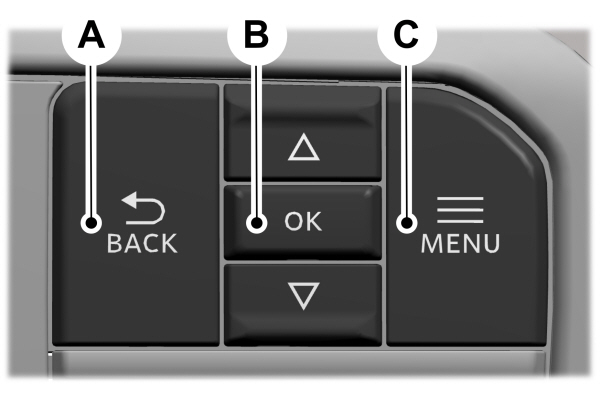
A Back button. Back button.B OK button.C Menu button. |
Back Button
Press to go back or to exit a menu.
OK Button
Press to make a selection.
Menu Button
Press to display the submenus.
Scroll Buttons
Press the up or down buttons to scroll through the menu items.
Status Indicator
 Menu items with a check box indicates a feature's status. A check in the box indicates the feature is on, and unchecked indicates the feature is off. Menu items with a check box indicates a feature's status. A check in the box indicates the feature is on, and unchecked indicates the feature is off. |
INSTRUMENT CLUSTER DISPLAY MAIN MENU - VEHICLES WITH: 8 INCH SCREEN
Depending on your vehicle options, some menu items can appear different or not at all.
Note: For your safety, some features are speed-dependent and could be unavailable when your vehicle is above a certain speed.
|
Main Menu |
|---|
|
MyView |
|
Trip/Fuel |
|
Vehicle Info |
|
Towing |
|
Navigation |
|
Phone |
|
Audio |
|
Settings |
Instrument Cluster Display Main Menu
Depending on your vehicle options, some menu items can appear different or not at all.
Note: For your safety, some features are speed-dependent and could be unavailable when your vehicle is above a certain speed.
|
Main Menu |
|---|
|
MyView |
|
Trip/Fuel |
|
Vehicle Information |
|
Towing |
|
Navigation |
|
Phone |
|
Audio |
|
Settings |
ACCESSING THE TRIP COMPUTER
- Select Trip/Fuel.
- Select This Trip, Trip 1 or Trip 2.
RESETTING THE TRIP COMPUTER
- Select Trip/Fuel.
- Select Trip 1 or Trip 2.
- Press and hold the OK button for a few seconds.
Note: This Trip resets every time you start your vehicle.
CUSTOMIZING THE INSTRUMENT CLUSTER DISPLAY
Adding Screens Using MyView
- Using the information display controls on the steering wheel, select MyView.
- Select Configure MyView.
- Select a screen.
- Press the OK button.
Note: The number of screens you can add is limited. If the selected screen does not appear you must deselect screens from the MyView menu.
Configuring Gauges
- Select Settings.
- Select Configure Gauges.
- Select to swap or change left-hand side and right-hand side gauges.