Creating a MyKey
CREATING A MYKEY - VEHICLES WITHOUT: PUSH BUTTON START
- Switch the ignition on using the key you want to create as MyKey.
- Press Settings on the touchscreen.
- Press Vehicle Settings.
- Press MyKey.
- Press Create MyKey.
- Press Yes.
- Switch the ignition off.
Note: You successfully created a MyKey. We recommend that you label this key so you can distinguish it from the admin keys.
Note: The programmed restrictions apply when you switch the vehicle off, open and close the driver door and restart your vehicle with the programmed key or remote control.
CREATING A MYKEY - VEHICLES WITH: PUSH BUTTON START
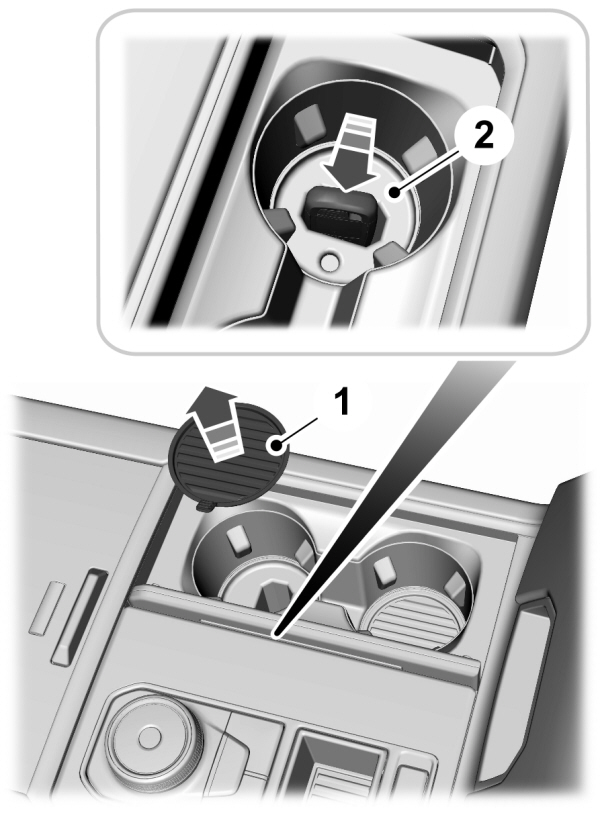
- Raise the center console storage compartment lid.
- Place the remote control in the backup slot with the buttons facing toward the rear of the vehicle.
- Switch the ignition on using the key you want to create as MyKey.
- Press Settings on the touchscreen.
- Press Vehicle Settings.
- Press MyKey.
- Press Create MyKey.
- Press Yes.
- Switch the ignition off.
Note: You successfully created a MyKey. We recommend that you label this key so you can distinguish it from the admin keys.
Note: The programmed restrictions apply when you switch the vehicle off, open and close the driver door and restart your vehicle with the programmed key or remote control.
Download Manual