Navigation
 Introduction
The current vehicle position is determined by a global satellite system. All measured values and possible traffic reports are compared with the available map material to enable optimum navigation to your destination.
Audible navigation aids and graphic representations lead you to your destination.Audible navigation aidsAcoustic navigation announcements and graphic displays lead you to your destination.
Depending on the country, it may not be possible to select some Infotainment system functions on the screen when driving above a certain speed. This is not a malfunction, but rather compliance with legal regulations.
 WARNING
Only adjust settings, enter destinations, or change navigation information when the vehicle is stationary.
WARNING
Driving recommendations and traffic signs displayed in the navigation system may differ from the actual traffic situation.
-
Traffic signs, signal systems, and traffic regulations take priority over the driving recommendations and displays in the navigation system.
-
Always adjust your speed and driving style to road, traffic, weather, and visibility conditions.
-
Certain events, such as road closures, can considerably increase the original estimated driving time and distance to the destination, or navigation there may be temporarily impossible.
 If a turn was missed during route guidance and it is not possible to turn around, continue driving until the navigation system offers an alternative route.
The quality of the driving directions provided by the Infotainment system depends on the available navigation data and any reported traffic incidents.
Voice guidance
Navigation messages are acoustic driving directions for the current route.
The type and frequency of navigation messages depends on the driving situation, like the start of the route guidance, whether you are driving on a highway or roundabout, and your settings.
If the destination cannot be reached exactly, for example, because it isn't in a digitized area, there will be a navigation announcement that the “Destination area” has been reached. Messages about the direction and distance to your destination will also be displayed on the screen.
During dynamic route guidance, reported traffic incidents on the route are announced. There will be another announcement if the route is recalculated due to a traffic incident.
You can adjust the volume during a traffic announcement. All other navigation announcements will then play at that volume.
Navigation messages will not be given if the Infotainment system is muted.
Navigation restrictions
If the Infotainment system cannot receive data from GPS satellites, for example in a tunnel or in an underground garage, navigation will still be possible using the vehicle's sensors.
In areas that are not digitized or only partially digitized in the Infotainment system memory, the Infotainment system will still try to provide route guidance.
If navigation data is missing or incomplete, the vehicle position may not be determined accurately. This may result in navigation that is not as accurate as usual.
Routing is subject to ongoing changes, like new streets, construction zones, road closures, or changes to street names or house numbers. Using outdated navigation data can lead to errors or uncertainty when using route guidance.
Equipment and symbols of the navigation system
Please read the introductory information and heed the Warnings and Notice ⇒  and
and Safety instructions.
Requirements and restrictions

Some symbols and function buttons can only be seen during active route guidance and are not available in every country. Inactive symbols and function buttons are grayed out.
-
If there is an active Car-Net subscription, the results will include online information, such as the number of parking spaces and fuel prices.
General symbols

- Displays destinations that were stored manually and imported vCards.
- Displays destinations that were stored as favorites.

- Estimated arrival time at the destination.

- Trip duration display.

- Distance to the destination.

- Toll roads (Japan).

- VICS/ETC2 (Japan).

- Closes the window and returns to the previous view.
Before route guidance

- Opens the input screen for entering a destination (before route guidance starts).
- Function button to switch the search options.

- Alternative routes.
During route guidance
- Plan a route manually using individual destinations.
- Change the route on the map. To do this, press and hold the route with your finger at the desired point on the screen and move it. Route guidance continues after confirming the new route that was entered.
- Avoid traffic jams ahead. To do this, enter the estimated length of the traffic jam.
- Enter a destination using stored destinations.
- Stop route guidance.
My destinations (destination memory)
- Opens a list with various functions.
- Stores the current position as a destination.
- Tap to open, change, or create routes. Routes created online can be sent to the vehicle via the Customer Web Portal and then used.
- Destinations (using the drop-down menu).
- Display of destinations that were stored manually.
- Displays destinations that were stored as favorites.

- Displays the phonebook entries with stored contact data (mailing address).

- Displays destinations stored online in the Car-Net portal.
- Opens the last destinations.
- Home address. Starts the route to the home address. If no home address is stored yet, one can be assigned. Saving a new home address overwrites the previous one.
POI search
- POI search in the surrounding area. The following categories are available:
- Gas stations.
- Places with parking.
- Charging stations.
Changing the view

- Switches between the navigation map and satellite map.

- Displays the entire route on the map.
- Displays the destination on the map.

- Displays the Range 360 view on the map.
- Tap to select the 2D or 3D view.
- Tap to show or hide the split screen.
- Tap to select the day or night view manually or have it automatically controlled.
- Shows or hides points of interest.
Operating the audio or media source

- Media mode: starts playback and stops and skips to the next or previous track.

- Radio mode: switches between stored or receivable stations.
Announcements

- Adjusts the announcement volume.
- Repeats the last navigation announcement.

- Mutes navigation announcements.
- Tap and move the slider to increase the volume of the navigation announcement.
Setup

- Opens the settings menu.
Changing the map scale

- Switches the automatic map scale on or off. Tap on the respective symbol on the map to do this. The map scale is displayed on the symbol.
- Switches the automatic map scale on or off. Tap on the respective symbol on the map to do this. The map scale is displayed on the symbol.

- Selects the automatic map scale. If the function is active, the symbol will be displayed in blue. The symbol switches from to .

- Briefly zoom into the map section. The display automatically returns to the last selected scale after a few seconds.

- Zooms in on the map section manually.

- Zooms out on the map section manually.

- No GPS reception. Hidden when there is reception.
Elevation

- Elevation above sea level in meters.
Flexible function button
- Centers the vehicle location in the map segment. Only appears if you moved the map section with your finger.

- Centers the destination or route in the map section. This function button is only visible when Display destination on the map and Entire route is selected.
Switching the map view
- Shows the map in the selected 2D or 3D view.

- Orients the map view in the direction of travel or facing north.
Manually installing and updating navigation data
Please read the introductory information and heed the Warnings and Notice ⇒ andSafety instructions.
The Infotainment system is equipped with an internal navigation data memory. Depending on the country, the required navigation data may already be installed.
The Infotainment system requires the most up-to-date navigation data in order to make full use of all of the available functions. Navigation could be impaired if an older version of the navigation data is used.
Current navigation data can be downloaded online at www.volkswagen.com and stored on a compatible SD card or a USB data carrier.
An SD card will operate at higher speeds in the SD1 card slot. Appropriate SD cards are available from an authorized Volkswagen dealer or authorized Volkswagen Service Facility. Suitable USB data carriers are available from retailers.
The navigation data must be installed in the device. Navigation using the SD card or USB data carrier is not possible.
WARNING
Updating the navigation data while driving could result in accidents and serious injuries.
-
Only update the navigation data when the vehicle is stationary.
Volkswagen recommends updating the navigation data regularly.
Installing navigation data manually
The ignition must remain switched on during the installation process. The process may take up to four hours, depending on the amount of data and the SD card or USB data carrier that is used.
If the Infotainment system is switched off during the process, installation will be interrupted and it will continue automatically once the system is turned on again.
-
Download and save the navigation data onto an SD card or USB data carrier.
-
Switch the ignition on.
-
Insert an SD card or USB data carrier with the stored navigation data.
Do not remove the SD card or USB data carrier while it is being checked. Wait until the checking display disappears.
-
Import stored navigation data: Tap MENU

 Version informationUpdate software.
Or: tap MENU
SETTINGS System informationUpdate software. -
Follow the instructions on the screen.
 NOTICE
Do not remove the SD card or USB data carrier while navigation data is being used. This can damage the SD card or USB data carrier.
Before removing the SD card, it must be prepared for removal. It is not possible to use navigation and receive TMC messages without an SD card.
The SD card with the navigation data cannot be used as a storage medium for other files. Any saved files will not be recognized by the Infotainment system.
Updating navigation data online
Please read the introductory information and heed the Warnings and Notice ⇒ andSafety instructions.
The Infotainment system supports online downloading of regional navigation data for areas near the vehicle. A complete update (for example, the entire country) can only be done using a USB data carrier.
Requirements for an online download:
-
The vehicle has an existing Internet connection.
-
The vehicle has an active Volkswagen Car-Net user account.
Each country is divided into multiple update regions. The number of regions varies from country to country. A regional online update is limited to areas where the vehicle has spent a significant amount of time.
A pop-up window will appear on the Infotainment system screen if a regional update is available. Confirming the pop-up will start the download of the regional online update. If you decline the pop-up, the online update can only be started manually by tapping SETUPVersion informationSETUP Version informationUpdate (Online).
A message on the Infotainment system screen may indicate when the download is completed. The installation of the navigation data will start automatically in the background.
The online download and the installation of update packages can be interrupted (for example, by switching the ignition off). They will resume automatically once the requirements listed above are once again met.
If the navigation data is too outdated, then an online update will not be possible. A complete update must be performed in order for online updates to be possible again in the future.
Automatic updating of navigation data is only possible if permitted by the selected offline mode settings. Updates will not be carried out in offline mode.
Starting route guidance
Please read the introductory information and heed the Warnings and Notice ⇒ andSafety instructions.
Selecting the destination and starting the navigation system
Destination inputs are located in the navigation system main menu.
Go to the input screen: MENU.
Or: tap navigation map.
Function Button and Effect:

- Opens the selection list for entering a destination.
- Enter a new destination.

- Tap the Options function key and select the desired destination input (Address, Online POI, POI or In map).

- Opens the last destinations.

- Tap to delete individual characters.
After a country and city/town have been entered, route guidance to the center of the selected city/town can be started.
Map codes, phone numbers, and texts can only be used for route guidance if this destination data is recognized by the navigation system.
Enter the navigation destination as accurately as possible. If you only give examples, then route guidance may not occur or may lead you to an incorrect destination. The system suggests possible destinations while you are entering text.
When narrowing down a destination address, keep in mind that each item entered narrows down the possible selections you can make. For example, if the street you are searching for is not within the postal code you entered, you will not be able to find it when it is time to select the street.
Only adjust settings, enter destinations, or change navigation information when the vehicle is stationary.
Selection list for destination entry
Open the selection list: MENU .
The selection list offers the following options for entering a destination:
-
Entering a POI or address.
-
Entering the address in segments
-
Online POI search.
-
POI search along the route
-
Selecting a destination on the map
Select the destination on the map and starting the navigation system
Go to the navigation map: MENU.
The current location will be displayed in the map view.
-
Move the map with your finger until the desired destination can be selected.
Entering a destination directly with the navigation map is not possible in all geopositions within the country. The number of possible destinations depends on the version of the data.
The navigation map for your country contains active areas at many locations where destinations can be entered without searching. To do this, tap your finger on the desired location on the map. If active map data is available at this location, a split screen will appear for the destination you have entered.

- Splits the map display and opens a split screen with additional functions and information.

- Splits the map display and opens a split screen with additional functions and information.
- Starts route guidance.

- Tap to search in the surrounding vicinity.

- Tap to add as stopover (only when route guidance is active).
Changing the route using the navigation map
The route to the destination can be changed using the navigation map. To do this, tap and hold on any section of the route until crosshairs appear on the Infotainment system screen. You can then move the crosshairs to any other available section of road.
The route will be recalculated automatically once the input is confirmed.
The route will not be changed if the input is canceled.
Traffic information
Please read the introductory information and heed the Warnings and Notice ⇒ andSafety instructions.
The Infotainment system continuously receives traffic messages (TMC) in the background if a TMC traffic station can be received at the current location. You do not have to be listening to the traffic station.
By receiving online traffic information, real-time information about accidents or other incidents can be received from the Internet.
This data is needed for the traffic flow display and for dynamic route guidance.
If online traffic information cannot be received, the traffic information will be automatically received via TMC/TMCpro. In this case, the traffic flow display will not be available.
Receive traffic information via SiriusXM®
If this function is activated, the Infotainment system can receive traffic information via satellite radio with SiriusXM®.
By receiving traffic information, real-time traffic information about accidents or other incidents can be received from SiriusXM™ satellite radio mode.
This data is needed for the traffic flow display and for dynamic route guidance.
If traffic information cannot be received, the traffic information will be automatically received via TMC. In this case, the traffic flow display will not be available.
Requirements:
-
“Traffic Channel” must be activated in SiriusXM®.
-
 Traffic flow must be activated in the Traffic flow settings menu.
Traffic reports
Traffic reports such as traffic jams or stop-and-go traffic are displayed on the navigation map as symbols.
If route guidance is active, traffic reports on the current route will be displayed on the route plan.
Displaying traffic reports
-
MENU
TRAFFIC  .
.Or: tap the INFO button.
-
To exit the TRAFFIC
menu, either press the MENU or HOME function button. -
Tap
and select All or Route.
- All
- Displays all traffic reports received.
- Route
- Displays received traffic reports that affect the current calculated route.
Examples for traffic reports on the map:
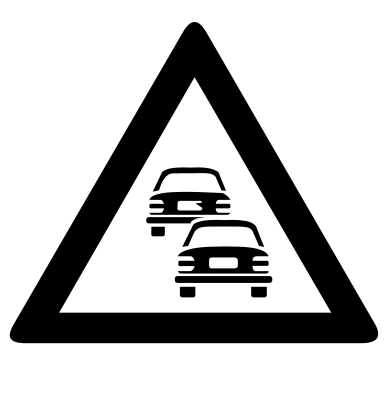
- Stop-and-go traffic.
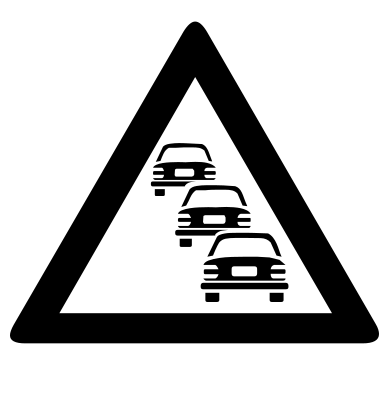
- Traffic jam.

- Accident.

- Ice.
- Slip hazard.

- Danger.

- Construction zone.

- Strong wind.

- Road closed.
Dynamic route guidance
For dynamic route guidance, Dynamic route must be activated in the route options.
If a traffic incident is reported on the current route during route guidance, a detour will be calculated if the Infotainment system determines that it will save time.
If a detour will not save any time, navigation will continue to use the route that travels through the traffic incident. There will be an audio message in either case.
There will be another message shortly before the traffic incident is reached.
The route ahead can also be blocked manually in order to cause the route to be recalculated.
Traffic incidents that are not on the calculated route are displayed in gray during route guidance.
A red line indicates the section of the route that is affected by a traffic incident.
Incidents that affect the calculated route and that have caused it to be recalculated are shown in orange.
The location of an icon indicates the beginning of a traffic incident, if it can be clearly determined based on the traffic report.
Traffic flow display
Online traffic information is displayed in color in the map view.
Colored warning icons show the beginning of an upcoming traffic incident. Traffic incidents with gray warning icons are not on the planned route.
- Red line:
- traffic jam or stop-and-go traffic. There is considerable congestion on this segment.
- Orange line:
- slow-moving traffic. There is congestion on this segment.
- Green line:
- traffic is flowing smoothly. There are no traffic incidents reported at this time.
Traffic flow settings
-
MENU
Map Open Traffic flow settings. -
Or: tap Map
Traffic flow settings.
Route (route plan)
Please read the introductory information and heed the Warnings and Notice ⇒ andSafety instructions.
Multiple destinations can be defined in the route plan one after another. A trip that contains multiple destinations is called a “route”.
The route “starting point” is always the vehicle position as determined by the Infotainment system. The “destination” is the end of the route. “Stopovers” are traveled to before the destination. You can also move stopovers to another position within the list.
Open route plan when route guidance is active: MENU ROUTE INFORMATION.
Symbol and Meaning:

- Route starting point.

- Stopover on a route.

- When there are multiple stopovers, a small number will appear that indicates the sequence within the route.

- Moves the stopover. Tap the symbol in the list, press and hold it, and move it.

- Destination. Route end point.
- Estimated arrival time at the destination.
- Distance to the destination.
Symbols That Appear After Tapping on a Destination:

- Deletes the destination.
- Starts direct route guidance to the selected destination. Destinations that are located before the selected destination are omitted.

- Opens the detailed view for the respective destination.
Online Route Calculation
Requirements:
-
The vehicle has an active Car-Net subscription.
The routes are calculated online if the system can establish an active connection. All traffic reports are calculated during route planning, even if they have not been received by the vehicle yet.
Open additional window
Please read the introductory information and heed the Warnings and Notice ⇒ andSafety instructions.
Using the functions of the Navigation system may cause a dialog box to open with additional options. The options available depend on the function used. The information displayed depends on the function that is selected in the drop-down menu.
Showing or hiding the additional window
-
Tap View
in the Navigation main menu. -
To show additional windows, tap
 Additional window to activate.
 -
Tap ...
in the additional window to select a display option.
|
Display and Meaning: |
|
|---|---|
|
Audio. |
|
|
Compass: displays the direction of travel based on a north-south orientation. |
|
|
Driving maneuver display. |
|
|
Route section display with lane recommendations when route guidance is active. |
|
|
Most frequent routes when route guidance is not active. |
|
|
Map in map. |
|
|
Range 360 display. |
|
|
Hi-pass lanes: hi-pass lanes are sections where tolls are collected electronically. Hi-pass lanes are shown in the maneuver display. This function is deactivated and can be activated in the settings. |
|
|
Toll cost display: the toll costs for the entire route are displayed in the current route information. |
|
Current position information:

- Latitude.

- Longitude.
- Elevation above sea level in meters.
- Number of satellites whose GPS signals are currently being received (for example, 3 of 16).

- Closes the split screen.

- The split screen currently includes another level with information. Tap the symbol to open. It appears instead of .
Image navigation
Please read the introductory information and heed the Warnings and Notice ⇒ andSafety instructions.
You can use the online “Volkswagen NAV Companion” to add address details to your own images, which you can then save onto compatible data media.
You can find out how to do this on the Volkswagen NAV Companion website.
Take into account the prerequisites and check which image formats are supported.
Select image and start route guidance
-
Insert the data carrier on which the images are saved or connect it to the Infotainment system.
-
Press the MENU button.
-
Tap Images.
-
Select the data media on which the saved images are stored.
-
Select the relevant image.
-
To start route guidance, tap
.
Alternative routes
Please read the introductory information and heed the Warnings and Notice ⇒ andSafety instructions.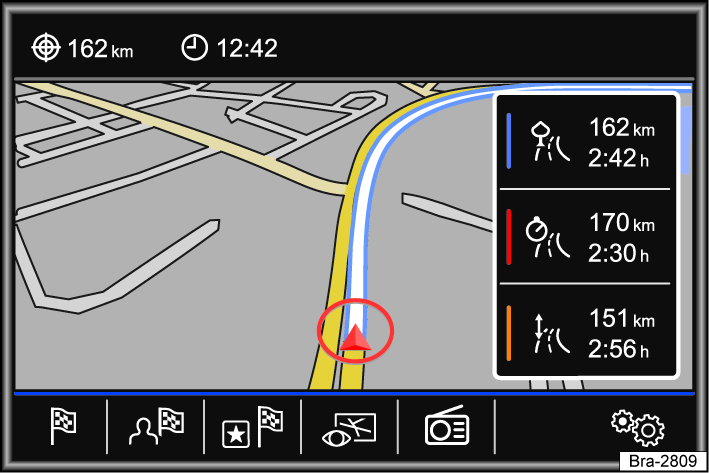
Fig. 118 Route calculation.
After route guidance has started, the route to the first journey destination is calculated.
Depending on your chosen settings, three alternative routes may be suggested when route guidance has started fig. 118. These three routes are calculated to offer you a choice between economical, fast and short.
|
Route criteria: Meaning |
|---|
|
Blue route : takes you on the most economical route. |
|
Red route : fast route to the destination, even if detours are necessary. |
|
Orange route : short route to the destination, even if the travel time is longer. Route guidance may include roads that are not commonly used, such as side roads. |
-
Choose your route by tapping on the right of the map.
The setting for route criteria in the Route options menu changes accordingly.
If no route is selected, route guidance starts automatically after one minute based on your chosen settings in Route options.
Note: With trailer recognition active, the arrival time (ETA) suggested by route guidance is calculated based on a maximum speed of 50 mph (80 km/h), depending on the country. This results in a longer travel time than with trailer recognition deactivated.
Voice guidance (navigation announcements)
The first navigation announcement is given after the route has been calculated. There will be up to three navigation announcements before a turn, such as “Turn left soon”, “Turn left in 900 feet (300 meters)”, and “Turn left now”.
-
Press the control knob to repeat the last navigation announcement.
The type of road and the driving speed determine the distances that are announced. Navigation announcements are given much earlier on highways, for example, than during city driving.
In the case of multi-lane roads, branching roads, and traffic circles, appropriate navigation announcements will be given, such as “Exit traffic circle at the second exit”.
Upon reaching the destination, there will be a navigation announcement indicating that the “destination” has been reached.
If the destination cannot be reached precisely because it is located in a non-digitized area, there will be a navigation announcement indicating that the “destination area” has been reached. The direction of the specified destination and the distance to it is also indicated. Navigation continues “offroad”.
During dynamic route guidance, reported traffic incidents on the route are announced. There will be another announcement if the route is recalculated due to a traffic incident.
The volume during a navigation announcement can be adjusted to a defined minimum and maximum volume using the rotary knob and push-button. All other navigation announcements will then play at that volume.
If a turn was missed during route guidance and it is not possible to turn around, continue driving until the navigation system offers an alternative route.
The quality of the driving directions provided by the Infotainment system depends on the available navigation data and any reported traffic incidents.
Download Manual