Mobile phone interface
 Introduction
Using the phone interface, you can connect your cell phone to the Infotainment system and control the phone functions via the Infotainment system. The sound is played back via the vehicle speakers.
The functions described in the following information can be opened on the Infotainment system screen if a cell phone that is turned on is paired and connected to the system. The functions that are available depend on the cell phone that is used.
You can connect multiple cell phones to the Infotainment system at the same time. However, only one device is active at a time and can be used to make calls. The second connected device, or any other connected devices, can receive calls via the Infotainment system and be used to play media.
The phone interface functions will not be available if there is no cell phone paired and connected with the interface.
High speeds, poor weather and road conditions, a lot of background noise (even outside the vehicle), and the network quality can impair phone calls in the vehicle.
The phone interface may contain a compensator which offsets disruptions to the cell phone reception and also improves the transmission and reception performance of the cell phone.
Prior to the first use

Follow all safety precautions ⇒ Safety instructions.
-
Check if your cell phone is suitable and if the Bluetooth® function is supported.
-
Activate Bluetooth® in the cell phone and set it to visible.
-
Pair and connect the cell phone to the Infotainment system.
 You generally only need to pair a device (such as a cell phone) once. You can reestablish the connection to the Infotainment system at any time via Bluetooth or Wi-Fi, without re-pairing your device.
Only use compatible Bluetooth® devices.
Most electrical devices are shielded against high-frequency signals. However, in some rare cases, electronic devices may not be shielded against high-frequency signals from the mobile phone interface. Interference can result from this.
Observe any country-specific regulations when using a headset.
Mobile phone interface equipment and symbols
Symbols in the main menu
Some symbols and functions are only available during a phone call.
This chapter describes the meanings of symbols and function buttons.
- Contacts.
- Incoming and outgoing calls lists.
- Dial telephone number.

- Set up a telephone connection with voice commands.

- Open Favorites.

- Indicator for an existing Bluetooth® connection to a cell phone.
- Current mobile phone signal strength.
- Battery charge level of the cell phone. This symbol is only displayed if the cell phone is connected via the Bluetooth® Hands-Free Profile (HFP).

- Mobile phone interface settings.
Symbols for telephone calls
The symbols may look different depending on the Infotainment system.

- Start a call or bring it to front.
- End or decline a call.
- Open contact list.

- Opens a detail view of the contact.
 ))
))- Have the voice control read out contact names.

- Send a text message to the contact.
- Dial telephone number.

- Mute or switch on the hands-free system.
- Mute or switch on the hands-free system.

- Have a conversation via the mobile phone interface.

- Switch on the ring tone mute or pick up.

- Switch on the ring tone mute or pick up.
- Put a call on hold.
- Put a call on hold.

- Continue a call.
- Start a conference call.

- Starts route guidance to a contact as long as there is a complete address stored for the contact.
- SOS
- Make an emergency call.
- Make an emergency call.

- Receive breakdown assistance.

- Receive information about Volkswagen and various value added traffic and travel services.

- Receive information about Volkswagen and various value added traffic and travel services.

- Voice mail.

- Voice mail.
Call list symbols
To open the call lists, tap on .
- Received incoming call.
- Outgoing call.

- Missed call.

- Transfer the phone number into the Enter telephone number menu.

- Telephone number (company).

- Telephone number (private).
- Mobile telephone number (company).
- Mobile telephone number (private).

- Fax device (private).

- Fax device.
Locations with special regulations
Switch off the cell phone and phone interface at locations where there is a risk of explosions. These locations are not always clearly identified. These include, for example:
-
Areas near pipes and tanks containing chemicals
-
Lower decks in ships and ferries
-
Areas near vehicles powered by liquefied petroleum gas (such as propane and butane)
-
Areas with chemicals or particles in the air, such as flour, dust, or metal powder
-
All other locations where the vehicle engine or the cell phone must be switched off.
 WARNING
Switch off the cell phone at locations where there is a risk of explosions.
 NOTICE
The cell phone must always be switched off in areas with special regulations relating to or prohibiting the use of cell phones. Radiation from cell phones that are switched on can interfere with sensitive technical and medical devices, potentially causing malfunctions or damage to the devices.
Pairing of Bluetooth® devices
Bluetooth® technology connects a cell phone to the vehicle's phone interface. Initial pairing is required in order to use the phone interface with a cell phone.
Pairing takes several minutes. Pairing can only take place when the vehicle is stationary.
Requirements
-
Switch the ignition on.
-
Switch on the cell phone.
-
If necessary, disconnect the headset from the cell phone.
-
Activate the Bluetooth® function on the cell phone and on the device or set it to visible.
-
End any active calls on the cell phone as well as any automatic Bluetooth® connections if necessary.
-
Deactivate the automatic keypad lock and screen saver.
You will need to enter information using the cell phone keyboard during the pairing process.Refer to the operating instructions for the cell phone.
Bluetooth® technology
Some cell phones are detected automatically and connect when the ignition is switched on if the device has been previously connected to the system. For this to happen, the cell phone and the Bluetooth® function on the cell phone must be switched on, and all active Bluetooth® connections to other devices must be disconnected. It may be necessary to input other information on the cell phone.
There is no cost for the Bluetooth® wireless connection.
Bluetooth® profiles
If a cell phone is connected to the phone interface, data can be exchanged via one of the Bluetooth® profiles listed in the information that follows.
The availability of Bluetooth® profiles depends on the country, the vehicle equipment and the cell phone.
|
Bluetooth® profile: description |
|
|---|---|
|
HFP |
Hands-Free Profile |
|
If a cell phone is connected to the phone interface via HFP, calls can be made wirelessly through the hands-free system. |
|
|
MAP |
Message Access Profile |
|
If a cell phone connected to the phone interface supports the MAP function, text messages and e-mails can be received, displayed, and sent through the phone interface. |
|
|
PBAP |
Phonebook Access Profile |
|
PBAP allows access to the phonebook in a connected cell phone. |
|
|
A2DP |
Advanced Audio Distribution Profile |
|
Profile for transmitting audio signals in stereo quality (music playback). |
|
|
AVRCP |
Audio Video Remote Control Profile |
|
Profile for displaying song information and controlling playback on a cell phone. |
|
NOTICE
If authorization takes place via the cell phone, the “Message Access Profile” (MAP) and the “Phonebook Access Profile” (PBAP) will be automatically connected with the “Hands-Free Profile” (HFP). If the cell phone is connected with the “Advanced Audio Distribution Profile” (A2DP), the “Audio Video Remote Control Profile” (AVRCP) will be automatically connected as well.
Coupling, connecting and managing
Before the phone interface can be used, an initial pairing process with the cell phone is required in order to make both devices available to each other. A user profile is created in the phone interface. The cell phone is uniquely assigned to it.
Each cell phone must be paired initially with the phone interface via Bluetooth®.
Several cell phones can be paired with the Infotainment system, but only one cell phone can be connected to the Infotainment system at a time.
When the Infotainment system is switched on, it will automatically try to connect to the cell phones that were most recently connected. If the system cannot connect to these cell phones, the phone interface will attempt to connect to the next cell phone on the list of paired cell phones.
The maximum range of a Bluetooth® connection is about 33 feet (11 meters). The Bluetooth® connection will be disconnected if this distance is exceeded. The device will automatically reconnect once the cell phone is within Bluetooth® range.
Pairing takes several minutes. Pairing can only take place when the vehicle is stationary.
For additional information on pairing and connecting cell phones, contact an authorized Volkswagen dealer or authorized Volkswagen Service Facility.
To help prevent unauthorized use, visibility should be deactivated on the cell phone after successfully pairing.
When running a device search, select a location where there are likely to be few visible cell phones.
Starting pairing through the Infotainment system:
-
Tap MENU
 PHONE
PHONE  .
. -
Tap
Find cell phone.Or: press the PHONE button.
-
Tap
 Find telephone.
Or: tap Settings
Select cell phone.When the search process has been completed, the names of the cell phones that were found will be displayed on the screen.
-
Select the cell phone to be paired from the list of cell phones found.
The Infotainment system and the cell phone will now be paired with each other. In some cases, you may need to enter additional information on both the cell phone and in the Infotainment system in order to complete the pairing process.
-
Confirm the pairing on the cell phone if necessary.
-
Depending on the cell phone: Enter the PIN shown on the Infotainment system screen on the cell phone and confirm.
Or: compare the PIN displayed on the Infotainment system screen with the PIN displayed on the cell phone. If it is the same, the code must be confirmed on both devices.
Once pairing has completed successfully, the PHONE main menu is displayed and the phonebook, call lists, and text messages stored in the cell phone are loaded automatically. A confirmation on the cell phone may be necessary.
The amount of time needed for the transfer depends on the amount of data stored on the cell phone. After the transfer is complete, the data will be available in the Infotainment system.
Bluetooth® coupling via NFC
NFC is not available in all countries and on all vehicle models.
Prerequisites for one-off coupling:
-
Storage compartment with cable-free charge function (storage compartment with interface for mobile telephone) is fitted in the vehicle.
-
NFC is activated on the cell phone.
-
Open menu Telephone settings and tap on Select cell phone.
-
Unlock the cell phone.
-
Place the cell phone in the correct position on the wireless charging shelf.
-
Pair Bluetooth using the displays on your cell phone, and continue and confirm on the vehicle screen.
The cell phone is paired with the Infotainment system.
While the Infotainment system is in the Known cell phones menu, the wireless charge function is deactivated. Cable-free charging is reactivated if you leave the menu.
Types of phone interface
Some symbols and functions are only available during a phone call.
Depending on your vehicle equipment, you can choose between two types of mobile phone interface:
-
Phone interface basic configuration.
-
Convenience phone interface.
Phone interface basic configuration
The phone interface basic configuration uses the Bluetooth® Hands-Free Profile (HFP) for transmission. This enables the use of phone functions via the Infotainment system and played back via the vehicle speakers.
If a cell phone is connected to the phone interface via Bluetooth® Hands-Free Profile (HFP), calls can be made wirelessly through the hands-free system.
The exterior vehicle antenna cannot be used for this.
Convenience phone interface
Just like the basic configuration of the phone interface, the Convenience phone interface uses the Bluetooth® Hands-Free Profile.
The Convenience phone interface can be equipped with the wireless charging function ⇒ Wireless charging function.
In order to use the features of the wireless charging function, you need to place a suitable cell phone correctly in the storage compartment. This will then connect the cell phone to the vehicle antenna. This improves reception and call quality.
Wireless charging function
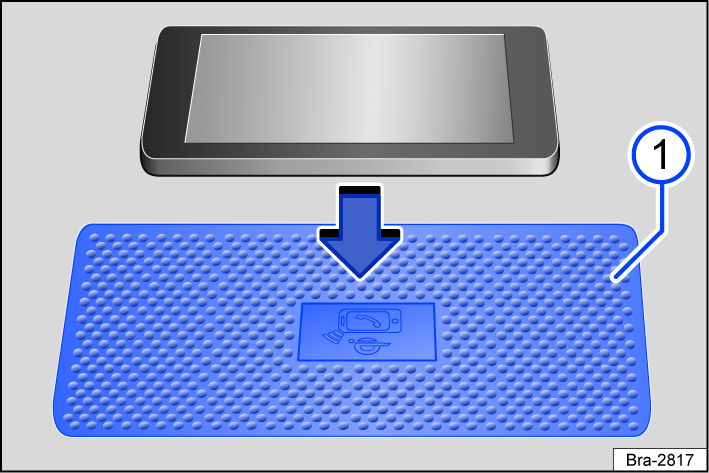
Fig. 119 Diagram: storage compartment with a liner pad for wireless charging. The symbol on the liner mat may look different in some vehicles.
The wireless charging function depends on the vehicle equipment and is not available in all countries.
The wireless charging function uses electromagnetic induction to transfer energy wirelessly over short distances.
The maximum charging power is 5 watts.
Only Qi-capable cell phones without a protective case and a maximum total length of approximately 140 mm may be placed on the wireless charging shelf.
The Qi standard allows suitable Qi-capable cell phones to be charged wirelessly. Wireless charging is not available in all countries and all vehicle models.
In some vehicles, a “phone symbol” on the liner mat indicates the center position for the wireless charging function fig. 119.
To charge a Qi-capable cell phone, place it in the center of the storage compartment with the display facing up fig. 119. The charging process starts automatically after that. The operating instructions or the cell phone manufacturer will indicate if the cell phone supports the Qi-standard.
The Infotainment system installed at the factory informs you when the charging process is starting and if there are any foreign objects with metal components, such as coins, keys, etc., in the storage compartment. Remove foreign objects immediately.
If the cell phone is not positioned correctly or if it is too large, it may not be detected correctly or detected at all. The system may then notify you of a foreign object on the surface. Correcting the position on the surface may correct the malfunction.
Qi-capable cell phones that are too large cannot be charged wirelessly.
WARNING
Metal objects on the shelf can become very hot. This may cause burns to the skin or a fire.
-
Do not place metal objects or objects with metal components on the wireless charging shelf.
NOTICE
If any ID cards or credit cards are placed on the shelf, data stored on the magnetic strips or the chip could become unusable.
-
Do not place any ID cards, credit cards, etc. with magnetic strips or with a chip on the wireless charging shelf.
NOTICE
The charging time and temperature will vary depending on the cell phone that is used.
NOTICE
To reduce the risk of malfunctions, make sure the cell phone is positioned correctly on the shelf.
Using a phone
Open the mobile phone interface
-
Tap MENU
 .
.
Accepting or declining a call
When there is an in incoming call, the caller's number is displayed in the center of the screen. To accept or decline the call, press the corresponding button.
The caller's name will be displayed if the number is saved in the phonebook.
If a call is accepted, the screen display will change to call mode.
Using a phone
Select a telephone number to make a call. Various functions are available for selecting the telephone number.
Manually entering the telephone number
-
To enter the telephone number, tap
. -
Tap
to make the call.
Using contact data
If a contact has multiple telephone numbers, you must select it accordingly.
-
Tap
. Tap the contact on the list to make the call.Or: enter the name of the contact to search for in the input field.
Or: Browse the contact list and tap the desired contact.
Or: Tap a favorite to make the call.
Using a call list
The phone interface displays the call list for the cell phone. Frequently used telephone numbers are displayed under Favorites. You can make calls via the call list.
-
Tap
All. Tap on a number in the list to make the call.Or: Filter the call list (e.g. by missed calls, selected numbers or favorites). Tap a number on the filtered list to make the call.
Opening voicemail (if available)
-
Tap
to make a call. -
If no phone number is stored for the voice mailbox, enter the phone number and press OK to confirm.
Enter the country code
When entering a country code, the “+” symbol can be entered instead of the first two digits (for example “00”).
-
Tap and hold the 0 function key for about two seconds to add the “+” sign.
While you are entering a telephone number, the contact related to the number is displayed on the Infotainment system screen.
Sending text messages (SMS)
To receive, display, and send text messages through the Infotainment system, the following requirements must be met:
-
The Infotainment system must be connected to a compatible cell phone via the rSAP Bluetooth® profile.
Or: a cell phone is connected via Bluetooth® MAP.
To store new text messages, make sure there is enough free memory space on the SIM card. Delete existing text messages if necessary.
Due to the large number of cell phones that are available, there is no guarantee that all functions will always be available.
Opening the text message menu
-
In the PHONE menu, tap
SMS  or Messages .
Possible functions:
The number of available functions depends on the cell phone that is connected.
-
Create and send text message.
-
Display received, drafted, deleted and sent text messages.
-
Open inbox and outbox.
-
Send contact details for a contact in the contact list.
-
Select a text template from the list.
-
Tap to have text messages read by voice control.
-
Tap to forward a text message.
-
Opens the number pad
to enter a phone number.Or: select a recipient from the contacts list.
Tap to add additional recipients by entering a phone number or selecting from the contact list.
Phonebook
Select contacts
This first time a cell phone is paired with the Infotainment system, the phonebook is saved in the Infotainment system. After the initial pairing process, it may take several minutes before the phonebook data from the cell phone is available. If necessary, confirm the transfer on the cell phone.
Depending on the device, only contacts from the phone's memory may be loaded.
The phone directory is updated after each new connection. During the update, the present phone directory can still be used.
The contacts can also be accessed during a call.
If an image is stored with the contact, it can be displayed in the list next to the entry.
Select a telephone number or a contact to make a call. Various functions are available for selecting the telephone number.
Opening and searching the phonebook
-
Press
 or to open the phonebook.
 -
Turn the control knob to scroll up or down in the phonebook. A phonebook entry is always marked when doing this.
Or: Scroll through entries with the
 and
and  buttons or with the
  and function keys.
Or: Swipe two fingers up or down on the screen. A window shows the letter that is currently selected.
-
Briefly press the control knob to select the desired phonebook entry.
If only one phone number is stored for the selected phonebook entry, then it will be dialed immediately.
If two or more phone numbers are stored for the selected phonebook entry, a submenu with all of the stored phone numbers will open. Select the desired phone number to start dialing.
Using the search screen to select a contact
-
Tap Search to open the search screen.
-
Enter the name to find in the search screen. Each time a character is entered, a contact will appear in the input field.
-
The number of matching results will be displayed to the right of the input field. Tap the function key to switch to the list view.
-
Browse the list and tap the desired contact to call the contact.
Leaving a submenu or the phonebook
-
Tap
 .
.Or: Briefly press the PHONE button.
The display always goes back one level, from a submenu to the phonebook, and from the phonebook to the PHONE main menu.
Favorites (speed dial buttons)
A speed dial key can be assigned with a favorite from the phone directory. If the entry contains an image, it is displayed on the speed dial key.
All favorites must be programmed manually and are then assigned to a user profile.
Favorites view
-
Tap
to switch to the Favorites view.To select a contact as a favorite in your address book, tap an empty favorite space. Selecting a location with a favorite assigned will dial the number associated with this favorite.
Assigning a favorite
-
In the PHONE menu, tap an unassigned function button.
-
Tap Search to select a contact.
-
Tap a contact in the phone directory. If a contact has multiple telephone numbers, tap a number on the list.
Editing a favorite
-
In the PHONE menu, press and hold the favorite until the contact list opens.
-
Select the desired contact from the list. If several phone numbers are stored for the selected contact, select the desired number.
-
Edit contact.
-
To close the contact list without saving any changes, tap
.
Deleting a favorite
-
A favorite can be deleted in the User profile settings menu under Manage favorites.
Calling a favorite
-
In the PHONE menu, tap a function key that has the relevant favorite assigned in order to call the stored number.
Favorites are not automatically updated. If the phone number for a contact changes, the speed dial key must be reassigned.
Download Manual