First steps
 Introduction
The functions and settings of the Infotainment system are dependent on the country and the vehicle equipment.
Prior to the first use
Before your first use, observe the following points to be able to fully use the available functions and settings:
-
Observe the basic safety instructions
 ⇒ Safety instructions.
 -
Reset the Infotainment system to factory settings.
-
Find your favorite radio stations and save them on the station preset buttons to quickly access them ⇒ Radio mode.
-
Only use suitable data carriers and audio sources.
-
Use current map data for the navigation system.
-
Pair a cell phone in order to use the phone interface to make calls.
Other applicable documents
In addition to this manual, please refer to the following documentation when using this Infotainment system and its components:
-
Supplements to your Owner's Manual.
-
Operating instructions for the cell phone or audio sources.
-
Operating instructions for external data carriers and players.
-
Instructions for retrofitted or additional Infotainment accessories.
Enabling functions
Some functions that were not activated or installed at the factory can be enabled later.
An authorized Volkswagen dealer or authorized Volkswagen Service Facility can provide information on which functions can be enabled in your Infotainment system.
 If additional functions are enabled after the vehicle is manufactured, this manual and other guides in the owner's literature package may contain descriptions that differ from the system functions or that are incomplete.
Safety instructions
Refer to ⇒  and
and .
.
-
Some functions may contain links to websites that are administered by third parties. Volkswagen AG does not assume ownership of third-party sites accessed through links and is not responsible for their content.
-
Some functions may contain third-party information that originates from third-party providers. Volkswagen AG is not responsible for the accuracy, currentness, and completeness of this non-proprietary information, and for ensuring that the rights of third parties are not violated.
-
The radio stations and owners of the data carriers and audio sources are responsible for the transmitted content.
-
Parking ramps, garages, underpasses, tunnels, tall buildings, mountains and valleys or electrical devices such as battery chargers can also interfere with cell phone, GPS and radio signal reception.
-
Foil stickers or stickers with a metal layer placed on the antenna and on the windows can impair radio reception.
-
Read and follow the applicable manufacturer's operating instructions when using cell phones, data carriers, external devices, and external audio and media sources.
 WARNING
The factory installed radio with integrated hardware is networked with the control units installed in the vehicle. Therefore if the radio is improperly repaired or improperly removed and installed, there is an increased risk of accident and injury.
-
Never replace the radio with a used radio from a scrap vehicle or from recycling.
-
Only let the radio be removed and installed or repaired by suitably qualified professionals and have it replaced if necessary. Volkswagen recommends contacting an authorized Volkswagen dealer or authorized Volkswagen Service Facility.
WARNING
The Infotainment system's central processor is networked with the control modules installed in the vehicle. As a result, if the central processor is incorrectly repaired, removed or reinstalled, there is an increased risk of accident and injury.
-
Never replace the central processor with a used central processor from a scrap vehicle or from recycling.
-
Always have the central processor repaired, removed and reinstalled by suitably qualified professionals. Volkswagen recommends contacting an authorized Volkswagen dealer or authorized Volkswagen Service Facility.
WARNING
Driver distraction can cause accidents and injuries. Reading information on the screen, operating the Infotainment system and connecting, inserting or removing a data carrier or audio source while driving can distract from traffic and cause accidents.
-
Always drive attentively and responsibly.
WARNING
Displays and information on the screen may be difficult to read if the lighting conditions are unfavorable or if the screen is damaged or dirty.
-
Never allow displays and information on the screen to cause you to engage in behavior that poses a safety risk. Always drive attentively and responsibly.
WARNING
Setting the volume too high prevents warning chimes from being heard from outside and can cause hearing damage. This is true even if you are exposed to a loud volume for only a short time.
-
Adjust the volume settings in the Infotainment system so that audible signals from outside the vehicle (such as sirens on emergency service vehicles) can still be heard.
WARNING
Sudden volume fluctuations may occur when the audio or media source is changed or connected.
-
Reduce the volume level before changing or connecting an audio or media source.
WARNING
The following conditions may prevent or cause interruptions to emergency calls, phone calls, and data transmission:
-
If you are in a location with no or very poor cell phone or GPS reception.
-
If you are in a location where there is good cell phone and GPS reception, but the telecommunications provider's mobile communications network is malfunctioning or unavailable.
-
If the vehicle components required for emergency calls, phone calls, and data transmission are damaged, not operating, or have insufficient power.
-
If the cell phone battery is drained or if the battery charge level is too low.
WARNING
Radio stations can broadcast messages about disasters and dangers. It may not be possible to receive or send messages under the following conditions:
-
If you are in a location with no radio reception, or insufficient reception.
-
If the radio station's frequency bands are malfunctioning or not available.
-
If the speakers and vehicle components required for radio reception are damaged, not operating, or have insufficient power.
WARNING
In some countries and mobile networks, emergency calls can only be made under the following conditions:
-
A cell phone with an unlocked SIM card and sufficient calling credit is connected to the vehicle's phone interface.
-
Adequate network coverage is available.
WARNING
Using a cell phone or CB radio inside the vehicle without a separate outside antenna that is installed correctly may create electromagnetic energy that exceeds permissible limits. This may be dangerous to your health and that of your vehicle occupants. This also applies if the exterior antenna is not installed correctly.
-
Keep the cell phone or radio equipment antenna at least approximately 8 inches (20 cm) away from any active medical implants, such as pacemakers, because cell phones can impair the function of active medical implants.
-
Do not place a cell phone or radio equipment that is turned on directly above or in the immediate vicinity of any active medical implants, for example by keeping the cell phone in a shirt pocket.
-
Immediately switch off cell phones or radio equipment if you suspect there is interference with an active medical implant or other medical device.
WARNING
Unsecured or incorrectly mounted cell phones, external devices, and accessories can be thrown through the vehicle interior and cause injury in the event of sudden driving or braking maneuvers or a collision.
-
Secure cell phones, external devices and accessories outside of the airbag deployment zone or stow them securely.
-
Arrange cables for external devices and audio sources so that they are not in the way of the driver.
WARNING
Driving recommendations and traffic signs displayed in the navigation system may differ from the actual traffic situation.
-
Traffic signs, signal systems, and traffic regulations take priority over the driving recommendations and displays in the navigation system.
-
Adapt your speed and driving style to the visibility, weather, road and traffic conditions.
-
Certain events, such as road closures, can considerably increase the original estimated driving time and distance to the destination, or navigation there may be temporarily impossible.
 NOTICE
Radiation from cell phones that are switched on can interfere with sensitive technical and medical devices, potentially causing malfunctions or damage to the devices.
-
Always switch off the cell phone in areas with special regulations relating to or prohibiting the use of cell phones.
NOTICE
Setting the volume too high and excessively loud or distorted playback can damage the speakers.
-
Select the volume setting so that the speakers are not damaged.
User information
Refer to ⇒ andSafety instructions.
-
The Infotainment system must start completely before all displays can appear and functions can be performed. The length of time that it takes for the system to start depends on the scope of functions in the Infotainment system, and it can take longer to start at low and high temperatures.
-
Observe local regulations and legal requirements when using the Infotainment system and corresponding accessories, such as a headset or headphones.
-
For the Infotainment system to function correctly, it must be switched on and the vehicle must be set to the current date and time.
-
A function key or button not appearing on the screen does not indicate a device error, but is due to the country-specific equipment on your vehicle.
-
Some Infotainment system functions can only be selected when the vehicle is stationary. In some countries, the selector lever must also be in the P or N position. This is not a malfunction, but rather compliance with legal regulations.
-
Some countries may have restrictions regarding the use of Bluetooth® devices. Information can be obtained from the local authorities.
-
Light pressure or touching the screen is sufficient to operate the Infotainment system.
-
If the 12 V battery has been disconnected, switch on the ignition before switching on the Infotainment system.
-
Displays on the screen may vary due to differences in the settings, and the Infotainment system may function differently than described in this manual.
-
In some countries, the Infotainment system will switch off automatically when the engine stops and if the 12 Volt vehicle battery charge level is low.
-
In some vehicles with a parking system, the volume of the current audio source may be automatically lowered when you shift into reverse. The volume reduction level can be adjusted.
-
The Infotainment system contains information about the software contained in the system and the licensing terms:
 SETTINGS Copyright.
 -
If selling or loaning your vehicle, make sure that all data, files and settings stored are deleted, and that any external audio sources and data carriers are removed, if applicable.
-
Repairs and modifications to the Infotainment system must only be performed by suitably qualified professionals so that the functionality of the system is not affected. Volkswagen recommends contacting an authorized Volkswagen dealer or authorized Volkswagen Service Facility.
-
The Infotainment system is linked permanently to the vehicle and is equipped with a security code. Therefore, it cannot be used in another vehicle.
-
Operating a cell phone in the vehicle can cause noise in the speakers.
-
High speeds, poor weather and road conditions, a lot of background noise (even outside the vehicle), and the network quality can impair phone calls in the vehicle.
Overview and controls of the 6,33 inch version
Refer to ⇒ andSafety instructions.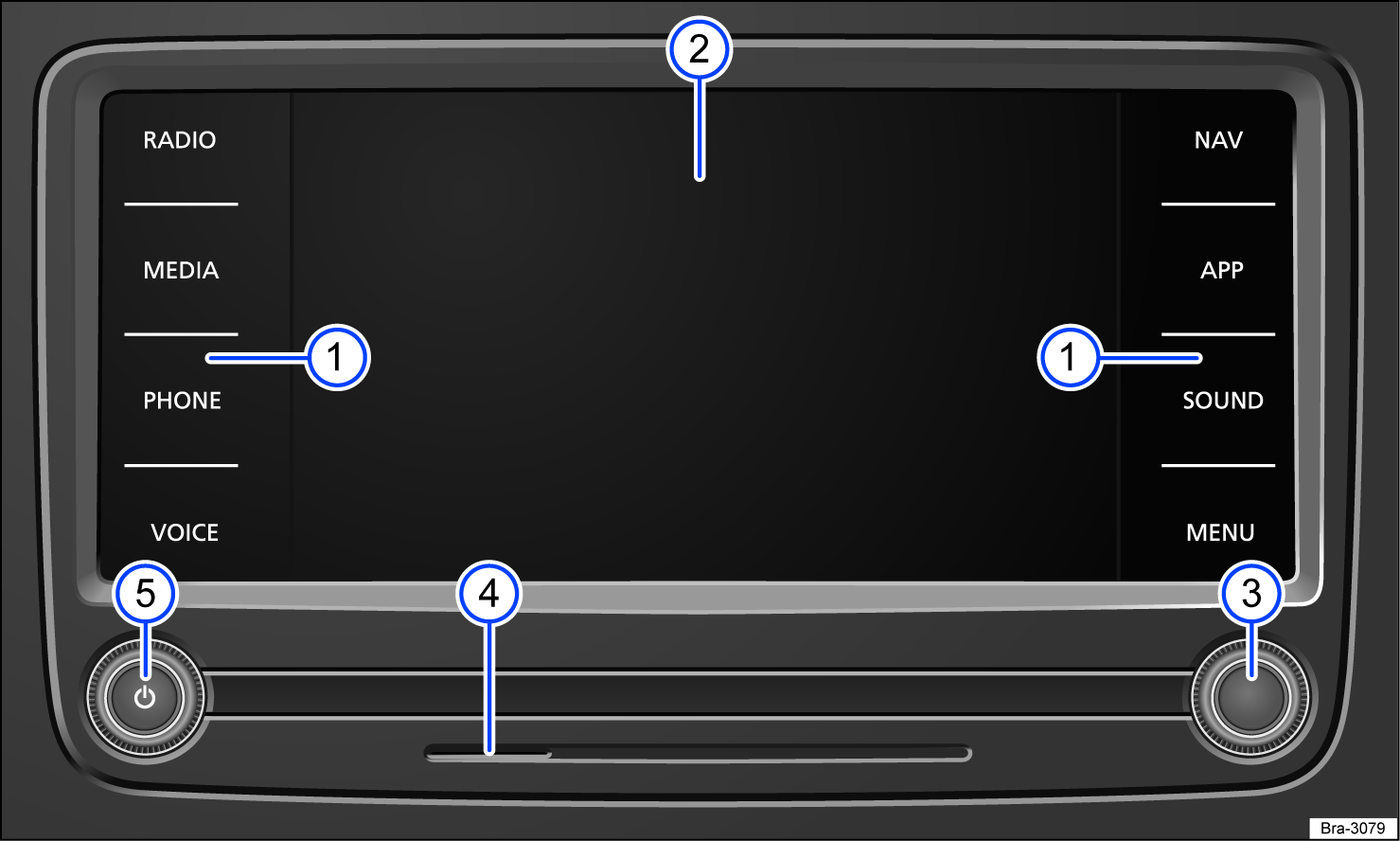
Fig. 116 Overview of the controls (6.33 inches).
 Infotainment buttons.
-
For opening the corresponding path.
-
 Screen.
-
Cleaning the screen ⇒ Cleaning the screen.
-
 Menu knob.
-
The function depends on the operating mode.
-
 SD card slot
-
For inserting SD cards ⇒ SD card slot.
-
 Rotary knob
  .
.
-
Press to switch the Infotainment system on or off.
-
Turn left to decrease the volume.
-
Turn right to increase the volume.
-
Media drives and wired connections may be located outside of the device, depending on vehicle equipment.
CD/DVD drive
Refer to ⇒ andSafety instructions.
Depending on the vehicle equipment, the DVD drive can play either CDs or both CDs and DVDs.
The CD/DVD drive can play audio CDs and audio data CDs. Note the requirements for data carriers and files ⇒ Introduction.
The playback can skip when driving on poor roads or when there are strong vibrations. CDs/DVDs cannot be inserted or played if the internal temperature of the Infotainment system is too high.
For audio CDs without CD text, only Track or TRACK (depending on the device) and the track number according to the order on the data carrier appear in the center of the screen. If audio files contain additional track information (CD text, ID3 tags for MP3 files), it can be displayed on the screen.
Depending on the vehicle equipment, your vehicle may feature an internal or external media drive. This manual makes no distinction between internal and external media drives.
Inserting a CD/DVD
-
Hold the CD or DVD with the label facing up.
-
Push the CD/DVD into the CD/DVD drive only until it is pulled in automatically.
Playback starts automatically after inserting the CD.
If, after inserting various CDs/DVDs, an error message appears, contact a suitably qualified professional. Volkswagen recommends contacting your authorized Volkswagen dealer or authorized Volkswagen Service Facility.
Ejecting a CD/DVD
-
Press the
 or EJECT button.
The inserted CD/DVD is moved into the eject position and it must be removed within approximately 10 seconds.
If the CD/DVD is not removed within ten seconds, it will be pulled in again for safety reasons, but CD/DVD mode will not start.
SD card slot
Refer to ⇒ andSafety instructions.
Insert a compatible SD card into the SD card slot to use saved media such as audio files or media files in the Infotainment system. Supported file formats are displayed in the Infotainment system. Other file formats are ignored.
Dimensions for compatible SD cards:

32 mm x 24 mm x 2.1 mm (1.26 x 0.94 x 0.083 inches)
-
32 mm x 24 mm x 1.4 mm (1.26 x 0.94 x 0.055 inches)
The SD card with the navigation data cannot be used as a storage medium for other files. Any saved files will not be recognized by the Infotainment system.
Securely inserting an SD card
-
Horizontal SD card slot: Push an SD card carefully into the SD card slot with the angled corner inserted first and the contact surfaces facing down until you feel it click into place.
-
Vertical SD card slot: Push an SD card carefully into the SD card slot with the angled corner facing upward or downward until you feel it click into place.
-
If the SD card cannot be inserted, check whether the SD card is compatible and ensure you are inserting it in the correct position.
If an SD card is inserted,  will be displayed on the screen.
NOTICE
Forcing the SD card into the slot, using an SD card with incorrect dimensions or using an SD card adapter can result in damage to the SD card slot, the SD card or both.
Inserting other objects such as SIM cards into the SD card slot can result in damage to the object, the SD card slot or both.
-
Do not use force when inserting SD cards.
-
Note the dimensions for compatible SD cards.
-
Do not use an SD memory card adapter.
Ejecting an SD card
To reduce the risk of data loss, an inserted SD card must be prepared for removal.
-
Preparing for removal: SETTINGS
Remove safely. SD card. -
Press on the inserted SD card.
-
Remove the SD card.
Operating the Infotainment system
Refer to ⇒ andSafety instructions.
Depending on the vehicle equipment, the Infotainment system may have different controls:
-
Touchscreen.
-
Sensor fields outside of the screen, e.g. MENU.
-
Buttons, e.g. RADIO or PHONE.
-
Rotary knob.
-
Menu knob.
Opening the Quick Guide (if available)
You can find more information and tips for operating the Infotainment system in the Infotainment system Quick Guide.
-
Tap HOME
 .
.
Switching the Infotainment system on and off
-
The Infotainment system starts up when the ignition is switched on, unless it was previously switched off manually.
-
The Infotainment system automatically switches off when the ignition is switched off.
The Infotainment system starts at the volume that was last set, as long as this does not exceed the preset maximum switch-on volume.
Switching the Infotainment system on and off manually
-
To switch the Infotainment system on and off, briefly press the rotary knob.
Or: switch on the Infotainment system: tap
 or .
or .Or: switch off the Infotainment system: press and hold
or .
If you open the driver door while the ignition is not active, the Infotainment system switches off automatically.
If you switch on the Infotainment system manually while the ignition is not active, it will switch off automatically after approximately 30 minutes without user input.
Timeout
If the Infotainment system is switched on manually, it will switch off again automatically after approximately 30 minutes (timeout).
Adjusting the volume
When switched on, the Infotainment system will start at the volume that was last set, as long as it does not exceed the preset maximum switch-on volume.
-
Turn the rotary knob
or (louder: turn to front, quiet: turn to back).Or: press
 (louder) or
  (quieter) on the multi-function steering wheel or in the Infotainment system.
Mute
The audio source that is currently playing will be stopped when the Infotainment system is muted. The  symbol may appear on the screen.
-
Press the rotary knob.
Or: tap
or briefly.Or: press MUTE.
Or: turn the rotary release button to the back until the audio source is no longer heard.
Or: press and hold
until the audio source can no longer be heard.
Reduce the volume level in the Infotainment system before changing to another audio source.
Control knob (if available)
The menu knob can be turned or pressed.
-
Turning the knob performs actions such as scrolling through lists or opening lists of media tracks and radio stations.
-
Pressing the knob opens marked entries, confirms settings, and starts or stops functions.
Scrolling through lists, switching titles
Select your desired function, setting or track on the Infotainment system via the touchscreen or the control knob.
Moving objects
Move objects around on the screen to adjust settings, e.g. those using slide controls, or move areas of a menu around.
You can personalize menus and views depending on the vehicle equipment.
Zooming in and out of pictures and maps on the touchscreen
Recommendation: Use thumb and index finger.
-
Tap on the map with two fingers at the same time and hold your fingers on the screen.
-
To zoom in, slowly move your fingers apart.
-
Or: to zoom out, slowly move your fingers together.
2) Not available in all Infotainment systems.
Infotainment system special functions
Refer to ⇒ andSafety instructions.
Use the Infotainment system controls to carry out functions and change settings.
MENU and HOME touch-sensitive fields
The touch-sensitive fields are operated by tapping lightly or by pressing and holding.
-
MENU: Open the main menu and select a menu with your finger.
-
HOME: Open the home screen.
Or: to open the home screen, tap
 or
or  .
.
Voice Enhancer
Voice Enhancer automatically recognizes when the driver is speaking and starts transmitting to the speakers in the rear.
-
Adjusting the volume.
-
Move the slider to the desired volume level.
-
Move the slider to Off to switch off.
Adjust the volume
The volume can be adjusted in the SOUND  menu under Volume.
-
Move the corresponding slider to the desired position.
Or: change the volume in the Sound settings menu.
Voice Enhancer is not active during a phone call or during audible navigation instructions.
Control using hand movements 
This function depends on the vehicle and device and is not available in all Infotainment systems.
You can use hand movements to move forward or back without touching the touchscreen. You can use a swiping motion instead of the forward and back buttons.
A light reflection indicates which areas on the screen can be operated with a swiping movement.
If the Infotainment system detects a hand movement, the symbol will appear on the screen.
Swiping motions must not be done too quickly.
Hand movements will be confirmed by a sound if this feature is activated.
-
Tap MENU.
-
To set up hand movements and the corresponding sound, tap SETTINGS
Screen.
The following actions can be performed with hand movements:
-
Changing the page in the main menu or a menu
-
Changing the radio station
-
Changing the track
-
Browsing through pictures
-
Switching TV stations.
-
Scrolling through the Car menu
3) The functions depend on the country and device and are not available in all Infotainment systems.
Settings (system, sound)
Refer to ⇒ andSafety instructions.
Changing settings
The meanings of the following symbols apply to all system and sound settings.
Changes will be automatically applied when the menu is closed.

- The setting is selected and activated or switched on.

- The setting is selected and activated or switched on.

- The setting is not selected, or deactivated or switched off.

- The setting is not selected, or deactivated or switched off.

- Open the drop-down list.

- Open the drop-down list.

- Increase the set value.

- Reduce the set value.

- Go back stepwise.

- Go forward stepwise.

- Use the slide control to continuously change the set value.
Opening the sound settings
-
Tap MENU
 Sound.
Or: tap SETTINGS
Sound.Or: press SOUND.
Or: press
 .
.Or: press the SETTINGS or MENU button. Tap the function key where the settings should be configured like the radio.
The following setting options may be available in the sound settings:
-
Balance.
-
Treble, mid-range, bass.
-
Volume.
-
Equalizer.
-
Sound system.
Opening the system settings
-
Tap MENU
Setup.Or: press SETTINGS.
Or: SETTINGS
Settings.
The system settings may include the following functions, information, and setting options:
-
Screen.
-
Time and date.
-
Bluetooth.
-
Safely remove data carrier.
-
Language.
-
Additional keyboard languages.
-
Units.
-
Voice control.
-
Wi-Fi.
-
Data connection, data transfer.
-
Car-Net (online services).
-
Manage mobile devices.
-
Restore factory settings.
-
System information.
-
Copyright.
-
Configuration assistant.
Speed-dependent volume increase
Speed dependent volume control adjusts the volume automatically in line with vehicle speed.
The extent of the volume increase is incremental.
If a low value is set, the volume increases only slightly with increasing vehicle speed. A high value results in a more considerable increase. At 0, speed dependent volume control is switched off.
Adjusting the volume of external audio sources
Lower the volume of the Infotainment system before turning up the volume of an external audio source.
-
If the connected audio source plays too quietly, increase the output volume of the external audio source. If that does not correct the problem, set the input volume to Medium or Maximum.
-
Or: if the connected external audio source plays too loudly or the sound is distorted, lower the output volume of the external audio source. If that does not correct the problem, set the input volume to Medium or Minimum.
Cleaning the screen
Refer to ⇒ andSafety instructions.
-
Switch off the Infotainment system.
-
Use a soft and clean cloth that has been moistened with water.
Or: you can wet and soak stubborn dirt using just a little water. Then carefully remove using a soft, clean cloth. Do not use any aggressive cleaning agents.
NOTICE
If you clean the screen with incorrect cleaning agents or when dry, you may damage it.
-
Only apply gentle pressure.
-
Do not use any aggressive cleaners or products which contain solvents. These types of cleaners can damage the device and cause “glare” on the screen.
Brands, licenses, copyright
Refer to ⇒ andSafety instructions.
Further information can be found in the Infotainment system under SETTINGS System Settings Version.
Brands and licenses
Certain terms in this manual have the ® or ™ symbols. These indicate emblems or registered trademarks. However, the absence of this symbol does not constitute a waiver of any rights associated with intellectual property.
Other product names are registered trademarks or emblems for the respective rights holder.
-
Manufactured under license from Dolby Laboratories. Dolby and the double-D symbol are trademarks of Dolby Laboratories.
-
Manufactured under license from Dolby Laboratories. Dolby, Pro Logic and the double-D symbol are trademarks of Dolby Laboratories.
-
All SiriusXM services require a subscription. See the SiriusXM Customer Agreement for complete terms at www.siriusxm.com (US) or www.siriusxm.ca (Canada). All fees, content and features are subject to change. Satellite and steaming lineups may vary. SiriusXM, Pandora and all related logos are trademarks of Sirius XM Radio Inc. and its respective subsidiaries. All rights reserved.
-
HD Radio Technology manufactured under license from iBiquity Digital Corporation. U.S. and Foreign Patents. For patents see http://dts.com/patents. HD Radio, Artist Experience, and the HD, HD Radio, and "ARC" logos are registered trademarks or trademarks of iBiquity Digital Corporation in the United States and/or other countries.
-
Android Auto™ is a certified trademark of Google, Inc.
-
Apple CarPlay™ is a certified trademark of Apple, Inc.
-
Bluetooth® is a registered trademark of Bluetooth SIG, Inc.
-
HDMI, the HDMI logo, and High-Definition Multimedia Interface are trademarks or registered trademarks of HDMI Licensing LLC.
-
iPod®, iPad®, and iPhone® are registered trademarks of Apple Inc.
-
Gracenote® is a registered trademark of Gracenote, Inc.
-
MirrorLink® and the MirrorLink® logo are certified trademarks of the Car Connectivity Consortium LLC.
-
MPEG-4 HE-AAC audio coding technology and patents licensed from Fraunhofer IIS.
-
SD® and SDHC® are brands or registered trademarks of SD-3C, LLC in the USA and other countries.
-
Windows® is a registered trademark of Microsoft Corporation, Redmond, USA.
-
This product is protected by the intellectual property rights of Microsoft Corporation. Use or distribution of such technology outside of this product is prohibited without a license from Microsoft or an authorized Microsoft subsidiary.
Copyright
Audio and video files saved on data carriers and audio sources are generally subject to copyright regulations in compliance with applicable international and national laws. Observe legal regulations.
Download Manual