Using the instrument cluster menus
 Introduction to the subject
In this chapter you will find information on the following subjects:
The number of menus and information in the instrument cluster display depends on the electronics and equipment on the vehicle.
An authorized Volkswagen dealer or an authorized Volkswagen Service Facility may be able to add or modify functions depending on your vehicle's equipment.
As long as a priority 1 warning message is displayed, no menus can be accessed. To display menus, acknowledge the warning by pressing the button on the multi-function steering wheel .
 WARNING
Driving on today's roads demands the full attention of the driver at all times. Driver distraction causes accidents, collisions and serious personal injury!
- Never access menus when the vehicle is moving.

Emergency starting and starting the engine with a very weak vehicle battery or after the vehicle battery has been replaced may change or delete system settings (including time, date, and programming). Check the settings and correct as necessary once the vehicle battery has built up a sufficient charge.
Operation with the multi-function steering wheel
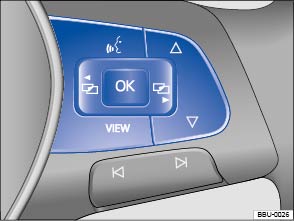
Fig. 19 Right side of the multi-function steering wheel: Controls for the menus and information in the instrument cluster display.
Read and follow the introductory information and safety information first
Accessing the instrument cluster menus and information displays
- Switch on the ignition.
- Driver personalization: Select user.
- If a message or the vehicle icon is displayed, push the
button ( ) on the right side of the multi-function steering wheel until a main menu appears in the instrument cluster display. For a list of main menus, see .
- Push buttons
or
to move to another main menu, and push the arrow up and down buttons
and
to navigate within the current main menu.
To open the menu or information display shown in the selection menu, press the button on the multi-function steering wheel or wait until the menu or information display opens automatically after a few seconds.
Selecting a setting
Use the arrow up and down buttons or
on the multi-function steering wheel to navigate through the available options. A frame may appear around the selected option. Push the
button to select a setting.
Returning to the main menu
Press the or
button .


 button
- For vehicles with an analog instrument cluster: Press the
- For vehicles with a Volkswagen Digital Cockpit: Press the
If warning messages are displayed when the ignition is switched on, it may not be possible to adjust some settings as described, or the information display may appear differently. If this is the case, take the vehicle to an authorized Volkswagen dealer or an authorized Volkswagen Service Facility for assistance.
Driver assistance systems button
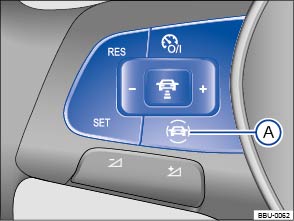
Fig. 20 On the multi-function steering wheel: Driver assistance systems button.
Read and follow the introductory information and safety information first
Your vehicle may have a driver assistance systems button on the multi-function steering wheel, which lets you switch some driver assistance systems on or off in the Assist systems menu .
Switching individual driver assistance systems on or off
- Press the button to open the Assist systems menu.
- Using the arrow up and down buttons
- Confirm the selection by pressing the
You can also switch driver assistance systems on and off in the Vehicle settings menu in the Infotainment system .
Download Manual