Phone operation (Hands-free system for cellular phones)
’ From the “PHONE” button
1 Press the “PHONE” button.
’ From the “MENU” button
1 Press the “MENU” button, then select “Phone”.
The following functions can be used on phone operation:
Registering/connecting a Bluetooth® device (P.392)
Placing a call using the Blue- tooth® hands-free system (P.463)
Receiving a call using the Bluetooth® hands-free system (P.466)
Talking on the Bluetooth® hands-free system (P.467)
The following function can be used on message function:
Using the Bluetooth® phone message function (P.469)
The following functions can be made in the system:
Phone settings (P.474)
Bluetooth® settings (P.396)
Some basics
This system is not guaranteed to operate with all Bluetooth® devices.
If your cellular phone does not support Bluetooth®, this system cannot function.
In the following conditions, the system may not function:
The cellular phone is turned off.
The current position is outside the communication area.
The cellular phone is not con- nected.
The cellular phone has a low bat- tery.
Depending on the type of Blue- tooth® phone, some function is not available.
When using the hands-free sys- tem or Bluetooth® audio and
Wi-Fi® Hotspot functions at the same time, the following problems may occur:
The Bluetooth® connection may be cut.
Noise may be heard on the Blue- tooth® audio playback.
A noise may be heard during phone calls.
Bluetooth® uses the 2.4 GHz fre- quency band. If both a Wi-Fi® con- nection and Bluetooth® connection are being used simul- taneously, each connection may be affected.
If a Bluetooth® device is attempt- ing to connect to the vehicle while another device is connected as a Bluetooth® audio device or con- nected using the hands-free sys- tem or Wi-Fi® Hotspot function, the communication speed may decrease or malfunctions may occur, such as image distortion or audio skipping. If a Bluetooth® device is connected to the system, the interference it may cause will be reduced. When carrying a device with its Bluetooth® connec- tion enabled, make sure to regis- ter it to the system and connect it or disable its Bluetooth® function.
When a device is connected via Bluetooth®, the Bluetooth® icon on the status bar will be displayed in blue. (P.380)
WARNING
While driving, do not operate a cellular phone.
Connecting a Bluetooth® device
’ Registering an additional device
Display the phone top screen. (P.458)
Select “Select Device”.
Select “Add Device”.
When another Bluetooth® device is connected, a confir- mation screen will be dis- played. To disconnect the Bluetooth® device, select “Yes”.
Follow the steps in “Register- ing a Bluetooth® phone for the first time” from step 5. (P.392)
’ Selecting a registered device
Display the phone top screen. (P.458)
Select “Select Device”.
Select the desired device to be connected.
Check that a confirmation screen is displayed when the connection is complete.
If an error message is dis- played, follow the guidance on the screen to try again.
Bluetooth® phone condition display
The condition of the Bluetooth® phone appears on the upper right side of the screen.
(P.380)
Steering switch
By pressing the phone switch, a call can be received or ended without taking your hands off the steering wheel.
Phone switch
If the switch is pressed during a call, the call will end.
If the switch is pressed when an incoming call is received, the call will be answered.
If the switch is pressed during a call when a separate incoming call is waiting, the waiting call will be answered.
If the switch is pressed when an Apple CarPlay connection is established, the Apple CarPlay phone application will be dis- played on the system screen.
Press the “+” side to increase the volume.
Press the “-” side to decrease the volume.
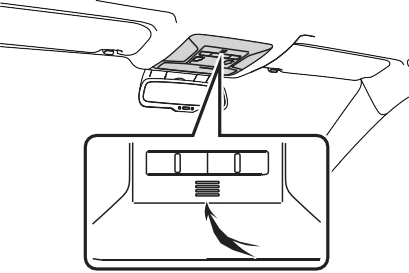
Microphone
talking on the phone.
The other party’s voice will be heard from the front speakers. The audio/visual system will be muted during phone calls or when hands-free voice commands are used.
Talk alternately with the other party on the phone. If both parties speak at the same time, the other party may not hear what has been said. (This is not a malfunction.)
Keep call volume down. Other- wise, the other party’s voice may be audible outside the vehicle and voice echo may increase. When talking on the phone, speak clearly towards the microphone.
The other party may not hear you clearly when:
Driving on an unpaved road. (Making excessive traffic noise.)
Driving at high speeds.
The roof or windows are open.
The air conditioning vents are pointed towards the microphone.
The sound of the air conditioning fan is loud.
There is a negative effect on sound quality due to the phone and/or network being used.
NOTICE
Do not touch and put a sharp object to the microphone. It may cause failure.
The voice command system and its list of commands can be operated. (P.450)
The following data is stored for every registered phone. When another phone is con- nected, the following regis- tered data cannot be read:
Contact data
Call history data
Favorites data
Image data
All phone settings
Message settings
The following data in the sys- tem can be initialized:
Contact data
Call history data
Favorites data
Image data
All phone settings
Message settings
Once initialized, the data and set- tings will be erased. Pay addi- tional attention when initializing the data.
When a phone’s registration is deleted, the above-mentioned data is also deleted.
When selling or disposing of the vehicle
By call history
Display the phone top screen. (P.458)
Select the desired method to call from.
Calling methods from phone screen
By call history (P.463)
By favorites (P.464)
By contacts (P.464)
By keypad* (P.465)
By message (P.472)
Also the following lists are available from each func- tion’s screen
By voice command system (P.451)
By home screen (P.466)
*: The operation cannot be per- formed while driving.
Display the phone top screen. (P.458)
Select “History” and select the desired contact.
If the contact which is not reg- istered on the contact list is selected, the name is dis- played as “Unknown Con- tact”. In this case, select the number to make a call prop- erly.
Check that the dialing screen is displayed.
The icons of call type are dis- played.
: Missed call : Incoming call
: Outgoing call
When making a call to the same number continuously, only the most recent call is listed in call his- tory.
When a phone number registered in the contact list is received, the name is displayed.
Number-withheld calls are also memorized in the system.
International phone calls may not be made depending on the type of Bluetooth® phone you have.
The list should group together consecutive entries with the same phone number and same call type. For example, two calls from John’s mobile would be displayed
as follows: John (2)
Display the phone top screen. (P.458)
Select “Favorites” and select the desired contact.
Select the desired number.
Check that the dialing screen is displayed.
Calls can be made by using contact data which is transferred from a registered cellular phone. (P.476)
Up to 5000 contacts (maximum of 4 phone numbers, e-mail addresses and addresses per contact) can be registered in the contact list.
Display the phone top screen. (P.458)
Select “Contacts” and select the desired contact.
Select the desired number.
“Add Favorite”/“Remove Favorite”: Select to register/remove the con- tact in the favorites list. (P.480)
“E-mail Addresses”: Select to dis- play all registered e-mail addresses for the contact.
“Addresses”: Select to display all registered addresses for the con- tact.
Check that the dialing screen is displayed.
For PBAP compatible Blue- tooth® phones when “Auto- matic Transfer” is set to on (P.476)
Contacts are transferred auto- matically.
For PBAP compatible Blue- tooth® phones when “Auto- matic Transfer” is set to off (P.476)
Select the desired item.
Select to always transfer all the contacts from a con- nected cellular phone auto- matically.
Select to transfer all the con- tacts from a connected cellu- lar phone only once.
Select to cancel transferring.
Check that a confirmation screen is displayed when the operation is complete.
For PBAP incompatible but OPP compatible Blue- tooth® phones
1 Select the desired item.
Select to transfer the con-
tacts from the connected cel- lular phone.
Transfer the contact data to the system using a Blue- tooth® phone.
Select to add a new contact manually.
Follow the steps in “Register- ing a new contact to the con- tacts list” from step 2. (P.479)
Select to cancel transferring.
If your cellular phone is neither PBAP nor OPP compatible, the contacts cannot be transferred using Bluetooth®. But the contacts can be transferred from USB device. (P.478)
Depending on the type of Blue- tooth® phone:
It may be necessary to perform additional steps on the phone when transferring contact data.
The registered image in the con- tact list may not transfer depend- ing on the type of Bluetooth® phone connected.
By keypad
Display the phone top screen. (P.458)
Select “Keypad” and enter the phone number.
Select or press the switch on the steering wheel.
Check that the dialing screen is displayed.
Depending on the type of Blue-
tooth® phone being connected, it may be necessary to perform additional steps on the phone.
By home screen
Display the home screen. (P.386)
Select the desired contact.
Check that the dialing screen is displayed.
Registering a new contact
Select and hold the screen button to add a contact.
Select the desired contact.
Select the desired number.
If there is no contact in the con- tacts list, the contacts cannot be registered at the home screen.
The contact cannot be registered at the home screen while driving.
Incoming calls
“Decline”: Select to refuse to receive the call.
To adjust the volume of a received call: Turn the “POWER VOLUME” knob, or use the volume control switch on the steering wheel.
The contact image picture can be displayed only when the vehicle is not moving.
During international phone calls, the other party’s name or number may not be displayed correctly depending on the type of Blue- tooth® phone you have.
The incoming call display mode can be set. (P.475)
The ringtone that has been set in the sound settings screen can be heard when there is an incoming call. Depending on the type of
Bluetooth® phone, both the sys- tem and Bluetooth® phone may ring simultaneously when there is an incoming call. (P.474)
Call screen operation
Select to send tones. This button only appears when a number that contains a (w) is dialed in hands-free mode. (P.468)
Select to adjust your voice volume that the other party hears from their speaker. (P.468)
Select to mute your voice to the other party.
Select to change handset modes between hands-free and cellular phone.
Select to put a call on hold.
To cancel this function, select “Activate”.
Select to hang up the phone.
Changing from hands-free call to cellular phone call is not possible while driving.
Only when the vehicle is not mov- ing, the contact image can be dis- played.
When cellular phone call is changed to hands-free call, the hands-free screen will be dis- played and its functions can be operated on the screen.
Changing between cellular phone call and hands-free call can be performed by operating the cellu- lar phone directly.
Transferring methods and opera- tions will be different depending on the type of cellular phone you have.
For the operation of the cellular phone, see the manual that comes with it.
By keypad
A continuous tone signal is a char- acter string that consists of num- bers and the characters “p” or “w”. (e.g. 056133w0123p#1)
When the “p” pause tone is used, the tone data up until the next pause tone will be automatically sent after 2 seconds have elapsed. When the “w” pause tone is used, the tone data up until the next pause tone will be automati- cally sent after a user operation is performed.
Release tones can be used when automated operation of a phone based service such as an answer- ing machine or bank phone ser- vice is desired. A phone number with continuous tone signals can be registered in the contact list.
Tone data after a “w” pause tone can be operated by voice com- mand during a call.
Transmit volume setting
Select “Transmit Volume”.
Select the desired level for the transmit volume.
Select to display previ- ous screen.
formed while driving.
Select “0-9”.
Enter the desired number.
By selecting “Release Tones”
“Release Tones” appear when a continuous tone signal(s) con- taining a (w) is registered in the contact list.
This operation can be per- formed while driving.
1 Select “Release Tones”.
The sound quality of the voice heard from the other party’s speaker may be negatively impacted.
“Transmit Volume” is dimmed when mute is on.
Switching calls while a call is in progress
When there are no calls on hold during a call: “Hold” is displayed. When selected, the
current call is placed on hold.
When there is no current call, but there is a call on hold: “Activate” is displayed. When selected, the system switches to the call that was on hold.
When there is another call on hold during a call: “Swap Calls” is displayed. When selected, the current call is placed on hold, and the sys- tem switches to the call that was on hold.
This function may not be available depending on the type of cellular phone.
Incoming call waiting
1 Select “Answer” or press the switch on the steering wheel to start talking with the other party.
To refuse to receive the call: Select “Decline”.
Each time “Swap Calls” is selected, the party who is on hold will be switched.
This function may not be available depending on the type of Blue- tooth® phone.
Displaying the message screen
Display the phone top screen. (P.458)
Select “Message”.
A confirmation message appears when the “Automatic Message Transfer” function is set to off (P.482), select “Yes”.
Check that the message screen is displayed.
“Phone”: Select to change to phone mode.
The account name is dis- played on the left side of
screen.
Account names are the names of the accounts that exist on the currently con- nected phone.
The following functions can be used on message function:
Receiving a message (P.470)
Checking messages (P.470)
Replying to a message (dicta- tion reply) (P.471)
Replying to a message (quick reply) (P.472)
Calling the message sender (P.472)
Message settings (P.482)
When an e-mail/SMS/MMS is received, the incoming message screen pops up with sound and is ready to be operated on the screen.
Select to check the message.
Select to not open the mes- sage.
Select to call the message sender.
Depending on the type of Blue- tooth® phone used for receiving messages, or its registration sta- tus with the system, some infor- mation may not be displayed.
The pop-up screen is separately available for incoming e-mail and SMS/MMS messages under the following conditions:
E-mail:
“Incoming E-mail Display” is set to “Full Screen”. (P.475)
“E-mail Notification Pop-up” is set to on. (P.475)
SMS/MMS:
“Incoming SMS/MMS Display” is set to “Full Screen”. (P.475)
“SMS/MMS Notification Pop-up” is set to on. (P.475)
Depending on the type of Blue- tooth® phone being connected, E- Mail function cannot be used via Bluetooth®.
Checking received mes- sages
Display the message screen. (P.469)
Select a desired account name.
Select the desired message from the list.
Check that the message is displayed.
Select to call the message sender.
Select to have messages read out.
To cancel this function, select “Stop”.
When “Automatic Message Readout” is set to on, mes- sages will be automatically read out. (P.482)
Select to display the previous or next message.
This function can be chosen the method to reply mes- sage with “Dictation” or “Quick Message”.
Reading a text message is not available while driving.
Depending on the type of Blue- tooth® phone being connected, this function cannot be used.
Depending on the type of Blue- tooth® phone being connected, it may be necessary to perform additional steps on the phone.
Messages are displayed in the appropriate connected Blue- tooth® phone’s registered mail address folder. Select the desired folder to be displayed.
Only received messages on the connected Bluetooth® phone can be displayed.
The text of the message is not dis- played while driving.
Turn the “POWER VOLUME” knob, or use the volume control switch on the steering wheel to adjust the message read out vol- ume.
“Subject:” field is not shown on
SMS case.
E-mail only: Select “Mark Unread” or “Mark Read” to mark mail unread or read on the message screen.
This function is available when “Update Message Read Status on Phone” is set to on. (P.482)
Replying to a message (dictation reply)*
*: If equipped
Display the message screen. (P.469)
Select the desired message from the list.
Select “Reply”.
Select “Dictation”.
When the “Say Your Mes- sage” screen is displayed, speak message that you want to send.
Select “Send” to send mes- sage.
“Cancel”: Select to cancel sending the message.
“Retry”: Select to retry speaking message that you want to send.
While the message is being sent, a sending message screen is displayed.
Check that a confirmation screen is displayed when the operation is complete.
If an error message is dis- played, follow the guidance on the screen to try again.
15 messages have already been stored.
Display the message screen. (P.469)
Select the desired message from the list.
Select “Reply”.
Select “Quick Message”.
Select the desired message.
: Select to edit the message. (P.472)
Select “Send”.
“Cancel”: Select to cancel sending the message.
While the message is being sent, a sending message screen is displayed.
Check that a confirmation screen is displayed when the operation is complete.
If an error message is dis- played, follow the guidance on the screen to try again.
Depending on the type of Blue- tooth® phone, reply function is not available.
Editing quick reply mes- sages
1 Select corresponding to the desired message to edit.
2 Select “OK” when editing is completed.
To reset the edited quick reply messages, select “Default”.
Calling the message sender
This operation can be per- formed while driving.
Calling from e- mail/SMS/MMS message display
Display the message screen. (P.469)
Select the desired message.
Select , or press the switch on the steering wheel.
If there are 2 or more phone numbers, select the desired number.
Check that the dialing screen is displayed.
Calling from a number within a message
Calls can be made to a number identified in a message’s text area.
This operation cannot be per- formed while driving.
Display the message screen. (P.469)
Select the desired message.
Select the text area.
Identified phone numbers contained in the message are displayed in blue text.
Select the desired number.
Check that the dialing screen is displayed.
A series of numbers may be rec- ognized as a phone number. Addi- tionally, some phone numbers may not be recognized, such as those for other countries.
 WARNING
 NOTICE
 : Missed call
  : Incoming call
 : Outgoing call
 Select
  or press the switch on the steering wheel.
 to display previ- ous screen.
 switch on the steering wheel to start talking with the other party.
 : Select to edit the message. (P.472)
 corresponding to the desired message to edit.
 Select
  , or press the switch on the steering wheel.