Other settings
|
|
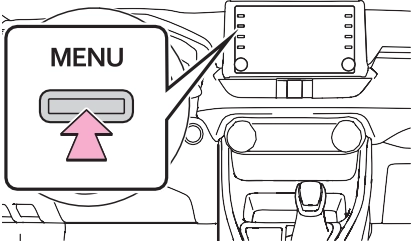
Select to change the time zone and select “On” or “Off” for daylight sav- ing time, automatic adjustment of
the clock, etc. (P.412)
Select to change the language. The language setting of Apple CarPlay can only be changed on the con- nected iPhone.
Select to change the display infor- mation/area on the home screen and the home screen layout. (P.386)
Select to change the screen theme setting.
Select to turn automatic Apple Car- Play connection establishment on/off when a compatible iPhone is connected to the system via USB.
Select to turn the beep sound on/off.
Select to change the unit of mea- sure for distance/fuel consumption.
Select to change the keyboard lay- out.
Select to delete the keyboard his- tory.
Select to set the memorize key- board history on/off.
Select to turn the animations on/off.
Select to change the driver set- tings. (P.413)
Select to delete personal data. (P.413)
Select to update software versions. For details, contact your Toyota dealer.
Select to set software update set- ting. (P.414)
Select to update Gracenote® data- base versions. For details, contact your Toyota dealer.
Select to display the software infor- mation. Notices related to third party software used in this product are enlisted. (This includes instruc- tions for obtaining such software, where applicable.)
Select to change the capacitive touch screen button sensitivity to 1 (low), 2 (medium), or 3 (high).
*1: This function is not made avail- able in some countries or areas.
*2: Vehicles equipped with DCM
Select to change the time zone. (P.412)
Select to set daylight saving time on/off.
Select to set automatic adjustment of the clock by GPS on/off.
When set to off, the clock can be manually adjusted. (P.412)
Select to set the 24 hour time format on/off.
When set to off, the clock is displayed in 12 hour time for- mat.
When “Auto Adjust by GPS” is turned off, the clock can be manually adjusted.
1 Select “Auto Adjust by GPS” to set to off.
2 Adjust the clock manually.
Select “+” to set the time for- ward one hour and “-” to set the time back one hour.
Select “+” to set the time for- ward one minute and “-” to set the time back one minute.
Select to round to the nearest hour.
e.g.
1:00 to 1:29 1:00
1:30 to 1:59 2:00
The driver settings feature will allow the system to link some preferences (such as audio pre- sets, screen theme, language, etc.) to a paired Bluetooth® phone.
1 Select “Manually Select Linked Settings”.
1 Select the desired phone.
Registered or changed per- sonal settings will be deleted or returned to their default condi- tions.
Examples of settings that can be returned to their default conditions:
etc.
*: This function is not made avail- able in some countries or areas.
|
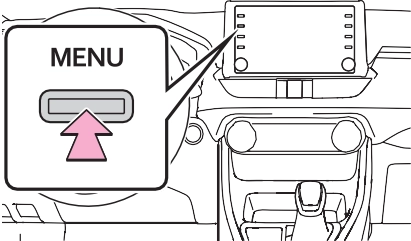
Displaying the voice set- tings screen |
|
|
|
Voice settings screen |
Select to adjust the volume of voice guidance.
Select to set the voice recog- nition prompts.
Select to train voice recogni-
tion.
The voice command system adapts the user accent.
Select to start the voice rec- ognition tutorial.
Select to set the voice prompt interrupt on/off.
Select to reset all setup items.
|
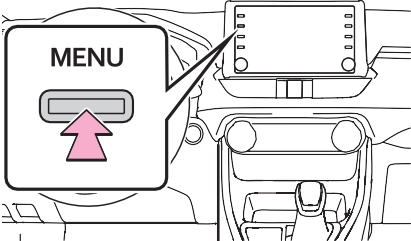
Displaying the vehicle settings screen |
|
|
|
Vehicle settings screen |
Select to set vehicle customi- zation. (P.681)
Select to set valet mode. (P.416)
The security system can be set to on by entering a security code (4-digit number).
When set to on, the system will become inoperative once the electrical power source is dis- connected until the security code is entered.
security code (4-digit number) for 10 minutes.
Download Manual