Rear view monitor system
Refer to the "navigation and multimedia system owner's manual".
The rear view monitor system assists the driver by displaying guide lines and an image of the view behind the vehicle while backing up, for example while parking. The screen illustrations used in this text are intended as examples, and may differ from the image that is actually displayed on the screen. |
The rear view image is displayed when the shift position is in r and the engine switch is in “on” position.
The rear view monitor system will be deactivated when the shift lever is in any position other than r.
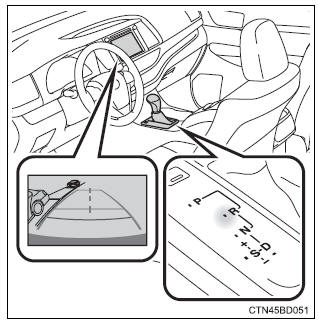
Using the rear view monitor system
Screen description
The rear view monitor system screen will be displayed if the shift lever is shifted to r while the engine switch is in “on” position.
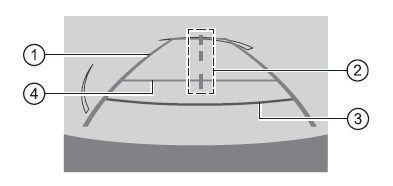
- Vehicle width guide lines the line indicates a guide path when the vehicle is being backed straight up.The displayed width is wider than the actual vehicle width.
- Vehicle center guide lines these lines indicate the estimated vehicle center on the ground.
- Distance guide line the line shows points approximately 1.5 Ft. (0.5 M) (red) from the center of the edge of the bumper.
- Distance guide line the line shows distance behind the vehicle, a point approximately 3 ft.
(1 M) (blue) from the edge of the bumper.
Rear view monitor system precautions
Area displayed on screen
The rear view monitor system displays an image of the view from the bumper of the rear area of the vehicle.
To adjust the image on the rear view monitor system screen.
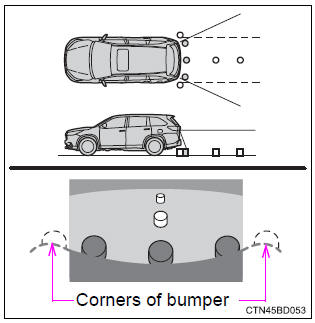
- The area displayed on the screen may vary according to vehicle orientation conditions.
- Objects which are close to either corner of the bumper or under the bumper cannot be seen on the screen.
- The camera uses a special lens. The distance of the image that appears on the screen differs from the actual distance.
- Items which are located higher than the camera may not be displayed by the monitor.
Rear view monitor system camera
The camera for the rear view monitor system is located above the license plate.
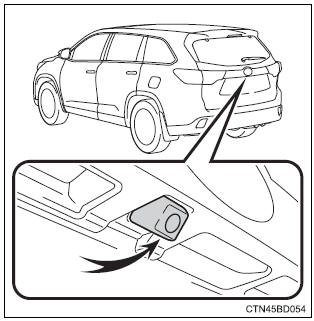
- Using the camera
If the camera lens becomes dirty, it cannot transmit a clear image. If water droplets, snow or mud adhere to the lens, rinse it with water and wipe with a soft cloth. If the lens is extremely dirty, wash it with a mild cleanser and rinse.
Differences between the screen and the actual road
The distance guide lines and the vehicle width guide lines may not actually be parallel with the dividing lines of the parking space, even when they appear to be so. Be sure to check visually.
The distances between the vehicle width guide lines and the left and right dividing lines of the parking space may not be equal, even when they appear to be so. Be sure to check visually.
The distance guide lines give a distance guide for flat road surfaces.
In any of the following situations, there is a margin of error between the fixed guide lines on the screen and the actual distance/ course on the road.
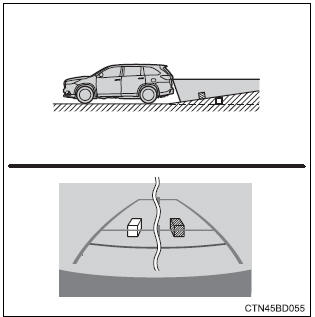
- When the ground behind the vehicle slopes up sharply
The distance guide lines will appear to be closer to the vehicle than the actual distance.
Because of this, objects will appear to be farther away than they actually are. In the same way, there will be a margin of error between the guidelines and the actual distance/course on the road.
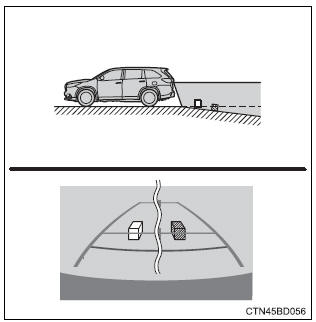
- When the ground behind the vehicle slopes down sharply
The distance guide lines will appear to be further from the vehicle than the actual distance.
Because of this, objects will appear to be closer than they actually are. In the same way, there will be a margin of error between the guidelines and the actual distance/course on the road.
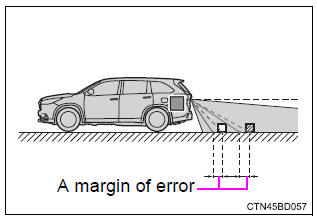
- When any part of the vehicle sags
When any part of the vehicle sags due to the number of passengers or the distribution of the load, there is a margin of error between the fixed guide lines on the screen and the actual distance/course on the road.
When approaching three-dimensional objects
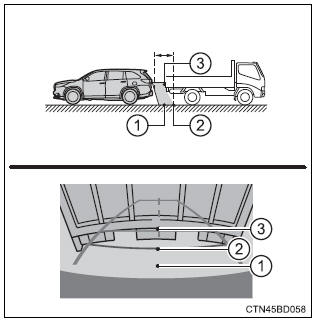
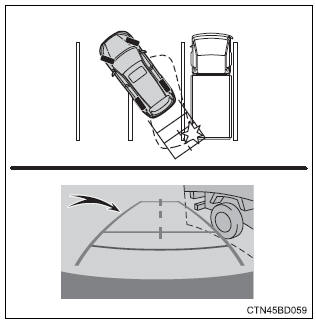
The distance guide lines are displayed according to flat surfaced objects (such as the road). It is not possible to determine the position of three-dimensional objects (such as vehicles) using the distance guide lines. When approaching a three-dimensional object that extends outward (such as the flatbed of a truck), be careful of the following.
- Distance guidelines
Visually check the surroundings and the area behind the vehicle.
On the screen, it appears that a truck is parked at point 2. However, in reality if you back up to point 1, you will hit the truck. On the screen, it appears that 1 is closest and 3 is furthest away. However, in reality, the distance to 1 and 3 is the same, and 2 is farther than 1 and 3.
Vehicle width guide lines
Visually check the surroundings and the area behind the vehicle. In the case shown below, the truck appears to be outside of the vehicle width guide lines and the vehicle does not look as if it hits the truck. However, the rear body of the truck may actually cross over the vehicle width guide lines. In reality if you back up as guided by the vehicle width guide lines, the vehicle may hit the truck.
Vehicle width guide lines
Things you should know
If you notice any symptoms
If you notice any of the following symptoms, refer to the likely cause and the solution, and re-check.
If the symptom is not resolved by the solution, have the vehicle inspected by your toyota dealer.
|
Likely cause
|
Solution
|
| The image is difficult to see
|
|
|
If this happens due to these causes, it does not indicate a malfunction.
Back up while visually checking the vehicle’s surroundings. (Use the monitor again once conditions have been improved.) To adjust the image on the rear view monitor system screen. |
| The image is blurry
|
|
| Dirt or foreign matter (such as water droplets, snow, mud etc.) Is adhering to the camera. | Rinse the camera lens with water and wipe it clean with a soft cloth.
Wash with a mild soap if the dirt is stubborn. |
| The image is out of alignment
|
|
| The camera or surrounding area has received a strong impact. | Have the vehicle inspected by your toyota dealer. |
| The fixed guide lines are very far out of alignment
|
|
|
If this happens due to these causes, it does not indicate a malfunction.
Back up while visually checking the vehicle's surroundings. |
| The camera position is out of alignment. | Have the vehicle inspected by your toyota dealer. |
 Warning Warning
The rear view monitor system is a supplemental device intended to assist the driver when backing up. When backing up, be sure to check visually behind and all around the vehicle before proceeding. Observe the following precautions to avoid an accident that could result in death or serious injuries.
|
 Notice Notice
|
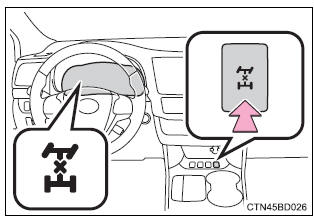
All-wheel drive lock switch
All-wheel drive lock mode can be used when a large amount of drive power needs to be applied to all the wheels, such as when the vehicle gets stuck in mud and you need to free it.
Press the switch.
The torque of the engine is distributed to the rear wheels to the maximum extent possible in accordance with driving conditions.
Pressing the switch again cancels all-wheel drive lock mode and returns the dynamic torque control awd system to normal mode.
All-wheel drive lock mode can be operated when
- Vehicles without a smart key system the engine switch is in the "on" position.
- vehicles with a smart key system the engine switch is in ignition on mode.
All-wheel drive lock mode
- All-wheel drive lock mode is canceled when the brakes are applied to ensure the abs and vsc systems operate effectively.
- All-wheel drive lock mode is canceled when the vehicle speed exceeds 25 mph (40 km/h).
Download Manual