Connecting bluetooth
Preparations to use wireless communication
The following can be performed using bluetoothr wireless communication:
- a portable audio player can be operated and listened to via audio system
- hands-free phone calls can be made via a cellular phone
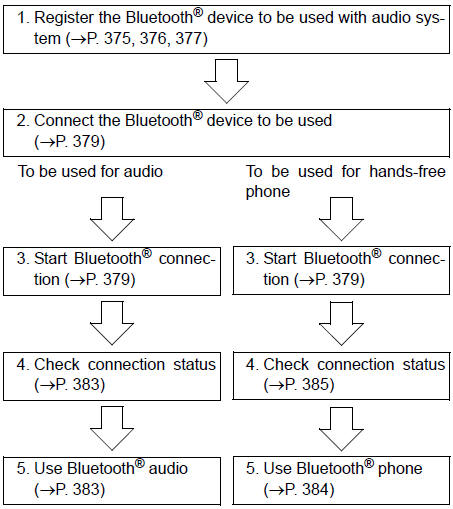
In order to use wireless communication, register and connect a bluetoothr device by performing the following procedures.
About bluetooth
The bluetooth® word mark and logos are registered trademarks owned bluetooth sig, inc. And any use of such marks by pioneer corporation is under license. Other trademarks and trade names are those of their respective owners.
Certifications for the bluetooth„µ (caution)
Fcc id: ajdk068
Caution
: radio frequency radiation exposure
This equipment complies with fcc radiation exposure limits set forth for uncontrolled equipment and meets the fcc radio frequency (rf) exposure guidelines in supplement c to oet65. This equipment has very low levels of rf energy that it deemed to comply without maximum permissive exposure evaluation (mpe). But it is desirable that it should be installed and operated with at least 20cm and more between the radiator and person's body (excluding extremities: hands, wrists, feet and ankles).
- Co-location: this transmitter must not be co-located or operated in conjunction with any other antenna or transmitter.
- This device complies with part 15 of the fcc rules. Operation is subject to the following two conditions: (1) this device may not cause harmful interference, and (2) this device must accept any interference received, including interference that may cause undesired operation.
Fcc warning: changes or modifications not expressly approved by the party responsible for compliance could void the user's authority to operate the equipment.
Ic: 775e-k068
- This device complies with industry canada licence-exempt rss standard( s). Operation is subject to the following two conditions: (1) this device may not cause interference, and (2) this device must accept any interference, including interference that may cause undesired operation of the device.
Caution
: radio frequency radiation exposure
This equipment complies with ic radiation exposure limits set forth for uncontrolled equipment and meets rss-102 of the ic radio frequency (rf) exposure rules.
This equipment has very low levels of rf energy that it deemed to comply without maximum permissive exposure evaluation (mpe).
But it is desirable that it should be installed and operated with at least 20cm and more between the radiator and person's body (excluding extremities: hands, wrists, feet and ankles).
Device registration/connection flow
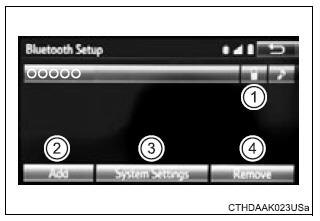
Registering and connecting from the “bluetooth* setup” screen
To display the screen shown below, press the "setup" button and select "bluetooth*" on the "setup" screen.
- Select to connect the device to be used with audio system.
- Select to register a bluetoothr device to be used with audio system.
- Select to set detailed bluetoothr system settings.
- Select to delete registered devices.
*: Bluetooth is a registered trademark of bluetooth sig, inc.
Registering a bluetooth® audio player for the first time
To use the bluetooth® audio, it is necessary to register an audio player with the system.
Once the player has been registered, it is possible to use the bluetooth® audio.
For details about registering a bluetooth® device
- Turn the bluetooth® connection setting of your audio player on.
- Press the “audio” button.
- Select “
 audio”.
 - Select “select device”.
- Follow the steps in “how to register a bluetooth® device” from “step 2”.
Registering a bluetooth® phone for the first time
To use the hands-free system, it is necessary to register a bluetoothr phone with the system.
Once the phone has been registered, it is possible to use the hands-free system.
For details about registering a bluetoothr device
- Turn the bluetooth® connection setting of your cellular phone on.
- Press the “
 ” button.
 - Select “ok” to register a phone.
- Follow the steps in “how to register a bluetooth® device” from “step 3”.
Registering a bluetooth® device
Bluetooth® compatible phones (hfp) and portable audio players (avp) can be registered simultaneously. You can register up to 5 bluetooth® devices.
How to register a bluetooth® device
- Display the "bluetooth* setup" screen. *: Bluetooth is a registered trademark of bluetooth sig, inc.
- Select "add".
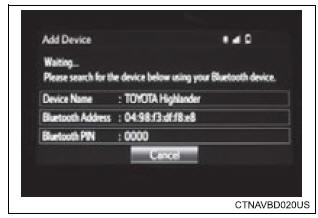
- When this screen is displayed, search for the device name displayed on this screen on the screen of your bluetoothr device.
For details about operating the bluetoothr device, see the manual that comes with it.
To cancel the registration, select "cancel".
- Register the bluetoothr device using your bluetoothr device.
A pin-code is not required for ssp (secure simple pairing) compatible bluetoothr devices. Depending on the type of bluetoothr device being connected, a message confirming registration may be displayed on the bluetoothr device's screen. Respond and operate the bluetoothr device according to the confirmation message.
- Check that this screen is displayed when registration is complete.
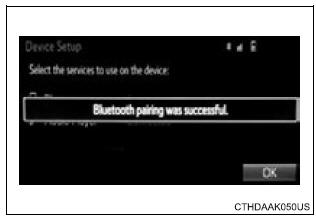
- Select "ok" when the connection status changes from "connecting...?H to "connected".
If an error message is displayed, follow the guidance on the screen to try again.
Registration can be performed from screens other than the "bluetooth* setup" screen.
When registering from the "bluetooth* audio" screen
- Display the "bluetooth* audio" screen.
- Select "select device".
- Follow the steps in "how to register a bluetoothr device" from "step 2".
*: Bluetooth is a registered trademark of bluetooth sig, inc.
Deleting a bluetooth® device
- Display the "bluetooth* setup" screen. *: Bluetooth is a registered trademark of bluetooth sig, inc.
- Select "remove".
- Select the desired device.
- A confirmation message will be displayed, select "yes" to delete the device.
- Check that a confirmation screen is displayed when the operation is complete.
Connecting a bluetooth® device
Up to 5 bluetooth® devices (phones [hfp] and audio players [avp]) can be registered.
If more than 1 bluetooth® device has been registered, select which device to connect to.
- Press the “setup” button.
- Select “bluetooth*”.
*: Bluetooth is a registered trademark of bluetooth sig, inc.
- Select the device to be connected.
Supported profile icons will be displayed.
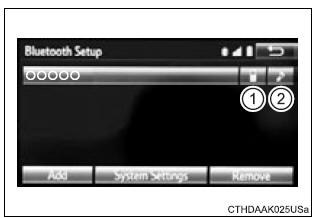
- Phone
- Audio player
Supported profile icons for currently connected devices will illuminate.
Dimmed icons can be selected to connect to the function directly.
Auto connection
To turn auto connection mode on, set "bluetooth* power" to on.
When you register a phone, auto connection will be activated. Always set it to this mode and leave the bluetoothr phone in a place where a connection can be established.
When the audio system is turned to on, the system will search for a nearby cellular phone you have registered.
Next, the system automatically connects with the most recent of the phones connected to in the past. Then, the connection result is displayed.
*: Bluetooth is a registered trademark of bluetooth sig, inc.
Manual connection
When auto connection has failed or "bluetooth* power" is turned off, you must connect the bluetoothr device manually.
*: Bluetooth is a registered trademark of bluetooth sig, inc.
- Follow the steps in "connecting a bluetoothr device" from "step 1".
Connecting a bluetooth® audio player
- Registering an additional device
- select "select device" on the bluetoothr audio control screen.
- For more information:
- selecting a registered device
- select "select device" on the bluetoothr audio control screen.
- For more information:
Reconnecting a bluetooth® phone
If the system cannot connect due to poor signal strength, the system will automatically attempt to reconnect.
If the phone is turned off, the system will not attempt to reconnect. In this case, the connection must be made manually, or the phone must be reselected.
Displaying a bluetooth® device details
You can confirm and change the registered device details.
Bluetooth® device registration status
- Display the "bluetooth* setup" screen. *: Bluetooth is a registered trademark of bluetooth sig, inc.
- Select the device.
- Select "device info".
- Following screen is displayed:
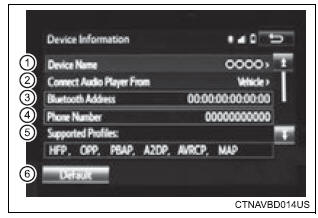
- Change device name
- change connection method
- Bluetoothr address
- display your telephone number the number may not be displayed depending on the model of phone.
- Compatibility profile of the device
- restore default settings
Changing connection method
- Select “connect audio player from”.
- Select “vehicle” or “device”.
“Vehicle”: connect the audio system to the portable audio player.
“Device”: connect the portable audio player to the audio system
Detailed bluetooth® system settings
You can confirm and change the detailed bluetooth® settings.
How to check and change detailed bluetooth® settings
- Display the "bluetooth* setup" screen.
- Select "system settings".
- The following screen is displayed:
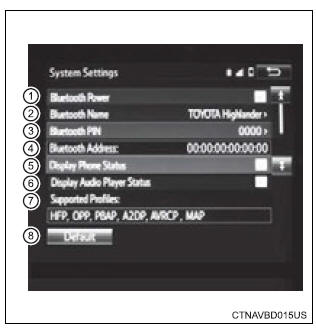
- Bluetoothr power on/off you can change bluetoothr function on/off
- change bluetoothr name
- change pin-code
- Bluetoothr address
- display phone status select to set the phone connection status display on/off.
- Display audio player status select to set the connection status display of the audio player on/off.
- Compatibility profile of the system
- restore default settings
*: bluetooth is a registered trademark of bluetooth sig, inc
Editing the bluetooth* pin
You can change the pin-code that is used to register your bluetooth® devices in the system.
- Select “bluetooth* pin”.
- Input a pin-code, and select “ok”.
*: Bluetooth is a registered trademark of bluetooth sig, inc.
Download Manual