Lincoln bluecruise (if equipped)
WHAT IS BLUECRUISE
BlueCruise keeps your vehicle centered in the lane and offers a hands-free driving mode in certain situations when using adaptive cruise control.
HOW DOES BLUECRUISE WORK
BlueCruise uses cameras to monitor your vehicle position within a lane and applies steering support to keep your vehicle centered in the lane.
Using the cameras and location information, BlueCruise allows you to remove your hands from the steering wheel and offers a hands-free driving mode in certain areas.
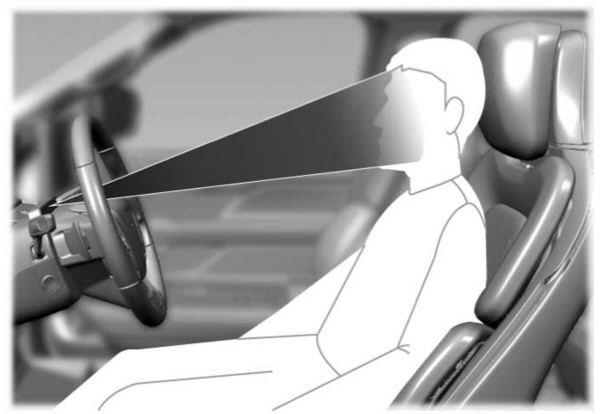
When active, BlueCruise uses a driver facing camera and infrared lighting to monitor your eyes and head position to detect if you are distracted. If the system determines you are distracted, it alerts you to return your eyes to the road.
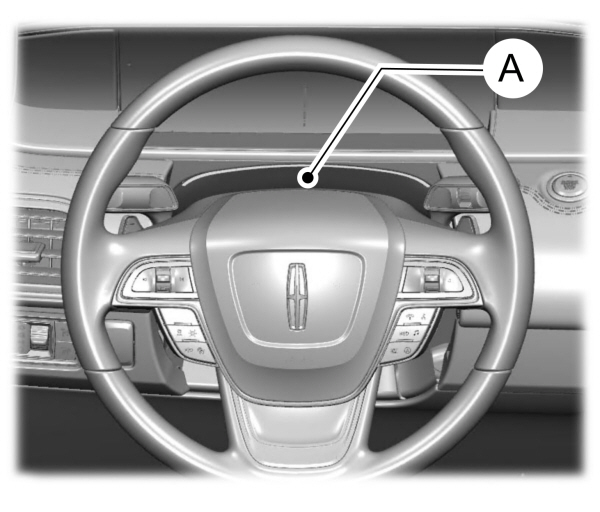
A Lighting and camera area. Lighting and camera area. |
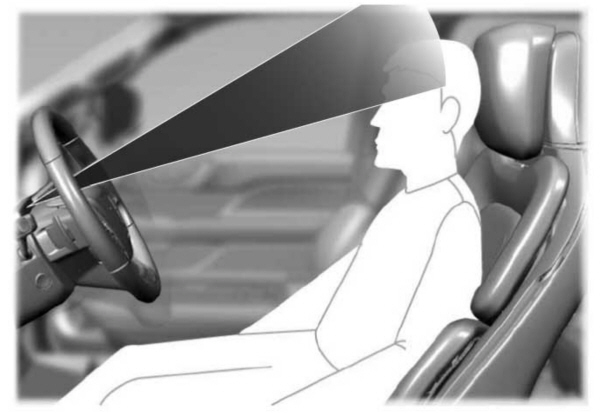
Steering column too high, camera cannot see the face.
BLUECRUISE PRECAUTIONS
 WARNING: You are responsible for keeping your eyes on the road at all times. The system is designed to be an aid and does not relieve you of your responsibility to drive with due care and attention. Failure to follow this instruction could result in the loss of control of your vehicle, personal injury or death. WARNING: You are responsible for controlling your vehicle at all times. The system is designed to be an aid and does not relieve you of your responsibility to drive with due care and attention. Failure to follow this instruction could result in the loss of control of your vehicle, personal injury or death. WARNING: Do not use the system when towing a trailer. Failure to follow this instruction could result in the loss of control of your vehicle, personal injury or death. WARNING: Obstructions to the driver facing camera or infrared lighting could prevent the system from properly operating. Keep the camera and lighting areas free from obstruction. Failure to follow this instruction could result in the loss of control of your vehicle, personal injury or death. WARNING: Do not use the system if any changes or modifications to the steering wheel have been made. Any changes or modifications to the steering wheel could affect the functionality or performance of the system. Failure to follow this instruction could result in the loss of control of your vehicle, personal injury or death. WARNING: The system may not function if the sensor is blocked. WARNING: Pay close attention to changing road conditions such as entering or leaving a highway, on roads with intersections or roundabouts, roads without visible lanes of travel, roads that are unpaved, or steep slopes, railroad crossings, pedestrian crossings, and school zones. Failure to follow this instruction could result in the loss of control of your vehicle, personal injury or death. WARNING: The system is not a crash warning or avoidance system. WARNING: Large contrasts in outside lighting can limit sensor performance. WARNING: The system attempts to keep your vehicle in the center of the lane as well as maintain speed and gap control. The system may not be able to perform these tasks in all situations. Do not use the system in complex or uncertain driving conditions. Failure to follow this instruction could result in the loss of control of your vehicle, personal injury or death. WARNING: Your vehicle could drift out of the lane of travel. Always be prepared to manually steer your vehicle. Failure to follow this instruction could result in the loss of control of your vehicle, personal injury or death. WARNING: The system will not operate if the sensor cannot track the road lane markings. WARNING: You are responsible for keeping your eyes on the road at all times. The system is designed to be an aid and does not relieve you of your responsibility to drive with due care and attention. Failure to follow this instruction could result in the loss of control of your vehicle, personal injury or death. WARNING: You are responsible for controlling your vehicle at all times. The system is designed to be an aid and does not relieve you of your responsibility to drive with due care and attention. Failure to follow this instruction could result in the loss of control of your vehicle, personal injury or death. WARNING: Do not use the system when towing a trailer. Failure to follow this instruction could result in the loss of control of your vehicle, personal injury or death. WARNING: Obstructions to the driver facing camera or infrared lighting could prevent the system from properly operating. Keep the camera and lighting areas free from obstruction. Failure to follow this instruction could result in the loss of control of your vehicle, personal injury or death. WARNING: Do not use the system if any changes or modifications to the steering wheel have been made. Any changes or modifications to the steering wheel could affect the functionality or performance of the system. Failure to follow this instruction could result in the loss of control of your vehicle, personal injury or death. WARNING: The system may not function if the sensor is blocked. WARNING: Pay close attention to changing road conditions such as entering or leaving a highway, on roads with intersections or roundabouts, roads without visible lanes of travel, roads that are unpaved, or steep slopes, railroad crossings, pedestrian crossings, and school zones. Failure to follow this instruction could result in the loss of control of your vehicle, personal injury or death. WARNING: The system is not a crash warning or avoidance system. WARNING: Large contrasts in outside lighting can limit sensor performance. WARNING: The system attempts to keep your vehicle in the center of the lane as well as maintain speed and gap control. The system may not be able to perform these tasks in all situations. Do not use the system in complex or uncertain driving conditions. Failure to follow this instruction could result in the loss of control of your vehicle, personal injury or death. WARNING: Your vehicle could drift out of the lane of travel. Always be prepared to manually steer your vehicle. Failure to follow this instruction could result in the loss of control of your vehicle, personal injury or death. WARNING: The system will not operate if the sensor cannot track the road lane markings. |
BLUECRUISE REQUIREMENTS
BlueCruise only activates when all of the following occur:
- BlueCruise service plan is active. See Lincoln.com (https://www.lincoln.com/connectedservices/) or the Lincoln Way App for details.
- Modem is enabled. See Connected Vehicle.
- BlueCruise is enabled in your center display screen. See BlueCruise Settings.
- Adaptive cruise control is on.
- The system detects both lane markings.
- Your hands are on the steering wheel.
- Your eyes are on the road.
Note: For hands-free mode to work, your vehicle must be on certain limited access divided freeways.
Note: The system may require updated software for hands-free mode.
Note: Without an active BlueCruise subscription, your vehicle is still capable of lane centering. This system requires you to keep your hands on the steering wheel at all times. See Lane Centering Requirements.
BLUECRUISE LIMITATIONS
Any of the following conditions could result in BlueCruise not correctly operating:
- You do not have your vehicle centered in the lane.
- The lane is too narrow or too wide.
- The system does not detect at least one lane marking or when lanes merge or split.
- You are applying a low amount of steering input.
- You are using the system in areas under construction.
- If you make any aftermarket modifications to the steering system.
- You are using a spare tire.
The driver-facing camera may not operate correctly due to any of the following:
- You have a pre-existing eye condition, such as an eye misalignment, or have had eye surgery.
- You cover your facial features by a mask, hat or other items.
- The lighting conditions change significantly.
- You are not in the field of view of the camera.
- You position or tilt yourself to one side.
- You are moving around extensively.
- You are wearing glasses or sunglasses that are too dark or reflective.
Note: The system has limited steering assistance and may not be sufficient for all driving situations.
Note: In exceptional conditions, such as inclement weather or direct sunlight, the system could deviate from the center line.
Note: The information provided by the navigation map data could be inaccurate or out of date.
BLUECRUISE SETTINGS
ENABLING BLUECRUISE
- Press Features on the touchscreen.
- Press Driver Assistance.
- Press Cruise Control.
- Press Lane Centering with Hands-Free.
ENABLING ACTIVATION PROMPTS
- Press Features on the touchscreen.
- Press Driver Assistance.
- Press Cruise Control.
- Press Activation Prompts.
SWITCHING BLUECRUISE ON AND OFF
SWITCHING BLUECRUISE ON
The controls are on the steering wheel.
USING ACTIVATION PROMPTS

The indicator appears in the instrument cluster. When the system is on, the color of the indicator changes to indicate the system status.
Note: You must enable activation prompts in the touchscreen.
USING STEERING WHEEL CONTROLS
 Using the adaptive cruise control and lane keeping buttons, make sure both systems are active. BlueCruise activates. Using the adaptive cruise control and lane keeping buttons, make sure both systems are active. BlueCruise activates. |
SWITCHING BLUECRUISE OFF
| Press either the lane keeping or adaptive cruise control button when system is active or in standby mode.
BlueCruise turns off through each ignition cycle. |
BLUECRUISE ALERTS
When BlueCruise is providing hands-on driving or transitioning to hands-on driving from hands-free driving and detects no steering activity for a certain period of time, the system alerts you with a message in the instrument cluster to put your hands on the steering wheel. After the first alert, the system alerts you with a message in the instrument cluster and an audible warning.
When BlueCruise is providing hands-on or hands-free driving and detects you are not looking at the road for a certain period of time, the system alerts you to return your eyes to the road. Depending on where you are looking, the alert can be a message in the instrument cluster and an audible warning.
If you do not react to the warnings, BlueCruise cancels, quickly activates and releases the brakes, and slows your vehicle down to low speeds while maintaining steering control.
If your vehicle slows down and you resume control, a message appears to prompt you to press the accelerator pedal to allow the system to resume.
Note: If the system detects repeated inactivity, it disables until the next key cycle.
BLUECRUISE AUTOMATIC CANCELLATION
When an external condition cancels BlueCruise, for example, no lane markings available, a tone sounds and a message appears in the instrument cluster.

System cancellation can also occur if:
- The lane becomes too narrow.
- The system cannot detect valid lane markings.
- Lane markings cross.
- Your eyes are not on the road or your hands are not on the steering wheel.
If you have your hands on the steering wheel and your eyes are on the road when the feature is active and a cancellation occurs, the system sounds a tone and displays a cancelled graphic in the instrument cluster.
If you are not paying attention to the road or your hands are not on the steering wheel and a cancellation occurs, the system displays a message and a tone sounds until you resume control. If you do not resume control in time, BlueCruise quickly activates and releases the brakes, and slows your vehicle to low speeds while maintaining steering control. If your vehicle slows down and you resume control, a message appears to prompt you to press the accelerator pedal to allow the system to resume.
Note: The system disables until the vehicle is turned off and back on if it detects repeated inactivity.
BLUECRUISE INDICATORS

Gray indicates BlueCruise is on but inactive.
Green indicates BlueCruise is active and applying continuous steering support.
Blue indicates BlueCruise is active and hands-free driving mode is available.
HANDS-ON DRIVING SUPPORT AVAILABLE
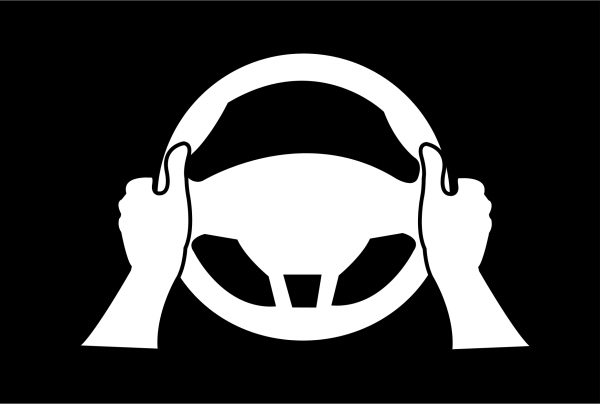
The graphic in the cluster changes to a wheel with hands on it indicating hands-on driving mode is active.
When this indicator is present, you must keep your hands on the steering wheel.
HANDS-FREE DRIVING SUPPORT AVAILABLE
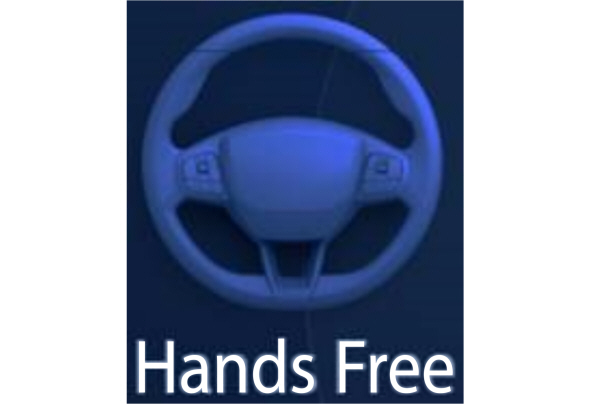
The graphic in the cluster changes to a wheel without hands on it indicating hands-free driving mode is available.
When this indicator is present, you can remove your hands from the steering wheel.
BLUECRUISE – INFORMATION MESSAGES
Depending on your vehicle options and instrument cluster type, not all messages display or are available.
| Message | Details |
|---|---|
|
Keep Hands on Steering Wheel |
Make sure you return your hands to the steering wheel and provide steering input. |
|
Resume Control |
The system is going to cancel and you must take control. |
|
Watch the Road |
Return your attention to the road. |
|
BlueCruise not available |
Conditions exist preventing the system from being available. If the message continues to display, have the system checked as soon as possible. |
|
Press Accelerator Pedal to Resume |
Press the accelerator pedal and follow the prompts. |
|
Driver monitor camera cannot detect face See manual |
Make sure your facial features are visible and in the field of view of the driver facing camera. |
|
Driver monitor camera is blocked See manual |
Make sure your hands, arms or other objects are not obscuring the camera. |
|
Driver monitor camera fault See manual |
Conditions exist preventing the system from being available. If the message continues to display, have the system checked as soon as possible. |
|
BlueCruise On Watch the road Be prepared to resume control |
BlueCruise is active, keep your attention on the road. |
|
BlueCruise available Press {ICON} to activate |
The system is in standby mode, press the button on the steering wheel to activate. |
Note: The instrument cluster display may abbreviate or shorten certain messages.
Download Manual