Head up display (if equipped)
WHAT IS THE HEAD UP DISPLAY
The system displays information on a display screen in your field of vision, allowing you to keep your eyes on the road. You can select which information the system displays.
SWITCHING THE HEAD UP DISPLAY ON AND OFF
Use the instrument cluster controls on the steering wheel to navigate to the head up display menu.
| Menu Item | Action |
|---|---|
|
HUD |
Press the OK button. |
|
HUD On |
Press the OK button. |
Note: The system remembers the last setting when you start the engine.
HEAD UP DISPLAY SETTINGS
You can control the system's options through the instrument cluster display by using the HUD, OK and arrow buttons on your steering wheel.See Using the Instrument Cluster Display Controls.
You can adjust the display according to your height to make viewing the content easier. You can also adjust what content displays and the brightness of the content. The system's options appear in the instrument cluster while the updates happen in the head up display.
Note: If HUD On is unchecked, other options of the system are hidden.
Note: The head up display menu automatically closes after a certain period of inactivity.
Note: The head up display image brightness automatically adjusts to the brightness of the ambient environment. You have the ability to adjust the brightness further according to your preference.
Note: In some instances, sunlight can cause some reflections in and around the head up display image.
|
Head-Up Display (HUD) |
||
|---|---|---|
|
Brightness |
Follow onscreen directions to confirm or modify your settings. | |
|
HUD Adjustments |
Vertical Position |
Follow onscreen directions to confirm or modify your settings. |
|
Image Rotation |
||
|
HUD Content |
Turns the distance to empty, time and temperature on and off. | |
|
Cruise and Lane Control |
Select Your Setting | |
Note: When you save a memory preset position, your current HUD settings are also saved to that memory preset position. See What Is the Memory Function.
HEAD UP DISPLAY INDICATORS
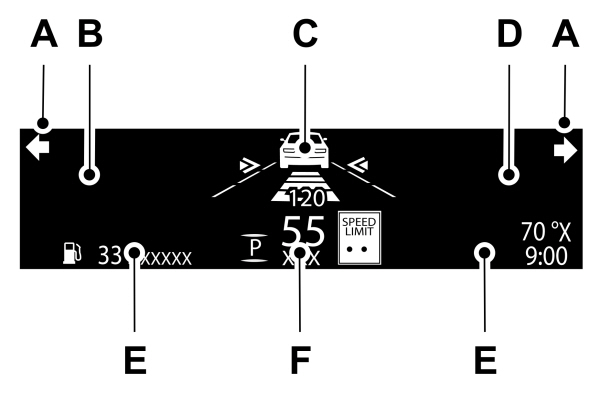
A Signaling and traffic indication. Signaling and traffic indication.B Left information group.C Advanced driver assistance systems display area.D Navigation display area.E Status bar.F Speedometer display area. |
SIGNALING AND TRAFFIC INDICATION
Displays turn signal indicators, blind spot information, if turn signal indicators are active, and cross traffic alert.
LEFT INFORMATION GROUP
Displays incoming call information.
ADVANCED DRIVER ASSISTANCE SYSTEMS DISPLAY AREA
Displays adaptive cruise control and lane keeping system status and warnings.
NAVIGATION DISPLAY AREA
Displays navigation next turn instructions.
STATUS BAR
Displays distance to empty, time and outside air temperature. Next to distance to empty, the fuel gauge fill color could display and change colors to indicate a low fuel condition. You can switch off the status bar in the head up display settings menu.
SPEEDOMETER DISPLAY AREA
Displays current vehicle speed, speed limit, if available in the map database, and your transmission gear selection.
HEAD UP DISPLAY – INFORMATION MESSAGES
| Message | Action |
|---|---|
|
Head Up Display System Fault See Manual |
The system is malfunctioning or something is obstructing the display. Make sure that the head up display is free from obstruction. If the message continues to appear, have your vehicle checked as soon as possible. |
|
Head Up Display To Position Use the Information Display |
Press the button on the steering wheel or center console. The head up display menu appears in the instrument cluster display. Make sure the blue frame is fully visible. Do not manually move the screen. This can cause damage not covered by your vehicle's warranty. |
Download Manual