360 degree camera
WHAT IS THE 360 DEGREE CAMERA
The 360 degree camera system consists of front, side and rear cameras which provide visibility around your vehicle.
HOW DOES THE 360 DEGREE CAMERA WORK
The 360 degree camera system consists of front, side and rear cameras.
The 360 Degree Camera system:
- Allows you to see what is directly in front of or behind your vehicle.
- Provides a cross traffic view in front of and behind your vehicle.
- Allows you to see a top-down view of the area outside your vehicle, including the blind spots and obstacles near your vehicle.
360 DEGREE CAMERA PRECAUTIONS
 WARNING: The 360 degree camera system still requires the driver to use it in conjunction with looking out of the windows, and checking the interior and exterior mirrors for maximum coverage. WARNING: Objects that are close to either corner of the bumper or under the bumper, might not be seen on the screen due to the limited coverage of the camera system. WARNING: Use caution when turning camera features on or off when the transmission is not in park (P). Make sure your vehicle is not moving. WARNING: You are responsible for controlling your vehicle at all times. The system is designed to be an aid and does not relieve you of your responsibility to drive with due care and attention. Failure to follow this instruction could result in the loss of control of your vehicle, personal injury or death. WARNING: Use caution when the rear cargo door is ajar. If the rear cargo door is ajar, the camera will be out of position and the video image could be incorrect. All guide lines disappear when the rear cargo door is ajar. Failure to follow this instruction could result in personal injury. WARNING: When manual zoom is on, the full area behind your vehicle may not show. Be aware of your surroundings when using the manual zoom feature. WARNING: The 360 degree camera system still requires the driver to use it in conjunction with looking out of the windows, and checking the interior and exterior mirrors for maximum coverage. WARNING: Objects that are close to either corner of the bumper or under the bumper, might not be seen on the screen due to the limited coverage of the camera system. WARNING: Use caution when turning camera features on or off when the transmission is not in park (P). Make sure your vehicle is not moving. WARNING: You are responsible for controlling your vehicle at all times. The system is designed to be an aid and does not relieve you of your responsibility to drive with due care and attention. Failure to follow this instruction could result in the loss of control of your vehicle, personal injury or death. WARNING: Use caution when the rear cargo door is ajar. If the rear cargo door is ajar, the camera will be out of position and the video image could be incorrect. All guide lines disappear when the rear cargo door is ajar. Failure to follow this instruction could result in personal injury. WARNING: When manual zoom is on, the full area behind your vehicle may not show. Be aware of your surroundings when using the manual zoom feature. |
360 DEGREE CAMERA LIMITATIONS
Note: Use caution if a door is ajar. The camera could be out of position and the image could be incorrect.
LOCATING THE 360 DEGREE CAMERAS
REAR VIEW CAMERA
The rear view camera is on the liftgate. It provides a video image of the area behind your vehicle.
FRONT VIEW CAMERA
The front view camera is in the grille. It provides a video image of the area in front of your vehicle.
SIDE VIEW CAMERA
The side view camera is on the outside mirror. It provides a video image of the area on the sides of your vehicle to aid you when parking.
360 DEGREE CAMERA GUIDE LINES
Note: Active guide lines are only available when the transmission is in reverse (R).
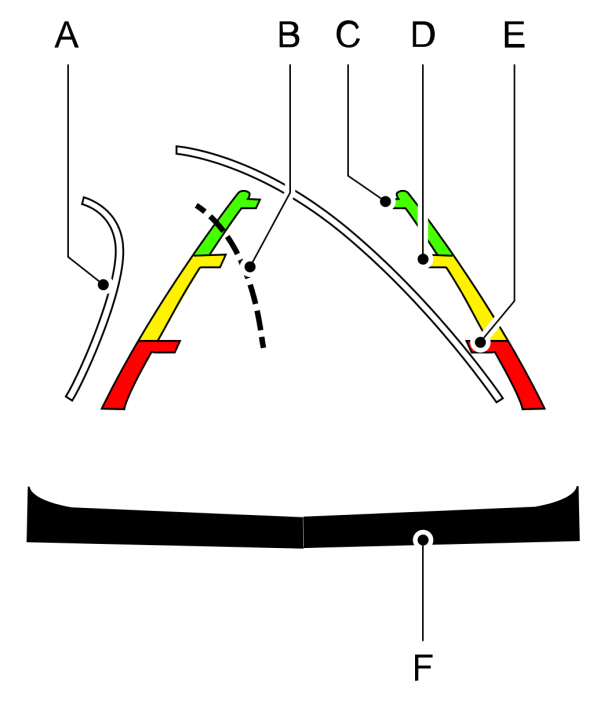
A Active guide lines. Active guide lines.B Centerline.C Fixed guide line: Green zone.D Fixed guide line: Yellow zone.E Fixed guide line: Red zone.F Rear bumper. |
Active guide lines only show with fixed guide lines. Turn the steering wheel to point the guide lines toward an intended path. If the steering wheel position changes when reversing, your vehicle could deviate from the intended path.
The fixed and active guide lines fade in and out depending on the steering wheel position. The active guide lines do not display when the steering wheel position is straight.
Objects in the red zone are closest to your vehicle and objects in the green zone are farther away. Objects get closer to your vehicle as they move from the green zone to the yellow or red zones. Use the side view mirrors and rear view mirror to get better coverage on both sides and rear of your vehicle.
KEEP OUT ZONE
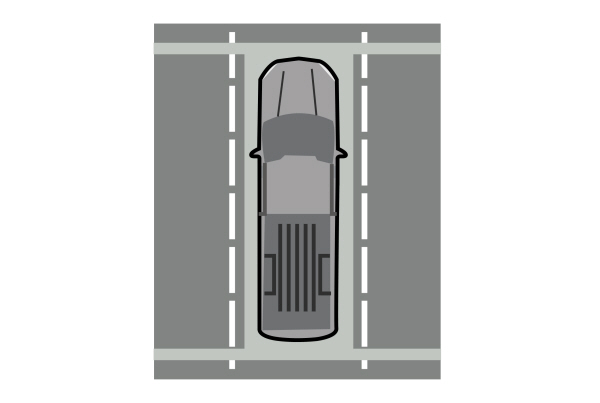
The keep out zone is represented by the yellow dotted lines running parallel to your vehicle.
SWITCHING THE 360 DEGREE CAMERA ON AND OFF

- Normal view.
- Normal view with 360.
- Split view.
Note: The rear view camera activates when you switch into reverse (R). Additional views are then accessible on the touchscreen.
When in park (P), neutral (N) or drive (D), only the front images display when you press the button. When in reverse (R), only the rear images display when you press the button.
Note: The 360 degree camera system turns off when your vehicle is in motion at low speed, except when in reverse (R).
SWITCHING THE 360 DEGREE CAMERA VIEW
 Press to access the different camera views. Press to access the different camera views. |
 Front normal view provides an image of what is directly in front of your vehicle. Front normal view provides an image of what is directly in front of your vehicle. |
 Front split view provides an extended view of what is in front of your vehicle. Front split view provides an extended view of what is in front of your vehicle. |
 Normal + 360 degree view contains the normal camera view next to a 360 degree camera view. Normal + 360 degree view contains the normal camera view next to a 360 degree camera view. |
 Rear normal view provides an image of what is directly behind your vehicle. Rear normal view provides an image of what is directly behind your vehicle. |
 Rear split view provides an extended view of what is behind your vehicle. Rear split view provides an extended view of what is behind your vehicle. |
 The hitch view provides an image of the area around the tow hitch. The hitch view provides an image of the area around the tow hitch. |
 Trailer reverse guidance shows the sides of your truck and trailer. See Trailer Reverse Guidance. Trailer reverse guidance shows the sides of your truck and trailer. See Trailer Reverse Guidance. |
 Zooms in on the image and park hold is activated. See Connecting a Trailer. Zooms in on the image and park hold is activated. See Connecting a Trailer. |
 Zooms in on the 360 degree image. Also provides access to corner zoom views and front and rear offset views with tire guidelines depending on what gear and which drive mode you are in. Zooms in on the 360 degree image. Also provides access to corner zoom views and front and rear offset views with tire guidelines depending on what gear and which drive mode you are in. |
Note: The rear normal view and hitch view are available when your vehicle speed is greater than 6 mph (10 km/h).
Download Manual