Navigation system
Overview
General information
The navigation system can determine the precise position of the vehicle with the aid of satellites, and can reliably guide you to every entered destination.
Certain functions of the navigation system are limited until they have been selected for data transfer. These services can be individually configured.
Additional information:
Services.
Safety information

Observe when operating systems and devices
Warning
Operating the integrated information systems and communication devices while driving can distract from surrounding traffic. It is possible to lose control of the vehicle. There is a risk of accident. Only use the systems or devices when the traffic situation allows. As warranted, stop and use the systems and devices while the vehicle is stationary.
Observe applicable traffic rules
Warning
There can be deviations between the current traffic situation and details of the navigation instructions, for instance changed road layout or road construction. There is a risk of accident. The respectively valid traffic rules take precedence.
Call up the navigation system
Via iDrive
Depending on the equipment, press the button on the Controller:


"NAV"
With buttons on the Controller
The buttons on the Controller allow for fast access to the navigation system.
|
Icon |
Function |
|---|---|
|
|
Go to destination input menu. |
|
|
Open map view. Open pop-up with active destination guidance. Exit interactive map. |

Split screen
Principle
Additional information for the navigation can be displayed in the right part of the screen display, the so-called split screen.
Activate/deactivate

Press the button on the Controller.
Tilt the Controller to the right.

"Split screen"
"Split screen"
Selecting the display
Press the button on the Controller.
Tilt the Controller to the right.
"Split screen"
Select the desired setting.
Route preview
Principle
If route guidance is active, the route guidance information can be displayed as an overview in the split screen.
General information
In the case of multi-lane roads, lane information may indicate the recommended lanes.
The current vehicle position can also be displayed in the lane information.
Depending on the national-market version, the display may deviate from what is depicted.
Overview
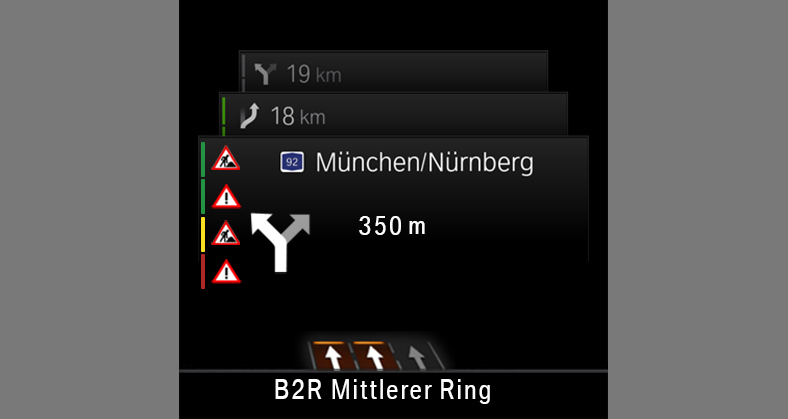
1
Traffic flow
2
Traffic events
3
Turn information
4
Distance to maneuver
5
Upcoming street
6
Current street
7
Lane information
Map update
General information
Navigation data is stored in the vehicle and can be updated from a USB device.
Current navigation data is available from an authorized service center or another qualified service center or repair shop, or in the ConnectedDrive Store.
Depending on the data volume, the navigation data update may take several hours. The status of the update can be queried.
The navigation data is updated during the trip to preserve the vehicle battery.
Updating navigation data
Connect the USB device with the new navigation data at a USB port capable of transferring data.
Follow the instructions on the Control Display.
Remove the USB device after the update.
Information about the current map version
Press the button on the Controller.
Tilt the Controller to the right.

"Settings"
"Update"
The status of the map update is displayed during a navigation data update.
Automatic update
General information
Depending on the vehicle equipment and national-market version, the navigation data for the home region is transmitted online to the vehicle several times a year and automatically installed and updated.
Activate/deactivate
Press the button on the Controller.
Tilt the Controller to the right.
"Settings"
"Configure services"
"Map update"
Download Manual