UCONNECT SETTINGS
The Uconnect system uses a combination of buttons on the touchscreen and buttons on the faceplate located on the center of the instrument panel that allow you to access and change the customer programmable features. Many fea- tures can vary by vehicle.
 For further information, refer to “Data Collection & Pri-
vacy” in your Uconnect Owner’s Manual Supplement or “Onboard Diagnostic System (OBD II) Cybersecurity” in “Getting To Know Your Instrument Panel”.
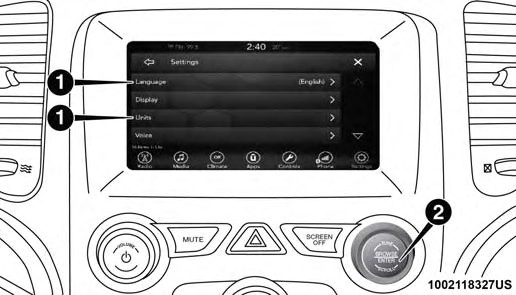
Uconnect 4 Buttons On Touchscreen And Buttons On Faceplate
1 — Uconnect Buttons On The Touchscreen 2 — Uconnect Buttons On The Faceplate
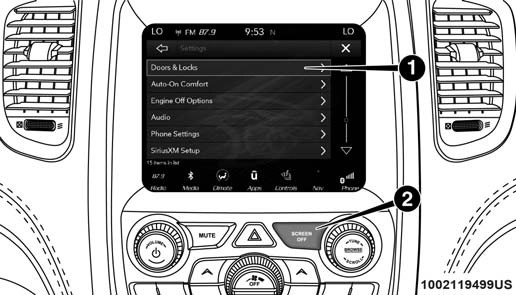
Uconnect 4C/4C NAV Buttons On Faceplate And Buttons On Touchscreen
1 — Uconnect Buttons On The Touchscreen 2 — Uconnect Buttons On The Faceplate
Press the “Apps  ” button, then press the “Settings” button on the touchscreen to display the menu setting screen. In this mode the Uconnect system allows you to
access programmable features that may be equipped such as Display, Units, Voice, Clock, Safety & Driving Assistance, Lights, Doors & Locks, Auto-On Comfort, Engine Off Options, Audio, Phone/Bluetooth, SiriusXM Setup, Restore Settings, Clear Personal Data, and Sys- tem Information.
NOTE: Only one touchscreen area may be selected at a time.
When making a selection, press the button on the touch- screen to enter the desired mode. Once in the desired mode, press and release the preferred setting and make your selection. Once the setting is complete, either press the Back Arrow/Done button on the touchscreen or the Back button on the faceplate to return to the previous menu or press the “X” button on the touchscreen to close out of the settings screen. Pressing the “Up” or “Down” Arrow buttons on the right side of the screen will allow you to toggle up or down through the available settings.
NOTE: All settings should be changed with the ignition in the RUN position.
Display
After pressing the “Display” button on the touchscreen, the following settings will be available:
10
Units
After pressing the “Units” button on the touchscreen, the following settings will be available:
|
Setting Name |
Selectable Options |
||
|
Units |
US |
Metric |
Custom |
|
NOTE: The “Custom” option allows you to set the “Speed” (MPH, or km/h), “Distance” (mi, or km), “Fuel Consumption” [MPG (US), MPG (UK), L/100 km, or km/L], “Pressure” (psi, kPa, or bar), and “Temperature” (°C, or °F) units of measure independently. |
Voice
After pressing the “Voice” button on the touchscreen, the following settings will be available:
|
Setting Name |
Selectable Options |
||
|
Voice Response Length |
Brief |
Detailed |
|
|
Show Command List |
Never |
With Help |
Always |
Clock & Date
After pressing the “Clock & Date” button on the touchscreen, the following settings will be available:
|
Setting Name |
Selectable Options |
|
|
Set Time and Format |
12 hour |
24 hour |
|
AM |
PM |
|
|
NOTE: Within the “Set Time and Format” setting, press the corresponding arrow buttons on the touchscreen to adjust to the correct time. |
||
|
Set Date — If Equipped |
Up Arrow |
Down Arrow |
|
NOTE: Within the “Set Date” setting, press the corresponding arrow buttons on the touchscreen to adjust to the correct date. |
10
Safety/Assistance
After pressing the “Safety/Assistance” button on the touchscreen, the following settings will be available:
|
Setting Name |
Selectable Options |
|
|
ParkView Backup Camera Delay — If Equipped |
On |
Off |
|
NOTE: The “ParkView Backup Camera Delay” setting determines whether or not the screen displays the rear view image with dynamic grid lines for up to ten seconds after the vehicle is shifted out of REVERSE. This delay cancels if the vehicle’s speed exceeds 8 mph (13 km/h), the transmission is shifted into PARK, or the ignition is switched to the OFF position. |
||
|
ParkView Backup Camera Active Guide Lines — If Equipped |
On |
Off |
|
NOTE: The “ParkView Backup Camera Active Guide Lines” feature overlays the Rear Backup Camera image with active, or dynamic, grid lines to help illustrate the width of the vehicle and its project back up path, based on the steering wheel position when the option is checked. A dashed center line overlay indicates the center of the vehicle to assist with parking or aligning to a hitch/receiver. |
10
|
Setting Name |
Selectable Options |
||
|
ParkSense — If Equipped |
Sound Only |
Sound & Display |
|
|
NOTE: The “ParkSense” system setting scans for objects behind the vehicle when the transmission gear selector is in RE- VERSE and the vehicle speed is less than 7 mph (11 km/h), when enabled. It provides an alert (audible and/or vi- sual) to indicate the proximity to other objects. The system can be enabled with “Sound Only,” or “Sound & Display.” |
|||
|
Front ParkSense Volume |
Low |
Medium |
High |
|
Rear ParkSense Volume |
Low |
Medium |
High |
|
Rear ParkSense Braking Assist — If Equipped |
On |
Off |
|
|
NOTE: When the “Rear ParkSense Braking Assist” feature is selected, the park assist system detects objects located behind the vehicle and utilize autonomous braking to stop the vehicle. |
|||
|
LaneSense Warning— If Equipped |
Early |
Medium |
Late |
|
NOTE: The “LaneSense Warning” setting determines at what distance the LaneSense system warns you, through steering wheel feedback, of a possible lane departure. |
10
|
Setting Name |
Selectable Options |
||
|
Steering Feel Options |
Sport |
Normal |
Comfort |
|
NOTE: The “Steering Feel Options” setting allows you to adjust the steering effort and feel. Press the “Comfort” button on the touchscreen to provide a balance of steering feel and steering effort. Press the “Normal” button on the touch- screen to provide greater steering feel, requiring greater steering effort. Press the “Sport” button on the touchscreen to provide the greatest amount of steering feel, requiring the highest amount of steering effort. |
Lights
After pressing the “Lights” button on the touchscreen, the following settings will be available:
|
Setting Name |
Selectable Options |
|
|
Headlight Off Delay |
0 sec |
30 sec |
|
60 sec |
90 sec |
|
|
NOTE: When the “Headlight Off Delay” feature is selected, it allows the adjustment of the amount of time the headlights remain on after the engine is shut off. |
10
Doors & Locks
After pressing the “Doors & Locks” button on the touchscreen, the following settings will be available:
|
Setting Name |
Selectable Options |
||
|
Auto Door Locks |
On |
Off |
|
|
NOTE: The “Auto Door Locks” feature locks all doors automatically when the vehicle reaches a speed of 12 mph (20 km/h). |
|||
|
Auto Unlock On Exit |
On |
Off |
|
|
NOTE: When the “Auto Unlock On Exit” feature is selected, all doors unlock when the vehicle is stopped, the transmission is in the PARK or NEUTRAL position, and the driver’s door is opened. |
|||
|
Flash Lights With Lock |
On |
Off |
|
|
Sound Horn With Lock |
Off |
1st Press |
2nd Press |
|
Sound Horn With Remote Start — If Equipped |
On |
Off |
10
Auto-On Comfort — If Equipped
After pressing the “Auto-On Comfort & Remote Start” button on the touchscreen, the following settings will be available:
|
Setting Name |
Selectable Options |
||
|
Auto-On Driver Heated Seat & Steering Wheel — If Equipped |
Off |
Remote Start |
All Starts |
|
NOTE: When this feature is selected, the driver’s heated seat and heated steering wheel will automatically turn ON when temperatures are below 40° F (4.4° C). When temperatures are above 80° F (26.7° C), the driver vented seat will turn ON. |
Engine Off Options
After pressing the “Engine Off Options” button on the touchscreen, the following settings will be available:
|
Setting Name |
Selectable Options |
|||
|
Engine Off Power Delay — If Equipped |
0 sec |
45 sec |
5 min |
10 min |
|
NOTE: When the “Engine Off Power Delay” feature is selected, the power window switches, radio, Uconnect Phone system (if equipped), power sunroof (if equipped), and power outlets will remain active for up to ten minutes after the igni- tion is cycled to OFF. Opening either front door will cancel this feature. |
10
Compass Settings — If Equipped
After pressing the “Compass Settings” button on the touchscreen, the following settings will be available:
NOTE: Before compass calibration is performed, the compass variance zone should be set for best results.
|
Setting Name |
Selectable Options |
||||||||||||||
|
Compass Variance |
1 |
2 |
3 |
4 |
5 |
6 |
7 |
8 |
9 |
10 |
11 |
12 |
13 |
14 |
15 |
|
When the “Compass Variance” feature is selected, it allows the compass variance to be set to any number from 1 to 15 per the compass variance zone map figure. Compass Variance is the difference between Magnetic North and Geographic North. To compensate for the differ- ences, the variance should be set for the zone where the vehicle is being driven, illustrated in the zone map. Once properly set, the compass will automatically compensate for the differences when calibrated, and provide the most accurate compass headings. |

Compass Variance Zone Map
10
Audio
After pressing the “Audio” button on the touchscreen, the following settings will be available:
|
Setting Name |
Selectable Options |
||||
|
Balance/Fade |
Up Arrow Button |
Down Ar- row Button |
Left Arrow Button |
Right Ar- row Button |
Center “C” Button |
|
NOTE: When in this display you may adjust the “Balance/Fade” of the audio by using the “Arrow” button on the touch- screen to adjust the sound level from the front and rear or right and left side speakers. Press the “Center ‘C’ Button” on the touchscreen to reset the balance and fade to the factory setting. |
|||||
|
Equalizer |
Bass |
Mid |
Treble |
||
|
NOTE: When in this display you may adjust the “Bass”, “Mid”, and “Treble” settings. Adjust the settings with the “+” and “–” setting buttons on the touchscreen or by selecting any point on the scale between the “+” and “–” buttons on the touchscreen. Bass/Mid/Treble also allow you to simply slide your finger up or down to change the setting as well as press directly on the desired setting. |
|||||
|
Speed Adjusted Volume |
Off |
1 |
2 |
3 |
|
|
Surround Sound — If Equipped |
On |
Off |
|
Setting Name |
Selectable Options |
|
|
Auto Play |
On |
Off |
|
NOTE: When selecting the “Auto Play” sub setting, a message will pop up stating “USB devices will automatically play me- dia when AutoPlay is turned On.” |
||
|
Loudness — If Equipped |
Yes |
No |
|
NOTE: This feature improves sound quality at lower volumes when enabled. |
||
|
AUX Volume Offset — If Equipped |
-3 |
+3 |
|
NOTE: This feature provides the ability to tune the audio level for portable devices connected through the AUX input. |
Phone/Bluetooth
After pressing the “Phone/Bluetooth” button on the touchscreen, the following settings will be available:
|
Setting Name |
Selectable Options |
|
Do Not Disturb |
List of Settings |
|
NOTE: Press “Do Not Disturb” to access the available settings. The following settings are: Auto Reply (both, text, call), Auto Reply Message (custom, default) and Custom Auto Reply Message (create message). |
|
Setting Name |
Selectable Options |
|
|
Paired Phones And Audio Devices |
List of Paired Phones |
|
|
NOTE: The “Paired Phones and Audio Devices” feature shows which phones and audio devices are paired to the Phone/ Bluetooth system. For further information, refer to the Uconnect Owner’s Manual Supplement. |
||
|
Display Phone Info In Cluster — If Equipped |
Off |
On |
Suspension — If Equipped
After pressing the “Suspension” button on the touchscreen, the following settings will be available:
|
Setting Name |
Selectable Options |
|
|
Auto Entry/Exit Suspension |
On |
Off |
|
NOTE: When the “Auto Entry/Exit Suspension” setting is selected, the vehicle automatically lowers from ride height posi- tion when the vehicle is shifted to PARK for easy entry/exit. |
||
|
Display Suspension Messages |
All |
Warnings Only |
|
NOTE: The “Display Suspension Messages” setting allows you to choose whether you want the Suspension system to display all suspension messages, or to only display suspension warnings. |
|
Setting Name |
Selectable Options |
|
|
Tire Jack Mode |
On |
Off |
|
NOTE: When the “Tire Jack Mode” setting is selected, the air suspension system is disabled to prevent auto leveling of the suspension while the vehicle is on a jack, changing a tire. |
||
|
Transport Mode |
On |
Off |
|
NOTE: When the “Transport Mode” setting is selected, the air suspension system is disabled to assist with flat bed towing. |
||
|
Wheel Alignment Mode |
On |
Off |
|
NOTE: The “Wheel Alignment Mode” setting prevents auto leveling of the air suspension while performing a wheel align- ment service. |
10
SiriusXM Setup — If Equipped
After pressing the “SiriusXM Setup” button on the touchscreen, the following settings will be available:
|
Setting Name |
Selectable Options |
|
|
Tune Start |
Off |
On |
|
NOTE: The “Tune Start” feature begins playing the current song from the beginning when you tune to a music channel using one of the twelve presets, so you can enjoy the complete song. This feature occurs the first time the preset is selected during that current song. Tune Start works in the background, so you will not even realize it’s on, except that you will miss the experience of joining your favorite song with only a few seconds left to play. |
||
|
Channel Skip |
List of Channels |
|
|
NOTE: SiriusXM can be programmed to designate a group of channels that are the most desirable to listen to or to exclude undesirable channels while scanning. This feature allows you to select the channels you would like to skip. |
||
|
Subscription Info |
Sirius ID |
|
|
NOTE: New vehicle purchasers or lessees will receive a free limited time subscription to SiriusXM Satellite Radio with your radio. Following the expiration of the free services, it will be necessary to access the information on the Subscription Information screen to re-subscribe. Press the “Subscription Info” button on the touchscreen to access the Subscription Information screen.
Write down the Sirius ID numbers for your receiver. To reactivate your service, either call the number listed on the screen or visit the provider online.
|
Restore Settings
After pressing the “Restore Settings” button on the touchscreen, the following settings will be available:
|
Setting Name |
Selectable Options |
|
|
Restore Settings |
OK |
Cancel |
|
NOTE: When this feature is selected, it will reset all settings to their default settings. |
Clear Personal Data
After pressing the “Clear Personal Data” button on the touchscreen, the following settings will be available:
10
System Information — If Equipped
After pressing the “System Information” button on the touchscreen, the following settings will be available:
|
Setting Name |
Selectable Options |
|
System Information |
System Software Information Screen |
|
NOTE: When this feature is selected, a “System Information” screen will appear, displaying the system software version. |
Press the “Apps  ” button, then press the “Settings” button on the touchscreen to display the menu setting screen. In this mode the Uconnect system allows you to access programmable features that may be equipped such as Language, Display, Units, Voice, Clock, Safety & Driving Assistance, Mirrors & Wipers, Lights, Doors & Locks, Auto-On Comfort, Engine Off Options, Suspen- sion, Audio, Phone/Bluetooth, SiriusXM Setup, Acces- sibility, Reset, and System Information.
NOTE: Depending on the vehicles options, feature settings may vary.
When making a selection, press the button on the touch- screen to enter the desired mode. Once in the desired mode, press and release the preferred setting “option” until a check-mark appears next to the setting, showing that setting has been selected. Once the setting is complete, either press the “Back” Arrow button on the touchscreen to return to the previous menu, or press the “X” button on the touchscreen to close out of the settings screen. Pressing the “Up” or “Down” Arrow button on the right side of the screen will allow you to toggle up or down through the available settings.
Language
After pressing the “Language” button on the touchscreen, the following settings will be available:
|
Setting Name |
Selectable Options |
||
|
Language |
English |
Espanol |
Francais |
|
When the “Set Language” feature is selected, you may select one of multiple languages (English / Français / Español) for all display nomenclature, including the trip functions and the navigation system (if equipped). Press the “Set Language” button on the touchscreen, then press the desired language button on the touchscreen until a check-mark appears next to the language, showing that setting has been selected. |
Display
After pressing the “Display” button on the touchscreen, the following settings will be available:
10
|
Setting Name |
Selectable Options |
|
|
Display Brightness With Headlights OFF |
+ |
- |
|
NOTE: To make changes to the "Display Brightness With Headlights OFF" setting, the headlights must be off and the interior dimmer switch must not be in the "party" or "parade" positions. |
||
|
Set Theme — If Equipped |
On |
Off |
|
NOTE: When the “Set Theme” feature is selected, you may select the theme for the display screen. To make your selection, press the "Set Theme" button on the touchscreen, then select the desired theme option button until a check-mark ap- pears showing that the setting has been selected. |
||
|
Touchscreen Beep |
On |
Off |
|
Control Screen Time-Out — If Equipped |
On |
Off |
|
NOTE: When the “Control Screen Time-Out” feature is selected, the Controls Screen will stay open for five seconds before the screen times out. With the feature deselected, the screen will stay open until it is manually closed. |
|
Setting Name |
Selectable Options |
|
|
Navigation Turn-By-Turn In Cluster — If Equipped |
On |
Off |
|
NOTE: When the “Navigation Turn-By-Turn In Cluster” feature is selected, the turn-by-turn directions will appear in the in- strument cluster display as the vehicle approaches a designated turn within a programmed route. |
||
|
Phone Pop-ups Displayed In Cluster |
On |
Off |
Units
After pressing the “Units” button on the touchscreen, the following settings will be available:
10
Voice
After pressing the “Voice” button on the touchscreen, the following settings will be available:
|
Setting Name |
Selectable Options |
||
|
Voice Response Length |
Brief |
Detailed |
|
|
Show Command List |
Always |
With Help |
Never |
Clock
After pressing the “Clock” button on the touchscreen, the following settings will be available:
|
Setting Name |
Selectable Options |
|
|
Sync Time With GPS |
On |
Off |
|
Set Time Hours |
+ |
- |
|
NOTE: The “Set Time Hours” feature will allow you to adjust the hours. The “Sync time with GPS” button on the touch- screen must be unchecked. |
||
|
Set Time Minutes |
+ |
- |
|
NOTE: The “Set Time Minutes” feature will allow you to adjust the minutes. The “Sync time with GPS” button on the touch- screen must be unchecked. |
||
|
Time Format |
12hrs |
24hrs |
|
Show Time in Status Bar — If Equipped |
On |
Off |
Safety/Assistance
After pressing the “Safety/Assistance” button on the touchscreen, the following settings will be available:
10
|
Setting Name |
Selectable Options |
||
|
Forward Collision Warning — If Equipped |
Off |
Only Warning |
Warning & Active Braking |
|
NOTE: Changing the FCW status to “Off” prevents the system from warning you of a possible collision with the vehicle in front of you. The FCW system state is kept in memory from one ignition cycle to the next. If the system is turned OFF, it remains off when the vehicle is restarted. Forward Collision Warning includes Advanced Brake Assist (ABA). The ABA applies additional brake pressure when the driver requests insufficient brake pressure to avoid a potential frontal collision. When the “Only Warning” option is selected a chime sound alerting you of a possible collision with the vehicle in front of you and more brake pressure is needed. When the “Warning & Active Braking” option is selected, it applies the brakes to slow your vehicle in case of potential forward collision and sound an audible chime to alert you. |
|||
|
Forward Collision Warning Sensitivity — If Equipped |
Near |
Med |
Far |
|
NOTE: The “Forward Collision Warning Plus (FCW+) Sensitivity” setting determines at what relative distance the vehicle directly in front of you needs to be at, before the system warns you of a possible collision with the vehicle directly in front of you, based on the option is selected. “Far” gives you the most amount of reaction time, whereas “Near” gives you the least amount of reaction time, based on the distance between the two vehicles. |
10
|
Setting Name |
Selectable Options |
||
|
Electric Power Steering Default |
Normal |
Sport |
Comfort |
|
NOTE: When the “Electric Power Steering Default” is selected, it allows you to change the default setting of your vehicle to either normal, sport, or comfort. |
|||
|
Paddle Shifters |
Enable |
Disable |
|
|
Blind Spot Alert — If Equipped |
Off |
Lights |
Lights & Chime |
|
NOTE: When the “Blind Spot Alert” feature is selected, the Blind Spot Monitoring (BSM) system is activated and shows a visual alert in the outside mirrors, or it shows a visual alert in the outside mirrors as well as play an audible alert when the turn signal is on. When “Off” is selected, the Blind Spot Monitoring (BSM) system is deactivated. If your vehicle has experienced any damage in the area where the sensor is located, even if the fascia is not damaged, the sensor may have become misaligned. Take your vehicle to an authorized dealer to verify sensor alignment. A sensor that is misaligned results in the BSM not operating to specification. |
|||
|
Hill Start Assist — If Equipped |
On |
Off |
Mirror and Wipers
After pressing the “Mirror and Wipers” button on the touchscreen, the following settings will be available:
|
Setting Name |
Selectable Options |
|
|
Rain Sensing Auto Wipers — If Equipped |
On |
Off |
|
Tilt Side Mirrors in Reverse |
On |
Off |
|
Auto Folding Side Mirrors — If Equipped |
On |
Off |
|
Headlights with Wipers |
On |
Off |
Lights
After pressing the “Lights” button on the touchscreen, the following settings will be available:
10
|
Setting Name |
Selectable Options |
|
|
Headlights With Wipers — If Equipped |
On |
Off |
|
Auto Dim High Beams — If Equipped |
On |
Off |
|
NOTE: When the “Auto Dim High Beams” feature is selected, the high beam headlights will activate/deactivate automati- cally under certain conditions. |
||
|
Daytime Running Lights — If Equipped |
On |
Off |
|
Flash Lights With Lock |
On |
Off |
Doors & Locks
After pressing the “Doors & Locks” button on the touchscreen, the following settings will be available:
|
Setting Name |
Selectable Options |
|
|
Auto Door Locks |
On |
Off |
|
NOTE: When the “Auto Door Locks” feature is selected, all doors lock automatically when the vehicle reaches a speed of 12 mph (20 km/h). |
10
|
Setting Name |
Selectable Options |
|
|
Passive Entry — If Equipped |
On |
Off |
|
NOTE: This feature allows you to lock and unlock the vehicles door(s) without having to push the key fob lock or unlock buttons. |
||
|
Personal Settings Linked to Key Fob — If Equipped |
On |
Off |
|
NOTE: This feature provides automatic recall of all settings stored to a memory location (driver’s seat, exterior mirrors, steer- ing column position and radio station pre-sets) to enhance driver mobility when entering and exiting the vehicle. |
||
|
Power Lift Gate Alert — If Equipped |
On |
Off |
Auto-On Comfort Systems — If Equipped
After pressing the “Auto-On Comfort & Remote Start” button on the touchscreen, the following settings will be available:
|
Setting Name |
Selectable Options |
||
|
Auto-On Driver Heated/ Ventilated Seat & Steering Wheel With Vehicle Start — If Equipped |
Off |
Remote Start |
All Starts |
|
NOTE: When this feature is selected the driver’s heated seat and heated steering wheel will automatically turn ON when temperatures are below 40° F (4.4° C). |
Engine Off Options
After pressing the “Engine Off Options” button on the touchscreen, the following settings will be available:
10
Suspension — If Equipped
After pressing the “Suspension” button on the touchscreen, the following settings will be available:
|
Setting Name |
Selectable Options |
|
|
Auto Entry/Exit Suspension |
On |
Off |
|
NOTE: When the “Auto Entry/Exit Suspension” setting is selected, the vehicle automatically lowers from ride height posi- tion when the vehicle is shifted to PARK for easy entry/exit. |
||
|
Display Suspension Messages |
All |
Warning |
|
NOTE: The “Display Suspension Messages” setting allows you to choose whether you want the Suspension system to display all suspension messages, or to only display suspension warnings. |
||
|
Tire Jack Mode |
On |
Off |
|
NOTE: When the “Tire Jack Mode” setting is selected, the air suspension system is disabled to prevent auto leveling of the suspension while the vehicle is on a jack, changing a tire. |
||
|
Transport Mode |
On |
Off |
|
NOTE: When the “Transport Mode” setting is selected, the air suspension system is disabled to assist with flat bed towing. |
|
Setting Name |
Selectable Options |
|
|
Wheel Alignment Mode |
On |
Off |
|
NOTE: The “Wheel Alignment Mode” setting prevents auto leveling of the air suspension while performing a wheel align- ment service. |
Audio
After pressing the “Audio” button on the touchscreen, the following settings will be available:
10
|
Setting Name |
Selectable Options |
|
|
Surround Sound — If Equipped |
On |
Off |
|
AUX Volume Offset — If Equipped |
+ |
- |
|
NOTE: This feature provides the ability to tune the audio level for portable devices connected through the AUX input. |
||
|
AutoPlay |
On |
Off |
|
NOTE: The “AutoPlay” setting, when activated, automatically starts playing music off of a connected device as soon as it is connected. |
Phone/Bluetooth
After pressing the “Phone/Bluetooth” button on the touchscreen, the following settings will be available:
10
SiriusXM Setup — If Equipped
After pressing the “SiriusXM Setup” button on the touchscreen, the following settings will be available:
|
Setting Name |
Selectable Options |
|
|
SXM Tune Start |
On |
Off |
|
NOTE: The “Tune Start” feature begins playing the current song from the beginning when you tune to a music channel using one of the 12 presets, so you can enjoy the complete song. This feature occurs the first time the preset is selected dur- ing that current song. Tune Start works in the background, so you will not even realize it’s on, except that you will miss the experience of joining your favorite song with only a few seconds left to play. |
||
|
Channel Skip |
List of Channels |
|
|
NOTE: SiriusXM can be programmed to designate a group of channels that are the most desirable to listen to or to exclude undesirable channels while scanning. This feature allows you to select the channels you would like to skip. |
|
Setting Name |
Selectable Options |
|
Subscription Info |
Sirius ID |
|
NOTE: New vehicle purchasers or lessees will receive a free limited time subscription to SiriusXM Satellite Radio with your radio. Following the expiration of the free services, it will be necessary to access the information on the Subscription Information screen to re-subscribe. Press the “Subscription Info” button on the touchscreen to access the Subscription Information screen.
Write down the Sirius ID numbers for your receiver. To reactivate your service, either call the number listed on the screen or visit the provider online.
SiriusXM Travel Link is a separate subscription. |
Accessibility — If Equipped
After pressing the “Accessibility” button on the touchscreen, the following settings will be available:
10
Reset
After pressing the “Reset” button on the touchscreen, the following settings will be available:
|
Setting Name |
Selectable Options |
|
|
Reset App Drawer |
OK |
Cancel |
|
Restore Settings |
OK |
Cancel |
|
NOTE: When this feature is selected it will reset all settings to their default settings. |
||
|
Clear Personal Data |
OK |
Cancel |
|
NOTE: When the “Clear Personal Data” feature is selected, it will remove all personal data including Bluetooth devices and presets. |
System Information
After pressing the “System Information” button on the touchscreen, the following settings will be available:
|
Setting Name |
Selectable Options |
|
Software License |
System Software Information Screen |
|
NOTE: When this feature is selected, a “Software License” screen will appear, displaying the system software license and ver- sion. |
Download Manual