UCONNECT REAR SEAT ENTERTAINMENT (RSE) SYSTEM — IF EQUIPPED
Your Rear Seat Entertainment System is designed to give your family years of enjoyment. You can play your favorite
Screen(s) located in the rear of front seats: Open the LCD screen cover by lifting up on the cover.
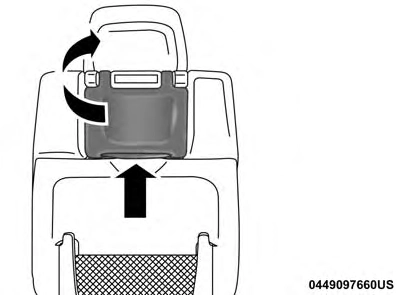
CDs, DVDs or Blu-ray Discs, listen to audio over the
RSE System Screen 10
wireless headphones, or plug and play a variety of stan- dard video games or audio devices.
Please review this Owner’s Manual to become familiar with its features and operation.
Your vehicle may be equipped with a Blu-ray disc player. If equipped with a Blu-ray disc player, the icon will be present on the player.
Turn on the Rear Seat Entertainment system by pushing the power button on the remote control.
When the Video Screen(s) are open and a DVD/Blu-ray disc is inserted into the disc player, the screen(s) turn(s) on automatically, the headphone transmitters turn on and playback begins.
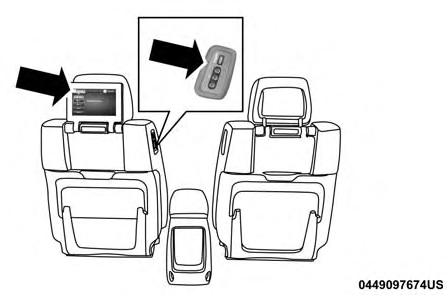
RSE System Channel 1 (Rear 1)
With the Dual Video Screen System, Channel 1 (Rear 1) on the remote control and headphones, refers to Screen 1 (driver’s side) and Channel 2 (Rear 2) on the Remote Control and Headphones refers to Screen 2 (passenger side).
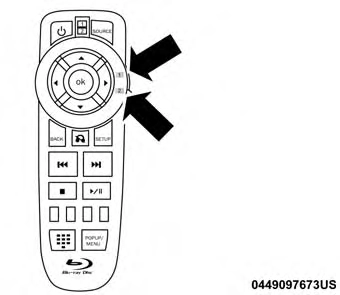
RSE System Remote Control Channel Selectors
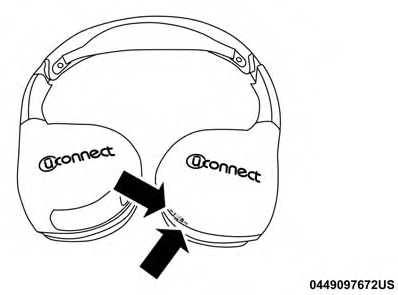
RSE System Headphone Channel Selectors
The system can be controlled either by the front seat occupants utilizing the touchscreen radio or by the rear
NOTE: Typically there are two different ways to operate the features of the Rear Seat Entertainment System.
Play A Blu-ray Disc
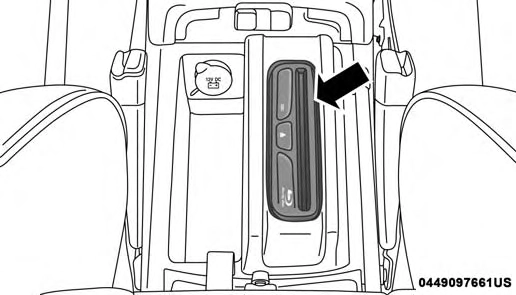
The Blu-ray disc player is located in the center console.
seat occupants using the remote control.
Blu-ray Disc Player Location
NOTE:
To view a Blu-ray disc on the radio, press the “Media” button on the touchscreen, and then press the “Disc” button. Press the “Play” button, and then the “full screen” button.
Viewing a Blu-ray disc on the radio screen is not available in all states/provinces. The vehicle must be stopped, and the gear selector must be in the PARK position for vehicles with automatic transmission.
Using The Touchscreen Radio
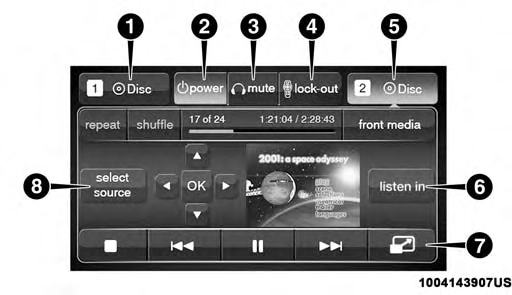
Rear Media Control Screen
Indicates the current source for Screen 1/Channel 1. This button will be highlighted when it is the active Screen/ Channel being controlled by the front user. If this button is not highlighted, select button to access controls for Screen 1/Channel 1 source.
Press to turn RSE On/Off.
Mute rear headphones for the current ignition cycle. Press- ing mute again will unmute rear headphones.
Press to enable/disable remote control functions.
Indicates the current source for Screen 2/Channel 2. This button will be highlighted when it is the active Screen/ Channel being controlled by the front user. If this button is not highlighted, select button to access controls for Screen 2/Channel 2 source.
Select this button to change the cabin audio to the rear
8. RSE Mode
Select this button to change source for the active (high- lighted) rear Screen/Channel on the rear media control screen.
Press the Media button on the touchscreen, and then press the rear media button on the touchscreen.
Press the OK button on the touchscreen to begin playing the Blu-ray disc on the touchscreen radio.
Using The Remote Control
Select an audio channel (Rear 1 for driver’s side rear screen and Rear 2 for passenger’s side rear screen), and then press the source key, and using the up and down arrows, highlight disc from the menu and press the OK button.
entertainment source currently shown on the rear media 10
control screen.
7. Radio Full Screen Mode
Select this button to change to Full Screen Mode.
Press the popup/menu key to navigate the disc menu and options.
Connect the video game console to the Audio/Video RCA/HDMI input jacks located on the side of each seat.
Audio/Video RCA/HDMI Jacks (AUX/HDMI Jacks) on the side of each seat enable the monitor to display video directly from a video camera, connect video games for display on the screen, or play music directly from an MP3 player.
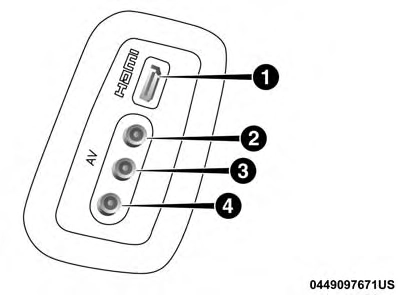
Audio/Video RCA/HDMI Input Jacks
When connecting an external source to the AUX/HDMI input, ensure to follow the standard color coding for the audio/video jacks:
NOTE: Certain high-end video games consoles may exceed the power limit of the vehicle’s Power Inverter.
Using The Remote Control
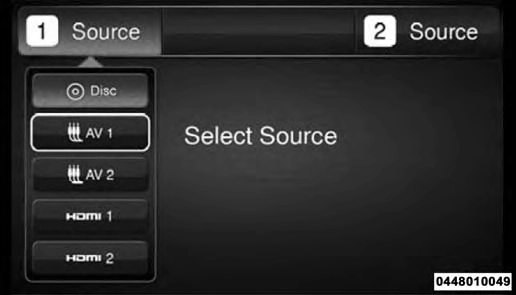
Using The Touchscreen Radio Controls
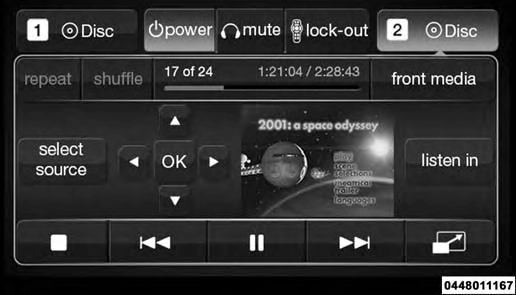
Select DISC Mode On The Rear Seat Entertainment Screen Rear Media Control Screen
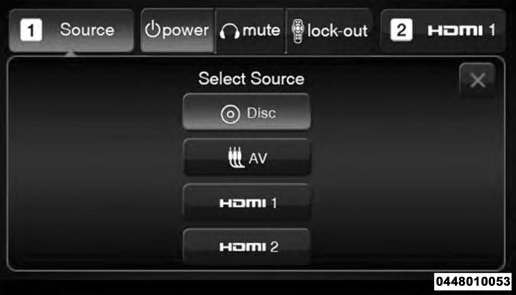
Rear Seat Entertainment Source Screen
NOTE: Pressing the screen on the radio while a DVD or Blu-ray Disc is playing, brings up the basic remote control functions for DVD play such as scene selection, Play, Pause, FF, RW, and Stop. Pressing the X in the upper corner will turn OFF the remote control screen functions.
The Rear Seat Entertainment System is able to transmit two channels of stereo audio and video simultaneously.
The Blu-ray Disc Player can play CDs, DVDs and Blu-ray Discs.
Selecting a video source on Rear 1, the video source will display on Rear 1 and can be heard on Rear 1.
Selecting a video source on Rear 2, the video source will display on Rear 2 and can be heard on Rear 2.
Audio can be heard through the headphones even when the screen(s) are closed.
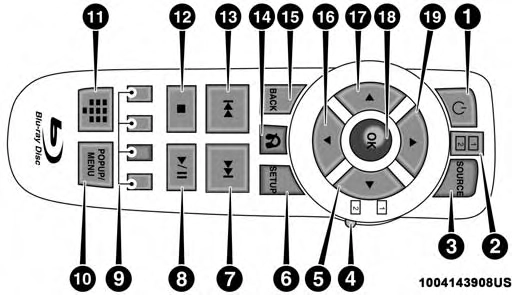
Blu-ray Player Remote Control
Controls And Indicators
features.
 (Stop) — Stops disc play.
 — Mutes headphone audio.
The headphones receive two separate channels of audio using an infrared transmitter from the video screen.
If no audio is heard after increasing the volume control, verify that the screen is turned on, the channel is not muted and the headphone channel selector switch is on the desired channel. If audio is still not heard, check that fully charged batteries are installed in the headphones.
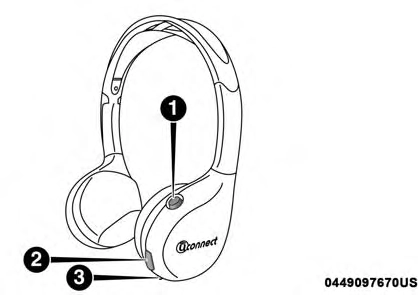
Rear Seat Entertainment Headphones
The headphone power indicator and controls are located on the right ear cup.
NOTE: The rear video system must be turned on before sound can be heard from the headphones. To conserve battery life, the headphones will automatically turn off approximately three minutes after the rear video system is turned off.
Changing the Audio Mode for Headphones
NOTE:
When both the headphone and the remote control channel selector switches are on Channel 1, the Re- mote is controlling Channel 1 and the headphones are tuned to the audio on Channel 1.
When both the headphone and the remote control channel selector switches are on Channel 2, the Re- mote is controlling Channel 2 and the headphones are tuned to the audio on Channel 2.
Each set of headphones requires two AAA batteries for operation. To replace the batteries:
Accessibility is a feature of the DVD/Blu-ray system that announces a function prior to performing the action. For further information refer to “Uconnect Settings” in “Mul- timedia.”
Who Does This Warranty Cover? This warranty covers the initial user or purchaser ("you" or "your") of this particular Aptiv PLC (“Aptiv”) wireless headphone ("Product"). The warranty is not transferable.
How Long Does the Coverage Last? This warranty lasts as long as you own the Product.
What Does This Warranty Cover? Except as specified below, this warranty covers any Product that in normal use is defective in workmanship or materials.
What Does This Warranty Not Cover? This warranty does not cover any damage or defect that results from misuse, abuse or modification of the Product other than by Aptiv. Foam earpieces, which will wear over time through normal use, are specifically not covered (replacement foam is available for a nominal charge). APTIV IS NOT LIABLE FOR ANY INJURIES OR DAMAGES TO PERSONS OR PROPERTY RESULTING FROM THE USE OF, OR ANY FAILURE OR DEFECT IN, THE PRODUCT, NOR IS AP- TIV LIABLE FOR ANY GENERAL, SPECIAL, DIRECT, INDIRECT, INCIDENTAL, CONSEQUENTIAL, EXEM- PLARY, PUNITIVE OR OTHER DAMAGES OF ANY
KIND OR NATURE WHATSOEVER. Some states and jurisdictions may not allow the exclusion or limitation of
incidental or consequential damages, so the above limita- tion may not apply to you. This warranty gives you specific legal rights. You may also have other rights, which vary from jurisdiction to jurisdiction.
What Will Aptiv Do? Aptiv, at its option, will repair or replace any defective Product. Aptiv reserves the right to replace any discontinued Product with a comparable model. THIS WARRANTY IS THE SOLE WARRANTY FOR THIS PRODUCT, SETS FORTH YOUR EXCLUSIVE REMEDY REGARDING DEFECTIVE PRODUCTS, AND IS IN LIEU OF ALL OTHER WARRANTIES (EXPRESS OR IMPLIED), INCLUDING ANY WARRANTY FOR MER- CHANTABILITY OR FITNESS FOR A PARTICULAR PUR- POSE.
If you have any questions or comments regarding your Aptiv wireless headphones, or to register your wireless headphones, please phone:
1-248-724-5900
System Information Disc Menu
When listening to a CD Audio or CD Data disc, pushing
the remote control’s POP UP/MENU button displays a list of all commands which control playback of the disc.
Display Settings
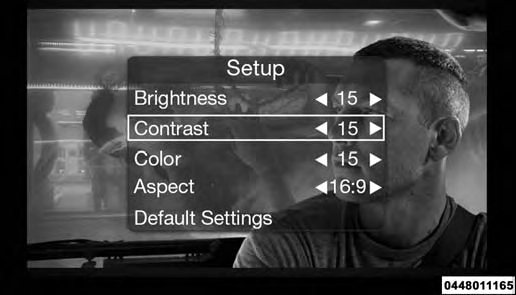
Video Screen Display Settings
control’s navigation buttons ( , E) to change the value for the currently selected item. To reset all values back to the original settings, select the Default Settings menu option and push the remote control’s ENTER/OK button.
Disc Features control the remote Blu-ray Disc player’s settings of DVD being watched in the remote player.
Listening To Audio With The Screen Closed
To listen to only audio portion of the channel with the screen closed:
To change the current audio mode, push the remote control’s SOURCE button. This will automatically select
When watching a video source (Blu-ray Disc or DVD Video
the next available audio mode without using the Mode/
with the disc in Play mode, Aux Video, etc.), pushing the remote control’s SETUP button activates the Display Set- tings menu. These settings control the appearance of the video on the screen. The factory default settings are already set for optimum viewing, so there is no need to change these settings under normal circumstances.
To change the settings, push the remote control’s naviga- tion buttons ( , 7) to select an item, then push the remote
Source Select menu.
When the screen is reopened, the video screen will automatically turn back on and show the appropriate display menu or media.
If the screen is closed and there is no audio heard, verify that the headphones are turned on (the ON indicator is illuminated) and the headphone selector switch is on the desired channel. If the headphones are turned on, push the
remote control’s power button to turn audio on. If audio is still not heard, check that fully charged batteries are installed in the headphones.
Disc Formats
The Blu-ray Disc player is capable of playing the following types of 4.7 inches (12 cm) diameter discs:
DVD: DVD-Video, DVD-Audio, AVCREC, AVCHD, DVD-VR
DVD/CD: MP3, WMA, AAC, DivX (versions 3 – 6) profile 3.0
DVD Region Codes
The Blu-ray Disc player and many DVD discs are coded by geographic region. These region codes must match in order for the disc to play. If the region code for the DVD disc does not match the region code for the player, the disc will not play.
DVD Audio Support
When a DVD-Audio disc is inserted in the Blu-ray Disc player, the DVD-Audio title on the disc is played by default
(most DVD-Audio discs also have a Video title, but the Video title is ignored). All multi-channel program material is automatically mixed down to two channels, which may result in a lowered apparent volume level. If you increase the volume level to account for this change in level, remember to lower the volume before changing the disc or to another mode.
Recorded Discs
The Blu-ray Disc player will play CD-R and CD-RW discs recorded in CD-Audio or Video-CD format, or as a CD- ROM containing MP3 or WMA files. The player will also play DVD-Video content recorded to a DVD-R or DVD-RW disc. DVD-ROM discs (either pressed or recorded) are not supported.
If you record a disc using a personal computer, there may be cases where the Blu-ray Disc player may not be able to play some or the entire disc, even if it is recorded in a compatible format and is playable on other players. To help avoid playback problems, use the following guidelines when recording discs.
Open sessions are ignored. Only sessions that are closed are playable.
For multi-session CDs that contain only multiple CD- Audio sessions, the player will renumber the tracks so each track number is unique.
For CD Data (or CD-ROM) discs, always use the ISO- 9660 (Level 1 or Level 2), Joliet, or Romeo format. Other formats (such as UDF, HFS, or others) are not supported.
The player recognizes a maximum of 512 files and 99 folders per CD-R and CD-RW disc.
Mixed media recordable DVD formats will only play the Video_TS portion of the disc.
If you are still having trouble writing a disc that is playable in the Blu-ray Disc player, check with the disc recording software publisher for more information about burning playable discs.
The recommended method for labeling recordable discs (CD-R, CD-RW, and DVD-R) is with a permanent marker. Do not use adhesive labels as they may separate from the disc, become stuck, and cause permanent damage to the DVD player.
Compressed Audio Files (MP3 and WMA)
The Blu-ray Disc player is capable of playing MP3 (MPEG-1 Audio Layer 3) and WMA (Windows Media Audio) files from a CD Data disc (usually a CD-R or CD-RW).
The Blu-ray Disc player always uses the file extension to determine the audio format, so MP3 files must always end with the extension ".mp3" or ".MP3" and WMA files must always end with the extension ".wma" or ".WMA". To prevent incorrect playback, do not use these exten-
sions for any other types of files.
For MP3 files, only version 1 ID3 tag data (such as artist name, track title, album, etc.) are supported.
Any file that is copy protected (such as those down- loaded from many online music stores) will not play. The 10 Blu-ray player will automatically skip the file and begin playing the next available file.
Other compression formats such as AAC, MP3 Pro, Ogg Vorbis, and ATRAC3 will not play. The Blu-ray player will automatically skip the file and begin playing the next available file.
If you are creating your own files, the recommended fixed bit rate for MP3 files is between 96 and 192Kbps and the recommended fixed bit rate for WMA files is between 64 and 192Kbps. Variable bit rates are also supported. For both formats, the recommended sample rate is either 44.1kHz or 48kHz.
To change the current file, use the remote control’s or Blu-ray Disc player’s button to advance to the next file, or the 7 button to return to the start of the current or previous file.
Disc Errors
If the Blu-ray Disc player is unable to read the disc, a "Disc Error" message is displayed on the rear screen and Radio displays. A dirty, damaged, or incompatible disc format are all potential causes for a "Disc Error" message.
If a disc has a damaged track which results in audible or visible errors that persists for two seconds, the Blu-ray Disc player will attempt to continue playing the disc by skip- ping forward one to three seconds at a time. If the end of the disc is reached, the Blu-ray Disc player will return to the beginning of the disc and attempt to play the start of the first track.
The Blu-ray Disc player may shut down during extremely hot conditions, such as when the vehicle’s interior tem- perature is above 120° F (48.9° C). When this occurs, the player will display "High Temp" and will shut off the rear seat displays until a safe temperature is reached. This shutdown is necessary to protect the optics of the Blu-ray Disc player.
Product Agreement
 This product incorporates copyright protection technology that is protected by U.S. patents and other intellectual property rights. Use of this copyright protection technol- ogy must be authorized by Macrovision, and is intended for home or other limited viewing uses otherwise autho- rized by Macrovision. Reverse engineering or disassembly is prohibited.
Dolby Digital and MLP Lossless Manufactured un- der license from Dolby Laboratories. "Dolby", "MLP Loss- less", and the double-D symbol are trademarks of Dolby Laboratories. Confidential unpublished works. Copyright 1992-1997 Dolby Laboratories. All rights reserved.
Download Manual