ADAPTIVE CRUISE CONTROL (ACC) — IF EQUIPPED
Adaptive Cruise Control (ACC) increases the driving conve- nience provided by cruise control while traveling on high- ways and major roadways. However, it is not a safety system and not designed to prevent collisions. Speed Control func- tion performs differently. Please refer to the proper section within this chapter.
ACC will allow you to keep cruise control engaged in light to moderate traffic conditions without the constant need to reset your cruise control. ACC utilizes a radar sensor and a forward facing camera designed to detect a vehicle directly ahead of you.
NOTE:
The Cruise Control system has two control modes:
NOTE:
Normal (Fixed Speed) Cruise Control will not react to
preceding vehicles. Always be aware of the mode selected. 5
You can change the mode by using the Cruise Control buttons. The two control modes function differently. Always confirm which mode is selected.
(Continued)
WARNING! (Continued)
You should switch off the ACC system:
The speed control buttons (located on the right side of the steering wheel) operates the Adaptive Cruise Control (ACC) system.
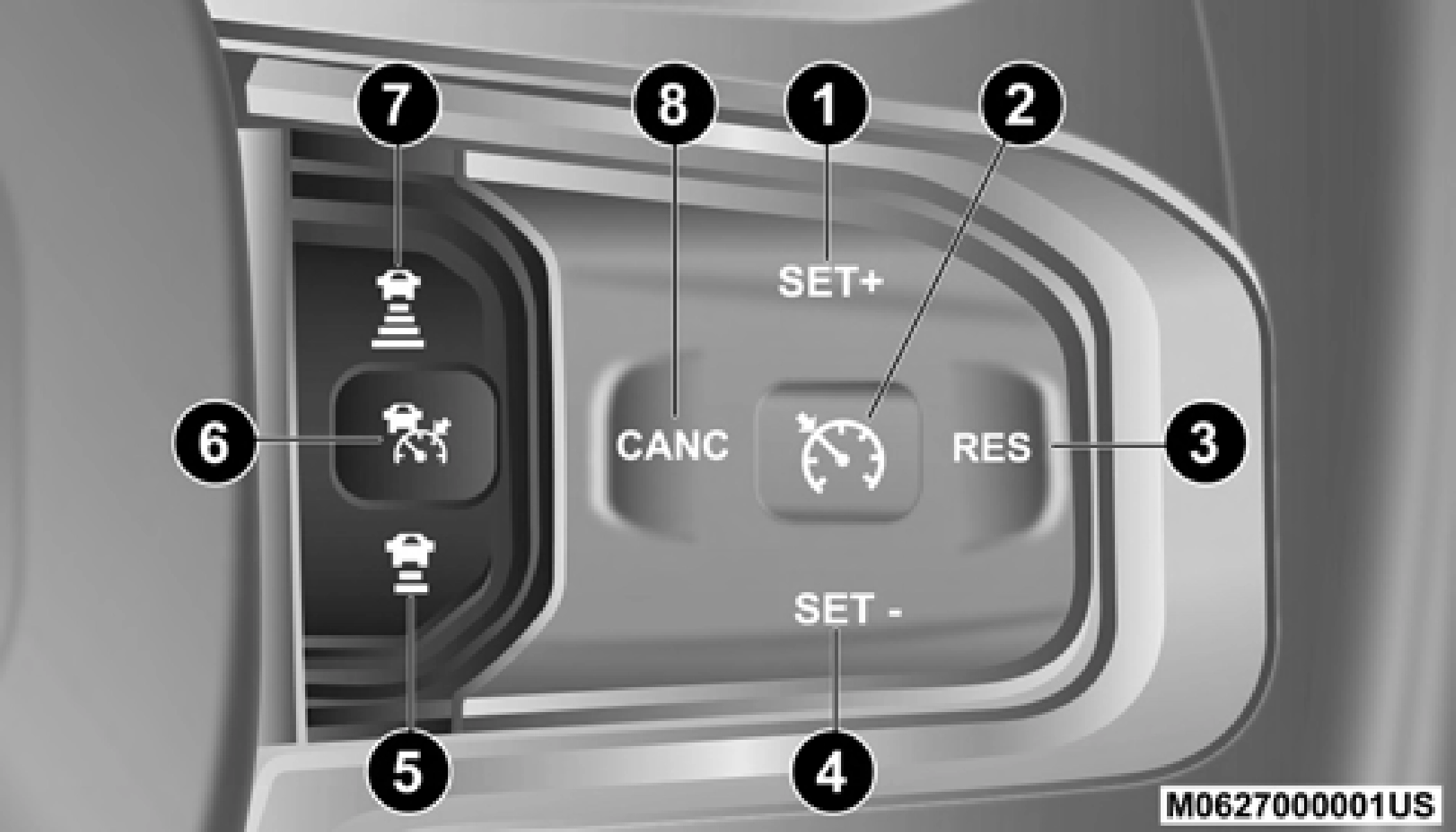
Adaptive Cruise Control Buttons
8 — CANC/Cancel
NOTE:
Any chassis/suspension or tire size modifications to the vehicle will effect the performance of the Adaptive Cruise Control and Forward Collision Warning System.
You can only engage ACC if the vehicle speed is above 0 mph (0 km/h).
The minimum set speed for the ACC system is 20 mph (32 km/h).
When the system is turned on and in the ready state, the instrument cluster display will read “ACC Ready.”
When the system is off, the instrument cluster display will read “Adaptive Cruise Control (ACC) Off.”
NOTE:
You cannot engage ACC under the following conditions:
Push and release the Adaptive Cruise Control (ACC) on/off button. The ACC menu in the instrument cluster displays “ACC Ready.”

Adaptive Cruise Control Ready
To turn the system off, push and release the Adaptive Cruise Control (ACC) on/off button again. At this time, the system will turn off and the instrument cluster display will show “Adaptive Cruise Control (ACC) Off.”
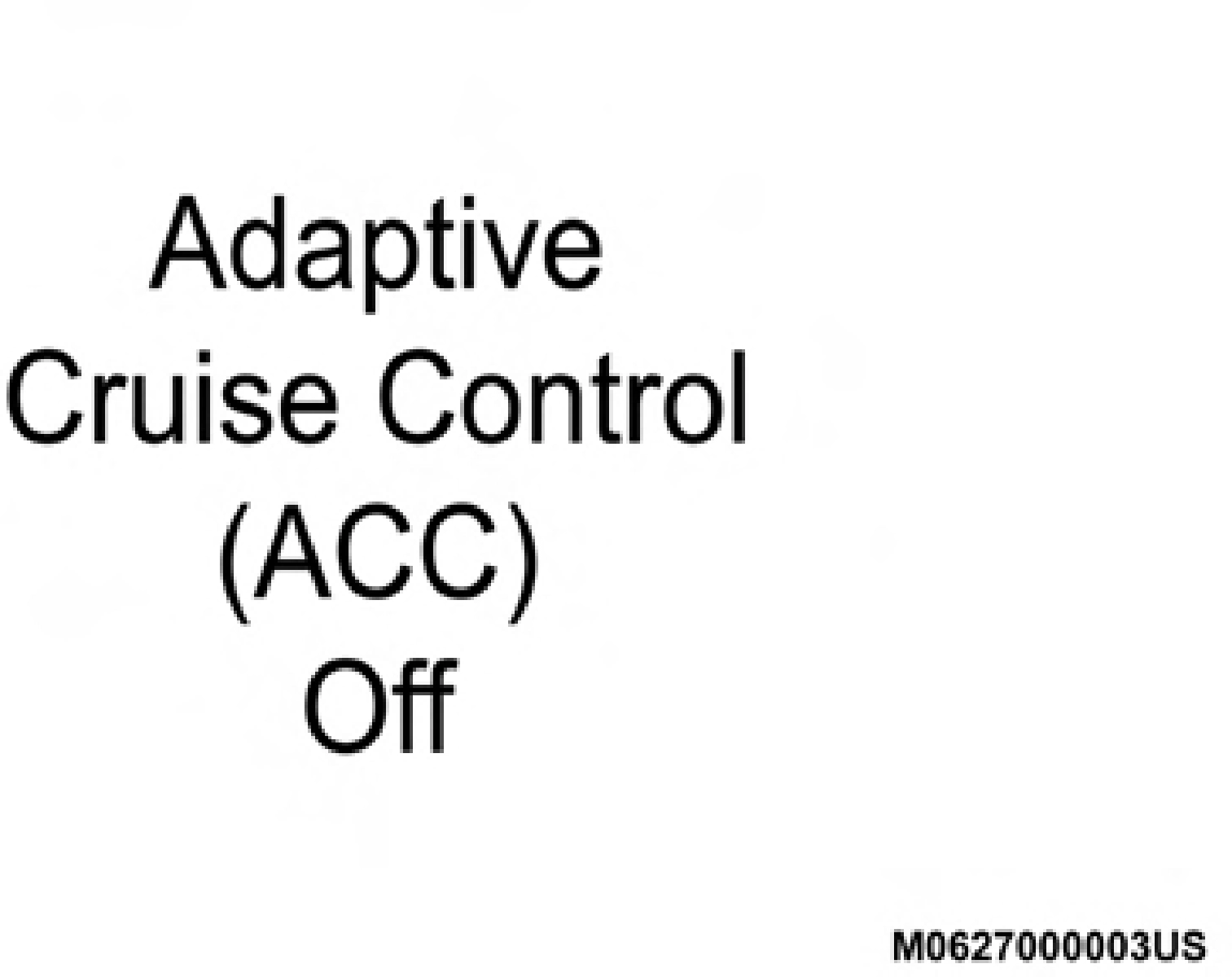
Adaptive Cruise Control Off
When the vehicle reaches the speed desired, push the SET (+) button or the SET (-) button and release. The instrument cluster display will show the set speed.
If the system is set when the vehicle speed is below 20 mph (32 km/h), the set speed shall be defaulted to 20 mph (32 km/h). If the system is set when the vehicle speed is above 20 mph (32 km/h), the set speed shall be the current speed of the vehicle.
NOTE:
ACC cannot be set if there is a stationary vehicle in front of your vehicle in close proximity.
Remove your foot from the accelerator pedal, after the ACC has been set. If you do not, the vehicle may continue to accel- erate beyond the set speed. If this occurs:
The following conditions cancel the system:
The system will turn off and clear the set speed in memory if:
If there is a set speed in memory push the RES (resume) button and then remove your foot from the accelerator pedal. The instrument cluster display will display the last set speed.
NOTE:
To Increase Speed
While ACC is set, you can increase the set speed by pushing the SET (+) button.
The speed increment shown is dependent on the chosen speed unit of U.S. (mph) or Metric (km/h):
U.S. Speed (mph)
Metric Speed (km/h)
To Decrease Speed
While ACC is set, the set speed can be decreased by pushing the SET (-) button.
The speed decrement shown is dependent on the chosen speed unit of U.S. (mph) or Metric (km/h):
U.S. Speed (mph)
Metric Speed (km/h)
NOTE:
buttons, the new set speed will be the current speed of the vehicle.
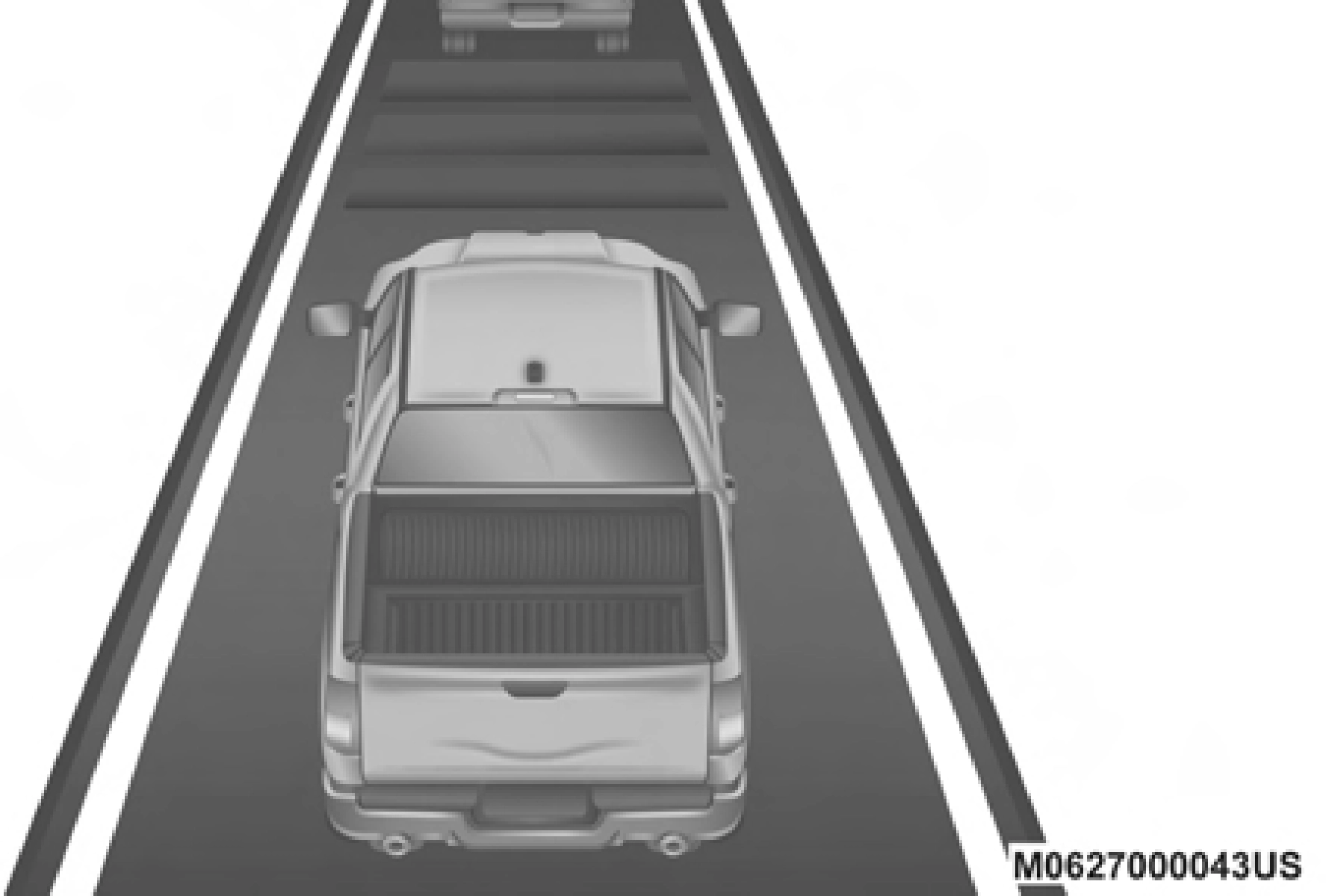
The specified following distance for ACC can be set by varying the distance setting between four bars (longest), three bars (long), two bars (medium) and one bar (short).
Using this distance setting and the vehicle speed, ACC calcu- lates and sets the distance to the vehicle ahead. This distance setting displays in the instrument cluster display.
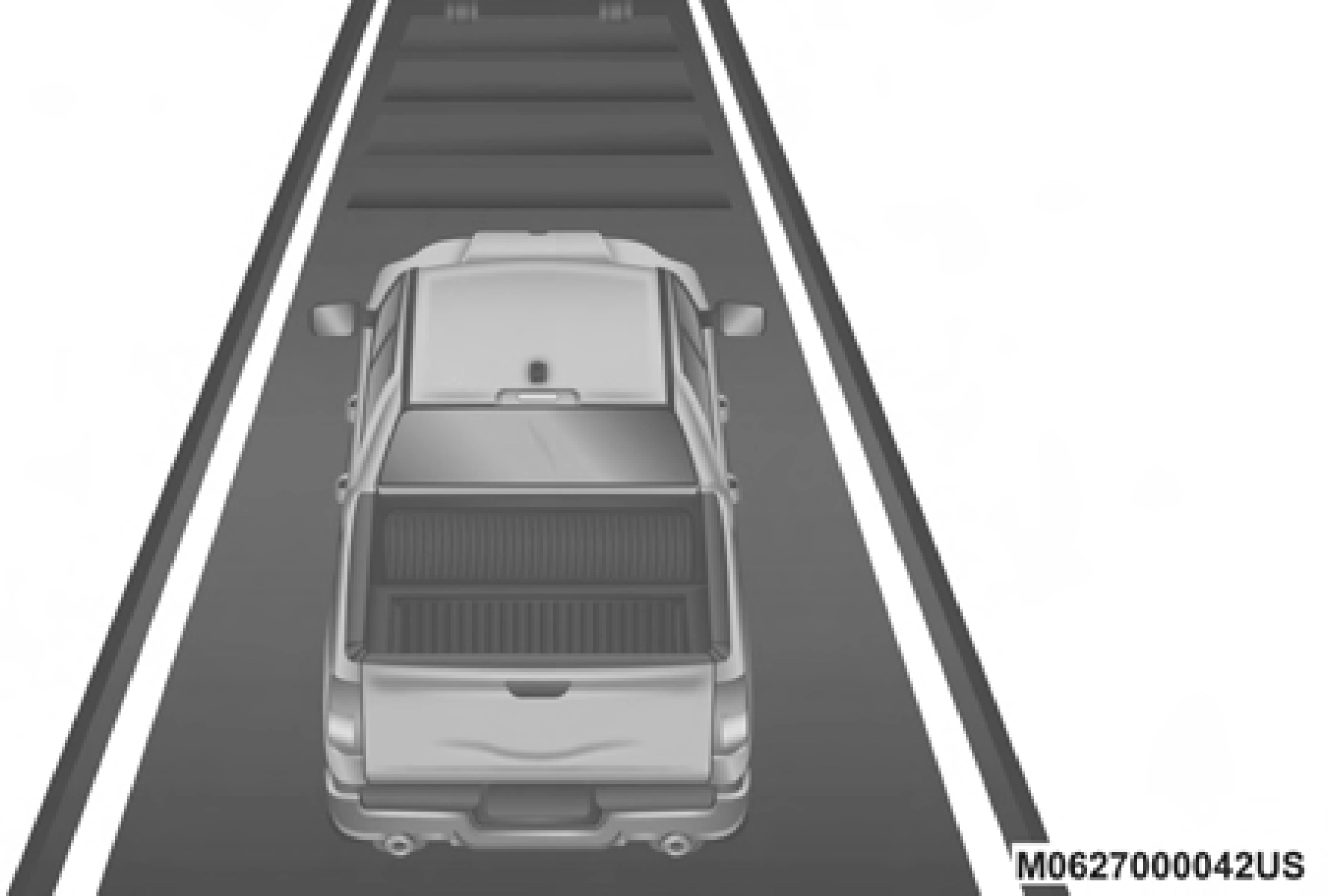
Distance Setting 4 Bars (Longest)
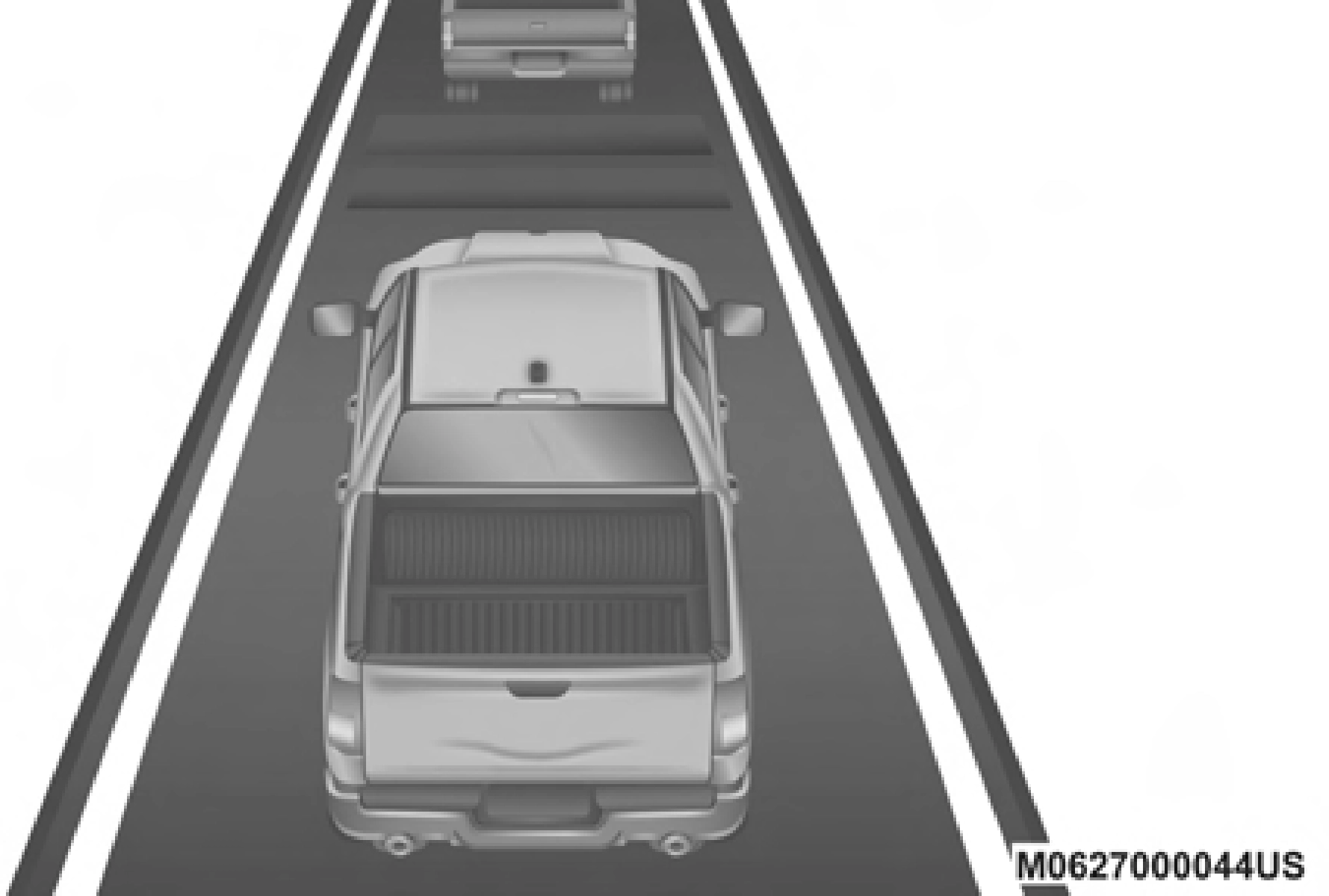 5
5
Distance Setting 3 Bars (Long) Distance Setting 2 Bars (Medium)
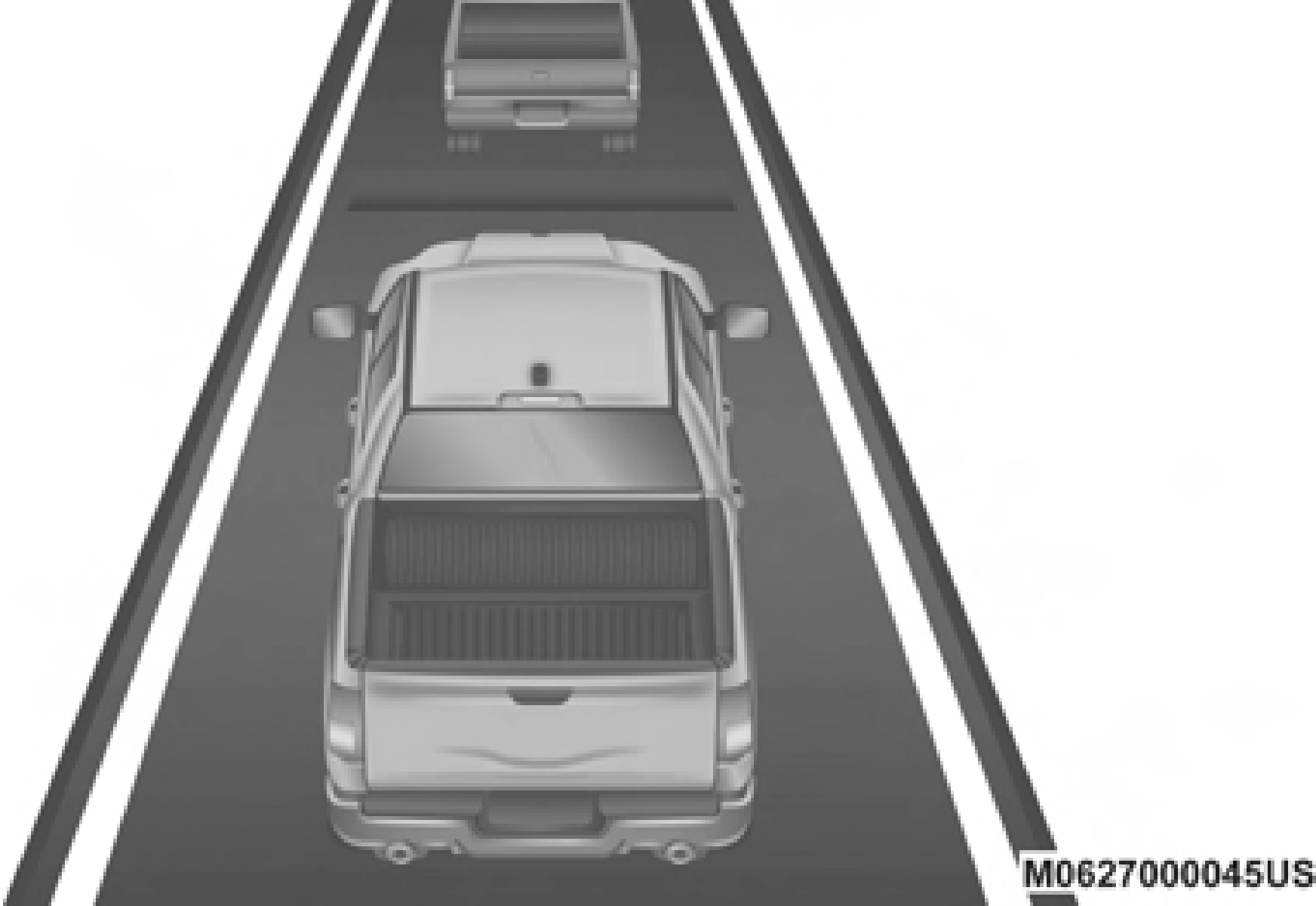
Distance Setting 1 Bar (Short)
To increase the distance setting, push the Distance Setting — Increase button and release. Each time the button is pushed, the distance setting increases by one bar (longer).
To decrease the distance setting, push the Distance Setting — Decrease button and release. Each time the button is pushed, the distance setting decreases by one bar (shorter).
If there is no vehicle ahead, the vehicle will maintain the set speed. If a slower moving vehicle is detected in the same lane, the instrument cluster displays the “Sensed Vehicle Indicator” icon, and the system adjusts vehicle speed automatically to maintain the distance setting, regardless of the set speed.
The vehicle will then maintain the set distance until:
The maximum braking applied by ACC is limited; however, the driver can always apply the brakes manually, if neces- sary.
NOTE:
The brake lights will illuminate whenever the ACC system applies the brakes.
A Proximity Warning will alert the driver if ACC predicts that its maximum braking level is not sufficient to maintain the set distance. If this occurs, a visual alert “BRAKE” will flash in the instrument cluster display and a chime will sound while ACC continues to apply its maximum braking capacity.
NOTE:
 Brake Alert
passing the vehicle. This additional acceleration is triggered when the driver utilizes the left turn signal and will only be active when passing on the left hand side.
In the event that the ACC system brings your vehicle to a standstill while following a target vehicle, if the target vehicle starts moving within two seconds of your vehicle coming to a standstill, your vehicle will resume motion without the need for any driver action.
If the target vehicle does not start moving within two 5
seconds of your vehicle coming to a standstill, the driver will either have to push the RES (resume) button, or apply the accelerator pedal to reengage the ACC to the existing Set Speed.
The “BRAKE!” Screen in the instrument cluster display is a warning for the driver to take action and does not necessarily mean that the Forward Collision Warning system is applying the brakes autonomously.
When driving with Adaptive Cruise Control (ACC) engaged, and following a vehicle, the system will provide an additional acceleration up to the ACC set speed to assist in
NOTE:
After the ACC system holds your vehicle at a standstill for approximately 3 consecutive minutes, the parking brake will be activated, and the ACC system will be cancelled.
While ACC is holding your vehicle at a standstill, if the driver seatbelt is unbuckled or the driver door is opened, the parking brake will be activated, and the ACC system will be cancelled.
The instrument cluster display will show the current ACC system settings. The instrument cluster display is located in the center of the instrument cluster. The information it displays depends on ACC system status.
Push the Adaptive Cruise Control (ACC) on/off button (located on the steering wheel) until one of the following appears in the instrument cluster display:
Adaptive Cruise Control Off
When ACC is deactivated, the display will read “Adaptive Cruise Control Off.”
Adaptive Cruise Control Ready
When ACC is activated, but the vehicle speed setting has not been selected, the display will read “Adaptive Cruise Control Ready.”
Adaptive Cruise Control Set
When the SET (+) or the SET (-) button (located on the steering wheel) is pushed, the display will read “ACC SET.”
When ACC is set, the set speed will show in the instrument cluster display.
The ACC screen may display once again if any ACC activity occurs, which may include any of the following:
The instrument cluster display will return to the last display selected after five seconds of no ACC display activity
The “ACC/FCW Unavailable Wipe Front Radar Sensor” warning will display and also a chime will indicate when conditions temporarily limit system performance.
This most often occurs at times of poor visibility, such as in snow or heavy rain. The ACC system may also become temporarily blinded due to obstructions, such as mud, dirt or ice. In these cases, the instrument cluster display will display “ACC/FCW Unavailable Wipe Front Radar Sensor” and the system will deactivate.
The “ACC/FCW Unavailable Wipe Front Radar Sensor” message can sometimes be displayed while driving in highly reflective areas (i.e. tunnels with reflective tiles, or ice and snow). The ACC system will recover after the vehicle has left these areas. Under rare conditions, when the radar is not tracking any vehicles or objects in its path this warning may temporarily occur.
NOTE:
If the “ACC/FCW Unavailable Wipe Front Radar Sensor” warning is active Normal (Fixed Speed) Cruise Control is still available. For additional information refer to “Normal (Fixed Speed) Cruise Control Mode” in this section.
If weather conditions are not a factor, the driver should examine the sensor. It may require cleaning or removal of an obstruction. The sensor is located in the camera in the center of the windshield, on the forward side of the rearview mirror.
To keep the ACC System operating properly, it is important to note the following maintenance items:
cause an ACC system malfunction or failure and require a
sensor realignment.
When the condition that deactivated the system is no longer present, the system will return to the “Adaptive Cruise Control Off” state and will resume function by simply reac- tivating it.
NOTE:
The “ACC/FCW Limited Functionality Clean Front Wind- shield” warning will display and also a chime will indicate when conditions temporarily limit system performance. This most often occurs at times of poor visibility, such as in snow or heavy rain and fog. The ACC system may also become temporarily blinded due to obstructions, such as mud, dirt, or ice on windshield, driving directly into the sun and fog on the inside of glass. In these cases, the instrument cluster display will show “ACC/FCW Limited Functionality Clean Front Windshield” and the system will have degraded performance.
The “ACC/FCW Limited Functionality Clean Front Wind- shield” message can sometimes be displayed while driving
in adverse weather conditions. The ACC/FCW system will recover after the vehicle has left these areas. Under rare conditions, when the camera is not tracking any vehicles or objects in its path this warning may temporarily occur.
If weather conditions are not a factor, the driver should examine the windshield and the camera located on the back side of the inside rear view mirror. They may require cleaning or removal of an obstruction.
When the condition that created limited functionality is no longer present, the system will return to full functionality.
NOTE:
If the “ACC/FCW Limited Functionality Clean Front Wind- shield” message occurs frequently (e.g. more than once on every trip) without any snow, rain, mud, or other obstruc- tion, have the windshield and forward facing camera inspected at your authorized dealer.
If the system turns off, and the instrument cluster displays “ACC/FCW Unavailable Service Required” or “Cruise/ FCW Unavailable Service Required”, there may be an internal system fault or a temporary malfunction that limits ACC functionality. Although the vehicle is still drivable under normal conditions, ACC will be temporarily unavail-
able. If this occurs, try activating ACC again later, following an ignition cycle. If the problem persists, see your authorized dealer.
In certain driving situations, ACC may have detection issues. In these cases, ACC may brake late or unexpectedly. The driver needs to stay alert and may need to intervene.
NOTE:
Dust and dirt can accumulate on the cover and block the camera lens. Clean the camera lens with a soft microfiber cloth, being careful not to damage or scratch the module.
ACC while towing a trailer is recommended only with an Integrated Trailer Brake Controller. Aftermarket trailer brake controllers will not activate the trailer brakes when ACC is braking.
ACC may not detect a vehicle in the same lane that is offset from your direct line of travel, or a vehicle merging in from a side lane. There may not be sufficient distance to the
vehicle ahead. The offset vehicle may move in and out of the 5
line of travel, which can cause your vehicle to brake or accel- erate unexpectedly.
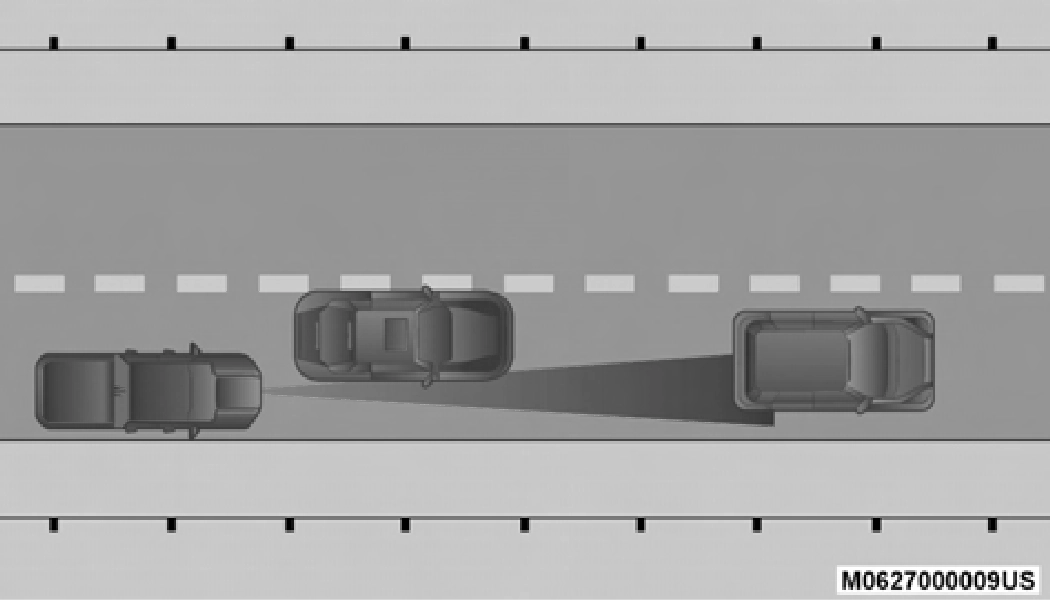
Offset Driving Condition Example
When driving on a curve with ACC engaged, the system may decrease the vehicle speed and acceleration for stability reasons, with no target vehicle detected. Once the vehicle is out of the curve the system will resume your original set speed. This is a part of normal ACC system functionality.
NOTE:
On tight turns ACC performance may be limited.
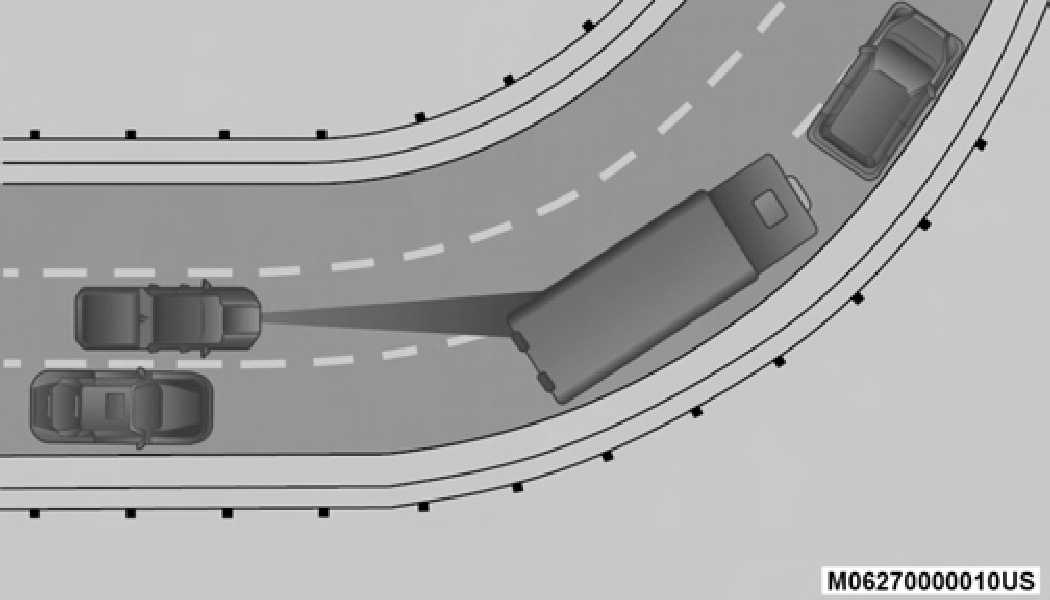
Turn Or Bend Example
When driving on hills, ACC may not detect a vehicle in your lane. Depending on the speed, vehicle load, traffic condi- tions, and the steepness of the hills, ACC performance may be limited.
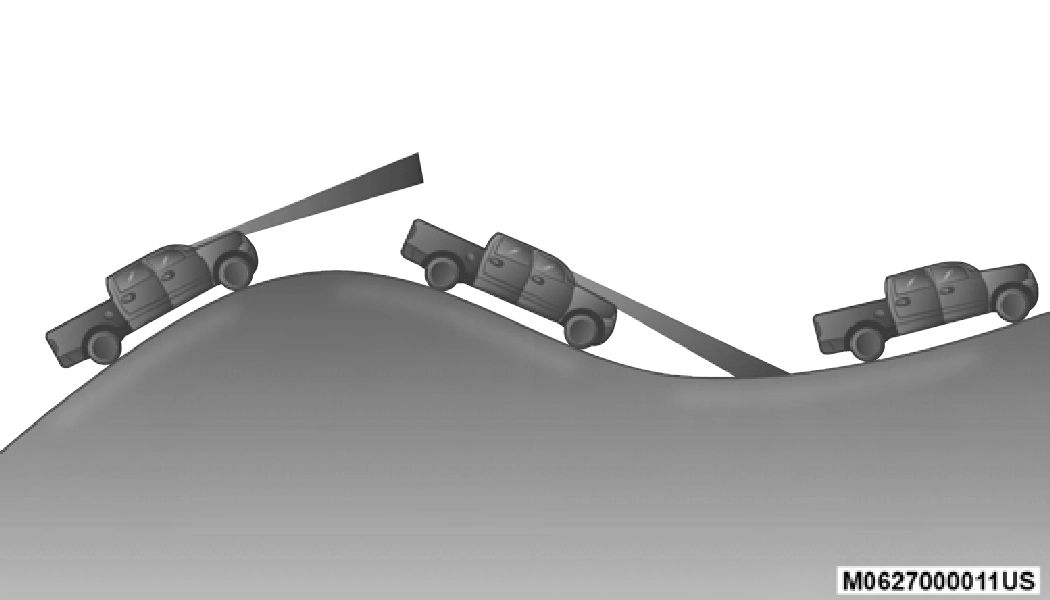
ACC Hill Example
ACC may not detect a vehicle until it is completely in the lane in which you are traveling. In the illustration shown, ACC has not yet detected the vehicle changing lanes and it may not detect the vehicle until it's too late for the ACC system to take action. ACC may not detect a vehicle until it is completely in the lane. There may not be sufficient distance to the lane-changing vehicle. Always be attentive and ready to apply the brakes if necessary.
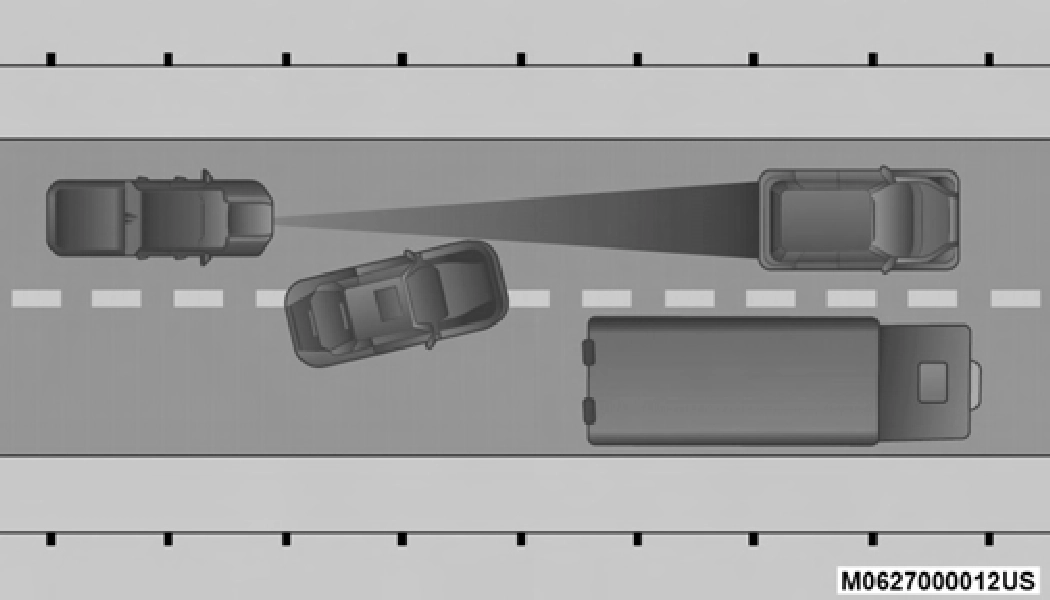
Lane Changing Example
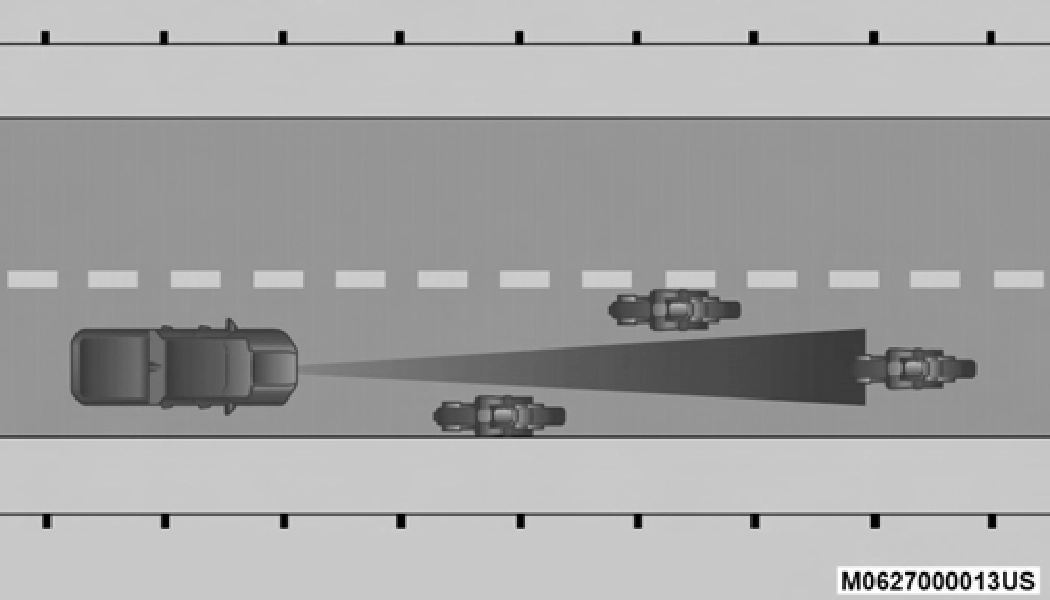 Some narrow vehicles traveling near the outer edges of the lane or edging into the lane are not detected until they have moved fully into the lane. There may not be sufficient distance to the vehicle ahead.
5
Narrow Vehicle Example
ACC does not react to stationary objects and stationary vehi- cles. For example, ACC will not react in situations where the vehicle you are following exits your lane and the vehicle ahead is stopped in your lane. Always be attentive and ready to apply the brakes if necessary.
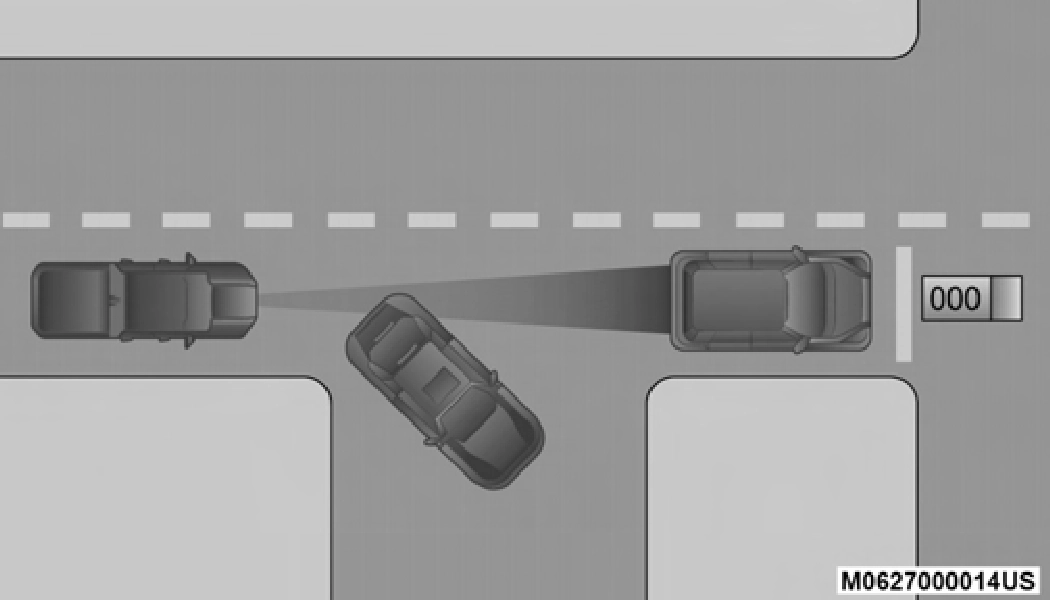
Stationary Object And Stationary Vehicle Example
The following regulatory statement applies to all Radio Frequency (RF) devices equipped in this vehicle:
This device complies with Part 15 of the FCC Rules and with Innovation, Science and Economic Development Canada license-exempt RSS standard(s). Operation is subject to the following two conditions:
Le présent appareil est conforme aux CNR d`Innovation, Science and Economic Development applicables aux appar- eils radio exempts de licence. L'exploitation est autorisée aux deux conditions suivantes:
La operación de este equipo está sujeta a las siguientes dos condiciones:
NOTE:
Changes or modifications not expressly approved by the party responsible for compliance could void the user's authority to operate the equipment.
In addition to Adaptive Cruise Control (ACC) mode, a Normal (Fixed Speed) Cruise Control mode is available for cruising at fixed speeds. The Normal (Fixed Speed) Cruise Control mode is designed to maintain a set cruising speed without requiring the driver to operate the accelerator. Speed Control can only be operated if the vehicle speed is above 20 mph (32 km/h).
To change between the different control modes, push the Adaptive Cruise Control (ACC) on/off button which turns the ACC on and the Normal (Fixed Speed) Cruise Control
off. Pushing of the Normal (Fixed Speed) Cruise Control on/ off button will result in turning on (changing to) the Normal (Fixed Speed) Cruise Control mode.
5
 Turn the Normal (Fixed Speed) Cruise Control on. When the vehicle has reached the desired speed, push the SET (+) or SET (-) button and release.
Release the accelerator and the vehicle will operate at the selected speed. Once a speed has been set a message “CRUISE CONTROL SET TO MPH (km/h)” will appear indicating what speed was set. This light will turn on when the system is turned on via the on/off control. It turns green when the cruise control is set.
To Increase Speed
When the Normal (Fixed Speed) Cruise Control is set, you can increase speed by pushing the SET (+) button.
The driver's preferred units can be selected through the instrument panel settings. Refer to ”Instrument Cluster Display” in “Getting To Know Your Instrument Panel” for more information. The speed increment shown is dependent on the speed of U.S. (mph) or Metric (km/h) units:
U.S. Speed (mph)
Metric Speed (km/h)
To Decrease Speed
When the Normal (Fixed Speed) Cruise Control is set, you can decrease speed by pushing the SET (-) button.
The driver's preferred units can be selected through the instrument panel settings. Refer to ”Instrument Cluster Display” in “Getting To Know Your Instrument Panel” for more information. The speed decrement shown is dependent on the speed of U.S. (mph) or Metric (km/h) units:
U.S. Speed (mph)
Metric Speed (km/h)
The following conditions will cancel the Normal (Fixed Speed) Cruise Control without clearing the memory:
To resume a previously set speed, push the RES button and release. Resume can be used at any speed above 20 mph (32 km/h).
The system will turn off and erase the set speed in memory if:
Download Manual