Operating Display
Audio
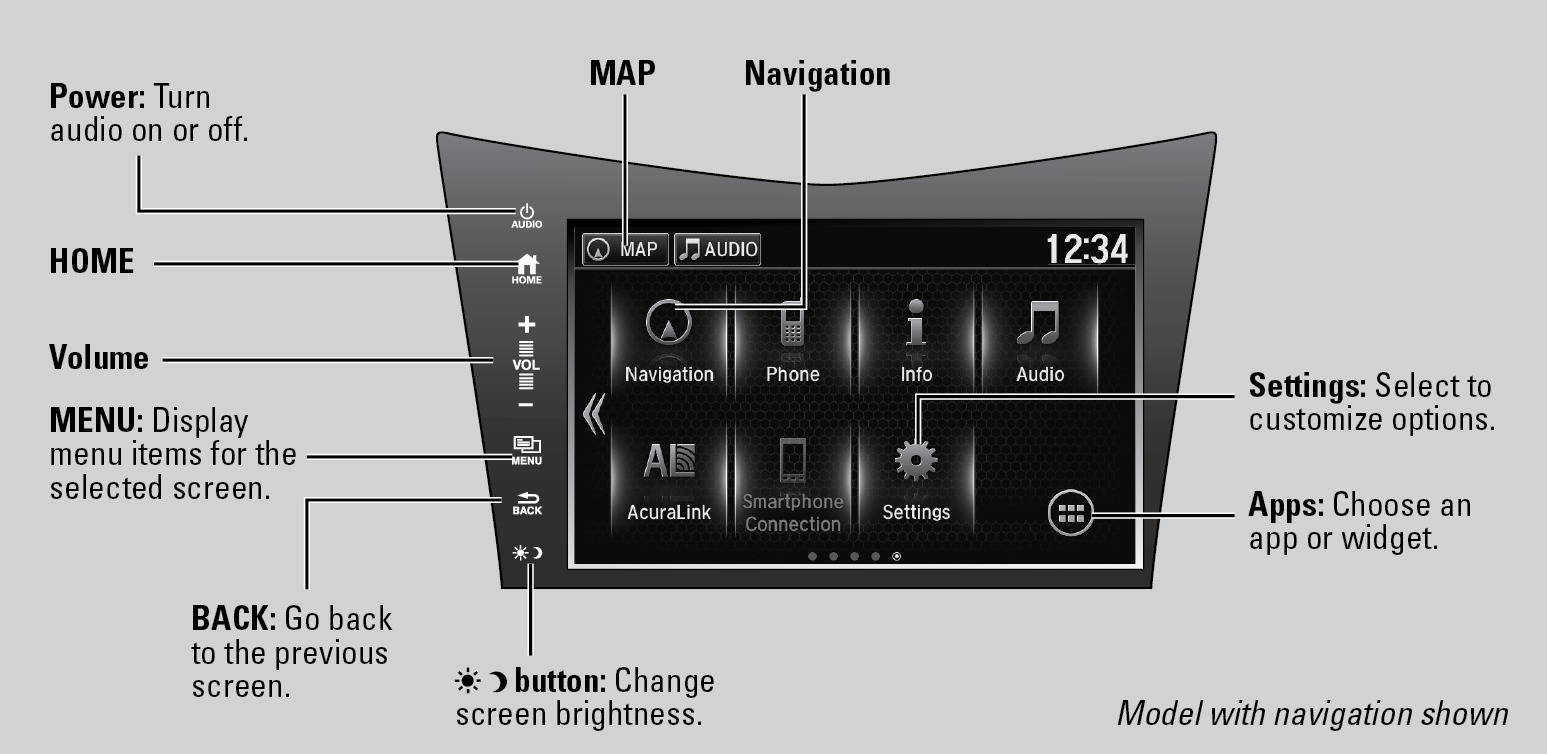
Use simple gestures-such as touching, swiping, and scrolling-to operate certain audio functions.
Some items may be grayed out during driving to reduce the potential for distraction. You can select them when the vehicle is stopped.
Wearing gloves may limit or prevent touchscreen response.
You can use a microfiber cleaning cloth to remove dust or fingerprints from the touchscreen.
Changing Icon Order
You can change the order of the icons on the HOME screen.
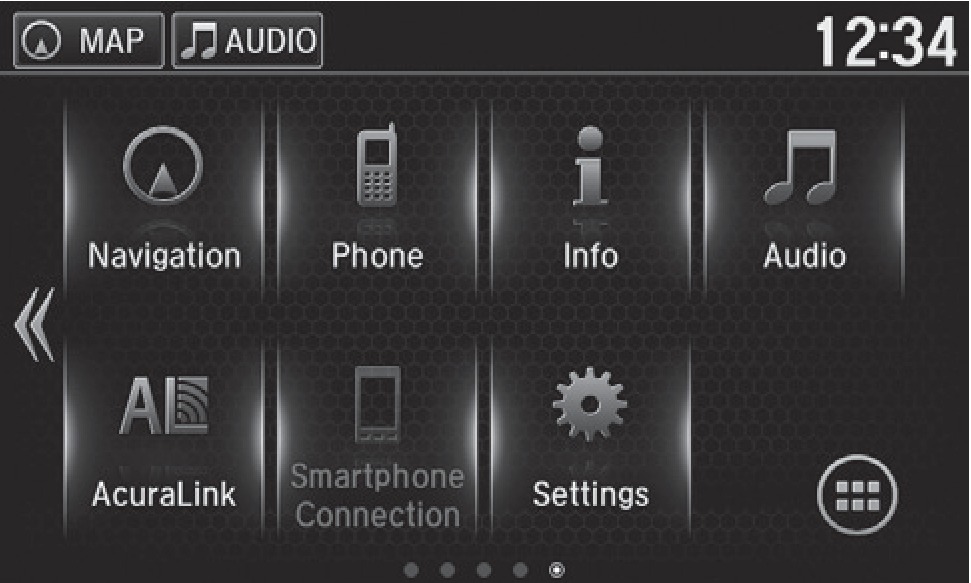
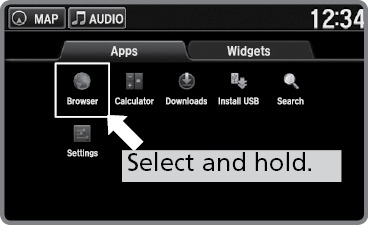
- From the HOME screen, select and hold an icon to enter the customization screen.
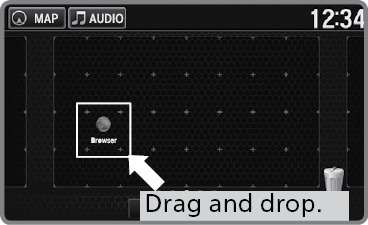
- Drag and drop the icon to the desired position.
- Select OK when complete.
Adding Apps or Widgets to the HOME Screen
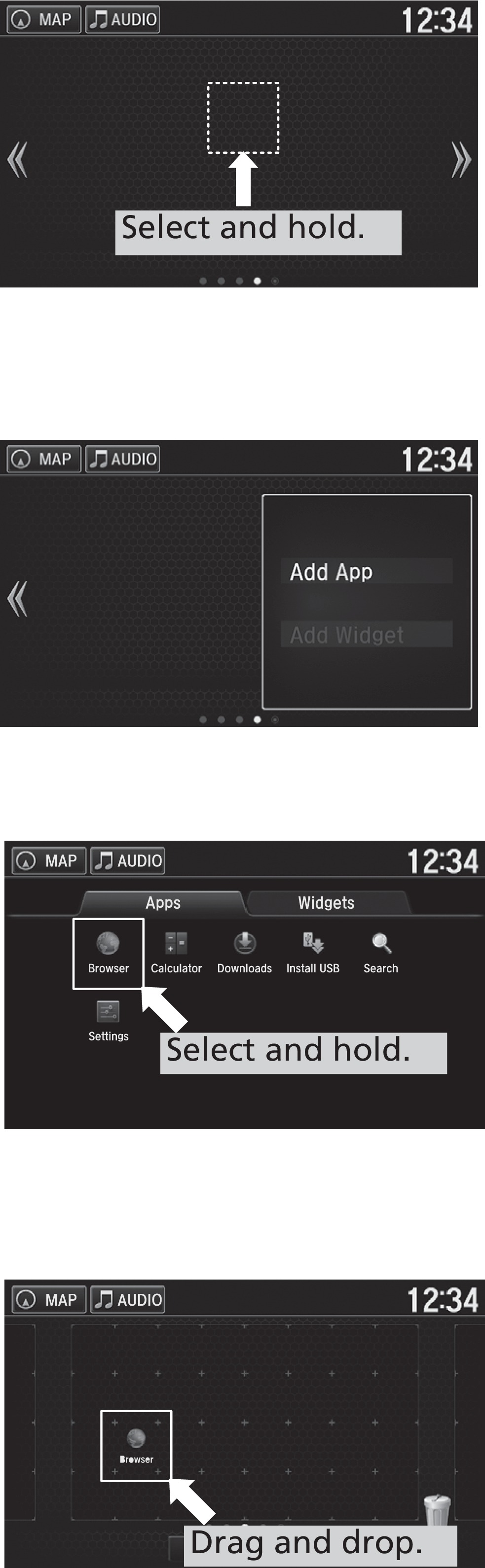
You can add apps or widgets to the HOME screen for easy selection.
- From the HOME screen.
- Select <<.
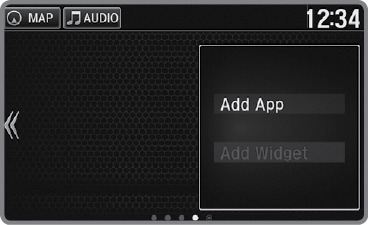
- Select and hold empty space on the home screen. The pop-up menu appears.
- Select and hold the app or widget you want to add. The customization screen appears.
- Drag and drop the icon for the app or widget to the desired position.
- Select OK when complete.
Related topics:
- FM Radio
- Customized Features
- Setting the Clock
- Basic Audio Operation
- Wi-Fi Connection
- Apple CarPlay
- Siri Eyes Free
- Android Auto
- SiriusXM Radio*
- iPod
- USB Flash Drive
- Pandora*
- Bluetooth Audio
- Pairing a Phone
- Subscription Features
- Basic Navigation Operation
Download Manual