Entering a Destination
Use several methods to enter a destination.
Home Address
Store your home address in the system so you can easily route to it.
- From the map screen, select the Search icon.
- Select MENU.
- Select Set Home Location.
- Select Enter My Address.
- Select Search All.
- Enter the street number and select Done.
- Enter the street name and select Done. Select the street from the list.
- Select the address from the list. A map of the address is shown. Select Select.
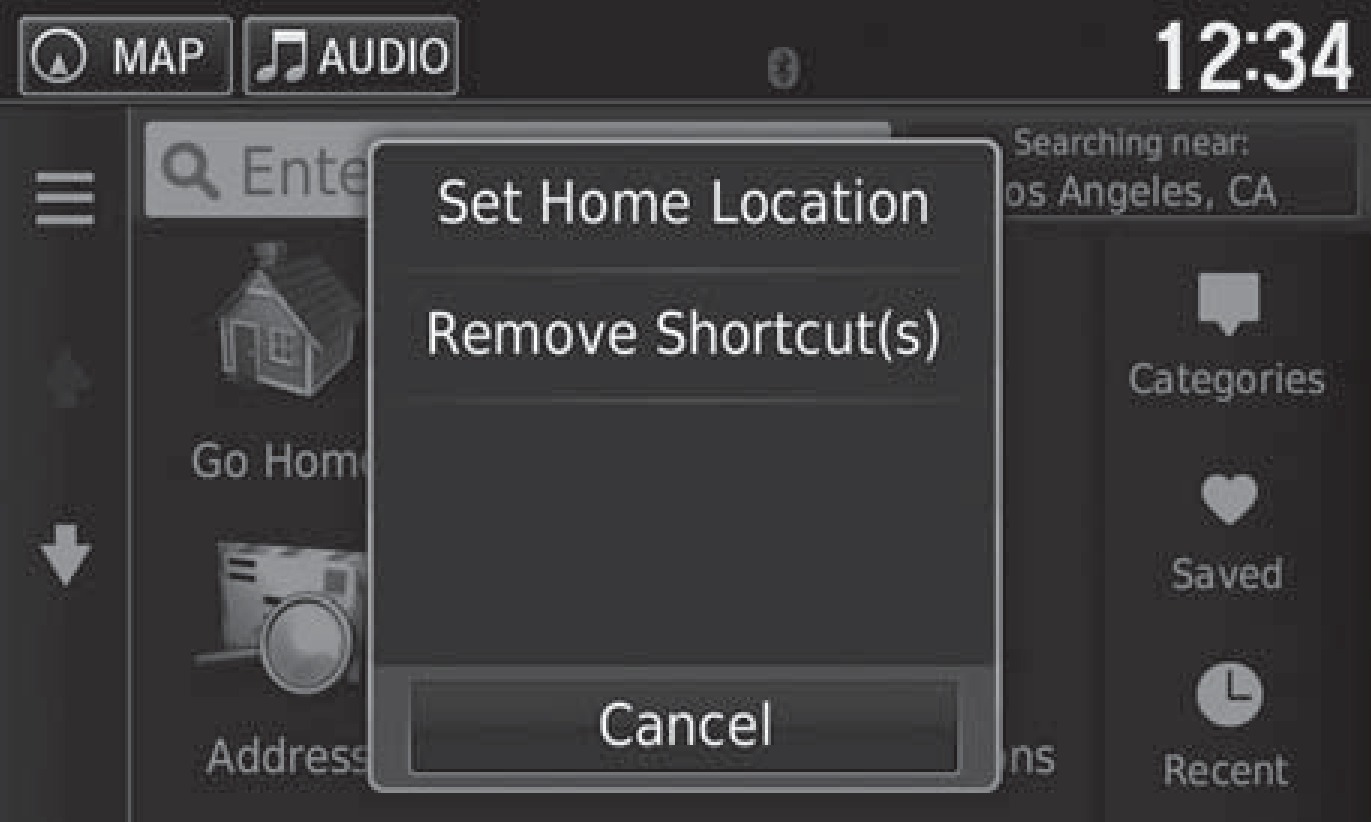
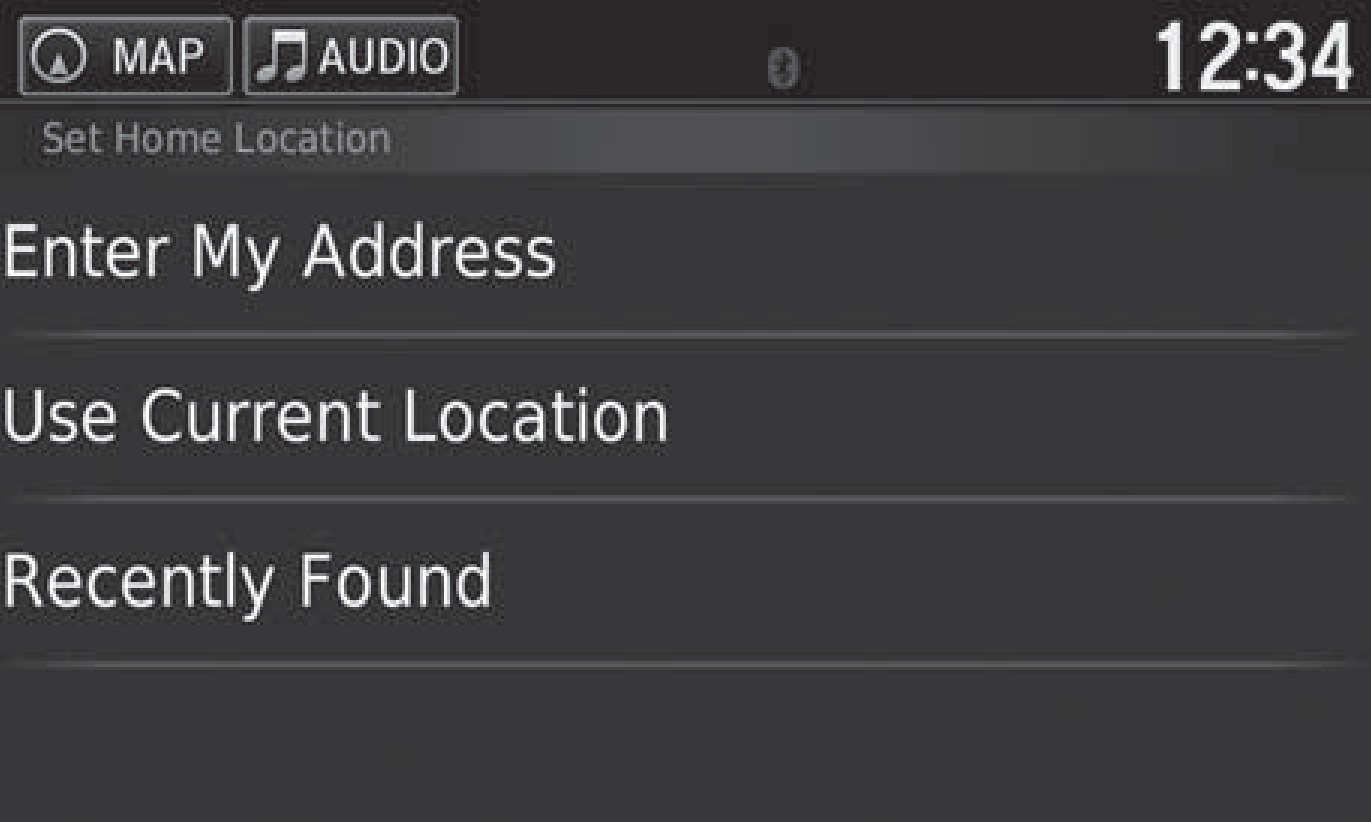
When your home address is stored, you can press the Talk button and say "Navigation" and then "Go home" at any time. You can also select Go Home from the Where To? menu.
Street Address
Enter a street address using voice commands. Press the Talk button and say "Navigation" and then "Find Address." Follow the prompts.
You can also enter the address manually when the vehicle is stopped.
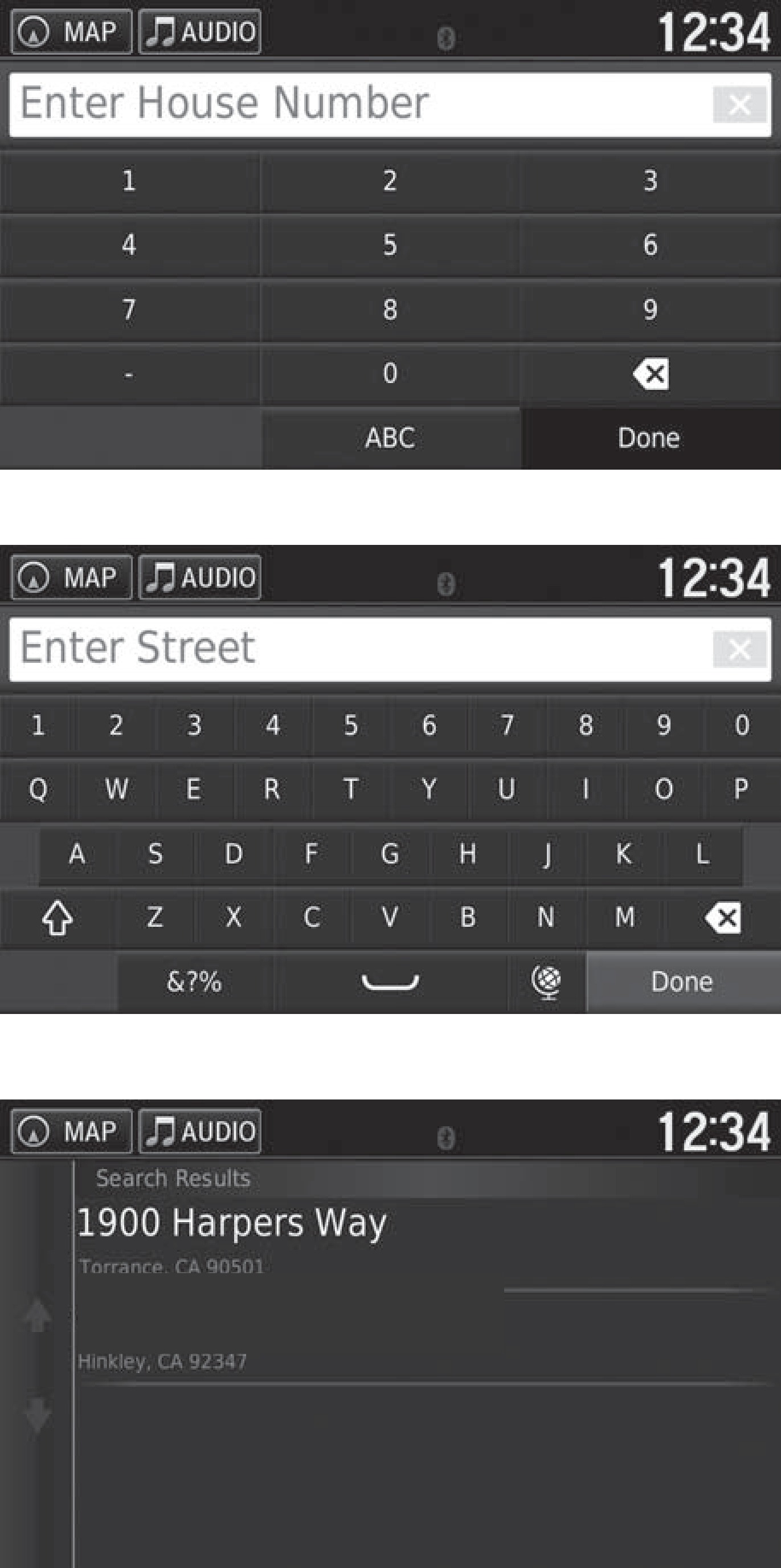
- From the map screen, select the Search icon.
- Select Address.
- Select Search All.
- Enter the street number and select Done.
- Enter the street name and select Done. Select the street from the list.
- Select the address from the list.
- Select Go!.
Place Name
Enter a street address using voice commands. Press the Talk button and say "Navigation" and then "Find Place." Follow the prompts.
You can also enter the place manually when the vehicle is stopped.
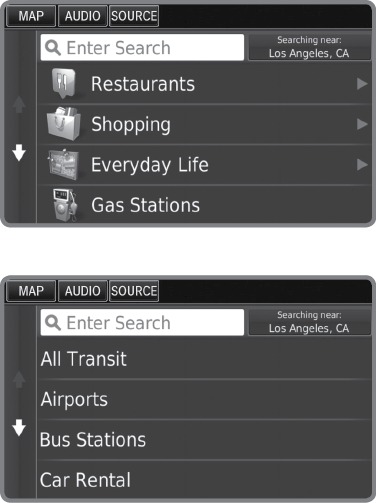
- From the map screen, press MENU.
- Select Where To?.
- Select Categories.
- Select a category (and a subcategory if necessary).
- Select a place from the list.
- Select Go!.
Recent Places
Select an address from a list of your 50 most recent destinations.
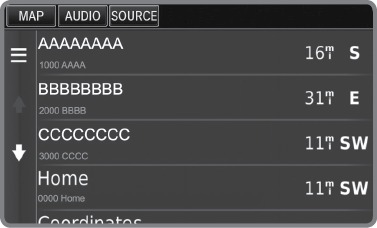
- From the map screen, press MENU.
- Select Where To?.
- Select Recent.
- Select a place from the list.
- Select Go!.
Saved Places
Save locations so you can quickly route to them.
Saving a location
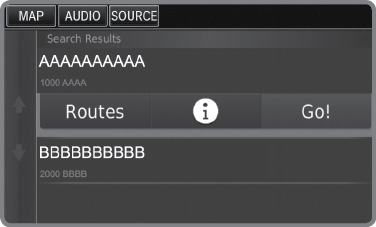
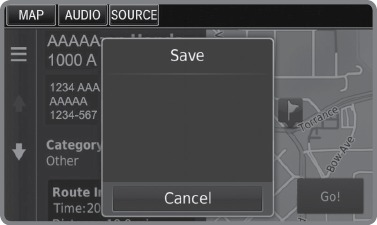
- From the map screen, press MENU.
- Select Where To?.
- Select Enter Search.
- Enter the address or place name.
- Select the destination name when it appears on the map screen.
- Select the menu icon.
- Select Save.
- Select OK.
You can also save your current location. From the map screen, select the vehicle icon. Select Save. Enter a name for the location. Select Done. Select OK.
Routing to a saved location
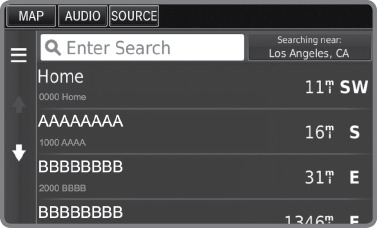
- From the map screen, press MENU.
- Select Where To?.
- Select Saved.
- Select the destination from the list.
- Select Go!.
- Basic Navigation Operation
- Routing
Download Manual