Rear Entertainment
System (RES)*
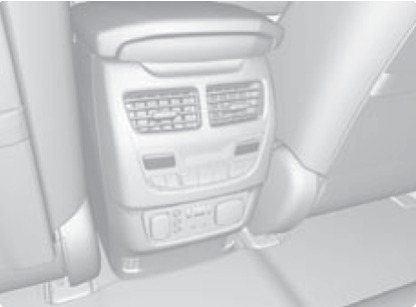
Rear passengers can enjoy a different audio or entertainment source than front passengers.
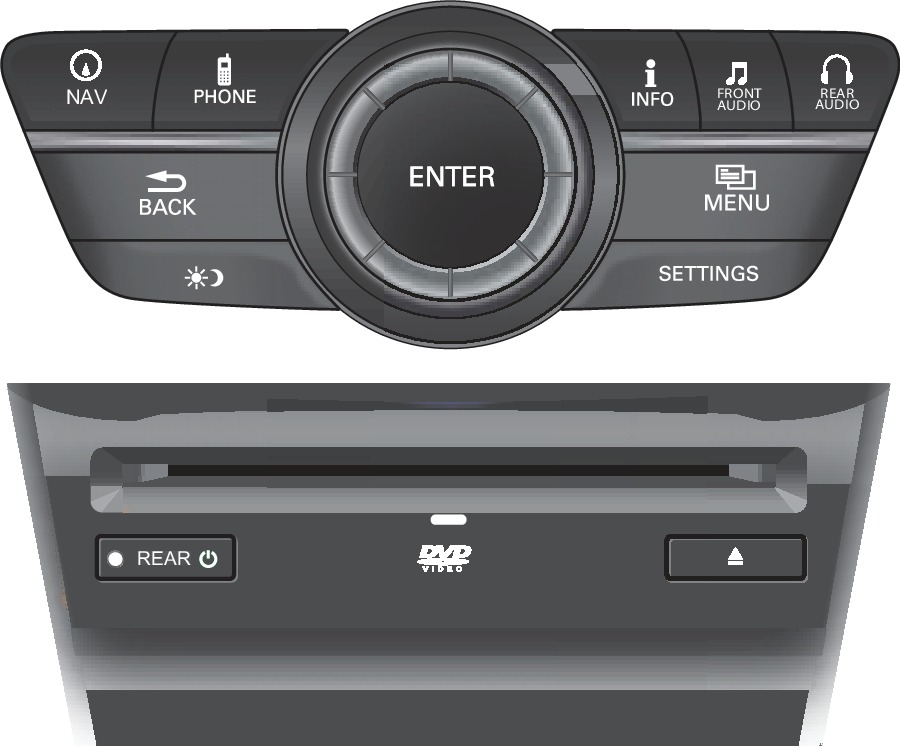
DVD slot
REAR POWER button: Turn the rear entertainment system on or off.
REAR AUDIO button: Display rear audio information.
FRONT AUDIO button: Display front audio information.
DVD eject button
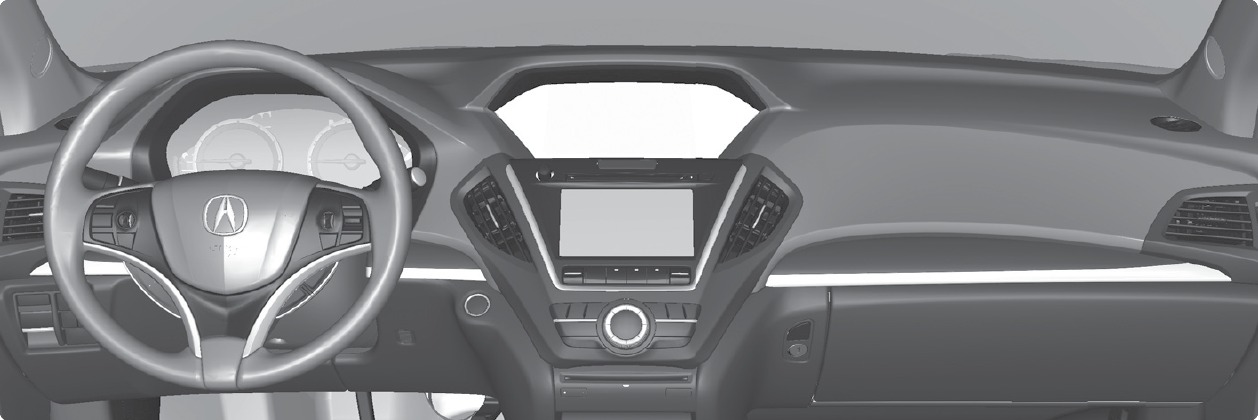
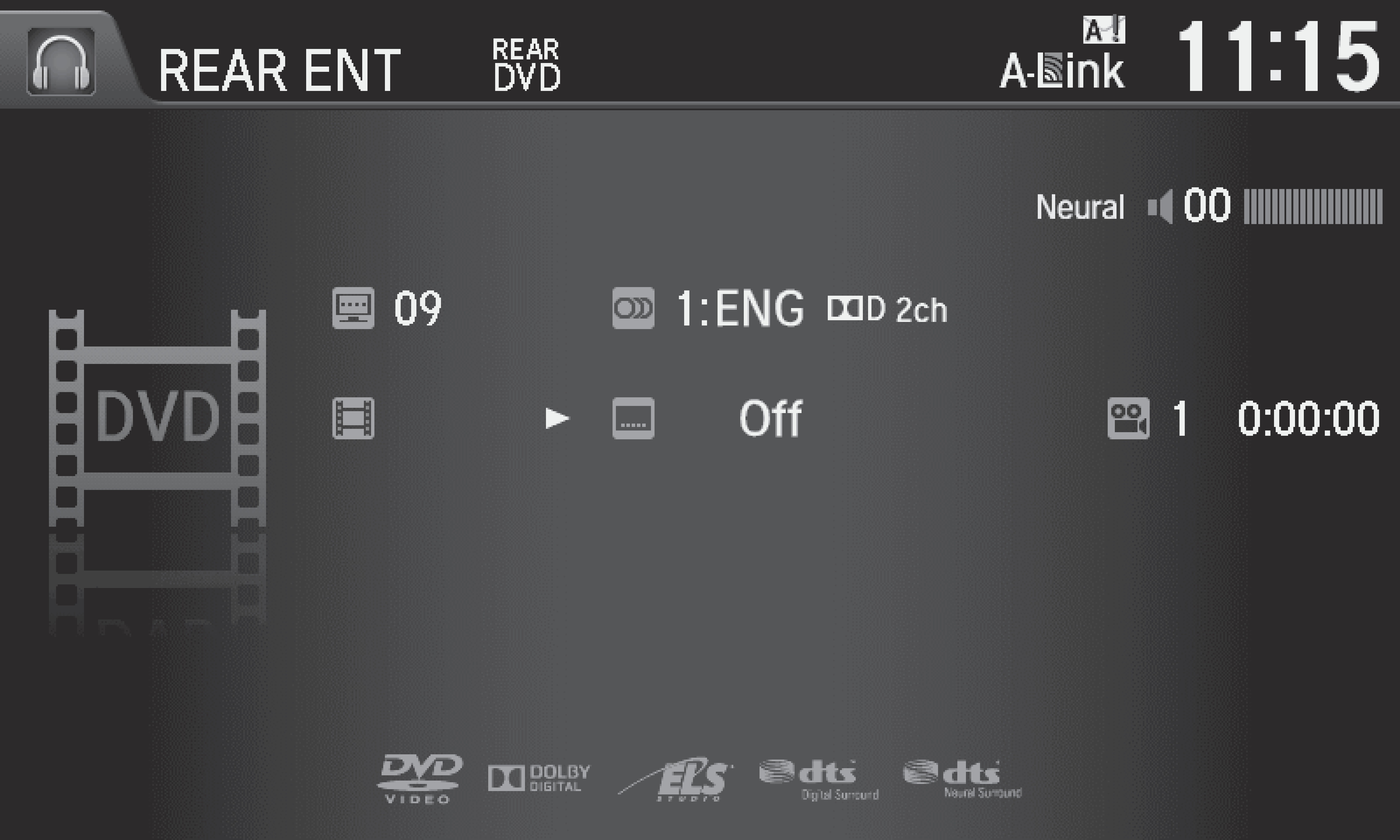
Rear audio display
Operating the System from the Front
You can operate the rear entertainment system using the front audio controls.
- Press REAR POWER to turn the system on.
- Press REAR AUDIO.
- Use the front audio controls to choose a media source for the rear system.
- Press FRONT AUDIO to return to the front audio source.
Playing a DVD
Insert a DVD into the DVD slot. It begins playing automatically. Use the front or rear controls to navigate the DVD.
System Components
Retrieve the wireless headphones and open the overhead screen to use the system.
Overhead screen
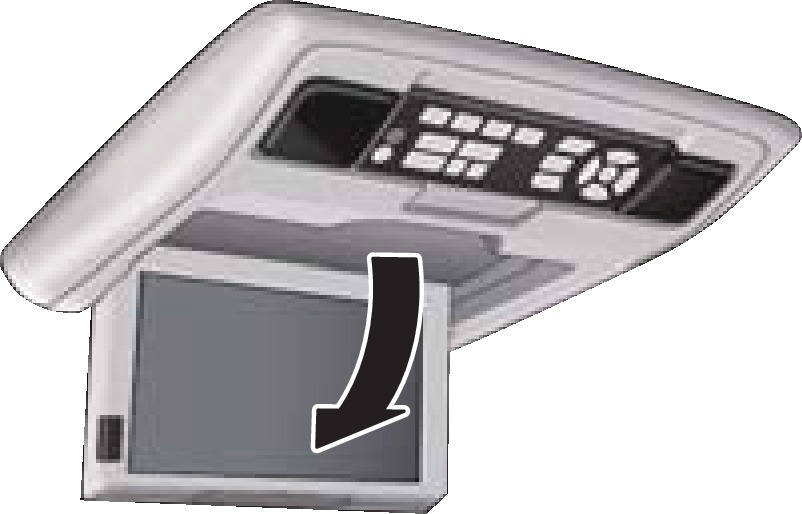
Release button
9-inch RES*: Pull down the bottom edge of the screen, and extend it until it locks into place.
Ultrawide RES*: Press OPEN. Extend the screen until it locks into place.
Fold the screen back into the ceiling when not in use.
Press the release button to detach the rear remote control panel, if desired.
Auxiliary/HDMI* inputs
Auxiliary inputs can be used for video game systems and other devices. Wired headphones can also be used.
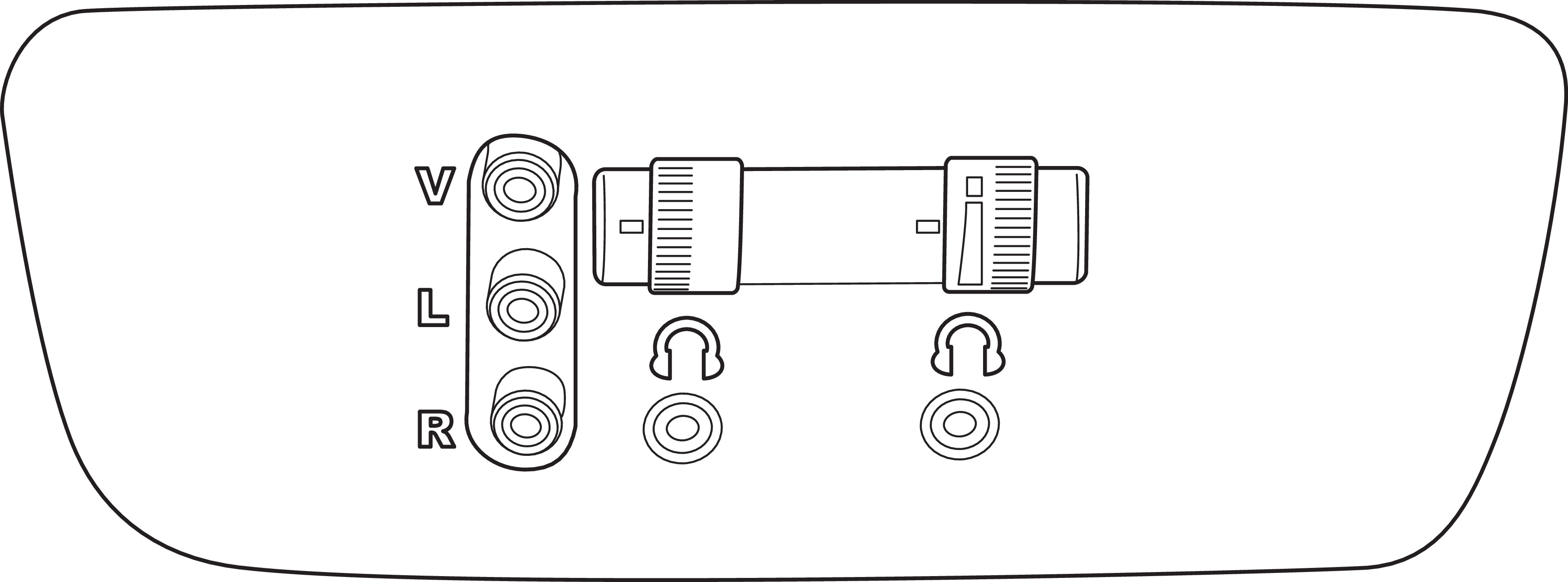
Auxiliary input jacks
Wired headphone jacks
Wired headphone volume
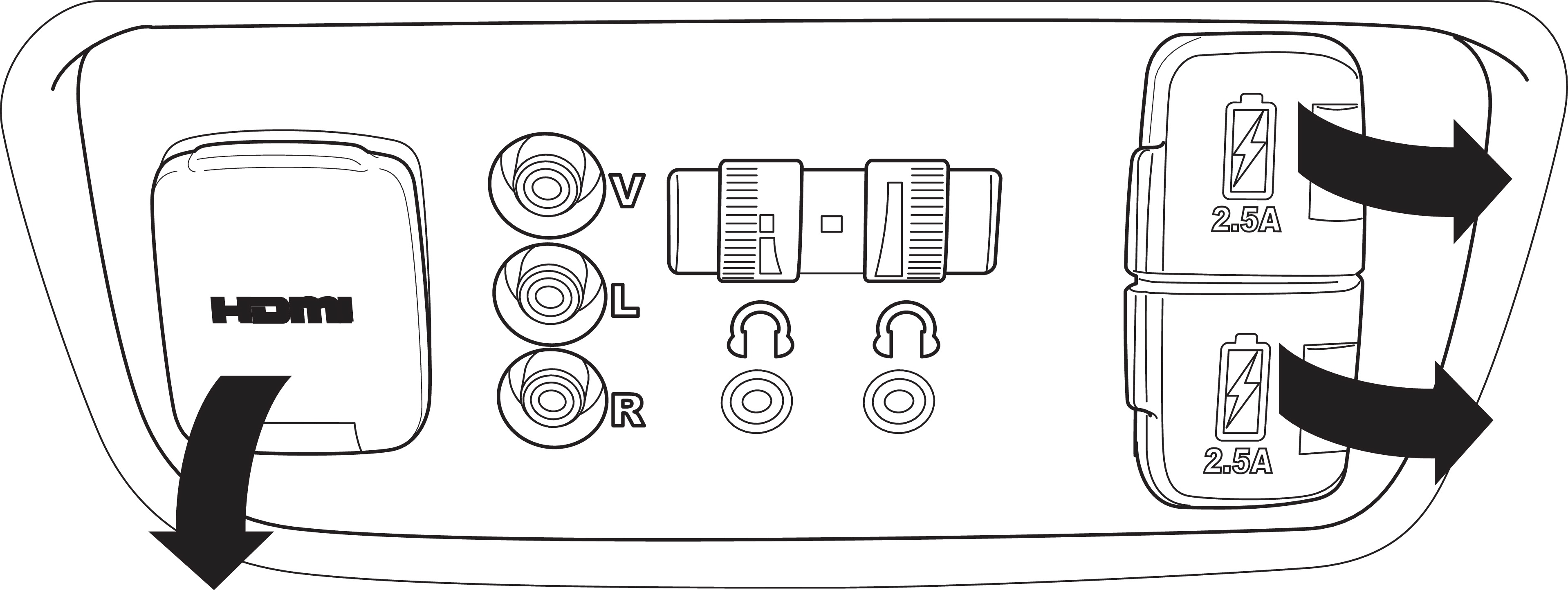
Ultrawide RES*
HDMI input can be used for video game systems and other devices.
Wireless headphones
Your vehicle comes with two sets of wireless headphones.
For each, the power button and volume dial are on the right earpiece.
Remote Control and Rear Operation
You can operate the system using the rear remote control panel.
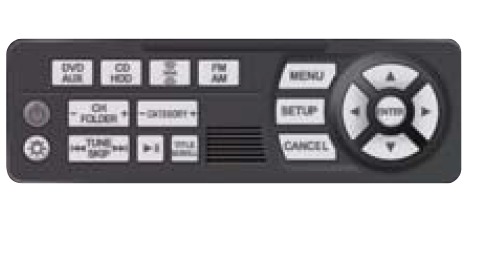
DVD/AUX button: Play a DVD, USB, iPod, or auxiliary source.
CH/FOLDER button: Change channels, stations, or folders.
Power button: Turn the system on or off.
Light button: Illuminate the remote buttons.
TUNE/SKIP button: Change DVD chapters, audio stations, or tracks.
Play/Pause button: (CD/DVD)
CD/HDD button: Play a CD or HDD.
XM button: Play XM Radio.
FM/AM button: Play FM or AM radio.
MENU button: Display menu options.
Arrow/ENTER button: Highlight and select items.
SETUP button: Display setup options.
CANCEL button: Go back to the previous display.
TITLE/SCROLL button: Display DVD status or CD titles.
- Make sure REAR POWER is turned on in the front audio controls.
- From the rear control panel, press the desired audio source button (or the SOURCE button for Ultrawide RES).
- Press the arrow/ENTER buttons to highlight options on the screen and select them. Use the other rear control panel buttons to operate the system.
Press the MENU button to display the menu screen.
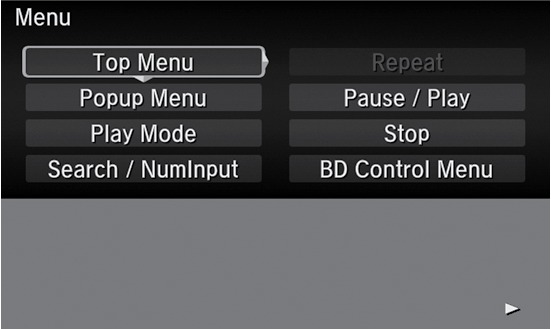
This vehicle's overhead mounted display includes mercury-containing components. Upon removal or replacement, please reuse, recycle, or dispose of as hazardous waste.
Ultrawide Dual Screen Operation*
Play two different sources side by side on the ultrawide screen. One side of the screen can play a source from the front audio system (FM, DVD, etc.). The other side of the screen can play a connected device, such as a video game system.
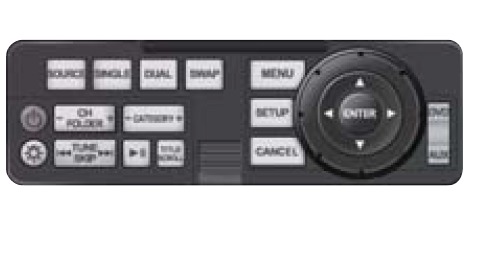
SOURCE button: Display audio sources.
SINGLE button: Display one source on the entire screen.
SWAP button: Switch the sources to opposite sides of the screen.
DUAL button: Display two sources side by side on the screen.
- Connect a second source through the rear auxiliary jacks or HDMI input (see "Rear Entertainment System (RES)*").
- From the rear control panel, press DUAL.
- Select which side the second source plays on.
- Press SOURCE to select AUX-VIDEO or AUX-HDMI.
*if equipped
- Basic Audio Operation
Download Manual