Customized Features
You can easily customize many features of your vehicle. The customized settings are recalled every time you unlock the driver's door with the remote (Driver 1 or Driver 2). Settings are unique to each remote.
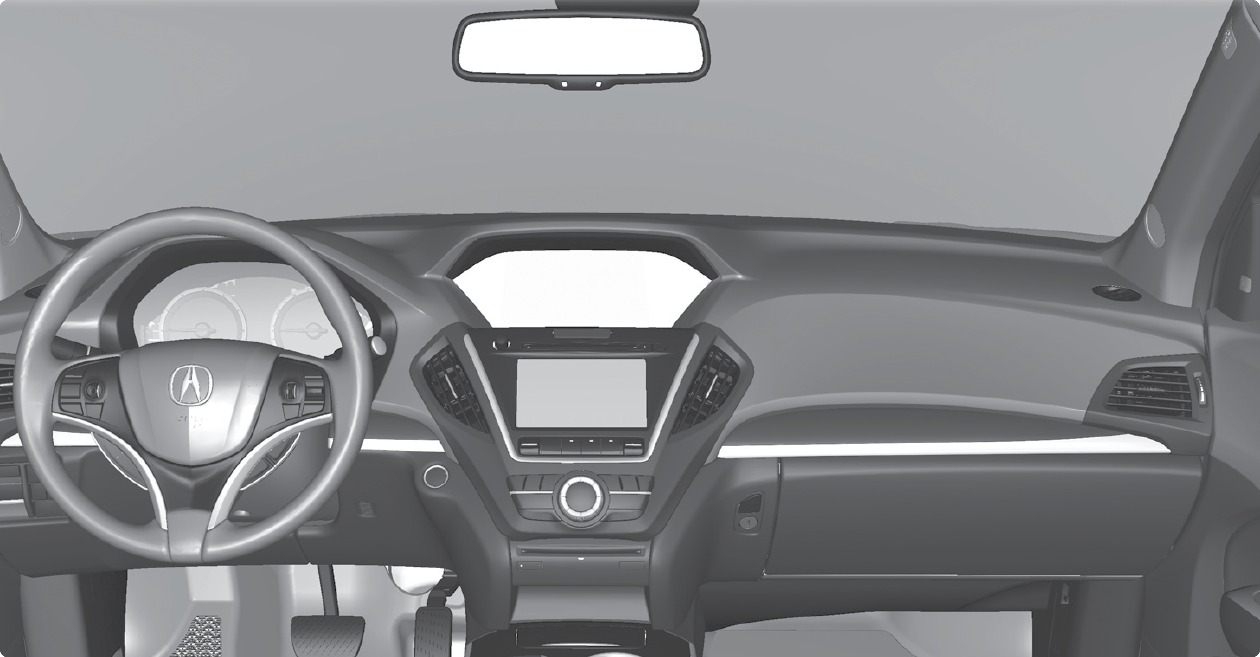
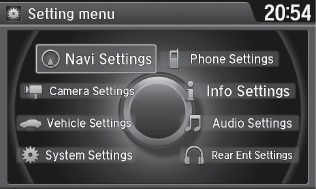
Settings screen
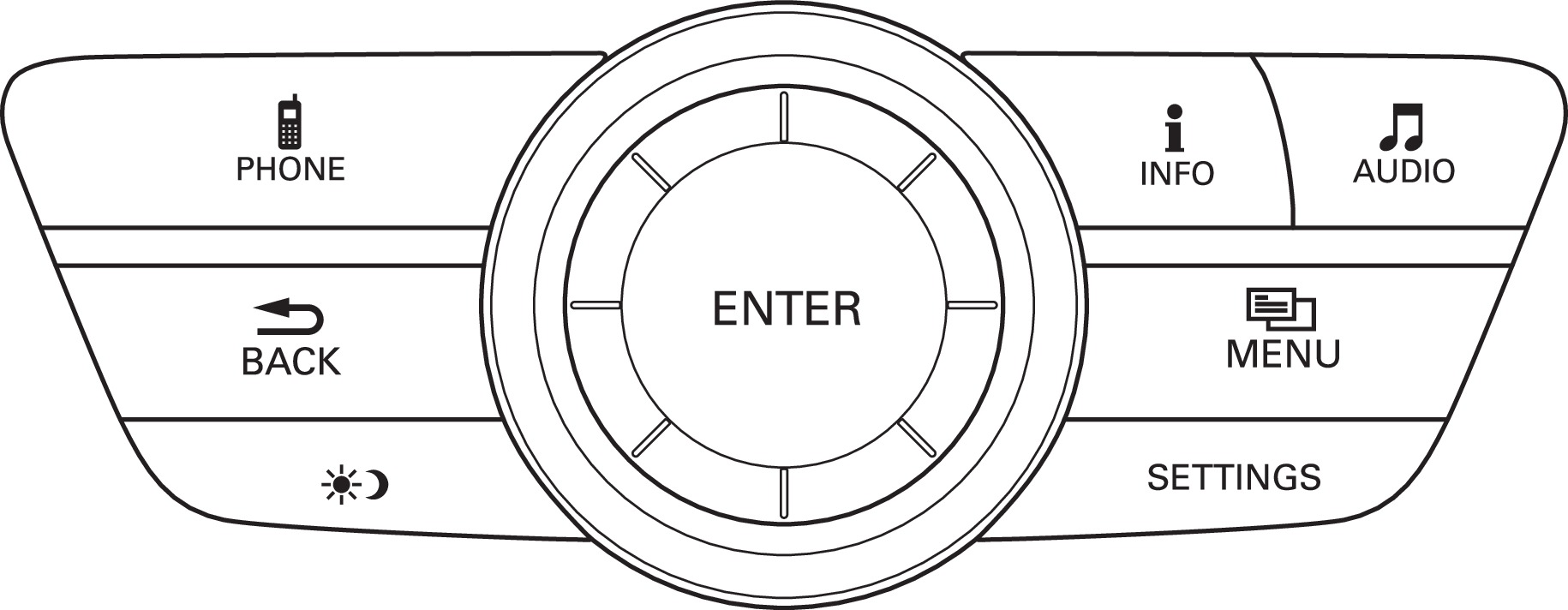
BACK button
Interface dial
SETTINGS button
How to Change a Setting
The vehicle must be in Park (P) to select Vehicle Settings. Use the interface dial to make and enter selections. For models with navigation, see the navigation manual for most customized features.
- Press SETTINGS.
- Select an option.
- Select a setting option, and make your preferred changes.
- Press BACK to exit out of the menus.
Setting the Clock
On vehicles without navigation, use the interface dial to adjust the time in the clock display. On vehicles with navigation, the time is automatically set using GPS signals.
- Press SETTINGS.
- Select System Settings.
- Select Clock Adjustment.
- Rotate the interface dial to change the hour value. Press the interface dial to select minutes, and rotate to change the value. Press the interface dial to exit the screen.
- Press BACK to exit out of the menus.
Customization Example: Door Lock/Unlock Settings
To customize the door lock/unlock settings, use the interface dial to make and enter selections. With the vehicle in Park (P) and the power mode ON, follow the steps below:
- Press SETTINGS
- Press Vehicle Settings
- Press Door Setup
-
To customize door lock settings, press Auto Door Lock
-
To customize door unlock settings, press Auto Door Unlock
-
- Choose a setting
-
The default lock setting is With Vehicle Speed.
-
The default unlock setting is All Doors when Driver's Door Opens
-
- Press the BACK or HOME button when you are done
- Seat Heaters or Ventilation*
- Climate Control System
- Driving Position Memory System
- Adjusting the Seats
Download Manual