Android Auto™
Connect a compatible Android phone to the system. Use the interface dial to make a phone call, listen to music, and more. Visit the Android Auto website for more information.
Park in a safe place before connecting your Android smartphone and launching any compatible apps.
- Download the Android Auto app to your phone.
- Connect the phone to the USB port (2.5A) (see "Basic Audio Operation"). The phone is automatically paired. A tutorial also appears.
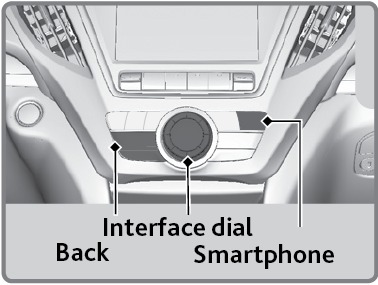
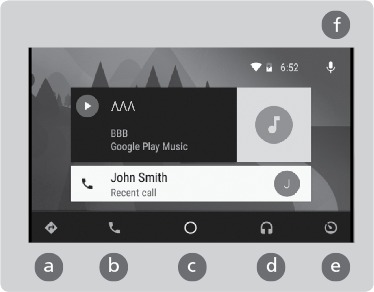
Use these buttons to control Android Auto:
- Smartphone: Enter Android Auto.
- Interface dial: Select an item. Press the dial to make the selection.
- Back: Return to the previous screen.
- Maps (Navigation): View Google Maps and operate navigation. You can only use this system or the pre-installed navigation system to set a destination with routing guidance. You cannot enter destinations using the keyboard while the vehicle is moving.
- Phone: Make phone calls or listen to voicemail. While connected to Android Auto, calls can only be made through Android Auto, not through Bluetooth® HandsFreeLink.
- HOME (Google Now): Display useful information organized by Android Auto into simple cards that appear only when needed.
- Music: Play music from compatible apps. Select this icon to switch between music apps.
- Return to HOME screen: Go back to the vehicle system HOME screen.
- Voice: Use voice commands via Google Voice Search to operate Android Auto. You can also press and hold the Talk button on the steering wheel (see "Basic HFL Operation") to say voice commands.
Depending on use, Android Auto can share certain vehicle information (e.g., vehicle location, speed, and other operating conditions) with Google and its service providers. See Google privacy policy for details regarding Google's use and handling of data uploaded by Android Auto. Use of Android Auto is at user's own risk, and is subject to agreement to the Android Auto terms of use, which are presented to the user when the Android Auto application is downloaded to the user's Android phone. Android Auto vehicle integration is provided "as is," and Acura cannot guarantee Android Auto operability or functionality now or in the future due to, among other conditions, changes in Android Auto software/Android operating system, service interruptions, or incompatibility or obsolescence of vehicle-integrated hardware or software. See dealer for details. Only use Android Auto when conditions allow you to do so safely. See your Owner's Manual at Open Web Page for further license and warranty terms.
- Basic Audio Operation
- Basic Navigation Operation
- Apple CarPlay
Download Manual