Wired and wireless connections
 Introduction
Some external devices can be connected to the Infotainment system using the wired and wireless connections in the vehicle, if available.
The type and quantity of wired and wireless connections depend on the vehicle equipment and country. The connections may differ within a model line or in a model with optional equipment.
In wired connections, only use the original connecting cable that belongs to the device or the connecting cable that was placed in the vehicle at the factory, if available.
If the plug on the connector cable cannot be inserted, check the position and the connections.
 NOTICE
Only use a suitable and undamaged connector cable for wired connections.
-
Hold the plug on the connector cable in the correct position and insert it into the intended socket while pressing lightly. Pressing strongly can damage the device connection and the plug on the connector cable.
-
The connector cable must not be pinched or bent sharply.
-
Using unsuitable or damaged connector cables can cause malfunctions and damage to the device.
 If a connected device is not recognized, disconnect all connected devices and then reconnect the device. Check the function of the connecting cable, if necessary.
If malfunctions occur in a connected device, restart the device. This sometimes fixes the error.
USB port
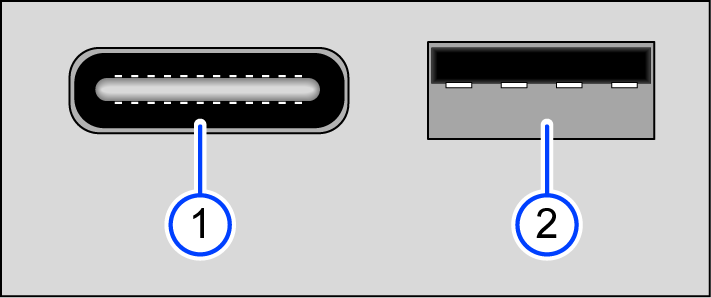
Fig. 152 Possible USB ports in the vehicle (general example).
 USB port, type C.
 USB port, type A.
USB port types
The vehicle may contain the following USB ports:
-
Type A
 : Suitable for data transfer and charging function.
 -
Type A
 : Only suitable for charging function.
 -
Type C
: Suitable for data transfer and charging function. -
Type C
or  : Only suitable for charging function.
Every USB port is a wired connection that may only be used with a suitable connector cable.
The USB connection supplies 5 volts, commonly used by USB devices.
The USB type, number, and locations of the USB ports depend on the vehicle and country.
Only supported audio files are shown. Other files will be ignored.
When in “mass storage mode”, the Infotainment system only supports mass storage devices and audio sources. Refer to the instructions for your audio source to learn how to activate this mode.
Audio files on an external data carrier connected to the USB port can be played and controlled through the Infotainment system.
Before connecting an audio source, check which USB connection is installed in your vehicle. Only use suitable USB connector cables that match the relevant USB type.
Possible USB port installation locations
-
On the front of the Infotainment system.
-
In the front center armrest storage compartment
-
In the center console.
Connecting an external data carrier to the USB port.
-
Lower the volume on the Infotainment system.
-
Connect an external data carrier to the USB port
. -
Start playback on the external audio source.
-
Open Media menu.
-
Select USB
as the media source.
For iPods specifically, list views (Playlists, Artists, Albums, etc.) can be displayed under  or LIST.
Instructions and restrictions
The number of USB ports and the compatibility with Apple devices and other media players depend on the vehicle equipment.
Due to the large number of different types of data carriers and different iPod, iPad, and iPhone generations, there is no guarantee that functions will perform as described on all devices.
Depending on the Infotainment system being used, external hard drives with a capacity larger than 32 GB may have to be reformatted to the FAT32 file system. Programs and instructions for this can be found online.
Do not connect or use USB extension cables or USB hubs.
Bluetooth® interface
Please read the introductory information and heed the Warnings and Notice .
The Bluetooth interface is a wireless connection.
In Bluetooth audio mode, audio files that are on a Bluetooth audio source that is connected via Bluetooth, such as a cell phone, can be played through the vehicle speakers.
Bluetooth audio mode is only possible in vehicles equipped with a factory-installed mobile phone interface that supports this function.
Bluetooth profiles
The Infotainment system is equipped with a Bluetooth interface at the factory.
A maximum of three Bluetooth devices can be connected at the same time.
The following Bluetooth profiles may be available in the specified version or in another version:
-
HFP 1.7.
-
Telephony and handsfree mode.
-
-
A2DP 1.3.
-
Music playback.
-
-
AVRCP 1.6.
-
Display and operation for music playback.
-
Transfer of cover art.
-
-
PBAP 1.2.
-
Access to phone book and call lists.
-
-
MAP 1.4.
-
Access to SMS and e-mail.
-
-
SPP 1.2.
-
Serial data transfer via Bluetooth.
-
Requirements

The Bluetooth audio source supports the A2DP Bluetooth profile.
-
The
 Bluetooth audio (A2DP/AVRCP) function is activated in the Bluetooth settings menu.
Controlling playback
The extent that the Bluetooth audio source can be controlled by the Infotainment system depends on the type of Bluetooth audio source that is connected.
For media players that support the AVRCP Bluetooth profile, playback from the Bluetooth audio source can be started or stopped automatically when Bluetooth audio mode or another audio source is selected. Depending on the Bluetooth audio source, it may also be possible to display and play the track on the Infotainment system.
Because of the large number of possible Bluetooth audio sources, it is not possible to guarantee that all functions described can be performed correctly.
On a connected Bluetooth audio source, all warning and operation tones, such as touch tones on a cell phone, should generally be switched off to avoid interference and malfunctions.
Depending on the device, if an external media player is connected to the Infotainment system via Bluetooth and the USB port at the same time, the Bluetooth audio connection may be automatically disconnected.
Connecting an external audio source via Wi-Fi
Please read the introductory information and heed the Warnings and Notice .
The Wi-Fi connection is a wireless connection.
In Wi-Fi audio mode, sources such as cell phones that are connected via Wi-Fi can be used for audio streaming.
The availability of the Wi-Fi function depends on the country and the Infotainment system being used.
Requirements
-
The connected audio source has a suitable app or supports media sharing using the UPnP standard.
-
There must be a Wi-Fi connection to the audio source.
Starting Wi-Fi audio streaming
-
Lower the volume on the Infotainment system.
-
To open the Media main menu, tap MENU
 MEDIA
MEDIA  .
. -
Start the UPnP server application or a suitable app for audio streaming on the Wi-Fi audio source.
-
Tap
 and select
  Wi-Fi.
 -
Follow the instructions shown on the Infotainment system screen and on the Wi-Fi audio source screen.
The function key for selecting the audio source in the Media main menu can vary if another audio source is connected with the Infotainment system, e.g. by USB , and is selected.
Controlling playback
The extent to which the Wi-Fi audio source can be controlled by the Infotainment system depends on the type of Wi-Fi audio source that is connected.
Download Manual