Using the other interior features
Other interior features
|
|
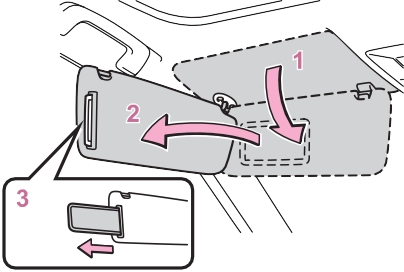
Slide the cover to open.
The light turns on when the cover is opened.
If the vanity lights remain on when
the power switch is turned to OFF, the lights will go off automatically after 20 minutes.
|
|
|
To prevent 12-volt battery dis- charge
Do not leave the vanity lights on for extended periods while the hybrid system is off. |
 NOTICE
|
Power outlet (12 VDC) |
When using electronic goods, make sure that the power con- sumption of all the connected power outlets is less than 120 W.
Open the lid.
|
|
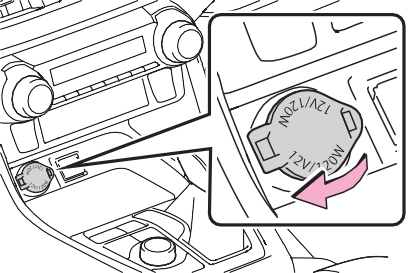
Open the lid.
|
Power outlet (120 VAC) (if equipped) |
Please use a power supply for electronic goods that use less than 120 VAC (power consump- tion of 1500 W).
When using electronic goods,
make sure that the power con-
The power switch is in ACC or ON.
Disconnect electrical devices with charging functions, such as mobile battery packs.
If such devices are left connected, the hybrid system may not stop nor- mally.
Open the lid.
|
|
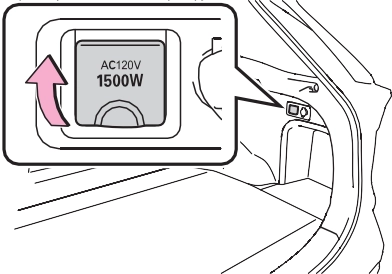
The power outlet can be used when the indicator on the AC 120 V switch is illuminated.
The power outlet are turned off/on each time the AC 120 V switch is
pressed.
charge of the hybrid battery (traction battery) decreases, etc.
The following 120 VAC devices may not operate properly even if their power consumption is less than 1500 W:
Devices that require an extremely
“READY” indicator is illuminated.
The engine starts automatically and charging starts when the remaining
stable power supply
If the AC 120 V switch is pressed but the switch indicator does not illu- minate, the protection circuit may have operated.
In this case, perform the appropriate procedures as follows.
120 V switch again.
If the power outlet cannot be used even after performing the appropri- ate procedures above, have the vehicle inspected by your Toyota dealer.
If the inside of the vehicle is hot, open the windows to lower the tem- perature and turn the switch back on once the inside of the vehicle reaches a normal temperature. If following the procedure above does not restore power, have the vehicle inspected at your Toyota dealer.
|
|
|
For safe use
Observe the following precau- tions. Failure to do so may lead to an accident, resulting in death or serious injury. Do not use devices such as the following when driving. Also, do not use a device if it cannot be secured within the vehicle.
Devices which may distract the driver and be a hinderance to safe driving, such as a TV, DVD player, etc.
Unsecured devices or devices which generate heat, such as a toaster, microwave, electric heater, electric kettle, coffee maker, etc., as they may fly around possibly causing injury, burns or a fire in the case of sudden braking or an accident.
|
 WARNING

The USB charging ports are for charging only. They are not designed for data transfer or other purposes.
Depending on the external device, it may not charge prop- erly. Refer to the manual included with the device before using a USB charging port.
Console box Type A:
Open the console box and open the lid.
Type B:
Rear Open the lid.
|
|
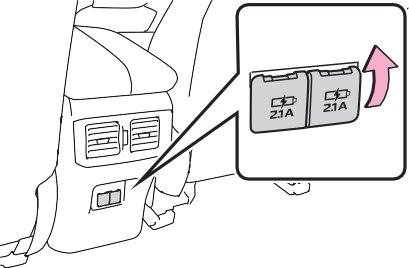
The power switch is in ACC or ON.
Depending on the connected exter- nal device, charging may occasion- ally be suspended and then start again. This is not a malfunction.

This function cannot be used with portable devices that are larger than the charging area.
Also, depending on the portable device, it may not operate as normal. Please read the opera- tion manual for portable devices to be used.
The “Qi” symbol is a trademark of the Wireless Power Consor- tium.
|
|
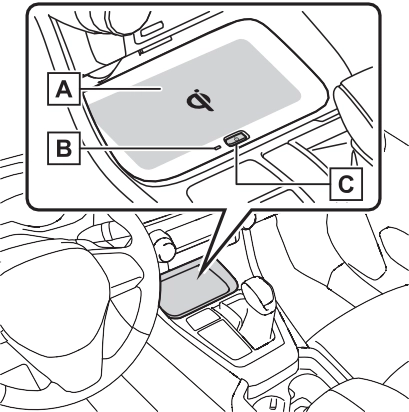
Charge area
Operation indicator light Power supply switch
1 Press the power supply switch of the wireless char- ger.
Switches on and off with each
press of the power supply switch.
When turned on, the operation indi- cator light (green) comes on.
Even with the hybrid system off, the on/off state of the power supply switch is memorized.
When charging, the operation indi- cator light (orange) comes on.
If charging is not occurring, try plac- ing the portable device as close to the center of the charging area as possible.
When charging is complete, the operation indicator light (green) comes on.
for a moment and then it restarts.
|
Operation indicator light |
Conditions |
|
Turning off |
When the Wireless charger power supply is off |
|
Green (comes on) |
On Standby (charging possible state) |
|
When charging is com- plete* |
|
|
Orange (comes on) |
When placing the por- table device on the charging area (detect- ing the portable device) |
|
Charging |
*: Depending on the portable device, there are cases where the operation indicator light will con- tinue being lit up orange even after the charging is complete.
When an error occurs, the oper- ation indicator light flashes an orange color.
Handle the error based on the following tables.
|
Suspected causes |
Handling method |
|
Temperature ris- ing within the wireless charger. |
Stop charging at once and start charging again after for a while. |
The power switch is in ACC or ON.
Qi standard wireless charge stan- dard can be used on compatible devices.
However, not all Qi standard devices and compatibility are guar- anteed.
Starting with mobile phones and smartphones, it is aimed for low power electrically supplied portable devices of no more than 5W.
Do not charge in situations where cover and accessories not able to handle Qi are attached to the porta- ble device. Depending on the type of cover and accessory, it may not be possible to charge. When charging is not performed even with the portable device placed on the charge area, remove the cover and accessories.
Turn off the wireless charger and confirm that the noise has decreased. If the noise decreases, continuously pushing the power supply switch of the wireless char- ger for 2 seconds, the frequency of the charger can be changed and the noise can be reduced.Also, on that occasion, the operation indicator
light will flash orange 2 times.
When a portable device gets warm while charging, charging may stop due to the protection function on the portable device side. In this case, when the tem- perature of the portable device drops significantly, charge again.
a wireless charger, the call sensi- tivity and communication speed may be reduced.
When the power supply is turned on, while searching for the portable device a sound will be produced, however this is not a malfunction.
P.448
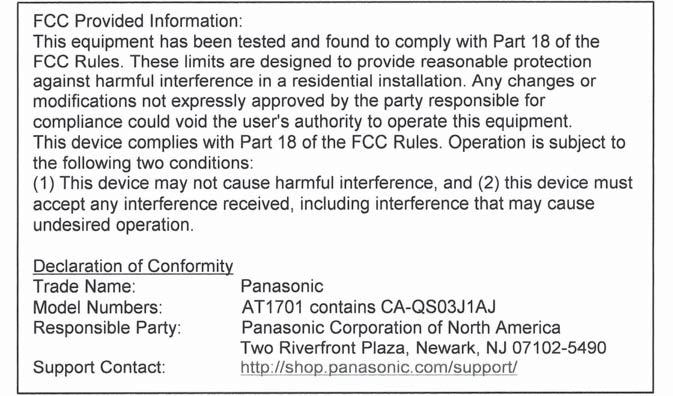
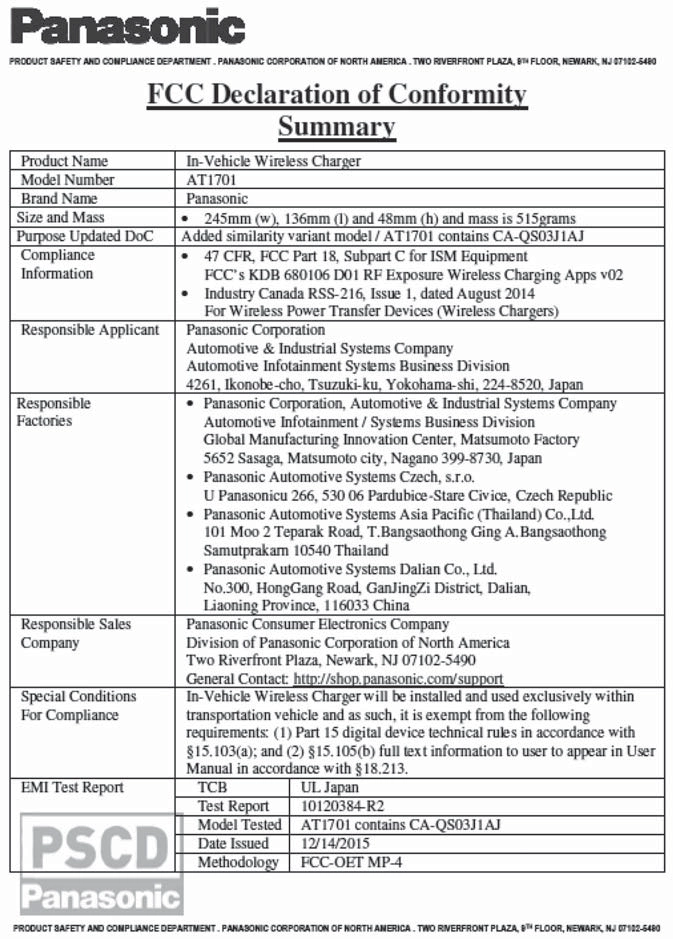
There is a label on the wireless charger. Follow the instructions on the label.

|
|
|
|
|
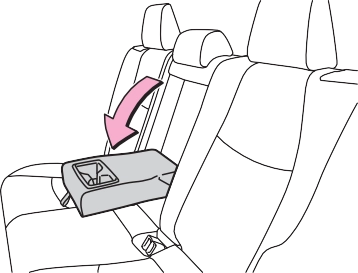
To prevent damage to the armrest
Do not apply too much load on the armrest. |
 NOTICE
|
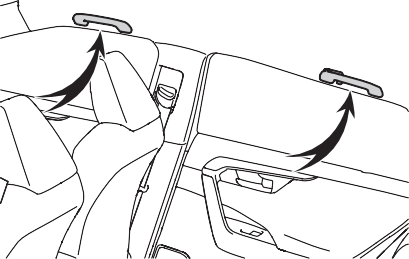
Assist grips |
Fold down the armrest for use.
An assist grip installed on the ceiling can be used to support your body while sitting on the seat.
|
|
|
|
|
Assist grips
Do not use the assist grip when getting in or out of the vehicle or rising from your seat. |
 WARNING
*: If equipped
|
System components |
Vehicles with auto anti-glare inside rear view mirror
HomeLink® indicator light
Garage door operation indi- cators
HomeLink® icon
Illuminates while HomeLink® is
operating.
Vehicles with Digital Rear- view Mirror
HomeLink® indicator light
Illuminates above each button selected.
®
Appears while HomeLink® is oper- ating.
When the HomeLink® button is pressed, the logo disappears even while the HomeLink® is operating.
Press the menu button to change the setting.
button that already has a code
registered to it, the already regis-
tered code will not be erased.
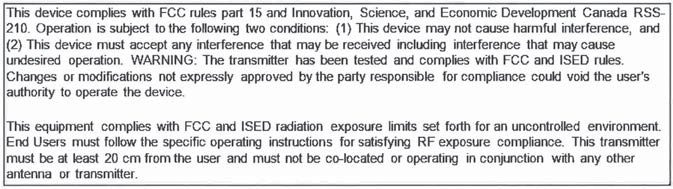
For vehicles sold in the U.S. mainland and Hawaii
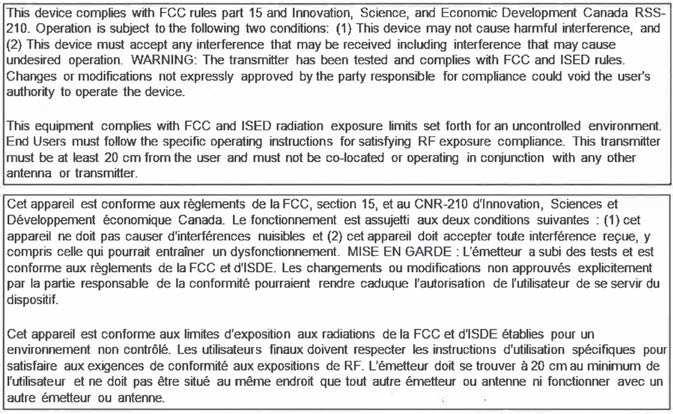 For vehicles sold in Canada
Visit on the web at www.homelink.com/toyota or call 1-800-355-3515.
|
|
|
When programming a garage door or other remote control device
The garage door or other device may operate, so ensure people and objects are out of danger to prevent potential harm. Conforming to federal safety standards
Do not use the HomeLink® com- patible transceiver with any garage door opener or device that lacks safety stop and reverse fea- tures as required by federal safety standards. This includes any garage door that cannot detect an interfering object. A door or device without these features increases the risk of death or serious injury. |
 WARNING
|
When operating or program- ming HomeLink®
Never allow a child to operate or play with the HomeLink® buttons. |
|
Programming HomeLink® |
Steps 2 through 4 must be per- formed within 60 seconds, oth- erwise the HomeLink® indicator light will stop flashing and pro- gramming will not be success- fully completed.
When the HomeLink® button is pressed:
Homelink® Training Tutorial will be displayed to assist you program- ming the HomeLink®.
When Homelink® Training Tutorial is displayed, follow the instructions displayed.
When the menu button is pressed:
Press the menu button  and select the “Set Up >”. Homelink® Training Tutorial will be displayed to assist you programming the HomeLink®.
When Homelink® Training Tutorial is displayed, follow the instructions displayed.
to program and check that the HomeLink® indicator light flashes (orange).
Keep the HomeLink® indicator light in view while programming.
|
|
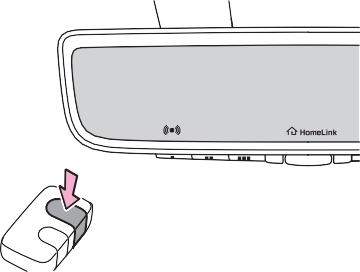
Programming a device other than an entry gate (for U.S.A. owners)
Press and hold the remote con- trol transmitter button until the HomeLink® indicator light changes from slowly flashing orange to rapidly flashing green (rolling code) or continuously lit green (fixed code), then release
the button.
Programming an entry gate (for U.S.A. owners)/Program- ming a device in the Cana- dian market
Press and release the remote control transmitter button at 2 second intervals, repeatedly, until the HomeLink® indicator light changes from slowly flash- ing orange to rapidly flashing (green) (rolling code) or continu- ously lit (green) (fixed code).
Two or more people may be needed to complete rolling code programming.
This button can usually be found where the hanging antenna wire is attached to the unit. The name and color of the button may vary by manufacturer. Refer to the owner’s manual supplied with the garage door opener motor for details.
|
|
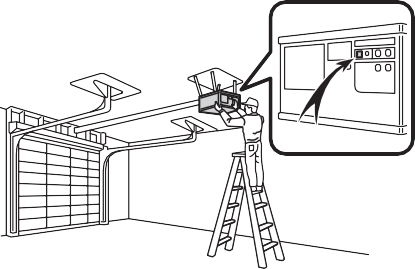
Perform 3 within 30 seconds after
performing 2.
If the garage door opener motor operates when the HomeLink® button is pressed, the garage door opener motor recognizes the HomeLink® signal.
When enabled, 2-way communi- cation allows you to check the status of the opening and clos- ing of a garage door through indicators in your vehicle.
2-way communication is only available if the garage door opener motor used is a compati- ble device. (To check device compatibility, refer to www.homelink.com.)
If the indicators do not flash, per- form 2 and 3 within the first 10 presses of the HomeLink® button after programming has been com- pleted.
When the following procedure is performed, buttons which already have devices registered to them can be overwritten:
The status of the opening and closing of a garage door is shown by the garage door oper- ation indicators.
Vehicles with auto anti-glare inside rear view mirror
|
|
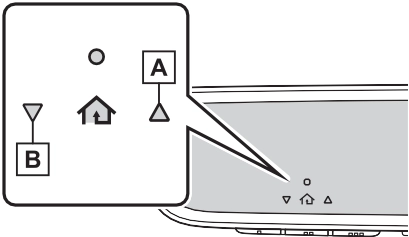
Opening Closing
Vehicles with Digital Rear-
view Mirror
Opening Closing
This function is only available if the
garage door opener motor used is a compatible device. (To check device compatibility, refer to www.homelink.com.)
|
Color |
Status |
|
Orange (flash- ing) |
Currently open- ing/closing |
m) of the garage door. However, if there are obstructions between the garage door and the vehicle, such as houses and trees, feedback signals from the garage door may not be received.
 To recall the previous door oper- ation status, press and release either HomeLink® buttons
 and
and  or
or  and (vehicles with auto anti-glare inside rear
view mirror), and
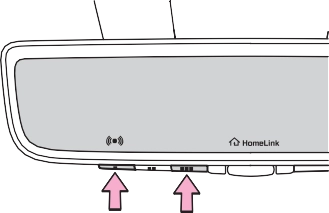
or and (vehicles with Digital Rear-view Mirror) simultaneously. The last recorded status will be dis- played for 3 seconds.
Press and hold the 2 outside buttons for 10 seconds until the HomeLink® indicator light changes from continuously lit (orange) to rapidly flashing (green).
If you sell your vehicle, be sure to erase the programs stored in the HomeLink® memory.
|
|
Maintenance and care 7
443
.................................. 450
7
Download Manual