Radio 430/430 NAV
.png)
Power to operate the radio is supplied through the ignition switch, which must be in the ON/RUN, ACC, or in ACC Delay mode in order to operate the radio.
1 — VOICE RECOGNITION
Push the Voice Recognition (VR)  button located on the faceplate and wait for the confirmation beep before you say a voice command.
2 — LOAD
To open or close the display, push the Load button on the faceplate.
After opening the display, it takes a few seconds to eject a CD/DVD, if one is in the slot.
When inserting a disc, make sure the label is facing up.
The display closes after inserting the disc.
Note:
It may take several seconds to recognize the type of inserted disc (CD, DVD, MP3, etc.).
3 — MENU
Push the Menu button on the faceplate to access the system settings menu.
Note:
Push the Menu button on the faceplate in an active mode to change mode specific settings.
4 — AUDIO
Push the Audio button located on the faceplate to access the speaker balance/fade and tone controls.
5 — MY FILES
Push the My Files button on the faceplate to manage your music and picture files on the internal storage drive.
6 — USB CONNECTOR
Connect a supported device into the USB Connector to play music and to copy music and picture files to the internal hard disk drive.
Note:
Refer to “USB Connector” in the “Remote Devices” section of this chapter for further information.
7 — AUX INPUT (AUDIO JACK)
Connect an external audio device into the AUX Input (e.g., MP3 player, video game) to play the device audio through the car audio system.
8 — ON/OFF VOLUME
It is also possible to set the unit in standby mode while driving by pushing the On/Off Volume rotary knob.
Note:
If the ignition is switched OFF with the radio in standby mode, the radio memorizes the standby state when the ignition is switched to ON/RUN again. Push the On/Off Volume rotary knob to switch the radio On. The radio software is always working when the ignition is switched to ON/RUN, even if the radio is in standby mode. It is still possible to eject the CD and to display the time if the unit is switched Off.
9 — MEDIA
Push the Media button located on the faceplate to change to a Media mode or to toggle between Media modes:
-
HDD (Hard Disk Drive)
-
CD/DVD
-
AUX
Note:
If you are viewing the NAV screen (Radio 430 Nav only), pushing the Media button will return you to the Media mode screen.
10 — RADIO
Push the Radio button located on the faceplate to change to a Radio mode or to toggle between Radio modes:
-
AM
-
FM
-
SAT (If Equipped)
Note:
If you are viewing the NAV screen (Radio 430 Nav only), pushing the Radio button will return you to the Radio mode screen.
11 — UCONNECT PHONE
Push the Uconnect Phone button  located on the faceplate to either activate the Uconnect system or to cancel an active phone call.
AUDIO SETTINGS
VOLUME
Use the ON/OFF VOLUME rotary knob to adjust the volume of the currently playing audio source. While you adjust the volume, the name of the audio source and a volume indicator is displayed in the lower left corner of the display.
AUDIO CONTROL MENU
Push the Audio button located on the faceplate on the right side of the radio.
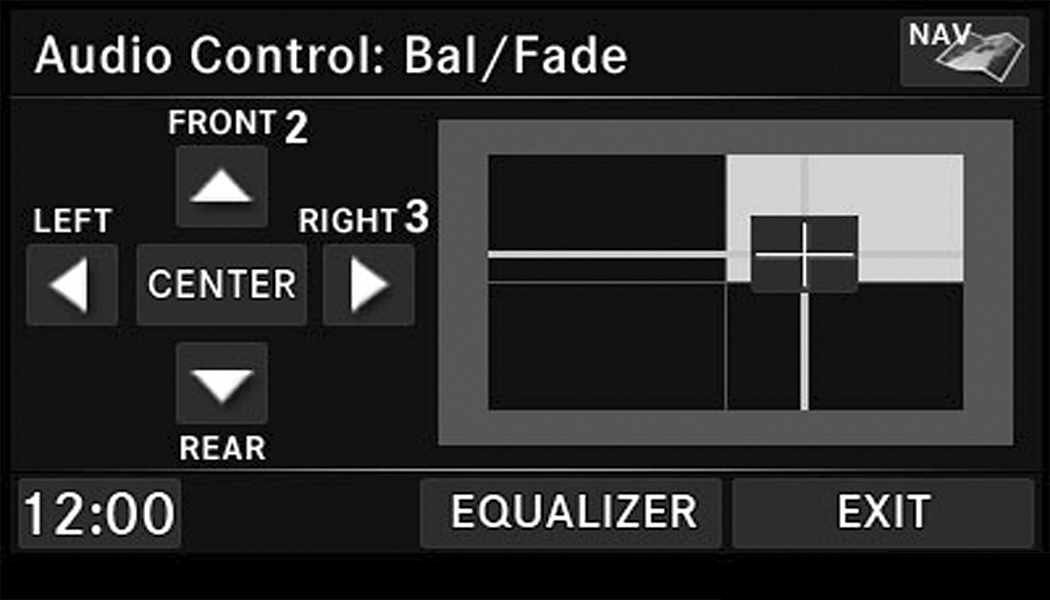
Use either of the Arrow buttons or the cross-hair on the screen to change the Balance and Fade. The Center button resets the settings. Push the Equalizer button to change tone settings.
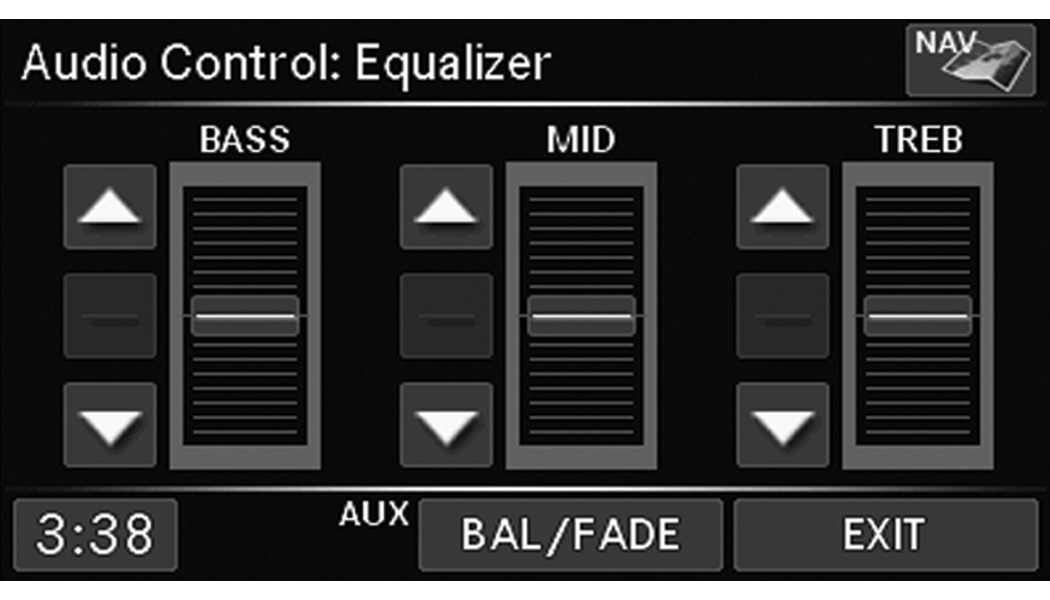
Use either the Arrow buttons or the sliders on the screen to adjust Bass, Mid, and/or Treble.
GETTING STARTED
CHANGE THE LANGUAGE
The radio will conform to the vehicle language set in the instrument cluster display.
If you change the language in the radio, the vehicle will change the language for all display information.
To change the language with the radio:
-
Push the Menu button on the right side of the radio.
-
Then press the System Setup button to get to the System Setup menu.
-
Press the Language Setup button and select a language.
-
Press the Save button to activate the new language selection.
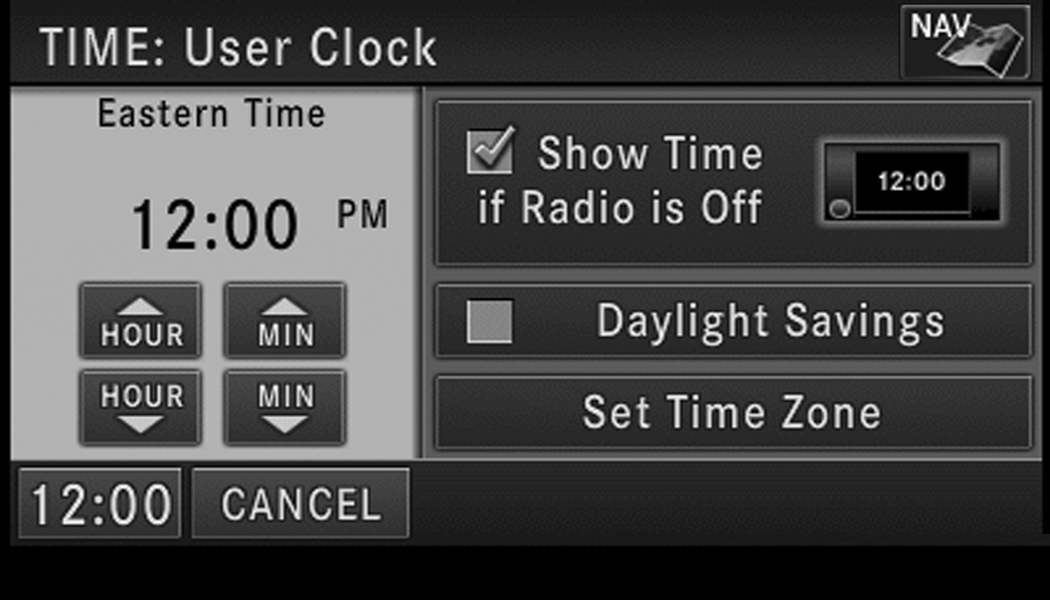
SET THE TIME — RADIO 430
-
Press the Time Display button in the lower left corner of the screen.
-
Adjust the hours and minutes using the Up and Down buttons.
-
Press the Set Time Zone button to change to the desired time zone.
-
Press the Daylight Savings button to switch Daylight Savings on or off.
SET THE TIME — RADIO 430 NAV
-
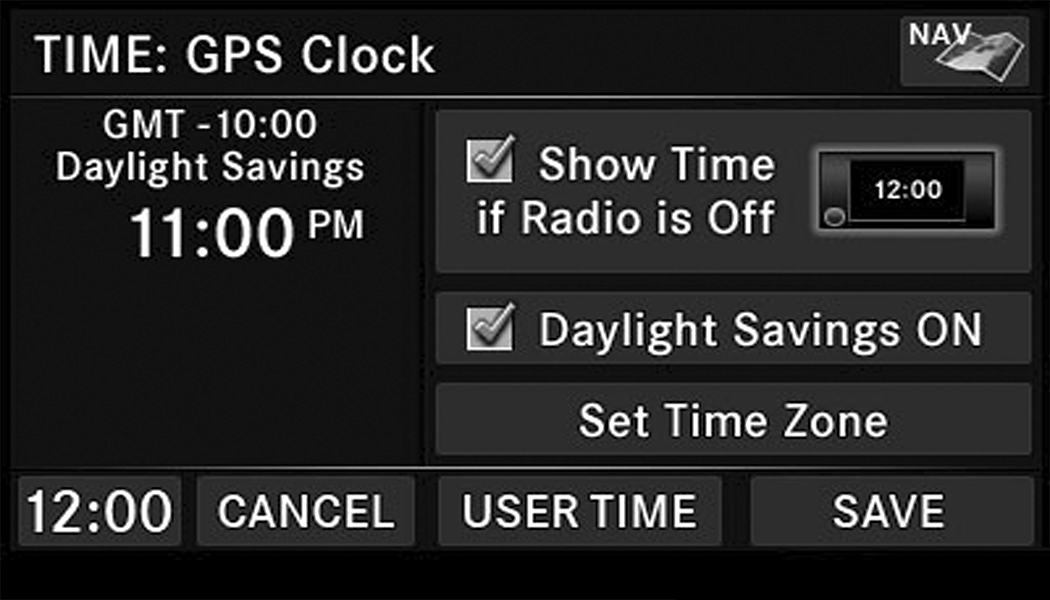
Press the Time Display button in the lower left corner of the screen.
The time is automatically set by the GPS system for the time zone selected. The radio default is GPS time, where the vehicle time is automatically set by the GPS system. If the vehicle is not able to receive the GPS signals, the vehicle time is only updated when the GPS satellite signals are being received (which requires the vehicle to be outside with a clear view to the sky).
-
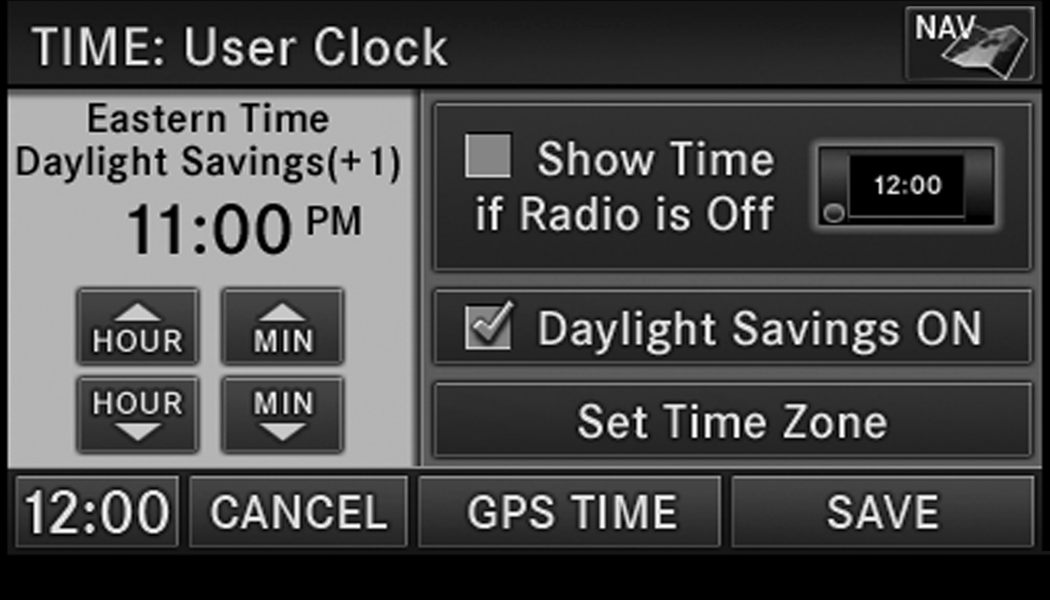
It is possible to set the time manually (ahead or behind actual GPS time), by pressing the User Time button.
-
Press the Daylight Savings button to switch Daylight Savings on or off.
STORE RADIO PRESETS
-
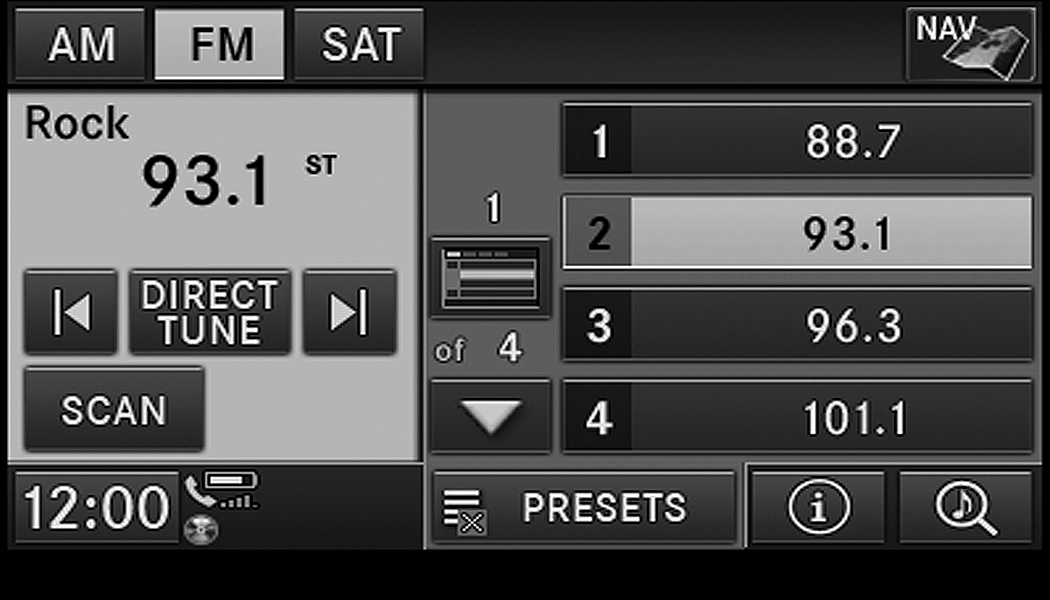
Push the Radio button to display AM, FM, or SAT.
-
Select the radio band by pressing either the AM, FM, or SAT buttons.
-
Either press the Seek Up/Down buttons or press the Scan button, Direct Tune button or the Left/Right arrows to change the currently playing station.
-
Press and hold one of the Presets buttons in the list to the right until you hear a confirmation beep (approximately two seconds).

You can use the Page button to scroll through the list of presets.
Note:
If the preset list is not displayed, press the Presets button located in the bottom line of the screen.
You can use the Full Screen button to toggle between full and split-screen mode. Long preset names are displayed in full-screen mode.
RADIO MODE
OVERVIEW
The radio is equipped with three different tuners:
-
FM 87.7 MHz - 107.9 MHz (RBDS capable)
-
AM 530 kHz - 1710 kHz
-
SiriusXM® Satellite Radio (if equipped)
Push the Radio button. The different tuner modes can be selected by pressing the tabs on the radio touchscreen.
SIRIUSXM® SATELLITE RADIO
With over 130 channels, SiriusXM® Satellite Radio brings you more of what you love. Get 69 channels of 100% commercial-free music, plus all of your favorite sports, news, talk and entertainment. Hear every NFL® game, every NASCAR® race, college sports and more. The biggest and most compelling names in talk with Howard Stern and Martha Stewart, laugh-out-loud comedy, plus kids' programming, world-class news, local traffic and weather. All of this with crystal clear, coast-to-coast coverage. Everything worth listening to is now on SiriusXM®. A one-year SiriusXM® Satellite Radio subscription is included.
SiriusXM® and all related marks and logos are trademarks of SiriusXM® Radio Inc. and its subsidiaries. SiriusXM® Radio requires a subscription, sold separately after trial subscription included with vehicle purchase. Prices and programming are provided by SiriusXM® and are subject to change. Subscriptions governed by Terms & Conditions available at www.siriusxm.com. SiriusXM® Radio US service only available to those at least 18 years of age in the 48 contiguous United States, D.C., and PR. Service available in Canada; see www.siriusxm.ca.
To receive satellite radio, the vehicle needs to be outside with a clear view to the sky. If the screen shows Acquiring Signal, you might have to change the vehicle position to receive a signal. In most cases, the satellite radio does not receive a signal in underground parking garages or tunnels.
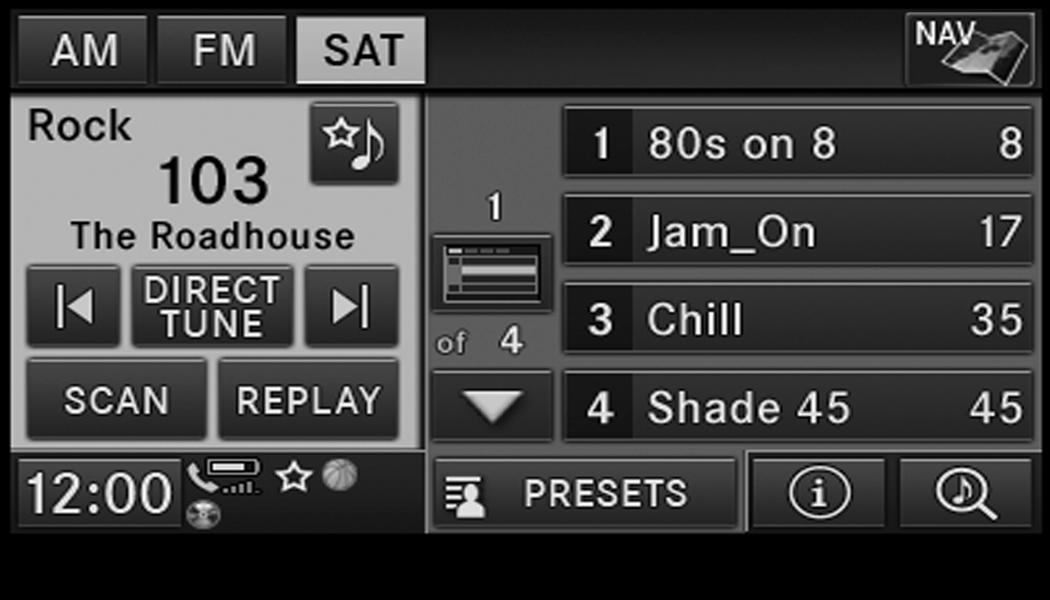
STATION PRESETS
There are 12 station presets available for storing the radio stations in each tuner range.
To store the desired station, press and hold one of the station Presets buttons for two seconds and you will see the highlighted button change from green to beige. You will also see the radio station stored in the highlighted button and you will hear a confirmation beep when the station is saved. Pressing the Presets buttons in SAT mode changes the information shown in the list between the Channel Name, name of the Artist currently playing on the channel and name of the Song currently playing on the channel.
CHANGE A CHANNEL OR FREQUENCY
Press the Seek/Tune Down Arrow button  to quickly seek down to the next available station or channel.
Press and hold the Seek/Tune Down Arrow button to tune down until the button is released.
Press the Seek/Tune Up Arrow button  to quickly seek up to the next available station or channel.
Press and hold the Seek/Tune Up Arrow button to tune up until the button is released.
Select the Direct Tune button to enter a frequency or a channel number, and confirm your selection by pressing the GO button. If there are no more numbers required to enter the frequency or channel number, the radio automatically tunes to the selection without pressing the GO button.
Select “Scan” for a five-second preview of each listenable station in the frequency band. Press the Scan button again to stop the scan function and to select a radio station.
RADIO BROADCAST DATA SYSTEM (RBDS)
This radio system is capable of receiving RBDS signals in the FM band. RBDS is a technology used for transmitting textual information about the music type, song and artist for FM band music. This information is shown on the display.
Note:
Not all radio stations support RBDS.
The RBDS information is displayed below the frequency reading of the currently playing radio station.
RADIO TEXT INFORMATION

Press the Info button on the touchscreen to display additional information about the current audio program in the right half of the screen. Press the Info button a second time to hide this information.
MUSIC TYPE (PROGRAM TYPE FILTER)
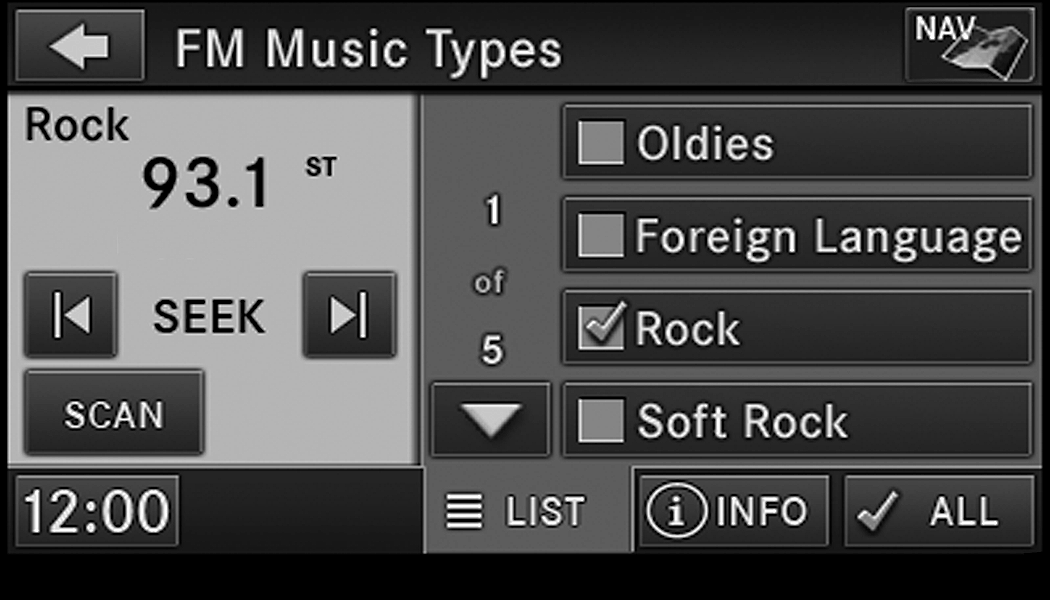
Program Type (PTY) is only available in FM and SAT mode. Radio stations are grouped according to their program (e.g., Soft Rock, Rhythm & Blues, etc.).

In SAT mode, the Music Browse button allows you to browse through all of the SiriusXM® channels and genres.

You can use the Back button to switch to the previous menu.
FAVORITE SONGS & ARTISTS
The SAT mode Favorites list allows you to tag particular artists or songs so you will be notified each time that artist or song is playing on another SiriusXM® channel.

To tag an artist or song, press the Favorites button while the song is playing.
Note:
Not all SiriusXM® stations allow a song or artist to be tagged.
When one of your favorite artists or songs begins playing on another SiriusXM® channel a message appears (depending on the Song Alerts setting) that allows you to tune to the station where your favorite is playing.
The Song Alerts setting is accessed in the SAT Menu, Favorites screen.
Any time a favorite artist or song is playing, the Favorite icon appears in the bottom bar.
If you have set up favorite sports teams and one of those teams has a game being broadcast on SiriusXM®, the Favorite Sport icon appears in the bottom bar anytime the game starts or when there is a score update.
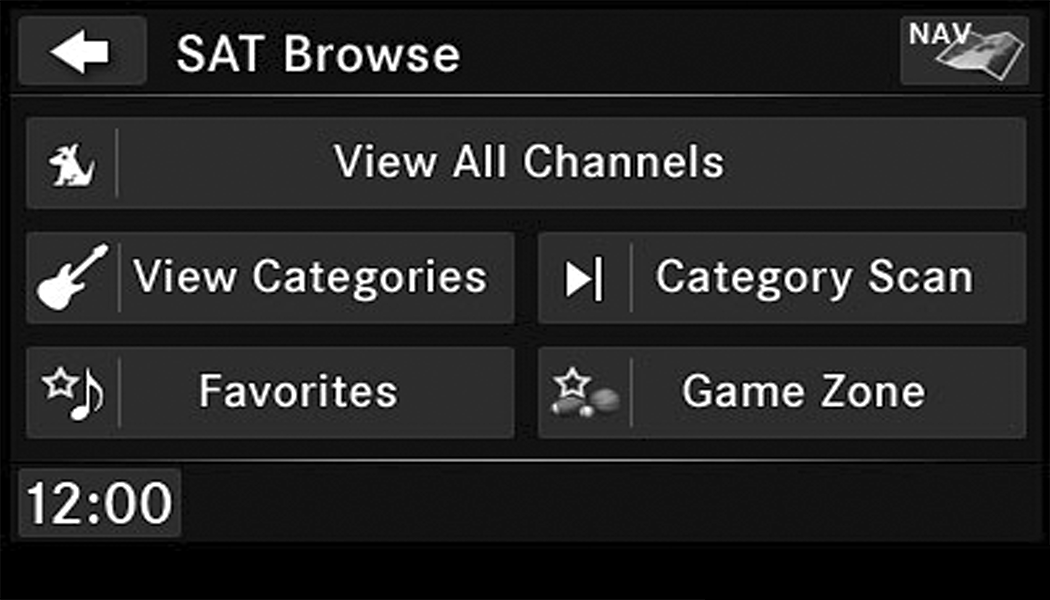
When you are in SAT mode, you can change your Song and Game Alert settings by pushing the MENU button on the faceplate then pressing the Favorites button on the touchscreen.
REPLAY MODE
While you are in SAT mode, you can replay over 30 minutes of the current SiriusXM® channel (when the channel is changed, this audio buffer is erased). Press the Replay button to listen to the stored audio.
You can press the touchscreen controls to pause and rewind audio playback, press the Scan button to preview each of the tracks stored in the buffer, or select a track from the list.
The time displayed below the bar indicates how much time is present between the current buffer play position and the live broadcast.
Press the Live button to return to the current audio being broadcast on the SiriusXM® channel.
RADIO SETTINGS
AM/FM MENU
There are no specific settings for this mode.
SAT MENU
While in SAT Mode, push the Menu button to display the SAT Menu.
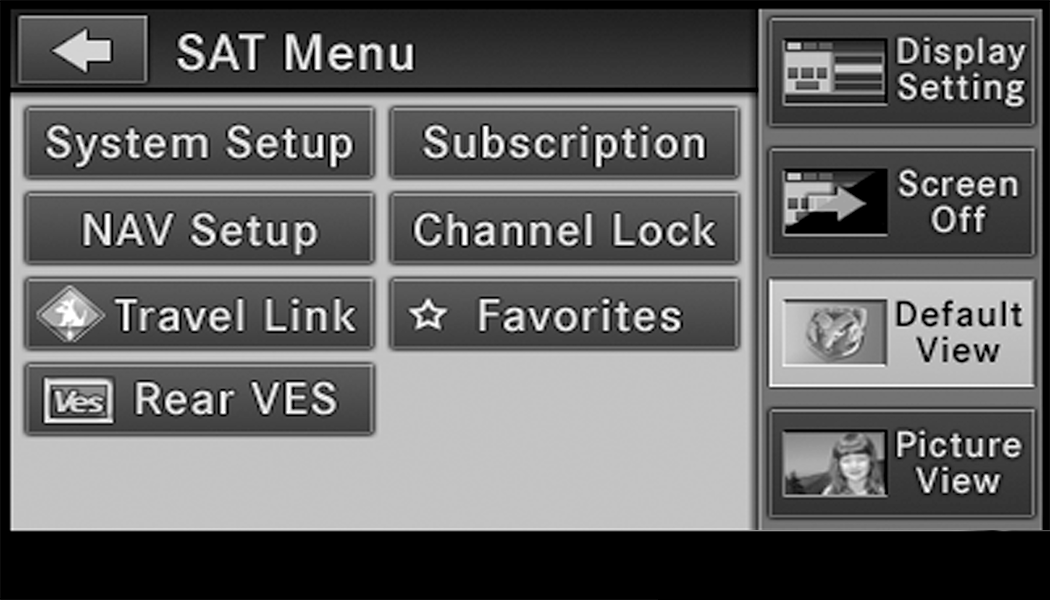
CHANNEL LOCK
Select Channel Lock to enable and/or disable desired channels. The Seek and Scan function will then only display channels without parental lock.
FAVORITES
When Song Alerts is checked, you will be notified every time one of your favorite artists or songs begins playing. To turn off these notifications, turn off the Song Alerts check mark.
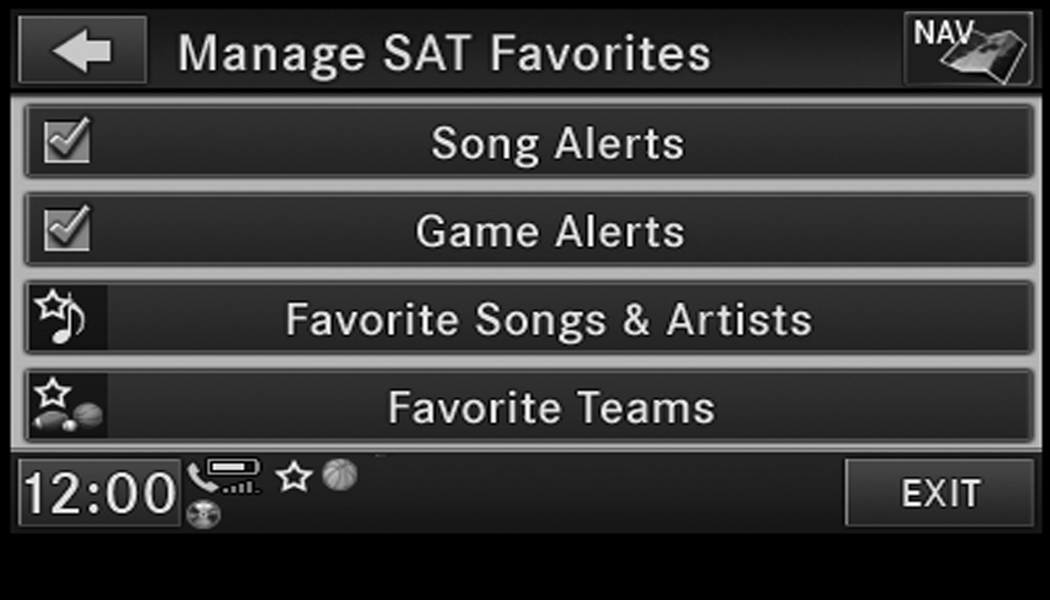
When Game Alerts is checked, you will be notified every time one of your favorite teams begins playing a game being broadcast on SiriusXM® and/or when the score of the game changes. The settings you make under Favorite Teams determine which alerts you receive.
To disable all sports notifications, turn off the Game Alerts check mark.
FAVORITE SONGS & ARTISTS
When an individual song or artist is checked, you will receive alerts when that song or artist is playing (depending on the Song Alerts setting).
If you do not want to receive alerts for a particular song or artist but you want to keep that item in the list, turn off the check mark next to the item.
To permanently remove the song or artist from the list, press the Delete button next to the item.
FAVORITE TEAMS
To view which teams will create game or score alerts, select the Teams tab.
To set or change the favorite team, press the button for the sport and select a new team from the list.
To change the alert types you will receive for each team (depending on the Game Alerts setting), select the Alerts tab. Pressing the button next to the team changes the alert type between None (no alerts), Game (alert when the game broadcast begins), Scores (alert each time the game score is updated), or All (both game start and score alerts).
RE-SUBSCRIBE TO SIRIUSXM® SATELLITE RADIO
New vehicle purchasers or lessees will receive a free limited time subscription to SiriusXM® Satellite Radio with your radio. Following expiration of the free services, it will be necessary to access the information on the Subscription Information screen to re-subscribe.
Press the Subscription button on the touchscreen to access the Subscription Information screen.
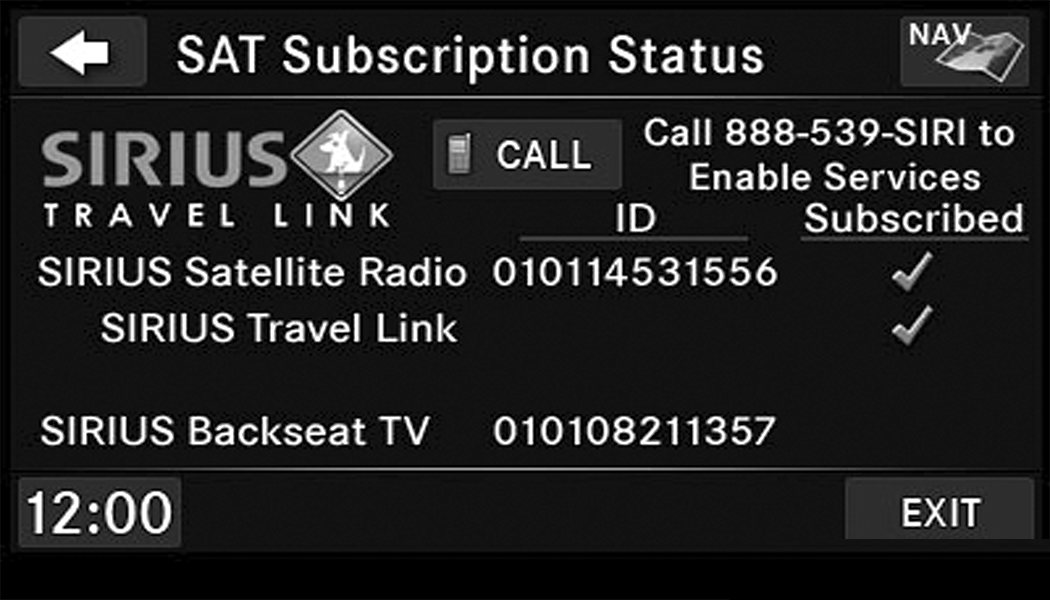
Write down the SiriusXM® ID numbers for your receiver. To reactivate your service, either call the number listed on the screen or visit the provider online.
Note:
SiriusXM® Travel Link is a separate subscription only available on the Radio 430 Nav.
DISPLAY SETTINGS
Push the Menu button on the faceplate, and press the Display Setting button on the touchscreen to access the Display Settings menu.
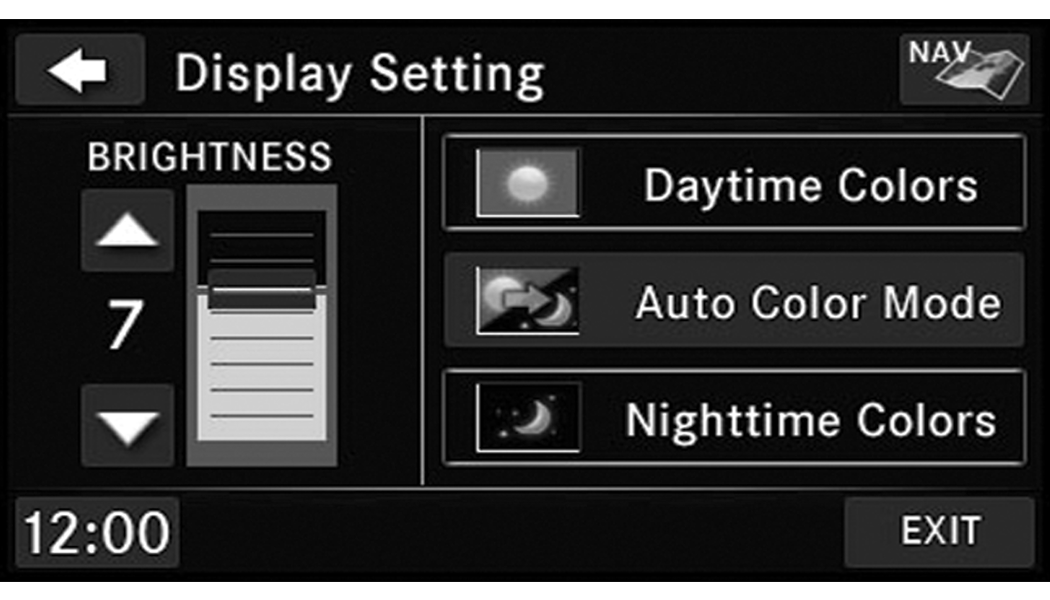
Select the Daytime Colors button to switch to manual daytime mode and to adjust the brightness of the display using daytime colors.
Select the Nighttime Colors button to switch to manual nighttime mode and to adjust the brightness of the display using nighttime colors.
Select the Auto Color button to switch to automatic daytime/nighttime mode and to control the brightness of the display using the light switch of the vehicle.
Press the Up or Down arrows to adjust the Brightness.
Press the Done button to save your settings and to return to the AM/FM/SAT Menu.
SCREEN OFF
To turn off the screen (so only the clock is shown, and audio is still heard through the vehicle’s speakers), push the Menu button on the faceplate and press the Screen Off button on the touchscreen.
Once the Screen Off is active, push any button on the faceplate or press the touchscreen display to deactivate it.
VIEW SETTINGS
Push the Menu button on the faceplate and press the Default View button on the touchscreen to enable the default view mode, where the vehicle brand logo is displayed in the right half of the screen.
Press the Picture View button to enable the picture view mode, where a picture can be displayed on the right half of the radio screen. Refer to “Hard Disk Drive Mode (HDD)” in this section for further information.
PARKVIEW REAR BACKUP CAMERA — IF EQUIPPED
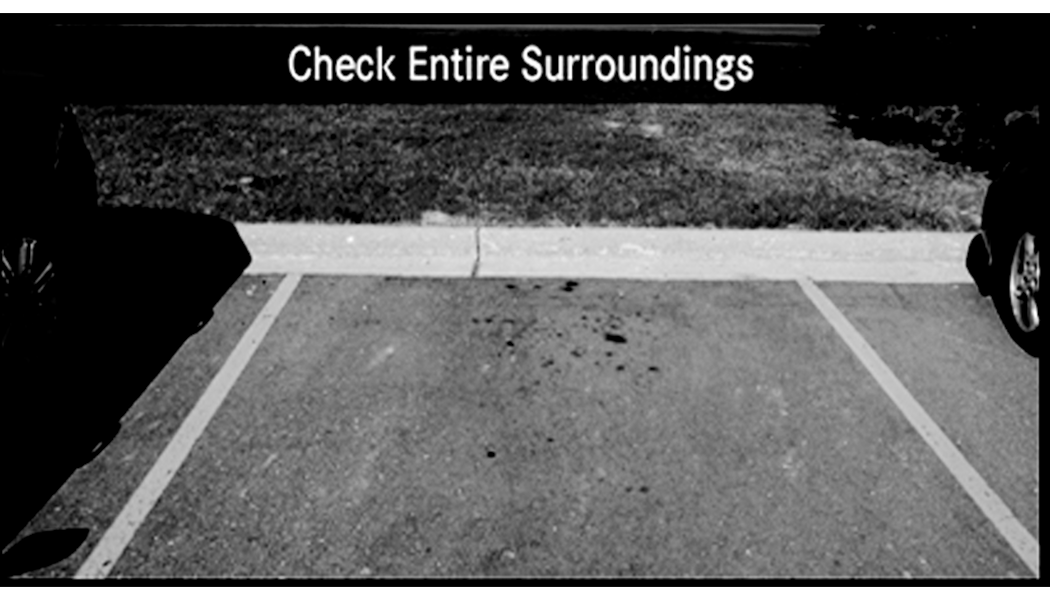
When equipped with ParkView, the radio display shows the rear view camera picture when the shift lever is in the REVERSE position.
If available, you can disable the ParkView Rear Backup Camera feature by pushing the Menu button on the faceplate, then pressing the System Setup button on the touchscreen and turning off the Backup Camera option.
ParkView Camera Delay
The Rear Backup Camera display will remain on the screen for a period of 10 seconds or up to 8 mph (12.8 km/h).
This feature can be enabled or disabled when the ParkView Rear Backup Camera is enabled.
MEDIA MODE
DISC MODE
OVERVIEW
The radio is equipped with a CD/DVD player.
To activate Disc Mode push the Media button located on the faceplate and select the Disc button.
DISC REQUIREMENTS
CAUTION:
This disc player will accept a 4 3/4 inch (12 cm) disc only. The use of other sized discs may damage the disc player mechanism.
The radio is capable of playing compact discs (CD), recordable compact discs (CD-R and CD+R), rewritable compact discs (CD-RW and CD+RW), recordable DVD-R, DVD+R, DVD-RW, and DVD+RW compact discs.
Your radio will play the following formats:
MP3, WMA, AAC, M4A, CD Audio, DVD Audio, and DVD Video.
Do not insert anything other than the supported CD/DVD formats.
SACD (SACD layer), VCD DualDisc, SVCD, VCD format on DVD MPEG-4 are not supported.
A complete list of supported CD/DVD formats is available at DriveUconnect.com (US Residents) or DriveUconnect.ca (Canadian Residents).
INSERTING A DISC
-
Push the Load button once.
-
After the screen opens, with the printed side upward, insert the disc into the disc slot of the radio. The radio pulls the disc automatically and closes the flip screen. The radio selects the appropriate mode after the disc is recognized and starts playing the first track. The display shows “Reading...” during this process.
Note:
-
A faulty CD is NOT automatically ejected. Use only standard size discs. Discs that have been modified with an adhesive label should not be used in the CD/DVD player.
-
On Data CDs with a large number of songs it may take several seconds to read, play and display information for all songs on the disc.
-
Recording your own CD on a home computer at a lower write speed will result in a more consistent quality.
-
High definition content and media (e.g, HD-DVD, Blu-Ray™) is not supported.
-
If the user does not remove an ejected CD within approximately 10 seconds the CD will reload.
REMOVING A DISC
-
Push the Load button.
-
After the display opens the disc is ejected and can be removed.
Note:
If the disc is not removed within approximately 10 seconds, the unit pulls it back into the slot (park position). The disc may be ejected when the ignition is OFF.
-
Push the Load button to close the display. If you do not push the Load button or insert a new disc, the display will close 30 seconds after the display was opened.
SELECTING DISC MODE
Activate Disc Mode by pushing the Media button located on the faceplate. The disc mode can be selected by pressing the Disc button on the touchscreen.
Note:
When a disc is inserted, the appropriate mode is automatically selected once the disc is recognized.
SCAN SEARCH
Press the Scan button.
The first few seconds of each individual track will be played in succession.
Press the Stop Scan button to stop the scan function.
CHANGE A TRACK
Press the Forward Arrow button  to select the next track on the disc.
Press and hold the Forward Arrow button to fast forward through the track.
Press the Back Arrow button  to select the start of the current track (while the track is playing) or the previous track (if the current track has just started).
Press and hold the Back Arrow button to fast rewind through the track.
Press the Pause button to pause the playback of the disc.
Press the Play button to resume playback of the disc.
DISPLAYING THE ELAPSED TITLE TIME
The elapsed title time of the currently playing track displays in the left center of the screen.
SELECT TITLE FROM LIST
Press the Tracks button to display a list of the titles of the currently playing disc. Select the desired track you wish to play.
Press the Tracks button a second time to hide the list.
DISC INFO
Press the Info button to display the cover art (if available) and track title. Press the Info button a second time to display the track title, artist, album, and genre.
Press the Info button to close the Info panel.
GRACENOTE® END USER LICENSE AGREEMENT

This application or device contains software from Gracenote®, Inc. of Emeryville, California (“Gracenote®”). The software from Gracenote® (the “Gracenote® Software”) enables this application to perform disc and/or file identification and obtain music-related information, including name, artist, track, and title information (“Gracenote® Data”) from online servers or embedded databases (collectively, “Gracenote® Servers”) and to perform other functions. You may use Gracenote® Data only by means of the intended End-User functions of this application or device.
You agree that you will use Gracenote® Data, the Gracenote® Software, and Gracenote® Servers for your own personal non-commercial use only. You agree not to assign, copy, transfer or transmit the Gracenote® Software or any Gracenote® Data to any third party. YOU AGREE NOT TO USE OR EXPLOIT GRACENOTE DATA, THE GRACENOTE SOFTWARE, OR GRACENOTE SERVERS, EXCEPT AS EXPRESSLY PERMITTED HEREIN.
You agree that your non-exclusive license to use the Gracenote® Data, the Gracenote® Software, and Gracenote® Servers will terminate if you violate these restrictions. If your license terminates, you agree to cease any and all use of the Gracenote® Data, the Gracenote® Software, and Gracenote® Servers. Gracenote® reserves all rights in Gracenote® Data, the Gracenote® Software, and the Gracenote® Servers, including all ownership rights. Under no circumstances will Gracenote® become liable for any payment to you for any information that you provide. You agree that Gracenote®, Inc. may enforce its rights under this Agreement against you directly in its own name.
The Gracenote® service uses a unique identifier to track queries for statistical purposes. The purpose of a randomly assigned numeric identifier is to allow the Gracenote® service to count queries without knowing anything about who you are. For more information, see the web page for the Gracenote® Privacy Policy for the Gracenote® service.
The Gracenote® Software and each item of Gracenote® Data are licensed to you “AS IS.” Gracenote® makes no representations or warranties, express or implied, regarding the accuracy of any Gracenote® Data from in the Gracenote® Servers. Gracenote® reserves the right to delete data from the Gracenote® Servers or to change data categories for any cause that Gracenote® deems sufficient. No warranty is made that the Gracenote® Software or Gracenote® Servers are error-free or that functioning of Gracenote® Software or Gracenote® Servers will be uninterrupted. Gracenote® is not obligated to provide you with new enhanced or additional data types or categories that Gracenote® may provide in the future and is free to discontinue its services at any time.
GRACENOTE DISCLAIMS ALL WARRANTIES EXPRESS OR IMPLIED, INCLUDING, BUT NOT LIMITED TO, IMPLIED WARRANTIES OF MERCHANTABILITY, FITNESS FOR A PARTICULAR PURPOSE, TITLE, AND NON-INFRINGEMENT. GRACENOTE DOES NOT WARRANT THE RESULTS THAT WILL BE OBTAINED BY YOUR USE OF THE GRACENOTE SOFTWARE OR ANY GRACENOTE SERVER. IN NO CASE WILL GRACENOTE BE LIABLE FOR ANY CONSEQUENTIAL OR INCIDENTAL DAMAGES OR FOR ANY LOST PROFITS OR LOST REVENUES.
© Gracenote®, Inc. 2010
Portions of the content is copyright ©Muze or its providers.
Note:
Visit DriveUconnect.com (U.S. Residents) or DriveUconnect.ca (Canadian Residents) for update information.
COPY DISC TO HARD-DRIVE

Press the Copy button to copy the current disc to the Hard Disc Drive.
DISC MENU
While in disc mode with inserted audio disc, push the Menu button to access the Disc Menu.
Press the Random button to play the titles on the disc in random order. Press the Random button a second time to turn Random off.
Press the Repeat Folder button to repeat all songs in the currently playing folder (MP3/WMA disc only). Press the Repeat Folder button a second time to stop the repeat mode.
PLAYING A MP3/WMA DISC
-
Push the Load button once.
-
With the printed side upwards, insert the disc into the disc slot of the radio. The radio pulls the disc automatically and closes the flip screen. The radio selects the appropriate mode after the disc is recognized, and starts playing the first track. The display shows “Reading...” during this process.
A MP3/WMA disc may contain audio files in a folder structure. The folder, if any, is shown in the list view.
Press the Tracks button if the list is not displayed.
-
Press a button with a folder symbol to open a folder.
-
Press the Folder Up button to close a folder.
PLAYING A VIDEO DVD
Note:
Viewing a DVD video on the radio screen is not available in all states, the vehicle must be stopped and the shifter must be in the PARK position for vehicles with an automatic transmission. In vehicles with a manual transmission the parking brake must be engaged.
First insert a video DVD.
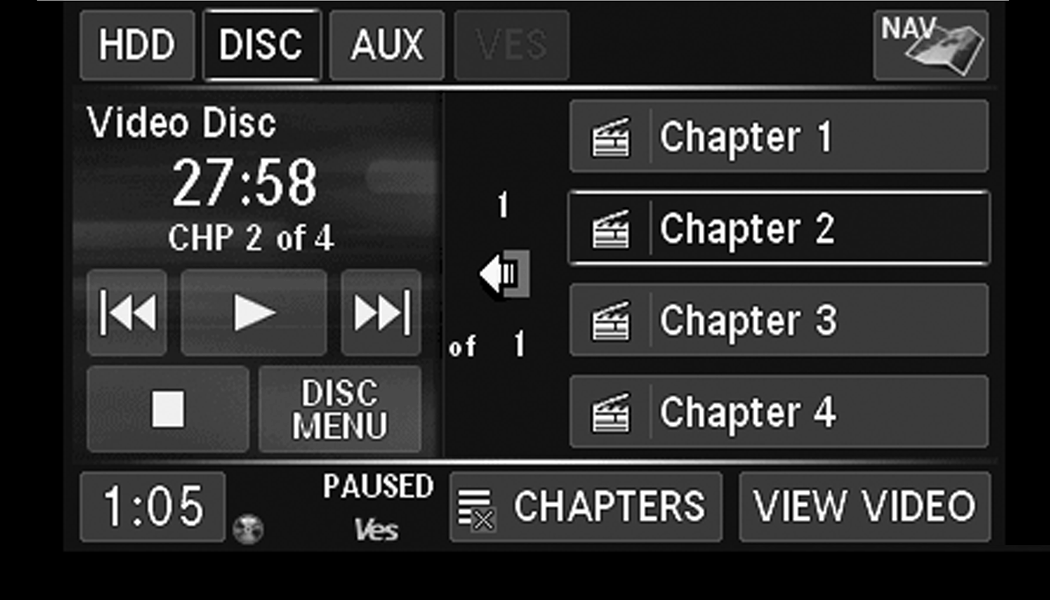
The playback starts automatically after the DVD video is recognized by the disc drive.
Press the Chapters button to display a list of available chapters or tracks. Press a Chapter or Track button in the list to start playback from the selected section.
Press the View Video button to view the video on the screen.
DVD MENU CONTROLS
If you insert a DVD video disc that contains a top menu, a menu may appear.
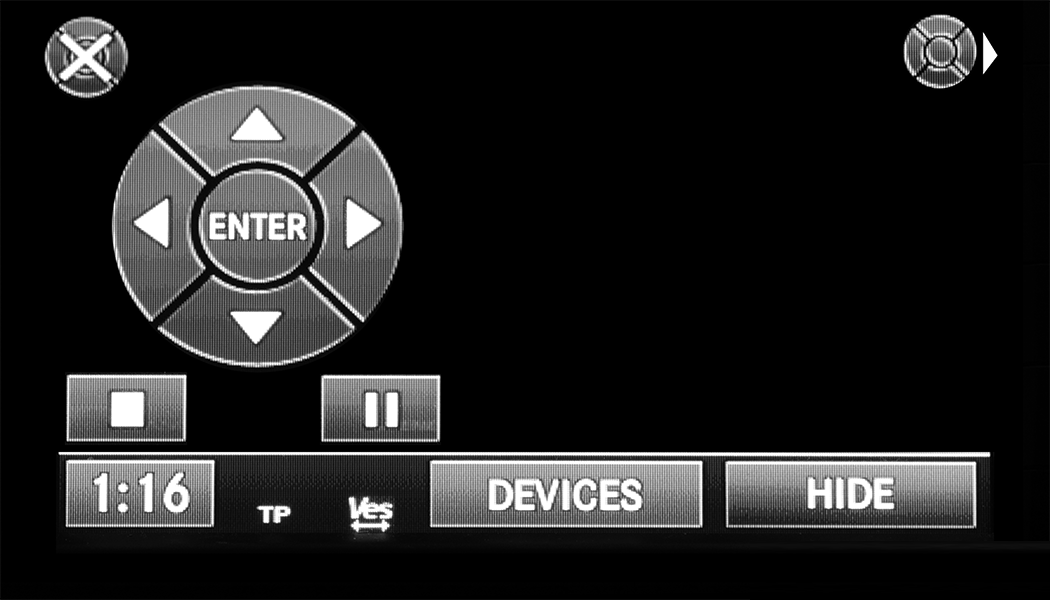
Press the Cursor Arrow buttons to select the title you want to view, then press the Enter button to start playback.

Press the DVD Move button to move the controls to the right part of the screen.

Press the Close button to close the DVD MENU Controls.
DVD PLAYBACK CONTROLS
In video playback mode, press anywhere on the touchscreen to show the DVD Playback Controls.
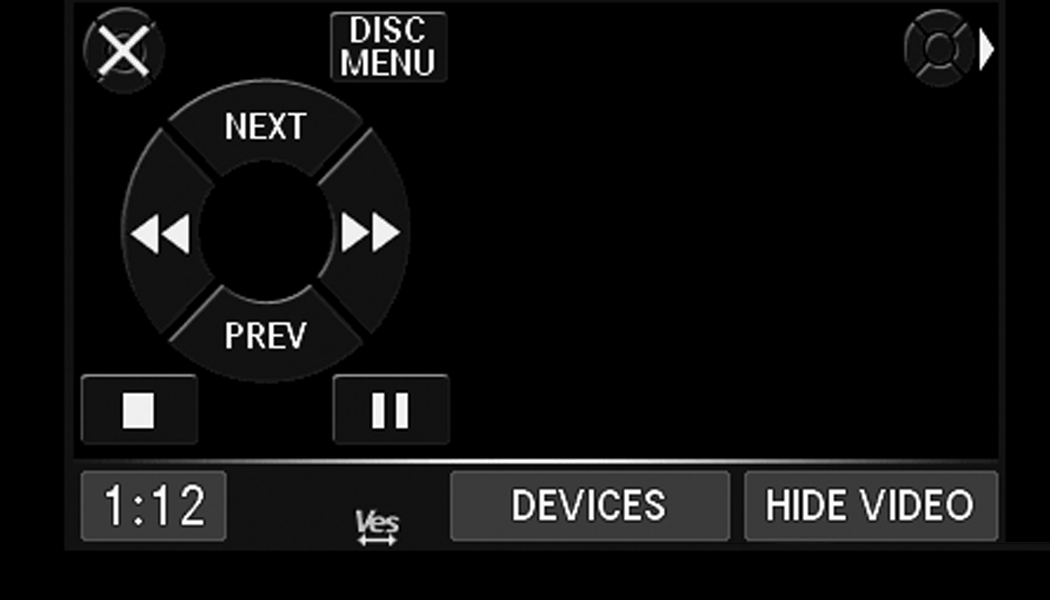
To pause playback, press the Pause button.
To stop playback, press the Stop button.
Press the Fast Reverse (double left arrows) button during playback to fast reverse playback.
Press the Fast Forward (double right arrows) button during playback to fast forward playback.
Press the Next button to locate succeeding chapters or tracks.
Press the PREV button to start playback from the beginning of the current chapter or track. When you press the button twice in quick succession, playback starts from the beginning of the preceding chapter or track.
DISC MENU
While in Disc Mode, with inserted video DVD, press the Menu button to access the Disc Menu.
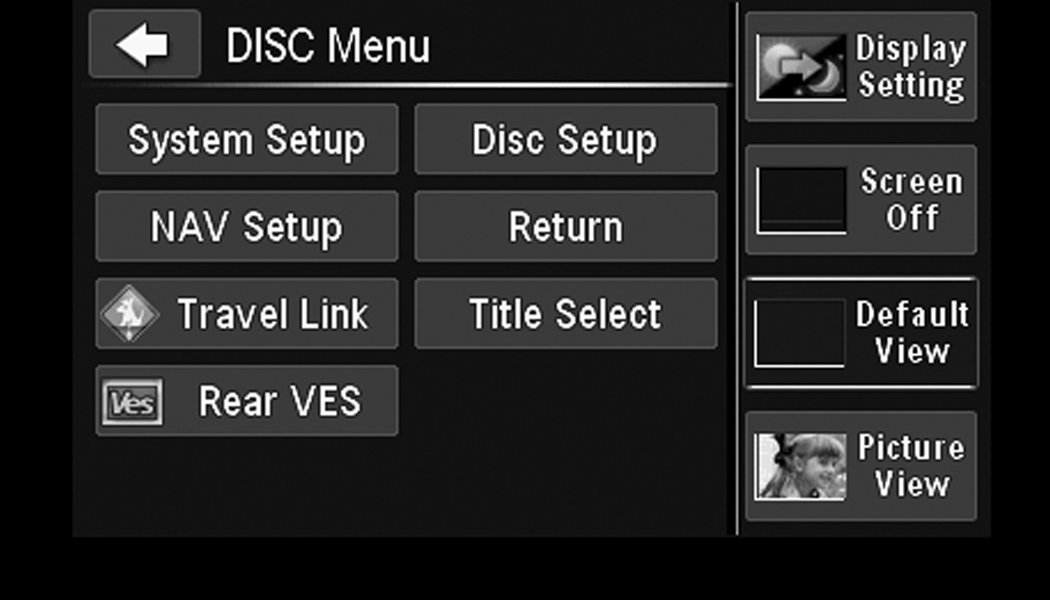
Press the Disc Setup button to access the Disc Setup menu.
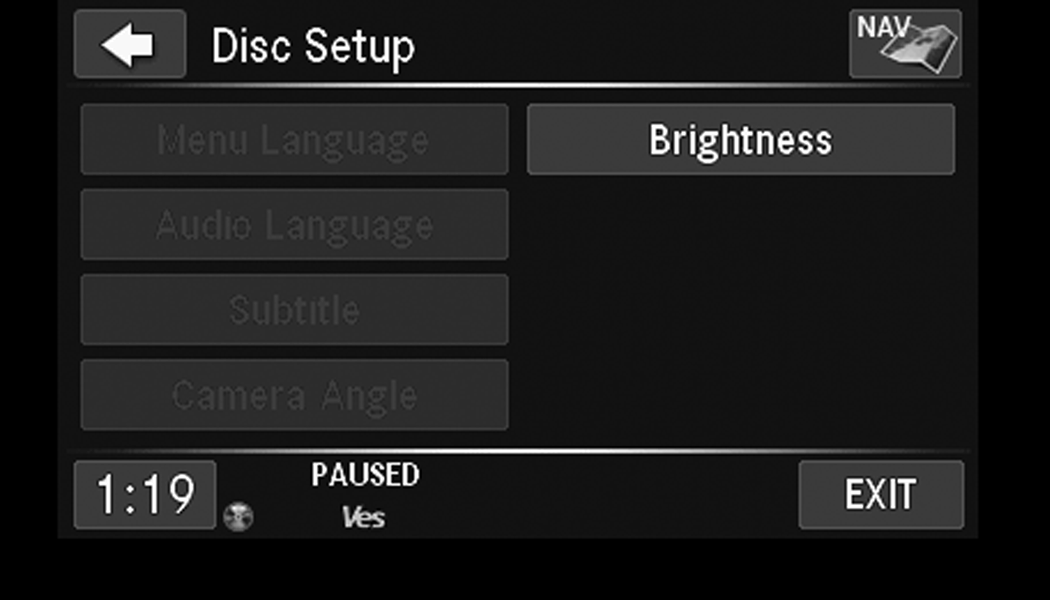
In the Disc Setup menu, you may select Menu Language, Audio Language, Subtitle, Camera Angle, Aspect Ratio, and Brightness settings by pressing the corresponding button. Some of the buttons are disabled if the inserted disc does not support the functionality.
DISC SKIPPING
Skipping is typically caused by a damaged (scratched) disc. This will result in a 10-second jump forward until the damaged area is passed.
TEMPERATURE PROTECTION
If the temperature of the disc reader during operation becomes too high, a pop-up message informs the user of an over temperature situation. The unit switches to radio mode until the disc reader temperature has dropped to a normal level.
HARD DISK DRIVE MODE (HDD)
The HDD mode gives you access to the audio files on the internal hard disk drive. It functions similar to a CD player, with the exception that the internal HDD can hold more tracks. It can hold approximately 6,700 four-minute CD-quality songs (depending on the file size of the encoded files).
Before using the HDD mode, you will need to copy tracks to the internal hard drive.
The files will be stored on the internal hard disk drive and can be used in the HDD mode.
COPY AUDIO DISC TO HARD-DRIVE
Copy an audio disc to the Hard Disk Drive using the following procedure:
-
Insert a disc.
-
Press the Copy button to copy music tracks of the inserted disc to the Hard Disk Drive.
After a short pause, the copy process begins and the audio resumes playback from the start of the track. The copy process continues in the background while the audio plays. The progress is shown in the display. Even if you change to another mode (radio, AUX, etc.) or turn the radio Off (ignition ON/RUN), the copy process will continue in the background.
It is also possible to listen to radio modes during this process. Copying time is greater than 4x the normal playback rate.
Note:
When copying CD-Audio to HDD, audio files are converted from CD-Audio to AAC. If available, the artist name, album name, cover art, track names and genres are stored with the tracks on the HDD. DVD-Audio cannot be copied to the HDD. If the CD-Audio disc is not recognized by the Gracenote® Music Recognition Service, you can rip the CD-Audio disc on your internet-equipped computer first, then copy the resulting compressed audio files to a USB memory stick. Then insert the USB memory stick in the radio and copy the audio files to the HDD mode.
COPY WMA/MP3 FILES TO HARD-DRIVE
MP3 and WMA formatted compressed audio files from a disc or via USB (e.g., USB stick) can be copied to the Hard Disc Drive.
It is recommended to sort music files into folders.
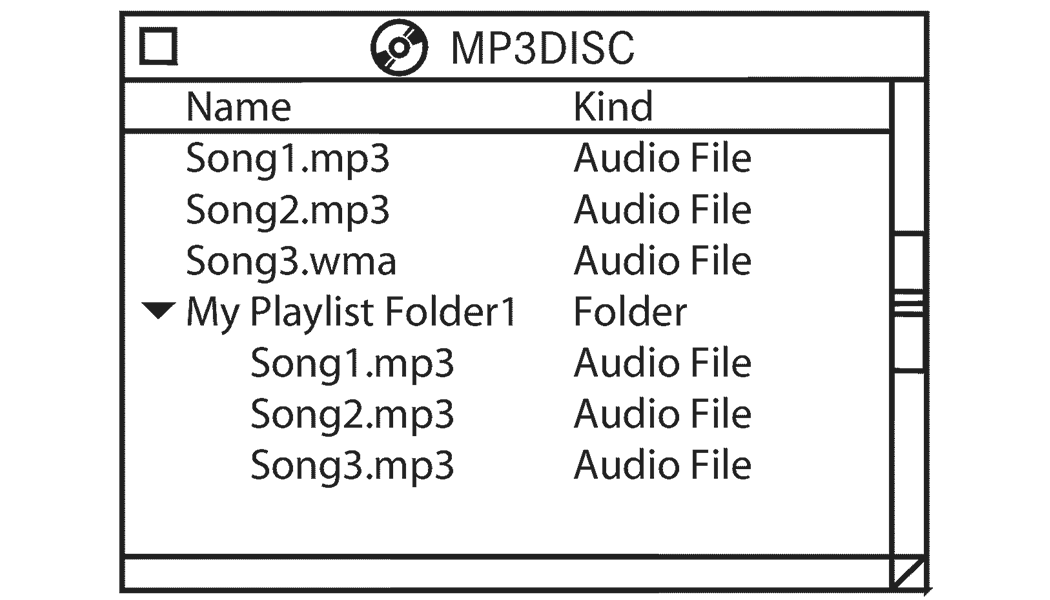
Songs located in the root level (top level) of the disc or USB device are saved on the Hard Disk Drive in a root folder. Songs that are stored in folders on the disc or USB devices are saved to the same folder name on the Hard Disk Drive. Only folders that contain song files are copied to the Hard Disk Drive.
For the example above, the list on the HDD will show the following:
Disc_Root_Level Songs (Playlist 1)
-
Song 1.mp3 (First song in playlist 1)
-
Song 2.mp3 (Second song in playlist 1)
-
Song 3.wma (Third song in playlist 1)
My Playlist Folder 1 (Playlist 2)
-
01 Song.mp3 (First song in playlist 2)
-
02 Song.mp3 (Second song in playlist 2)
-
03 Song.mp3 (Third song in playlist 2)
COPYING COMPLETE DISC
You can copy a complete music disc using the following procedure:
-
Insert a disc with MP3/WMA files.
-
Press the Copy button to copy music files of the inserted disc to the hard disk drive.
The copy progress is shown in the display.
You can continue listening to any audio source during the copy process.
SELECTIVE SONG COPYING FROM DISC
You can select specific songs on a WMA/MP3 disc using the following procedure:
-
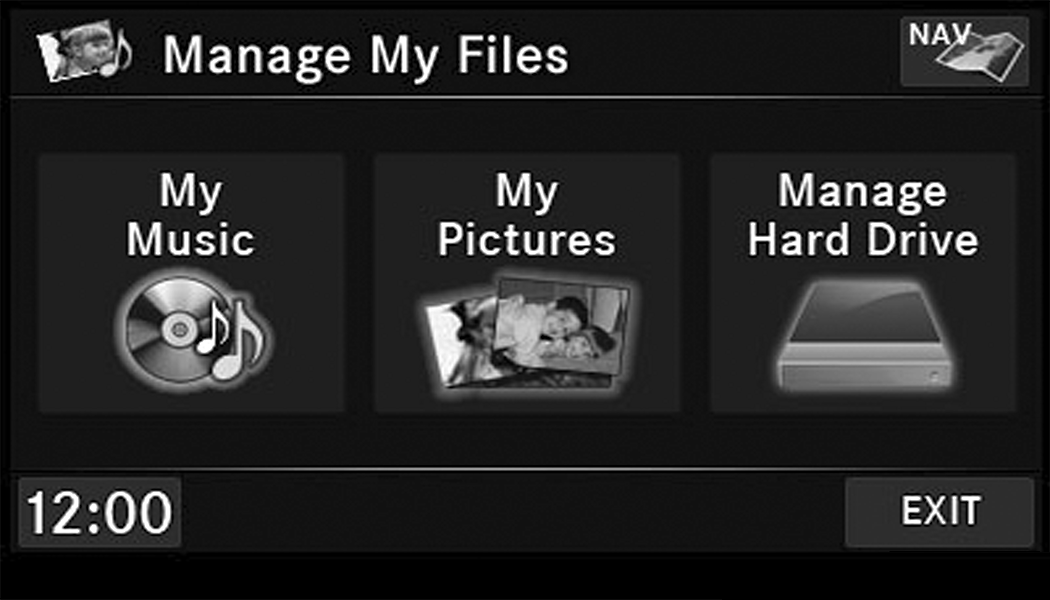
Push the My Files button located on the faceplate.
-
Select “My Music”.
-
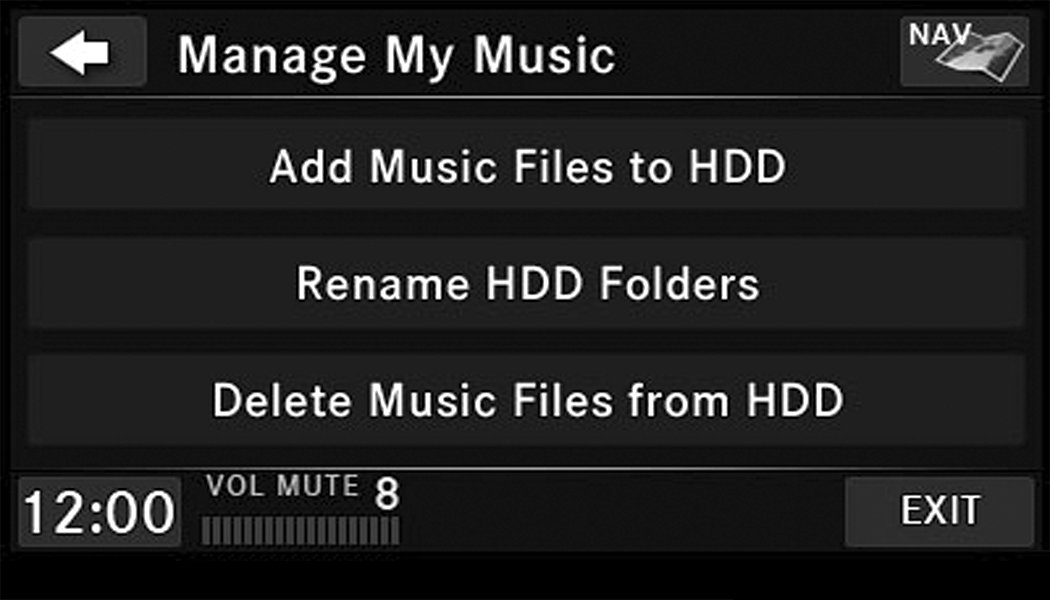
Press the Add Music Files to HDD button.
-
Press the From Disc button in the next screen.
-
Select the folders or titles you would like to copy.
A red check mark indicates the selected songs and/or folders. Press the check All button to select all files and folders at once.
-
Press the Save button to start the copy process.
The copy process is shown on the display. It is possible to listen to radio modes during this process.
If you unplug or eject the media before the copying process is finished, the process will be interrupted. You may restart the copying process by repeating the steps above.
COPYING FROM USB
-
Insert a USB device.
-
Select “My Music”.
-
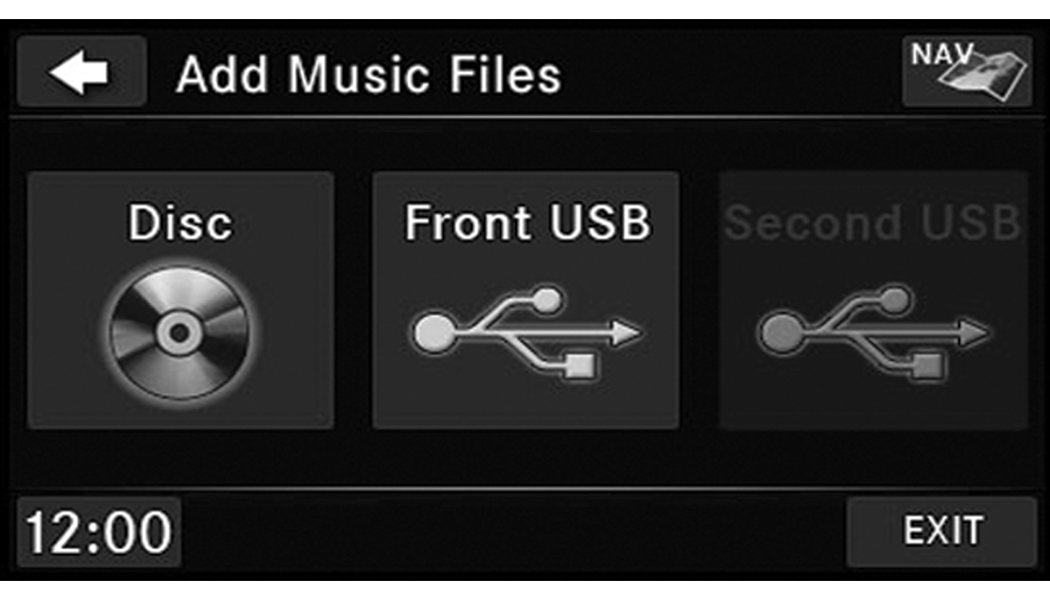
Press the Add Music Files to HDD button.
-
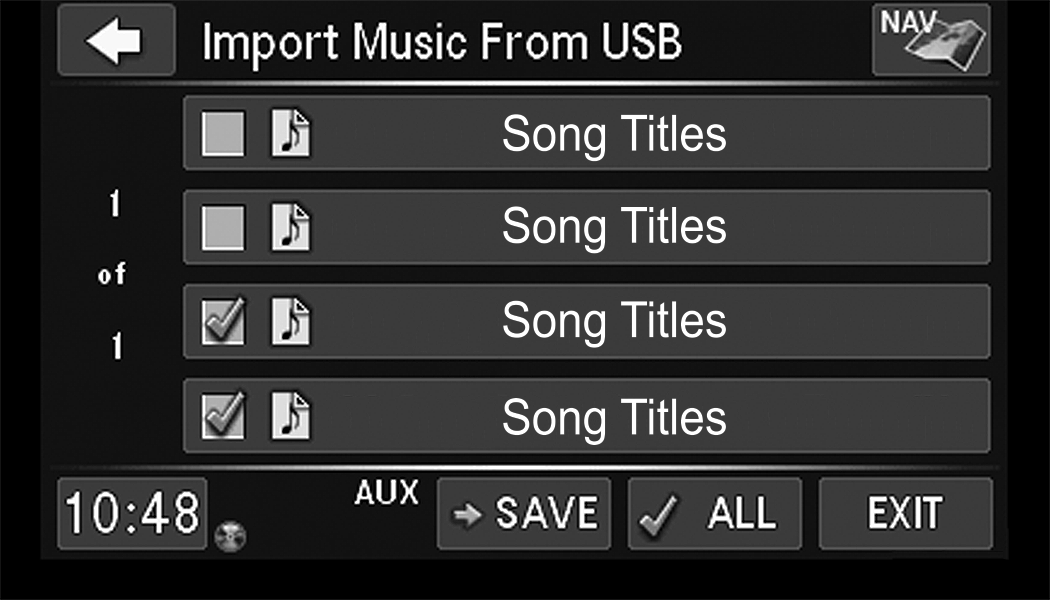
Press the Front USB button in the next screen.
-
Select the folders or titles you would like to copy.
A red check mark indicates the selected songs and/or folders. Press the All button to select all files and folders at once.
-
Press the Save button to start the copy process.
PLAYING AUDIO FILES FROM THE HARD DISK DRIVE
You can play songs directly from the internal hard disk drive.
-
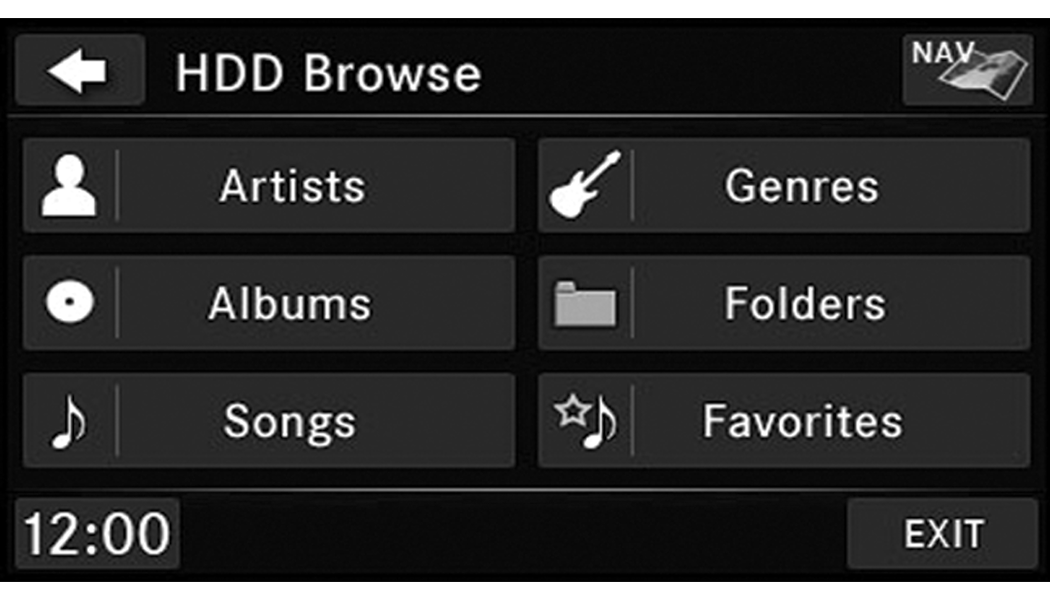
Press the Browse button to select an available category.
-
The radio can sort the files by artist, album, song title, genre or folder name. You can also create links to your favorite songs, artists, albums, genres, or folders.
-
For this example, press the Artists button.
-
Press the button for the desired artist to list all songs by the artist. Press the
 All button to play all songs by artist sorted in alphabetical order.
 -
Press the List button to toggle the list contents between all songs by the artist and the albums that feature the artist.
CHANGE A TRACK
Press the Forward Arrow button to select the next track on the disc.
Press and hold the Forward Arrow button to fast forward through the track.
Press the Back Arrow button to select the start of the current track (while the track is playing) or the previous track (if the current track has just started).
Press and hold the Back Arrow button to fast rewind through the track.
Press the Pause button to pause the playback of the disc.
Press the Play button to resume playback of the disc.
TAGGING FAVORITE HDD SONGS
When a song is playing that you want to add to the Favorite Songs list, press the Favorites button.
To view the Favorite Songs list, press the Browse button, then press the Favorites button, next press the Favorite Songs button.
Press the All button on the touchscreen to play all favorite songs from the top of the list.
DISPLAYING THE ELAPSED TIME
The elapsed time of the current playing track is displayed in the left center of the screen.
HDD MENU
While in HDD mode, push the Menu button located on the faceplate to access the HDD Menu.
RANDOM PLAYBACK
The random play function plays random tracks from the hard disk drive. Press the Random button to switch the random play function on or off.
A red check mark indicates the random play function is active.
REPEAT TRACK
The repeat track function repeats the currently played track. Press the Rpt. TRK button to switch the repeat track function on or off.
A red check mark indicates the repeat track function is active.
FAVORITE PLAYLISTS ON THE HARD DISK DRIVE
You may save links to favorite playlists in the Favorite Playlists list.
-
While in the HDD mode, press the Browse button to access the Browse Categories menu.
-
Press the Favorites button to display a list of favorite playlists.
-
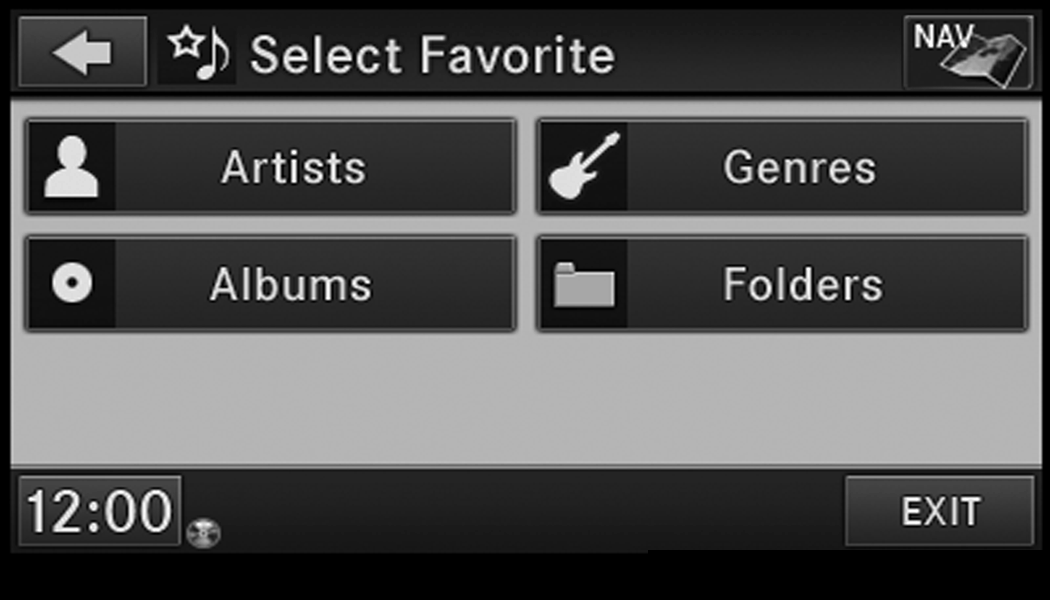
Press one of the Add Favorites buttons.
-
Select the type of favorite (Artist, Album, Genre or Folder).
For this example, press the Genres button.
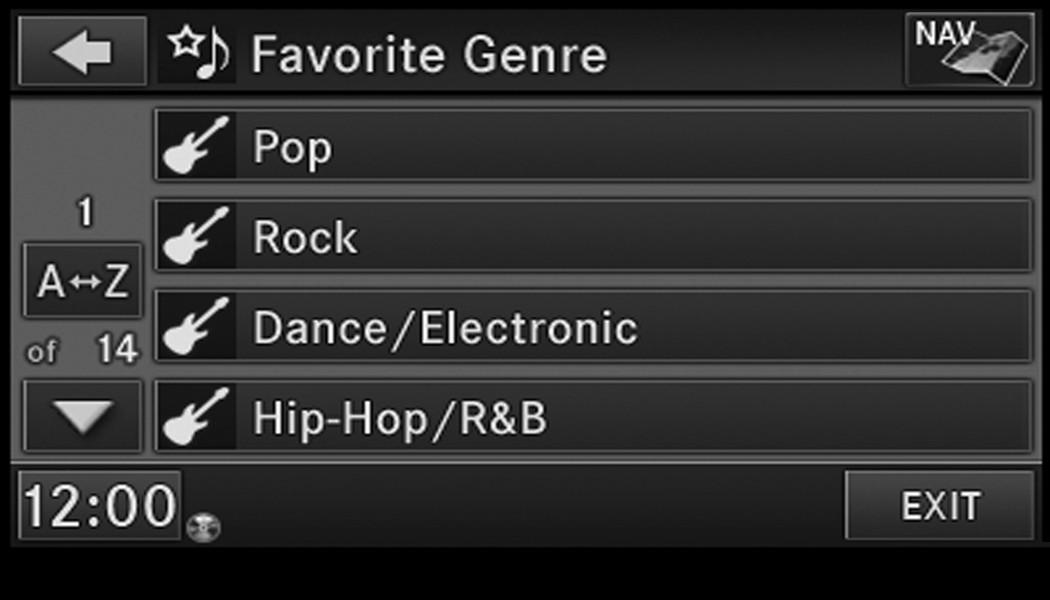
A link to the selected playlist is now saved in the Favorite Playlists list.
Note:
Depending on the type of Favorite you define, the contents of the favorite playlist may change as you add tracks to and remove tracks from the Hard Disk Drive. Deleting a favorite playlist does not remove any files from the hard drive.
You may now edit the list by pressing the Edit button or exit the list by pressing the Exit button.
EDITING TRACK INFO ON THE HARD DISK DRIVE
While a track is playing, press the Edit Info button to edit the tag information for the track. You can change the artist name, track name, album name, album track number, genre, and folder name for the track.
To edit an item, press the Change or Order button next to the tag item you want to edit. To enter new data for the tag, select an item from the list or press the New button to type in a new name. For track reordering, use the  buttons to move the track to the correct position.
If you change tag information that affects how your HDD playback is sorted, playback may pause briefly and restart from the top of the list.
EDITING FOLDER NAMES ON THE HARD DISK DRIVE
-
Push the My Files button.
-
Select “My Music”.
-
Press the Rename HDD Folders button.
-
Press the folder you want to rename.
-
Spell the name of the folder, then press the Save button.
DELETING TRACKS FROM THE HARD DISK DRIVE
-
Push the Menu button located on the faceplate.
-
Press the My Music button.
-
Press the Delete Music Files from HDD button.
-
Select the folder from which you want to delete tracks.
-
Select the tracks you want to delete by pressing the track to turn on the red check mark. If you want to delete all tracks from the folder, press the Check All button.
-
After you have selected all of the tracks to delete, press the Delete button to permanently remove the files from the Hard Disk Drive.
DELETING ALL FILES FROM THE HARD DISK DRIVE
-
Push the Menu button located on the faceplate.
-
Press the System Setup button on the touchscreen to access the System Setup menu.
-
Press the Manage HDD button to access the Manage HDD menu.
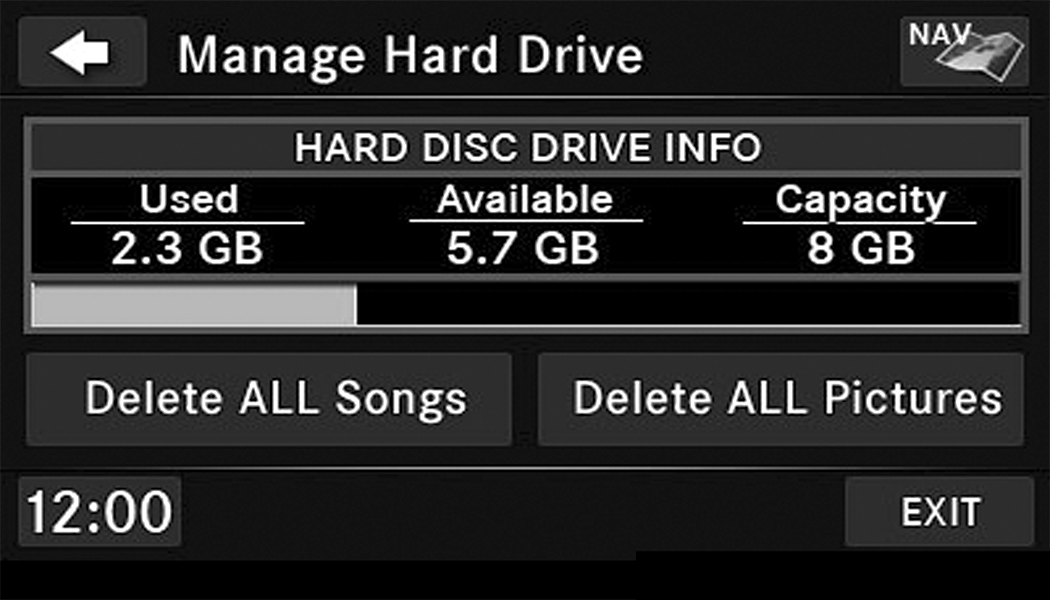
This menu displays the available space on the Hard Disk Drive and allows you to delete pictures and music files.
IMPORTING PICTURES
It is possible to import display pictures to the internal Hard Disk Drive. The pictures can be displayed on the right half of the radio screen.
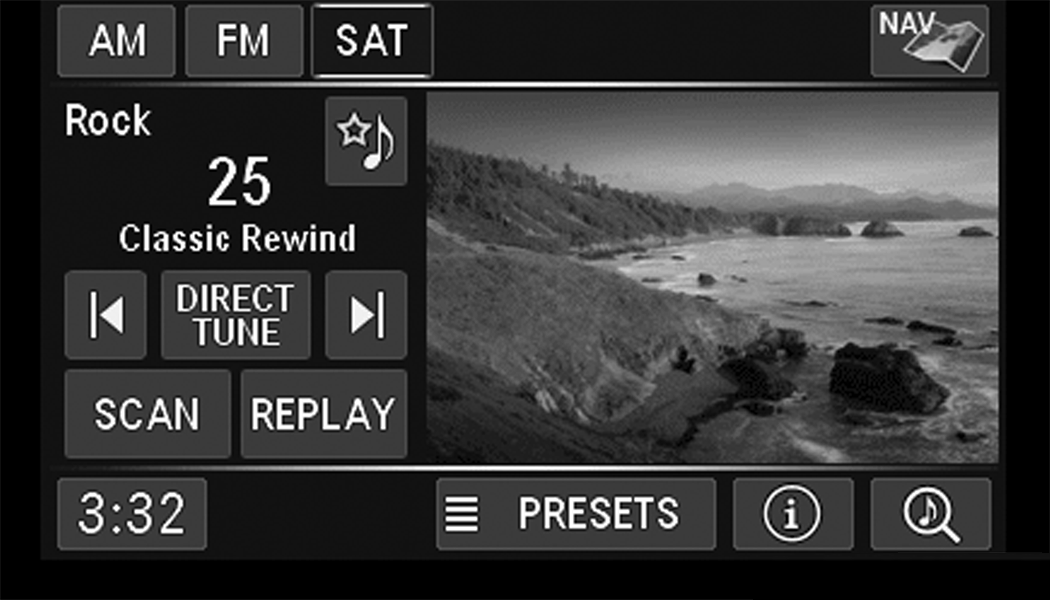
In the default mode, the vehicle brand logo is displayed in the right half of the screen. Push the Menu button on the right side of the radio to access one of the setting menus.
It is recommended to change the picture dimensions on a PC or Digital Camera to 240 by 158 pixels before the import.
Note:
USB devices (e.g., camera memory USB adaptors, etc.) must comply with the MSD (Mass Storage Device) standard. This USB terminal can provide power to the inserted device. The device's current limitation must be less or equal to 500mA.
-
Push the My Files button located on the faceplate to go to the Manage My Files screen.
-
Insert either a CD or a USB Stick containing your pictures.
-
Press the My Pictures button to get an overview of the images currently stored on the Hard Disk Drive.
The radio can store 23 user pictures.
-
Press the Add button to view the pictures stored on the CD or USB memory stick.
Note:
Depending on the file size of each picture on the CD or USB memory stick, loading the images in the screen may take time.
-
Select the type of media inserted.
-
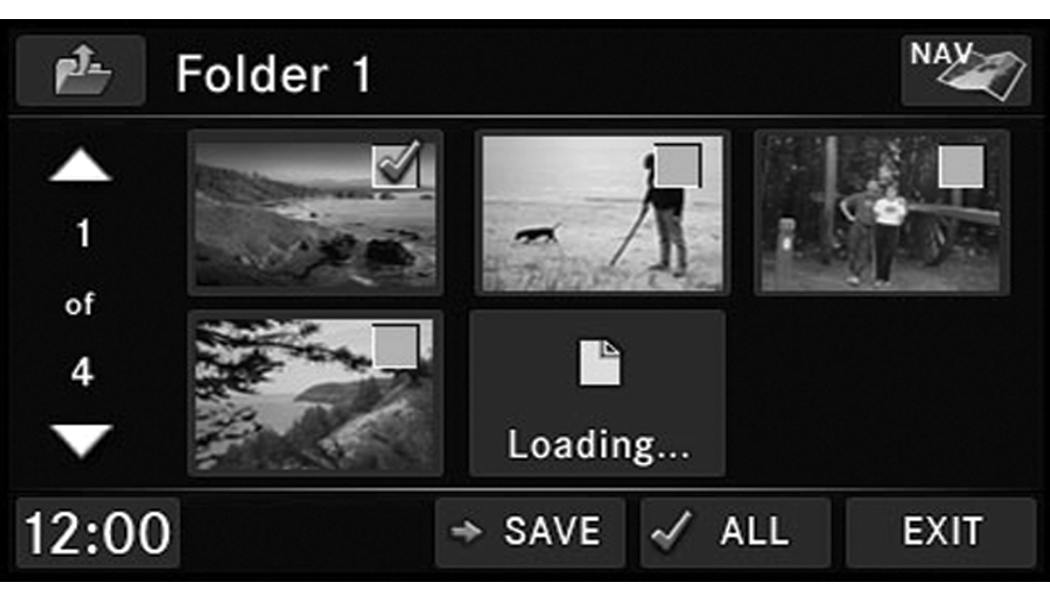
Use the Page Up or Down buttons to page through a list of pictures and press the picture you would like to import.
-
Select which pictures you want to copy. The red check mark indicates a picture file to copy.
The imported picture is now available in the Manage My Pictures screen.
-
Press the Save button to copy the selected pictures to the Hard Disk Drive.
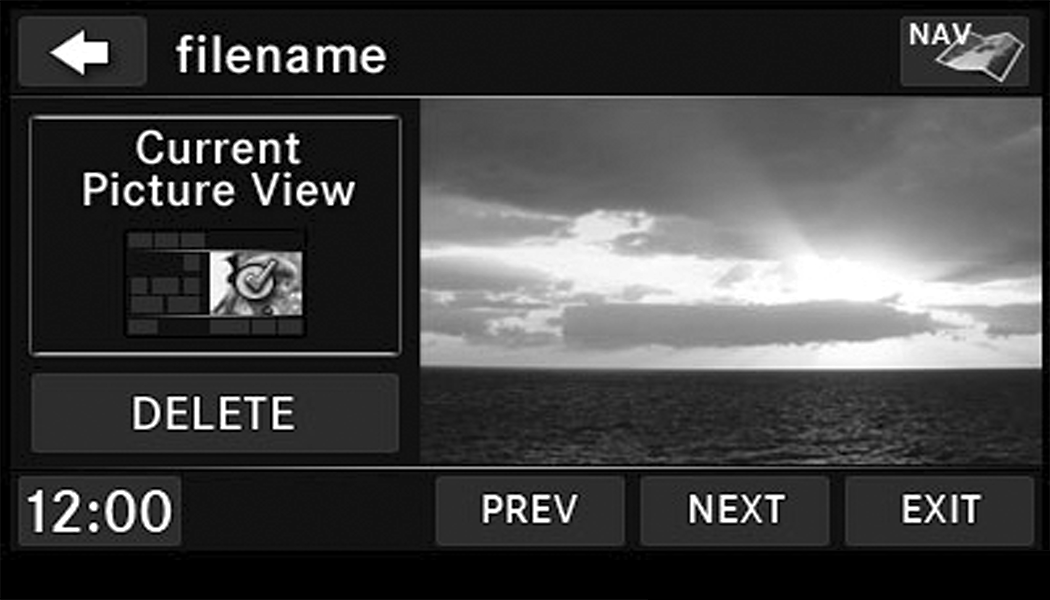
-
Select this picture by pressing the “Set as Picture View” button. A check mark indicates the currently used picture.
Use the PREV or NEXT button to step through the list of available pictures.
Press the Delete button to delete the picture from the hard disk drive.
-
Push the Menu button twice and then press the Picture View button to enable the picture view.
The picture is now displayed on the right half of the screen.
REMOTE DEVICES
LICENSE AGREEMENT
DOLBY DIGITAL LICENSE AGREEMENT
Manufactured under license from Dolby Laboratories.
Dolby, MLP Lossless and the double-D are trademarks of Dolby Laboratories.
ROVI CORPORATION LICENSE AGREEMENT
This product incorporates copyright protection technology that is protected by US patents and other intellectual property rights. Use of this copyright protection technology must be authorized by Rovi Corporation, and is intended for home and other limited viewing uses only unless otherwise authorized by Rovi Corporation. Reverse engineering or disassembly is prohibited.
USB CONNECTOR
It is possible to copy audio files or pictures files to the radio Hard Disk Drive, or play audio files directly from the USB device just like a music disc. The USB connector is covered by a small cover, which protects the connector from dust or damage.
Note:
USB devices (e.g., camera memory USB adaptors, etc.) must comply with the MSD (Mass Storage Device) standard. This USB terminal can provide power to the inserted device. The current draw from these devices must be limited to 500mA or less.
The transfer speed for this USB connector is approximately two megabytes per second.
MP3 player devices cannot be controlled through the USB connector. Some player devices save music files in other formats, which cannot be played in this radio. Some copy-protected music (e.g., downloads from the internet) cannot be played on this radio.
COMPATIBLE DEVICES
Please see your authorized dealer or visit DriveUconnect.com (US Residents) or DriveUconnect.ca (Canadian Residents) for supported devices.
Note:
Some MP3 Players do not allow songs to be copied into other devices.
HOW TO OPEN THE COVER
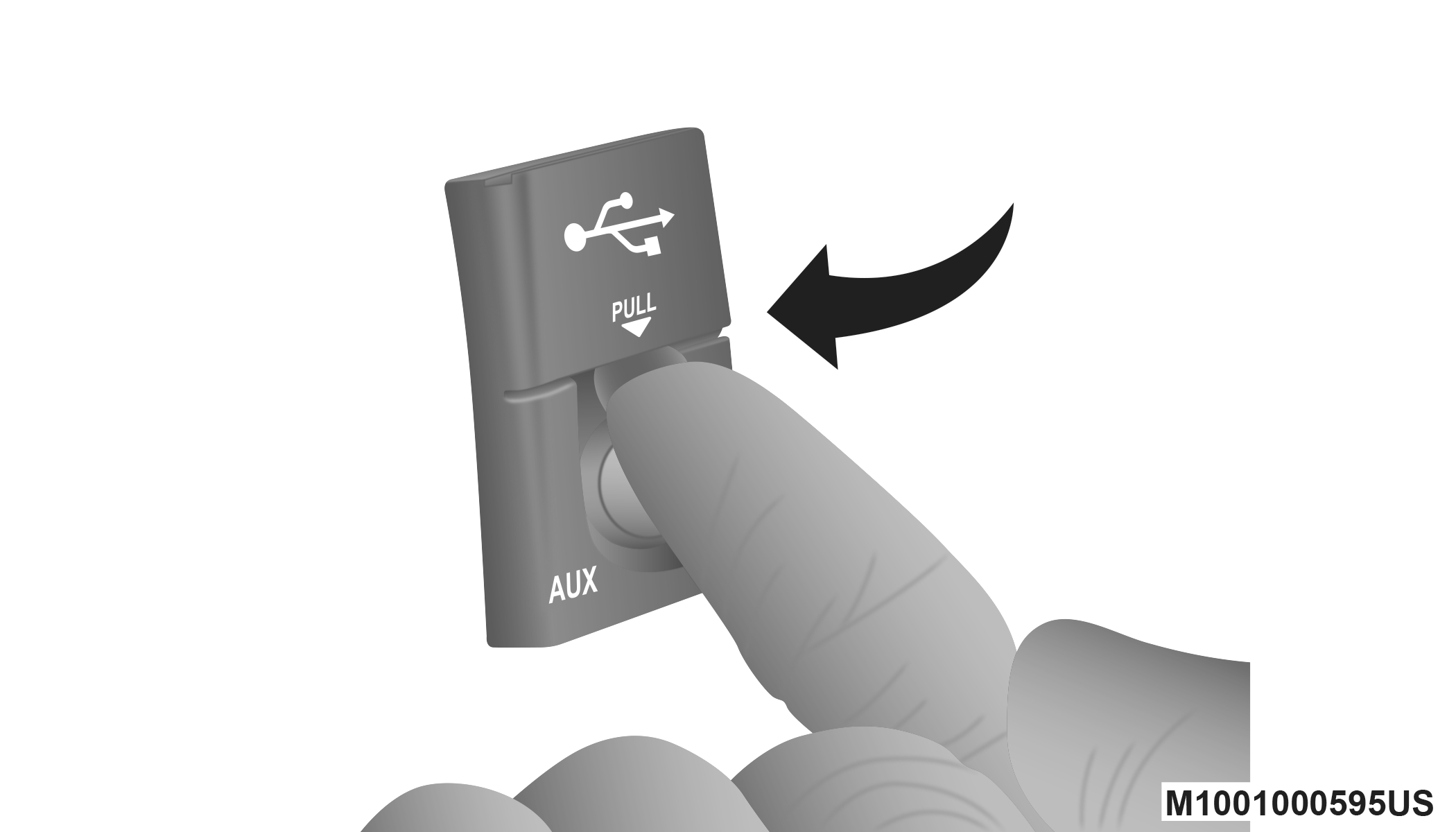
-
Place your finger under the pull arrow.
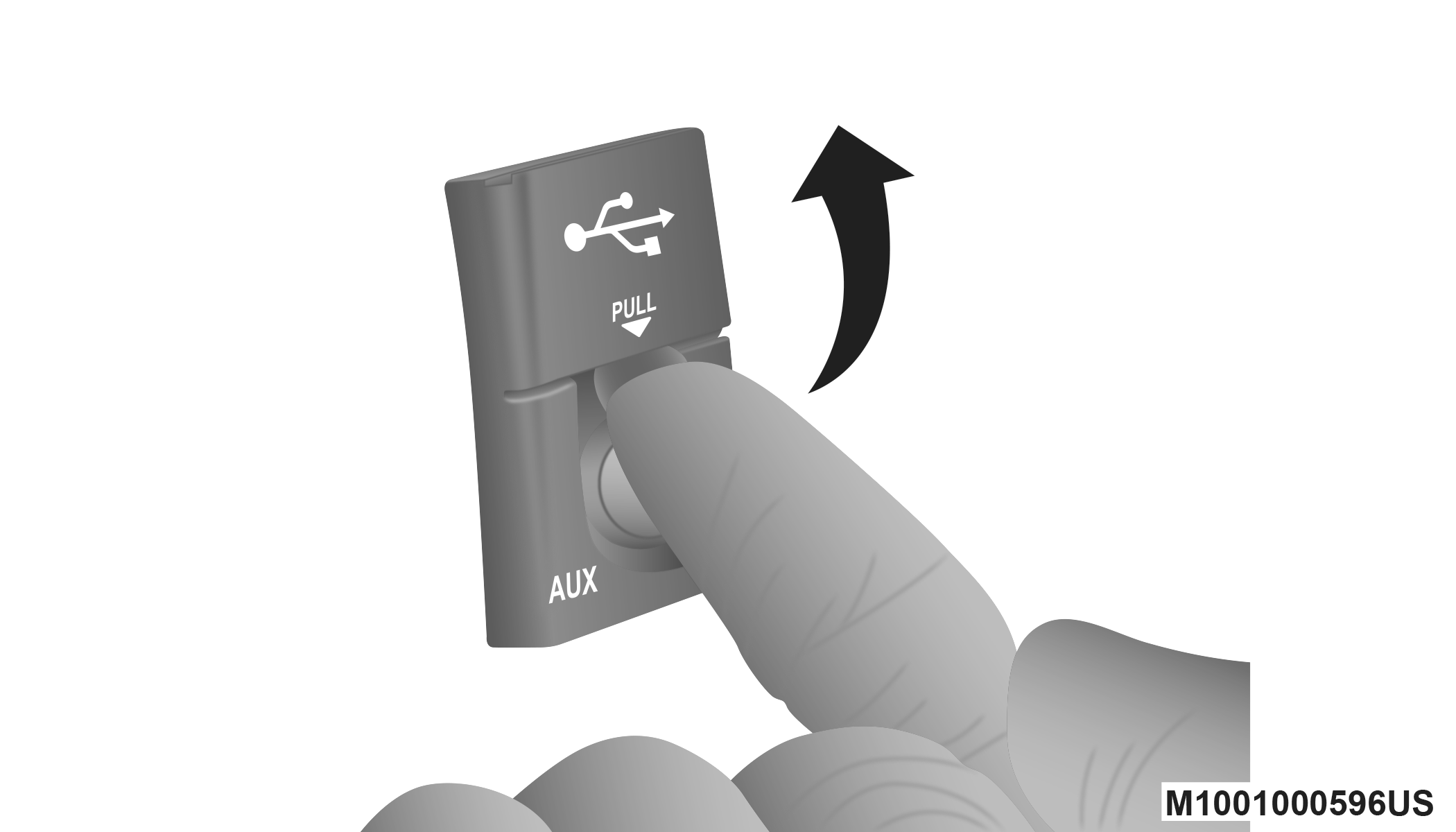
-
Pull forward.
Note:
The flap is attached and should not be removed! Do not pull off of the frame. Do not use a tool (e.g., screw-driver, nail file, etc.) to open the flap, as this could cause damage to the face of the radio.
HOW TO CLOSE THE COVER
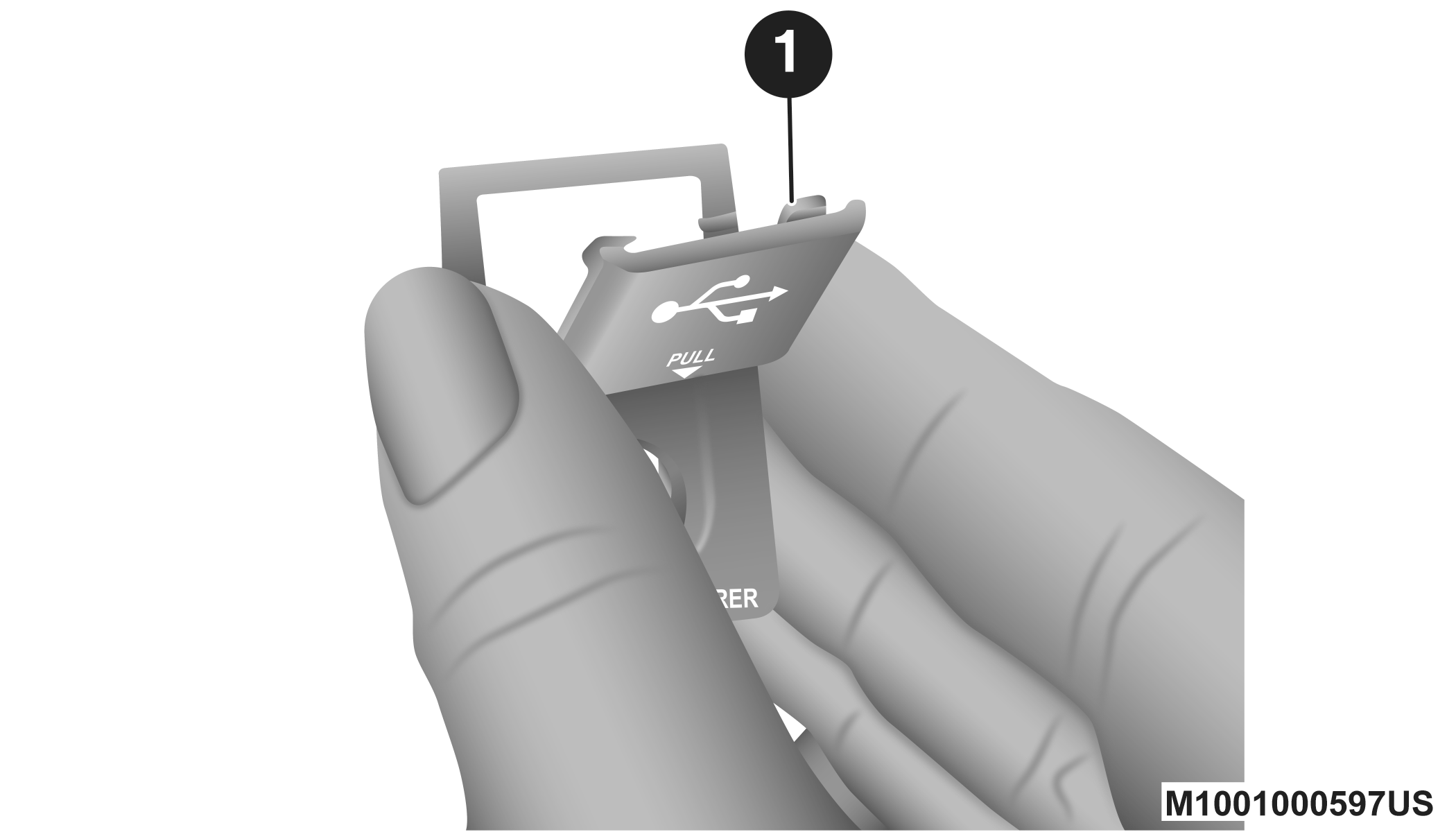
-
Using your thumb and index finger, grasp the flap. Notice the hooks (1), which must first be inserted into the frame.
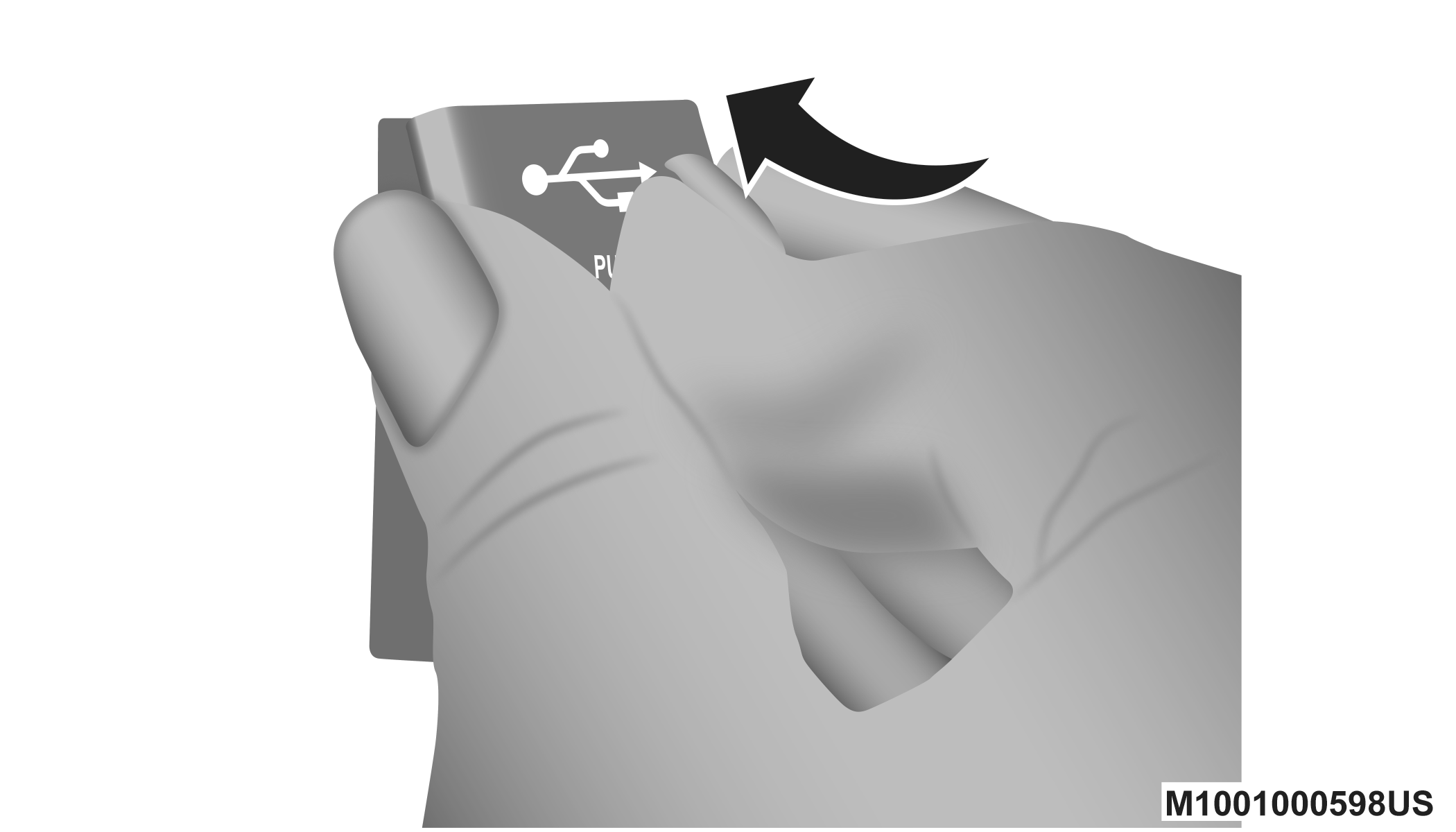
-
Insert the top hooks (1) into the frame first.
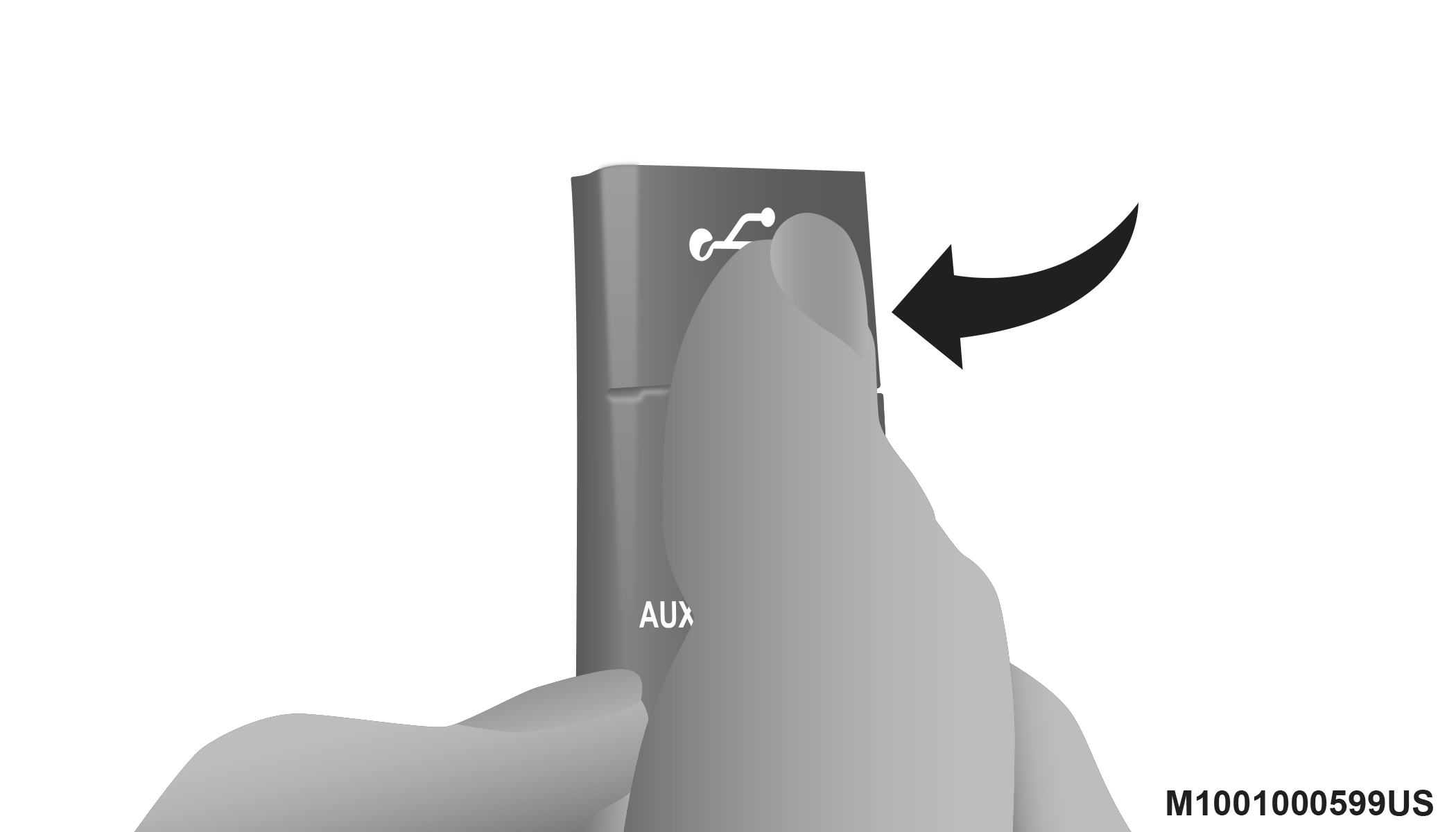
-
Then push on the bottom of the flap to secure in place.
CAUTION:
Never force any connector into the ports of your radio. Make sure your connectors are the identical shape and size before you connect.
AUDIO JACK (AUX) MODE
The Audio Jack connector allows you to connect the headset output of an audio device (e.g., MP3 player) to the radio. The audio of the connected device will then be played through the radio sound system.
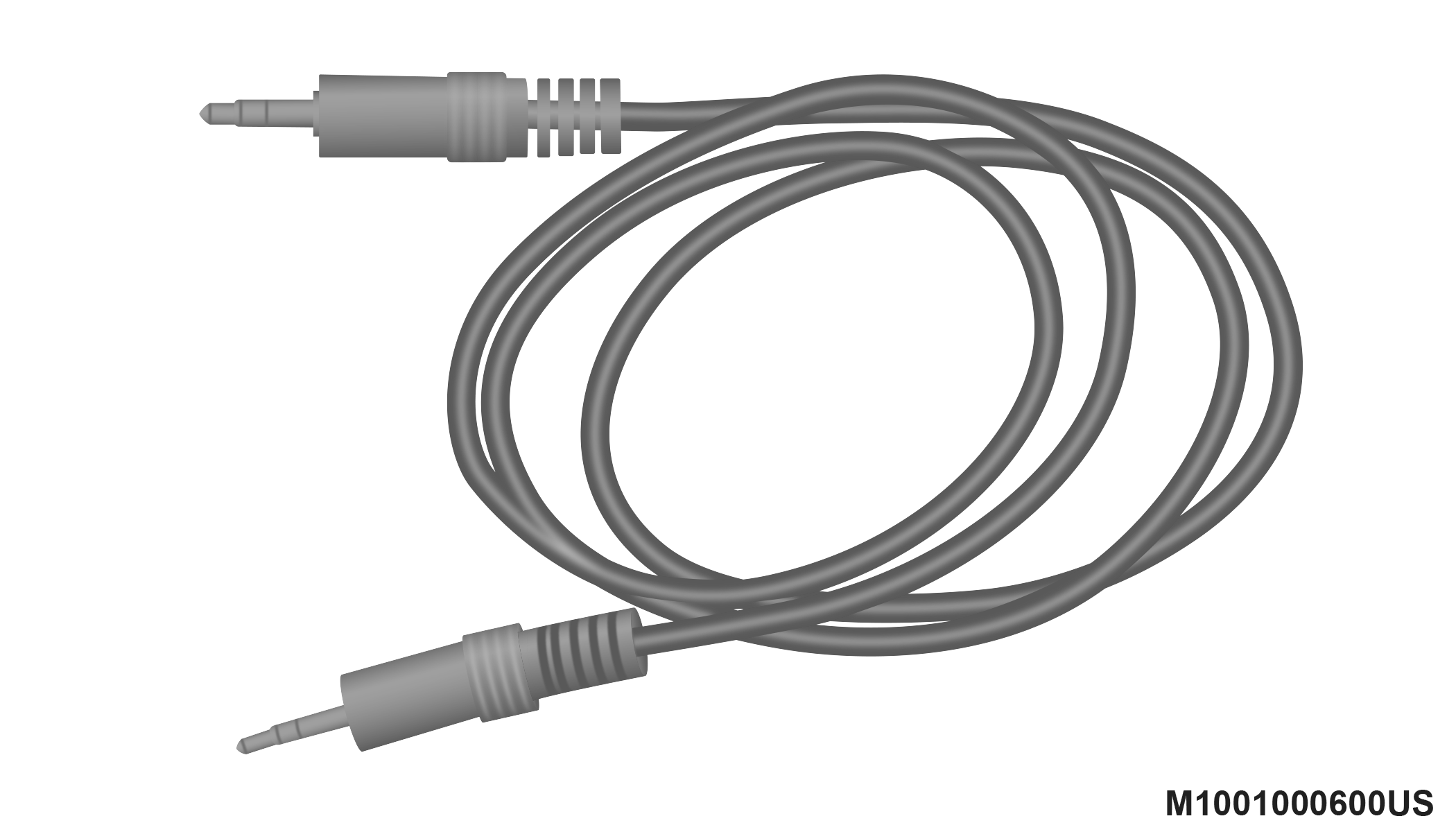
Connect a 3.5 mm stereo mini-jack cable as shown above (not provided with the radio) to the Audio Jack connector on the radio and to the earphone connector of your audio device.
The display will switch automatically to the AUX mode when a 3.5 mm stereo mini-jack cable has been connected. The radio screen will revert back to the last tuner mode when the cable is unplugged.
To change radio modes while the cable is connected to the unit, push the Media button located on the faceplate to display the AUX tab. Press the AUX tab to return to the AUX mode.
Adjust the volume with the On/Off Volume rotary knob or with the volume of the attached device.
The control of the external device (e.g., selecting playlists, play, fast forward, etc.) cannot be provided by the radio; use the device controls instead.
Note:
Inserting of a mono jack will result in improper audio playback.
USB PORT — IF EQUIPPED
The USB Port in the center console or upper glove box (depending on the vehicle) gives you access to the audio files on the external USB device through the AUX Mode. It functions as a remote control for the currently connected audio devices mobile digital device, and you can play audio from the audio device through the vehicle's speaker system.
Before using the AUX mode, you will need to connect your audio device to the USB port.
Note:
-
The files will not be stored on the internal hard disk drive and cannot be used in the HDD mode.
-
It is recommended you use the latest available software for your iPod®/iPhone® and iTunes®.
PLAYING AUDIO FILES FROM THE AUDIO DEVICE
You can play songs directly from the external USB device.
Press the Tracks button to display a list view.
Press the button with the desired list item to select and play the item.
Press the Info button to display the track information, press the button a second time to close the display.
Press the Browse button to browse by categories.
SELECT AN EXTERNAL USB CATEGORY
The radio can sort the files by playlists, by song names, by artists, by composers, by genres, by albums, by podcasts or by audio books, if available on your device.
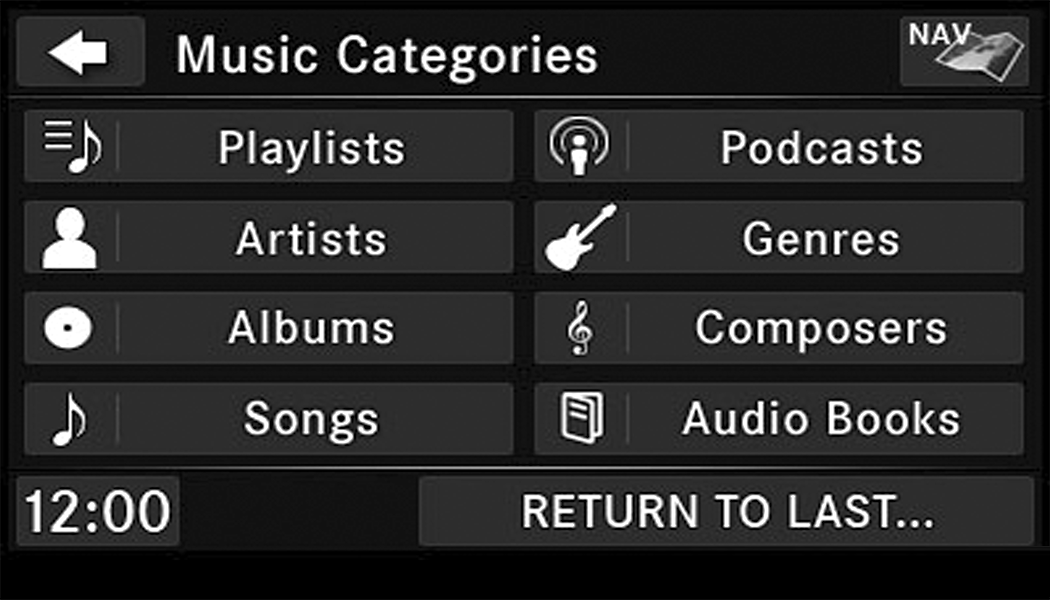
Press the Artists button for this example.
Press a button with the desired artist's name to play songs from this artist.
Press the Play All button to play songs from all available artists.
Press the Page Up/Down buttons to navigate through the list of artists.
Using Voice Command
You can list Artists, Playlists, Albums, Songs, Podcasts, Genres, Composers, and Audio Books in the main page by using Voice Command.
To list categories, press the Voice Recognition (VR) button and wait for the confirmation beep and say list Album (or any other category).
LIST JUMP
If you encounter a very long list, it may be helpful to press the A<>Z button to go to the List Jump menu.
For this example, we entered the first letter of the desired artist.
Press the GO button to jump to the desired artist.
Press a button with the desired artist's name to play songs from this artist.
CHANGE A TRACK
Press the Forward Arrow button to select the next track on the disc.
Press and hold the Forward Arrow button to fast forward through the track.
Press the Back Arrow button to select the start of the current track (while the track is playing) or the previous track (if the current track has just started).
Press and hold the Back Arrow button to fast rewind through the track.
PAUSE
Press the Pause button to pause the playback.
PLAY
Press the Play button to start the playback.
DISPLAYING THE ELAPSED TITLE TIME
The elapsed title time of the currently playing track is displayed on the left side of the screen.
SCAN SEARCH
Press the Scan button.
The first few seconds of each individual track will be played in succession for 10 seconds each.
Press the Stop Scan button to stop the scan function.
TRACK INFO
Press the Info button.
Information on the currently playing track, if available, will be displayed on the right half of the touchscreen.
AUX MENU
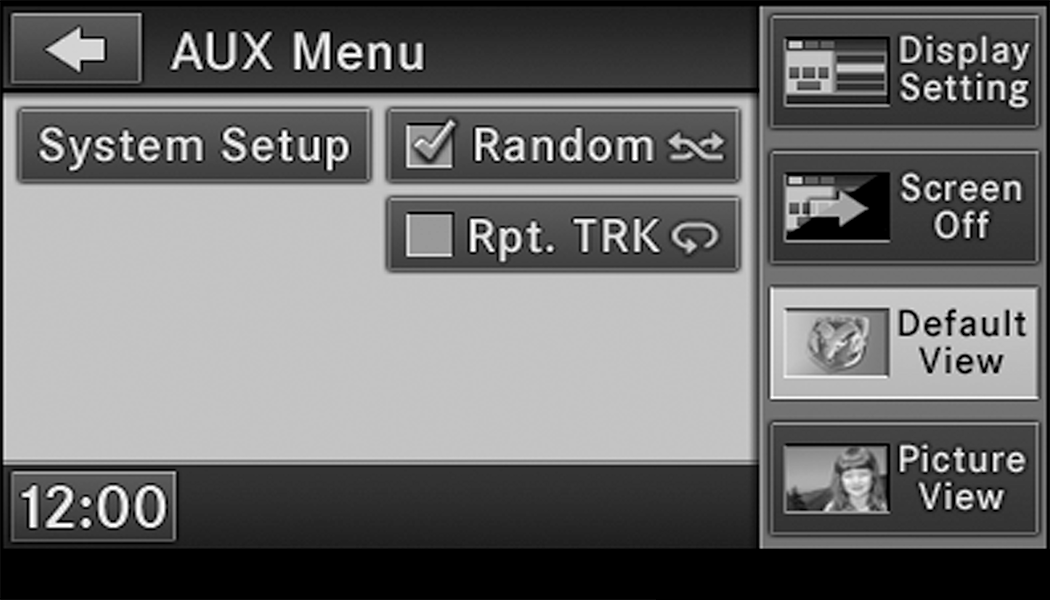
While in AUX mode, push the Menu button on the faceplate to access the AUX Menu.
RANDOM PLAYBACK
The random playback function plays random tracks from the audio device. Press the Random button to switch the random play function on or off.
A red check mark indicates the random play function is active.
REPEAT TRACK
The repeat track function repeats the currently played track. Press the Rpt. TRK button to switch the repeat track function on or off.
A red check mark indicates the repeat track function is active.
BLUETOOTH® STREAMING AUDIO (BTSA)
Music can be streamed from your cellular phone through Uconnect Phone (if equipped) and played through the vehicle’s sound system.
CONTROLLING BTSA USING THE RADIO
To enter BTSA mode, push the Media button located on the faceplate then press the Aux button located on the touchscreen, or push the Voice Recognition button (if equipped) and after the confirmation beep, say “Bluetooth Streaming Audio.”
PLAY MODE
When switching to BTSA mode, some audio devices will start playing music directly through the vehicle’s sound system. However, some devices require the music to be initiated on the device before it will stream through Uconnect Phone (if equipped).
SELECTING A DIFFERENT AUDIO DEVICE
-
Push the Uconnect Phone button
. -
After the “Ready” prompt and the following beep, say “Setup,” then “Select Audio Devices.”
-
You can say the name of the Audio Device to select or say “List Audio Devices” to have Uconnect Phone list the available devices.
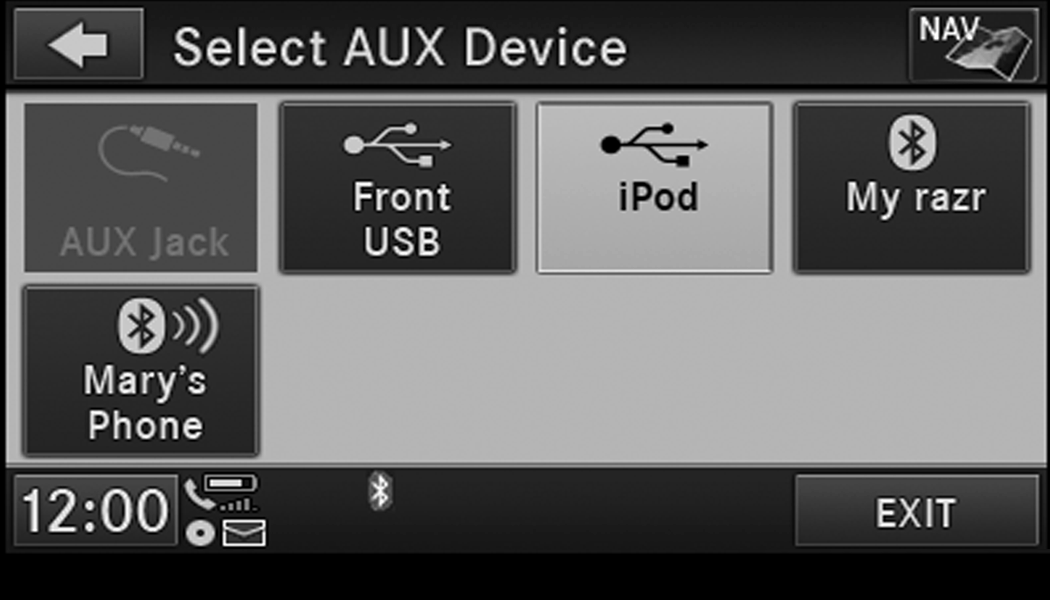
You can also select a different audio device in the Select Aux Device screen. Press the icon to enter the Select Aux Device screen. The currently playing device is highlighted, you can push and select a different device.
UCONNECT PHONE — IF EQUIPPED
Uconnect Phone is a voice-activated, hands-free, in-vehicle communications system. Uconnect Phone allows you to dial a phone number with your mobile phone* using simple voice commands (e.g., “Call” … “Mike” … “Work” or “Dial” … “248-555-1212”). Your mobile phone's audio is transmitted through your vehicle's audio system; the system automatically mutes your radio when using the Uconnect Phone.
Note:
Uconnect Phone requires a mobile phone equipped with the Bluetooth® “Hands-Free Profile,” Version 0.96 or higher. See the Uconnect website for supported phones.
For Uconnect customer support:
-
US residents - visit UconnectPhone.com or call 1-877-855-8400 (24 hours a day 7 days a week).
-
Canadian Residents - visit UconnectPhone.com or call 1-800-465-2001 (English) or 1-800-387-9983 (French).
Mon. – Fri., 8:00 am – 8:00 pm, ET
Sat., 9:00 am – 5:00 pm, ET
Sun., Closed
Uconnect Phone allows you to transfer calls between the system and your mobile phone as you enter or exit your vehicle and enables you to mute the system's microphone for private conversation.
The Uconnect Phone is driven through your Bluetooth® “Hands-Free Profile” mobile phone. Uconnect features Bluetooth® technology - the global standard that enables different electronic devices to connect to each other without wires or a docking station, so Uconnect Phone works no matter where you stow your mobile phone (be it your purse, pocket, or briefcase), as long as your phone is turned on and has been paired to the vehicle's Uconnect Phone. The Uconnect Phone allows up to seven mobile phones to be linked to the system. Only one linked (or paired) mobile phone can be used with the system at a time. The system is available in English, Spanish, or French languages.
WARNING:
ALWAYS drive safely with your hands on the wheel. You have full responsibility and assume all risks related to the use of the Uconnect features and applications in this vehicle. Only use Uconnect when it is safe to do so. Failure to do so may result in an accident involving serious injury or death.
Uconnect Phone Button
The radio or steering wheel controls (if equipped) contain the two control buttons (Uconnect Phone button and Voice Command button) that enables you to access the system. When you push the button you hear the word Uconnect followed by a BEEP. The beep is your signal to give a command.
Note:
The driver side upper windshield trim contains the microphone for the Uconnect Phone.
Voice Command Button
WARNING:
Any voice commanded system should be used only in safe driving conditions following all applicable laws. Your attention should be focused on safely operating the vehicle. Failure to do so may result in a collision causing serious injury or death.
Actual button location may vary with the radio. The individual buttons are described in the “Operation” section.
The Uconnect Phone can be used with any Hands-Free Profile certified Bluetooth® mobile phone. See the Uconnect website for supported phones. Refer to your mobile service provider or the phone manufacturer for details.
The Uconnect Phone is fully integrated with the vehicle's audio system. The volume of the Uconnect Phone can be adjusted either from the radio volume control knob or from the steering wheel radio control (right switch), if equipped.
The Uconnect display will be used for visual prompts from the Uconnect Phone such as “CELL” or caller ID on certain radios.
OPERATION
Voice commands can be used to operate the Uconnect Phone and to navigate through the Uconnect Phone menu structure. Voice commands are required after most Uconnect Phone prompts. You will be prompted for a specific command and then guided through the available options.
-
Prior to giving a voice command, wait for the beep, which follows the “Ready” prompt or another prompt.
-
For certain operations, compound commands can be used. For example, instead of saying “Setup” and then “Phone Pairing,” the following compound command can be said: “Setup Phone Pairing.”
-
For each feature explanation in this section, only the compound form of the voice command is given. You can also break the commands into parts and say each part of the command when you are asked for it. For example, you can use the compound form voice command “Phonebook New Entry,” or you can break the compound form command into two voice commands: “Phonebook” and “New Entry.” Please remember, the Uconnect Phone works best when you talk in a normal conversational tone, as if speaking to someone sitting a few feet/meters away from you.
HELP COMMAND
If you need assistance at any prompt, or if you want to know your options at any prompt, say “Help” following the beep. The Uconnect Phone will play all the options at any prompt if you ask for help.
To activate the Uconnect Phone from idle, simply push the Phone button and follow the audible prompts for directions. All Uconnect Phone sessions begin with a push of the Phone button on the faceplate.
CANCEL COMMAND
At any prompt, after the beep, you can say “Cancel” and you will be returned to the main menu. However, in a few instances the system will take you back to the previous menu.
PAIR (LINK) UCONNECT PHONE TO A MOBILE PHONE
To begin using your Uconnect Phone, you must pair your compatible Bluetooth®-enabled mobile phone.
To complete the pairing process, you will need to reference your mobile phone Owner's Manual. The Uconnect website may also provide detailed instructions for pairing.
The following are general phone to Uconnect Phone pairing instructions:
-
Push the Phone
button to begin. -
After the “Ready” prompt and the following beep, say “Setup Phone Pairing.”
-
When prompted, after the beep, say “Pair a Phone” and follow the audible prompts.
-
You will be asked to say a four-digit Personal Identification Number (PIN), which you will later need to enter into your mobile phone. You can enter any four-digit PIN. You will not need to remember this PIN after the initial pairing process.
-
For identification purposes, you will be prompted to give the Uconnect Phone a name for your mobile phone. Each mobile phone that is paired should be given a unique phone name.
-
You will then be asked to give your mobile phone a priority level between one and seven, with one being the highest priority. You can pair up to seven mobile phones to your Uconnect Phone. However, at any given time, only one mobile phone can be in use, connected to your Uconnect System. The priority allows the Uconnect Phone to know which mobile phone to use if multiple mobile phones are in the vehicle at the same time. For example, if priority three and priority five phones are present in the vehicle, the Uconnect Phone will use the priority three mobile phone when you make a call. You can select to use a lower priority mobile phone at any time (refer to “Advanced Phone Connectivity” in this section).
Note:
Software updates on your phone or the Uconnect system may interfere with the Bluetooth® connection. If this happens, simply repeat the pairing process. However, first, make sure to delete the device from the list of phones on your Uconnect system. Next, be sure to remove Uconnect from the list of devices in your phone’s Bluetooth® settings.
DIAL BY SAYING A NUMBER
-
Push the Phone button
to begin. -
After the “Ready” prompt and the following beep, say “Dial.”
-
The system will prompt you to say the number you want to call.
-
For example, you can say “234-567-8901.”
-
The Uconnect Phone will confirm the phone number and then dial. The number will appear in the display of certain radios.
CALL BY SAYING A NAME
-
Push the Phone button
to begin. -
After the “Ready” prompt and the following beep, say “Call.”
-
The system will prompt you to say the name of the person you want to call.
-
After the “Ready” prompt and the following beep, say the name of the person you want to call. For example, you can say “John Doe,” where John Doe is a previously stored name entry in the Uconnect phonebook or downloaded phonebook. To learn how to store a name in the phonebook, refer to “Add Names To Your Uconnect Phonebook”, in this section.
-
The Uconnect system will confirm the name and then dial the corresponding phone number, which may appear in the display of certain radios.
PHONEBOOK DOWNLOAD – AUTOMATIC PHONEBOOK TRANSFER FROM MOBILE PHONE
If equipped and specifically supported by your phone, Uconnect Phone automatically downloads names (text names) and number entries from your mobile phone’s phonebook. Specific Bluetooth® Phones with Phone Book Access Profile may support this feature. See Uconnect website for supported phones.
-
To call a name from downloaded (or Uconnect) Phonebook, follow the procedure in “Call by Saying a Name” section.
-
Automatic download and update, if supported, begins as soon as the Bluetooth® wireless phone connection is made to the Uconnect Phone, for example, after you start the vehicle.
-
A maximum of 1,000 entries per phone will be downloaded and updated every time a phone is connected to the Uconnect Phone.
-
Depending on the maximum number of entries downloaded, there may be a short delay before the latest downloaded names can be used. Until then, if available, the previous downloaded phonebook is available for use.
-
Only the phonebook of the currently connected mobile phone is accessible.
-
Only the mobile phone’s phonebook is downloaded. SIM card phonebook is not part of the Mobile phonebook.
-
This downloaded phonebook cannot be edited or deleted on the Uconnect Phone. These can only be edited on the mobile phone. The changes are transferred and updated to Uconnect Phone on the next phone connection.
ADD NAMES TO YOUR UCONNECT PHONEBOOK
Note:
Adding names to the Uconnect Phonebook is recommended when the vehicle is not in motion.
-
Push the Phone button
to begin. -
After the “Ready” prompt and the following beep, say “Phonebook New Entry.”
-
When prompted, say the name of the new entry. Use of long names helps the Voice Command system, and it is recommended. For example, say “Robert Smith” or “Robert” instead of “Bob.”
-
When prompted, enter the number designation (e.g., “Home,” “Work,” “Mobile,” or “Other”). This will allow you to store multiple numbers for each phonebook entry, if desired.
-
When prompted, recite the phone number for the phonebook entry that you are adding.
After you are finished adding an entry into the phonebook, you will be given the opportunity to add more phone numbers to the current entry or to return to the main menu.
The Uconnect Phone will allow you to enter up to 32 names in the phonebook with each name having up to four associated phone numbers and designations. Each language has a separate 32-name phonebook accessible only in that language. In addition, if equipped and supported by your phone, Uconnect Phone automatically downloads your mobile phone’s phonebook.
EDIT UCONNECT PHONEBOOK ENTRIES
-
Push the Phone button
to begin. -
After the “Ready” prompt and the following beep, say “Phonebook Edit.”
-
You will then be asked for the name of the phonebook entry that you wish to edit.
-
Next, choose the number designation (home, work, mobile, or other) that you wish to edit.
-
When prompted, recite the new phone number for the phonebook entry that you are editing.
After you are finished editing an entry in the phonebook, you will be given the opportunity to edit another entry in the phonebook, call the number you just edited, or return to the main menu.
Note:
-
Editing names in the phonebook is recommended when the vehicle is not in motion.
-
Automatic downloaded phonebook entries cannot be deleted or edited.
“Phonebook Edit” can be used to add another phone number to a name entry that already exists in the phonebook. For example, the entry John Doe may have a mobile and a home number, but you can add “John Doe's” work number later using the “Phonebook Edit” feature.
DELETE UCONNECT PHONEBOOK ENTRY
Note:
Editing phonebook entries is recommended when the vehicle is not in motion.
To delete a Uconnect phonebook entry using Voice Commands:
-
Push the Phone button
to begin. -
After the “Ready” prompt and the following beep, say “Phonebook Delete.”
-
After you enter the Phonebook Delete menu, you will then be asked for the name of the entry that you wish to delete. You can either say the name of a phonebook entry that you wish to delete, or you can say “List Names” to hear a list of the entries in the phonebook from which you choose. To select one of the entries from the list, push the Voice Command
button while the Uconnect Phone is playing the desired entry and say “Delete.” -
After you enter the name, the Uconnect Phone will ask you which designation you wish to delete: home, work, mobile, other, or all. Say the designation you wish to delete.
-
Note that only the phonebook entry in the current language is deleted.
-
Note:
Automatic downloaded phonebook entries cannot be deleted or edited.
DELETE/ERASE “ALL” UCONNECT PHONEBOOK ENTRIES
Note:
-
ONLY the phonebook in the current language is deleted.
-
Automatic downloaded phonebook entries cannot be deleted or edited.
To delete or erase all Uconnect phonebook entries using Voice Command:
-
Push the Phone button
to begin. -
After the “Ready” prompt and the following beep, say “Phonebook Erase All.”
-
The Uconnect Phone will ask you to verify that you wish to delete all the entries from the phonebook.
-
-
After confirmation, the phonebook entries will be deleted.
LIST ALL NAMES IN THE UCONNECT PHONEBOOK
-
Push the Phone button
to begin. -
After the “Ready” prompt and the following beep, say “Phonebook List Names.”
-
The Uconnect Phone will play the names of all the phonebook entries, including the downloaded phonebook entries, if available.
-
To call one of the names in the list, push the Voice Recognition button
 during the playing of the desired name, and say “Call.”
Note:
The user can also exercise “Edit” or “Delete” operations at this point.
-
The Uconnect Phone will then prompt you as to the number designation you wish to call.
-
The selected number will be dialed.
PHONE CALL FEATURES
The following features can be accessed through the Uconnect Phone if the feature(s) are available on your mobile service plan. For example, if your mobile service plan provides three-way calling, this feature can be accessed through the Uconnect Phone. Check with your mobile service provider for the features that you have.
ANSWER OR REJECT AN INCOMING CALL — NO CALL CURRENTLY IN PROGRESS
When you receive a call on your mobile phone, the Uconnect Phone will interrupt the vehicle audio system, if on, and will ask if you would like to answer the call. Push the Phone button to accept the call. To reject the call, push and hold the Phone button until you hear a single beep, indicating that the incoming call was rejected.
ANSWER OR REJECT AN INCOMING CALL — CALL CURRENTLY IN PROGRESS
If a call is currently in progress and you have another incoming call, you will hear the same network tones for call waiting that you normally hear when using your mobile phone. Push the Phone button to place the current call on hold and answer the incoming call.
Note:
The Uconnect Phone compatible phones in the market today do not support rejecting an incoming call when another call is in progress. Therefore, the user can only answer an incoming call or ignore it.
MAKING A SECOND CALL WHILE CURRENT CALL IS IN PROGRESS
To make a second call while you are currently on a call, push the Voice Recognition button and say “Dial” or “Call” followed by the phone number or phonebook entry you wish to call. The first call will be on hold while the second call is in progress. To go back to the first call, refer to “Toggling Between Calls” in this section. To combine two calls, refer to “Conference Call” in this section.
PLACE/RETRIEVE A CALL FROM HOLD
To put a call on hold, push the Phone button until you hear a single beep. This indicates that the call is on hold. To bring the call back from hold, push and hold the Phone button until you hear a single beep.
TOGGLING BETWEEN CALLS
If two calls are in progress (one active and one on hold), push the Phone button until you hear a single beep, indicating that the active and hold status of the two calls have switched. Only one call can be placed on hold at a time.
CONFERENCE CALL
When two calls are in progress (one active and one on hold):
-
Push and hold the Phone button
until you hear a double beep, indicating that the two calls have been joined into one conference call.
THREE-WAY CALLING
To initiate three-way calling, push the Voice Recognition button while a call is in progress, and make a second phone call, as described under “Making a Second Call While Current Call is in Progress.” After the second call has established, push and hold the Phone button until you hear a double beep, indicating that the two calls have been joined into one conference call.
CALL TERMINATION
To end a call in progress:
-
Momentarily push the Phone button
.-
Only the active call(s) will be terminated and if there is a call on hold, it will become the new active call. If the active call is terminated by the phone far end, a call on hold may not become active automatically. This is cell phone-dependent.
-
-
To bring the call back from hold, push and hold the Phone button
until you hear a single beep.
REDIAL
To redial the last number called from your mobile phone using Voice Command:
-
Push the Phone button
to begin. -
After the “Ready” prompt and the following beep, say “Redial.”
-
The Uconnect Phone will call the last number that was dialed from your mobile phone.
-
Note:
This may not be the last number dialed from the Uconnect Phone.
CALL CONTINUATION
Call continuation is the progression of a phone call on the Uconnect Phone after the vehicle ignition has been switched to OFF. Call continuation functionality available on the vehicle can be any one of three types:
-
After the ignition is switched to OFF, a call can continue on the Uconnect Phone either until the call ends, or until the vehicle battery condition dictates cessation of the call on the Uconnect Phone and transfer of the call to the mobile phone.
-
After the ignition is cycled to OFF, a call can continue on the Uconnect Phone for a certain duration, after which the call is automatically transferred from the Uconnect Phone to the mobile phone.
-
An active call is automatically transferred to the mobile phone after the ignition is cycled to OFF.
UCONNECT PHONE FEATURES
LANGUAGE SELECTION
To change the language that the Uconnect Phone is using:
-
Push the Phone button
to begin. -
After the “Ready” prompt and the following beep, say the name of the language you wish to switch to / English, Spanish, or French.
-
Continue to follow the system prompts to complete the language selection.
After selecting one of the languages, all prompts and voice commands will be in that language.
Note:
After every Uconnect Phone language change operation, only the language-specific 32-name phonebook is usable. The paired phone name is not language-specific and usable across all languages.
EMERGENCY ASSISTANCE
If you are in an emergency and the mobile phone is reachable:
-
Pick up the phone and manually dial the emergency number for your area.
If the phone is not reachable and the Uconnect Phone is operational, you may reach the emergency number as follows:
-
Push the Phone button
to begin. -
After the “Ready” prompt and the following beep, say “Emergency” and the Uconnect Phone will instruct the paired mobile phone to call the emergency number.
Note:
-
The emergency number dialed is based on the country where the vehicle is purchased (911 for the US and Canada and 060 for Mexico). The number dialed may not be applicable with the available mobile service and area.
-
If supported, this number may be programmable on some systems. To do this, push the Phone button
and say “Setup,” followed by “Emergency.” -
The Uconnect Phone does slightly lower your chances of successfully making a phone call.
WARNING:
To use your Uconnect Phone System in an emergency, your mobile phone must be:
-
Turned on.
-
Paired to the Uconnect System.
-
Have network coverage.
ROADSIDE ASSISTANCE/TOWING ASSISTANCE
If you need roadside assistance:
-
Push the Phone button
to begin. -
After the “Ready” prompt and the following beep, say “Towing Assistance”.
Note:
You should program the desired Towing Assistance phone number using the Voice Command system. To do this, push the Phone button and say “Setup,” followed by “Towing Assistance.” When prompted say 1-800-521-2779 for U.S., 1-800-363-4869 for Canada, 55-14-3454 for Mexico City and 1-800-712-3040 for outside Mexico City in Mexico.
PAGING
To learn how to page, refer to “Working With Automated Systems.” Paging works properly except for pagers of certain companies, which time out a little too soon to work properly with the Uconnect Phone.
VOICE MAIL CALLING
To learn how to access your voice mail, refer to “Working With Automated Systems.”
WORKING WITH AUTOMATED SYSTEMS
This method is used in instances where one generally has to press numbers on the mobile phone keypad while navigating through an automated telephone system.
You can use your Uconnect Phone to access a voice mail system or an automated service, such as a paging service or automated customer service line. Some services require immediate response selection. In some instances, that may be too quick for use of the Uconnect Phone.
When calling a number with your Uconnect Phone that normally requires you to enter in a touch-tone sequence on your mobile phone keypad, you can push the Voice Recognition button and say the sequence you wish to enter, followed by the word “Send.” For example, if required to enter your PIN followed with a pound, (3 7 4 6 #), you can push the Voice Recognition button and say, “3 7 4 6 # Send.” Saying a number, or sequence of numbers, followed by “Send,” is also to be used for navigating through an automated customer service center menu structure, and to leave a number on a pager.
You can also send stored Uconnect Phonebook entries as tones for fast and easy access to voice mail and pager entries. To use this feature, dial the number you wish to call and then push the Voice Command button and say, “Send.” The system will prompt you to enter the name or number and say the name of the phonebook entry you wish to send. The Uconnect Phone will then send the corresponding phone number associated with the phonebook entry, as tones over the phone.
Note:
-
You may not hear all of the tones due to mobile phone network configurations. This is normal.
-
Some paging and voice mail systems have system time out settings that are too short and may not allow the use of this feature.
BARGE IN – OVERRIDING PROMPTS
The “Voice Command” button can be used when you wish to skip part of a prompt and issue your voice command immediately. For example, if a prompt is asking “Would you like to pair a phone, clear a...,” you could push the Voice Recognition button and say, “Pair a Phone” to select that option without having to listen to the rest of the voice prompt.
TURNING CONFIRMATION PROMPTS ON/OFF
Turning confirmation prompts off will stop the system from confirming your choices (e.g., the Uconnect Phone will not repeat a phone number before you dial it).
To turn confirmation prompts on or off using Voice Command:
-
Push the Phone button
to begin. -
After the “Ready” prompt and the following beep, say:
-
“Setup Confirmations Prompts On” or
-
“Setup Confirmations Prompts Off”
-
PHONE AND NETWORK STATUS INDICATORS
If available on the radio and/or on a premium display such as the instrument panel cluster, and supported by your mobile phone, the Uconnect Phone will provide notification to inform you of your phone and network status when you are attempting to make a phone call using Uconnect Phone. The status is given for roaming, network signal strength, phone battery strength, etc.
DIALING USING THE MOBILE PHONE KEYPAD
You can dial a phone number with your mobile phone keypad and still use the Uconnect Phone (while dialing via the mobile phone keypad, the user must exercise caution and take precautionary safety measures). By dialing a number with your paired Bluetooth® mobile phone, the audio will be played through your vehicles audio system. The Uconnect Phone will work the same as if you dial the number using Voice Command.
Note:
Certain brands of mobile phones do not send the dial ring to the Uconnect Phone to play it on the vehicle audio system, so you will not hear it. Under this situation, after successfully dialing a number the user may feel that the call did not go through even though the call is in progress. Once your call is answered, you will hear the audio.
MUTE/UNMUTE (MUTE ON/OFF)
When you mute the Uconnect Phone, you will still be able to hear the conversation coming from the other party, but the other party will not be able to hear you. To mute the Uconnect Phone:
-
Push the Voice Recognition button
. -
Following the beep, say “Mute.”
To unmute the Uconnect Phone:
-
Push the Voice Recognition button
. -
Following the beep, say “Mute off.”
ADVANCED PHONE CONNECTIVITY
TRANSFER CALL TO AND FROM MOBILE PHONE
The Uconnect Phone allows ongoing calls to be transferred from your mobile phone to the Uconnect Phone without terminating the call. To transfer an ongoing call from your Uconnect Phone paired mobile phone to the Uconnect Phone or vice versa, push the Voice Recognition button and say “Transfer Call.”
CONNECT OR DISCONNECT LINK BETWEEN THE UCONNECT PHONE AND MOBILE PHONE
Your mobile phone can be paired with many different electronic devices, but can only be actively "connected" with one electronic device at a time.
If you would like to connect or disconnect the Bluetooth® connection between a Uconnect Phone paired mobile phone and the Uconnect Phone, follow the instructions described in your mobile phone user manual.
LIST PAIRED MOBILE PHONE NAMES
-
Push the Phone button
to begin. -
After the “Ready” prompt and the following beep, say “Setup Phone Pairing”.
-
When prompted, say “List Phones”.
-
The Uconnect Phone will play the phone names of all paired mobile phones in order from the highest to the lowest priority. To “Select” or “Delete” a paired phone being announced, push the Voice Command
button and say “Select” or “Delete”. Also, see the next two sections for an alternate way to “Select” or “Delete” a paired phone.
SELECT ANOTHER MOBILE PHONE
This feature allows you to select and start using another phone paired with the Uconnect Phone.
-
Push the Phone button
to begin. -
After the “Ready” prompt and the following beep, say “Setup Select Phone” and follow the prompts.
-
You can also push the Voice Recognition button
at any time while the list is being played, and then choose the phone that you wish to select. -
The selected phone will be used for the next phone call. If the selected phone is not available, the Uconnect Phone will return to using the highest priority phone present in or near 30 ft (9 m) of the vehicle.
DELETE UCONNECT PHONE PAIRED MOBILE PHONES
-
Push the Phone button
to begin. -
After the “Ready” prompt and the following beep, say “Setup Phone Pairing”.
-
At the next prompt, say “Delete” and follow the prompts.
-
You can also push the Voice Recognition button
at any time while the list is being played, and then choose the phone you wish to delete.
THINGS YOU SHOULD KNOW ABOUT YOUR UCONNECT PHONE
UCONNECT PHONE TUTORIAL
To hear a brief tutorial of the system features, push the Phone button and say “Uconnect Tutorial.”
VOICE TRAINING
For users experiencing difficulty with the system recognizing their voice commands or numbers, the Uconnect Phone Voice Training feature may be used. To enter this training mode, follow one of the two following procedures:
-
From outside the Uconnect Phone mode (e.g., from radio mode), push and hold the Voice Recognition button
for five seconds until the session begins, or, -
Push the Voice Recognition button
and say the “Voice Training,” “System Training,” or “Start Voice Training” command.
You can either push the Uconnect Phone button to restore the factory setting or repeat the words and phrases when prompted by the Uconnect Phone. For best results, the Voice Training session should be completed when the vehicle is parked with the engine running, all windows closed, and the blower fan switched off.
This procedure may be repeated with a new user. The system will adapt to the last trained voice only.
RESET
To Reset all settings using Voice Command:
-
Push the Phone button
. -
After the “Ready” prompt and the following beep, say “Setup,” then “Reset.”
-
This will delete all phone pairing, phone book entries, and other settings in all language modes. The System will prompt you before resetting to factory settings.
-
VOICE COMMAND
For best performance:
-
Adjust the rearview mirror to provide at least 1/2-inch (1 cm) gap between the overhead console (if equipped) and the mirror.
-
Always wait for the beep before speaking.
-
Speak normally without pausing, just as you would speak to a person sitting a few feet/meters away from you.
-
Make sure that no one other than you is speaking during a Voice Command period.
Performance is maximized under:
-
Low-to-medium blower setting
-
Low-to-medium vehicle speed
-
Low road noise
-
Smooth road surface
-
Fully closed windows
-
Dry weather condition
Note:
-
Even though the system is designed for users speaking in North American English, French, and Spanish accents, the system may not always work for some.
-
When navigating through an automated system such as voice mail, or when sending a page, at the end of speaking the digit string, make sure to say “Send.”
-
Storing names in the phonebook when the vehicle is not in motion is recommended.
-
It is not recommended to store similar sounding names in the Uconnect Phonebook.
-
Phonebook (Downloaded and Uconnect Phone Local) name recognition rate is optimized when the entries are not similar.
-
Numbers must be spoken in single digits. “800” must be spoken “eight-zero-zero” not “eight hundred.”
-
You can say “O” (letter “O”) for “0” (zero).
-
Even though international dialing for most number combinations is supported, some shortcut dialing number combinations may not be supported.
FAR END AUDIO PERFORMANCE
Audio quality is maximized under:
-
Low-to-medium blower setting
-
Low-to-medium vehicle speed
-
Low road noise
-
Smooth road surface
-
Fully closed windows
-
Dry weather conditions
-
Operation from the driver's seat
-
Performance, such as audio clarity, echo, and loudness to a large degree relies on the phone and network, and not the Uconnect Phone
-
Echo at the phone far end can sometimes be reduced by lowering the in-vehicle audio volume
RECENT CALLS
If your phone supports “Automatic Phonebook Download,” Uconnect Phone can list your Outgoing, Incoming and Missed Calls.
SMS
Uconnect Phone can read or send new messages on your phone.
Read Messages:
If you receive a new text message while your phone is connected to Uconnect Phone, an announcement will be made to notify you that you have a new text message. If you wish to hear the new message:
-
Push the Phone button
. -
After the “Ready” prompt and the following beep, say “SMS Read” or “Read Messages”.
-
Uconnect Phone will play the new text message for you.
-
After reading a message, you can “Reply” or “Forward” the message using Uconnect Phone.
Send Messages:
You can send messages using Uconnect Phone. To send a new message:
-
Push the Phone button
. -
After the “Ready” prompt and the following beep, say “SMS Send” or “Send Message”.
-
You can either say the message you wish to send or say “List Messages.” There are 20 preset messages.
To send a message, push the Voice Command button while the system is listing the message and say “Send”.
Uconnect Phone will prompt you to say the name or number of the person you wish to send the message to.
List of Preset Messages:
-
Yes
-
No
-
Where are you?
-
I need more direction
-
L O L
-
Why
-
I love you
-
Call me
-
Call me later
-
Thanks
-
See You in 15 minutes
-
I am on my way
-
I’ll be late
-
Are you there yet?
-
Where are we meeting?
-
Can this wait?
-
Bye for now
-
When can we meet?
-
Send number to call
-
Start without me
Turn SMS Incoming Announcement ON/OFF
Turning the SMS Incoming Announcement Off will stop the system from announcing the new incoming messages.
-
Push the Phone button
. -
After the “Ready” prompt and the following beep, say “Setup, SMS Incoming Message Announcement,” you will then be given a choice to change it.
BLUETOOTH® COMMUNICATION LINK
Mobile phones have been found to lose connection to the Uconnect Phone. When this happens, the connection can generally be reestablished by switching the phone off/on. Your mobile phone is recommended to remain in Bluetooth® On mode.
NAVIGATION — IF EQUIPPED
SAFETY PRECAUTIONS AND IMPORTANT INFORMATION
WARNING:
-
ALWAYS drive safely with your hands on the steering wheel. You have full responsibility and assume all risks related to the use of the Uconnect features and applications in this vehicle. Only use Uconnect when it is safe to do so. Failure to do so may result in an accident involving serious injury or death.
-
ALWAYS follow the law! Failure to follow traffic laws may result in serious injury or death.
WARNING
Read this information carefully before starting to operate the navigation system and follow the instructions in this manual. Neither the FCA US LLC nor Garmin® shall be liable for problems or accidents resulting from failure to observe the instructions in this manual.
Failure to avoid the following potentially hazardous situations could result in an accident or collision resulting in death or serious injury.
-
Always drive safely. Only use the navigation features in this vehicle when it is safe to do so. You accept full responsibility for the use of the features in this vehicle.
-
When navigating, carefully compare information displayed on the navigation system to all available navigation sources, including road signs, road closures, road conditions, traffic congestion, weather conditions, and other factors that may affect safety while driving. For safety, always resolve any discrepancies before continuing navigation, and defer to posted road signs and road conditions.
-
The navigation system is designed to provide route suggestions. It is not a replacement for driver attentiveness and good judgment. Do not follow route suggestions if they suggest an unsafe or illegal maneuver or would place the vehicle in an unsafe situation.
-
Be careful of the ambient temperature. Using the navigation system at extreme temperatures can lead to malfunction or damage. Also note that the unit can be damaged by strong vibration, metal objects, or by water getting inside the unit.
CAUTION
The navigation system is designed to provide you with route suggestions. It does not reflect road closures or road conditions, weather conditions, or other factors that may affect safety or timing while driving.
Use the navigation system only as a navigational aid. Do not attempt to use the navigation system for any purpose requiring precise measurement of direction, distance, location, or topography.
The Global Positioning System (GPS) is operated by the United States government, which is solely responsible for its accuracy and maintenance. The government system is subject to changes that could affect the accuracy and performance of all GPS equipment, including the navigation system.
NOTICE
This navigation system can be used when the ignition key is turned to ON/RUN or ACC. To preserve the battery, however, it should be used with the engine running whenever possible. Using the navigation system for a long time with the engine switched off can cause the battery to run down.
MAP DATA INFORMATION
Garmin® uses a combination of governmental and private data sources. Virtually all data sources contain some inaccurate or incomplete data. In some countries, complete and accurate map information is either not available or is prohibitively expensive.
GETTING STARTED
To access the Navigation system on your Radio, press the NAV button in the upper right corner of the screen during any Radio or Media mode.
SETTING UP YOUR SYSTEM
When using your navigation system for the first time, complete the following tasks:
-
Acquire satellites.
-
Understand the main menu.
ACQUIRING SATELLITES
The  bars indicate satellite strength.
Go to an open area, away from tall buildings and trees.
Acquiring satellite signals can take a few minutes.
MAIN MENU
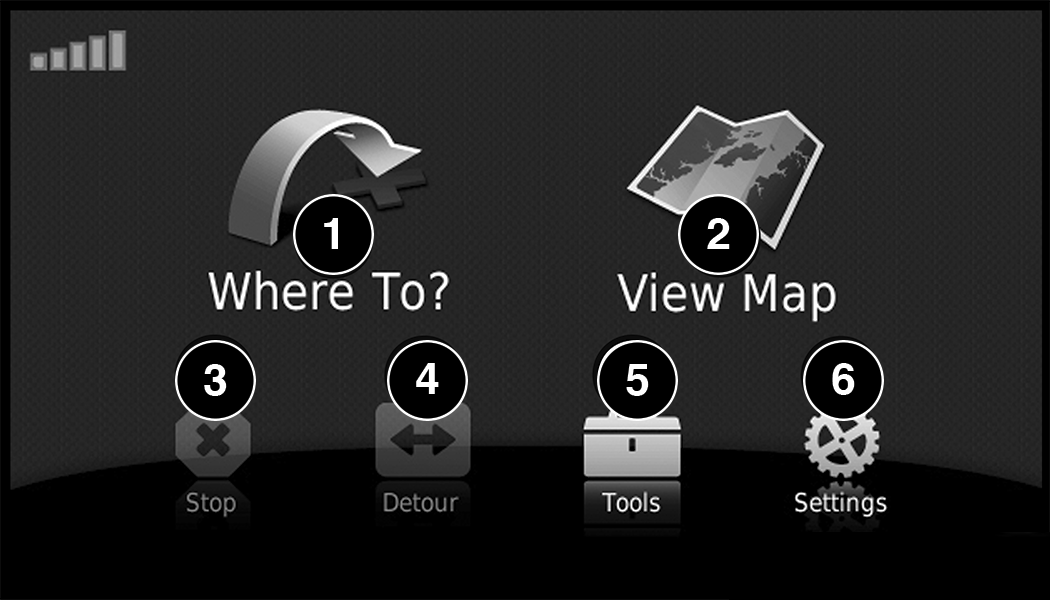
| 1 — Press To Find A Destination |
| 2 — Press To View The Map |
| 3 — Press To Stop A Route |
| 4 — Press To Detour A Route |
| 5 — Press To Open The Menu Of Tools |
| 6 — Press To Open The Menu Of Settings |
USING THE ON-SCREEN BUTTONS
-
Press and hold
 to quickly return to the main menu.
 -
Press
 and
and  to see more choices.
 -
Press and hold
and to scroll faster.
USING THE ON-SCREEN KEYBOARD
-
Press a character on the keyboard to enter a letter or number.
-
Press “Space” to add a space.
-
Press
 to delete a character.
 -
Press and hold
to erase the entire entry. -
Press
 to select the keyboard language mode.
 -
Press
 to enter special characters, such as punctuation marks.
FINDING A POINT OF INTEREST
The detailed maps loaded in your navigation system contain points of interest, such as restaurants, hotels and auto services.
-
From the main menu, press Where To? > Points of Interest.
-
Select a category.
-
If necessary, select a subcategory.
-
Select a destination.
-
Press Go!
FINDING A LOCATION BY SPELLING THE NAME
-
From the main menu, press Where To? > Points of Interest > Spell Name.
-
Enter all or part of the name.
-
Press Done.
-
Select a destination.
-
Press Go!
ADDING POINTS TO THE ACTIVE ROUTE
-
While navigating a route, press
to return to the main menu. -
From the main menu, press Where To?
-
Select a category.
-
If necessary, select a subcategory.
-
Select a destination.
-
Press Go!
-
Press Add as a Via Point.
CHANGING THE DESTINATION OF THE ACTIVE ROUTE
Before you can change destinations you must be navigating a route.
-
Press
to return to the main menu. -
Press Where To?
-
Search for the location.
-
Press Go!
-
Press Set as a New Destination.
TAKING A DETOUR
While navigating a route, you can use detours to avoid obstacles ahead of you, such as construction zones.
Note:
If the route you are currently taking is the only reasonable option, the navigation system might not calculate a detour.
-
While navigating a route, press
. -
From the main menu, press Detour.
STOPPING THE ROUTE
-
While navigating a route, press
. -
From the main menu, press Stop.
FINDING LOCATIONS
The Where To? menu provides several different categories you can use to search for locations. To perform a simple search, see the “Getting Started” section.
FINDING AN ADDRESS
Note:
Depending on the version of the built-in map data on your navigation system, the button names, and the order of steps could be different than the steps below.
-
From the main menu, press Where To? > Address.
-
If necessary, change the state, the country, or the province.
-
Press Spell City.
-
Enter the city/postal code.
Note:
If you are unsure of the city/postal code, press Search All.
-
Press Done.
-
If necessary, select the city/postal code.
Note:
Not all map data provides postal code searching.
-
Enter the number of the address.
-
Press Done.
-
Enter the street name.
-
Press Done.
-
If necessary, select the street.
-
If necessary, select the address.
USING THE GO! PAGE
The Go! page opens when you select a location to navigate to.
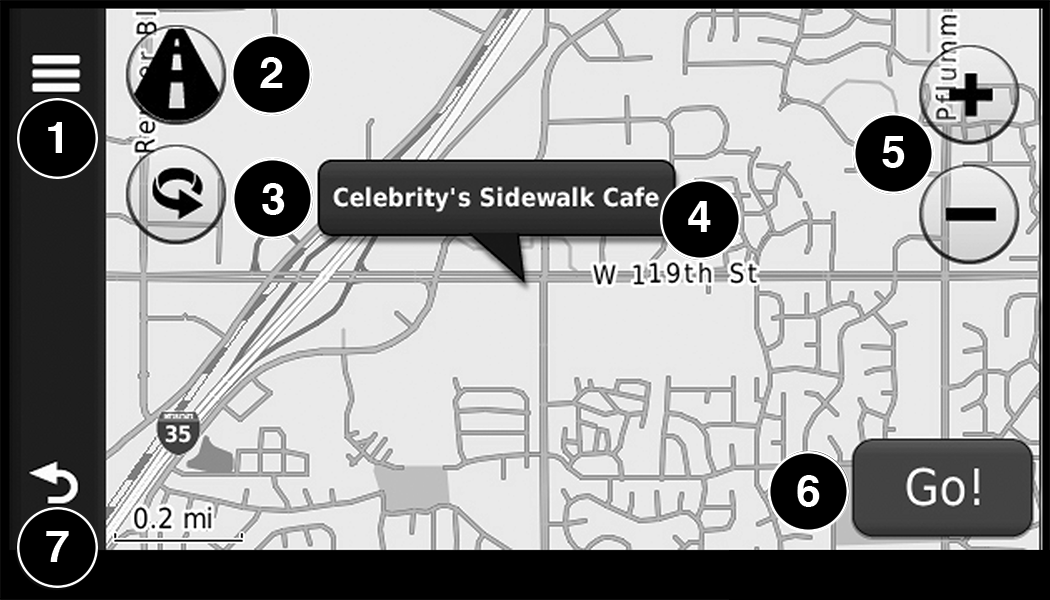
-
Press to call the selected location when your device is connected to phone, or to save the location to your favorites.
-
Press to switch between 2D and 3D view.
-
Press to rotate the view.
-
Press to view more information for the location.
-
Press to zoom in and out.
-
Press to return to the previous page. Press and hold to return to the main menu.
-
Press to create a turn-by-turn route to this location.
SETTING A HOME LOCATION
You can set your home location for the location you return to most often.
-
From the main menu, press Where To? > Go Home.
-
Select Enter My Address, Use My Current Location or Recently Found.
GOING HOME
Before you can navigate to home you must set a home location.
-
From the main menu, press Where To? > Go Home.
EDITING YOUR HOME LOCATION INFORMATION
-
From the main menu, press Where To? > Favorites > Home.
-
Press
 > Edit.
 -
Enter your changes.
-
Press Done.
VIEWING A LIST OF RECENTLY FOUND LOCATIONS
Your navigation system stores the last 50 locations you have found.
-
From the main menu, press Where To? > Recently Found.
CLEARING THE LIST OF RECENTLY FOUND LOCATIONS
From the main menu, press Where To? > Recently Found > > Clear > Yes.
ABOUT FAVORITES
You can save locations in your Favorites so you can quickly find them and create routes to them. Your home location is also stored in Favorites.
SAVING YOUR CURRENT LOCATION TO FAVORITES
-
From the map, press the vehicle icon.
-
Press Save.
-
Enter a name.
-
Press Done.
The location is saved in Favorites.
SAVING LOCATIONS TO FAVORITES
-
Search for the location.
-
From the Go! page, press
> Save > OK.
FINDING FAVORITES
-
From the main menu, press Where To? > Favorites.
-
If necessary, select a category.
-
Select a saved location.
EDITING FAVORITES
-
From the main menu, press Where To? > Favorites.
-
Select a category.
-
Select a favorite.
-
Press the information box.
-
Press
> Edit. -
Select an option:
-
Name
-
Phone Number
-
Categories
-
Change Map Symbol
-
-
Edit the information.
-
Press Done.
PLANNING A TRIP
You can use Trip Planner to create and save a trip with multiple destinations.
-
From the main menu, press Where To? > Trip Planner.
-
Press
 .
. -
Press Select Start Location.
-
Search for a location.
-
Press Select.
-
Press
to add an additional location. -
Press Select.
-
Repeat steps four to six to add additional locations to your trip.
-
Press Next.
-
Enter a name.
-
Press Done.
EDITING A SAVED TRIP
-
From the main menu, press Where To? > Trip Planner.
-
Select a saved trip.
-
Press
-
Select an option:
-
Press Rename Trip to edit the trip name.
-
Press Edit Destinations to add or delete locations.
-
Press Delete Trip to delete the entire trip.
-
Press Optimize Order to arrange your trip locations in the most efficient order.
-
NAVIGATING TO A SAVED TRIP
-
From the main menu, press Where To? > Trip Planner.
-
Select a saved trip.
-
Press Go!
USING THE MAP BUTTONS
-
From the main menu, press Where To? > Browse Map.
-
Press anywhere on the map.
-
Press
 and
and  to zoom in and out.
 -
Press
 to switch between 2D and 3D views.
 -
Press
 to rotate the view.
-
BROWSING THE MAP BY PRESSING THE TOUCHSCREEN
-
Press an area on the map to select a location.
An information box appears next to the location.
-
Press and drag the map to view different parts of the map.
-
Press the map twice to zoom in and center on a location.
FINDING A LOCATION USING THE MAP
-
From the main menu, press Where To? > Browse Map.
-
Press a location.
An information box appears next to the location.
-
Press the information box.
-
Select an option:
-
Press
> Save.
-
-
Press Go!
SETTING A SIMULATED LOCATION
You can use the GPS simulator to select another location, near which you can search for and save points of interest. This may be helpful when planning trips.
-
From the main menu, press Tools > Settings > System > GPS Simulator > On.
-
From the main menu, press Where To? > Browse Map.
-
Press an area on the map.
-
Press
> Set Location.
ENTERING COORDINATES
If you know the geographic coordinates of your destination, you can use your navigation system to navigate to the destination using the latitude and longitude coordinates.
-
From the main menu, press Where To? > Coordinates.
-
Press a field to enter the latitude and longitude data.
-
Press View on Map.
-
Press Go!
CHANGING THE MAP COORDINATE FORMAT
-
From the Home Screen, press Where To? > Coordinates >
> Format. -
Select a format.
ABOUT MAP PAGES
VIEWING THE MAP WHILE NAVIGATING
NOTICE
In no event shall Garmin be liable for any incidental, special, indirect, or consequential damages, including, without limitation, damages for any traffic fines or citations, whether resulting from the use, misuse, or inability to use the product or from defects in the product. Some states do not allow the exclusion of incidental or consequential damages, so the above limitations may not apply to you.
Your route is marked with a magenta line. A checkered flag marks your destination.
As you travel, your navigation system guides you to your destination with voice prompts, arrows on the map, and directions at the top of the map. If you depart from the original route, your navigation system recalculates the route and provides new directions.
A speed limit icon displaying the current speed limit may appear as you travel on major roadways.
USING THE NAVIGATION MAP
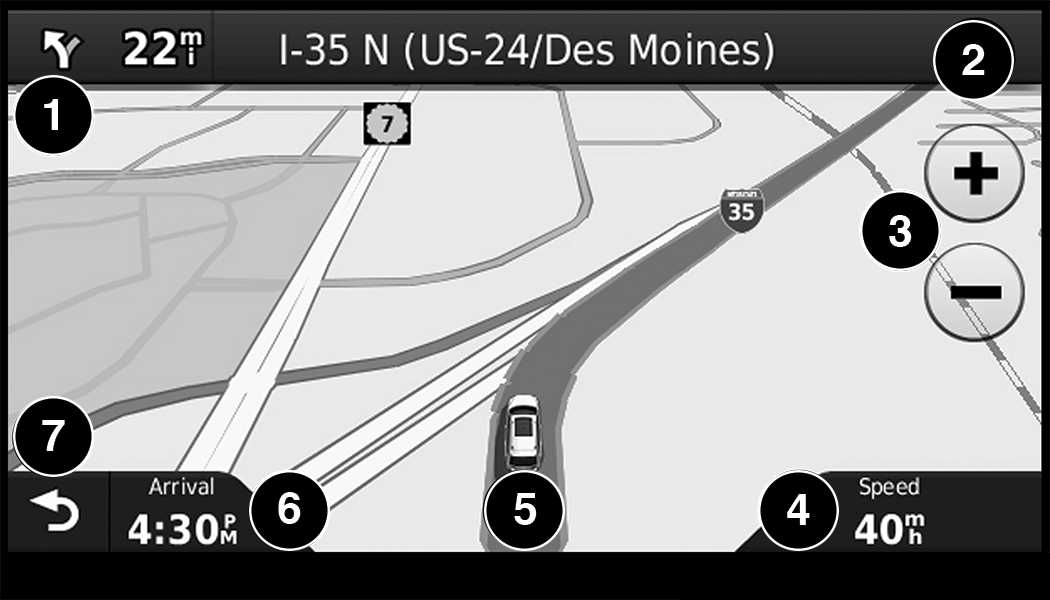
-
Press to view the next turn.
The turn indicator also tells you which lane you should be in to prepare for your next maneuver, when available.
-
Press to view the turn list.
-
Press to zoom in and zoom out.
-
Press to view trip information.
-
Press to view information for the location.
-
Press to display a different data field.
-
Press to return to the main menu.
ABOUT MYTRENDS
When the myTrends feature is enabled, your estimated time of arrival for your frequent destinations, like your workplace, automatically appear in the navigation bar at the top of the map.
When myTrends information appears in the navigation bar, you can press the navigation bar to view route options for the suggested destination.
ENABLING MYTRENDS
From the main menu press Settings > Navigation > myTrends > Enabled.
VIEWING TRIP INFORMATION
The trip information page displays your present speed and provides statistics about your trip.
Note:
If you make frequent stops, leave the navigation system turned on so it can accurately measure elapsed time during the trip.
From the map, press the Speed field.
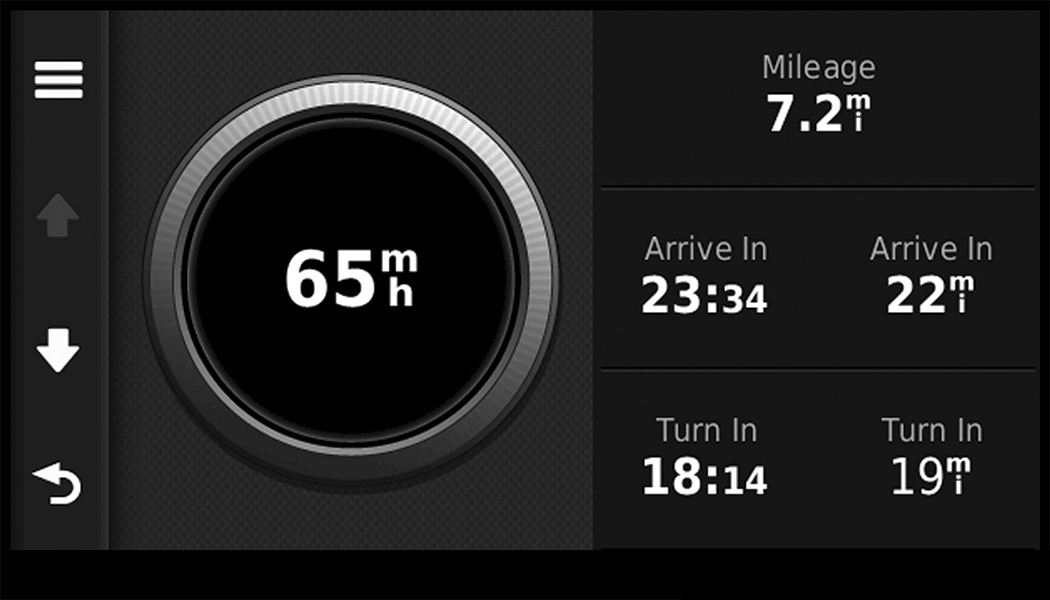
RESETTING TRIP INFORMATION
-
From the map, press the Speed field.
-
Press
. -
Select an option:
-
Press Reset Trip Mileage to reset the information on the trip computer.
-
Press Reset Max. Speed to reset the maximum speed.
-
VIEWING THE TURN LIST
When you are navigating a route, you can view all of the turns for your entire route and the distance between turns.
-
From the map, press the text bar on the top of the map.
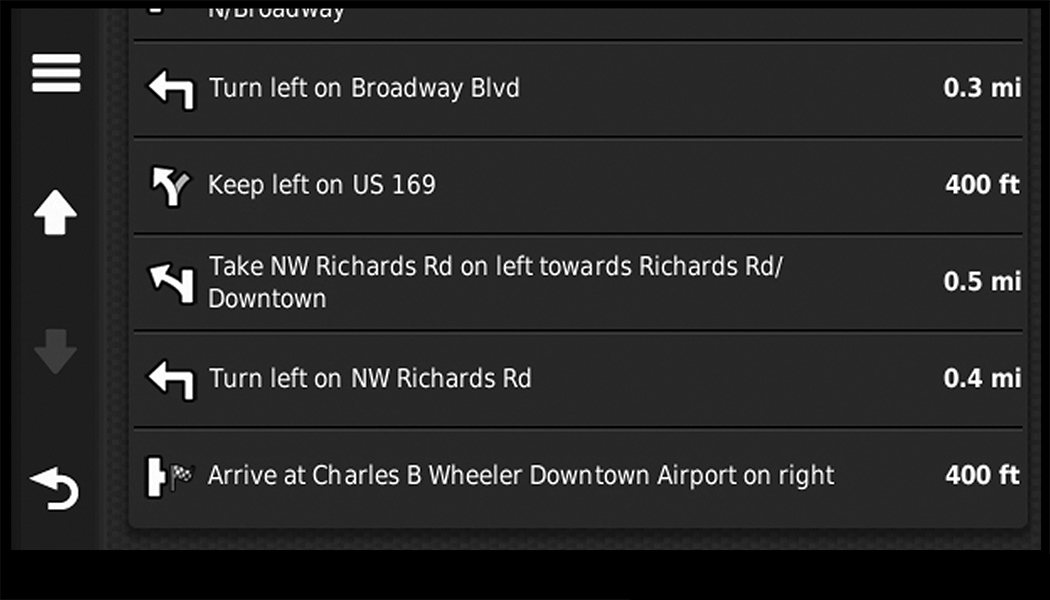
-
Select an option:
-
Select a turn on the list to view the next turn.
-
Press
> Map to view the entire route on the map.
-
VIEWING THE NEXT TURN
Before you can view the next turn you must be navigating a route.
The next turn shows the turn on the map and the distance and time left before you reach the turn.
Press the turn indicator in the top left corner of the map.
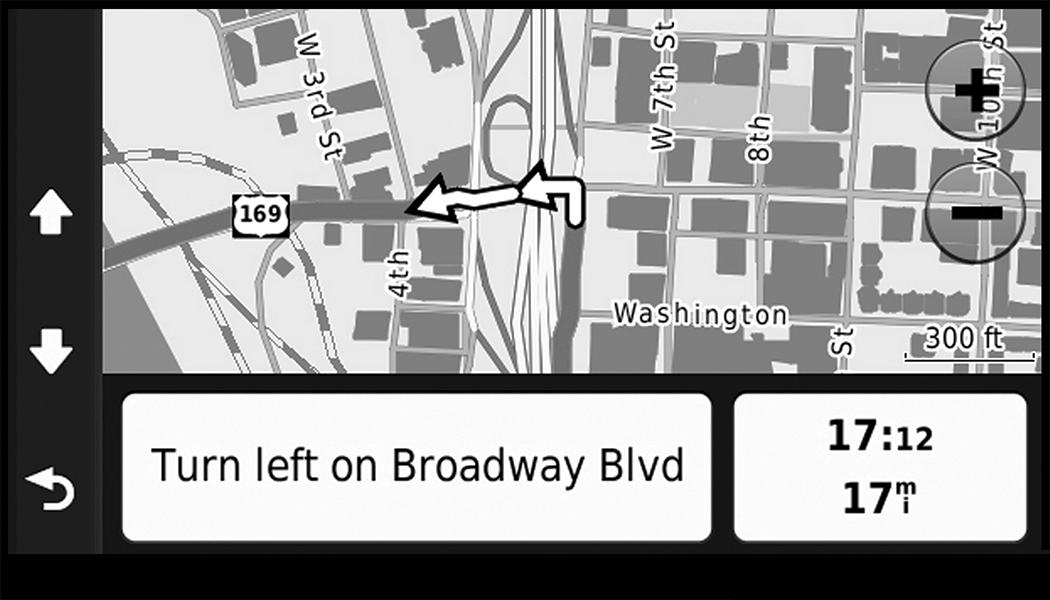
VIEWING THE JUNCTION VIEW
Before you can view the junction view, you must be navigating a route.
The junction view displays a view of some upcoming junctions and in which lane you should be driving.
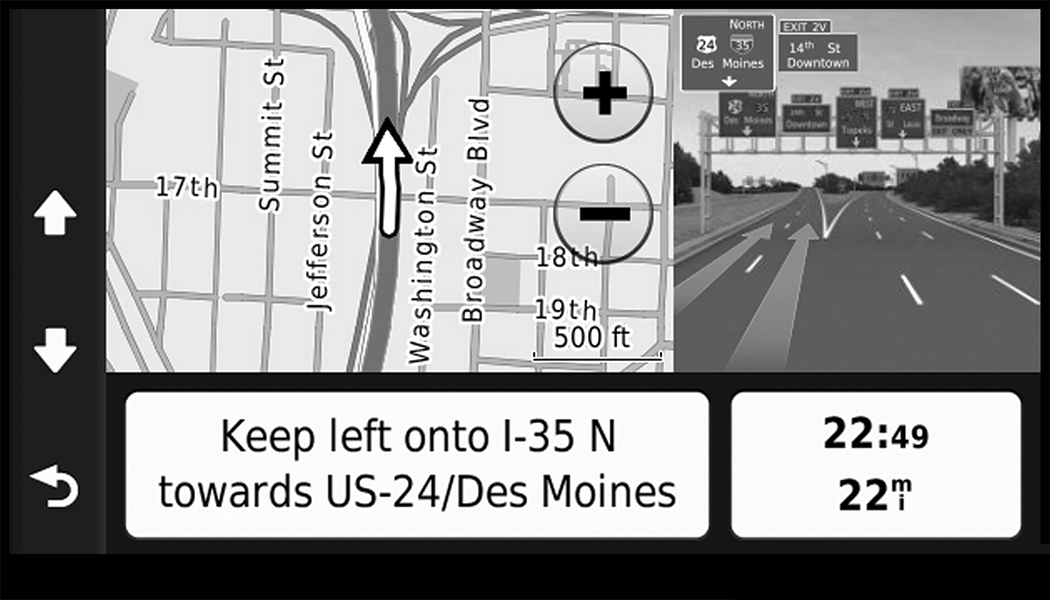
USING THE TOOLS
VIEWING CURRENT LOCATION INFORMATION
Use the Where Am I? page to view information about your current location. This feature is helpful if you need to tell emergency personnel your location.
-
From the main menu, press Tools > Where Am I?
FINDING NEARBY SERVICES
-
From the main menu, press Tools > Where Am I?
-
Press Hospitals, Police Stations or Fuel to view the nearest locations in that category.
USING HELP
From the main menu, press Tools > Help to view information about using your navigation system.
SEARCHING HELP TOPICS
From the main menu, press Tools > Help.
USING THE WORLD CLOCK
-
From the main menu, press Tools > World Clock.
-
Press a city name.
-
Enter a new city name.
-
Press Done.
-
If necessary, select a city.
VIEWING THE WORLD MAP
-
From the main menu press Tools > World Clock >
 .
. -
Nighttime hours appear in the shaded area.
USING THE CALCULATOR
From the main menu press Tools > Calculator.
USING THE UNIT CONVERTER
-
From the main menu press Tools > Unit Converter.
-
Press the box with a unit of measurement listed.
-
Select a unit of measurement.
-
Press Save.
Two units of measurement are listed.
-
Press a unit of measurement to change.
-
Select a unit of measurement.
-
Press Done.
-
Repeat steps five to six, if necessary.
-
Enter a value.
-
Press Done.
SETTING CURRENCY CONVERSION RATES MANUALLY
You can update the currency conversion rates manually so that you are always using the most current rates.
-
From the main menu press Tools > Unit Converter.
-
Press the box with a currency listed.
-
Select Currency.
-
Press Save.
-
Press a currency box.
-
Select the currency you want to update.
-
Repeat steps three to six to select a currency to convert to, if necessary.
-
Press a box under a currency.
-
Enter a new value for the currency.
-
Press Done.
-
Repeat steps eight to nine, if necessary.
CUSTOMIZING THE NAVIGATION SYSTEM
-
From the main menu, press “Settings.”
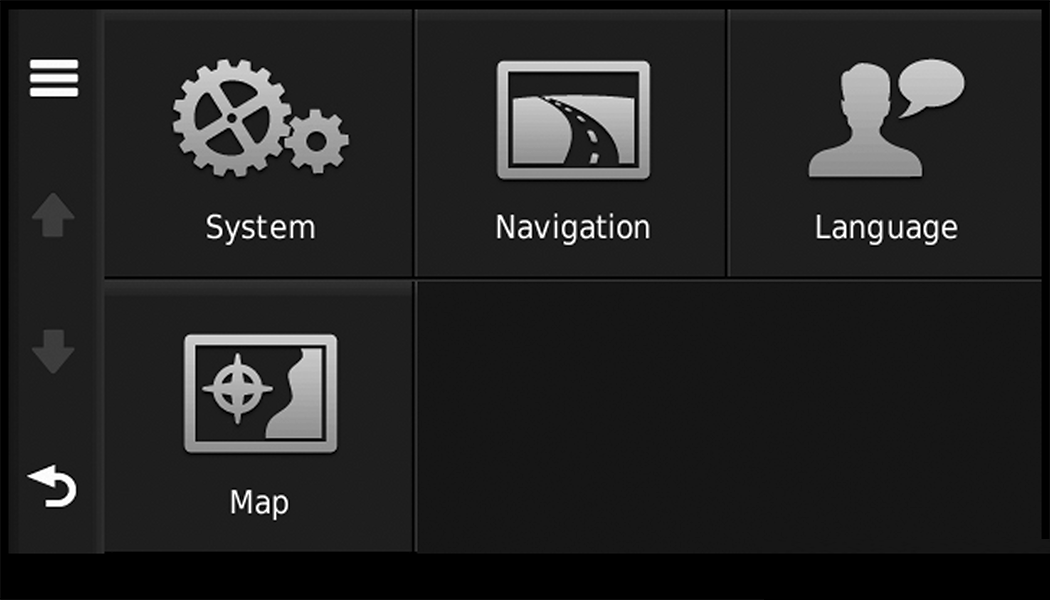
-
Press a setting category.
-
Press the setting to change it.
SYSTEM SETTINGS
From the main menu press Settings > System.
-
GPS Simulator — stops the navigation system from receiving a GPS signal, and saves battery power.
-
About — displays the software version number, the unit ID number and information on several other software features.
Note:
You need this information when you update the system software or purchase additional map data.
RESTORING THE SYSTEM SETTINGS
From the main menu, press Settings > System >  > Restore.
CHANGING THE MAP SETTINGS
From the main menu press Settings > Map.
-
Map Detail — sets the level of detail on the map. More detail may result in slower map drawing.
-
Map View — sets the perspective on the Map page.
-
Map Theme — changes the color of the map data.
-
Map Data Layout — changes the amount of data visible on the map.
-
Vehicle — changes the icon to represent your position on the map.
-
Trip Log
-
Show on Map — displays the path of your travels on the map.
-
Clear Trip Log
-
CHANGING THE MAP PERSPECTIVE
-
From the main menu press Settings > Map > Map View.
-
Select an option:
-
Press Track Up to display the map in two dimensions (2-D), with your direction of travel at the top.
-
Press North Up to display the map in 2-D with North at the top.
-
Press 3-D to display the map in three dimensions.
-
ROUTE PREFERENCES
From the main menu, press Settings > Navigation > Route Preference.
The route calculation is based on road speeds and vehicle acceleration data for a given route.
-
Faster Time — Calculates routes that are faster to drive but can be longer in distance.
-
Shorter Distance — Calculates routes that are shorter in distance but can take more time to drive.
-
Prompted — Select the faster time and shorter distance for your route.
AVOIDING ROAD FEATURES
-
From the main menu press Settings > Navigation > Avoidances.
-
Select the road features to avoid on your routes.
-
Press “Save.”
RESTORING THE ORIGINAL NAVIGATION SETTINGS
From the main menu press Settings > Navigation > > Restore.
LANGUAGE SETTINGS
From the main menu press Settings > Language.
-
Voice Personality — sets the language for voice prompts.
-
Keyboard — sets the language for your keyboard.
-
Keyboard Layout — sets the keyboard layout.
RESTORING THE ORIGINAL LANGUAGE SETTINGS
-
From the main menu press Settings > Language >
> Restore.
RESTORING ALL ORIGINAL SETTINGS
From the main menu, press Settings > > Restore > Yes.
APPENDIX
ABOUT GPS SATELLITE SIGNALS
The navigation system must acquire satellite signals in order to navigate.
When the navigation system has acquired satellite signals, the signal strength bars on the main menu are full . When it loses satellite signals, the bars are clear  .
.
For more information about GPS, go to www.garmin.com/aboutGPS.
UPDATING THE SOFTWARE
To update the navigation system software, you must have a USB mass storage device and an Internet connection.
-
Go to auto-update.garmin.com.
-
Find your model and select Software Updates > Download.
-
Read and accept the terms of the Software License Agreement.
-
Follow the instructions on the Web site to complete the installation of the software update.
UPDATING THE MAP DATA
To update the navigation system map, you must have a USB mass storage device and an Internet connection, or visit your local dealer for assistance. A map update can be purchased once a year.
-
Go to auto-update.garmin.com.
-
Select your vehicle from the drop-down lists.
-
Select Order Map Updates for your unit.
-
Follow the Web site instructions to update your map.
CAUTION
Garmin and FCA US LLC are not responsible for the accuracy of, or the consequences of using, a safety camera database.
Safety camera information is available in some locations. Go to http://www.garmin.com for availability. For these locations, the navigation system includes the locations of hundreds of safety cameras. Your navigation system alerts you when you are approaching a safety camera and can warn you if you are driving too fast. The data is updated at least weekly, so you always have access to the most up-to-date information.
You can purchase a new region or extend an existing subscription at any time. Each region that you purchase has an expiration date.
CUSTOM POIS (POINTS OF INTEREST)
Note:
Custom POI files must be named “poi.gpi”. and located on the USB storage device in a folder named “POI” within a folder named “Garmin” (Garmin/POI/).
You can manually load custom Points Of Interest (POI) databases, available from various companies on the Internet. Some custom POI databases contain alert information for points such as safety cameras and school zones. The navigation system can notify you when you approach one of these points. You are responsible for ensuring that your use of safety camera information is lawful in your area.
CAUTION
Garmin and FCA US LLC are not responsible for the consequences of using custom POI databases, or for the accuracy of custom POI databases.
After downloading your POI database, use the Garmin POI Loader to install the POIs onto a USB mass storage device. Use the USB mass storage device to load the POIs. The POI Loader is available at garmin.com/products/poiloader. Refer to the POI Loader Help file for more information; click Help to open the Help file. The file name can only be POI.gpi. No other file name or extension should be used.
Note:
Each time you load custom POIs to the navigation system, any other custom POIs already saved in the system will be overwritten.
Finding Custom POIs
You can view a list of the custom POIs loaded in your navigation system.
-
Press Where To? > Extras > Custom POIs.
Deleting Custom POIs
-
Press Tools > My Data > Delete Custom POI(s).
-
Press Yes to confirm.
Note:
All custom POIs will be deleted from your navigation system.
Saving Trip Logs
Trip logs are recorded while you navigate a route.
SIRIUSXM® TRAVEL LINK (RADIO 430 NAV ONLY)
Now, in addition to delivering over 130 channels of the best sports, entertainment, talk and 100% commercial-free music, SiriusXM® now offers premium infotainment services that work in conjunction with compatible navigation systems.
To access SiriusXM® Travel Link, push the Menu button then press the Travel Link button.
SiriusXM® Travel Link brings a wealth of useful information into your vehicle and right to your fingertips.
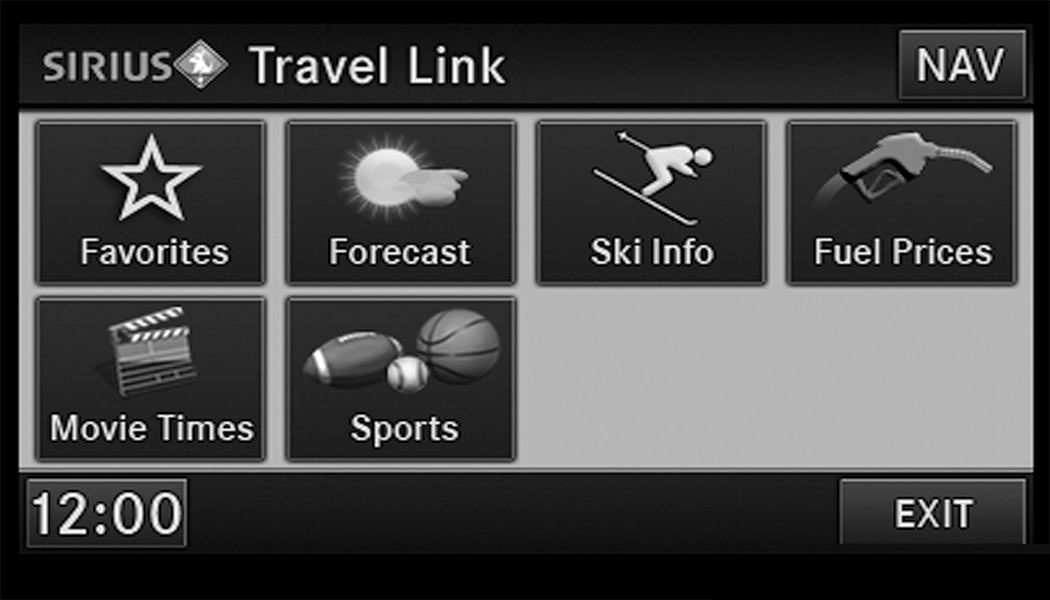
Note:
SiriusXM® Travel Link data services subscription is separate from your SiriusXM® Satellite Radio (audio) subscription.
WEATHER
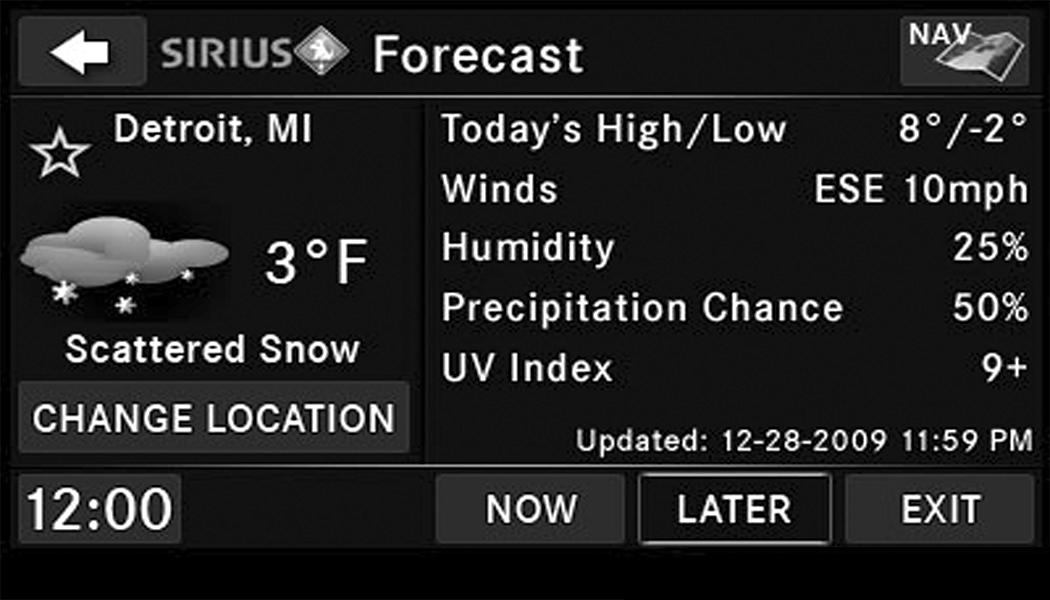
-
View detailed current conditions at your current location.
-
Check extended 12-hour and 5-day forecasts.
-
Store a favorite location for quick access to weather conditions and forecasts.
SKI INFO
-
View ski and snowboarding conditions at ski resorts.
-
Store a favorite location for quick access to snow conditions.
FUEL PRICES
-
Check detailed price information for fuel stations near your current location.
-
Sort the list of closest fuel stations by price, distance or alphabetically.
-
Route to selected fuel station.
-
Store a favorite fuel station for quick access to pricing.
MOVIE LISTINGS
-
Check which movies are playing at theaters near your current location.
-
Sort the list of theaters by distance or alphabetically.
-
Show movie titles, start times, ratings, run length, and summaries.
-
Store a favorite theater for quick access to schedules.
SPORTS SCORES
-
View scores and upcoming events for all major sports.
-
Store your favorite teams for quick access to the scores and schedules.
Note:
SiriusXM® Travel Link data services subscription is separate from your SiriusXM® Satellite Radio (audio) subscription.
CAUTION:
Neither SiriusXM® nor FCA US LLC is responsible for any errors in accuracies in the SiriusXM® data services or its use in vehicles.
SiriusXM® and all related marks and logos are trademarks of SiriusXM® Radio Inc. and its subsidiaries. SiriusXM® Radio requires a subscription, sold separately after trial subscription included with vehicle purchase. Prices and programming are provided by SiriusXM® and are subject to change. Subscriptions governed by Terms & Conditions available at www.sirius.com/serviceterms. SiriusXM® Radio U.S. service only available to those at least 18 years of age in the 48 contiguous United States, D.C., & PR. Visit www.sirius.com/TravelLink for more information on SIRIUS Travel Link.
END-USER LICENSE AGREEMENT
Software License Agreement
BY USING THE NAVIGATION SYSTEM, YOU AGREE TO BE BOUND BY THE TERMS AND CONDITIONS OF THE FOLLOWING SOFTWARE LICENSE AGREEMENT. PLEASE READ THIS AGREEMENT CAREFULLY.
Garmin® Ltd. and its subsidiaries (“Garmin®”) grant you a limited license to use the software embedded in this device (the “Software”) in binary executable form in the normal operation of the product. Title, ownership rights, and intellectual property rights in and to the Software remain in Garmin® and/or its third-party providers.
You acknowledge that the Software is the property of Garmin® and/or its third-party providers and is protected under the United States of America copyright laws and international copyright treaties. You further acknowledge that the structure, organization, and code of the Software, for which source code is not provided, are valuable trade secrets of Garmin® and/or its third-party providers and that the Software in source code form remains a valuable trade secret of Garmin® and/or its third-party providers. You agree not to decompile, disassemble, modify, reverse assemble, reverse engineer, or reduce to human readable form the Software or any part thereof or create any derivative works based on the Software. You agree not to export or re-export the Software to any country in violation of the export control laws of the United States of America or the export control laws of any other applicable country.
NAVTEQ End-user License Agreement
The software embedded in your Garmin® product (the “Software”) is owned by Garmin® Ltd. or its subsidiaries (“Garmin®”). The third-party map data embedded in or accompanying your Garmin® product (the “Map Data”) is owned by NAVTEQ North America LLC and/or its affiliates (“NAVTEQ”) and is licensed to Garmin®. Garmin® also licenses information, text, images, graphics, photographs, audio, video, images and other applications and data from third party data providers (“Third Party Content Data”). The Map Data and Third Party Content Data are collectively the “Data”. Both the Software and Data are protected under copyright laws and international copyright treaties. The Software and Data are licensed, not sold. The Software and Data are provided under the following license and are subject to the following terms and conditions which are agreed to by End User (“you” or “your”), on the one hand, and Garmin® and its licensors (including their licensors and suppliers) and affiliated companies on the other hand.
IMPORTANT: CAREFULLY READ THIS LICENSE BEFORE USING THIS PRODUCT. INSTALLING, COPYING, OR OTHERWISE USING THIS PRODUCT INDICATES YOUR ACKNOWLEDGMENT THAT YOU HAVE READ THIS LICENSE AND AGREE TO ITS TERMS. IF YOU DO NOT AGREE, RETURN THE COMPLETE PRODUCT WITHIN 7 DAYS OF THE DATE YOU ACQUIRED IT (IF PURCHASED NEW) FOR A FULL REFUND TO THE DEALER FROM WHICH YOU PURCHASED THIS PRODUCT.
License Terms And Conditions
Garmin® (“we” or “us”) provides you with storage media containing the computer Software (the “Software”) and the embedded or accompanying Data, including any “online” or electronic documentation and printed materials (together called the “Product” for purposes of this License Agreement), and grants you a limited, non-exclusive license to use the Product in accordance with the terms of this Agreement. You agree to use this Data together with the Garmin® product for solely personal, or if applicable, for use in your business’ internal operations, and not for service bureau, time-sharing, resale or other similar purposes. Accordingly, but subject to the restrictions set forth in the following paragraphs, you may copy this Data only as necessary for your use to (i) view it, and (ii) save it, provided that you do not remove any copyright notices that appear and do not modify the Software or Data in any way. You agree not to otherwise reproduce, copy, modify, decompile, disassemble, reverse engineer or create derivative works of any portion of the Product, and may not transfer or distribute it in any form, for any purpose, except to the extent permitted by mandatory laws. Garmin® also reserves the right to discontinue offering any Data supplied by any third party supplier if such supplier ceases to supply such content or Garmin’s® contract with such supplier terminates for any reason.
Restrictions. Except where you have been specifically licensed to do so by Garmin®, and without limiting the preceding paragraph, you may not use this Data with any products, systems, or applications installed or otherwise connected to or in communication with vehicles, and which are capable of dispatch, fleet management or similar applications where the Data is used by a central control center in dispatching a fleet of vehicles. In addition, you are prohibited from renting or leasing the Data or the Garmin® products containing the Data to any other person or third party. Only those rental car companies that are specifically authorized by Garmin® in writing to rent Garmin® products containing the Data to their rental customers are permitted to rent out such products.
nüMaps Lifetime. If you purchase a nüMaps Lifetime subscription (sold separately) or if your Garmin® product comes bundled with a nüMaps Lifetime subscription, you will receive up to four (4) Map Data updates per year, when and as such updates are made available on Garmin’s® website, for one (1) compatible Garmin® product until your product’s useful life expires or Garmin® no longer receives Map Data from NAVTEQ, whichever is shorter. A product’s “useful life” means the period during which the product (a) has sufficient memory capacity and other required technical capabilities to utilize current map data and (b) is capable of operating as intended without major repairs. A product will be deemed to be out of service and its useful life to be ended if no updates have been downloaded for such product for a period of 24 months or more. Unless otherwise stated, the updates you receive under the subscription will be updates to the same geographic Map Data originally included with your Garmin® product when originally purchased. In some instances, your Garmin® product might not have sufficient memory remaining for you to load an update to the same Map Data originally included with your Garmin® product, in which case you will need to either (a) select reduced Map Data coverage for your updates, or (b) purchase separately a microSD card or a SD card (if and as applicable to your Garmin® product) and load all or a portion of the Map Data coverage for your updates to the card and insert the card into the microSD card or SD card slot contained in your Garmin® product. If neither of the measures in (a) or (b) can be used to address your product’s lack of sufficient remaining memory, then Garmin® may conclude that the “useful life” of your product has expired. Garmin® may terminate your nüMaps Lifetime subscription at any time if you violate any of the terms of this Agreement or your subscription. Your nüMaps Lifetime subscription may not be transferred to another person or another Garmin® product.
No Warranty. This Product (including the Data) is provided to you “as is,” and you agree to use it at your own risk. Garmin® and its licensors (and their licensors and suppliers) make no guarantees, representations or warranties of any kind, express or implied, arising by law or otherwise, including but not limited to, content, quality, accuracy, completeness, effectiveness, reliability, merchantability, fitness for a particular purpose, usefulness, use or results to be obtained from the Product, or that the Data or server will be uninterrupted or error-free.
Disclaimer of Warranty. GARMIN AND ITS LICENSORS (INCLUDING THEIR LICENSORS AND SUPPLIERS) DISCLAIM ANY WARRANTIES, EXPRESS OR IMPLIED, OF QUALITY, PERFORMANCE, MERCHANTABILITY, FITNESS FOR A PARTICULAR PURPOSE OR NONINFRINGEMENT. NO ORAL OR WRITTEN ADVICE OR INFORMATION PROVIDED BY GARMIN OR ITS SUPPLIERS AND LICENSORS SHALL CREATE A WARRANTY, AND YOU ARE NOT ENTITLED TO RELY ON ANY SUCH ADVICE OR INFORMATION. THIS DISCLAIMER OF WARRANTIES IS AN ESSENTIAL CONDITION OF THIS AGREEMENT. Some States, Territories and Countries do not allow certain warranty exclusions, so to that extent the above exclusion may not apply to you.
Disclaimer of liability. GARMIN AND ITS LICENSORS (INCLUDING THEIR LICENSORS AND SUPPLIERS) SHALL NOT BE LIABLE TO YOU: IN RESPECT OF ANY CLAIM, DEMAND OR ACTION, IRRESPECTIVE OF THE NATURE OF THE CAUSE OF THE CLAIM, DEMAND OR ACTION ALLEGING ANY LOSS, INJURY OR DAMAGES, DIRECT OR INDIRECT, WHICH MAY RESULT FROM THE USE OR POSSESSION OF THE INFORMATION; OR FOR ANY LOSS OF PROFIT, REVENUE, CONTRACTS OR SAVINGS, OR ANY OTHER DIRECT, INDIRECT, INCIDENTAL, SPECIAL OR CONSEQUENTIAL DAMAGES ARISING OUT OF YOUR USE OF OR INABILITY TO USE THIS INFORMATION, ANY DEFECT IN THE DATA OR INFORMATION, OR THE BREACH OF THESE TERMS OR CONDITIONS, WHETHER IN AN ACTION IN CONTRACT OR TORT OR BASED ON A WARRANTY, EVEN IF GARMIN OR ITS LICENSORS HAVE BEEN ADVISED OF THE POSSIBILITY OF SUCH DAMAGES. GARMIN’S AND ITS LICENSORS’ TOTAL AGGREGATE LIABILITY WITH RESPECT TO ITS OBLIGATIONS UNDER THIS AGREEMENT OR OTHERWISE WITH RESPECT TO THE GARMIN PRODUCT OR THE DATA SHALL NOT EXCEED $1.00. Some States, Territories and Countries do not allow certain liability exclusions or damages limitations, so to that extent the above may not apply to you.
Disclaimer of Endorsement. Reference to any products, services, processes, hypertext links to third parties or other Data by trade name, trademark, manufacturer, supplier or otherwise does not necessarily constitute or imply its endorsement, sponsorship or recommendation by Garmin® or its licensor. Product and service information are the sole responsibility of each individual vendor. The NAVTEQ name and logo, the NAVTEQ and NAVTEQ ON BOARD trademarks and logos, and other trademarks and trade names owned by NAVTEQ North America LLC may not be used in any commercial manner without the prior written consent of NAVTEQ.
Export Control. You agree not to export from anywhere any part of the Data provided to you or any direct product thereof except in compliance with, and with all licenses and approvals required under, applicable export laws, rules and regulations.
Indemnity. You agree to indemnify, defend and hold Garmin® and its licensors (including their respective licensors, suppliers, assignees, subsidiaries, affiliated companies, and the respective officers, directors, employees, shareholders, agents and representatives of each of them) free and harmless from and against any liability, loss, injury (including injuries resulting in death), demand, action, cost, expense, or claim of any kind or character, including but not limited to attorney’s fees, arising out of or in connection with any use or possession by you of the Product (including the Data).
Canadian Map Data. The Map Data for Canada may include or reflect data of licensors, including Her Majesty and Canada Post. Such data is licensed on an “as is” basis. The licensors, including Her Majesty and Canada Post, make no guarantees, representations or warranties respecting such data, either express or implied, arising by law or otherwise, including but not limited to, effectiveness, completeness, accuracy or fitness for a particular purpose. The licensors, including Her Majesty and Canada Post, shall not be liable in respect of any claim, demand or action, irrespective of the nature of the cause of the claim, demand or action alleging any loss, injury or damages, direct or indirect, which may result from the use or possession of the data or the Map Data. The licensors, including Her Majesty and Canada Post, shall not be liable in any way for loss of revenues or contracts, or any other consequential loss of any kind resulting from any defect in the data or the Map Data. You shall indemnify and save harmless the licensors, including Her Majesty the Queen, the Minister of Natural Resources of Canada and Canada Post, and their officers, employees and agents from and against any claim, demand or action, irrespective of the nature of the cause of the claim, demand or action, alleging loss, costs, expenses, damages or injuries (including injuries resulting in death) arising out of the use or possession of the data or the Map Data. The terms contained in this Section are in addition to all of the rights and obligations of the parties under the Agreement. To the extent that any of the provisions of this Section are inconsistent with, or conflict with, any other provisions of the Agreement, the provisions of this Section shall prevail.
United States Map Data. NAVTEQ holds a non-exclusive license from the United States Postal Service to publish and sell ZIP+4 information. ©United States Postal Service 2010. Prices are not established, controlled or approved by the United States Postal Service. The following trademarks and registrations are owned by the USPS: United States Postal Service, USPS, and ZIP+4.
Canadian Map Data. Map Data for Canada includes information taken with permission from Canadian authorities, including © Her Majesty, © Queen's Printer for Ontario, © Canada Post, GeoBase, © Department of Natural Resources Canada. All rights reserved.
Australian Map Data. Map Data for Australia is based on data NAVTEQ has licensed from PSMA Australia Limited (www.psma.com.au). In addition, the Product incorporates data which is © 2019 Telstra Corporation Limited, GM Holden Limited, Intelematics Australia Pty Ltd, Sentinel Content Pty Limited and Continental Pty Ltd. If your Product uses RDS-TMC Codes contained in the Map Data, the traffic location codes are © 2019 Telstra Corporation Limited and its licensors.
Term. This Agreement is effective until such time as (i) if applicable, your subscription term is either terminated (by you or by Garmin®) or expires, or (ii) Garmin® terminates this Agreement for any reason, including, but not limited to, if Garmin® finds that you have violated any of the terms of this Agreement. In addition, this Agreement shall terminate immediately upon the termination of an agreement between Garmin® and any third party from whom Garmin® licenses the Data.
Entire Agreement. These terms and conditions constitute the entire agreement between Garmin (and its licensors, including their licensors and suppliers) and you pertaining to the subject matter hereof, and supersedes in their entirety any and all written or oral agreements previously existing between us with respect to such subject matter.
Governing Law.
(a) For European Union NAVTEQ Data
The above terms and conditions shall be governed by the laws of the Netherlands, without giving effect to (i) its conflict of laws provisions, or (ii) the United Nations Convention for Contracts for the International Sale of Goods, which is explicitly excluded. You agree to submit to the jurisdiction of the Netherlands for any and all disputes, claims and actions arising from or in connection with the NAVTEQ Data provided to you hereunder.
(b) For North American NAVTEQ Data and other non-European Union NAVTEQ Data
The above terms and conditions shall be governed by the laws of Illinois, without giving effect to (i) its conflict of laws provisions, or (ii) the United Nations Convention for Contracts for the International Sale of Goods, which is explicitly excluded. You agree to submit to the jurisdiction of Illinois for any and all disputes, claims and actions arising from or in connection with the NAVTEQ Data provided to you hereunder.
(c) For disputes, claims and actions not related to the NAVTEQ Data
The above terms and conditions shall be governed by the laws of Kansas, without giving effect to (i) its conflict of laws provisions, or (ii) the United Nations Convention for Contracts for the International Sale of Goods, which is explicitly excluded. You agree to submit to the jurisdiction of Kansas for any and all disputes, claims and actions arising from or in connection with the Data provided to you hereunder.
Government End Users. If End User is an agency, department, or other entity of the United States Government, or funded in whole or in part by the U.S. Government, then use, duplication, reproduction, release, modification, disclosure or transfer of the Product and accompanying documentation is subject to restrictions as set forth in DFARS 252.227-7014(a)(1) (JUN 1995) (DOD commercial computer software definition), DFARS 27.7202-1 (DOD policy on commercial computer software), FAR 52.227-19 (JUN 1987) (commercial computer software clause for civilian agencies), DFARS 252.227-7015 (NOV 1995) (DOD technical data – commercial items clause); FAR 52.227-14 Alternates I, II, and III (JUN 1987) (civilian agency technical data and noncommercial computer software clause); and/or FAR 12.211 and FAR 12.212 (commercial item acquisitions), as applicable. In case of conflict between any of the FAR and DFARS provisions listed herein and this License, the construction that provides greater limitations on the Government’s rights shall control. The contractor/manufacturer is Garmin® International, Inc., 1200 East 151st Street, Olathe, KS 66062, USA and NAVTEQ North America LLC, 425 West Randolph Street, Chicago, Illinois 60606 USA.
Garmin® is a trademark of Garmin® Ltd. or its subsidiaries, registered in the USA and other countries. These trademarks may not be used without the express permission of Garmin®.
NAVTEQ is a trademark in the U.S. and other countries. All other company names and trademarks mentioned or referenced in this documentation are the properties of their respective owners. All rights reserved.
DMTI Spatial, Inc. End User License Agreement
The software embedded in your Garmin® product is owned by Garmin® Ltd. or its subsidiaries (“Garmin®”). The third-party postal code data (the “Licensed Product”) embedded in or accompanying your Garmin® product is owned by DMTI Spatial, Inc. and is licensed to Garmin®. Both the software and Licensed Product are protected under copyright laws and international copyright treaties.
THIS is a legal Agreement between you, the end user, and DMTI Spatial, Inc. BY LOADING THE PRODUCT(S) WITH THIS AGREEMENT YOU ARE AGREEING TO BE BOUND BY THE TERMS OF THIS AGREEMENT. IF YOU DO NOT AGREE TO THE TERMS OF THIS AGREEMENT, PROMPTLY (within 7 days of purchase) RETURN THE PRODUCTS AND ANY ACCOMPANYING ITEMS (including written materials) TO Garmin® INTERNATIONAL, INC. CUSTOMER SERVICE, 1200 EAST 151ST STREET, OLATHE, KANSAS 66062, FOR A REFUND.
DMTI Spatial hereby grants to you a non-exclusive, non-transferable license to use the data contained on the media in this package (the “Licensed Product”) solely for personal non-commercial use or internal use in your business, on a single computer, Pocket PC, or Palm device in conjunction with Garmin® software, and with compatible Garmin® products that you personally own. Your use of the data is subject to the following terms and conditions:
You acknowledge that the Licensed Product(s) belong to DMTI Spatial and its third party supplier, and that the Licensed Product(s) are copyrighted. Unauthorized copying of the Licensed Product(s), is expressly forbidden and you may be held legally responsible for copyright infringement which is caused or encouraged by your failure to abide by the terms of this agreement. You may make one archival copy of the Licensed Product(s), solely for your own use, subject to the following restrictions: (1) The archival copy must be treated in the same way as the original copy; (2) No copy may be used while any other copy is in use. If you make an archival copy of the Licensed Product(s), you must include on it the copyright notice that is on the original media.
You may not reproduce, sell, rent, lease, loan, distribute or sublicense the Licensed Product(s) or otherwise transfer the Licensed Product(s) to any third party, use the Licensed Product for commercial purposes except for internal use in your business, decompile, disassemble, reverse-engineer the Licensed Product(s), or use the Licensed Product to create any derived product for any of these prohibited purposes. You may not place the Licensed Product(s) on the Internet without a prior written agreement with DMTI Spatial.
In no event shall DMTI Spatial or its third party supplier(s) be liable to you or your organization for any indirect damages including any lost profits, lost savings, interruption of business, loss of business opportunities or other incidental or consequential damages, arising out of your possession, use of, or inability to use the Licensed Product(s), even if DMTI Spatial, its third party supplier(s), or any authorized dealer, has been advised of the possibility of the damages, or for any claim by any other party. In no event shall DMTI Spatial have any liability for damage in excess of the license fee paid for the Licensed Product(s).
You shall indemnify and hold DMTI Spatial, its third party supplier(s) and their officers, employees and agents, harmless from and against any claim, demand or action, irrespective of the nature of the claim, demand or action, alleging loss, costs, damages, expenses, or injury (including injury from death) resulting from your authorized or unauthorized, use, possession, modification, or alteration of the Licensed Product(s).
THE LICENSED PRODUCT(S) AND THE ASSOCIATED WRITTEN MATERIALS IN CONNECTION THEREWITH ARE PROVIDED “AS IS” WITHOUT WARRANTY OF ANY KIND, EITHER EXPRESSED OR IMPLIED, ARISING BY LAW OR OTHERWISE, INCLUDING BUT NOT LIMITED TO WARRANTIES OF EFFECTIVENESS, COMPLETENESS, ACCURACY, MERCHANTABILITY OR FITNESS FOR A PARTICULAR PURPOSE. THE ENTIRE RISK AS TO THE QUALITY AND PERFORMANCE OF THE LICENSED PRODUCT(S) IS WITH YOU, THE END USER. NO ORAL OR WRITTEN ADVICE GIVEN BY DMTI SPATIAL OR ITS DEALERS, DISTRIBUTORS, AGENTS OR EMPLOYEES CREATES A WARRANTY OR IN NAY WAY INCREASES DMTI SPATIAL’S LIABILITY AND YOU MAY NOT RELY ON ANY SUCH INFORMATION OR ADVICE.
No statement or recommendation made or assistance given by DMTI Spatial or by its representatives or employees shall constitute a waiver by DMTI Spatial or any of the provisions herein. Nor does or will DMTI Spatial warrant any services it may provide in connection with the use of the Licensed product(s), to include any assistance, training, or other consultation with you.
This license is effective until terminated. This license will terminate automatically without notice from DMTI Spatial if you fail to comply with any provision of this License Agreement. Upon termination, you shall destroy or return the Licensed Product(s) including any written materials and all copies of the Licensed Product(s) and any written materials in connection therewith have been destroyed or returned to DMTI Spatial.
This Agreement shall be governed by the laws of the Province of Ontario.
©2007 DMTI Spatial Inc. (except for data licensed from third parties).
DMTI Spatial is an authorized user and distributor of selected Statistics Canada Computer files under Licensing Agreement 6230.
© Copyright, HER MAJESTY THE QUEEN IN RIGHT OF CANADA, as represented by the Minister of Industry, Statistics Canada 1996.
Digital Topographic Data produced under license from Her Majesty the Queen in Right of Canada, with permission of Natural Resources Canada.
Governing Law. The above terms and conditions shall be governed by the laws of the State of Illinois, without giving effect to (i) its conflict of laws provisions, or (ii) the United Nations Convention for Contracts for the International Sale of Goods, which is explicitly excluded. You agree to submit to the jurisdiction of the State of Illinois for any and all disputes, claims and actions arising from or in connection with the Traffic Data provided to you hereunder.
Government End Users. If the Traffic Data is being acquired by or on behalf of the United States government or any other entity seeking or applying rights similar to those customarily claimed by the United States government, this Data is a “commercial item” as that term is defined at 48 C.F.R. (“FAR”) 2.101, is licensed in accordance with this Agreement, and the Traffic Data delivered or otherwise furnished shall be marked and embedded as appropriate with the following “Notice of Use,” and shall be treated in accordance with such Notice:
Notice of Use
Contractor (Manufacturer/ Supplier) Name: NAVTEQ
Contractor (Manufacturer/supplier) Address: 425 West Randolph Street, Chicago, Illinois 60606.
This Data is a commercial item as defined in FAR 2.101 and is subject to the NAVTEQ Traffic End User License Agreement under which this Data was provided.
© 2019 NAVTEQ; © 2019 Traffic.com – All rights reserved.
If the Contracting Officer, federal government agency, or any federal official refuses to use the legend provided herein, the Contracting Officer, federal government agency, or any federal official must notify NAVTEQ prior to seeking additional or alternative rights in the Traffic Data.
NAVTEQ and Traffic.com are trademarks in the U.S. and other countries. © 2019 NAVTEQ; © 2019 Traffic.com. All rights reserved.
HD Radio™ Technology manufactured under license from iBiquity Digital Corporation. U.S. and Foreign Patents. HD Radio™ and the HD, HD Radio™, and "Arc" logos are proprietary trademarks of iBiquity Digital Corp.
Garmin® is a trademark of Garmin® Ltd. or its subsidiaries, registered in the USA and other countries. This trademark may not be used without the express permission of Garmin®. All other company names and trademarks mentioned or referenced in this documentation are the properties of their respective owners. All rights reserved.
Download Manual