Instrument cluster display
Your vehicle is equipped with an instrument cluster display, which offers useful information to the driver. With the ignition in the OFF position (and the key removed, for vehicles with mechanical key), opening/closing of a door will activate the display for viewing, and display the total miles or kilometers in the odometer. Your instrument cluster display is designed to display important information about your vehicle’s systems and features. Using a driver interactive display located on the instrument panel, your instrument cluster display can show you how systems are working and give you warnings when they are not. The steering wheel mounted controls allow you to scroll through and enter the main menus and submenus. You can access the specific information you want and make selections and adjustments.
INSTRUMENT CLUSTER DISPLAY LOCATION AND CONTROLS
The vehicle’s instrument cluster is equipped with an instrument cluster display, which offers useful information to the driver. With the ignition in the OFF position, opening/closing of a door will activate the instrument cluster display for viewing, and display the total miles or kilometers in the odometer.
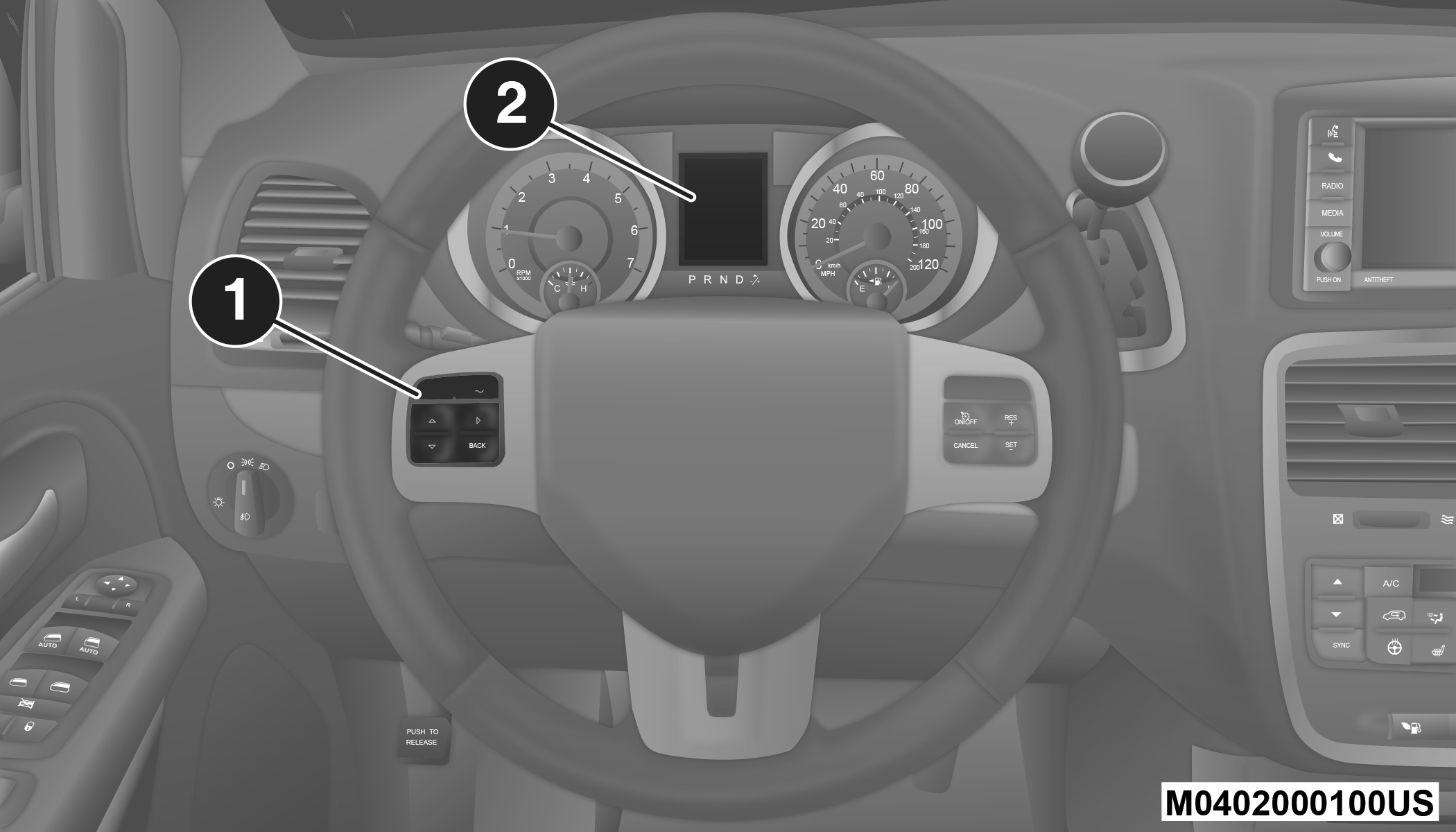
Instrument Cluster Display
| 1 – Instrument Cluster Display Controls |
| 2 – Instrument Cluster Display Screen |
The instrument cluster display menu items consists of the following:
-
Fuel Economy
-
Vehicle Speed
-
Trip Info
-
Tire Pressure
-
Vehicle Info
-
Messages
-
Units
-
System Setup (Personal Settings)
-
Turn Menu Off
The system allows the driver to select information by pushing the following buttons mounted on the steering wheel:
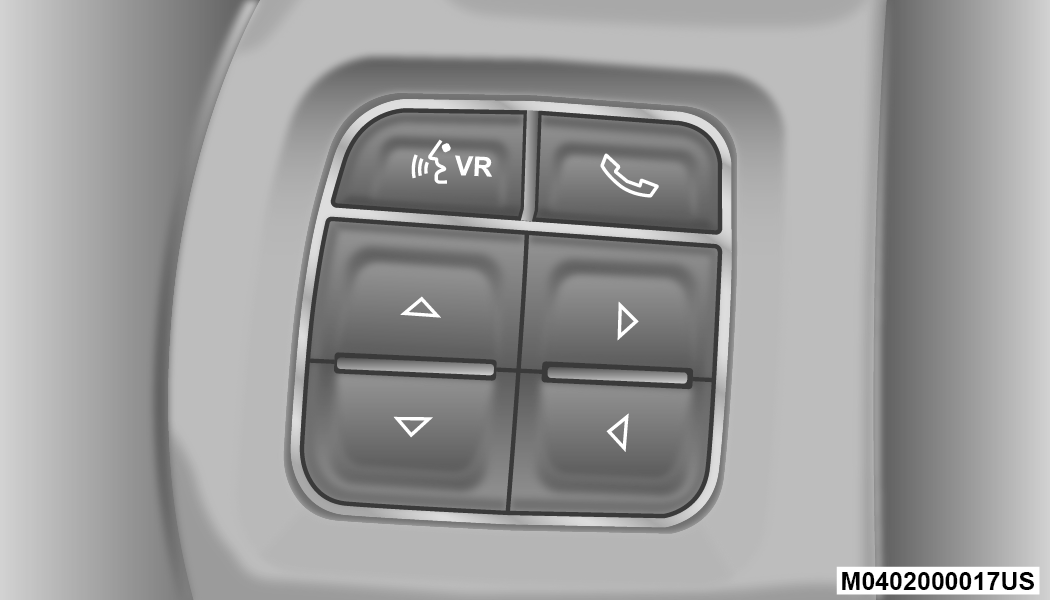
Instrument Cluster Display Steering Wheel Buttons
- Up Button

Push and release the up button to scroll upward through the main menu items (Fuel Economy, Vehicle Info, Tire PSI, Cruise, Messages, Units, System Setup).
- Down Button

Push and release the down button to scroll downward through the main menu items.
- Right Button

The right button allows access to information in instrument cluster display submenus, selects some feature settings, and resets some instrument cluster display features. The instrument cluster display prompts the driver when the right button can be used by displaying the right arrow graphic.
Once the right button has been selected for the desired submenu list, follow the instrument cluster display prompts to properly select the desired submenu instrument cluster display features.
- BACK Button

Push and release the BACK button to scroll back to a previous menu or submenu.
OIL LIFE RESET
-
Your vehicle is equipped with an engine oil change indicator system. The “Oil Change Required” message will display for approximately 10 seconds after a single chime has sounded, to indicate the next scheduled oil change interval. The engine oil change indicator system is duty cycle based, which means the engine oil change interval may fluctuate, dependent upon your personal driving style.
-
Unless reset, this message will continue to display each time the ignition is cycled to the ON/RUN position.
-
To reset the oil change indicator after performing the scheduled maintenance, refer to the following procedure.
-
Turn the ignition to the ON/RUN position (do not start the engine).
-
Fully press the accelerator pedal, slowly, three times within 10 seconds.
-
Turn the ignition to the OFF/LOCK position.
Note:
If the indicator message illuminates when you start the vehicle, the oil change indicator system did not reset. If necessary, repeat this procedure.
INSTRUMENT CLUSTER DISPLAY MENU ITEMS
Note:
The instrument cluster display menu items display in the center of the instrument cluster. Menu items may vary depending on your vehicle features.
FUEL ECONOMY
Push and release the up or down arrow button until “Fuel Economy” displays highlighted in the instrument cluster display and push the right arrow button. The following Fuel Economy functions display in the instrument cluster display:
-
Average Fuel Economy (MPG, L/100 km or km/L)
-
Distance To Empty (mi or km)
-
Current Fuel Economy (MPG, L/100 km or km/L)
VEHICLE SPEED
Push and release the up or down arrow button until “Vehicle Speed” displays highlighted in the instrument cluster display and push the right arrow button. Push and release the right arrow button to display the current speed in mph or km/h. Pushing the right arrow button a second time will toggle the unit of measure between mph or km/h.
Note:
Changing the unit of measure in the Vehicle Speed menu will not change the unit of measure in the instrument cluster display.
TRIP INFO
Push and release the up or down arrow button until “Trip Info” is highlighted in the instrument cluster display and push the right button. Push and release the up or down arrow button to highlight one of the following functions:
-
Trip A
-
Trip B
-
Elapsed Time
-
Trip Reset
TIRE PRESSURE
Push and release the up or down arrow button until “Tire PSI:” displays highlighted in the instrument cluster display. Push and release the right arrow button to view a graphic of the vehicle with a tire pressure value at each corner of the graphic.
UNITS
Push and release the up or down arrow button until “Units” displays highlighted in the instrument cluster display and push the right arrow button. The instrument cluster display, odometer, and navigation system (if equipped) can be changed between English and Metric units of measure. To make your selection, scroll up or down until the preferred setting is highlighted, then push and release the right arrow button until a check-mark appears next to the setting, showing that the setting has been selected.
VEHICLE INFO (CUSTOMER INFORMATION FEATURES)
Push and release the up or down arrow button until “Vehicle Info” displays in the instrument cluster display and push the right arrow button. Push the up or down arrow button to scroll through the available information displays.
- Coolant Temperature
Displays the actual coolant temperature.
- Oil Temperature
Displays the actual oil temperature.
- Oil Pressure — If Equipped
Displays the actual oil pressure.
- Transmission Temperature
Displays the actual transmission temperature.
- Engine Hours
Displays the number of hours of engine operation.
MESSAGES
Push and release the up or down arrow button until “Messages: XX” displays highlighted in the instrument cluster display. If there is more than one message, pushing the right arrow button will display a stored warning message. Push and release the up or down arrow button if there is more than one message to cycle through the remaining stored messages. If there are no messages, pushing the right arrow button will not change the display.
COMPASS/OUTSIDE TEMPERATURE DISPLAY
The compass readings indicate the direction the vehicle is facing. The instrument cluster display will display eight or fifteen compass readings and the outside temperature.
Note:
The system will display the last known outside temperature when starting the vehicle and may need to be driven several minutes before the updated temperature is displayed. Engine temperature can also affect the displayed temperature; therefore, temperature readings are not updated when the vehicle is not moving.
AUTOMATIC COMPASS CALIBRATION
This compass is self-calibrating, which eliminates the need to set the compass manually. When the vehicle is new, the compass may appear erratic, and the instrument cluster display will display “CAL” until the compass is calibrated. You may also calibrate the compass by completing one or more 360–degree turns (in an area free from large metal or metallic objects) until the “CAL” message displayed in the instrument cluster display turns off. The compass will now function normally.
Note:
A good calibration requires a level surface and an environment free from large metallic objects such as buildings, bridges, underground cables, railroad tracks, etc.
MANUAL COMPASS CALIBRATION
If the compass appears erratic and the CAL indicator does not appear in the instrument cluster display, you must put the compass into the Calibration Mode manually, as follows:
-
Turn ON the ignition switch.
-
Push and release the up or down arrow button until the System Setup (Customer-Programmable Features) menu is reached, then push and release the right arrow button.
-
Push and release the down button until “Calibrate Compass” is displayed in the instrument cluster display then push and release the right button.
-
Push and release the right button to start the calibration. The “CAL” indicator will be displayed in the instrument cluster display.
-
Complete one or more 360–degree turns (in an area free from large metal or metallic objects) until the “CAL” indicator turns off. The compass will now function normally.
COMPASS VARIANCE
Compass Variance is the difference between Magnetic North and Geographic North. To compensate for the differences the variance should be set for the zone where the vehicle is driven, per the zone map. Once properly set, the compass will automatically compensate for the differences, and provide the most accurate compass heading. For the most accurate compass performance, the compass must be set using the following steps.
Note:
Keep magnetic materials away from the top of the instrument panel, such as iPod's, Mobile Phones, Laptops and Radar Detectors. This is where the compass module is located, and it can cause interference with the compass sensor, and it may give false readings.
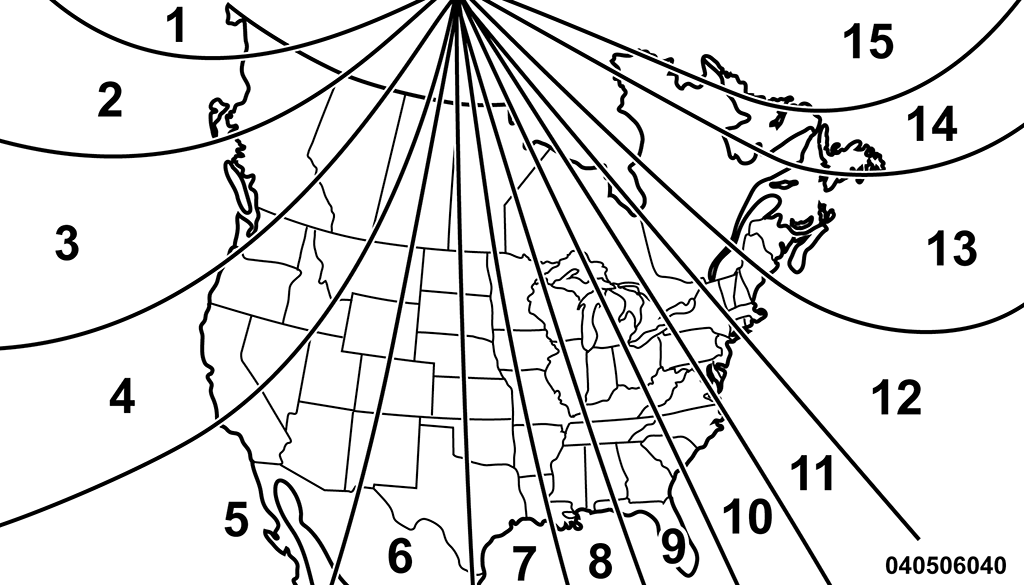
Compass Variance Map
-
Turn the ignition switch ON.
-
Push and release the up or down arrow button until the Setup (Customer-Programmable Features) menu is reached, then push the right arrow button.
-
Push and release the down arrow button until the “Compass Variance” message is displayed in the instrument cluster display, then press the right arrow button. The last variance zone number displays in the instrument cluster display.
-
Push and release the right arrow button until the proper variance zone is selected, according to the map.
-
Push and release the RETURN button to exit.
TURN MENU OFF
Select from Main Menu using the up or down arrow button. Pushing the right arrow button clears the menu display. Pushing any one of the four Display control buttons will bring the menu back.
CUSTOMER-PROGRAMMABLE FEATURES (SYSTEM SETUP)
Personal Settings allows you to set and recall features when the transmission is in PARK. If the transmission is out of PARK or the vehicle begins moving, a warning message SYSTEM SETUP NOT AVAILABLE VEHICLE NOT IN PARK displays when you try to select “System Setup” from the main menu.
Push and release the up or down arrow button until "System Setup" is highlighted in the main menu of the instrument cluster display. Then, push and release the right arrow button to enter the System Setup submenu. Push and release the up or down arrow button to select a feature form the following choices.
LANGUAGE
When in this display you may select one of three languages for all display screens, including the trip functions and the navigation system (if equipped). Push and release the up or down arrow button while in this display and scroll through the language choices. Push and release the right arrow button to select English, Spanish (Español), or French (Français). Then, as you continue, the information will display in the selected language.
NAV–TURN BY TURN
When this feature is selected, the navigation system utilizes voice commands, guiding you through the drive route mile by mile, turn-by-turn, until the final destination is reached. To make your selection, push and release the right arrow button until a check-mark appears next to the feature showing the system has been activated, or the check-mark is removed showing the system has been deactivated.
AUTO LOCK DOORS
When selected, all doors will lock automatically when the vehicle reaches a speed of 15 mph (24 km/h). To make your selection, push and release the right arrow button until a check-mark appears.
AUTO UNLOCK DOORS
When this feature is selected, all doors will unlock when the vehicle is stopped and the transmission is in the PARK or NEUTRAL position and the driver's door is opened. To make your selection, push and release the right arrow button until a check-mark appears next to the feature showing the system has been activated, or the check-mark is removed showing the system has been deactivated.
REMOTE UNLOCK SEQUENCE
When Unlock Driver Door Only On 1st Press is selected, only the driver’s side doors will unlock on the first push of the key fob unlock button. With Unlock Driver Door Only On 1st Press, you must push the key fob unlock button twice to unlock the passenger’s doors. When Unlock All Doors On 1st Press is selected, all of the doors will unlock on the first push of the key fob unlock button. To make your selection, push and release the right arrow button until a check-mark appears next to the feature showing the system has been activated or the check-mark is removed showing the system has been deactivated.
REMOTE START COMFORT SYS.
When this feature is selected and the remote start is activated, the heated steering wheel and driver heated seat features will automatically turn on in cold weather. These features will stay on through the duration of remote start or until the key is cycled to ON/RUN position. To make your selection, push and release the right arrow button until a check-mark appears next to the feature showing the system has been activated or the check-mark is removed showing the system has been deactivated.
HORN WITH REMOTE LOCK
When this feature is selected, a short horn sound will occur when the key fob lock button is pushed. To make your selection, push and release the right arrow button until a check-mark appears next to the feature showing the system has been activated or the check-mark is removed showing the system has been deactivated.
FLASH LAMPS WITH LOCK
When selected, the front and rear turn signals will flash when the doors are locked with the key fob. To make your selection, push and release the right arrow button until a check-mark appears next to the feature showing the system has been activated or the check-mark is removed showing the system has been deactivated.
AUTOMATIC HIGH BEAMS — IF EQUIPPED
When this feature is selected, the high beam headlights will deactivate automatically under certain conditions. To make your selection, push and release the right arrow button until a check-mark appears next to the feature showing the system has been activated or the check-mark is removed showing the system has been deactivated.
HEADLAMP OFF DELAY
When this feature is selected, the driver can choose to have the headlights remain on for 0, 30, 60, or 90 seconds when exiting the vehicle. To make your selection, scroll up or down until the preferred setting is highlighted, then push and release the right arrow button until a check-mark appears next to the setting, showing that the setting has been selected.
HEADLAMPS WITH WIPERS (AVAILABLE WITH AUTO HEADLIGHTS ONLY)
When ON is selected, and the headlight switch is in the AUTO position, the headlights will turn on approximately 10 seconds after the wipers are turned on. The headlights will also turn off when the wipers are turned off if they were turned on by this feature. To make your selection, push and release the right arrow button until a check-mark appears next to the setting, showing that the setting has been selected.
Note:
Turning the headlights on during the daytime causes the instrument panel lights to dim. To increase the brightness, refer to “Interior Lights” in “Getting To Know Your Vehicle.”
INTERMITTENT WIPER OPTIONS — IF EQUIPPED
When ON is selected, the system will automatically activate the windshield wipers if it senses moisture on the windshield. To make your selection, push and release the right arrow button until a check-mark appears next to the feature showing the system has been activated or the check-mark is removed showing the system has been deactivated. When the system is deactivated, the system reverts to the standard intermittent wiper operation.
KEY-OFF POWER DELAY
When this feature is selected, the power window switches, radio, Uconnect phone (if equipped), DVD video system (if equipped), power sunroof (if equipped), and power outlets will remain active for up to 10 minutes after the ignition switch is turned OFF. Opening either front vehicle door will cancel this feature. To make your selection, scroll up or down until the preferred setting is highlighted, then push and release the right arrow button until a check-mark appears next to the setting, showing that the setting has been selected.
ILLUMINATED APPROACH
When this feature is selected, the headlights will activate and remain on for up to 90 seconds when the doors are unlocked with the key fob. To make your selection, scroll up or down until the preferred setting is highlighted, then push and release the right arrow button until a check-mark appears next to the setting, showing that the setting has been selected.
HILL START ASSIST (HSA) — IF EQUIPPED
When on is selected, the HSA system is active. Refer to “Electronic Brake Control System” in “Safety” for system function and operating information. To make your selection, push and release the right arrow button until “ON” or “OFF” appears.
FLASHERS WITH SLIDING DOOR
When this feature is selected, the signal lamps activate when power or manual sliding doors are in operation, signaling other drivers that someone may be exiting or entering the vehicle. To make your selection, push and release the right arrow button until a check-mark appears next to the feature showing the system has been activated or the check-mark is removed, showing the system has been deactivated.
TILT MIRROR IN REVERSE — IF EQUIPPED
When this feature is selected and the vehicle is placed in a reverse gear, the driver's side mirror will tilt downward to allow the driver to see into the previous blind spot and avoid objects in close proximity to the rear of the vehicle. To make your selection, push and release the right arrow button until a check-mark appears next to the feature showing the system has been activated, or the check-mark is removed showing the system has been deactivated.
BLIND SPOT ALERT — IF EQUIPPED
There are three selections when operating Blind Spot Alert (“Blind Spot Alert Lights,” “Blind Spot Alert Lights/CHM,” and “Blind Spot Alert Off”). The Blind Spot Alert feature can be activated in “Blind Spot Alert Lights” mode. When this mode is selected, the Blind Spot Monitor (BSM) system is activated and will only show a visual alert in the outside mirrors. The Blind Spot Alert feature can be activated in “Blind Spot Alert Lights/CHM” mode. In this mode, the Blind Spot Monitor (BSM) will show a visual alert in the outside mirrors as well as an audible alert when the turn signal is on. When “Blind Spot Alert Off” is selected, the Blind Spot Monitor (BSM) system is deactivated.
To make your selection, push and release the right arrow button until a check-mark appears next to the feature, showing the system has been activated, or the check-mark is removed, showing the system has been deactivated.
Note:
If your vehicle has experienced any damage in the area where the sensor is located, even if the fascia is not damaged, the sensor may have become misaligned. Take your vehicle to an authorized dealer to verify sensor alignment. Having a sensor that is misaligned will result in the BSM not operating to specification.
CALIBRATE COMPASS
Push the right arrow button to calibrate the compass.
Download Manual