RearView Monitor (if so equipped)
When the shift lever is shifted into the R (Reverse) position, the monitor display shows the view to the rear of the vehicle.
| WARNING
Failure to follow the warnings and instructions for proper use of the RearView Monitor could result in serious injury or death.
|
| CAUTION
There is a plastic cover over the camera. Do not scratch the cover when cleaning dirt or snow from the cover. |
How to read the displayed lines
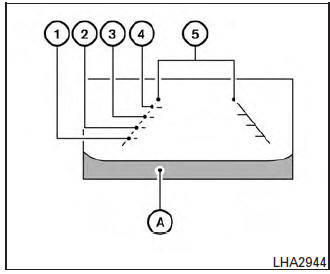
Guiding lines which indicate the vehicle width and distances to objects with reference to the vehicle body line A are displayed on the monitor.
Distance guide lines:
Indicate distances from the vehicle body.
- Red line 1 : approx. 0.5 m (1.5 ft)
- Yellow line 2 : approx. 1 m (3 ft)
- Green line 3 : approx. 2 m (7 ft)
- Green line 4 : approx. 3 m (10 ft)
- Vehicle width guide lines 5 :
Indicate the vehicle width when backing up.
Adjusting the screen
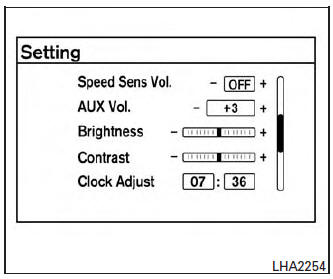
The procedure for adjusting the quality of the screen differs depending on the type of screen present on the vehicle.
For vehicles without Navigation System:
- Press the ENTER/SETTING or ENTER/AUDIO button.
- Turn the TUNE/SCROLL or TUNE/FOLDER knob to highlight the “Brightness” or “Contrast” key.
- Press the ENTER/SETTING or ENTER/AUDIO button.
- Adjust the level using the TUNE/SCROLL or TUNE/FOLDER knob and then press the ENTER/SETTING or ENTER/AUDIO button to apply the adjustment.
- Do not adjust the Brightness or Contrast of the RearView Monitor while the vehicle is moving.
Difference between predicted and actual distances
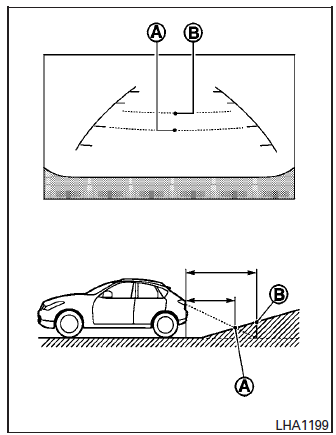
Backing up on a steep uphill
When backing up the vehicle up a hill, the distance guide lines and the vehicle width guide lines are shown closer than the actual distance.
For example, the display shows 3 ft (1.0 m) to the place A , but the actual 3 ft (1.0 m) distance on the hill is the place B . Note that any object on the hill is further than it appears on the monitor.
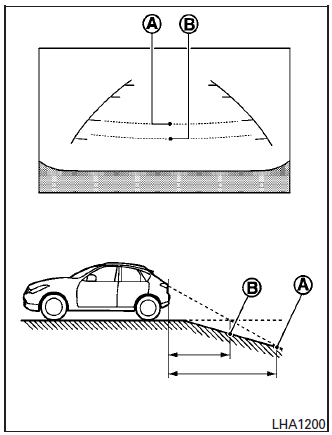
Backing up on a steep downhill
When backing up the vehicle down a hill, the distance guide lines and the vehicle width guide lines are shown farther than the actual distance.
For example, the display shows 3 ft (1.0 m) to the place A , but the actual 3 ft (1.0 m) distance on the hill is the place B . Note that any object on the hill is closer than it appears on the monitor.
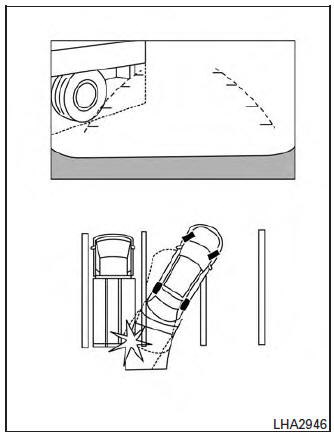
Backing up near a projecting object
The vehicle may seem to nearly clear the object in the display. However, the vehicle may hit the object if it projects over the actual backing up course.
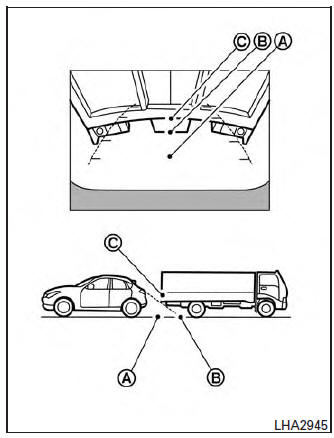
Backing up behind a projecting object
The position C is shown farther than the position B in the display. However, the position C is actually at the same distance as the position A .
The vehicle may hit the object when backing up to the position A if the object projects over the actual backing up course.
OPERATING TIPS
- When the shift lever is shifted to the R (Reverse) position, the monitor screen automatically changes to the RearView Monitor mode. However, the radio can be heard.
- When the view is switched, the display images on the screen may be displayed with some delay.
- When the temperature is extremely high or low, the screen may not clearly display objects.
This is not a malfunction.
- When strong light is directly coming on the camera, objects may not be displayed clearly. This is not a malfunction.
- Vertical lines may be seen in objects on the screen. This is due to strong reflected light from the bumper. This is not a malfunction.
- The screen may flicker under fluorescent light. This is not a malfunction.
- The colors of objects on the RearView Monitor may differ somewhat from the actual color of objects. This is not a malfunction.
- Objects on the monitor may not be clear in a dark environment. This is not a malfunction.
- If dirt, rain or snow accumulates on the camera, the RearView Monitor may not display object clearly. Clean the camera.
- Do not use alcohol, benzine or thinner to clean the camera. This will cause discoloration.
To clean the camera, wipe with a cloth dampened with diluted mild cleaning agent and then wipe with a dry cloth.
- Do not damage the camera as the monitor screen may be adversely affected.
- Do not use wax on the camera window.
Wipe off any wax with a clean cloth dampened with mild detergent diluted with water.
Download Manual