System Updates
Models with Display Audio
Install authorized updates to the Display Audio system software. Install via a WiFi connection or a USB storage device.
Wireless Connection Setup
- From the Home screen, select Settings.
- Select Connection.
- Select Wi-Fi, then Change Mode.
- Select Network, then Save.
- Select an access point.
- Ensure Use this network… is checked, then select Connect.
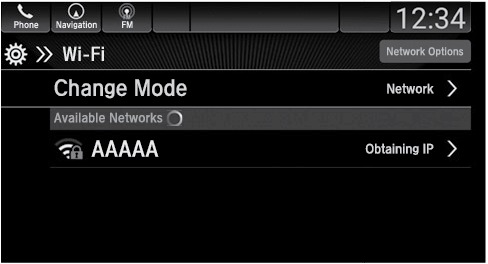
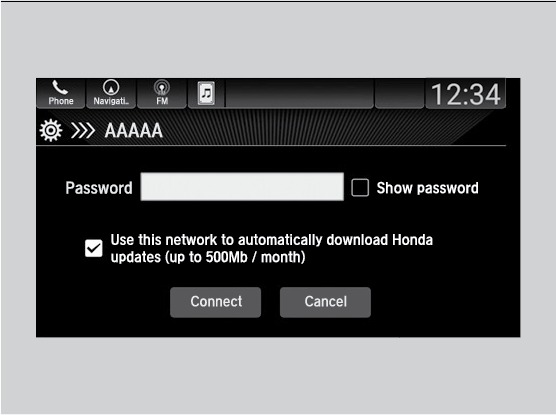
Wireless Updating
- From the Home screen, select System Updates.
- Select via Wi-Fi*
- Select Download Now.
- Select Install Now or Install While Vehicle OFF.
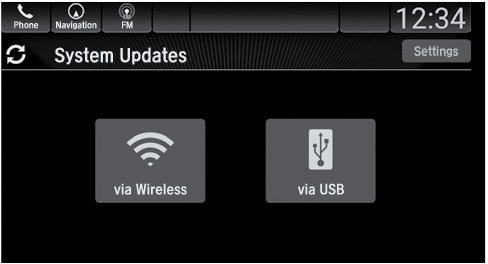
Notes
- Models with a telematics control unit (TCU) do not require the wireless connection setup procedure.
USB Updating
Download the update
- From the Home screen, select System Updates, then via USB.
- Connect a flash drive to the front (right side*) USB port (see "Basic Audio Operation").
- Once the system finishes copying to the flash drive, disconnect the drive and connect it to your computer.
- Follow the link to download the update files. See Open Web Page for more details.
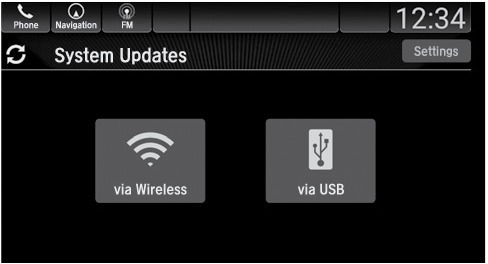
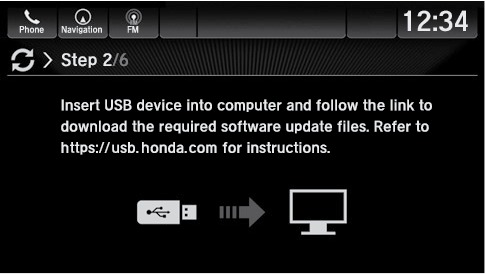
Install the update
- From the Home screen, select System Updates, then via USB.
- Connect to the front (right side*) USB port the USB device containing the update files.
- Select Install Now or Install While Vehicle OFF.
Notes
- Honda recommends using a flash drive with 8GB capacity or higher.
Notes for wireless and USB updating:
- If you select Install Now, the system will reboot. Do not operate the Display Audio unit during the software update. You will see a notice when the update is complete.
- If you select Install While Vehicle Off, you will see a notice when the update is complete when you start the vehicle.
*if equipped
Related topics:
- Basic Audio Operation
- USB Flash Drive
- Wi-Fi Connection*
- Color Audio Operation*
Download Manual