Rear Entertainment
System (RES)*
Models with Display Audio
Rear passengers can enjoy a different audio or entertainment source than front passengers. The system supports DVD and Blue-ray™ discs.
Starting the System
Use the touchscreen to enable the rear entertainment system.
- From the Home screen, select Rear Entertainment.
- Select Rear to turn the system on.
- Press the Home button on the remote control to display the rear entertainment Home screen.
- Use the remote control to select the rear-entertainment input source app (such as USB or HDMI) for your media.
Or, use the Rear Apps/Now Playing button on the touchscreen to control the rear system.
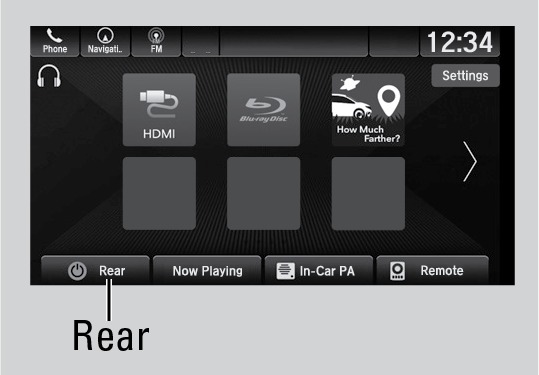
*if equipped
System Components
Wireless headphones
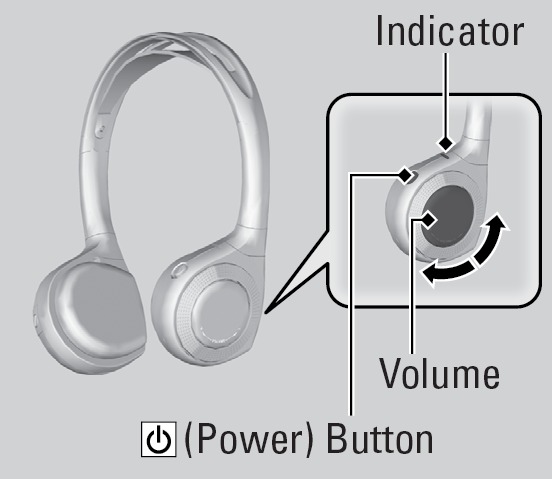
Your vehicle comes with two wireless headphones.
Press the power button on the right earpiece to turn on the headphones.
Turn the dial on the right earpiece to adjust the volume.
Headphone connectors
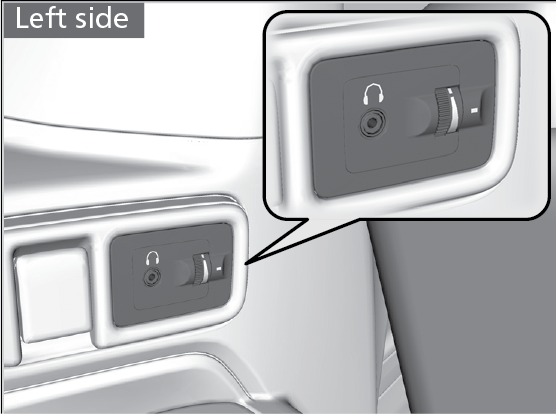
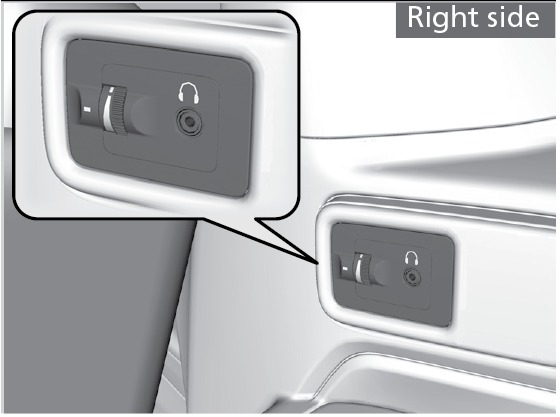
Both sides of the third-row seats have jacks for wired headphones. Each connector has its own volume control.
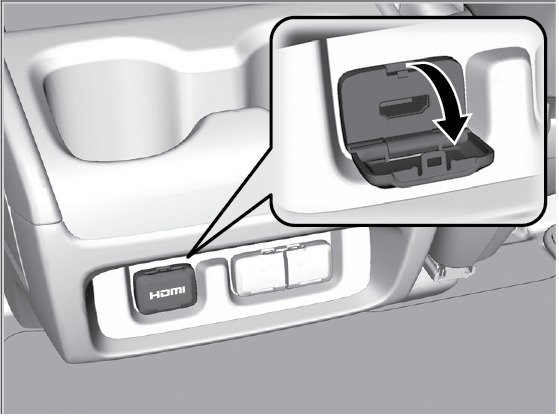
HDMI™ port
The rear of the conter console has an HDMI port for connecting compatible devices, including media players and game devices.
Overhead screen
Pull down the screen to one of the two detents.
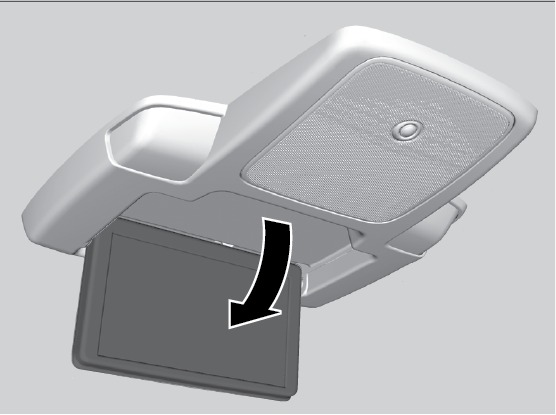
This vehicle's overhead mounted display includes mercury-containing components. Upon removal or replacement, please reuse, recycle, or dispose of as hazardous waste.
System Apps
In addition to apps for source inputs, the rear entertainment system can access the front USB port. In addition the home screen has two added apps:
- How Much Farther?: Shows the time and distance to the destination set in the navigation system.
- Media Servers: Plays streaming audio or video from a personal device connected via Wi-Fi (see "Wi-Fi Connection").
Playing a Disc
Start the system, then insert a DVD or Blue-ray disc into the slot. The disc will auto play on the rear entertainment screen.
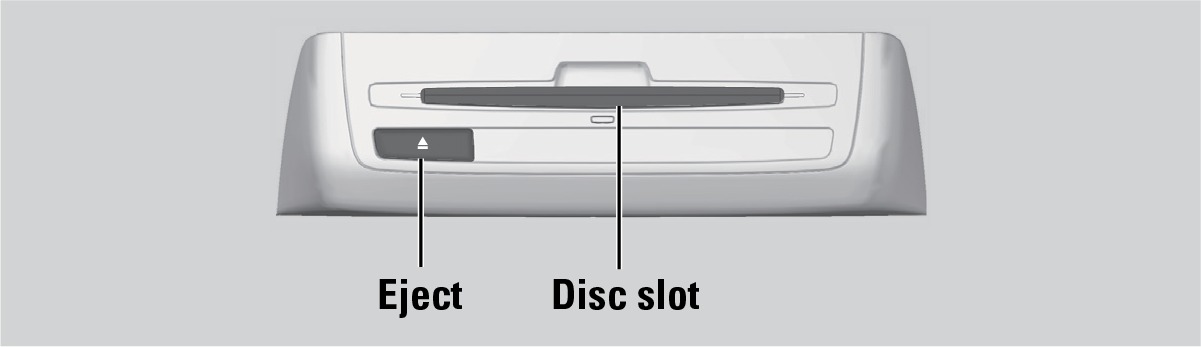
Do not use discs with adhesive labels or insert a damaged disc. Inserting these types of discs may cause them to get stuck or damage the audio unit.
Use the remote control to manage the system.
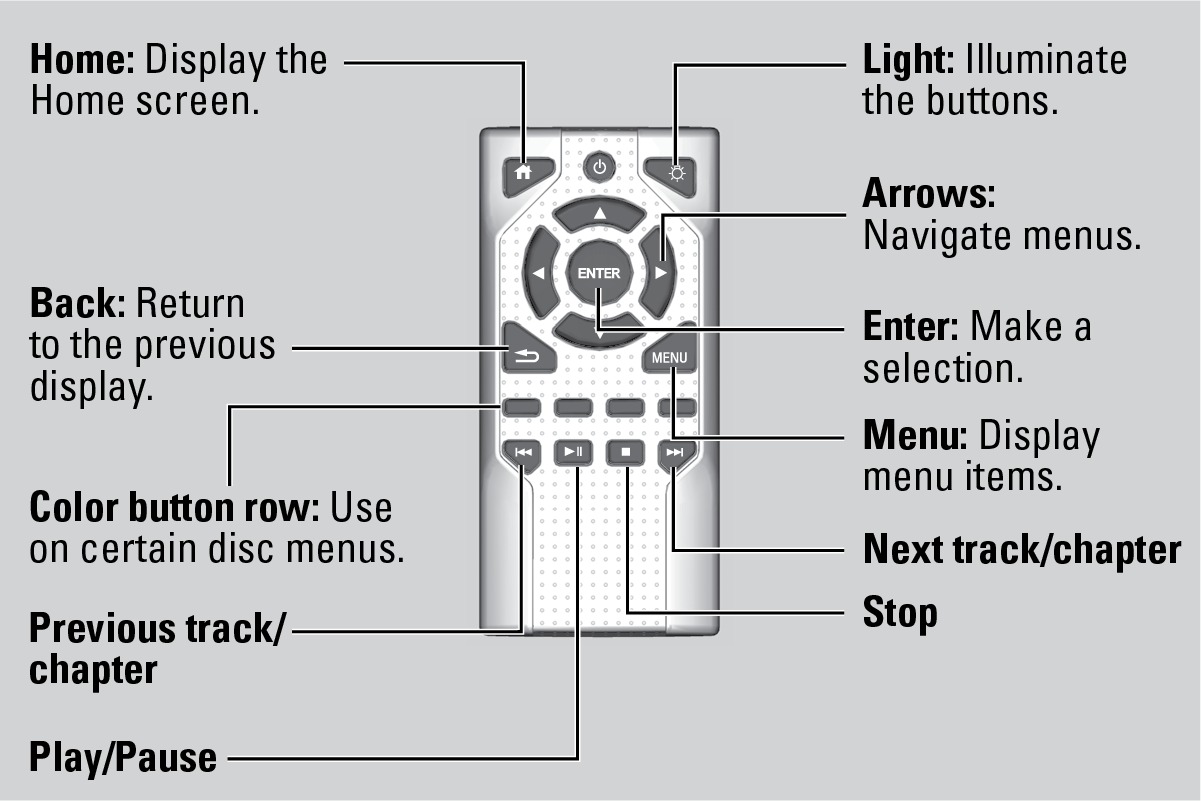
- Basic Audio Operation
Download Manual