System Setup
Start-up
Start-up
The navigation system starts automatically when you set the power mode to ACCESSORY or ON. At start-up, the following confirmation screen is displayed.
-
- Select OK.
- The Bluetooth connection message is displayed if you disconnected a Bluetooth device on the HOME screen.
- If you do not select OK, the system will automatically select OK after a certain period of time.
- The system will automatically start up the feature that was used the last time.
- Select OK.

-
- Select Navigation.
- The map screen or navigation tutorial screen is displayed. If the navigation tutorial screen is displayed, select Exit.
- When you want to display the navigation top screen, you press the
 button.
- Select Navigation.

- Detail
You can display the tutorial from the main menu at any time.
Certain manual functions are disabled or inoperable while the vehicle is in motion. You cannot select a grayed-out option until the vehicle is stopped.
Voice commands are still operable while the vehicle is in motion.
Voice Control System
Voice Control System
Your vehicle has a voice control system that allows hands-free operation of the navigation system functions.
The voice control system uses the  button on the steering wheel and a microphone near the map lights on the ceiling.
For details of the button and microphone position, see the Owner’s Manual.
- Detail
button, the system prompts you to say a voice command. Press and release the button again to bypass this prompt and give a command.Voice Recognition
To achieve optimum voice recognition when using the navigation voice control system:
- Make sure the correct screen is displayed for the voice command that you are using. The system recognizes certain commands.
Available navigation commands: - Close the windows and moonroof.
- Adjust the dashboard and side vents so air does not blow onto the microphone on the ceiling.
- Speak in a clear, natural speaking voice without pausing between words.
- Reduce any background noise if possible. The system may misinterpret your command if more than one person is speaking at the same time.
- Detail
Personal Information
Setting Home Location

- Navigation

Use the personal information menu to set your home location.
-
- Select Go Home and then select Yes.

-
- Select Address then select an option.
- Select Select from Map to set home location.
- If selecting other than Select from Map, proceed to steps 3 and 4.
- Select the home location.
- Select Save and then select Save.
- Select Address then select an option.

The following options are available:
- Select from Map: Sets your current location as your home location.
- Keyword Search: Sets the home location by entering a keyword or address.
- Category Search: Sets the home location by selecting a category.
- Address Search: Sets the home location by entering the address.
- Search Along Route: Sets the home location by along route.
- Saved Places: Sets the home location by selecting a place stored in the Saved Places list.
- Phone Number Search: Sets the home location by phone number.
- Coordinates Search: Sets the home location by entering coordinates.
- Recent: Sets the home location from a recently found location.
- Downloaded Places: Sets the home location by downloaded places.
- Detail
Name: Enter the preferred name.
Phone No.: Enter the preferred phone number.
- Navigation

- Manage Places
- Home
-
- Select an item to edit.
- Select Save.

The following options are available:
- Name: Enters a new name for the location.
- Address: Enters a new location.
- Phone No.: Enters a new phone number.
Saved Places
You can save locations so you can quickly find them and create routes to them.
- Navigation
-
- Select a search method.
- Find a location that you want to save.
- Select Save.
- Select a search method.

-
- Select Save.
- If necessary, enter a name and phone number.
- Select Save.

- Detail
- Navigation
-
- Select a destination from the map.
- Select Save.
- Select a destination from the map.

-
- Select Save.
- If necessary, enter a name and phone number.
- If desired, select a POI icon.
- Select Save.

- Navigation
- Manage Places
- Saved Places
-
- Select a saved location you want to edit.

-
- Select an option.
- Select Save to edit.

The following options are available:
- Name: Enters a new name for the location.
- Address: Enters a new location.
- Phone No.: Enters a phone number.
- Icon: Select a preferred icon.
- Detail
 .
.- Navigation
- Manage Places
- Saved Places
-
- Select
 .
.- The selected location disappears from the list.
- Select Save.
- Select

- Navigation
- Manage Places
- Saved Places
- Select
 and then select Yes.

Display Mode Settings
Adjusting Screen Brightness
Set the screen brightness. Select Display Mode ( ) to change the screen brightness.
- Select Display Mode on the bottom of the screen.
- The Brightness bar is displayed for a few seconds.
- Select
 or
or  to adjust the brightness.
 - Select Display OFF to turn off the screen. To turn on the screen, press the or button.

- Detail
Switching Display Mode
|
Illumination control
|
Operation
|
|---|---|
|
Display Mode (
) |
Adjusts screen brightness when the user wants to change the brightness of the display temporarily. Remember:
Display Mode (
) overrides all other display brightness adjustments either set automatically by the sunlight sensor or manually from the System settings screen. |
|
Sunlight sensor (see the Owner’s Manual for location)
|
If the sunlight sensor detects daylight and the headlights are turned on, the system automatically overrides the Night display and displays the Day display mode. Remember: If desired, use the Display Mode (
) to adjust the brightness of the display. |
|
Dash illumination adjustment dial (see the Owner’s Manual for location)
|
When the headlights are turned on, and you wish to have the Day display mode, adjust the illumination to the full brightness (beeps). Remember: Adjust the dash brightness back to midrange to allow auto switching by sensing the headlights are on or off.
|
|
Headlights (Auto/On/Off)
|
When turned on, the display changes to Night display mode.
The previous three controls listed above can “cancel” this function. Remember: Use the Display Mode (
) to adjust the brightness of the display. |
Guidance Volume Settings
Guidance Volume Settings
- General Settings
- System
- System Volumes
- Select
 or
or  of Navigation Guidance.

- Detail
Main Menu
Main Menu
- Navigation
- Select an option.
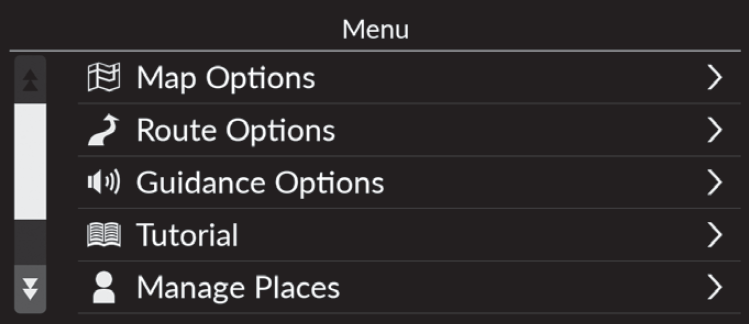
The following options are available:
- Map Options: Sets information to be displayed on the map screen.
- Route Options: Sets the route options.
- Guidance Options: Sets the preferred route guidance.
- Tutorial: Displays the navigation tutorial.
- Manage Places: Edits your stored locations and avoidance areas.
- Map Update: Displays the map update options.
- Settings: Displays other settings.
Map Options
Map Options
- Navigation
- Map Options
- Select an option.

The following options are available:
- Traffic Icons: Sets whether to display a traffic icon on the map.
- Traffic Flow: Sets whether to display a traffic flow on the map.
- Color Theme: Changes the color of the map.
- Points of Interest: Selects the POI icons to display on the map.
- Breadcrumb Trail: Sets whether to display the blue tracking line on the map.
- Breadcrumb Recording: Sets whether to record a tracking line on the all road or only off-road.
- Delete Breadcrumb Trail: Deletes the tracking line on the map.
- Landmark Settings: Selects whether to display the 3D landmarks on the map.
Traffic Icons
- Navigation
- Map Options
- Traffic Icons
Sets whether to display a traffic icon on the map.
- Select an option.

The following options are available:
- ON (factory default): Displays a traffic icon on the map.
- OFF: Disables the feature.
Traffic Flow
- Navigation
- Map Options
- Traffic Flow
Sets whether to display a traffic flow on the map.
- Select an option.

The following options are available:
- ON (factory default): Displays a traffic flow on the map.
- OFF: Disables the feature.
Color Theme
- Navigation
- Map Options
- Color Theme
Changes the color of the map.
- Select an option.

The following options are available:
- Auto (factory default): Sets the map color to change according to the lighting.
- Day: Displays the map with day colors.
- Night: Displays the map with night colors.
Points of Interest
- Navigation
- Map Options
- Points of Interest
Selects the POI icons to display on the map.
-
- Select an option(s).
- Select Save.

Breadcrumb Trail
- Navigation
- Map Options
- Breadcrumb Trail
The navigation system can be set to display blue tracking lines (“breadcrumbs”) on the map screen.
- Select an option.

The following options are available:
- ON (factory default): The system displays the blue tracking line.
- OFF: Disables the feature.
Breadcrumb Recording
- Navigation
- Map Options
- Breadcrumb Recording
Sets whether to record a tracking line on the all road or only off-road.
- Select an option.

The following options are available:
- ON: The system records the tracking line on the all road.
- Only Off-Road (factory default): The system records the tracking line on the only off-road.
- OFF: Disables the feature.
- Detail
Delete Breadcrumb Trail
- Navigation
- Map Options
- Delete Breadcrumb Trail
- Select OK.

Landmark Settings
- Navigation
- Map Options
- Landmark Settings
Selects whether to display the 3D landmarks on the map.
- Select an option.

The following options are available:
- 3D Landmarks:
- ON (factory default): Displays the 3D landmark on the map.
- OFF: Disables the feature.
- Landmark Texture:
- ON (factory default): Displays the landmark texture on the map.
- OFF: Disables the feature.
Route Options
Route Options
- Navigation
- Route Options
Changes the route settings and show the details of the current route.

The following options are available:
- Detour: Calculates a detour route.
- Route Overview: Displays the route overview.
- Route Demo: Shows demonstration for current route guidance.
- Route Preferences: Sets roads passed on the route.
- Destination List: View detailed information about the current destination and waypoints.
- Traffic Rerouting: Sets whether to use optimized alternate routes.
- Route Calculation Method: Sets the route calculation method.
Route Demo
- Navigation
- Route Options
- Route Demo (when en route)
Shows demonstration for current route guidance.

Route Preferences
- Navigation
- Route Options
- Route Preferences
Sets roads passed on the route.
-
- Select an option(s).
- Checked items are enabled and unchecked items are disabled.
- Select Save.
- Select an option(s).

The following options are available:
- Freeways: Sets whether or not to use freeways.
- Toll Roads: Sets whether or not to use toll roads.
- Ferries: Sets whether or not to use ferries.
- Train Ferries: Sets whether or not to use train ferries.
- Unpaved Roads: Sets whether or not to drive on unpaved roads.
- Tunnels: Sets whether or not to pass through tunnels.
Traffic Rerouting
- Navigation
- Route Options
- Traffic Rerouting
Sets the automatic re-routing feature.
- Select an option(s).

The following options are available:
- AUTO: Sets the automatic re-routing feature.
- ON (factory default): Sets the automatic re-routing feature with notification pop-up.
- OFF: Disables the feature.
- Detail
Route Calculation Method
- Navigation
- Route Options
- Route Calculation Method
- Select an option(s).

The following options are available:
- Fastest (factory default): Calculates routes that are faster to drive but can be longer in distance.
- Shortest: Calculates routes that are shorter in distance but can take more time to drive.
- Suggested: Calculates routes that are suggested by navigation system.
Guidance Options
Guidance Options
- Navigation
- Guidance Options
Changes the route guidance settings.
- Select an option.

The following options are available:
- Estimated Arrival: Sets the time format for the estimated arrival to a destination which is displayed on the guidance screen.
- Predictive Routing: Sets whether to use the predictive route feature.
- Delete Learning History: Deletes the learned route history.
- Auto Zoom: Sets whether the map zooms in automatically according to the distance of the next guidance point.
- Maneuver Assist Popup: Sets whether to display the enlarged popup at the intersection is approaching.
- Voice Guidance Language: Sets the language for voice prompts.
- Maneuver List: Sets whether to display the turn-by-turn instructions on the map.
Estimated Arrival
- Navigation
- Guidance Options
- Estimated Arrival
Sets the time format for the estimated arrival to a destination which is displayed on the guidance screen.
- Select an option.

The following options are available:
- Arrival Time (factory default): Displays the estimated arrival time at a destination.
- Time Remaining: Displays the remaining time to a destination.
Predictive Routing
- Navigation
- Guidance Options
- Predictive Routing
Sets whether to use the predictive routing feature.
- Select an option.

The following options are available:
- Enable: Sets the predictive route feature.
- Disable (factory default): Disables the feature.
Delete Learning History
- Navigation
- Guidance Options
- Delete Learning History
- Select OK.

Auto Zoom
- Navigation
- Guidance Options
- Auto Zoom
Sets whether the map zooms in automatically according to the distance of the next guidance point.
- Select an option.

The following options are available:
- ON (factory default): Sets the map to zoom in automatically according to the distance of the next guidance point.
- OFF: Disables the feature.
Maneuver Assist Popup
- Navigation
- Guidance Options
- Maneuver Assist Popup
Sets whether to display the turn-by-turn popup when approaching the intersection.
-
- Select an option(s).
- Select Save.

The following options are available:
- Surface Street: Sets whether to display the turn-by-turn popup on the surface street.
- Freeway: Sets whether to display the turn-by-turn popup on the freeway.
Voice Guidance Language
- Navigation
- Guidance Options
- Voice Guidance Language
Sets the language for voice prompts.
- Select an option.

Maneuver List
- Navigation
- Guidance Options
- Maneuver List
Sets the turn-by-turn instructions.
- Select an option.

The following options are available:
- ON: Sets to display the turn-by-turn instructions on the map.
- OFF (factory default): Disables the feature.
Tutorial
Tutorial
- Navigation
- Tutorial
Click on a listed feature to learn how to use it.
Select
 or
or  to switch to the next or previous page.
Select Exit to exit a tutorial.

Manage Places
Manage Places
- Navigation
- Manage Places
Edits your stored locations and avoidance areas.
- Select an option.

The following options are available:
- Avoidance Areas: Allows you to avoid specific roads or areas.
- Home: Edits home location.
- Saved Places: Edits saved places.
- Recent: Edits recent destinations.
- Downloaded Places: Edits downloaded places.
Avoidance Areas
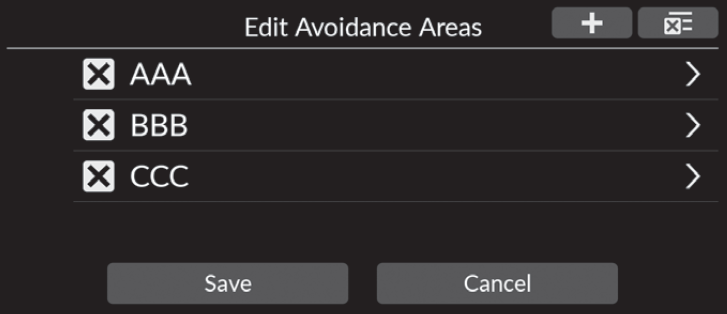
Allows you to avoid specific areas and sections of road. You can enable and disable custom avoidances as needed.
- Navigation
- Manage Places
- Avoidance Areas
-
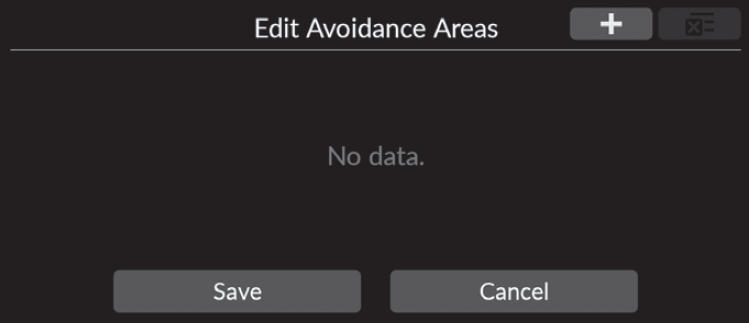
- Select .
- Select
-
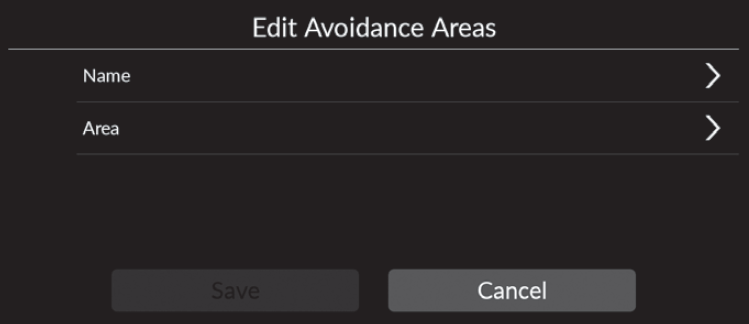
- Select Name to enter a name.
- Select Area.
-
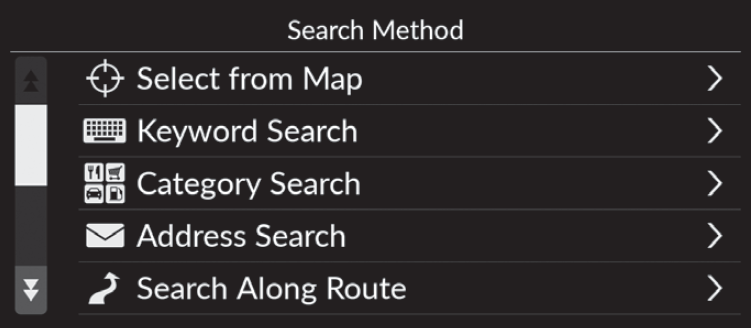
- Select an item to search a desired location.
-
- Select Next.
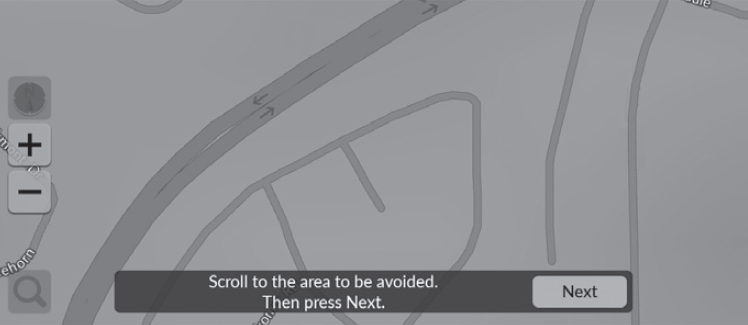
-
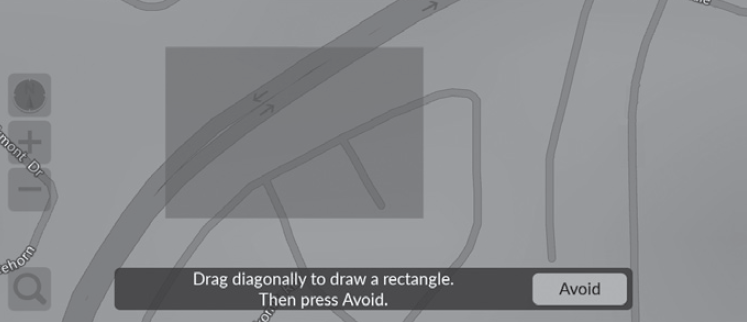
- Drag the map to add a desired avoid location and then select Avoid.
- Select Save.
- Navigation
- Manage Places
- Avoidance Areas
-
- Select the area to edit from the list.
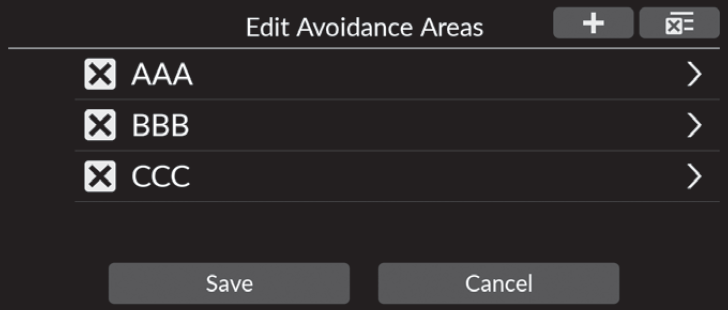
-
- Select an item.
- Select Save.
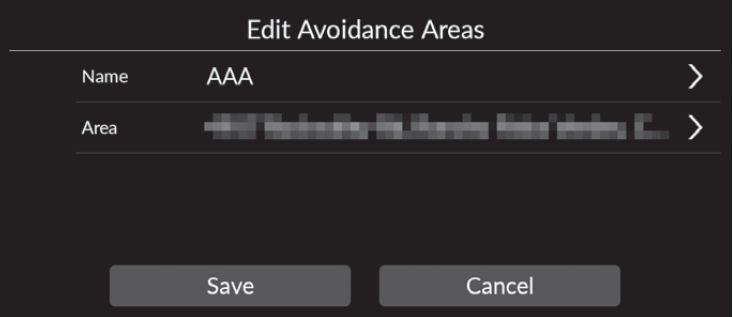
- Name: Enters a new name.
- Area: Searches a new area.
- Navigation
- Manage Places
- Avoidance Areas
-
- Select .
- The selected area disappears from the list.
- Select Save.
- Select
- Detail
and then select Yes.Editing Recent Destinations
- Navigation
- Manage Places
- Recent
-
- Select .
- The selected destination disappears from the list.
- Select Save.
- Select

- Detail
and then select Yes.Editing Downloaded Places
- Navigation
- Manage Places
- Downloaded Places
-
- Select .
- The selected destination disappears from the list.
- Select Save.
- Select

- Detail
and then select Yes.Map Update
Map Update
- Navigation
- Map Update
Updates navigation map data via Wi-Fi or USB flash drive.
- Select an option.

The following options are available:
- Home Region Update (Wi-Fi): Installs and updates home region map with a Wi-Fi connection.
- Select Region Update (Wi-Fi): Installs and updates desired region map with a Wi-Fi connection.
- Full Map Update (USB): Installs and updates map stored in the USB flash drive.
- Export DL Link for Full Map Update (USB): Exports link file for the download portal site to the USB flash drive.
- Database Version: Displays the software version.
- Detail
Settings
Settings
- Navigation
- Settings
Adjusts current vehicle position, restores all settings, and displays other information.
- Select an option.

The following options are available:
- Adjust Vehicle Position: Manually adjusts the current position of the vehicle.
- Reset to Default: Restore all settings to the factory default values.
- Online Services: Displays the online services.
- About Software License: Displays the open source license information.
Adjust Vehicle Position
- Navigation
- Settings
- Adjust Vehicle Position
Manually adjust the current position of the vehicle as displayed on the map screen if the position appears to be incorrect. Make sure the vehicle is in Park.
-
- Scroll the map to position the arrowhead at your correct position.
- Select arrow icons to position the arrowhead in the correct direction the vehicle is facing.
- Select Done.

- Detail
Online Services
- Navigation
- Settings
- Online Services
- Select an option.

The following options are available:
- Sign Up for Online Service: Sign up for online service.
- Online Service Status: Displays the online service status.
- Detail
- Traffic Information available via Online Services
- Updating map data via Wi-Fi
- Searching facilities by phone number
About Software License
- Navigation
- Settings
- About Software License
Displays the open source license information.

Data Reset
Reset Factory Default Settings
- Navigation
- Settings
- Reset to Default
You can restore all settings to the factory default values.
-
- Select OK.
- A confirmation message appears on the screen.
- Select OK.
- Select OK.

- Detail
-
Saved Places
-
Recent
-
Downloaded Places
-
Breadcrumb Trail
Download Manual