Audio System
About Your Audio System
The audio system features AM/FM radio and SiriusXM® Radio service*. It can also play USB flash drives, iPod, iPhone and Bluetooth® devices.
You can operate the audio system from the buttons and switches on the panel, the remote controls on the steering wheel, or the icons on the touchscreen interface.

- Models with 7-in. Color Touchscreen
- Models with 9-in. Color Touchscreen and A-type meter
- Models with 9-in. Color Touchscreen and B-type meter
- Detail
* Not available on all models
USB Port(s)
-
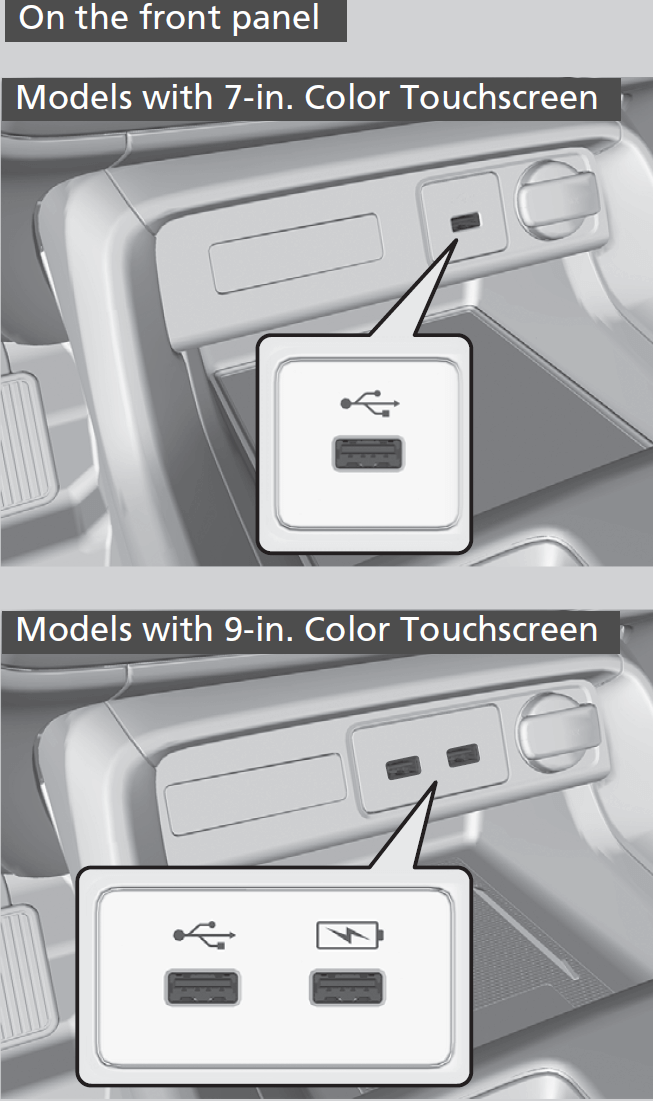
The USB port (2.5A) is for charging devices, playing audio files and connecting compatible phones with Apple CarPlay or Android Auto.
- To prevent any potential issues, be sure to use an Apple MFi Certified Lightning Connector for Apple CarPlay, and for Android Auto, the USB cables should be certified by USB-IF to be compliant with USB 2.0 Standard.
The USB port (2.5A) is only for charging devices.
- You cannot play music even if you have connected music players to it.
-
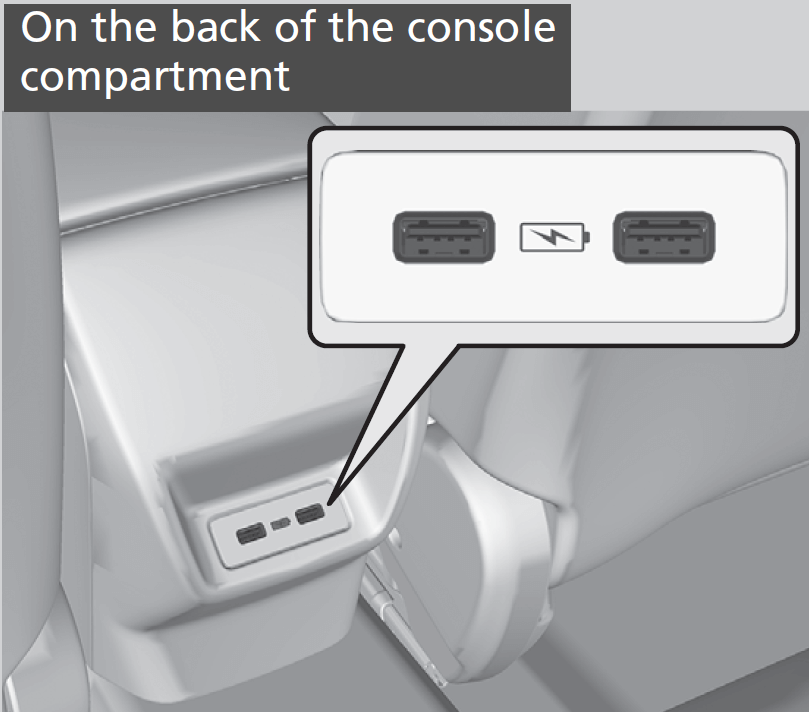
The USB ports (2.5A) are only for charging devices.
- You cannot play music even if you have connected music players to them.
- Detail
- Do not leave the iPod or USB flash drive in the vehicle. Direct sunlight and high temperatures may damage it.
- We recommend that you use a USB cable if you are attaching a USB flash drive to the USB port.
- Do not connect the iPod or USB flash drive using a hub.
- Do not use a device such as a card reader or hard disk drive, as the device or your files may be damaged.
- We recommend backing up your data before using the device in your vehicle.
- Displayed messages may vary depending on the device model and software version.
For amperage details, read the operating manual of the device that needs to be charged.
* Not available on all models
Audio System Theft Protection
The audio system is disabled when it is disconnected from the power source, such as when the battery is disconnected or goes dead. In certain conditions, the system may display a code entry screen. If this occurs, reactivate the audio system.
- Set the power mode to ON.
- Turn on the audio system.
- Press and hold the VOL/
 AUDIO (Volume/Power) knob for more than two seconds.
- The audio system is reactivated when the audio control unit establishes a connection with the vehicle control unit. If the control unit fails to recognize the audio unit, you must go to a dealer and have the audio unit checked.
Audio Remote Controls
Allow you to operate the audio system while driving. The information is shown on the driver information interface.
-
SOURCE Button Cycles through the audio modes as follows:
FM→AM→USB/iPod/Apple CarPlay/
Android Auto→Bluetooth® AudioVOL+/VOL- (Volume) Switch
Press Up:To increase the volume.Press Down:To decrease the volume.

 /
/ (Seek/Skip) Buttons
- When listening to the radioPressTo select the next preset radio station.:PressTo select the previous preset radio station.:Press and holdTo select the next strong station.:Press and holdTo select the previous strong station.:
- When listening to an iPod, USB flash drive, Bluetooth® Audio, or Smartphone ConnectionPressTo skip to the next song.:PressTo go back to the beginning of the current or previous song.:
- When listening to a USB flash drive or Bluetooth® AudioPress and holdTo skip to the next folder/group.:Press and holdTo go back to the previous folder/group.:
Allow you to operate the audio system while driving. The information is shown on the driver information interface.
-
- VOL+/VOL- (Volume) Switch
Press Up:To increase the volume.Press Down:To decrease the volume. - VOL+/VOL- (Volume) Switch


/ (Seek/Skip) Buttons
- When listening to the radioPressTo select the next preset radio station.:PressTo select the previous preset radio station.:Press and holdTo select the next strong station.:Press and holdTo select the previous strong station.:
- When listening to an iPod, USB flash drive, Bluetooth® Audio, or Smartphone ConnectionPressTo skip to the next song.:PressTo go back to the beginning of the current or previous song.:
- When listening to a USB flash drivePress and holdTo skip to the next folder.:Press and holdTo go back to the previous folder.:
- When selecting the audio mode
Press the (Home) button, then roll up or down to select Audio on the driver information interface, and then press the left selector wheel.
To cycle through the audio modes, roll up or down
and then press the left selector wheel:
To cycle through the audio modes, roll up or down
and then press the left selector wheel:
- Detail
(Home) button to go back to the home screen of the driver information interface.Download Manual