Navigation
Entering a Destination
Entering a Destination
- Navigation

This section describes how to enter a destination for route guidance.
- Select an option.

The following options are available:
 : Sets a destination by voice control system.
- Keyword or Address: Sets a destination by entering a category, name, address, Intersection (Street 1 / Street 2), city name, or state name.
- Nearby/Map/Route: Sets a search method for keyword.
- Go Home: Sets your home address as the destination.
- Saved Places: Sets a destination by selecting a place stored in the saved list.
- Recent: Sets a destination by selecting a previous destination.
- Gas Station: Sets a destination by gas station.
- More: Sets a destination by selecting a category.
- Keyword Search: Displays the keyboard.
- Detail
- Go home
- Saved places
- Recent
- Cancel route
For more details about smartphone connection and how to use HondaLink®, see the Owner's Manual.

- Navigation
You can use the search bar to search for locations by entering a category, name, address, Intersection (Street 1 / Street 2), city name, or state name.
-
- Enter a search term.
- The nearest locations by corresponding to the search word are displayed below the search bar.
- Suggested search terms appear below the search bar as you type.
- Select or a nearest location on below the search bar.
- If you select nearest location, proceed to step 4.
- Enter a search term.

-
- Select your destination from the list.
- Select Go to set the route to your destination.

- Detail
- To search for a type of business, enter a category name, such as “gas station.”
- To search for a business by name, enter all or part of the name.
- To search for an address near you, enter the street number and street name.
- To search for an address in another city, enter the street number, street name, city, and state.
- To search for a city, enter the city and state.
From the Voice Portal screen, say
“Navigation.”Say
“Find place,” then say a place name (e.g., “Honda”).Say the line number of screen (e.g.,
“1”).Say
“Go” or “Yes” to set the route.
- Navigation
- Nearby/Map/Route
By default, your system finds locations closest to your current location. You can find a location near another city or location.
- Select an option.

The following options are available:
- Current Position: Searches near your current location.
- Near Destination: Searches near your current destination.
- Near Waypoint: Searches near your waypoint, or current destination or current your location.
- Along Route: Searches along your current route.
- Select on Map: Searches around selected location on the map.
- Detail
- Navigation
- More

- Address
- Select an option.

The following options are available:
- House Number: Enters the house number to select the street.
- Street Name: Selects your destination street.
- City: Selects your destination city.
- Zip Code (U.S.)/Postal Code (Canada): Enters the zip code or postal code to select the city.
- Detail
From the Voice Portal screen, say
“Navigation.”Say
“Enter address” on the voice command screen, then say the entire address. (e.g., “1-2-3-4 Main Street, Los Angeles, California”).Say
“Change country” if you want to change the country.The system interprets the address.
Say
“Yes” or a line number of a screen if the destination list appears (e.g., “1”).Say
“Go” or “Yes” to set the route.
- Navigation
- More
- Address
-
- Select location name icon on the right upper screen.

-
- Select a state or province.

- Detail
- Navigation
- More
- Address
- House Number
-
- Enter the house number and then select .
- Enter the house number and then select

-
- Enter the name of your destination street and then select .
- Select a city when you are prompted.
- Set the route to your destination.
- Enter the name of your destination street and then select

- Navigation
- More
- Address
- Street Name
-
- Enter the name of your destination street and then select .
- If you search a freeway/highway, the search results will be displayed. Select search result on the list, proceed to steps 3.
- Enter the name of your destination street and then select

-
- Enter the house number and then select .
- Enter the house number and then select

-
- Select your destination city from the list.
- Select an address when you are prompted.
- Set the route to your destination.
- Select your destination city from the list.

- Detail
For interstates, use an “I” (e.g., I-10). For U.S. freeways, use “US” (e.g., US-18). For state freeways, use the two-character state designation (e.g., CA-101). For county roads, use the appropriate designation (e.g., G-2).
For Trans-Canada and Provincial highways, use “Hwy” (HWY-7). For County roads, use “CR” (CR-32). For Regional Roads, use “RR” (RR-5).
- Navigation
- More
- Address
- City
The name of the city where you are currently located is displayed.
-
- Enter the name of a different city and then select .
- Enter the name of a different city and then select

-
- Enter the name of your destination street and then select .
- Enter the name of your destination street and then select

-
- Enter the house number and then select .
- Set the route to your destination.
- Enter the house number and then select

- Detail
From the Voice Portal screen, say
“Navigation.”Say
“Enter address” on the voice command screen, then say a city name. (e.g., “Los Angeles”).Say a line number of a screen (e.g.,
“1”).Say
“Go” or “Yes” to set the route.
- Navigation
- More
- Address
- Zip Code/Postal Code
-
- Enter the zip code or postal code of your destination and then select .
- Enter the zip code or postal code of your destination and then select

-
- Enter the name of your destination street and then select .
- Enter the name of your destination street and then select

-
- Enter the house number and then select .
- Set the route to your destination.
- Enter the house number and then select

- Detail
- Navigation
- More
- Coordinates
You can find a location using latitude and longitude coordinates. This can be helpful when geocaching.
-
- Select the Latitude Direction to set North or South.
- Select Latitude DMS and then enter a latitude. Select .
- Select the Longitude Direction to set East or West.
- Select Longitude DMS and then enter a longitude. Select .
- Select Show Map.
- Select Go to set the route to your destination.

- Navigation
- More
-
Select and hold empty space or shortcut icon.
- The customization screen appears on the screen.

- To add shortcut icon
-
- Swipe left to switch the next page.
- Select
 .
. - Select Search Method or Place Category.
- Select an item.
- Select Done.

- To remove shortcut icon
-
- Select
 .
. - Select Done.
- Select

- To move shortcut icon
-
- Select and hold an icon.
- Drag and drop the icon to where you want it to be.
- Select Done.

Saved Places
- Navigation
- Saved Places
Select a saved places to use as the destination.
-
- Select your destination from the list.
- Select Go to set the route to your destination.

- Detail
From the Voice Portal screen, say
“Navigation.”Say
“Saved places” on the voice command screen, then say a saved place (e.g., “Honda”).Say
“Go” or “Yes” to set the route.
Recent
- Navigation
- Recent
Select an address from a list of your 20 most recent destinations to use as the destination. The list is displayed with the most recent destination at the top.
-
- Select your destination from the list.
- Select Go to set the route to your destination.

- Detail
From the Voice Portal screen, say
“Navigation.”Say
“Recent places” on the voice command screen, then say a line number of a screen (e.g., “1”).Say
“Go” or “Yes” to set the route.
Gas Station
- Navigation
- Gas Station
Sets any gas stations as your destination.
-
- Select your destination from the list.
- Select Go to set the route to your destination.

More
Select the category of a place (e.g., Restaurants, Gas Stations, Shopping) stored in the map database to search for the destination.
- Detail
From the Voice Portal screen, say
“Navigation.”Say
“Find place” on the voice command screen, then say a category (e.g., “Fast Food”).Say a subcategory if the subcategory screen is displayed.
Say a line number of a screen (e.g.,
“1”).Say
“Go” or “Yes” to set the route.
Downloaded Places will be grayed out when registered information is absent.
- Navigation
- More
-
- Select a category.
- If you select other than Categories, proceed to step 3.
- Select a category.

-
- Select a subcategory.

-
- Select a place name from the list.
- Select Go to set the route to your destination.

Map Input
- Navigation
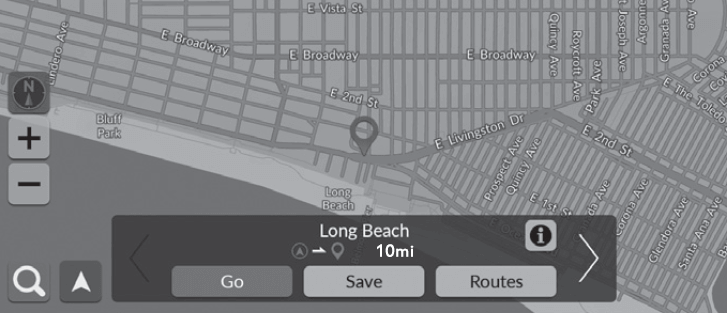
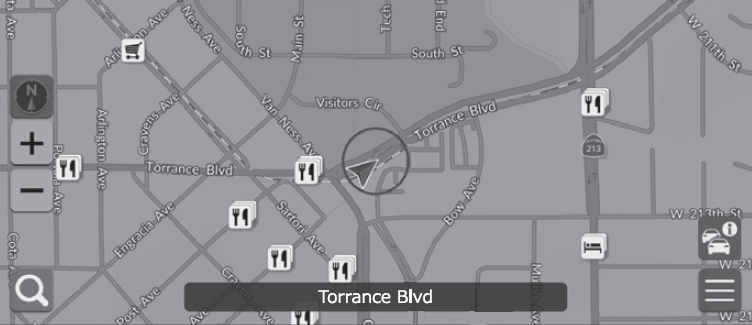
Scroll the map to manually select an icon or a location as the destination.
-
- Select any point on the map, a street, intersection, or category icon.
- Return to the current location when you press the
 button.
- Return to the current location when you press the
- Select Go to set the route to your destination.
- Select any point on the map, a street, intersection, or category icon.
- Detail
 ,
,  or
or  .
.
 to return to the current location. and then select a category icon.
- Navigation
-
- Select a POI icon.
- The destination information screen is displayed.
- Select Go to set the route to your destination.
- The system starts calculating the route.
- Select a POI icon.
- Detail
 /.
/.Calculating the Route
Calculating the Route
This section describes how to calculate your route.
- Select Go.
- The system calculates and displays the route line on the map screen.

The following options are available:
- Save: Saves the location to the Saved Places list.
- Routes: Displays different routes.
 : Displays detailed location information.
- /: Switches to other destination.
Viewing and Selecting the Routes
View and select different routes to your destination.
-
- Select your desired route.
- The estimated arrival time and travel distance are displayed for each route.
- Select Go.
- The system calculates and displays the route line on the map screen.
- Select your desired route.

Viewing the Destination Information
If necessary, view information about the location you found before setting the route. You can confirm destination name, destination map, and distance. The phone number may also be available for some places.
-
- Select a location name or a POI icon on the map.
- Select .

The following options are available:
 : Makes a call to the displayed phone number. You need to pair your phone to the system to select the option.
See the Owner’s Manual for details on paring.
- Go: Sets the route to your destination.
- Save: Saves the location to the Saved Places list.
- Routes: Displays different routes.
Driving to Your Destination
Viewing the Route
This section describes how to follow the route guidance to your destination.
- Detail

- After calculating the route to your destination, the route is displayed on the map screen.

The following options are available:
- Selects the next guidance indicator to replay the voice guidance for the next maneuver.
 : Sets whether to hear a voice guidance on and off.
The turn list screen displays turn-by-turn instructions and the distance between turns.
-
- Set the Maneuver List to ON.
- Select
 on the map.
- Set the Maneuver List to ON.

- Detail
The Turn-by-Turn directions may not be displayed if the information cannot be received correctly.

The turn information screen displays the turn on the map and the distance remaining before you reach the turn. The lane assist screen may display a view of the upcoming intersection.
- Set the Surface Street in Maneuver Assist Popup to on.

- Navigation
- Route Options
- Route Overview (when en route)
The route overview screen displays the entire route and current vehicle position.

If you set the off-road breadcrumbs to show, a series of lines (breadcrumbs) are displayed to track your movement on a off-road.

- Detail
Map Operation
Map Operation
Customize the map, set a destination, and save a place from the map.
-
- Select any point on the map.
- Select an option.
- If you want to set a destination or save a location in the map, scroll the map and select the desired location.

The following options are available:
- : Zooms in to the map.
- : Zooms out of the map.
- : Returns to the current location.
- : Selects the map orientation.
View (Map Orientation)
- Navigation
Select the map orientation.
- Select an option.

The following options are available:
- (North-up): Displays the map with North always pointing up.
 (Heading-up): Displays the map so that the direction you are traveling is always pointing up.
 (3D Map): Displays the bird’s eye view map.
- Detail
Traffic Information
When you set the traffic feature, the system examines traffic conditions and optimizes the route for the shortest time. If a severe traffic delay occurs while you are navigating, the system searches for a faster route. If it finds one, the system will prompt you and you can choose to accept the new route.
The system may route you through a traffic delay if a better alternative route does not exist. The delay time is added into your estimated time of arrival automatically.
- Select
 on the map screen.


The following options are available:
- Nearby Traffic: Displays the traffic flow and delays on nearby roads.
- Traffic Along Route: Displays the traffic flow and delays on along route.
- Detail
- Navigation
- Nearby Traffic
View the traffic flow and delays on nearby roads.

- Navigation
- Traffic Along Route
View the traffic flow and delays on along route.

Changing Your Route
Stopping the Route
Stop the route guidance and remove the destination and all waypoints.
- Select
 .
.

- Detail
“Stop route”
Taking a Detour
- Navigation
- Route Options
- Detour (when en route)
Calculate a new route to avoid something ahead of you. The system creates a new route if possible and attempts to get you back on your original route as quickly as possible.
- Detail
“Detour”
Adding Waypoints
Add waypoints (pit stops) along the route to your destination.
-
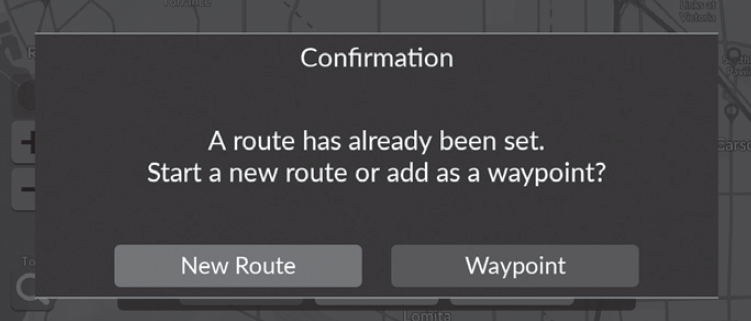
- While en route, select a search method to add a new destination or waypoint.
- Select a place. Select Go.
- Select Waypoint.
- Select New Route to set the location as your new destination.
- While en route, select a search method to add a new destination or waypoint.
-
- Select
 or
or  and then move the destination to the desired position.
 - Select Save.
- The route is automatically recalculated and displayed on the map screen.
- Select

- Detail
Editing a Route
- Navigation
- Route Options
- Destination List
You can edit destinations on your route.
-
- Select or and then move the destination to the desired position.
- Select Save.
- The route is automatically recalculated and displayed on the map screen.
- Select
-
- Select
 .
.- Selected location will be disappear on the list.
- Select Save to delete.
- If you select Cancel, the disappeared location will remain on the list.
- Select
Changing Your Destination
Selecting a Destination on the Map
Select a new destination when en route by selecting a location on the map.
-
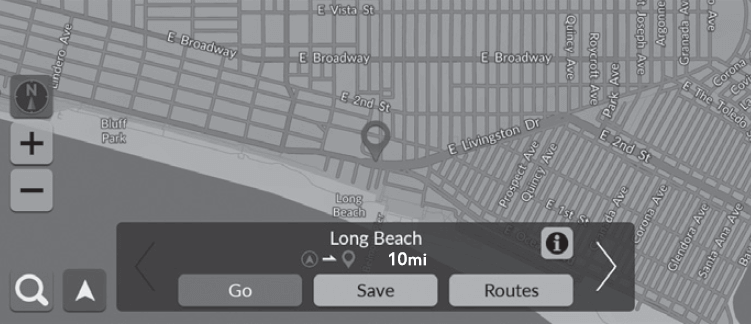
- Select any point on the map, or a street, intersection, or category icon.
- Select Go.
-
- Select an option.
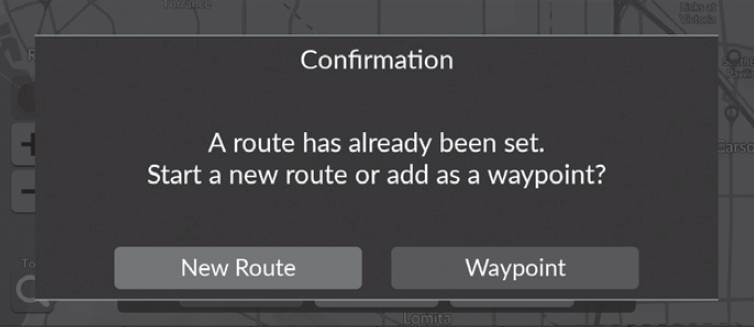
The following options are available:
- New Route: Sets the location as your new destination.
- Waypoint: Sets the location as the first waypoint in the Destination List screen.
Entering a New Destination
- Navigation
Enter a new destination using the destination menu screen even when you are in route.
-
- Select a search method to enter a new destination.
- Select a place and then select Go.
- Select a search method to enter a new destination.
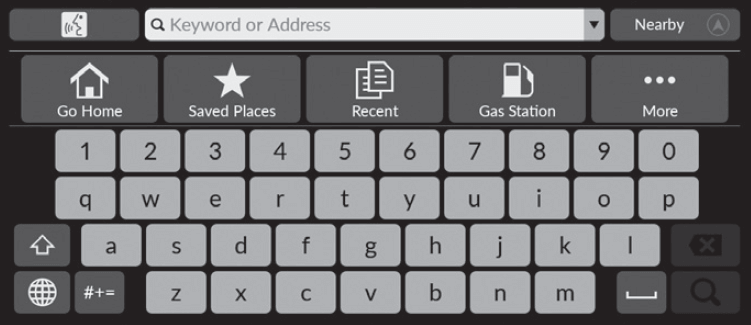
-
- Select an option.
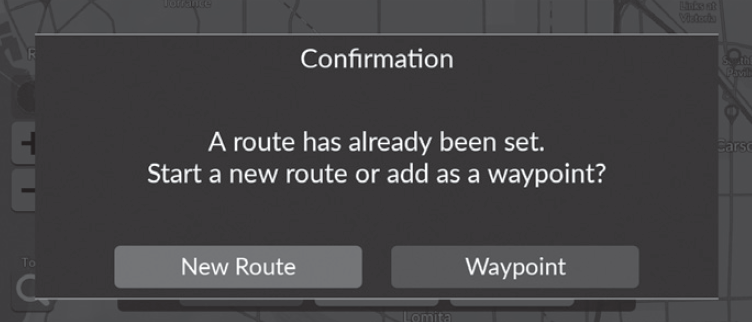
The following options are available:
- New Route: Sets the location as your new destination.
- Waypoint: Sets the location as the first waypoint in the Destination List screen.
Download Manual