Audio System Basic Operation (Models with 9-in. Color Touchscreen)
Audio System Basic Operation
To use the audio system function, the power mode must be in ACCESSORY or ON.
-
 (Home) button: Press to go to the home screen.
 (Back) button: Press to go back to the previous screen.
 /
/ (Seek/Track) buttons: Press to change songs.

Start Up
The 9-in. Color Touchscreen starts automatically when you set the power mode to ACCESSORY or ON. At start-up, the following screen about the data upload will be displayed.
- Select OK.
- If you want to change the settings for data upload, select Data Sharing, then select the ON/OFF settings on the Data Sharing Setting screen.
- If you do not select OK, the system will automatically be switched the home screen after a certain period of time.
- If there is no registered device, select OK and the Bluetooth® pairing screen will be displayed.
- If you check the box with Do not show this again, this screen will not be displayed.

-
- Make sure your phone is in search or discoverable mode.
- Select Honda CIVIC from your phone.
- If you want to pair a phone from this 9-in. Color Touchscreen, select Search for Devices, and then select your phone when it appears on the list.

- Detail
OFF: Not available the data communication.
Audio/Information Screen
Displays the audio status and wallpaper. From this display, you can go to various setup options.
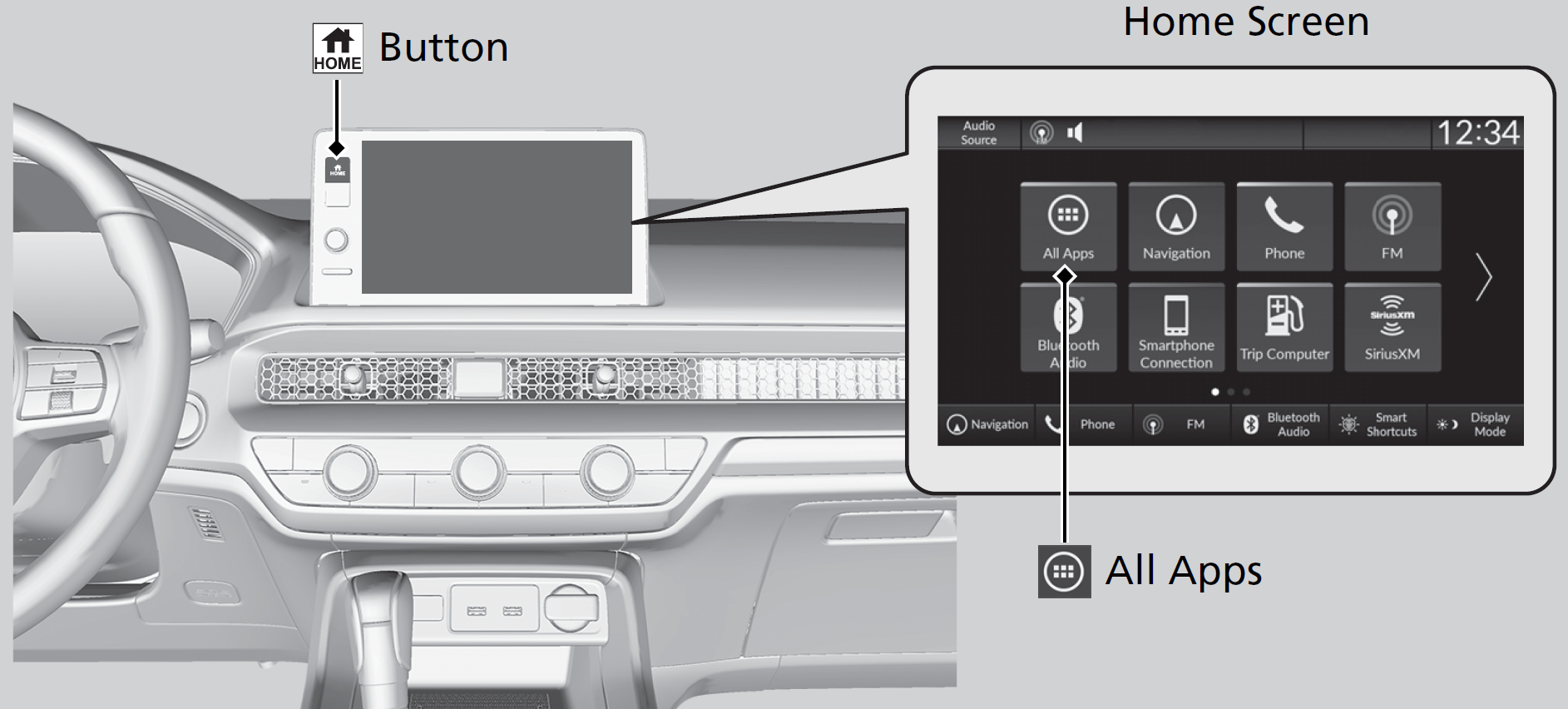 button to go to the home screen.
Select the following icons on the home screen or after selecting
 All Apps.
- Detail
- Use simple gestures - including touching, swiping and scrolling - to operate certain audio functions.
- Some items may be grayed out during driving to reduce the potential for distraction.
- You can select them when the vehicle is stopped or use voice commands.
- Wearing gloves may limit or prevent touchscreen response.
Displays the HFL information.
Displays the audio information for each.
Enters the customizing menu screen.
Displays the navigation screen.
Displays the HondaLink screen.
Displays the Apple CarPlay or Android Auto.
Displays the vehicle settings screen.
Displays the trip computer information.
- Current Drive tab: Displays the current trip information.
- Trip A/Trip B tab: Displays information for the current and three previous drives.
To reset the Trip A/B, select Settings, then select Delete Trip History.
To change the setting of how to reset Trip A/B, select Settings, then select “Trip A” Reset Timing or “Trip B” Reset Timing.
Updates the software version of the audio system.
Displays the clock.
Displays the Smart Shortcuts screen.
Displays the brightness bar.
Displays the compass screen.
You can change, store, and delete the wallpaper on the audio/information screen.
- Detail
- When importing wallpaper files, the image must be in the USB flash drive’s root directory.
Images in a folder cannot be imported. - The file name must be less than 64 bytes.
- The file format of the image that can be imported is BMP (bmp) or JPEG (jpg).
- The individual file size limit is 10 MB.
- The maximum image size is 4,096 × 2,304 pixels. If the image size is less than 1,280 × 720 pixels, the image is displayed in the middle of the screen with the extra area appearing in black.
- If the USB flash drive does not have any pictures, the No files detected message appears.
You can import up to 11 images, one at a time, for wallpaper from a USB flash drive.
-
- Connect the USB flash drive to the USB port.
- Press the button.
- Select Clock.
- Select Settings.
- Select Clock Faces.
- Select Add More.
- The image of the pictures stored in the USB flash drive are displayed on the list.
- Connect the USB flash drive to the USB port.
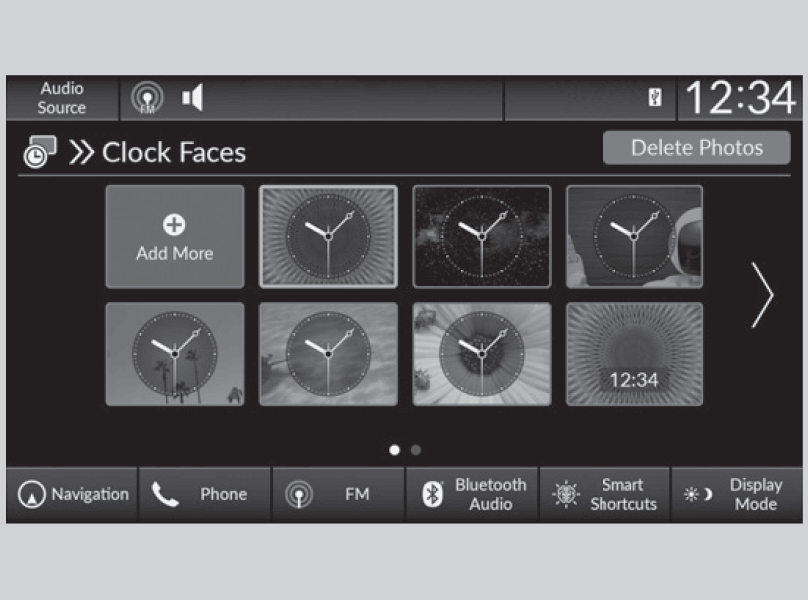
-
- Select a desired picture to import.
- Multiple pictures can be selected at the same time.
- Select OK.
- The selected pictures are displayed.
- Select Transfer.
- It will return to the clock wallpaper setting screen.
- Select a desired picture to import.
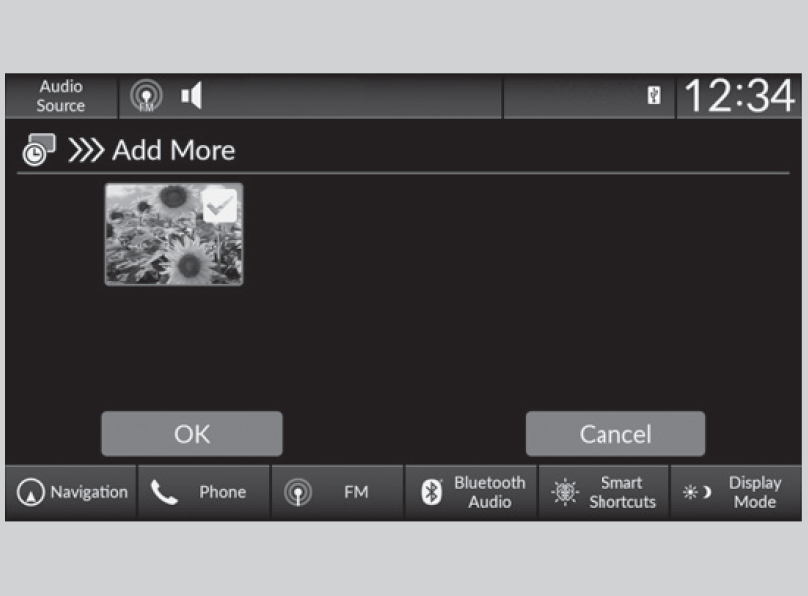
- Press the button.
- Select Clock.
- Select Settings.
- Select Clock Faces.
- Select a desired picture to set.
- The preview is displayed on the screen.
- Select Save.
- The clock screen which the wallpaper has been set is displayed.
- Press the button.
- Select Clock.
- Press the button.
- Select Clock.
- Select Settings.
- Select Clock Faces.
- Select Delete Photos.
- Select a desired picture to delete.
- Multiple pictures can be selected at the same time.
- Select OK.
- The selected pictures are displayed.
- Select Delete.
- It will return to the clock wallpaper setting screen.
- Detail
button to go directly back to the first page of the home screen from any page.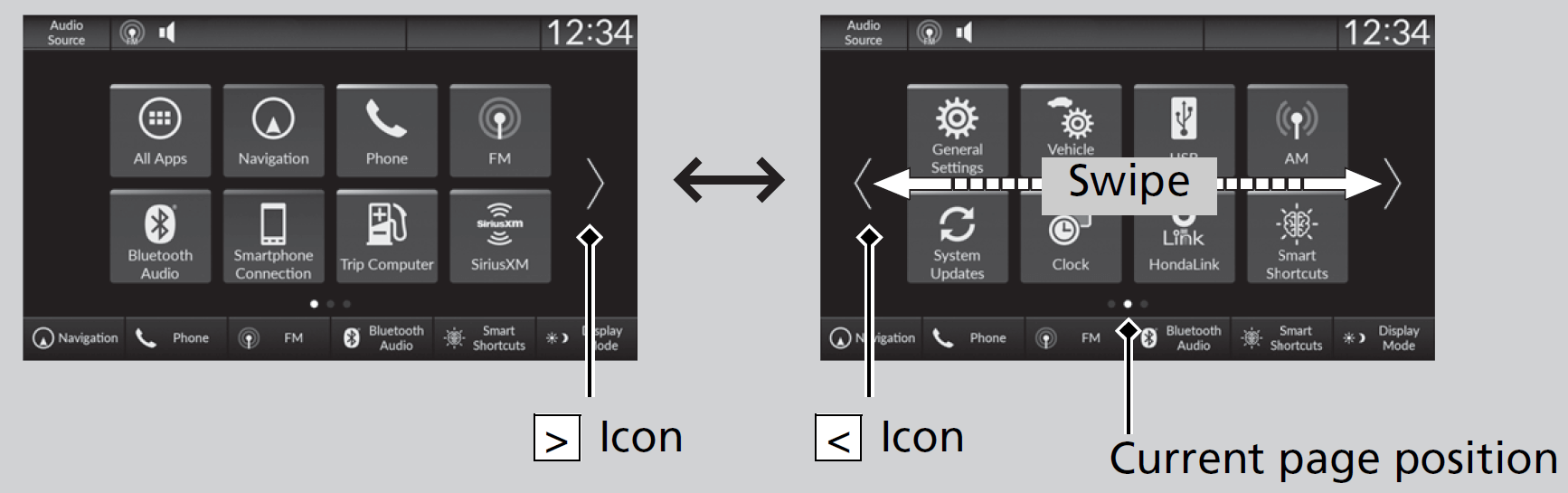
Selecting < or >, or swiping the screen left or right changes to the next screen.
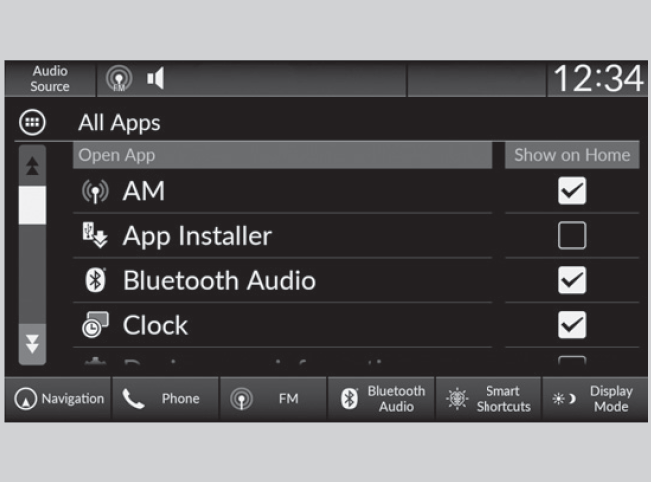
App icons can be added on the home screen.
-
- Press the button.
- Select All Apps.
- Select the box checked on the desired apps.
- Press the
- Detail
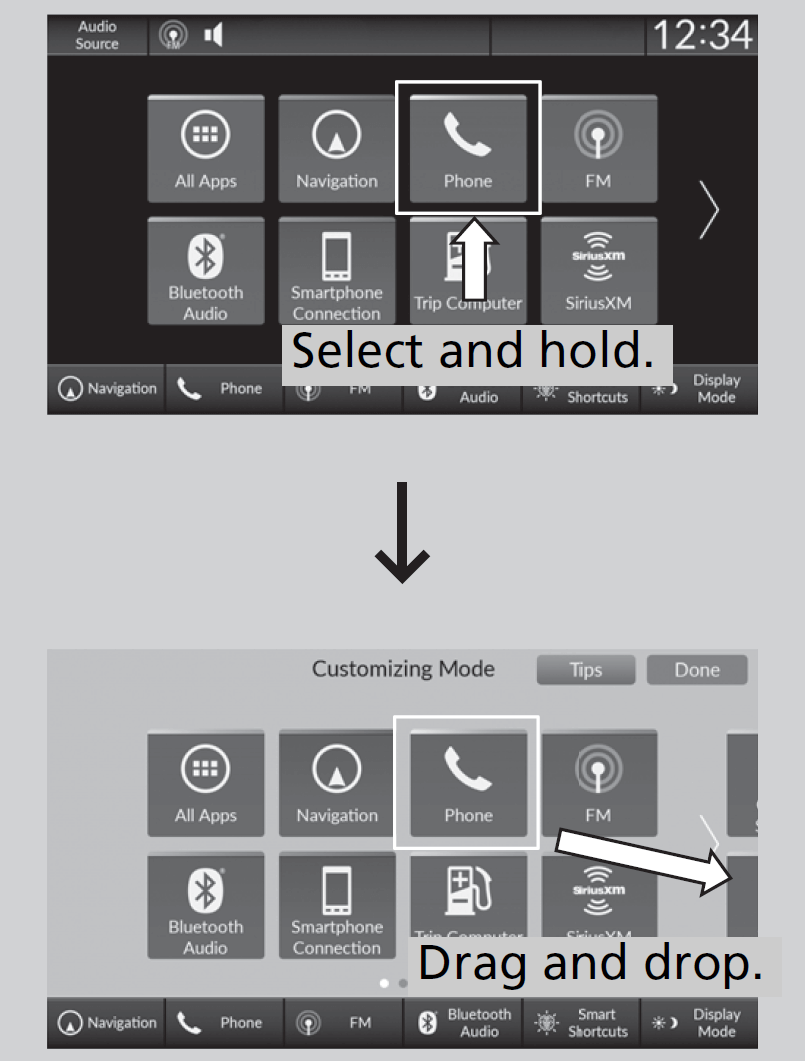
You can change location on the home screen.
-
- Press the button.
- Select and hold an icon.
- The screen switches to the customization screen.
- Drag and drop the icon to where you want it to be.
- Select Done.
- The screen will return to the home screen.
- Press the
- Detail
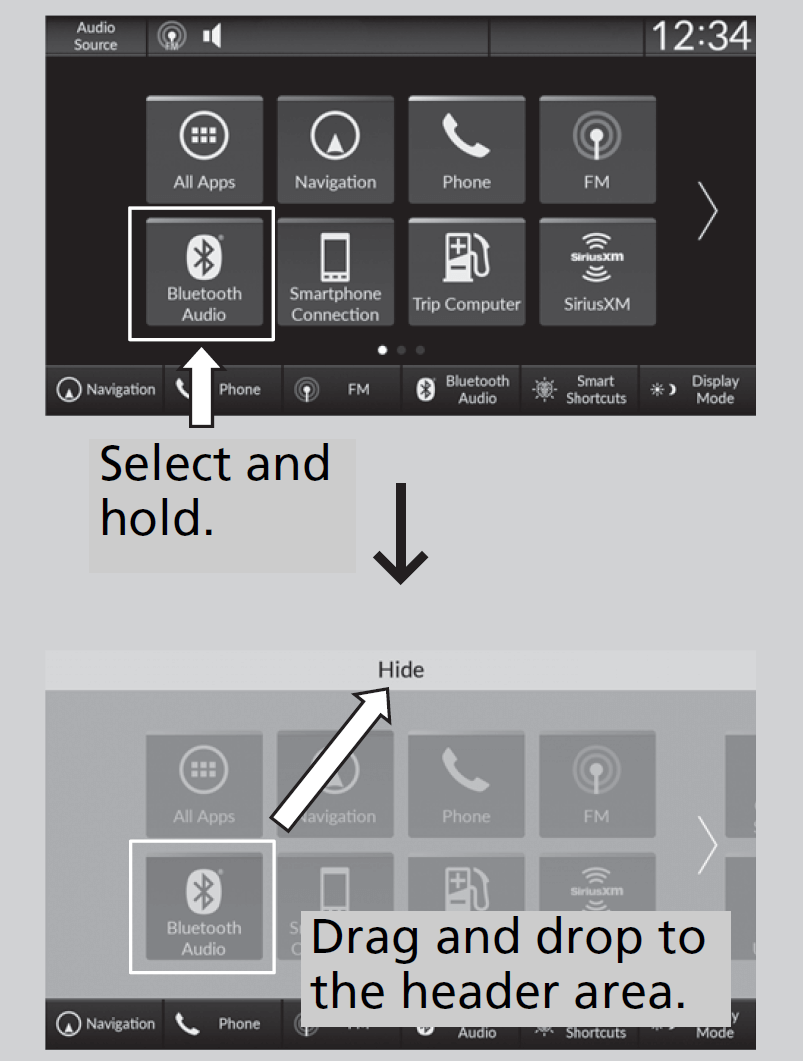
You can delete the icons on the home screen.
-
- Press the button.
- Select and hold an icon.
- The screen switches to the customization screen.
- Drag and drop the icon you want to remove to the header area.
- The icon is removed from the home screen.
- Select Done.
- The screen will return to the home screen.
- Press the
- Detail
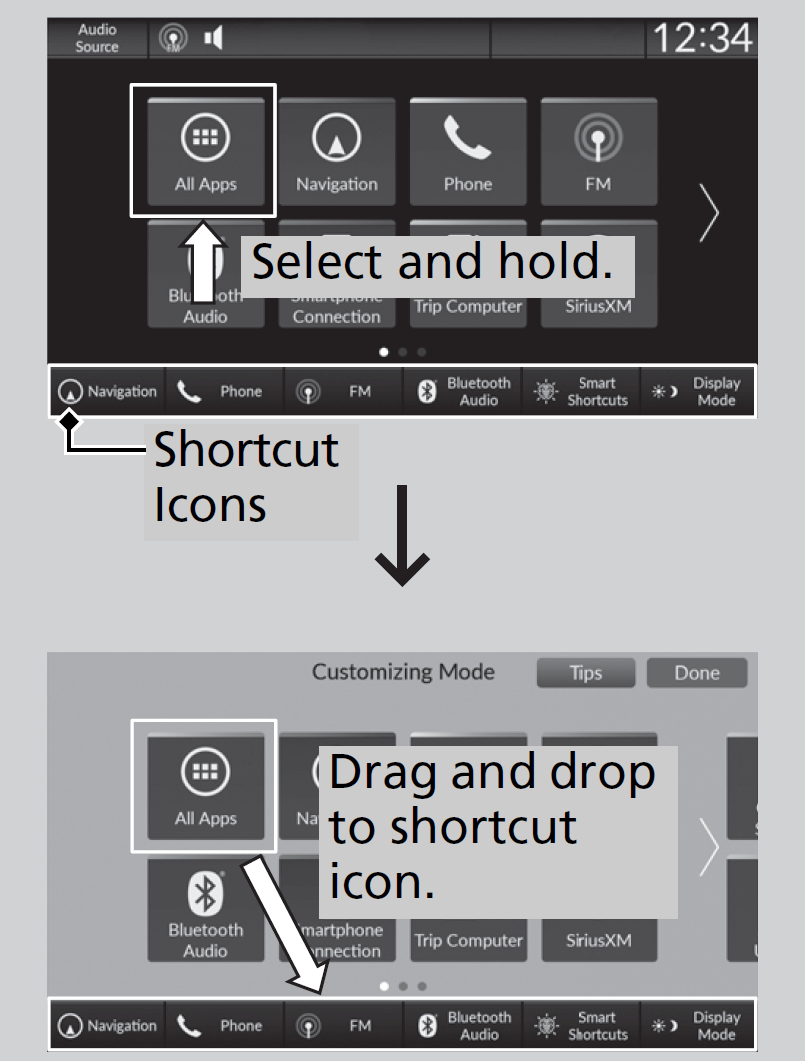
You can store up to six icons on the bottom of the home screen.
-
- Press the button.
- Select and hold an icon.
- The screen switches to the customization screen.
- Drag and drop the icon you want to store to the bottom of the home screen.
- The icon is a shortcut.
- Select Done.
- The screen will return to the home screen.
- Press the
- Detail
-
- Select the system status icon.
- The status area appears.
- Select an item to see the details.
- Press the button or select the system status icon to close the area.
- Select the system status icon.
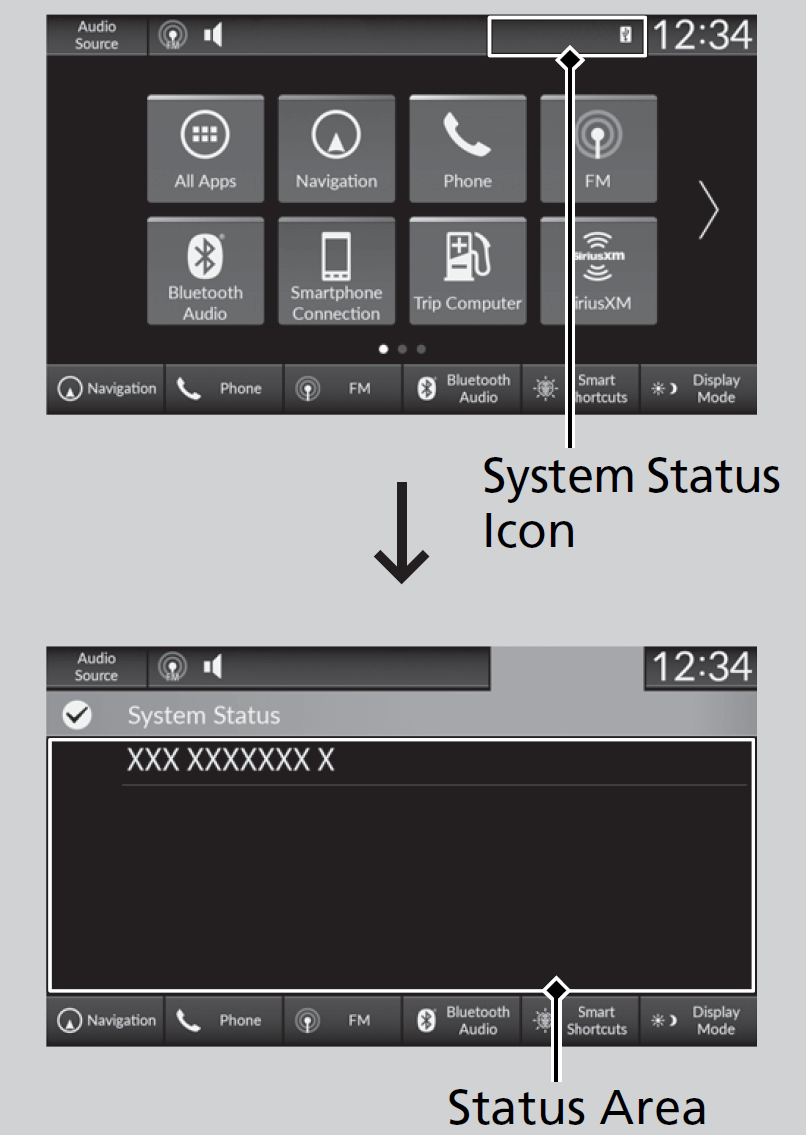
* Not available on all models
System Updates
The audio system’s firmware can be updated with a Wi-Fi connection or with a USB device.
When the audio system update is available, the notification is shown on the status area. Use the following procedure to update the system.
-
- Press the button.
- Select System Updates.
- If System Updates is not displayed on the home screen, select All Apps.
- The system will check for updates.
- If the update icon is appeared on the home screen, select the status icon.
- If System Updates is not displayed on the home screen, select
- Select Download.
- A notification appears on the screen if need to user acceptance for download.
- Select Install Now or Install While Vehicle Off.
- A notification appears on the screen if the update is successful.
- Press the

- Detail
- Your Wi-Fi connection is severed.
- You stop the engine when the battery is low on power.
- The following settings can be set.
- Auto Download
- Version Status
- Connection Setup
- Automatic Update*
- Update History

Use the following procedure to change to the automatic download setting.
- Press the button.
- Select System Updates.
- If System Updates is not displayed on the home screen, select All Apps.
- If System Updates is not displayed on the home screen, select
- Select Settings.
- Select Auto Download.
- Select the access point, then select Allow.
- If you do not want to system update automatically, select Block.
Use the following procedure to confirm the version and update status.
- Press the button.
- Select System Updates.
- If System Updates is not displayed on the home screen, select All Apps.
- If System Updates is not displayed on the home screen, select
- Select Settings.
- Select Version Status.
Use the following procedure to connect to the Internet via a Wi-Fi network.
- Press the button.
- Select System Updates.
- If System Updates is not displayed on the home screen, select All Apps.
- If System Updates is not displayed on the home screen, select
- Select Settings.
- Select Connection Setup.
- Select OK.
- Select an access point from the network list.
- To connect to a hotspot that is not automatically detected, select Options then Add Network.
- Enter the password.
- If you check the Use this network to automatically download system updates box, you can set the network to be used for system updates.
- Select Connect.
Use the following procedure to change to the automatic update setting.
- Press the button.
- Select System Updates.
- If System Updates is not displayed on the home screen, select All Apps.
- If System Updates is not displayed on the home screen, select
- Select Settings.
- Select Automatic Update.
- Select Accept.
- If you do not want to system update automatically, select Decline.
Use the following procedure to confirm the update history.
- Press the button.
- Select System Updates.
- If System Updates is not displayed on the home screen, select
 All Apps.
- If System Updates is not displayed on the home screen, select
- Select Settings.
- Select Update History.
- Press the
 button.
 - Select System Updates.
- If System Updates is not displayed on the home screen, select All Apps.
- If System Updates is not displayed on the home screen, select
- Select Settings.
- Select Connection Setup.
- Select OK.
- Select an access point from the network list.
- To connect to a hotspot that is not automatically detected, select Options then Add Network.
- Enter the password.
- If you check the Use this network to automatically download system updates box, you can set the network to be used for system updates.
- Select Connect.
- Press the button.
- Select System Updates.
- If System Updates is not displayed on the home screen, select All Apps.
- If System Updates is not displayed on the home screen, select
- Select via Wireless.
- Select Download.
- A notification appears on the screen if need to user acceptance for download.
- Select Install Now or Install While Vehicle Off.
- A notification appears on the screen if the update is successful.
- Detail
- Press the button.
- Select System Updates.
- If System Updates is not displayed on the home screen, select All Apps.
- If System Updates is not displayed on the home screen, select
- Select Other Methods.
- Select Via USB.
- A notification appears on the screen.
- Connect a USB device into the USB port.
- The inventory data is copied into the USB device.
- The inventory data is copied into the USB device.
- Remove the USB device from the USB port.
- Connect the USB device into your computer, and then download the update files.
- Follow the link to download the required software update files. Refer to
- Follow the link to download the required software update files. Refer to
- Press the button.
- Select System Updates.
- Select Other Methods.
- Select Via USB.
- A notification appears on the screen.
- Connect the USB device with the update files into the USB port.
- A notification appears on the screen.
- A notification appears on the screen.
- Select Install Now.
- A notification appears on the screen if the update is successful.
* Not available on all models
Adjusting the Sound
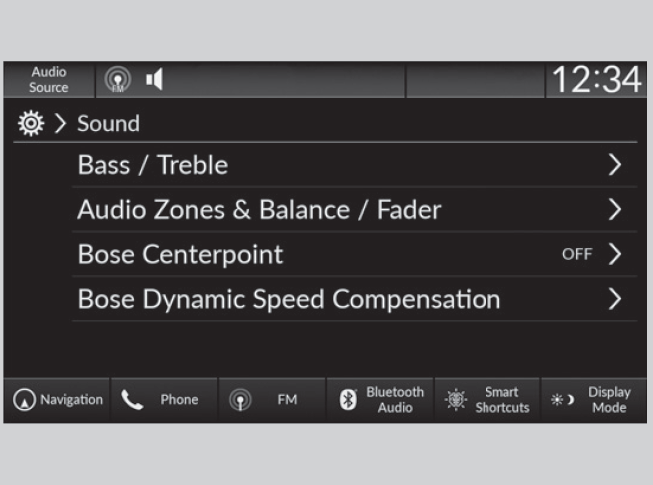
-
- Press the button.
- Select an audio source icon.
- Select Sound.
-
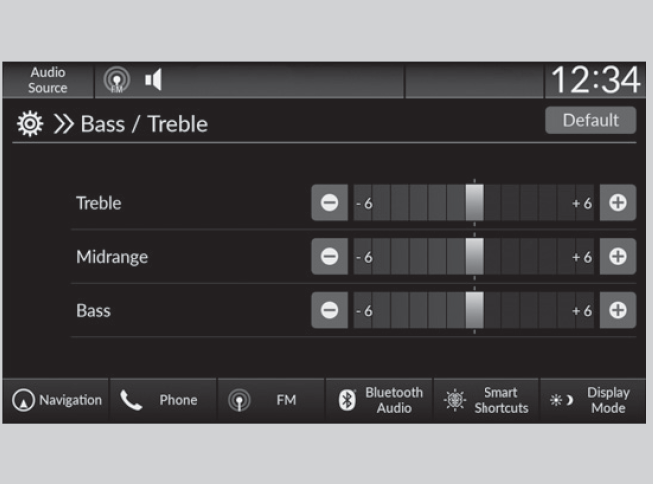
Bass / Treble:Treble, Midrange, Bass
-
Audio Zones & Balance / Fader:Driver Only, Front Only, Rear Only, Full Vehicle, Balance, Fader
-
Bose Centerpoint:Bose Centerpoint
-
Bose Dynamic Speed Compensation:Bose Dynamic Speed Compensation
- Press the
- Detail
- Press the button.
- Select General Settings.
- Select Sound.
- Full Vehicle: All the speakers emit sound.
- Driver Only: Only the speaker by the driver’s seat emits sound.
- Front Only: Only the front speakers emit sound.
- Rear Only: Only the rear speakers emit sound.
Display Setup
You can set the screen brightness.
- Detail
- Press the button.
- Select General Settings.
- Select Display.
- Select the setting you want.
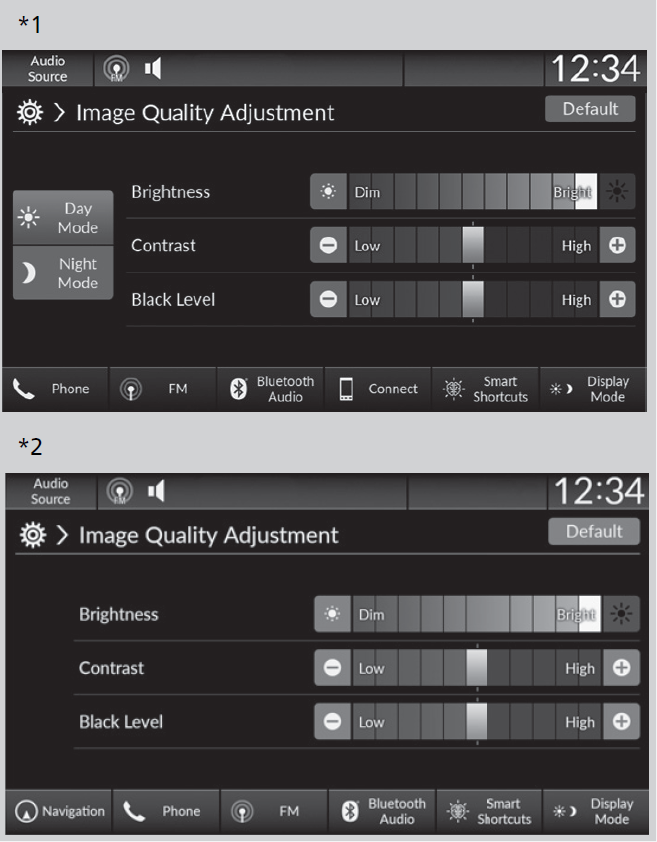
- Select Display Mode.
- The brightness bar is displayed for a few seconds.
- Select
 or
or  to adjust the brightness.
 - Select Display OFF to turn off the screen. To turn on the screen, press the or button.
- Select
 *1 to switch between the Day and Night mode.

- Models with A-type meter
- Models with B-type meter

Select Audio Source in the header area, then select an icon on the source list to switch the audio source.
Voice Control Operation
The voice control system uses the
 (Talk) button on the steering wheel and a microphone near the map lights on the ceiling.
- Detail
button, a helpful prompt asks what you would like to do. Press and release the button again to bypass this prompt and give a command.To achieve optimum voice recognition when using the voice control system:
- Make sure the correct screen is displayed for the voice command that you are using.
The system recognizes only certain commands.
Available voice commands: - Close the windows and moonroof.
- Adjust the dashboard and side vents so air does not blow onto the microphone on the ceiling.
- Speak clearly in a natural speaking voice without pausing between words.
- Reduce any background noise if possible. The system may misinterpret your command if more than one person is speaking at the same time.
- Detail

When the (talk) button is pressed, available voice commands appear on the screen.
For a complete list of commands, say “Help” after the beep.
Depending on the selected mode, the displayed commands are different on the voice portal screen. The commands recognized are the same regardless of which screen is selected.
Normal Mode: A list of example commands is displayed to quickly complete your desired function.
Assist Mode: A list of basic commands is displayed to guide you step by step through the voice menu.
You can change the mode on the General Settings screen.
The system only recognizes the commands on the following pages, at certain screens.
Free-form voice commands are not recognized.
When the voice portal screen is displayed, it will change to the top screen of each function by using the global commands.
- Music Search
- AM
- FM
- Sirius XM
- Navigation*
- Phone
- Call
- Call
The system only recognizes contact names stored in the phonebook of your phone. If a full name is registered in the first name field, the system will recognize the first name and last name as one contact name.
Phone commands are not available if using Apple CarPlay.
When the system recognizes an audio command, the screen will change to the dedicated audio voice recognition screen.
- Tune to
- Tune to
- Tune to SXM
- Tune to SXM
- List Album
- List Artist
- List Genre
- List Playlist
- Play
- Play
- Play Album
- Play Artist
- Play Genre
- Play Music
- Play Playlist
- Play Song
- List Album
- List Artist
- List Playlist
- Play
- Play
- Play Album
- Play Artist
- Play Music
- Play Playlist
- Play Song
The screen will change to the navigation screen when a navigation voice command is received.
- Voice Help
- Cancel
- Back
Voice Help provides guidance for the current screen.
- Previous
- Next
- Yes
- No
* Not available on all models
Playing AM/FM Radio

To store a station:
- Tune to the selected station.
- Select and hold the preset icon to store that station.
- Selecting Press & Hold can be set a new preset station.
- Detail
Stereo reproduction in AM is not available.
Roll the left selector wheel or select Audio Source on the screen.


Lists the strongest stations on the selected band.
- Select Station List to display a list.
- Select the station.
Updates your available station list at any time.
- Select Station List to display a list.
- Select Refresh.
Samples each of the strongest stations on the selected band for 10 seconds. To turn off scan, select Stop or press the button.
Displays the subchannel list when an HD RadioTM station is selected while listening to an FM station.
- Select HD Radio Channels.
- Select the channel number.
Provides text data information related to your selected RDS-capable FM station.
- Detail
- Select Station List to display a list while listening to an FM station.
- Select the station.
Updates your available station list at any time.
- Select Station List to display a list while listening to an FM station.
- Select Refresh.
Change the AM/FM settings.
- Select Settings.
- Select an option.
- HD Radio: Automatically choose a digital or an analog channel, or listen to analog only.
- Artwork: Turns the artwork display on and off.
Playing SiriusXM® Radio

- Detail
- Select Settings.
- Select Tune Start.
- Select ON or OFF.
Roll the left selector wheel or select Audio Source on the screen.
- Select Settings.
- Select Tune Mode.
- Select Channel or Category.
To store a channel:
- Tune to the selected channel.
- Select and hold the preset icon to store that channel.
- Selecting Press & Hold can be set a new preset channel.
You can store up to 10 of your preferred music channels per preset.
-
- Tune a station.
- Select and hold the preset number you want to add a music channel.
- Select Add to TuneMix or Create TuneMix.
- A message appears if there are no available presets.

- Detail
- Select Settings.
- Select TuneMix.
- Select ON or OFF.
If you want to delete a channel, select Edit TuneMix, and then select the channel you want to delete.
Suggested channel listing received from SiriusXM® can be displayed and selected.
- Select More.
- Select Category List.
- Select Featured Favorites.
- Select the featured favorite list title you want to listen to.
- The selected channel list of the title is displayed.
- Select the channel.
- Detail
The system can record up to the last 60 minutes of your currently tuned channel’s broadcast, as well as the last 30 minutes of your preset channel’s broadcast, starting from the moment you turn the vehicle on. If you tuned to a preset channel, the system records up to 60 minutes of a broadcast instead of up to 30 minutes. You can rewind and replay the last 30 or 60 minutes of a broadcast.
Move the position you want to replay by selecting or .
To play or pause on playback mode, select the play/pause icon.
- Detail
You can check how long the program has been stored in memory from the audio/information screen.
After 30 or 60 minutes of recording the system will automatically start deleting the oldest data.

(B): Replayed segment
(C): Length stored in memory
(D): Play/Pause icon
Select and hold .
While listening to other channels, you can receive sports alerts such as scores from the games of your favorite teams.
- Detail
-
- Select Settings.
- Select Sports Notifications Setup.
- Select Favorite Teams.
- Select + Add Favorite Team.
- Select a team.

- Select Settings.
- Select Sports Notifications Setup.
- Select Notifications.
- Select Game Notifications or SportsFlash Game Play Notifications.
- Select Notifications.
- Select ON.
- Select a favorite team.
- A pop-up appears and notifies you of a sports alert.
- Select Listen.
- You can use the same items as the playback mode pop-up screen.
- You can use the same items as the playback mode pop-up screen.
You can receive traffic and weather information.
- Detail
- Select Settings.
- Select Traffic & Weather Now Setup.
- Select Selected City.
- Select the region.
- When you do not want to receive the information, select No Market Selected.
- Select the status icon.
- Select the traffic and weather information.
- Play mode can also use the any items same as playback mode.
 .
. - Play mode can also use the any items same as playback mode.
You can view a channel schedule or receive an alert when your favorite program is about to start.
- Detail
-
- Select More.
- Select Channel Schedule.

- Select More.
- Select Channel Schedule.
- Select a program.
- Select Set Program Alert.
- Select Just Once or Every Time.
- Detail
You can change settings for the alert function.
-
- Select Settings.
- Select Manage Program Alerts.
- Select Notifications.
- Select ON or OFF.

-
- Select Settings.
- Select Manage Program Alerts.
- Select Alerts Set.
- Select
 on the alert you want to delete.

Sample each channel on the selected mode for 10 seconds.
- Select More.
- Select Scan.
You can change a scan mode by the following procedure.
- Select Settings.
- Select Scan Mode.
- Select Channel or Preset.
To turn off scan, select Stop.
- Detail
Change the SiriusXM® settings.
- Select Settings.
- Select an option.
-
TuneMix:Turns multiple channel mix preset on and off.
-
Tune Mode:Choose whether to group by category or channel number when changing channels.
-
Scan Mode:Select the scan mode from all channels or presets.
-
Tune Start:Start the currently playing song at the beginning when you switch to a music channel preset.
-
Sports Notifications Setup:Set to receive sports alerts such as scores from your favorite teams.
-
Traffic & Weather Now Setup:Set to receive traffic and weather information.
-
Manage Program Alerts:Change settings for the alert function.
Playing an iPod
Using your USB connector, connect the iPod to the USB port, then select the USB mode.

- Detail
Reconnect the device if necessary.
-
- Select Browse.
- Select a search category (e.g., Artists, Albums, etc.).
- Continue making selections until you find the song of your choice.

You can select shuffle and repeat modes when playing a file.
-
Repeatedly select the shuffle or repeat icon until you find a play mode option of your preference.

- Detail
 Shuffle off:
 Shuffle All Songs:
 Repeat off:
 Repeat Song:
 Repeat all:
Select the mode you want to turn off.
Playing a USB Flash Drive
Connect your USB flash drive to the USB port, then select the USB mode.

- Only AAC format files recorded with iTunes are playable on this unit.
- Detail
The audio system displays Unplayable File, then skips to the next file.
-
- Select Browse.
- Select a search category (e.g., Artists, Albums, etc.).
- Continue making selections until you find the song of your choice.

You can select repeat, and random modes when playing a file.
-
Repeatedly select the random or repeat icon until you find a play mode option of your preference.

- Detail
Random off: Random All Tracks: Random in Folder: Repeat off: Repeat track: Repeat folder:
 Playing Bluetooth® Audio
This function is available when the phone is paired and connected to the vehicle’s Bluetooth® HandsFreeLink® (HFL) system.

- Detail
- U.S.: Visit automobiles.honda.com/handsfreelink/,
or call 1-888-528-7876. - Canada: For more information on smartphone compatibility, call 1-855-490-7351.
For a list of compatible phones:
When there is more than one paired phone in the vehicle, the system automatically connects to the prioritized phone. You can assign priority to a phone in the Bluetooth® device list.
 from the Bluetooth® device list.
-
- Make sure that your phone is paired and connected to the system.
- Select the Bluetooth® Audio mode.
If the phone is not recognized, another HFL-compatible phone, which is not compatible for Bluetooth® Audio, may already be connected.
- Make sure that your phone is paired and connected to the system.

- Detail
Select the play/pause icon.
-
- Select Browse.
- Select a search category (e.g., Albums).
- Select an item.
- The selection begins playing.

- Detail
You can select shuffle and repeat modes when playing a file.
-
Repeatedly select the shuffle or repeat icon until you find a play mode option of your preference.
- Detail
Shuffle off: Shuffle All Songs: Repeat off: Repeat Song: Repeat Group: Repeat all:
Select the mode you want to turn off.
HondaLink®
HondaLink® connects you to the latest information from Honda. You can connect your phone wirelessly through Wi-Fi or Bluetooth®.

Displays the connection status of the vehicle.
Displays tips for vehicle usage, and get support via roadside or customer service center.
Displays helpful and important information from Honda.
Use the following procedure to connect to HondaLink® service.
-
- Press the button.
- Select General Settings.
- Select System.
- Select Data Sharing Setting.
- Select ON.
- Press the

-
You can see the connection guide screen after launching HondaLink® when there is no connection to a network. If you do not need this guide, select check-box and select OK.

You can check the messages that are received quickly in the shortcut operation.
-
- A notification appears and notifies you of a new message in the header area.
- A notification icon is continuously displayed in the header area until the new message is read.

-
- Select the system status icon to see the messages.
- Select a new message to open.

Smart Shortcuts
By observing and learning driver behaviors, patterns, and preferences, the system anticipates driver actions and presents on-screen suggestions to help perform desired actions quicker and with fewer steps.
- The app will suggest actions based on what it learns you do often, and occasionally make recommendations based on your learned preferences.
- The system will take some time to learn. The more you interact with the system, the more suggestion you will see, and the more accurate they will become.
- Suggestions will automatically refresh periodically to provide updated content for each profile.
- You can also provide feedback on whether a suggestion is helpful by pressing and holding on it. This can help the app grow smarter over time.

- To change the notifications behavior for Smart Shortcuts:
- Select Options on the Smart Shortcuts screen.
- Select Suggestion Settings.
- Select an option.
- All data used for Smart Shortcuts can be erased by a Factory Data Reset.
- Detail
-
- Press the button.
- Select Smart Shortcuts.
- Select a shortcut to take the action suggested.
- Press the

-
Call Suggestions:When selected, a call to the contact or number suggested will be placed and shown. Based on your calling patterns, contacts will be suggested for you to call.
- Connect your smartphone through Bluetooth® to get contact suggestions.
- Call suggestions will not be displayed when you are connected to Apple Carplay.
-
Navigation Suggestions*:When selected, a route will be started to the suggested destination and the embedded navigation app will open.
- When a long route is set in your navigation system, you can receive recommendations for gas stations and places to stop at along the way.
- The places you frequently navigate to while using the embedded navigation system will be suggested as shortcuts.
- Save your home location in the embedded navigation app to have a shortcut suggestion for it when you’re away from home.
-
Radio Suggestions:When selected, the corresponding radio app (FM, AM, or SiriusXM®) will open and it will start playing the station.
- From radio apps you can receive:
- FM, AM, SiriusXM®: Most frequently listened stations you may like to play next.
- FM, SiriusXM®: Genre-based suggestions. - Considerations:
- FM suggestions will appear only when they are within range, according to your vehicle’s tuner signal.
- SiriusXM® suggestions will be available as long as there is an active account in the vehicle.
- From radio apps you can receive:
- Detail
- Profiles: Create, change, and manage profiles.
- View App Walkthrough: View the Smart Shortcuts walkthrough.
- Suggestion Settings: Change where suggestions can appear.
- Select Options on the Smart Shortcuts screen.
- Select Profiles.
- Select Manage Profiles.
- Select + Add New Profile.
- Enter name for your profile.
- Select Done.
- A new profile has been created and the Smart App will automatically switch to that profile.
- Select Options on the Smart Shortcuts screen.
- Select Profiles.
- Select Change Current Profile.
- Select a profile from the list.
- The change to the selected profile has been made.
 on the top of the Smart Shortcuts screen.
* Not available on all models
Wi-Fi Connection
This vehicle is equipped with Wi-Fi connectivity. You can connect to an external Wi-Fi hotspot or communication device.
- Detail

-
- Press the button.
- Select General Settings.
- Select Connections.
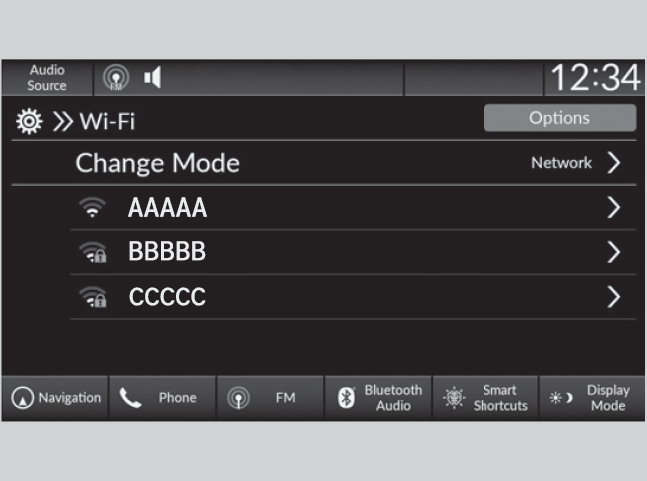
- Select Wi-Fi.
- Select OK.
- Select an access point from the network list.
- To connect to a hotspot that is not automatically detected, select Options then Add Network.
- Press the
-
- Enter the password.
- If you check the Use this network to automatically download system updates box, you can set the network to be used for system updates.
- If you check the Use this network to automatically download system updates box, you can set the network to be used for system updates.
- Select Connect.
- Select Change Mode.
- Select OFF.
- Enter the password.

- Detail
 icon on the system status area.
Transmission speed and others will not be displayed on this screen.
Apple CarPlay
If you connect an Apple CarPlay-compatible iPhone to the system via the front USB port or wirelessly, you can use the audio/information screen, instead of the iPhone display, to make a phone call, listen to music, view maps (navigation), and access messages.

Access the contact list, make phone calls, or listen to voicemail.
Check and reply to text messages, or have messages read to you.
Play music stored on your iPhone.
Display Apple Maps and use the navigation function just as you would on your iPhone.
Only one navigation system (pre-installed navigation or Apple CarPlay) can give directions at a time. When you are using one system, directions to any prior destination set on the other system will be canceled, and the system you are currently using will direct you to your destination.
After you have connected your iPhone to the system via the front USB port or wirelessly, use the following procedure to set up Apple CarPlay. Use of Apple CarPlay will result in the transmission of certain user and vehicle information (such as vehicle location, speed, and status) to your iPhone to enhance the Apple CarPlay experience. You will need to consent to the sharing of this information on the audio/information screen.
- Detail
When Apple CarPlay first detects your iPhone, you will need to set up your iPhone. Refer to the instruction manual that came with your iPhone.
Press the
button Select General Settings Smartphone ConnectionApple CarPlaySelect device
- Connect the iPhone to the USB port using the USB cable.
- The confirmation screen will be displayed.
- Select Yes.
- If you do not want to connect Apple CarPlay, select No.
You may change the consent settings under the Smartphone Connection settings menu.
- Press the button.
- Select Smartphone Connection.
- Select + Connect New Device.
- Pair the iPhone to the vehicle’s Bluetooth® HandsFreeLink® (HFL) system.
- Select Yes.
- If your iPhone asks for permission to accept an Apple CarPlay connection, accept to connect. A confirmation message for HondaLink Assist appears.
- Select Yes or No.
- Press the button.
- Select General Settings.
- Select Smartphone Connection.
- Select Apple CarPlay.
- Select + Connect New Device.
- Pair the iPhone to the vehicle’s Bluetooth® HandsFreeLink® (HFL) system.
- Select Yes.
- If your iPhone asks for permission to accept an Apple CarPlay connection, accept to connect. A confirmation message for HondaLink Assist appears.
- Select Yes or No.
- Press the button.
- Select General Settings.
- Select Connections.
- Select Bluetooth.
- Select + Connect New Device.
- Pair the iPhone to the vehicle’s Bluetooth® HandsFreeLink® (HFL) system.
- Check the box on Apple CarPlay.
- If you select Apple CarPlay, you cannot select Audio and Phone.
- Select Connect.
- Select Yes.
- If your iPhone asks for permission to accept an Apple CarPlay connection, accept to connect. A confirmation message for HondaLink Assist appears.
- Select Yes or No.
- Press and hold the (talk) button on the steering wheel.
- Pair the iPhone to the vehicle’s Bluetooth® HandsFreeLink® (HFL) system.
- Check the box on Apple CarPlay.
- If you select Apple CarPlay, you cannot select Audio and Phone.
- Select Connect.
- Select Yes.
- If your iPhone asks for permission to accept an Apple CarPlay connection, accept to connect. A confirmation message for HondaLink Assist appears.
- Select Yes or No.
- Set the power mode to ACCESSORY or ON.
- Select OK.
- If there is no registered device, the Bluetooth® pairing screen will be displayed.
- If you check the box with Do not show this again, this screen will not be displayed.
- Pair the iPhone to the vehicle’s Bluetooth® HandsFreeLink® (HFL) system.
- Check the box on Apple CarPlay.
- If you select Apple CarPlay, you cannot select Audio and Phone.
- Select Connect.
- Select Yes.
- If your iPhone asks for permission to accept an Apple CarPlay connection, accept to connect. A confirmation message for HondaLink Assist appears.
- Select Yes or No.
Press and hold the (talk) button to activate Siri.

- Detail
- What movies are playing today?
- Call dad at work.
- What song is this?
- How’s the weather tomorrow?
- Read my latest email.
- Find a table for four tonight in Chicago.
Android Auto
We recommend that you complete this tutorial while safely parked before using Android Auto.
Bluetooth A2DP cannot be used while your phone is connected to Android Auto.

- Maps Display Google Maps and use the navigation function just as you would with your Android phone. When the vehicle is in motion, it is not possible to make keyboard entries. Stop the vehicle in a safe location to undertake a search or provide other inputs.
- Phone Make and receive phone calls as well as listen to voicemail.
- Exit

Operate Android Auto with your voice.
You can check Android notifications. (Android Auto Home)
Display useful information organized by Android Auto into simple cards that appear just when they’re needed.
When you connect an Android phone to the unit via the USB port or wirelessly, Android Auto is automatically initiated.
- Connect the Android phone to the USB port using the USB cable.
- The confirmation screen will be displayed.
- Select Yes.
- If you do not want to connect Android Auto, select No.
You may change the consent settings under the Smartphone Connection settings menu.
- Detail
Press the
button Select General Settings Smartphone Connection Android Auto Select device- Press the button.
- Select Smartphone Connection.
- Select + Connect New Device.
- Pair the Android phone to the vehicle’s Bluetooth® HandsFreeLink® (HFL) system.
- Select Yes.
- If your Android phone asks for permission to accept an Android Auto connection, accept to connect. A confirmation message for HondaLink Assist appears.
- Select Yes or No.
- Press the button.
- Select General Settings.
- Select Smartphone Connection.
- Select Android Auto.
- Select + Connect New Device.
- Pair the Android phone to the vehicle’s Bluetooth® HandsFreeLink® (HFL) system.
- Select Yes.
- If your Android phone asks for permission to accept an Android Auto connection, accept to connect. A confirmation message for HondaLink Assist appears.
- Select Yes or No.
- Press the button.
- Select General Settings.
- Select Connections.
- Select Bluetooth.
- Select + Connect New Device.
- Pair the Android phone to the vehicle’s Bluetooth® HandsFreeLink® (HFL) system.
- Check the box on Android Auto.
- If you select Android Auto, you cannot select Audio and Phone.
- Select Connect.
- Select Yes.
- If your Android phone asks for permission to accept an Android Auto connection, accept to connect. A confirmation message for HondaLink Assist appears.
- Select Yes or No.
- Press and hold the (talk) button on the steering wheel.
- Pair the Android phone to the vehicle’s Bluetooth® HandsFreeLink® (HFL) system.
- Check the box on Android Auto.
- If you select Android Auto, you cannot select Audio and Phone.
- Select Connect.
- Select Yes.
- If your Android phone asks for permission to accept an Android Auto connection, accept to connect. A confirmation message for HondaLink Assist appears.
- Select Yes or No.
- Set the power mode to ACCESSORY or ON.
- Select OK.
- If there is no registered device, the Bluetooth® pairing screen will be displayed.
- If you check the box with Do not show this again, this screen will not be displayed.
- Pair the Android phone to the vehicle’s Bluetooth® HandsFreeLink® (HFL) system.
- Check the box on Android Auto.
- If you select Android Auto, you cannot select Audio and Phone.
- Select Connect.
- Select Yes.
- If your Android phone asks for permission to accept an Android Auto connection, accept to connect. A confirmation message for HondaLink Assist appears.
- Select Yes or No.
Press and hold the (talk) button to operate Android Auto with your voice.

- Detail
- Reply to text.
- Call my wife.
- Navigate to Honda.
- Play my music.
- Send a text message to my wife.
- Call flower shop.
icon in the lower-right corner of the screen.Download Manual