MyKey™
Non-Configurable MyKey Settings
Seatbelt Reminder or Belt-Minder™
MyKey mutes the audio system until the front seat passengers buckle the front seat belts.
Note: If your vehicle includes an AM/FM radio or a very basic audio system, then the radio may not mute.
Satellite Radio (If Equipped)
Some Satellite radio channels have restricted access to adult radio content.
Early Low Fuel
The low fuel level warning lamp turns on earlier.
Driving and Parking Aids
You cannot configure settings for parking aids, blind spot information system, and cross traffic alert. These systems turn on when the vehicle turns on, and you cannot switch them off with a MyKey.
You cannot configure settings for pre-collision assist and lane keeping. These systems turn on when the vehicle turns on, but you can switch them off with a MyKey.
A new destination in the navigation system can only be set using voice commands when using a MyKey, and with your vehicle moving.
Note: MyKey drivers may be able to switch the lane departure warning feature off, but this feature turns back on automatically with every new key cycle.
Configurable MyKey Settings
Speed Limit
 WARNING: Do not set MyKey maximum speed limit to a limit that will prevent the driver from maintaining a safe speed considering posted speed limits and prevailing road conditions. The driver is always responsible to drive in accordance with local laws and prevailing conditions. Failure to do so could result in accident or injury. WARNING: Do not set MyKey maximum speed limit to a limit that will prevent the driver from maintaining a safe speed considering posted speed limits and prevailing road conditions. The driver is always responsible to drive in accordance with local laws and prevailing conditions. Failure to do so could result in accident or injury. |
You can set a speed limit for your vehicle. Warning messages appear on the instrument cluster display and a tone sounds if your vehicle reaches the set speed. You cannot override the set speed when using a MyKey.
Speed Minder
You can set a speed reminder for your vehicle. Warning messages appear on the instrument cluster display and a tone sounds if your vehicle exceeds the set speed.
Audio System Volume Limit
The audio system maximum volume reduces. A message appears on the instrument cluster display if you attempt to exceed the volume limit. Automatic volume control turns off.
911 Assist
If you set 911 assist to always on, you cannot switch it off with a MyKey.
Do Not Disturb
If you set do not disturb to always on, you cannot switch it off with a MyKey.
Note: If a phone is connected using Apple CarPlay or Android Auto while driving with a MyKey, the driver can receive phone calls and text messages even if the do not disturb restriction is on. And if the vehicle comes with satellite radio, there is no restriction on the adult content.
Traction and Stability Control
If you set traction control or stability control to always on, you cannot switch it off with a MyKey.
Creating a MyKey
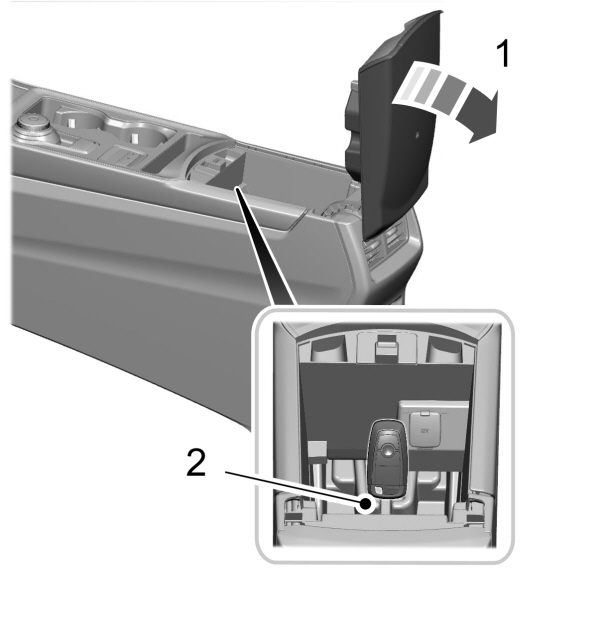
- Raise the console storage compartment lid.
- Place the passive key in the position shown, with the buttons facing the rear of the vehicle.
- Switch the ignition on.
- Access the main menu in the information display and scroll through the menus to select the MyKey menu. From the MyKey menu select the option Create MyKey. See Instrument Cluster Display Main Menu.
- Switch the ignition off.
Note: The programmed restrictions apply when you switch the vehicle off, open and close the driver door and restart your vehicle with the programmed key or remote control.
Note: We recommend that you label this key.
Programming a MyKey
You can only program MyKeys to the same settings.
- Switch the ignition on using an admin key.
- Press the menu button on the steering wheel to enter the information display main menu.
- Select Settings.
- Select MyKey.
- Select a setting and press the OK button.
- Configure the setting.
- Switch the ignition off.
Clearing All MyKeys
When you clear all MyKeys, you remove all restrictions and return all MyKeys to their original admin key status.
- Switch the ignition on using an admin key.
- Press the menu button on the steering wheel to enter the information display main menu.
- Select Settings.
- Select MyKey.
- Select Clear MyKeys.
- Press and hold the OK button until a confirmation message appears in the information display.
Checking MyKey System Status
You can find information about the distance traveled using a MyKey and also the number of admin keys and MyKeys created for your vehicle.
- Switch the ignition on.
- Press the menu button on the steering wheel to enter the information display main menu.
- Select Settings.
- Select MyKey.
- Select MyKey Info.
Using MyKey With Remote Start Systems
MyKey is not compatible with unapproved, aftermarket remote start systems. If you choose to install a remote start system, see an authorized dealer for an approved remote start system.
Troubleshooting - MyKey – Information Messages
| Message | Description |
|---|---|
|
Place Key in Backup Location |
Displays when trying to create a MyKey and the admin key is not placed in the backup position. See Creating a MyKey. |
|
Key is Already a MyKey |
Displays when trying to create a MyKey with a key already designated as a MyKey. |
|
This Key restricted at Next Key Cycle. Label Key as MyKey |
Displays to confirm that the key is restricted after you switch the vehicle off. |
Troubleshooting - MyKey – Frequently Asked Questions
What is an admin key?
- An admin key is a key that you have not created as a MyKey. See .
Why am I not able to create a MyKey?
- You have not placed the admin key in the backup position. See .
- The key used to switch the vehicle on is not an admin key.
- The key used to switch the vehicle on is the only admin key.
- There has to be at least one admin key.
- You did not switch the vehicle off after creating the last MyKey.
Why am I not able to program a MyKey?
- The admin key is not inside your vehicle.
- The key used to switch the vehicle on is not an admin key.
- You have not created any MyKeys. See .
Why am I not able to clear the MyKeys?
- The admin key is not inside your vehicle.
- The key used to switch the vehicle on is not an admin key.
- You have not created any MyKeys. See .
Why is the MyKey distance not accumulating?
- The key used to start the vehicle is an admin key.
- An admin key and a MyKey are inside your vehicle.
- You have not created any MyKeys. See .
- You have cleared the MyKeys. See .
Why am I not able to start the vehicle with a MyKey?
- An admin key and a MyKey are inside your vehicle. The system recognizes only the admin key when both are present.
Download Manual