Audio System
Audio System Precautions
 WARNING: Driving while distracted can result in loss of vehicle control, crash and injury. We strongly recommend that you use extreme caution when using any device that may take your focus off the road. Your primary responsibility is the safe operation of your vehicle. We recommend against the use of any hand-held device while driving and encourage the use of voice-operated systems when possible. Make sure you are aware of all applicable local laws that may affect the use of electronic devices while driving. WARNING: Driving while distracted can result in loss of vehicle control, crash and injury. We strongly recommend that you use extreme caution when using any device that may take your focus off the road. Your primary responsibility is the safe operation of your vehicle. We recommend against the use of any hand-held device while driving and encourage the use of voice-operated systems when possible. Make sure you are aware of all applicable local laws that may affect the use of electronic devices while driving. |
Listening to loud audio for long periods of time could damage your hearing.
Identifying the Audio Unit
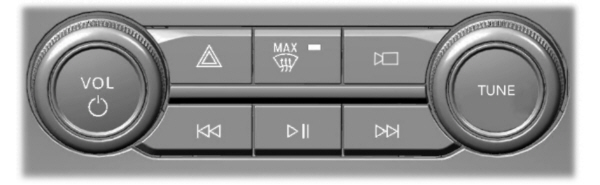
Note: Depending on your vehicle options, the controls may look different from what you see here.
Switching the Audio Unit On and Off
 Press the button on the volume control. Press the button on the volume control. |
Selecting the Audio Source
 Press Sources on the touchscreen to open the media source menu. Press Sources on the touchscreen to open the media source menu. |
Playing or Pausing the Audio Source
Audio Unit
 Press the button to pause playback. Press again to resume playback. Press the button to pause playback. Press again to resume playback. |
Touchscreen
Note: Not all sources can be paused.
Adjusting the Volume
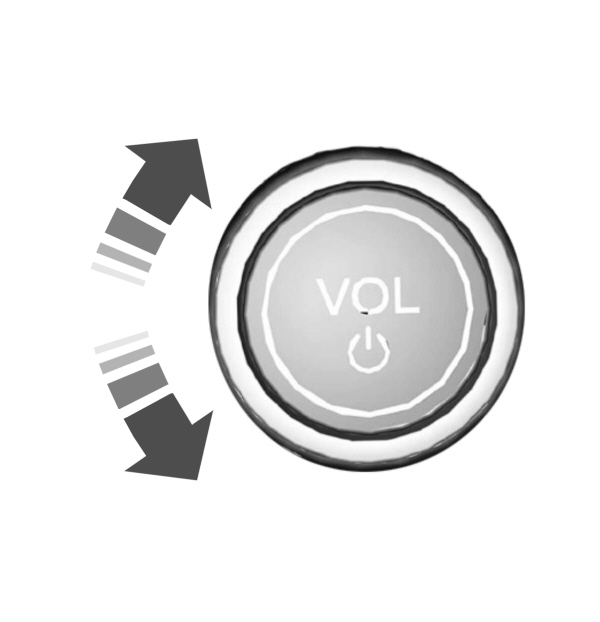
Turn to adjust the volume.
Some vehicles may be able to adjust the volume using buttons on the steering wheel.
Switching Shuffle Mode On and Off

Note: Not all sources have shuffle mode.
Switching Repeat Mode On and Off

Note: Not all sources have repeat mode.
Setting a Memory Preset
- Select a station or channel.
- Press and hold a memory preset button on the touchscreen.
Note: The audio mutes briefly while the system saves the preset and returns once it is stored.
Note: You can save presets from multiple sources to the memory preset bar.
Muting the Audio
 Press the button on the steering wheel to mute the audio. Press the button on the steering wheel to mute the audio. |
Press to mute the signal. Press again to restore the signal. |
Adjusting the Sound Settings
Balance and Fade (If Equipped)
- Press Settings on the touchscreen.
- Press Sound Settings.
- Press Balance / Fade.
- Press the arrows to adjust the settings.
Tone Settings
- Press Settings on the touchscreen.
- Press Sound Settings.
- Press Tone Settings.
- Press the arrows or slider bar to adjust the settings.
Speed Compensated Volume
- Press Settings on the touchscreen.
- Press Sound Settings.
- Press Speed Compensated Volume.
- Press a setting.
Occupancy Mode (If Equipped)
- Press Settings on the touchscreen.
- Press Sound Settings.
- Press Occupancy Mode.
- Press a setting.
Sound Mode (If Equipped)
- Press Settings on the touchscreen.
- Press Sound Settings.
- Press Sound Mode.
- Press a setting.
Setting the Clock and Date
- Press Settings on the touchscreen.
- Press Clock Settings.
- Set the time.
Note: The AM and PM options are not available if 24-hour mode is on.
Switching Automatic Time Updates On and Off
- Press Settings on the touchscreen.
- Press Clock Settings.
- Switch Auto Time Update on or off.
AM/FM Radio Limitations
The further you travel from an AM or FM station, the weaker the signal and the weaker the reception.
Hills, mountains, tall buildings, bridges, tunnels, freeway overpasses, parking garages, dense tree foliage and thunderstorms can interfere with the reception.
When you pass a ground-based broadcast repeating tower, a stronger signal may overtake a weaker one and result in the audio system muting.
Selecting a Radio Station
Manually Selecting a Radio Station
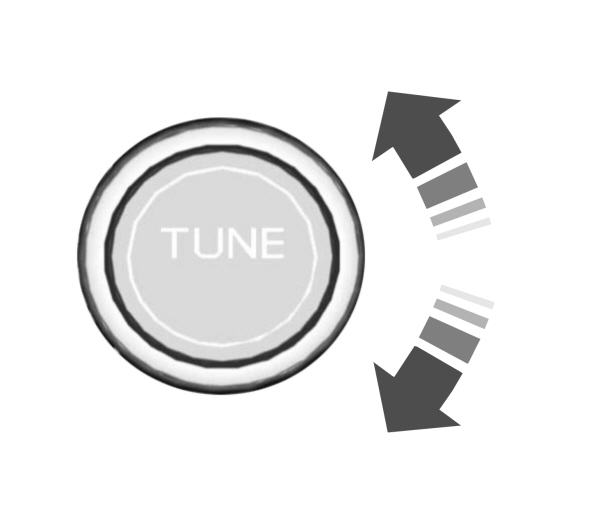
Turn to search through the radio frequency band.
Using Direct Tune
- Press Direct Tune to open the number pad.
- Enter the station you prefer.
Note: You can only enter a valid station for the audio source you are currently listening to.
Using Seek
  Press either button. The system stops at the first station it finds in that direction. Press either button. The system stops at the first station it finds in that direction. |
Using the Station List
- Press Browse.
Note: Available on FM radio only.
- Press a station.
Switching the Display On and Off
Audio Unit
 Press the button. Press the button. |
Touchscreen
To switch the display off:
- From the settings menu, press Display. See Center Display .
- Press Display Off.
Note: The display defaults to on each time you switch your vehicle on.
To switch the display on, press anywhere on the touchscreen.
Download Manual