Center Display
Center Display Overview
 WARNING: Driving while distracted can result in loss of vehicle control, crash and injury. We strongly recommend that you use extreme caution when using any device that may take your focus off the road. Your primary responsibility is the safe operation of your vehicle. We recommend against the use of any hand-held device while driving and encourage the use of voice-operated systems when possible. Make sure you are aware of all applicable local laws that may affect the use of electronic devices while driving. WARNING: Driving while distracted can result in loss of vehicle control, crash and injury. We strongly recommend that you use extreme caution when using any device that may take your focus off the road. Your primary responsibility is the safe operation of your vehicle. We recommend against the use of any hand-held device while driving and encourage the use of voice-operated systems when possible. Make sure you are aware of all applicable local laws that may affect the use of electronic devices while driving. |
For your safety, features that are not critical while driving are not available when the vehicle is moving at or above 5 mph (8 km/h).
Note: Illustrations are provided for conceptual understanding only and may appear differently on your vehicle.
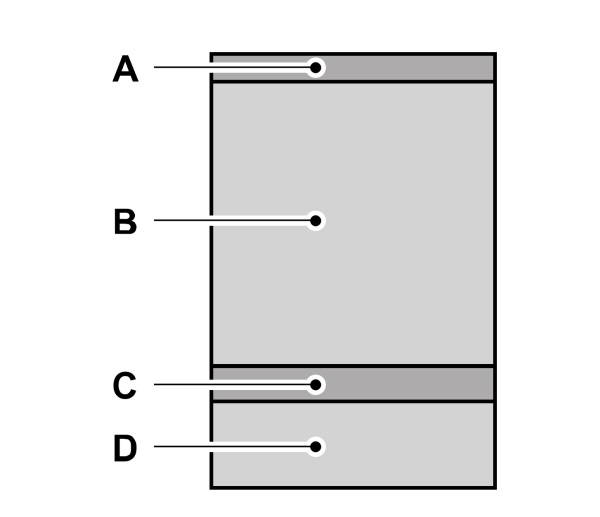
|
A |
 Status bar.
Status Bar
The status bar appears at the top of the display. The following buttons and icons can appear in the status bar.
Note: Some buttons and icons may not apply to your vehicle or may not appear exactly as shown.
App Launcher
 Press to see a list of apps. To open an app, select the app. Press to see a list of apps. To open an app, select the app. |
Settings
 Press to open the settings menu. See Settings. Press to open the settings menu. See Settings. |
Apple CarPlay and Android Auto
  Press to open Apple CarPlay or Android Auto. See Switching Apple CarPlay On and Off. Press to open Apple CarPlay or Android Auto. See Switching Apple CarPlay On and Off. See Switching Android Auto On and Off. |
Camera
 Press to access the camera screen. Press to access the camera screen. |
Connected Device
 Automatic crash notification system off. Automatic crash notification system off. |
 Device signal strength. Device signal strength. |
 Device signal roaming. Device signal roaming. |
 Device signal not available. Device signal not available. |
Vehicle Data and Location
 Vehicle data sharing on. Vehicle data sharing on. |
 Vehicle data sharing off. Vehicle data sharing off. |
 Vehicle location sharing on. Vehicle location sharing on. |
 Vehicle data and vehicle location sharing on. Vehicle data and vehicle location sharing on. |
Vehicle Signal
 Vehicle signal strength. Vehicle signal strength. |
 Vehicle signal roaming. Vehicle signal roaming. |
 Vehicle signal not available. Vehicle signal not available. |
 Wi-Fi connected. Wi-Fi connected. |
Traffic Announcements
 Traffic announcements are turned on but are not supported by the selected station. Traffic announcements are turned on but are not supported by the selected station. |
 Traffic announcements are turned on and supported by the selected station but are not active. Traffic announcements are turned on and supported by the selected station but are not active. |
 Traffic announcements are active. Traffic announcements are active. |
Note: If no traffic announcement icons are displayed, traffic announcements are turned off.
Wireless Charging
 Wireless charging active. Wireless charging active. |
 Device connected and not charging. Device connected and not charging. |
Personal Profiles
|
|
 Press to change or add a profile.
Settings
- Select an item on the side menu to access specific settings. The main area changes as you select different side menu items.
- Press the icon again to close the list of settings.
 If you see this icon next to a menu option, press it to expand the menu and see additional settings. If you see this icon next to a menu option, press it to expand the menu and see additional settings. |
 If you see this icon next to a menu option, press it for more information. If you see this icon next to a menu option, press it for more information. |
Rebooting the Center Display
You can reboot the center display using the controls on the steering wheel.
- Simultaneously press and hold the seek forward and volume down button for 10 seconds.
Download Manual