Radio operation
*: This function is not made avail- able in some countries or areas.
P.421
Select to display the audio source selection screen.
Select to display the preset stations screen. (P.426)
Select to display the cache radio operation screen. (P.426)
Select to display a list of receivable stations. (P.427)
Select to display the radio options screen. (P.427)
Select to display the sound setting screen. (P.422)
Select to tune to preset sta- tions/channels. (P.426)
Displays items on the chan- nels registered to smart favorites* (P.430, 445)
Displays the artist info and song title or album
Select to change the dis- played information.
Displays messages when available*
Displays cover art, station logo, etc.*
Displays information about the song/track currently being played*
*: This function is not made avail- able in some countries or areas.
|
|
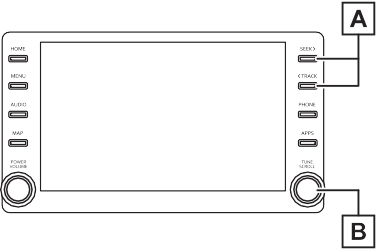
Press and hold for continu- ous seek.
Turn to step up/down fre- quencies/channels.
Turn to move up/down the station list. Also, the knob can be used to enter selec-
tions on the list screens by pressing it.
*: This function is not made avail- able in some countries or areas.
*: This function is not made avail-
able in some countries or areas.
If the radio broadcast is inter- rupted by another audio output, such as an incoming phone call, the system will automatically cache the interrupted portion and perform time-shift playback when the interruption ends. This function is available when “Auto Pause” is set to on. (P.427)
The broadcast cached in the program cache can be played back manually.
Returns to the live radio broadcast
Displays the replay offset from the current time
Skips backward 2 minutes (AM/FM)
Select to select current/previ- ous track (SXM)
Fast rewinds continuously Pauses the playback (To restart, select  )
)
Fast forwards continuously
Skips forward 2 minutes (AM/FM)
Select to change the track (SXM)
*: This function is not made avail- able in some countries or areas.
“Cancel Refresh”: Select to can- cel the refresh.
“Source”: Select to change to another audio source while refreshing.
Select to turn automatic play- back of the cache on/off.*
When “SXM Tune Start” is turned on, the current song is played from the beginning when you select the chan- nel.*
Analog FM only: Select to display RBDS text mes- sages.
Select to scan for receivable stations. (Type scan in case SXM* is current program type/channel category.)
*: This function is not made avail- able in some countries or areas.
When RBDS is on, the radio can do the following functions.
RBDS features are available only when listening to an FM station that broadcasts RBDS information and the “FM Info” function is on. (P.427)
*: This function is not made avail- able in some countries or areas.
included with your vehicle pur- chase or lease. To subscribe after your trial subscription, call 1-877-447-0011 (U.S.A.) or 1-
877-438-9677 (Canada).
Your SiriusXM services will automatically stop at the end of your trial unless you decide to subscribe. If you decide to con- tinue service, the paid subscrip- tion plan you choose will automatically renew and you will be charged the rate in effect at that time and according to your chosen payment method. Fees and taxes apply. You may can- cel at any time by calling 1-866- 635-2349. See SiriusXM Cus- tomer Agreement for complete terms at www.siriusxm.com (U.S.A.) or www.siriusxm.ca (Canada). All fees and program- ming subject to change. Traffic information not available in all markets.

Did you know? SiriusXM also delivers a wide variety of services to certain vehicles’ entertainment and navigation systems such as Traffic, Weather, Sports Scores, Movie Listings, Fuel Prices, Stock Prices and more. For a list of available features in your vehicle, visit siriusxm.com/infotainment and get the most out of your driv- ing experience.
Canadian Customers:
Locate your Radio ID by turning to Channel 0.
Visit siriusxm.ca/refresh to send a refresh signal to your radio or call 1-888-539-7474 for service.
*: This function is not made avail- able in some countries or areas.
channel (000) alternates
2 Select “SXM Replay”.
between displaying the radio
ID and the specific radio code.
*: This function is not made avail- able in some countries or areas.
For channel registration, refer to (P.444).
1 Select channels registered to smart favorites.
*: This function is not made available in some countries or areas.
|
Message |
Explanation |
|
“Check Antenna” |
The SiriusXM antenna is not connected. Check whether the SiriusXM antenna cable is attached securely. Contact your Toyota dealer for assistance. |
|
A short circuit occurs in the antenna or the surrounding antenna cable. Contact your Toyota dealer for assistance. |
|
|
“No Signal” |
The SiriusXM signal is too weak at the current location. Wait until your vehicle reaches a location with a stronger signal. |
|
“Chan Unavailable” |
The channel you selected is not broadcasting any program- ming. Select another channel. |
|
Message |
Explanation |
|
“Ch Unsub- scribed” |
The channel you selected is no longer available. Wait for about 2 seconds until the radio returns to the previous chan- nel or “Ch 001”. If it does not change automatically, select another channel. |
|
“Subscription Updated” |
Subscription is updated. Select “OK” to clear this message. |
Download Manual