Basic information before operation
|
|
|
When the vehicle is stopped with the engine running, always apply the parking brake for safety.
|
 WARNING
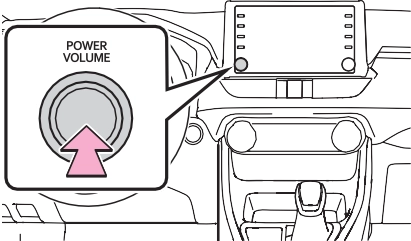
When system response is extremely slow, the system can be restarted.
1 Press and hold the “POWER VOLUME” knob for 3 sec- onds or more.
|
|
Touch screen
Operations are performed by touching the touch screen directly with your finger.
|
Operation method |
Outline |
Main use |
|
Touch
Quickly touch and release once. |
Selecting an item on the screen
|
|
|
Drag*1
Touch the screen with your finger, and move the screen to the desired position. |
Scrolling the lists
|
|
|
|
Flick*1
Quickly move the screen by flicking with your finger. |
Scrolling the main screen page
|
|
Pinch in/Pinch out
Slide fingers toward each other or apart on the screen. |
Changing the scale of the map*2
|
*1: The above operations may not be performed on all screens.
*2: The Apple CarPlay Maps application is not compatible with pinch multi- touch gestures.
|
|
|
To prevent damaging the screen, lightly touch the screen buttons with your finger.
Do not use objects other than your finger to touch the screen.
Wipe off fingerprints using a glass cleaning cloth. Do not use chemical cleaners to clean the screen, as they may damage the touch screen.
|
 NOTICE
 is displayed on the
screen, select  to return to the previous screen.
with a metal object, such as the following, it may not oper- ate properly:
Home screen
|
|
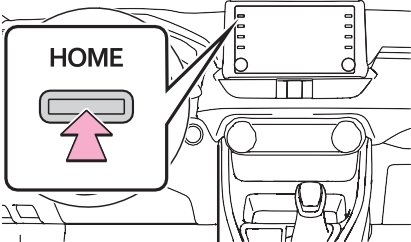
Select to change the display information and area on the home screen.
Select to change the home screen layout.
When searching by a name or entering data, letters and num- bers can be entered via the screen.
Text field. Entered charac- ter(s) will be displayed.
Select to erase one charac- ter.
Select and hold to continue erasing characters.
Select to move the cursor.
Select to choose predictive text candidate for entered text. (P.386)
Select to display a list of pre- dictive text candidates when there is more than one. (P.386)
Select to enter desired char- acters.
Select to enter characters in lower case or in upper case.
Select to change character types. (P.386)
Select to make a space on cursor.
not displayed, select  , and then select the desired predic- tive replacement candidate.
The list screen may be dis- played after entering characters. When a list is displayed, use the appropriate screen button to scroll through the list.
To scroll up/down the list, flick the list up/down.
Select to skip to the next or previous page. Select and
hold  or
or  to scroll through the displayed list.
Indicates the position of the displayed entries in the entire list.
To scroll up/down pages, drag the bar.
 appears to the right of an item name, the complete name is too long to display.
 scroll to the end of the name.
 to move to the begin- ning of the name.
 1 Select .
Screen adjustment
ton.
Select to turn day mode on/off. (P.388)
Select to adjust the screen display. (P.388)
Select to adjust the camera display.
1 Select “Day Mode”.
Select to turn the screen off. To turn it on, press any but-
“+”: Select to strengthen the con- trast of the screen.
“-”: Select to weaken the contrast of the screen.
“+”: Select to brighten the screen. “-”: Select to darken the screen.
Download Manual