Apple CarPlay/Android Auto
*: This function is not made avail- able in some countries or areas.
|
|
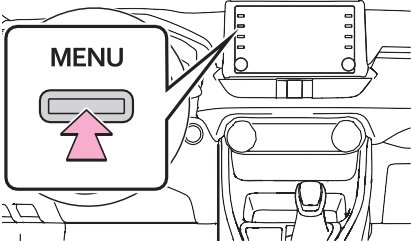
Select to display the home screen of Apple CarPlay. Select and hold to activate Siri.
Select to start the application. User can use any iPhone application supported by Apple CarPlay.
Select to display the system screen.
|
|
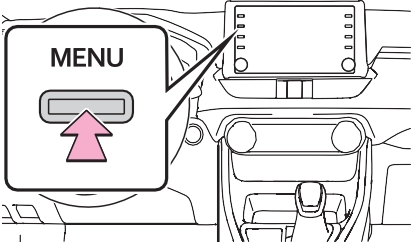
Select to display the home screen of Android Auto.
Select to start the application. User can use any Android application supported by Android Auto.
Select to display the system screen.
Data for these functions is trans-
mitted using the internet and may incur charges. For information about data transmission fees, con- tact your cellular service provider.
is being used for route guidance and a route is set using the Apple CarPlay/Android Auto Maps app, route guidance will be performed through Apple CarPlay/Android Auto. If the Apple CarPlay/Android Auto Maps app is being used for route guidance and a route is set using the vehicle’s navigation sys- tem, route guidance will be per- formed by the vehicle’s navigation system.

less performance.
|
|
|
Do not connect iPhone or oper- ate the controls while driving.
|
 WARNING
|
Symptom |
Solution |
|
Check if the device supports Apple Car- Play/Android Auto. Check if Apple CarPlay/Android Auto is enabled on the connected device. Check that the Android Auto application is installed to the device to be connected. For details, refer to https://www.apple.com/ios/carplay/, |
|
|
https://www.android.com/auto/. |
|
|
An Apple Car- Play/Android Auto con- nection cannot be established. |
Check if “Apple CarPlay”/“Android Auto” of “Projection Settings” on the general settings screen is set to on. (P.414) |
|
Check if the USB cable being used is securely connected to the device and USB port. |
|
|
Try connecting the smartphone directly to the USB port in the vehicle, without using the hub. |
|
|
For Apple CarPlay: Check if the Lightning cable being used is certified by Apple and check if Siri is enabled. |
|
|
After checking all of the above, try to establish an Apple CarPlay/Android Auto connection. (P.407) |
|
|
When an Apple Car- |
|
|
Play/Android Auto con- |
|
|
nection is established and |
As the system is not designed to play video |
|
a video is being played, |
through Apple CarPlay/Android Auto, this is not |
|
the video is not displayed, |
a malfunction. |
|
but audio is output |
|
|
through the system. |
|
|
Although an Apple Car- |
|
|
Play/Android Auto con- nection is established, audio is not output |
The system may muted or the volume may be low. Increase the system volume. |
|
through the system. |
|
Symptom |
Solution |
|
The Apple Car- Play/Android Auto screen has artifacts and/or audio from Apple Car- Play/Android Auto has noise. |
Check if the USB cable being used to connect the device to the system is damaged. To check if the USB cable is damaged inter- nally, connect the device to another system, such as a PC, and check if the device is recog- nized by the connected system. (The device should begin charging when connected.) |
|
After checking all of the above, try to establish an Apple CarPlay/Android Auto connection. (P.407) |
|
|
The map display of the Apple CarPlay Maps app cannot be enlarged or contracted with pinch multi-touch gestures. |
As the Apple CarPlay Maps app is not compati- ble with pinch multi-touch gestures, this is not a malfunction. |
|
During Apple CarPlay music application (Apple Music, Spotify, etc.) play- back, if the iPhone is operated to start and play audio from an application that is not compatible with Apple CarPlay* and the onboard device volume is changed, the audio of the incompatible application stops and the system resumes playback of the original music application. |
This operation is performed according to the specification of the onboard device, this is not a malfunction. |
|
After interrupt audio (such as navigation route guid- ance) is played from an application that is not compatible with Apple CarPlay while the onboard device is playing audio (FM/AM, CD, etc.), the system does not resume playback of the original audio (FM/AM, CD, etc.). |
This operation is performed according to the specification of the onboard device, this is not a malfunction. Manually change the audio source by yourself. Or, do not use applications that are not compatible with Apple CarPlay.* Due to some navigation applications are compatible from iOS 12, update to the latest iOS and appli- cation versions. |
*: Applications not compatible with Apple CarPlay are applications installed on the iPhone that are not displayed on the Apple CarPlay screen appli- cation list. (such as visual voicemail)
Download Manual