Media operation
USB audio
Select to change the file/track.
Select and hold to fast rewind.
Select to play/pause.
Select to change the file/track.
Select and hold to fast for- ward.
Select to set random play- back. (P.433)
Select to change the folder/album.
Displays cover art
Select to change the artist.
USB video
Select to display the audio source selection screen.
Select to return to the top screen.
Select to display a song list screen.
Select to display the play mode selection screen.
Select to display the sound setting screen. (P.422)
Select to set repeat playback. (P.433)
Select to display the audio source selection screen.
Select to return to the top screen.
Select to display a song list screen.
Select to display the play
mode selection screen.
Select to display the sound setting screen. (P.422)
Select to change the file. Select and hold to fast rewind.
Select to play/pause. Select to change the file.
 1 Select .
Select and hold to fast for-
ward.
Select to display a full screen image.
Select to change the folder.
Press to change the file/track.
Press and hold to fast for- ward/rewind.
Turn to change the file/track. Turn to move up/down the list. Also, the knob can be used to enter selections on the list screens by pressing it.
 is selected, the mode changes as follows:
When random playback is off
When random playback is on
1 Select  .
.
 is selected, the mode changes as follows:
folder/album random (all folder/album random) off
|
|
|
Do not operate the player’s con- trols or connect the USB mem- ory while driving.
|
 WARNING
*: This function is not made avail- able in some countries or areas.
An Apple CarPlay connection is not established
An Apple CarPlay connection is established
Select to display the audio
source selection screen.
Select to return to the top screen.
Select to display a song list screen.
Select to display the play mode selection screen.
Select to display the sound setting screen. (P.422)
Select to set repeat playback. (P.436)
Select to change the track. Select and hold to fast rewind.
Select to play/pause.
Select to change the track. Select and hold to fast for- ward.
Select to set random play- back. (P.436)
Displays cover art
Select to change the album. Select to change the artist. Select to change the playlist.
Select to display the Apple CarPlay screen.
|
|
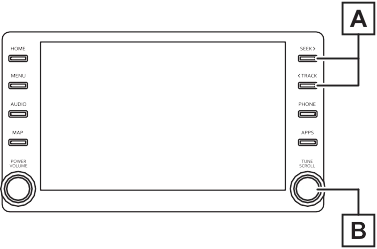
Press to change the track. Press and hold to fast for- ward/rewind.
Turn to change the track. Turn to move up/down the list. Also, the knob can be used to enter selections on the list screens by pressing it.
used.
http://www.toyota.com/ audio-multimedia.
1 Select  .
.
 is selected, the mode changes as follows:
When shuffle is off (iPhone 5 or later)
When shuffle is off (iPhone 4s or earlier)
When shuffle is on
 1 Select .
 is selected, the mode changes as follows:
|
|
|
Do not operate the player’s con- trols or connect the iPod/iPhone while driving.
|
 WARNING
|
|
|
Do not leave your portable player in the car. In particular, high temperatures inside the vehicle may damage the porta- ble player.
Do not push down on or apply unnecessary pressure to the portable player while it is con- nected as this may damage the portable player or its terminal.
Do not insert foreign objects into the port as this may damage the portable player or its terminal.
|
 NOTICE
*: This function is not made avail- able in some countries or areas.
Select to display the audio source selection screen.
Select to return to the top screen.
Select to display the sound setting screen. (P.422)
Select to display the audio control screen of Android Auto.
Select to change the track. Select to play/pause.
Select to change the track. Displays cover art
|
|
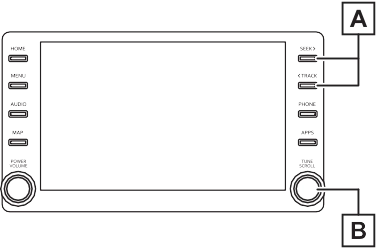
Press to change the track. Turn to change the track.
*: This function is not made avail- able in some countries or areas.
Select to display the audio source selection screen.
Select to return to the top screen.
Select to display a song list screen.
Select to display the play mode selection screen.
Select to display the portable device connection screen. (P.440)
Select to display the sound setting screen. (P.422)
Select to set repeat playback. (P.439)
Select to change the track. Select and hold to fast rewind.
Select to play/pause.
Select to change the track. Select and hold to fast for- ward.
Select to set random play- back. (P.439)
Select to change the album. Displays cover art
|
|
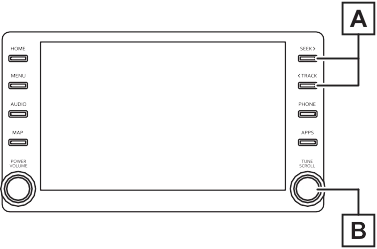
Press to change the track. Press and hold to fast for- ward/rewind.
Turn to change the track. Turn to move up/down the list. Also, the knob can be used to enter selections on the list screens by pressing it.
The track or album currently being listened to can be repeated.
1 Select  .
.
 is selected, the mode changes as follows:
When random playback is off
When random playback is on
selected.
1 Select  .
.
 is selected, the mode changes as follows:
album random (all album random)
off
ing when selecting  while it is paused. Conversely, the music
may pause when selecting  while it is playing.
connect to the Bluetooth® device.
nected on purpose, such as it was turned off, this does not happen. Reconnect the portable player manually.
|
|
|
Do not operate the player’s con- trols or connect to the Blue- tooth® audio system while driving.
Your audio unit is fitted with Bluetooth® antennas. People with implantable cardiac pace- makers, cardiac resynchroniza- tion therapy-pacemakers or implantable cardioverter defibril- lators should maintain a reason- able distance between themselves and the Bluetooth® antennas. The radio waves may affect the operation of such devices.
|
 WARNING
|
Before using Bluetooth® devices, users of any electrical medical device other than implantable cardiac pacemak- ers, cardiac resynchronization therapy-pacemakers or implant- able cardioverter defibrillators should consult the manufacturer of the device for information about its operation under the influence of radio waves. Radio waves could have unexpected effects on the operation of such medical devices.
|
|
|
|
Do not leave your portable player in the vehicle. In particu- lar, high temperatures inside the vehicle may damage the porta- ble player.
|
 NOTICE
Registering an additional device
Selecting a registered device
Download Manual