Uconnect Modes
The remote sound system controls are located on the rear surface of the steering wheel at the three and nine o’clock positions.
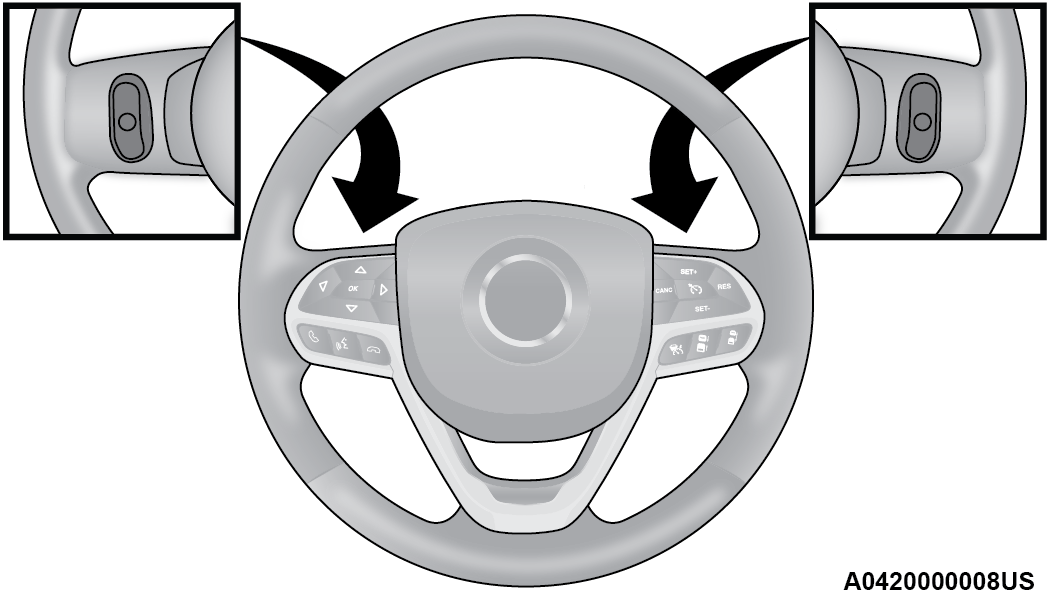
Remote Sound System Controls
The right-hand control is a rocker-type switch with a push button in the center and controls the volume and mode of the sound system. Pushing the top of the rocker switch will increase the volume, and pushing the bottom of the rocker switch will decrease the volume.
Pushing the center button will make the radio switch between the various modes available (AM/FM/SXM or Media, etc.).
The left-hand control is a rocker-type switch with a push button in the center. The function of the left-hand control is different depending on which mode you are in.
The following describes the left-hand control operation in each mode:
RADIO OPERATION
Pushing the top of the switch will Seek Up for the next available station and pushing the bottom of the switch will Seek Down for the next available station.
The button located in the center of the left-hand control will tune to the next preset station that you have programmed in the radio presets.
MEDIA MODE
Pushing the top of the switch skips to the next track on the selected media (AUX/USB/Bluetooth®). Pushing the switch up twice will go forward two tracks. Pushing the bottom switch goes to the beginning of the current track, or the beginning of the previous track if it is within eight seconds after the current track begins to play. Double pressing the bottom button switch will skip to the previous track if it is after eight seconds into the current track.
RADIO MODE
RADIO CONTROLS
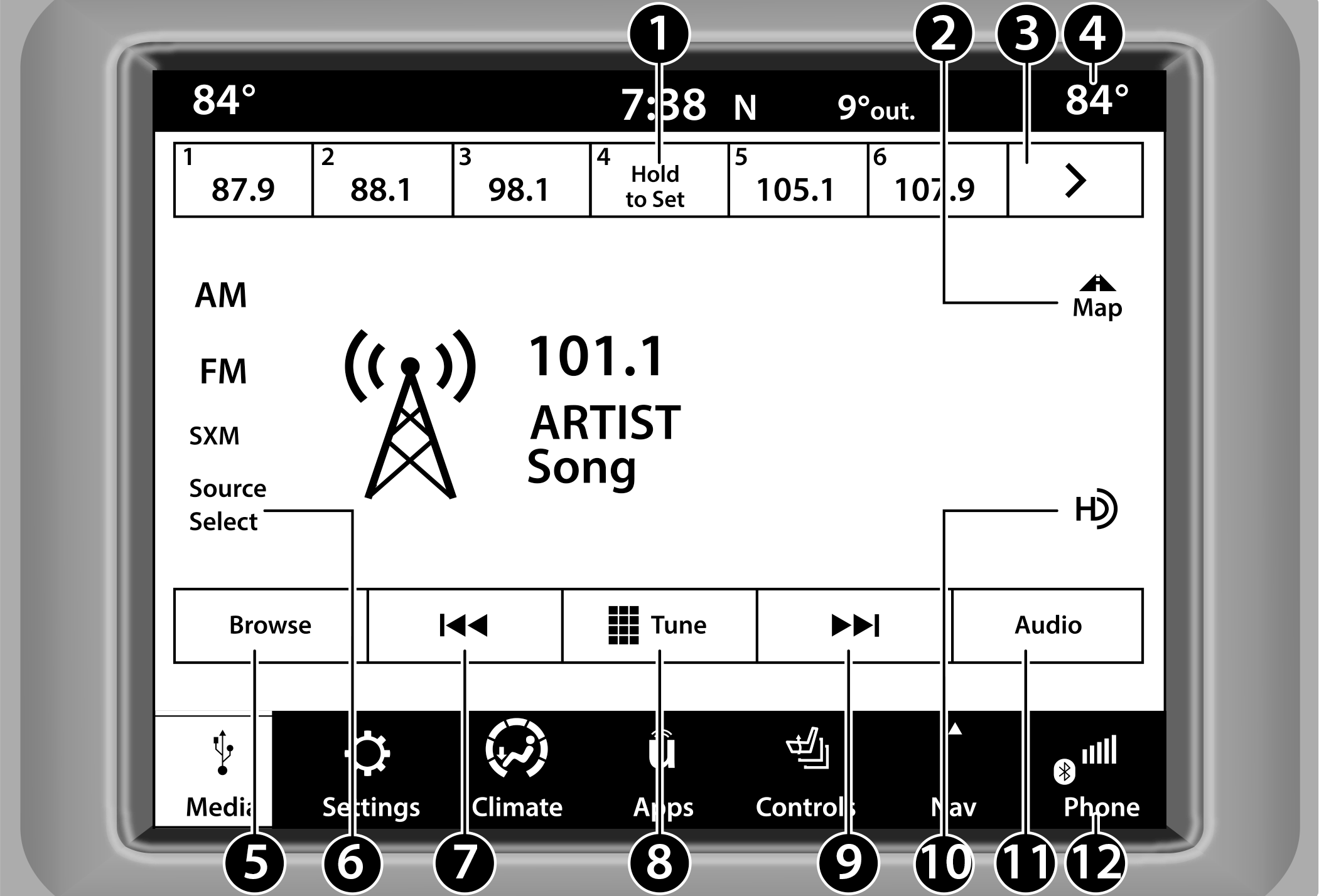
Uconnect 4/4C/4C NAV With 8.4-inch Display
|
1 — Preset Radio Stations |
|
2 — Map Button |
|
3 — View Next Preset Radio Station |
|
4 — Status Bar |
|
5 — Browse Button |
|
6 — Source Select (If Equipped With 4C/4C NAV)/Radio Bands |
|
7 — Seek Down |
|
8 — Tune Button |
|
9 — Seek Up |
|
10 — HD Radio™ (If Equipped) |
|
11 — Audio Settings |
|
12 — Bottom Menu Bar |
The radio is equipped with the following modes:
AM
FM
SiriusXM® Satellite Radio (if equipped)
Press the Radio button or Media button on the touchscreen to enter the Radio Mode. The different tuner modes, AM, FM, and SXM, can then be selected by pressing the corresponding button in Radio Mode.
Volume & On/Off Control
Push the VOLUME & On/Off control knob to turn on and off the Uconnect system.
The electronic volume control turns continuously (360 degrees) in either direction, without stopping. Turning the VOLUME & On/Off control knob clockwise increases the volume, and counterclockwise decreases it.
When the audio system is turned on, the sound will be set at the same volume level as last played.
If equipped, your radio has the ability to perform a forced reset. This can be achieved by pushing and holding the VOLUME & On/Off control knob for 10 seconds. This feature is helpful if the radio freezes or crashes.
Mute Button
Push the MUTE button to mute or unmute the system.
Tune/Scroll Control
Turn the rotary TUNE/SCROLL control knob clockwise to increase or counterclockwise to decrease the radio station frequency. Push the ENTER/BROWSE button to choose a selection.
Seek
The Seek Up and Down functions are activated by pressing the double arrow buttons on the touchscreen to the right and left of the radio station display or by pushing the left steering wheel audio control button up or down.
Seek Up  and Seek Down
Press and release the Seek Up or Seek Down button to tune the radio to the next available station or channel. During a Seek Up/Down function, if the radio reaches the starting station after passing through the entire band two times, the radio will stop at the station where it began.
Fast Seek Up and Fast Seek Down
Press and hold, and then release the Seek Up or Seek Down button to advance the radio through the available stations or channels at a faster rate. The radio stops at the next available station or channel when the button on the touchscreen is released.
Note:
Pressing and holding either the Seek Up or Seek Down button will scan the different frequency bands at a slower rate.
Direct Tune
Press the Tune button located at the bottom of the radio screen to directly tune to a desired radio station or channel.
Press the available number button on the touchscreen to begin selecting a desired station. Once a number has been entered, any numbers that are no longer possible (stations that cannot be reached) will become deactivated/grayed out.
Undo
You can backspace an entry by pressing the Back  button on the touchscreen.
GO
Once the last digit of a station has been entered, press “GO”. The Direct Tune screen will close, and the system will automatically tune to that station.
RADIO VOICE COMMANDS
Use your voice to quickly get to the AM, FM, or SiriusXM® Satellite Radio stations you would like to hear. (Subscription or included SiriusXM® Satellite Radio trial required.)
Push the VR button  on the steering wheel and wait for the beep to say a command. See an example:
“Tune to ninety-five-point-five FM”
“Tune to Satellite Channel Hits 1”
Did You Know: At any time, if you are not sure of what to say or want to learn a Voice Command, push the VR button and say “Help”. The system provides you with a list of commands.
HD RADIO™ — IF EQUIPPED
HD Radio™ technology is the digital evolution of analog AM/FM radio. Your system has a special receiver, which allows it to receive digital broadcasts (where available) in addition to the analog broadcasts. Digital broadcasts provide free, crystal clear audio with no static or distortion.
For more information and a guide to available stations and programming, please visit .
To begin using HD Radio™:
-
Press the Media Button.
-
Select AM or FM tab.
-
Select the HD button.
When HD Radio™ reception is enabled and a station with HD Radio™ broadcasts is playing, the following indicators may appear on the screen:
HD Radio™ Logo: This indicator will display in gray when a digital station is being acquired and will appear in orange and white when digital audio is playing. When this logo is available, you will also see Station Call Sign (e.g. WNIC), Title and Artist fields on screen.
Multicast Indicator (1 2 3...): These numbers will appear if the current station has multiple digital broadcasts. Press the Seek Up or Down button repeatedly to access the other digital broadcasts. The numbers that are highlighted signify available digital channels where new/different content is available. HD1 will signify the main programming service and is available in analog and digital broadcasts. Any additional multicast stations (HD2-HD8) are only broadcast digitally.
Album Art/Station Logo: Some HD Radio™ stations broadcast station logos and album art associated with the song being played as part of the HD Radio™ broadcast service. Station logo art is stored in the radio and may take up to five minutes to learn for each station that supports station logo service. Album art is broadcast at the beginning of songs. If tuning into the middle of a song, the art may not be available.
When HD Radio™ broadcasts are active, you can access the following functions:
Seek Up And Down: Press to seek to the next strong radio station. If the current station has multiple digital broadcasts, the multicast indicator numbers will display. Press “Seek” repeatedly to advance through all available broadcasts. If you are on the last multicast channel, press “Seek Up” to advance to the next strong station.
Saving A Multicast Station As A Preset: When the channel is active on-screen, press and hold a Preset button; it will save the station to the available slot. When recalling an HD2-HD8, memory preset, there will be a momentary mute before the digital audio is played as the system acquires the digital signal. If you have turned this feature off, this will automatically turn on HD Radio™ broadcasts and will tune to the selected frequency. As with any saved radio station, you will not be able to access the saved station if your vehicle is outside the station’s reception area.
“LIVE” Ballgame Mode Broadcasts: If a station has a live broadcast (such as a baseball game), “LIVE” may appear on screen beside the multicast numbers. These are analog broadcasts with digital components (i.e. artist, title). If HD1 is in a live broadcast mode, the HD Radio™ logo will be gray. You will hear analog audio; the user will still be able to tune to the multicast channels.
Reception Area: If you are listening to a multicast (HD2-HD8) station and you are on the fringe of the reception area, the station may mute due to weak signal strength. If you are listening to HD1, the system will simply switch to the analog broadcast until the digital broadcast is available again.
However, if you are listening to any of the possible multicast (HD2-HD8) channels, the station will mute and stay muted unless it is able to connect to the digital signal again. While in this state, the text “buffering” will appear for 30 seconds. If it is not able to reconnect to the digital signal, the screen will be cleared and “HD Radio™ Signal Unavailable” will appear in artist and title field area.
Station Blending: When an HD1 station is received, the system will play the analog audio broadcast from the station for a few seconds and then, if the receiver verifies the station is an HD Radio™ station, it will transition to play the digital audio broadcast. Depending on the station quality, you may hear a slight sound change when the station transitions from analog to the digital broadcast. The shift from analog to digital or digital back to analog sound is known as “blending”.
Station Issues: In order to provide the best possible experience, a contact form has been developed to report any station issues found while listening to a station broadcasting with HD Radio™ technology. Every station is independently owned and operated. These stations are responsible for ensuring all audio streams and data fields are accurate. This form can be found at .
|
Troubleshooting |
||
|
Experience |
Cause |
Action |
|
Mismatch of time alignment — a user may hear a short period of programming replayed or an echo, stutter, or skip. |
The radio station’s analog and digital volume is not properly aligned or the station is in ballgame mode. |
None. It is a radio broadcast issue. The user can contact the station. |
|
Sound fades, blending in and out. |
Radio is shifting between analogue and digital audio. |
Reception issue: It may clear up as the vehicle continues to be driven. Turning off HD Radio™ can force the radio to use analogue audio. |
|
Audio mute condition when an HD2-HD8, multicast channel is playing. |
The radio does not have access to digital signals at the moment. |
This is normal behavior. Wait until the digital signal returns. If out of coverage area, seek a new station. |
|
Audio mute delay when selecting an HD2-HD8, multicast channel preset. |
The digital multicast content is not available until HD Radio™ broadcast can be decoded and make the audio available. This can take up to seven seconds. |
This is normal behavior. Wait until the audio is available again. |
|
Text information does not match the present song audio or no text information shown for the present selected frequency. |
Data service issue by the radio broadcaster. |
Broadcaster should be notified. Use the form at |
HD Radio™ Technology manufactured under license from iBiquity Digital Corporation. US and Foreign Patents. For patents, see . HD Radio™, Artist Experience, and the HD, HD Radio™, and "ARC" logos are registered trademarks or trademarks of iBiquity Digital Corporation in the United States and/or other countries.
SIRIUSXM® SATELLITE RADIO MODE — IF EQUIPPED
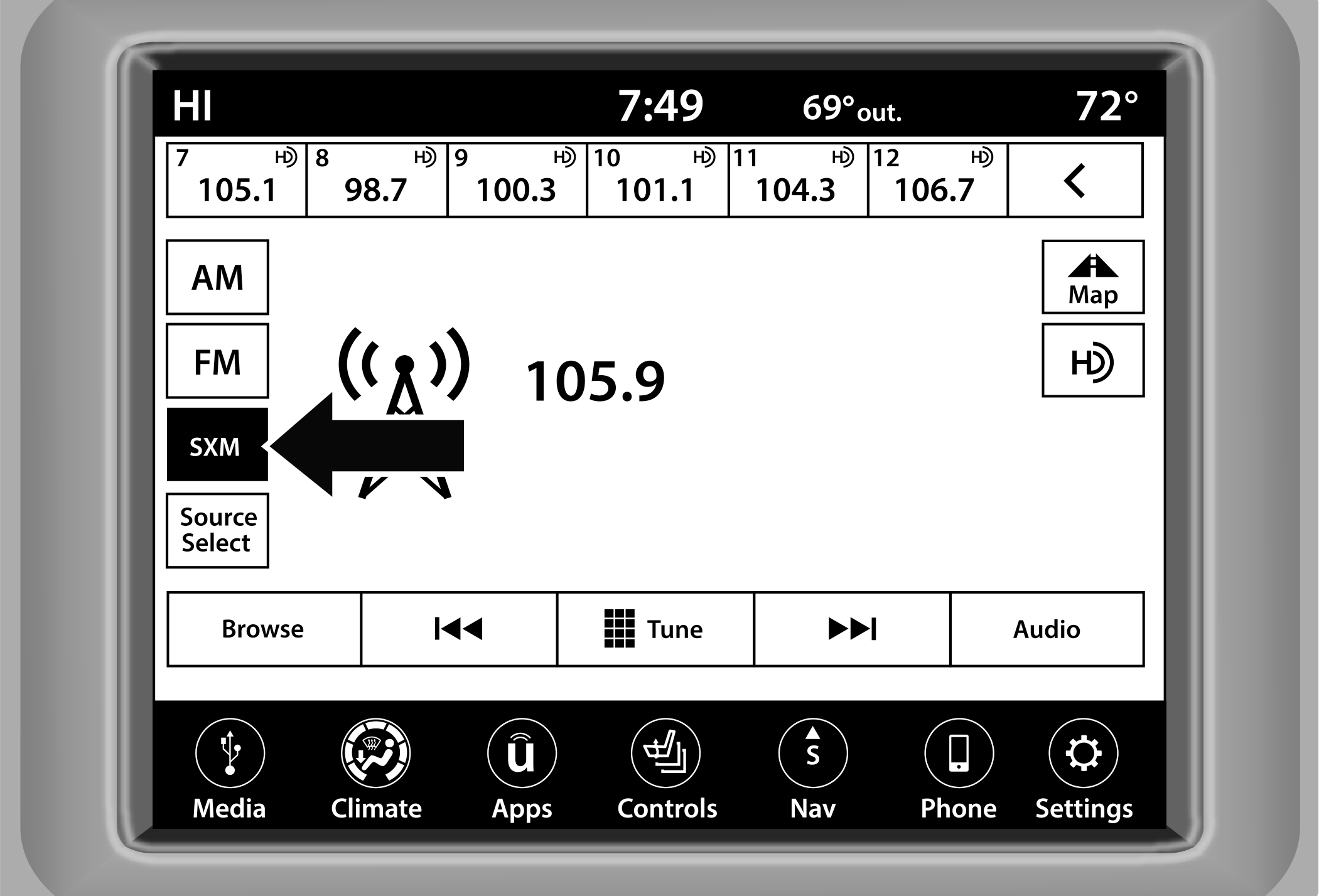
Uconnect 4/4C/4C NAV With 8.4-inch Display Changing To SiriusXM®
Note:
Some SiriusXM® features are not supported by all SiriusXM® channels or content, for example song and artist favorites, sport game notifications, tune start, and others.
SiriusXM® Satellite Radio uses direct satellite-to-receiver broadcasting technology to provide clear, coast-to-coast radio content. SiriusXM® is a subscription-based service.
Visit or review your SiriusXM® Radio pamphlet in your Owner’s Manual kit for more information.
SiriusXM® services require subscriptions, sold separately after the trial included with the new vehicle purchase. If you decide to continue your service at the end of your trial subscription, the plan you choose will automatically renew and bill at then-current rates until you call SiriusXM® at 866-635-2349 to cancel. See SiriusXM® Customer Agreement for complete terms at (US) or (Canada).
All fees and programming subject to change. SiriusXM® satellite service is available only to those at least 18 and older in the 48 contiguous US and D.C. Our SiriusXM® satellite service is also available in Canada and Puerto Rico (with coverage limitations). SiriusXM® Internet radio service is available throughout their satellite service area and in AK. © 2022 SiriusXM® Radio Inc. SiriusXM® and all related marks and logos are trademarks of SiriusXM® Radio Inc.
This functionality is only available for radios equipped with a Satellite receiver. In order to receive satellite radio, the vehicle needs to be outside with a clear view to the sky.
If the screen shows “Acquiring Signal”, you might have to change the vehicle’s position in order to receive a signal. In most cases, the satellite radio does not receive a signal in underground parking garages or tunnels.
No Subscription
Radios equipped with a Satellite receiver require a subscription to the SiriusXM® Service. When the radio does not have the necessary subscription, the radio is able to receive the Preview channel only.
Acquiring SiriusXM® Subscription
To activate the SiriusXM® Satellite Radio subscription, US residents visit or call: 1-800-643-2112
Canadian residents visit or call: 1-888-539-7474.
Note:
You will need to provide the SiriusXM® ID (RID) located at the bottom of the Channel 0 screen.
The Satellite Mode is activated by a press of the SXM button on the touchscreen.
When in Satellite Mode:
The SXM button on the touchscreen is highlighted.
The SiriusXM® Presets are displayed at the top of the screen.
The SiriusXM® Channel Number is displayed in the center.
The Program Information is displayed at the bottom of the Channel Number.
The SiriusXM® function buttons are displayed below the Program Information.
Tuning is done by operating the Tune Knob or by Direct Tune, similar to other Radio Bands.
In addition to the tuning operation functions common to all radio modes, the Replay, Traffic/Weather button, and Favorite button functions are available in SiriusXM® Mode.
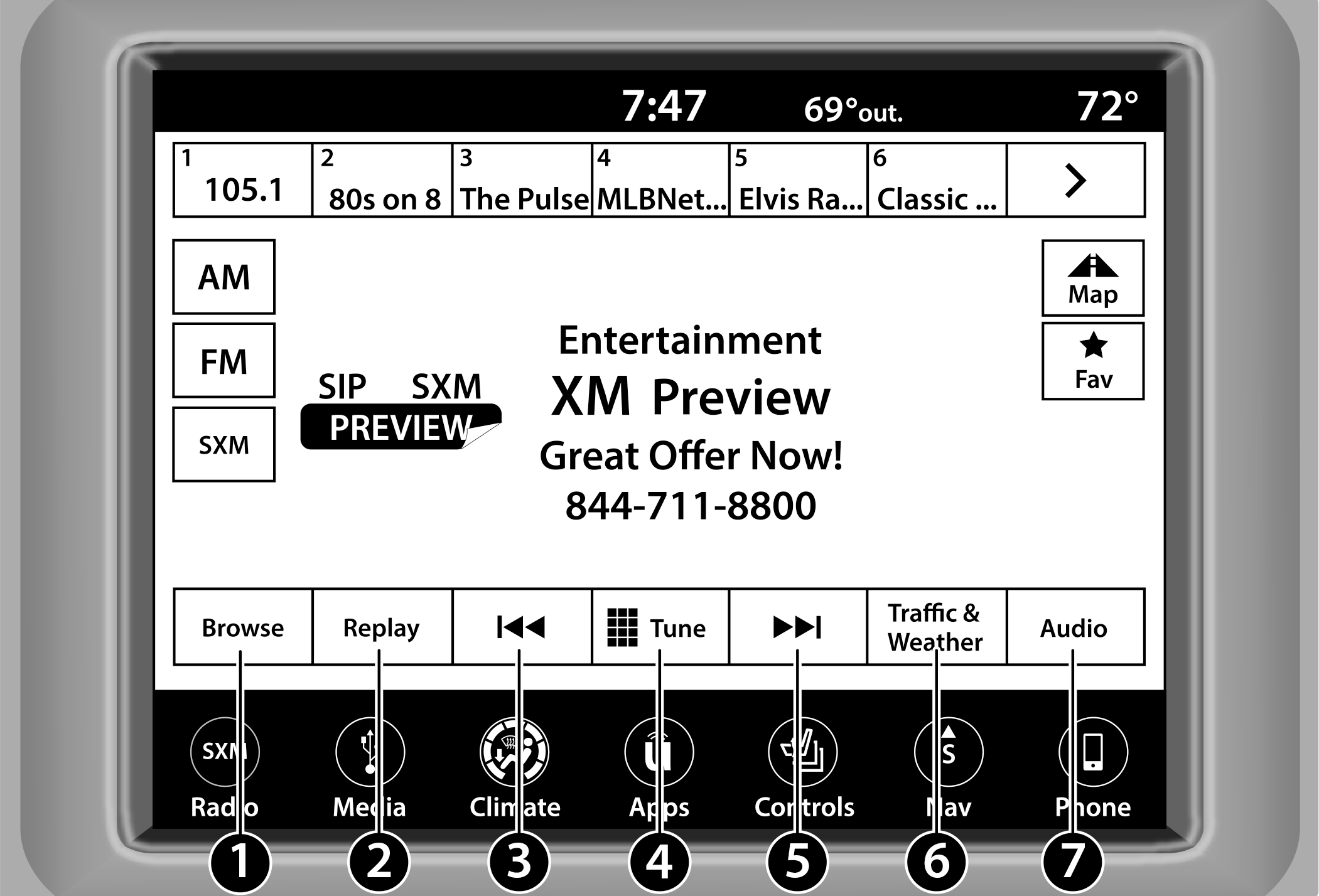
Uconnect 4C NAV With 8.4-inch Display SiriusXM® Satellite Radio
|
1 — Browse |
|
2 — Replay |
|
3 — Seek Down Button |
|
4 — Direct Tune Button |
|
5 — Seek Up Button |
|
6 — Traffic & Weather Button (If Equipped) |
|
7 — Audio Settings Button |
REPLAY
Replay provides a means to store and replay up to 22 minutes of music audio and 48 minutes of talk radio. Once the channel is switched, content in replay memory is lost.
Press the Replay button on the touchscreen. The Play/Pause, Rewind/Forward and Live buttons will display at the top of the screen, along with the replay time.
You can exit by pressing the Replay button on the touchscreen any time during the Replay Mode.
|
Play/Pause |
|
Press the Pause/Play button on the touchscreen to pause the playing of live or rewound content at any time. Play can be resumed by pressing the Pause/Play button again on the touchscreen. |
|
Rewind |
|
Press the Rewind button on the touchscreen to rewind the content in steps of five seconds. Pressing the Rewind button on the touchscreen for more than two seconds rewinds the content. The radio begins playing the content at the point at which the press is released. |
|
Forward |
|
Each press of the Forward button on the touchscreen forwards the content in steps of five seconds. Forwarding of the content can only be done when the content is previously rewound, and therefore, cannot be done for live content. A continuous press of the Forward button on the touchscreen also forwards the content. The radio begins playing the content at the point at which the press is released. |
|
Live |
|
Press the Live button on the touchscreen to resume the playing of live content. |




FAVORITES
Press the Favorites button on the touchscreen to activate the favorites menu, which will time out within 20 seconds in absence of user interaction.
You can exit the Favorites Menu by a press of the X button.
The Favorites feature enables you to set a favorite artist or song that is currently playing. The radio then uses this information to alert you when either the favorite artist or song is being played at any time by any of the SiriusXM® Channels.
The maximum number of favorites that can be stored in the Radio is 50.
Favorite Artist: While the song is playing, to set a favorite artist, press the Favorites button on the touchscreen and then the Favorite Artist button on the touchscreen.
Favorite Song: While the song is playing, to set a favorite song, press the Favorites button on the touchscreen and then the Favorite Song button on the touchscreen.
TRAFFIC & WEATHER — AVAILABLE ON THE 4C NAV (IF EQUIPPED)
Press the Traffic & Weather button on the touchscreen to tune to a SiriusXM® Traffic and Weather channel. To set a Traffic & Weather alert for any one of the cities in the Jump Browse list .
If the Traffic & Weather alert city is not set, you are presented with a pop-up to allow you to select the favorite city using the Browse screen.
BROWSE IN SXM
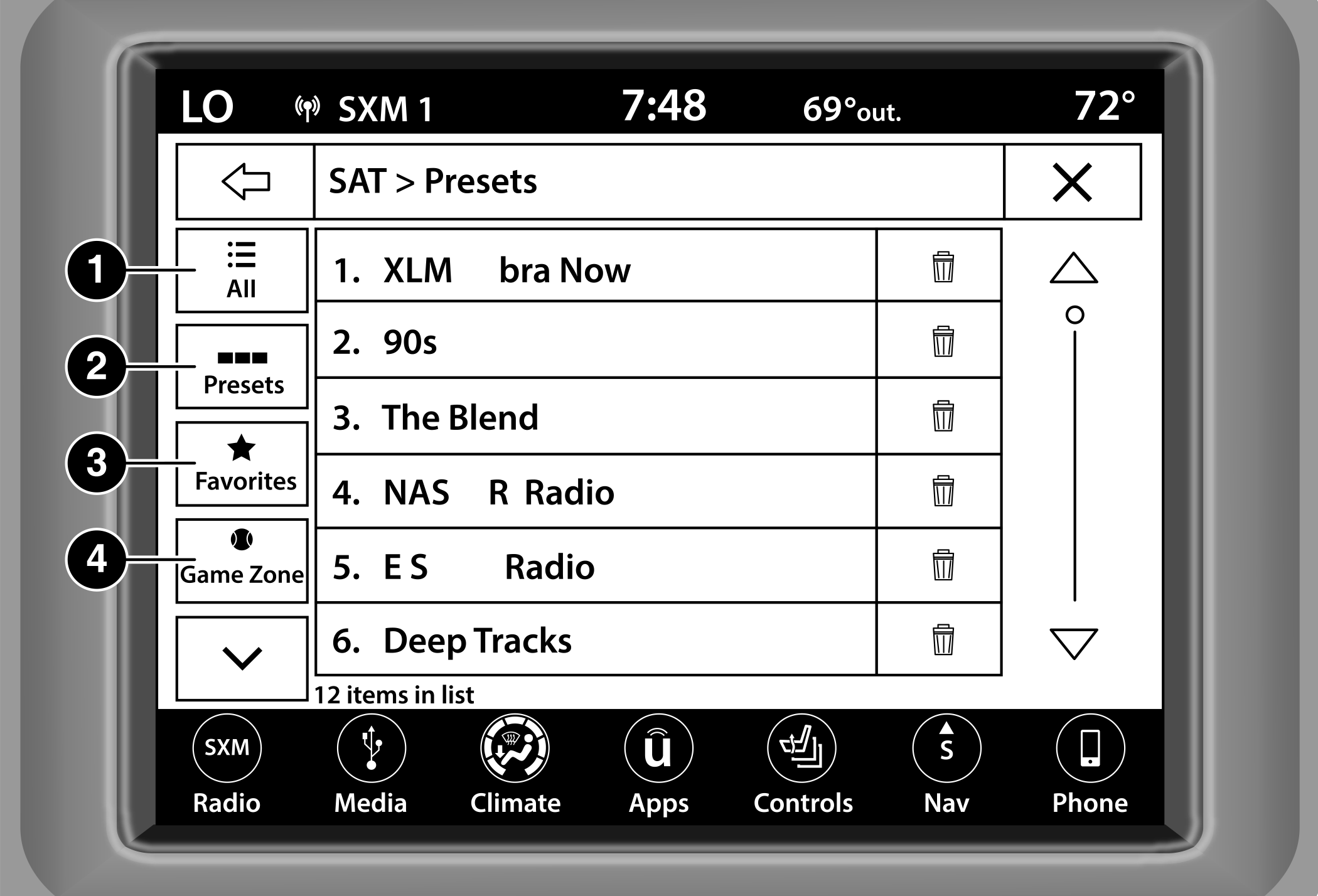
Uconnect 4/4C/4C NAV With 8.4-inch Display Browse Button
|
1 — All Button |
|
2 — Presets Button |
|
3 — Favorites Button |
|
4 — Game Zone Button |
Press the Browse button on the touchscreen to edit Presets, Favorites, Game Zone, and Jump settings, along with providing the SiriusXM® Channel List.
This Screen contains many submenus. You can exit submenus to return to a parent menu by pressing the Back arrow.
All
Press the All button on the Browse screen. After pressing the All button, the following categories become available:
All: Press the All button to display all the SiriusXM® Channel Numbers. You can scroll the list by pressing the Up and Down arrows, located on the right side of the screen. Scrolling can also be done by operating the TUNE/SCROLL knob.
Genre List: Press the Genre button on the touchscreen to display a list of Genres. You can select any desired Genre by pressing the Genre List. The radio tunes to a channel with the content in the selected Genre.
Presets — If Equipped
Press the Presets button (if equipped) located at the left of the Browse screen.
You can scroll the Presets list by pressing the Up and Down arrows located at the right side of the screen. Scrolling can also be done by operating the TUNE/SCROLL knob as well.
Preset Selection
A preset can be selected by pressing any of the listed Presets, or by pushing the ENTER/BROWSE button on the TUNE/SCROLL knob to select the currently highlighted Preset. When selected, the Radio tunes to the station stored in the Preset.
Deleting A Preset
A preset can be deleted in the Presets Browse screen by pressing the Trash Can icon for the corresponding preset.
Favorites
Press the Favorites button on the Browse screen.
The Favorites menu provides a means to edit the Favorites list and to configure the Alert Settings, along with providing a list of Channels currently airing any of the items in the Favorites list.
You can scroll the Favorites list by pressing the Up and Down arrows located at the right side of the screen. Scrolling can also be done by operating the TUNE/SCROLL knob as well.
Remove Favorites
Press the Remove Favorites tab at the top of the screen. Press the Delete Faves button on the touchscreen to delete all of the Favorites or press the Trash Can icon next to the Favorite to be deleted.
Alert Settings
Press the Alert Settings tab at the top of the Favorites screen. The Alert Settings menu allows you to choose from a visual alert or audible and visual alert when one of your favorites is airing on any of the SiriusXM® channels.
Game Zone
Press the Game Zone button, located at the left of the Browse screen. This feature provides you with the ability to select teams, edit the selection, and set alerts.
On-Air — If Equipped
Press the On-Air tab at the top of the screen. The On-Air list provides a list of Channels currently airing any of the items in the Selections list, and pressing any of the items in the list tunes the radio to that channel.
Select Team — If Equipped
Press the Select Team button on the touchscreen to activate the League Scroll list. Press the chosen league and a scroll list of all teams within the league will appear, then you can select a team by pressing the corresponding box. A check mark appears for all teams that are chosen.
Remove Selection/Trash Can Icon
Press the Remove Selection tab at the top of the screen. Press the Delete All button on the touchscreen to delete all of the selections or press the Trash Can icon next to the selection to be deleted.
Alert Settings
Press the Alert Setting tab at the top of the screen. The Alert Settings menu allows you to choose from “Alert me to on-air games upon start” or “Alert upon score update” or both when one or more of your selections is airing on any of the SiriusXM® channels.
Tune Start
Tune Start begins playing the current song from the beginning when you tune to a music channel using one of the 12 presets. This feature occurs the first time the preset is selected during that current song.
SAVING PRESETS TO A DRIVER MEMORY PROFILE — IF EQUIPPED
After setting/changing the desired radio presets, your updates will be saved under the current active profile automatically. Seat alignment will not be saved automatically.
SETTING PRESETS
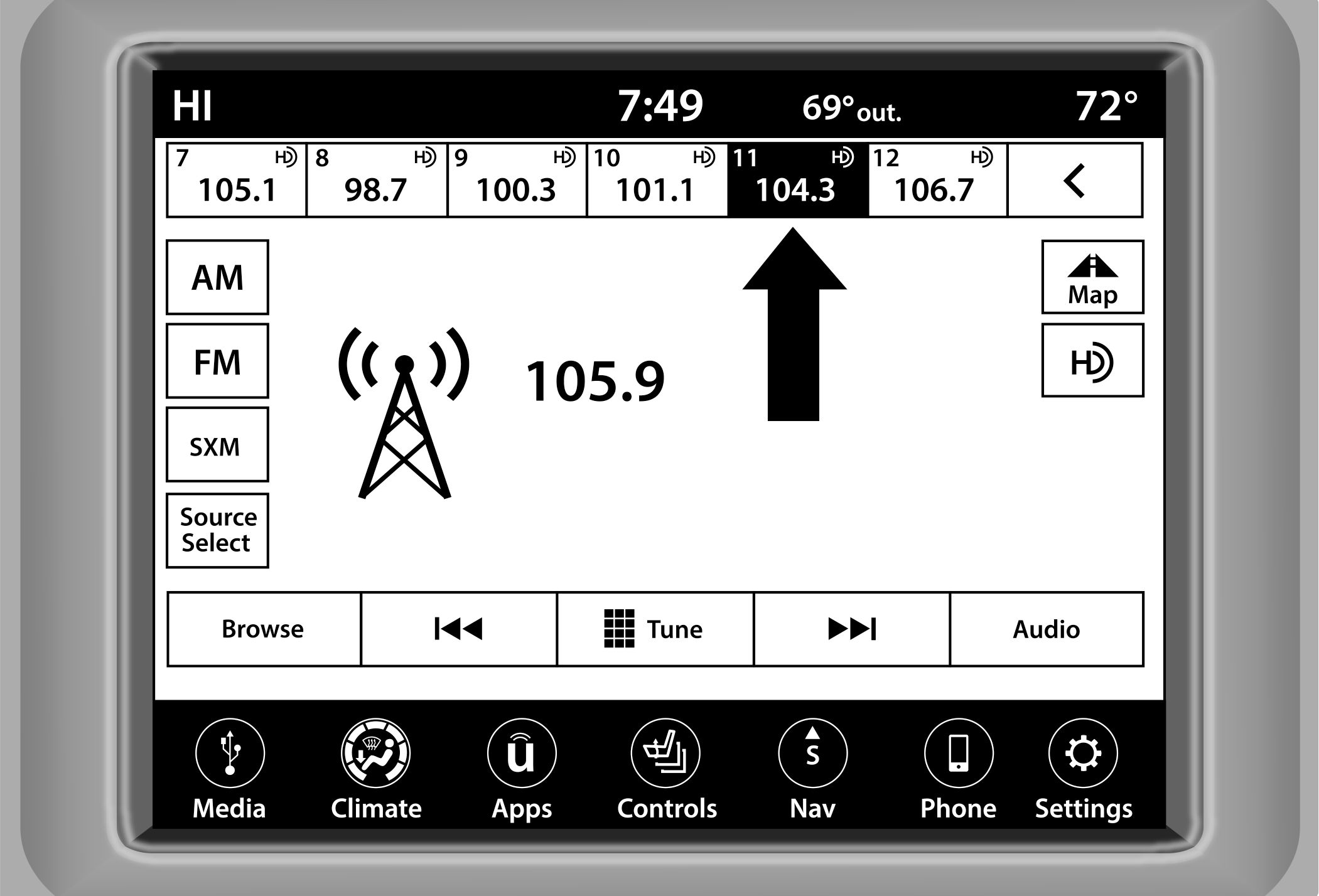
Uconnect 4/4C/4C NAV With 8.4-inch Display Radio Presets
The Presets are available for all Radio Modes, and are activated by pressing any of the Preset buttons, located at the top of the screen.
When you are on a station that you wish to save as a preset, press and hold the numbered button on the touchscreen for more than two seconds.
The Radio stores up to 12 presets in each of the Radio Modes.
A total of six presets will appear on the screen. You can switch between the radio presets list by pressing the Arrow button located in the upper right of the radio touchscreen.
PRESET FEATURES — IF EQUIPPED
Browse In AM/FM
When in either AM or FM, the Browse screen provides a means to edit the Presets List and is entered by pushing the ENTER/BROWSE button.
Scrolling Preset List
Once in the Browse Presets screen, you can scroll the preset list by rotation of the TUNE/SCROLL knob or by pressing the Up or Down Arrow key, located on the right of the screen.
Preset Selection From List
A preset can be selected by pressing any of the listed Presets, or by pushing the ENTER/BROWSE button or the TUNE/SCROLL knob to select the currently highlighted Preset.
When selected, the radio tunes to the station stored in the Presets.
Deleting Presets
A preset can be deleted in the Presets Browse screen by pressing the Trash Can icon for the corresponding preset.
Return To Main Radio Screen
You can return to the Main Radio Screen by pressing the X button or the Back Arrow button when in the Browse Presets screen.
AUDIO SETTINGS
Press the Audio button within the settings main menu to activate the Audio Settings screen.
The audio settings can also be accessed on the Radio Mode screen by pressing the Audio button. You can return to the Radio screen by pressing the X button.
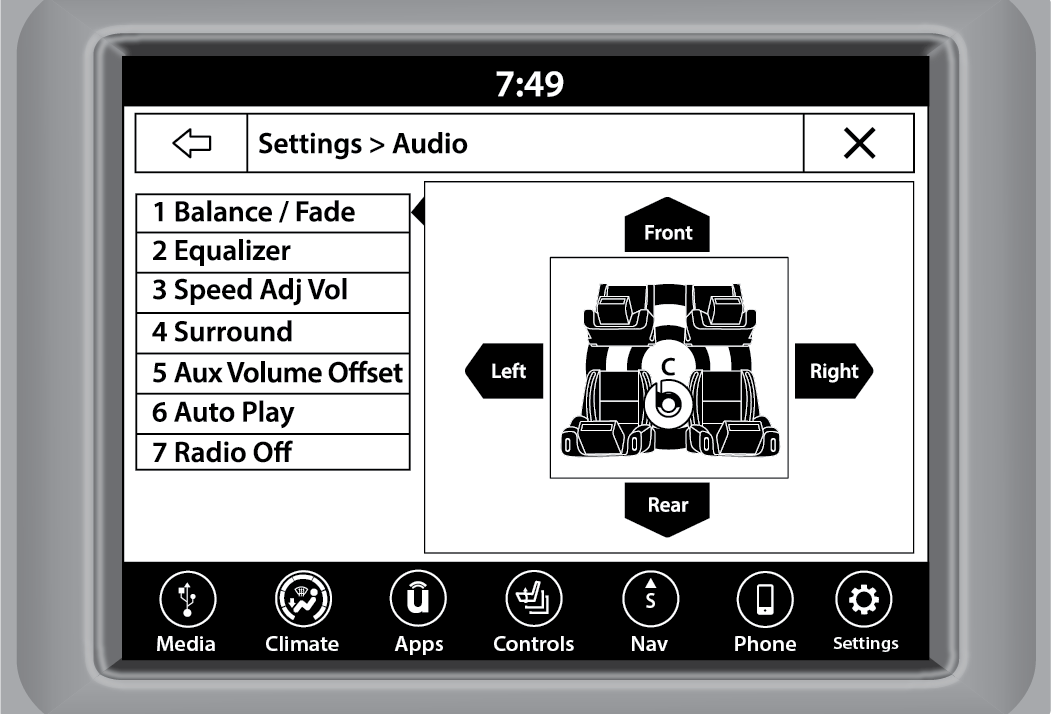
Uconnect 4/4C/4C NAV With 8.4-inch Display
|
Audio Setting |
Description |
|
Balance/Fade |
Press the Balance/Fade button on the touchscreen to balance audio between the front speakers or fade the audio between the rear and front speakers. Press the Front, Rear, Left or Right button or press and drag the red Speaker icon to adjust the Balance/Fade. |
|
Equalizer |
Press the + or - button or press and drag the level bar to increase or decrease each of the equalizer bands. The level value, which spans between plus or minus nine, is displayed at the top of each of the bands. |
|
Speed Adjusted Volume |
The Speed Adjusted Volume is adjusted by selecting from “Off”, “1”, “2”, and “3”. This alters the automatic adjustment of the audio volume with variation to vehicle speed. Volume increases automatically as speed increases to compensate for normal road noise. |
|
Surround Sound |
When Surround Sound is on, you can hear audio coming from every direction as in a movie theatre or home theatre system. |
|
AUX Volume Offset |
The AUX Volume Offset is adjusted by pressing + and - buttons. This alters the AUX input audio volume. The level value, which spans between plus or minus three, is displayed above the adjustment bar. |
|
Radio Off With Door |
The Radio Off With Door feature, when activated, keeps the radio on until the driver or passenger door is opened or until the “Radio Off Delay” selected time has expired. |
|
Auto Play |
The Auto Play feature begins playing music as soon as a USB Media device is connected to one of the vehicle’s Media USB ports, when it is turned on. Press “Off” to turn the setting off. |
MEDIA MODE
OPERATING MEDIA MODE
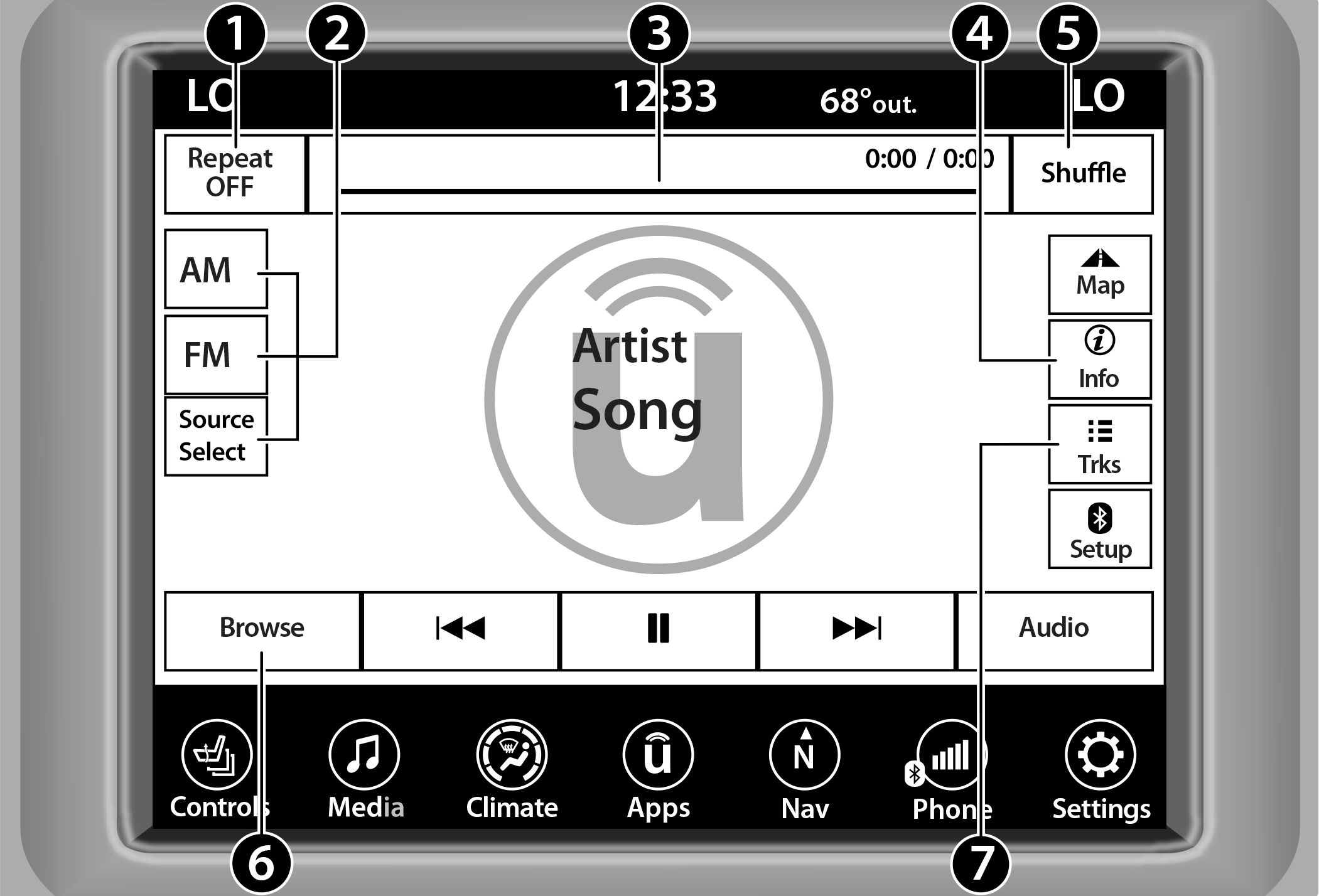
Uconnect 4/4C/4C NAV With 8.4-inch Operating Media Mode
|
1 — Repeat |
|
2 — Source Select (If Equipped With 4C/4C NAV) |
|
3 — Track Time |
|
4 — Info |
|
5 — Shuffle |
|
6 — Browse |
|
7 — Tracks Browse |
AUDIO SOURCE SELECTION
Once in Media Mode, press the Source or Source Select button on the touchscreen and the desired mode button on the touchscreen. USB, AUX, and Bluetooth® are the Media sources available. When available, you can select the Browse button on the touchscreen to be given these options:
Now Playing
Artists
Albums
Genres
Songs
Playlists
Folders
You can press the Source, Pause/Play, or the Info button on the touchscreen for artist information on the current song playing.
TYPES OF MEDIA MODES
USB Mode
Overview
USB Mode is entered by inserting a USB device into the USB port, by selecting the USB button on the left side of the touchscreen, or by selecting the Source Select/Select Source button and then selecting USB 1 or 2 (if equipped).
Bluetooth® Mode
Overview
Bluetooth® Streaming Audio or Bluetooth® Mode is entered by pairing a Bluetooth® device, containing music, to the Uconnect system.
Before proceeding, the Bluetooth® device must be paired to the Uconnect Phone to communicate with the Uconnect system.
To access Bluetooth® Mode, press the Bluetooth® button on the left side of the touchscreen or under the Source Select/Select Source button (if equipped).
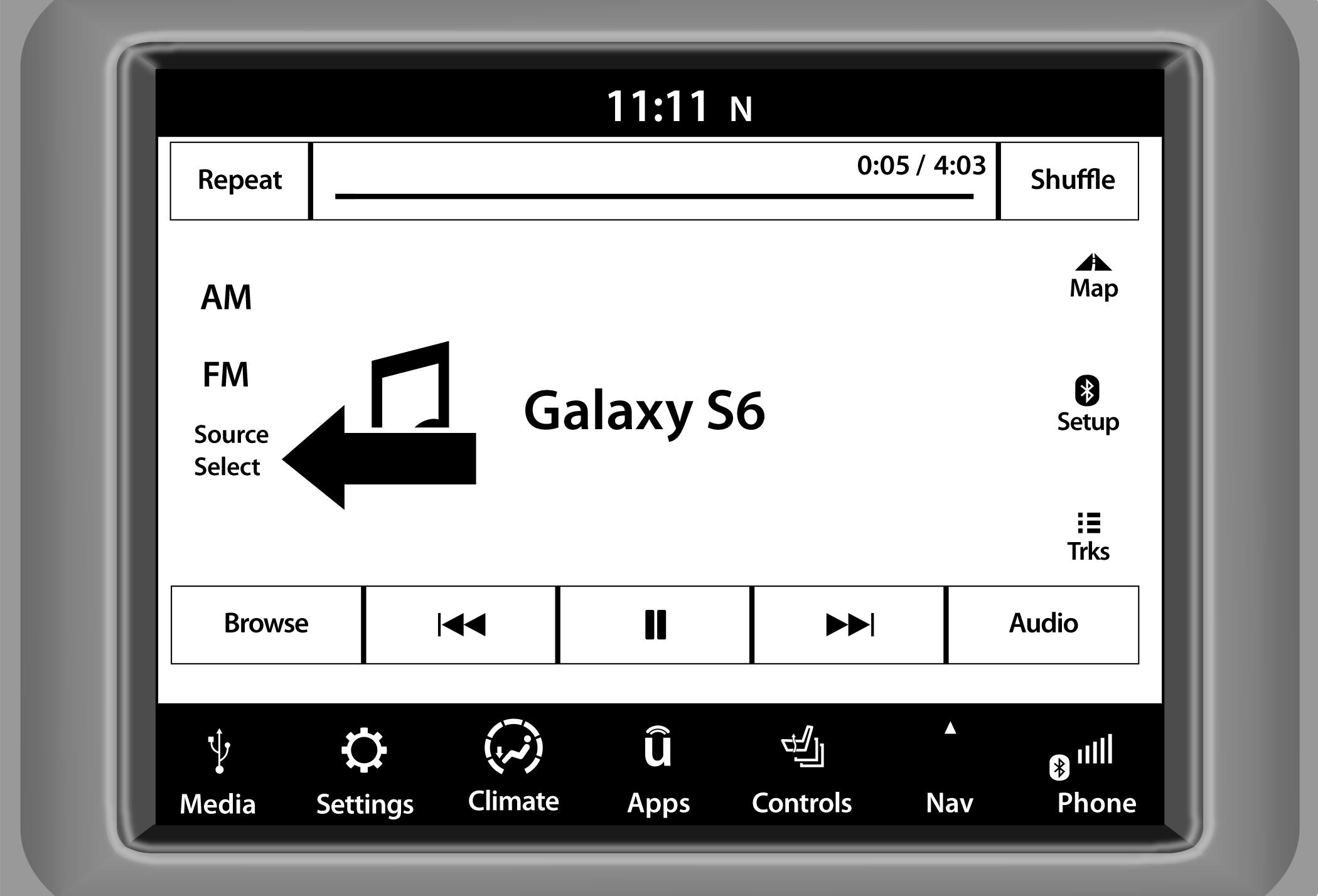
Uconnect 4/4C/4C NAV With 8.4-inch Display Source Select
AUX Mode
Overview
Auxiliary Mode (AUX) is entered by inserting an AUX device using a cable with a 3.5 mm audio jack into the AUX port, or by pressing the AUX button on the left side of the touchscreen, or under the Source Select button (if equipped).
To insert an Auxiliary device, gently insert the Auxiliary device cable into the AUX port. If you insert an Auxiliary device with the ignition and the radio on, the unit will switch to AUX Mode and begin to play.
Controlling The Auxiliary Device
The control of the Auxiliary device (e.g., selecting playlists, play, fast forward, etc.) cannot be provided by the radio; use the device controls instead. Adjust the volume with the Volume button, VOLUME & On/Off control knob, or MUTE button, or with the volume of the attached device.
Note:
The radio unit is acting as the amplifier for audio output from the Auxiliary device. Therefore, if the volume control on the Auxiliary device is set too low, there will be insufficient audio signal for the radio unit to play the music on the device.
Seek Up /Seek Down
In USB Mode, press the Seek Up button on the touchscreen for the next selection on the USB device. Press and release the Seek Down button on the touchscreen to return to the beginning of the current selection, or to return to the beginning of the previous selection if the USB device is within the first three seconds of the current selection.
In Bluetooth® Mode, press and release the Seek Up button on the touchscreen for the next selection on the Bluetooth® device. Press and release the Seek Down button on the touchscreen to return to the beginning of the current selection, or return to the beginning of the previous selection if the Bluetooth® device is within the first second of the current selection.
Browse
In USB Mode, press the Browse button on the touchscreen to display the browse window. In USB Mode, the left side of the browse window displays a list of ways you can browse through the contents of the USB device. If supported by the device, you can browse by Folder, Artist, Playlist, Album, Song, etc. Press the desired button on the touchscreen on the left side of the screen. The center of the browse window shows items and their sub-functions, which can be scrolled through by pressing the Up and Down buttons to the right. The TUNE/SCROLL knob can also be used to scroll.
Media Mode
In USB Mode, press the Media button on the touchscreen to select the desired audio source: USB.
In Bluetooth® Mode, press the Media button on the touchscreen to select the desired audio source: Bluetooth®.
In AUX Mode, press the Media button on the touchscreen to select the desired audio source: AUX.
Repeat
In USB Mode, press the Repeat button on the touchscreen to toggle the repeat functionality. The Repeat button on the touchscreen is highlighted when active. The Radio will continue to play the current track, repeatedly, as long as the repeat is active. Press the Repeat button again to enter Repeat All. The radio will continue to play all the current tracks, repeatedly, as long as the repeat function is active. To cancel Repeat, press the Repeat button a third time.
Shuffle
In USB Mode, press the Shuffle button on the touchscreen to play the selections on the USB device in random order to provide an interesting change of pace. Press the Shuffle button on the touchscreen a second time to turn this feature off.
Audio
Audio settings can be accessed by pressing the Audio button .
Info
In USB Mode, press the Info button on the touchscreen to display the current track information. Press the Info or X button on the touchscreen a second time to cancel this feature.
Tracks
In USB Mode, press the Tracks button on the touchscreen to display a pop-up with the Song List. The song currently playing is indicated by an arrow and lines above and below the song title. When in the Tracks List screen you can rotate the TUNE/SCROLL knob to highlight a track (indicated by the line above and below the track name) and then push the ENTER/BROWSE knob to start playing that track.
In Bluetooth® Mode, if the Bluetooth® device supports this feature, press the Tracks button on the touchscreen to display a pop-up with the Song List. The currently playing song is indicated by a red arrow and lines above and below the song title.
Pressing the Tracks button on the touchscreen while the pop-up is displayed will close the pop-up.
MEDIA VOICE COMMANDS
Uconnect offers connections via USB, Bluetooth®, and auxiliary (AUX) ports. Voice operation is only available for connected USB and AUX devices.
Push the VR button located on the steering wheel. After the beep, say one of the following commands and follow the prompts to switch your media source or choose an artist:
“Change source to Bluetooth®”
“Change source to AUX”
“Change source to USB”
“Play artist Beethoven”; “Play album Greatest Hits”; “Play song Moonlight Sonata”; “Play genre Classical”
Did You Know: Press the Browse button on the touchscreen to see all of the music on your USB device. Your Voice Command must match exactly how the artist, album, song, and genre information is displayed.
PHONE MODE
OVERVIEW
Uconnect Phone is a voice-activated, hands-free, in-vehicle communications system. It allows you to dial a phone number with your mobile phone.
The feature supports the following:
Voice Activated Features
Hands-Free dialing via Voice (“Call John Smith Mobile” or “Dial 248-555-1212”).
Hands-Free text-to-speech listening of your incoming SMS messages.
Hands-Free Text Message Replying: Forward one of 18 predefined SMS messages to incoming calls/text messages.
Redialing last dialed numbers (“Redial”).
Calling Back the last incoming call number (“Call Back”).
Viewing call logs on screen (“Show Incoming Calls,” “Show Outgoing Calls,” “Show Missed Calls,” or “Show Recent Calls”).
Searching Contacts phone number (“Search for John Smith Mobile”).
Screen Activated Features
Dialing via Keypad using touchscreen.
Viewing and Calling contacts from Phonebooks displayed on the touchscreen.
Setting Favorite Contact phone numbers so they are easily accessible on the Main Phone screen.
Viewing and Calling contacts from Recent Call logs.
Reviewing your recent Incoming SMS Messages.
Pairing up to 10 phones/audio devices for easy access to connect to them quickly.
Note:
Your phone must be capable of SMS messaging via Bluetooth® for messaging features to work properly.
Your mobile phone’s audio is transmitted through your vehicle’s audio system; the system will automatically mute your radio when using the Uconnect Phone.
For Uconnect customer support:
US visit or call 877-855-8400
Canada visit or call 800-465-2001 (English) or (French) call 800-387-9983
Uconnect Phone allows you to transfer calls between the system and your mobile phone as you enter or exit your vehicle and enables you to mute the system's microphone for private conversation.
WARNING:
ALWAYS drive safely with your hands on the steering wheel. You have full responsibility and assume all risks related to the use of the Uconnect features and applications in this vehicle. Only use Uconnect when it is safe to do so. Failure to do so may result in an accident involving serious injury or death.
The Phone feature is driven through your Bluetooth® “Hands-Free Profile” mobile phone. Uconnect features Bluetooth® technology — the global standard that enables different electronic devices to connect to each other without wires or a docking station. Ensure you phone is turned on with Bluetooth® active and has been paired to the Uconnect system. Up to 10 mobile phones or audio devices are allowed to be linked to the system. Only one linked (or paired) mobile phone and one audio device can be used with the system at a time.
Phone Button
 The Phone button on your steering wheel is used to get into the Phone Mode and make calls, show recent, incoming or outgoing calls, view phonebook, etc. When you push the button you will hear a BEEP. The BEEP is your signal to give a command.
Voice Command Button
 The Voice Command button on your steering wheel is only used for “barge in” and when you are already in a call or want to make another call.
The button on your steering wheel is also used to access the Voice Commands for the Uconnect Voice Command features if your vehicle is equipped.
PHONE OPERATION
OPERATION
Voice commands can be used to operate the Uconnect Phone and to navigate its menu structure. Voice commands are required after most Uconnect Phone prompts. There are two general methods for how Voice Command works:
-
Say compound commands like “Call John Smith mobile”.
-
Say the individual commands and allow the system to guide you to complete the task.
You will be prompted for a specific command and then guided through the available options.
Prior to giving a voice command, one must wait for the beep, which follows the “Listen” prompt or another prompt.
For certain operations, compound commands can be used. For example, instead of saying “Call” and then “John Smith” and then “mobile”, the following compound command can be said: “Call John Smith mobile.”
For each feature explanation in this section, only the compound command form of the voice command is given. You can also break the commands into parts and say each part of the command when you are asked for it. For example, you can use the compound command form voice command “Search for John Smith,” or you can break the compound command form into two voice commands: “Search Contacts” and when asked, “John Smith.” Please remember, the Uconnect Phone works best when you talk in a normal conversational tone, as if speaking to someone sitting a few feet/meters away from you.
NATURAL SPEECH
Your Uconnect Phone Voice system uses a Natural Language Voice Recognition (VR) engine.
Natural speech allows the user to speak commands in phrases or complete sentences. The system filters out certain non-word utterances and sounds such as “ah” and “eh.” The system handles fill-in words such as “I would like to”.
The system handles multiple inputs in the same phrase or sentence such as “make a phone call” and “to Kelly Smith”. For multiple inputs in the same phrase or sentence, the system identifies the topic or context and provides the associated follow-up prompt such as “Who do you want to call?” in the case where a phone call was requested but the specific name was not recognized.
The system utilizes continuous dialog. When the system requires more information from the user, it will ask a question to which the user can respond without pushing the Voice Command button on the steering wheel.
HELP COMMAND
If you need assistance at any prompt, or if you want to know your options at any prompt, say “Help” following the beep.
To activate the Uconnect Phone from idle, simply push the Phone button (if active) on your steering wheel and say a command or say “Help”. All Phone sessions begin with a push of the VR button or the Phone button.
CANCEL COMMAND
At any prompt, after the beep, you can say “Cancel” and you will be returned to the main menu.
You can also push the VR button or Phone button on your steering wheel when the system is listening for a command and be returned to the main or previous menu.
PAIR (LINK) UCONNECT PHONE TO A MOBILE PHONE
 Pair (link) Uconnect Phone To A mobile Phone ¹Use this QR code to access your digital experience.
To begin using your Uconnect Phone, you must pair your compatible Bluetooth®-enabled mobile phone. Mobile phone pairing is the process of establishing a wireless connection between a cellular phone and the Uconnect system.
To complete the pairing process, you will need to reference your mobile phone’s manual. Please visit for complete mobile phone compatibility information.
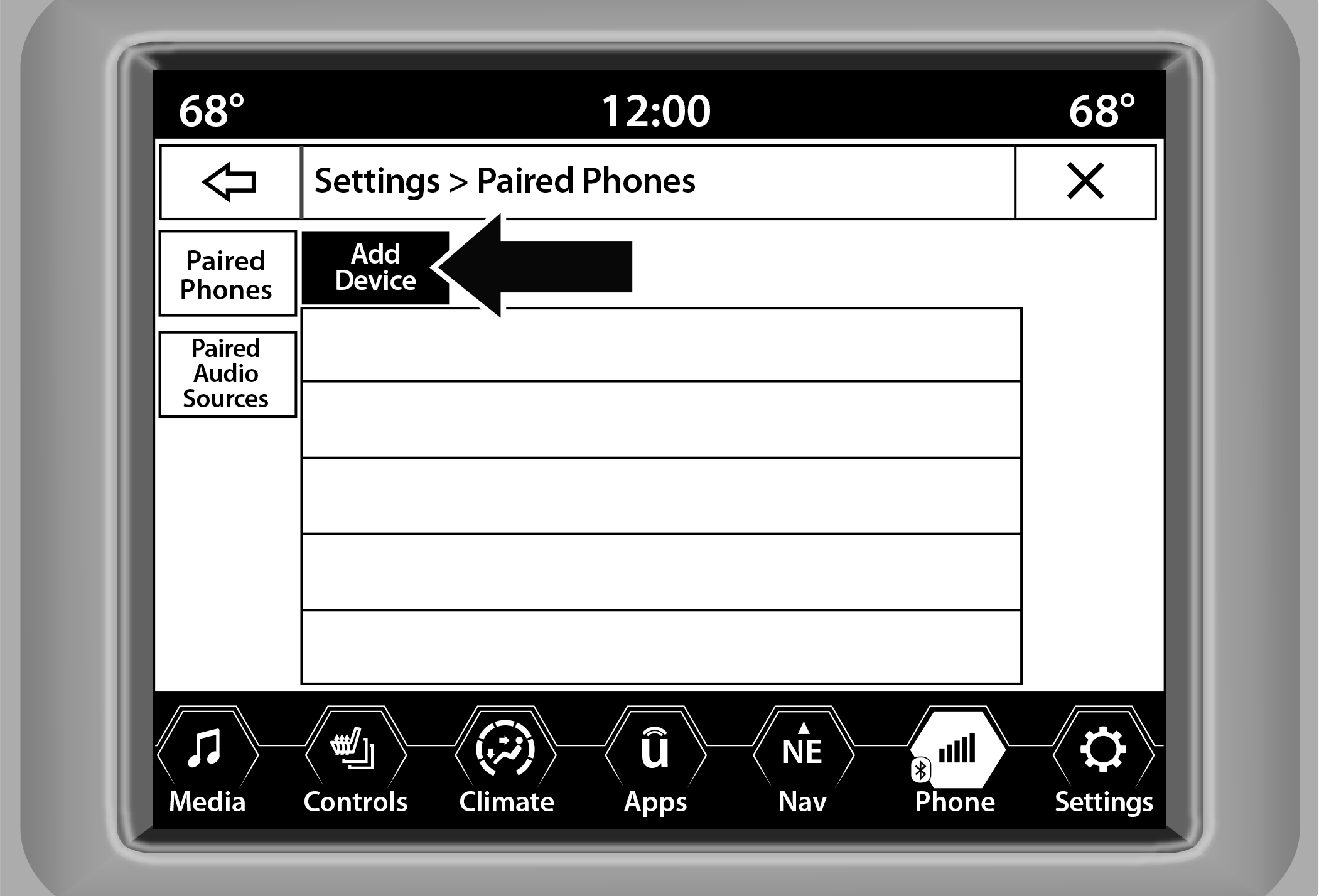
Uconnect 4/4C/4C NAV With 8.4-inch Display
Note:
You must have Bluetooth® enabled on your phone to complete this procedure.
The vehicle must be in PARK or at a standstill.
Follow these steps to pair your phone:
-
Place the ignition in the ACC or ON/RUN position.
-
Press the Phone button.
Note:
If there are no phones currently connected with the system, a pop-up will appear asking if you would like to pair a mobile phone.
This pop-up only appears when the user enters Phone Mode and no other device(s) have previously been paired. If the system has a phone previously paired, even if no phone is currently connected with the system, this pop-up will not appear.
-
Select “Yes” to begin the pairing process.
-
Search for available devices on your Bluetooth®-enabled mobile phone.
Press the Settings button on your mobile phone.
Select “Bluetooth®” and ensure it is enabled. Once enabled, the mobile phone will begin to search for Bluetooth® connections.
Note:
During the pairing procedure, you may receive a pop-up on your touchscreen asking you to make sure the PIN on the touchscreen matches the PIN from the pop-up on your mobile phone.
-
If “No” is selected, and you still would like to pair a mobile phone, press the Phone Pairing or Settings button from the Uconnect Phone main screen.
Press the Paired Phones and Audio Devices button and then press the Paired Phones button .
Search for available devices on your Bluetooth®-enabled mobile phone. When prompted on the phone, select “Uconnect” and accept the connection request.
-
Uconnect Phone will display an in-progress screen while the system is connecting.
-
When your mobile phone finds the Uconnect system, select “Uconnect.”
-
When prompted on the mobile phone, accept the connection request from Uconnect.
-
When the pairing process has successfully completed, the system will prompt you to choose whether or not this is your favorite phone. Selecting “Yes” will make this phone the highest priority. This phone will take precedence over other paired phones within range and will connect to the Uconnect system automatically when entering the vehicle. Only one mobile phone and/or one Bluetooth® audio device can be connected to the Uconnect system at a time. If “No” is selected, simply select “Uconnect” from the mobile phone/audio device Bluetooth® screen, and the Uconnect system will reconnect to the Bluetooth® device.
Note:
For phones which are not made a favorite, the phone priority is determined by the order in which it was paired. The most recent phone paired will have the higher priority.
Note:
During the pairing procedure, you may receive a pop-up on your mobile phone for the Uconnect system to access your “messages” and “contacts”. Selecting “Ok” or “Allow” will sync your contacts with the Uconnect system.
You can also use the following VR command to bring up the Paired Phone screen from any screen on the radio:
“Show Paired Phones”
Note:
Software updates on your phone or the Uconnect system may interfere with the Bluetooth® connection. If this happens, simply repeat the pairing process. However, first make sure to delete the device from the list of phones on your Uconnect system. Next, be sure to remove Uconnect from the list of devices in your phone’s Bluetooth® settings.
PAIR A BLUETOOTH® STREAMING AUDIO DEVICE
-
Press the Media button on the touchscreen to begin.
-
Change the source to “Bluetooth®”.
-
Press the Bluetooth® button on the touchscreen to display the Paired Audio Devices screen.
-
Press the Add Device button on the touchscreen.
Note:
If there is no device currently connected with the system, a pop-up will appear.
-
Search for available devices on your Bluetooth®-enabled audio device. When prompted on the device, confirm the PIN shown on the Uconnect screen.
-
Uconnect Phone will display an in-process screen while the system is connecting.
-
When the pairing process has successfully completed, the system will prompt you to choose whether or not this is your favorite device. Selecting “Yes” will make this device the highest priority. This device will take precedence over other paired devices within range.
Note:
For devices which are not made a favorite, the device priority is determined by the order in which it was paired. The most recent device paired will have the higher priority.
You can also use a following VR command to bring up a list of paired audio devices:
“Show Paired Phones”
CONNECTING TO A PARTICULAR MOBILE PHONE OR AUDIO DEVICE AFTER PAIRING
Uconnect Phone will automatically connect to the highest priority paired phone and/or Audio Device within range. If you need to choose a particular phone or audio device follow these steps:
-
Press the Phone Pairing button on the touchscreen.
-
Press the Paired Phones and Audio Devices button and then press the Paired Phones or Audio Sources button.
-
Press to select the particular phone or the particular audio device. A pop-up menu will appear; press “Connect Phone”.
-
Press the X to exit out of the Settings screen.
DISCONNECTING OR DELETING A PHONE OR AUDIO DEVICE
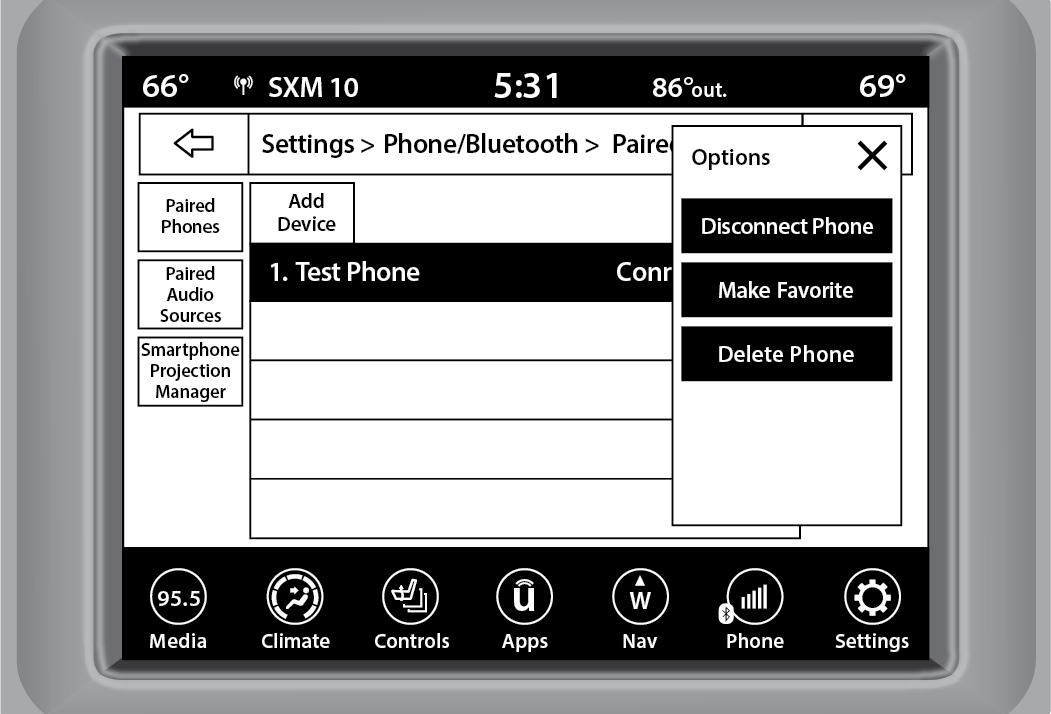
Uconnect 4/4C/4C NAV With 8.4-inch Display
-
Press the Uconnect Phone Pairing or Settings button.
-
Press the Paired Phones and Audio Devices button and then press Paired Phones or Audio Sources button.
-
Press the Settings button located to the right of the device name for a different phone or audio device than the currently connected device or press the preferred Connected Phone from the list.
-
The option’s pop-up will be displayed.
-
Press the Disconnect Device or the Delete Device button on the touchscreen.
-
Press the X to exit out of the Settings screen.
MAKING A PHONE OR AUDIO DEVICE A FAVORITE
-
On the Paired Phone/Audio Sources screen, press the Settings button located to the right of the device name for a different phone or audio device than the currently connected device or press the preferred “Connected Phone” from the list.
-
The option’s pop-up will be displayed.
-
Press the Make Favorite button on the touchscreen; you will see the chosen device move to the top of the list.
-
Press the X to exit out of the Settings screen.
PHONEBOOK DOWNLOAD (AUTOMATIC PHONEBOOK TRANSFER FROM MOBILE PHONE) — IF EQUIPPED
If supported by your phone, Uconnect Phone has the ability to download contact names and number entries from the mobile phone’s phonebook. Specific Bluetooth® Phones with Phonebook Access Profile may support this feature. Your mobile phone may receive a pop-up asking for permission for the Uconnect system to access your messages and contacts. Selecting “Ok” or “Allow” will sync your contacts with the Uconnect system.
See the Uconnect website, , for supported phones.
To call a name from a downloaded mobile phonebook .
Automatic download and update of a phonebook, if supported, begins as soon as the Bluetooth® wireless phone connection is made to the Uconnect Phone, for example, after you start the vehicle.
A maximum of 5,000 contact names with four numbers per contact will be downloaded and updated every time a phone is connected to the Uconnect Phone.
Depending on the maximum number of entries downloaded, there may be a short delay before the latest downloaded names can be used. Until then, if available, the previously downloaded phonebook is available for use.
Only the phonebook of the currently connected mobile phone is accessible.
This downloaded phonebook cannot be edited or deleted on the Uconnect Phone. These can only be edited on the mobile phone. The changes are transferred and updated to Uconnect Phone on the next phone connection.
MANAGING YOUR FAVORITES — IF EQUIPPED
There are two ways you can add an entry to your favorites:
-
After loading the mobile phonebook, press the Favorites button on the touchscreen, and then press one of the +Add Favorite Contact buttons that appears on the list.
-
After loading the mobile phonebook, select “Contacts” from the Phone main screen, and then select the appropriate number. Press the Down Arrow button or the Settings Gear button next to the selected number to display the option’s pop-up. In the pop-up, select “Add to Favorites”.
Note:
If the Favorites list is full, you will be asked to remove an existing favorite.
TO REMOVE A FAVORITE — IF EQUIPPED
-
To remove a Favorite, select “Favorites” from the Phone main screen.
-
Next, select the Down Arrow icon or the Settings Gear icon next to the contact you want to remove from your favorites. This will bring up the options for that Favorite contact.
-
Deselect the Star icon to delete the Favorite.
PHONE CALL FEATURES
The following features can be accessed through the Uconnect Phone if the feature(s) are available and supported by Bluetooth® on your mobile service plan. For example, if your mobile service plan provides three-way calling, this feature can be accessed through the Uconnect Phone. Check with your mobile service provider for the features that you have.
Here are the phone options with Uconnect:
Redial
Dial by pressing in the number
Voice Commands (Dial by Saying a Name, Call by Saying a Phonebook Name, Redial or Call Back)
Favorites
Mobile Phonebook
Recent Call Log
SMS Message Viewer
CALL CONTROLS
The touchscreen allows you to control the following call features:
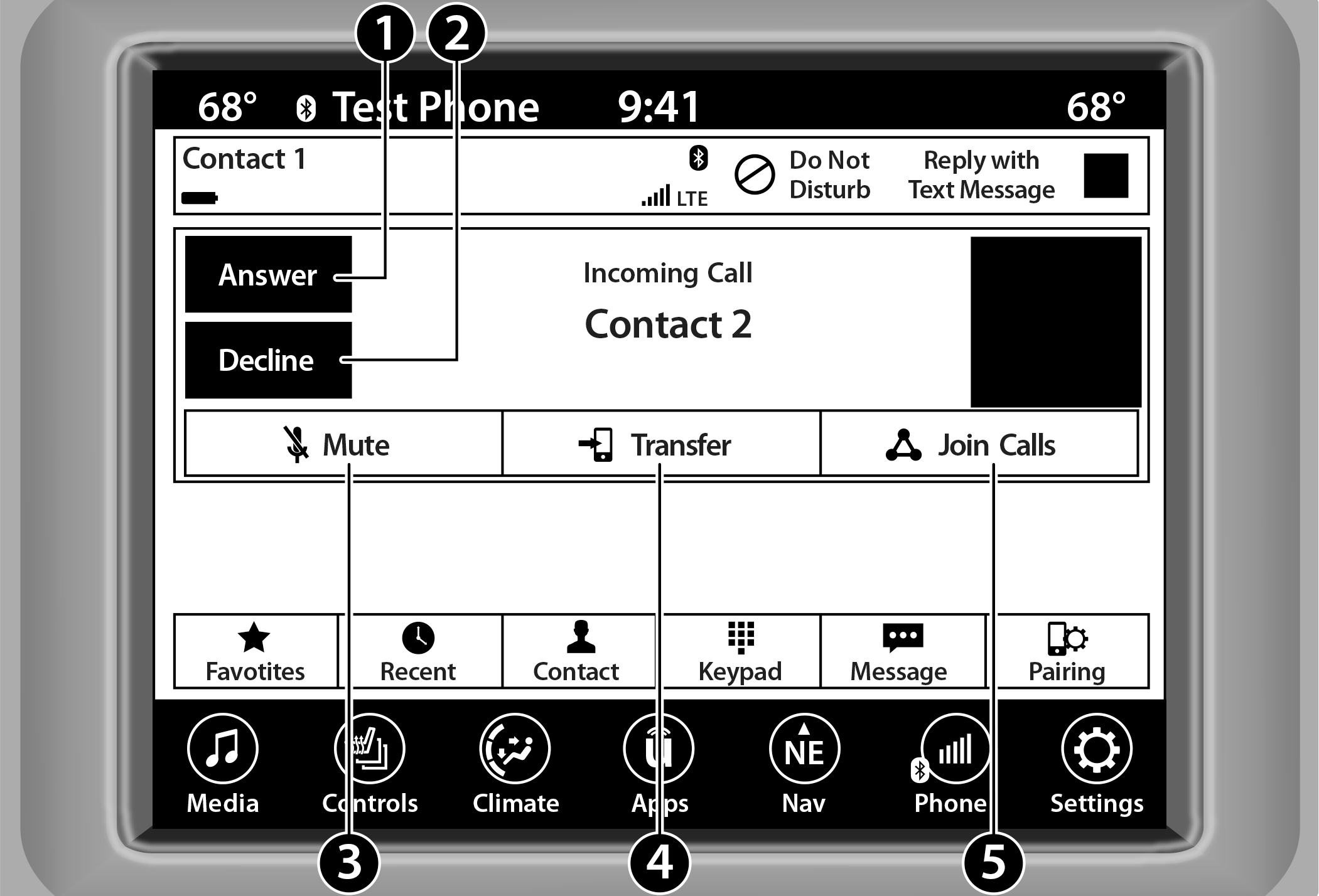
Uconnect 4/4C/4C NAV With 8.4-inch Display
|
1 — Answer |
|
2 — Ignore/Decline |
|
3 — Mute/Unmute |
|
4 — Transfer |
|
5 — Join Calls |
Other phone call features include:
End Call
Hold/Unhold/Resume
Swap two active calls
KEY PAD NUMBER ENTRY
-
Press the Phone button.
-
Press the Dial/Keypad button on the touchscreen.
-
The Touch-Tone screen will be displayed.
-
Use the numbered buttons on the touchscreens to enter the number and press “Dial/Call”.
RECENT CALLS — IF EQUIPPED
You may browse a list of the most recent of each of the following call types:
All Calls
Incoming Calls or Calls Received
Outgoing Calls or Calls Made
Missed Calls
These can be accessed by pressing the Recent Calls button on the phone main screen.
You can also push the VR button on your steering wheel and perform the operation. For example, say “Show my incoming calls”.
ANSWER OR IGNORE AN INCOMING CALL — NO CALL CURRENTLY IN PROGRESS
When you receive a call on your mobile phone, the Uconnect Phone will interrupt the vehicle audio system. Push the Phone button on the steering wheel, press the Answer button on the touchscreen.
You can also press the Caller ID box to place the current call on hold or answer the incoming call.
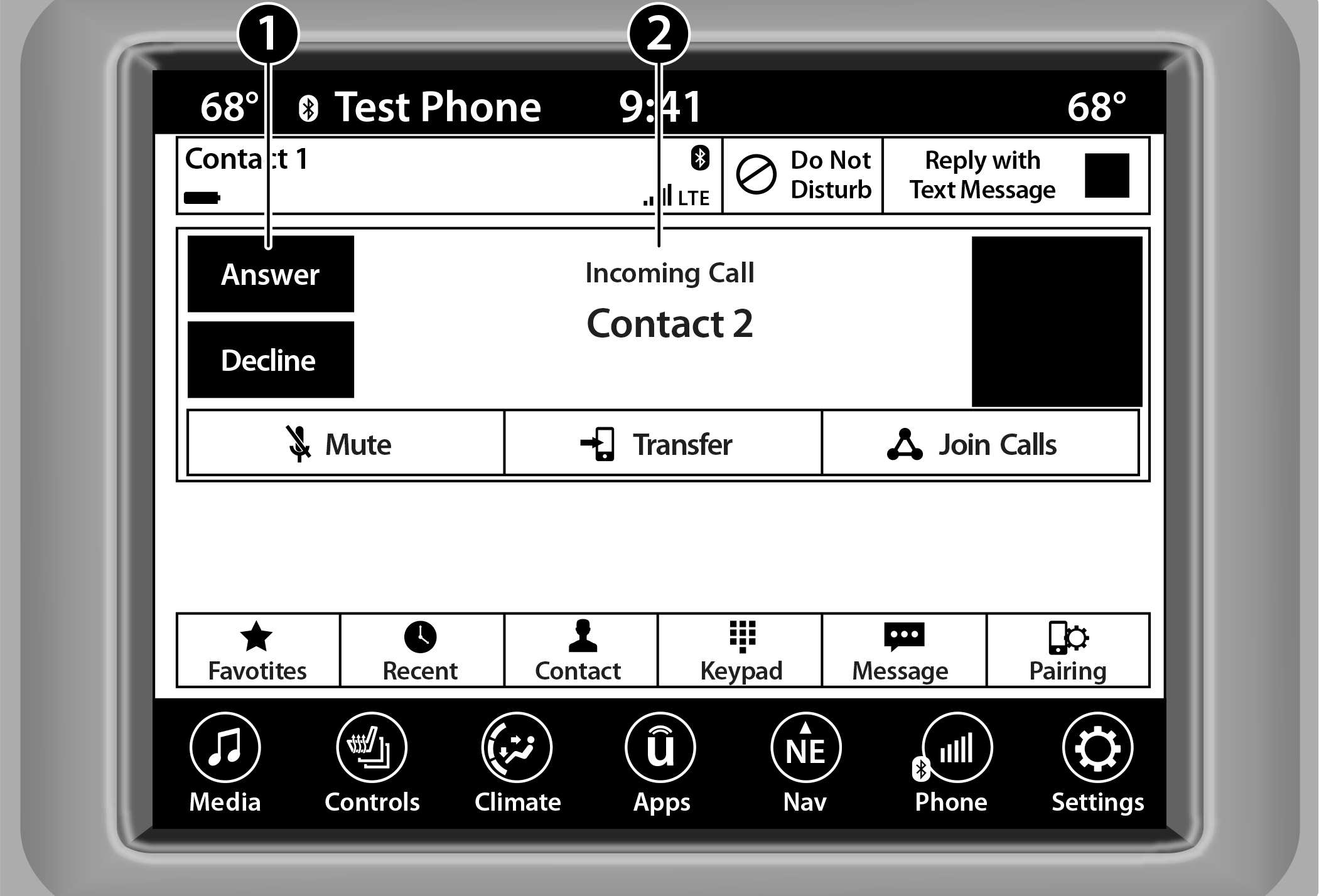
Uconnect 4/4C/4C NAV With 8.4-inch Display
|
1 — Answer Button |
|
2 — Caller ID Box |
ANSWER OR IGNORE AN INCOMING CALL — CALL CURRENTLY IN PROGRESS
If a call is currently in progress and you have another incoming call, you will hear the same network tones for call waiting that you normally hear when using your mobile phone. Push the Phone button on the steering wheel, press the Answer button on the touchscreen, or press the Caller ID box to place the current call on hold and answer the incoming call.
Note:
Phones that are compatible with the Uconnect system in the market today do not support rejecting an incoming call when another call is in progress. Therefore, the user can only answer an incoming call or ignore it.
DO NOT DISTURB
With Do Not Disturb, you can disable notifications from incoming calls and texts, allowing you to keep your eyes on the road and hands on the wheel. For your convenience, there is a counter display to keep track of your missed calls and text messages while Do Not Disturb is active.
Do Not Disturb can automatically reply with a text message, a call, or both when declining an incoming call and send it to voicemail.
Automatic reply messages can be:
“I am driving right now, I will get back to you shortly”.
Create a custom auto reply message up to 160 characters.
Note:
Only the first 25 characters can be seen on the touchscreen while typing a custom message.
While in Do Not Disturb, “Conference Call” can be selected so you can still place a second call without being interrupted by incoming calls.
Note:
Reply with text message is not compatible with iPhone® devices.
Auto reply with text message is only available on phones that support Bluetooth® Message Access Profile (MAP).
PLACE/RETRIEVE A CALL FROM HOLD
During an active call, press the Hold or Call On Hold button on the Phone main screen.
MAKING A SECOND CALL WHILE CURRENT CALL IS IN PROGRESS
You can place a call on hold by pressing the Hold button on the Phone main screen, then dial a number from the keypad (if supported by your mobile phone), recent calls, SMS Inbox or from the phonebooks.
TOGGLING BETWEEN CALLS
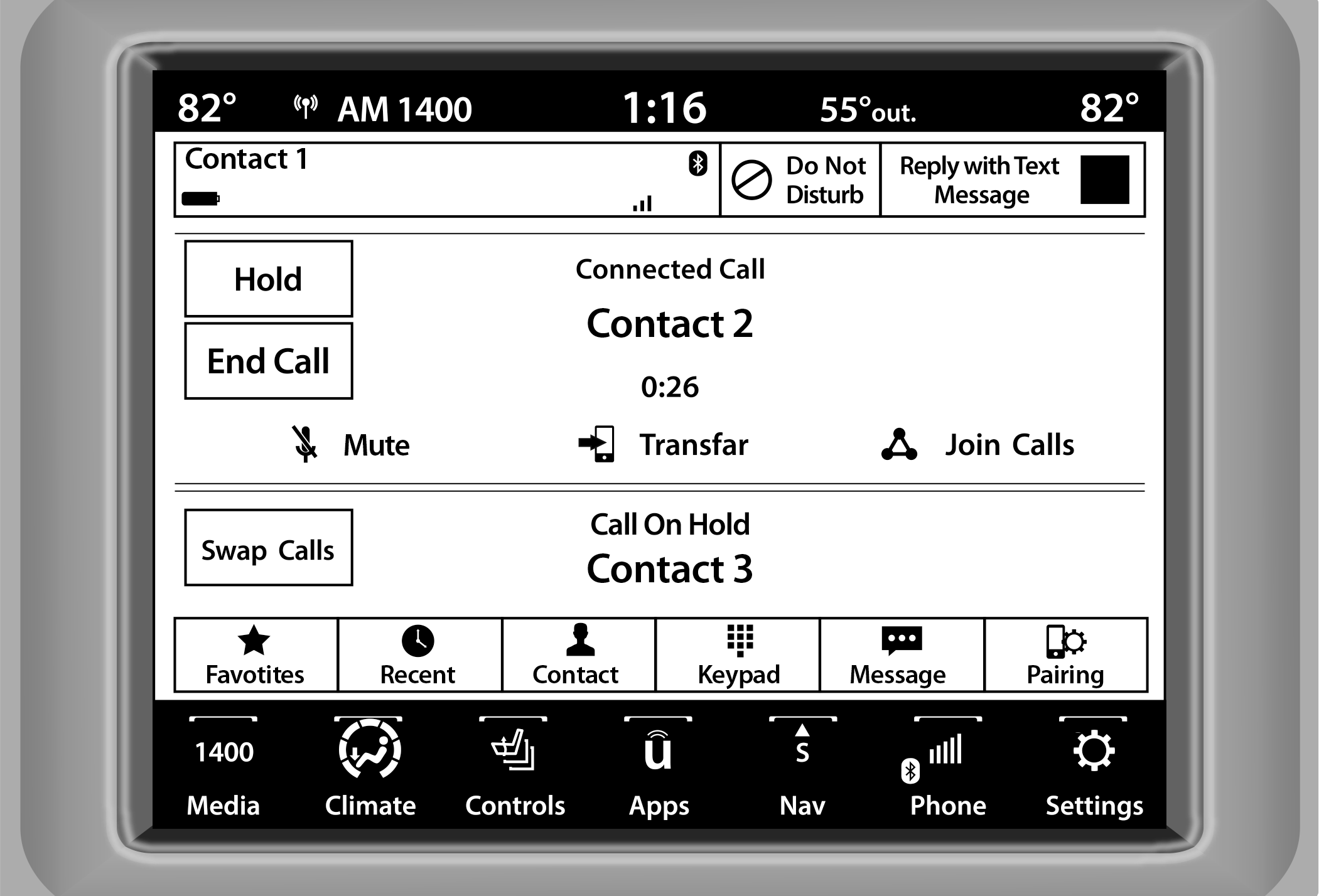
Uconnect 4/4C/4C NAV With 8.4-inch Display
If two calls are in progress (one active and one on hold), press the Swap Calls button on the phone main screen. Only one call can be placed on hold at a time.
You can also push the Phone button to toggle between the active and held phone call.
JOIN CALLS
When two calls are in progress (one active and one on hold), press the Join/Merge Calls button on the Phone main screen to combine all calls into a conference call.
CALL TERMINATION
To end a call in progress, momentarily press the End Call button on the touchscreen or the Phone End button on the steering wheel. Only the active call(s) will be terminated and if there is a call on hold, it will become the new active call.
REDIAL
Push the VR button and after the “Listening” prompt and the following beep, say “Redial.”
The Uconnect Phone will call the last number that was dialed from your mobile phone.
CALL CONTINUATION
Call continuation is the progression of a phone call on the Uconnect Phone after the vehicle ignition has been switched to OFF.
Note:
The call will remain within the vehicle audio system until the phone becomes out of range for the Bluetooth® connection. It is recommended to press the Transfer button on the touchscreen when leaving the vehicle.
ADVANCED PHONE CONNECTIVITY
TRANSFER CALL TO AND FROM MOBILE PHONE
The Uconnect Phone allows ongoing calls to be transferred from your mobile phone without terminating the call. To transfer an ongoing call from your connected mobile phone to the Uconnect Phone or vice versa, press the Transfer button on the Phone main screen.
THINGS YOU SHOULD KNOW ABOUT UCONNECT PHONE
VOICE COMMAND
For the best performance:
Always wait for the beep before speaking
Speak normally, without pausing, just as you would speak to a person sitting a few feet/meters away from you
Ensure that no one other than you is speaking during a voice command period
Low-To-Medium Blower Setting
Low-To-Medium Vehicle Speed
Low Road Noise
Smooth Road Surface
Fully Closed Windows
Dry Weather Conditions
WARNING:
ALWAYS drive safely with your hands on the wheel. You have full responsibility and assume all risks related to the use of the Uconnect features and applications in this vehicle. Only use Uconnect when it is safe to do so. Failure to do so may result in an accident involving serious injury or death.
Even though the system is designed for many languages and accents, the system may not always work for some.
Note:
It is recommended that you do not store names in your Favorites phonebook while the vehicle is in motion.
Number and name recognition rate is optimized when the entries are not similar. You can say “O” (letter “O”) for “0” (zero).
Even though international dialing for most number combinations is supported, some shortcut dialing number combinations may not be supported.
Audio Performance
Audio quality is maximized under:
Low-To-Medium Blower Setting
Low-To-Medium Vehicle Speed
Low Road Noise
Smooth Road Surface
Fully Closed Windows
Dry Weather Conditions
Operation From The Driver's Seat
Performance such as audio clarity, echo, and loudness to a large degree rely on the phone and network, and not the Uconnect Phone.
Echo at the far end can sometimes be reduced by lowering the in-vehicle audio volume.
PHONE VOICE COMMANDS
Making and answering hands-free phone calls is easy with Uconnect. When the Phonebook button is illuminated on your touchscreen, your system is ready. Check for mobile phone compatibility and pairing instructions.
Push the Phone button  and wait for the beep to say a command. Here are some examples:
“Call John Smith”
“Dial 123 456 7890”
“Redial” (call previous outgoing phone number)
“Call back” (call previously answered incoming phone number)
Did You Know: When providing a Voice Command, push the Phone button and say “Call”, then pronounce the name exactly as it appears in your phonebook. When a contact has multiple phone numbers, you can say “Call John Smith work”.
VOICE TEXT REPLY — IF EQUIPPED
Uconnect can announce incoming text messages. Push the VR button or Phone button and say:
-
“Listen” to have the system read an incoming text message. (Must have compatible mobile phone paired to Uconnect system.)
-
“Reply” after an incoming text message has been read.
Listen to the Uconnect prompts. After the beep, repeat one of the predefined messages and follow the system prompts.
|
PRE-DEFINED VOICE TEXT REPLY RESPONSES |
||
|
Yes. |
Stuck in traffic. |
See you later. |
|
No. |
Start without me. |
I’ll be late. |
|
Okay. |
Where are you? |
I will be 5 <or 10, 15, 20, 25, 30, 45, 60> minutes late. |
|
Call me. |
Are you there yet? |
|
|
I’ll call you later. |
I need directions. |
See you in 5 <or 10, 15, 20, 25, 30, 45, 60> minutes. |
|
I’m on my way. |
Can’t talk right now. |
|
|
I’m lost. |
Thanks. |
Note:
Only use the numbering listed in the provided table. Otherwise, the system will not transpose the message.
Did You Know: Your mobile phone must have the full implementation of the Message Access Profile (MAP) to take advantage of this feature. For details about MAP, visit .
Apple® iPhone® iOS 5 or later supports reading incoming text messages only. For further information on how to enable this feature on your Apple® iPhone®, refer to your iPhone® “User Manual”.
Did You Know: Voice Text Reply is not compatible with iPhone®, but if your vehicle is equipped with Siri® Eyes Free, you can use your voice to send a text message.
SIRI® EYES FREE — IF EQUIPPED
When used with your Apple® iPhone® connected to your vehicle via Bluetooth®, Siri lets you use your voice to send text messages, select media, place phone calls and much more. Siri uses your natural language to understand what you mean and responds back to confirm your requests. The system is designed to keep your eyes on the road and your hands on the wheel by letting Siri help you perform useful tasks.
To enable Siri, push and hold, then release the Uconnect Voice Recognition (VR) button on the steering wheel. After you hear a double beep, you can ask Siri to play podcasts and music, get directions, read text messages, and many other useful requests.
BLUETOOTH® COMMUNICATION LINK
Mobile phones may lose connection to the Uconnect Phone. When this happens, the connection can generally be re-established by restarting the mobile phone. Your mobile phone is recommended to remain in Bluetooth® ON mode.
POWER-UP
After switching the ignition key from OFF to either the ON/RUN or ACC position, or after a language change, you must wait at least 15 seconds prior to using the system .
Download Manual