Uconnect Introduction
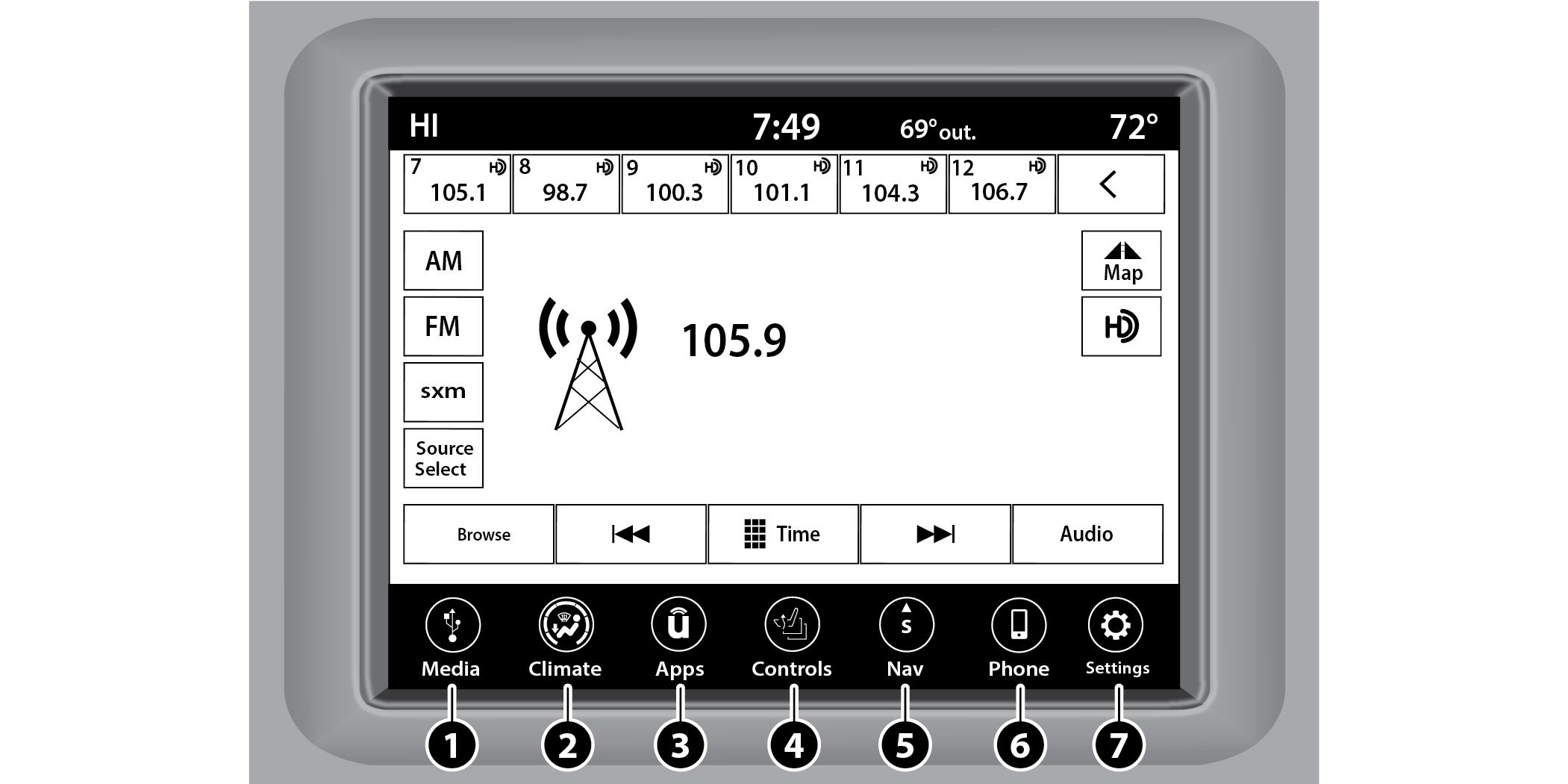
Uconnect 4/4C/4C NAV With 8.4-inch Display
|
1 — Radio/Media Button |
5 — Navigation Button (If Equipped) |
|
2 — Climate Button |
6 — Phone Button |
|
3 — Apps Button |
7 — Settings Button |
|
4 — Controls Button |
Note:
Uconnect screen images are for illustration purposes only and may not reflect exact software for your vehicle.
|
Feature |
Description |
|
Radio/Media |
Press/Push the Radio button or Media button to enter Radio Mode/Media Mode and access the radio functions and external audio sources . |
|
Phone |
Press/Push the Phone button to enter Phone Mode and access the hands-free phone system . |
|
Settings |
Press/Push the Settings button to access the Uconnect Settings . |
|
|
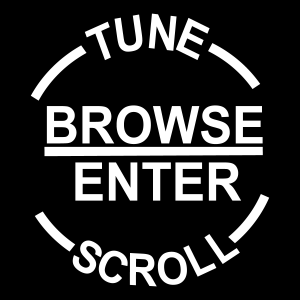
Push the ENTER/BROWSE button on the faceplate to accept a highlighted selection on the screen. Rotate the TUNE/SCROLL rotary knob to scroll through a list or tune a radio station. |
|
|
Push the SCREEN OFF button on the faceplate to turn the screen on or off. |
|
|
Push the MUTE button on the faceplate to turn the audio of the radio system off. Push it again to turn the audio back on. |
|
|
Rotate the rotary knob to adjust the volume. Push the VOLUME & On/Off button on the faceplate to turn the system on or off. Note: Push and hold the VOLUME & On/Off button for approximately 10 seconds to reset the radio manually. Doing this can also recover the radio screen from freezing or being stuck. |



|
Feature |
Description |
|
Controls — If Equipped |
Press the Controls button to access vehicle-specific features like heated seats and steering wheel. |
|
Apps |
Press the Apps button to access a list of the available Mobile apps. |
|
Climate |
Press the Climate button to enter Climate Mode and access the climate control functions . |
|
Feature |
Description |
|
Nav (Navigation) — If Equipped |
Press the Nav button to enter Navigation Mode and use the system’s built-in Navigation software . |
DRAG & DROP MENU BAR
The Uconnect features and services in the main menu bar are easily customized for your preference. Simply follow these steps:
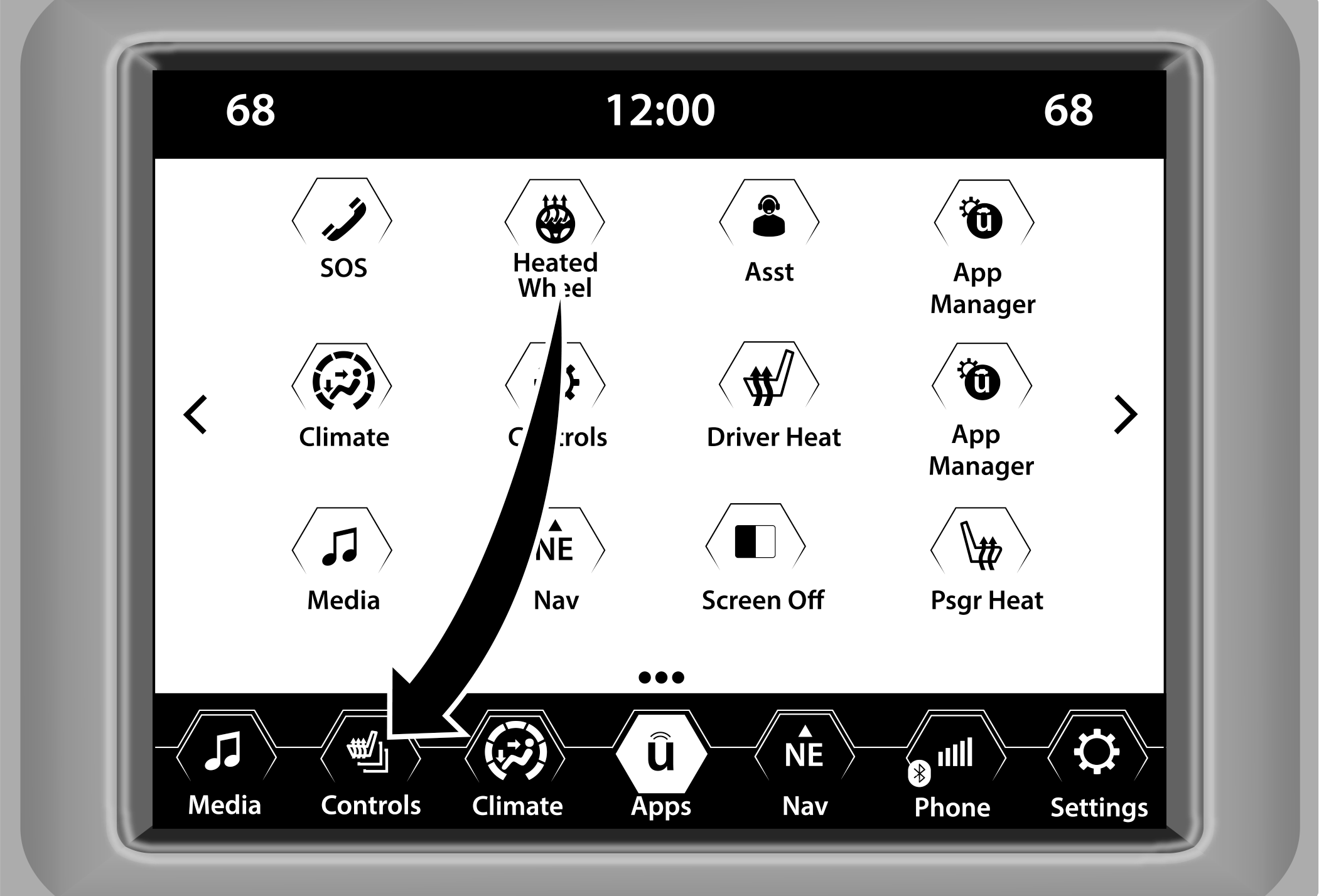
Uconnect 4/4C/4C NAV With 8.4-inch Display Drag & Drop
-
Press the Apps
 button to open the App screen.
 -
Press and hold, then drag the selected app to replace an existing shortcut in the main menu bar.
Note:
This feature is only available if the vehicle is in PARK.
SAFETY AND GENERAL INFORMATION
SAFETY GUIDELINES
WARNING:
ALWAYS drive safely with your hands on the steering wheel. You have full responsibility and assume all risks related to the use of the Uconnect features and applications in this vehicle. Only use Uconnect when it is safe to do so. Failure to do so may result in an accident involving serious injury or death.
Please read this manual carefully before using the system. It contains instructions on how to use the system in a safe and effective manner.
Do NOT attach any object to the touchscreen. Doing so can result in damage to the touchscreen.
Please read and follow these safety precautions. Failure to do so may result in injury or property damage.
Glance at the screen only when safe to do so. If prolonged viewing of the screen is required, park in a safe location and set the parking brake.
Stop use immediately if a problem occurs. Failure to do so may cause injury or damage to the product. See an authorized dealer for repair.
Ensure the volume level of the system is set to a level that still allows you to hear outside traffic and emergency vehicles.
SAFE USAGE OF THE UCONNECT SYSTEM
The Uconnect system is a sophisticated electronic device. Do not let young children use the system.
Permanent hearing loss may occur if you play your music or sound system at loud volumes. Exercise caution when setting the volume on the system.
Keep drinks, rain and other sources of moisture away from the system. Besides damage to the system, moisture can cause electric shocks as with any electronic device.
Note:
Many features of this system are speed dependent. For your own safety, it is not possible to use some of the touchscreen features while the vehicle is in motion.
CARE AND MAINTENANCE
Do not press the touchscreen with any hard or sharp objects (pen, USB stick, jewelry, etc.), which could scratch the surface.
Do not spray any liquid or chemicals directly on the screen! Use a clean and dry microfiber lens cleaning cloth in order to clean the touchscreen.
If necessary, use a lint-free cloth dampened with a cleaning solution, such as isopropyl alcohol or an isopropyl alcohol and water solution ratio of 50:50. Be sure to follow the solvent manufacturer's precautions and directions .
Download Manual