Navigation Mode — If Equipped (Uconnect 4C Nav Only)
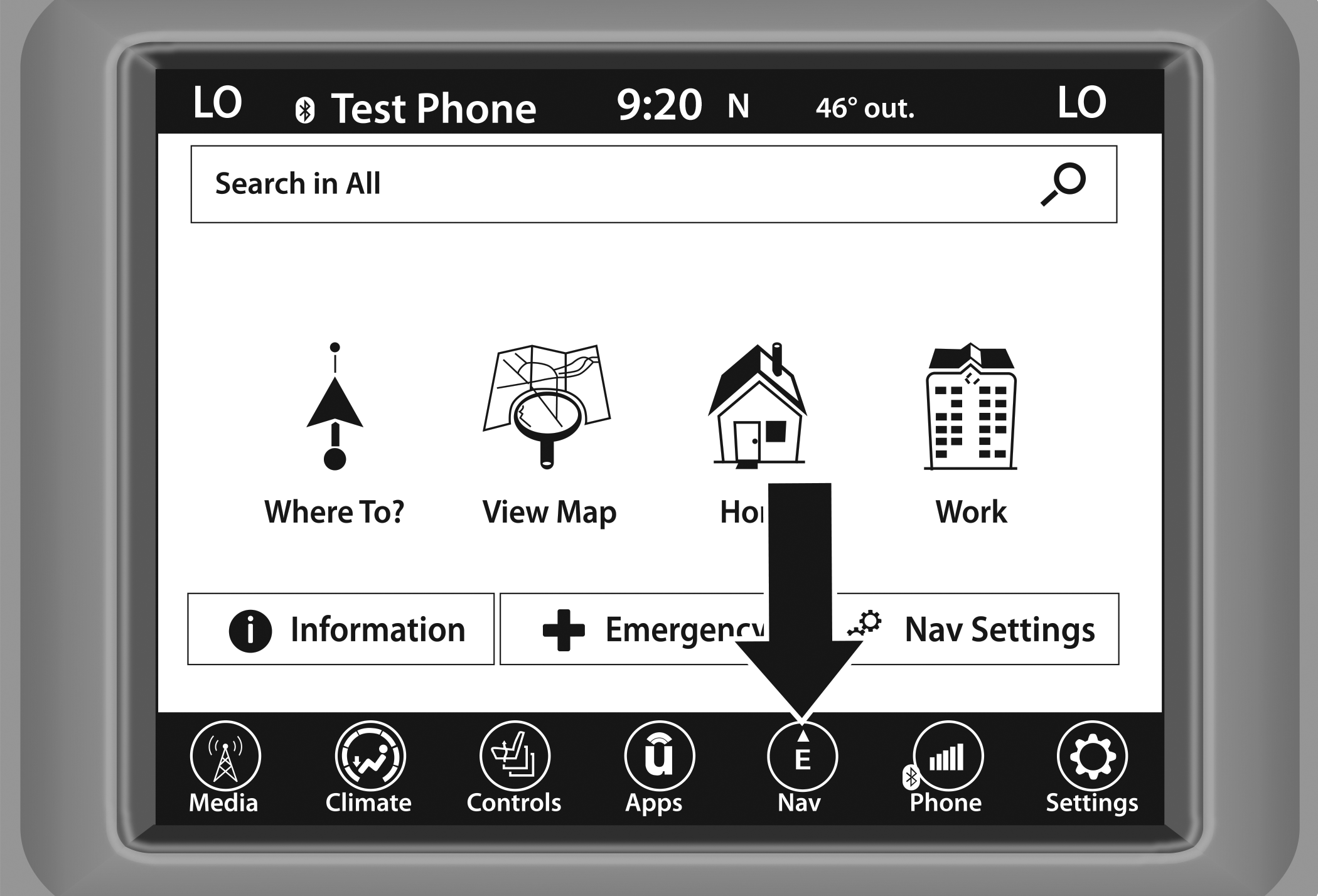
Navigation Icon
To access the Navigation system, press the Nav button on the touchscreen.
Press “Where To?” to find or route to a destination.
Press “View Map” to view the map.
Press “Home” to navigate to a preset home address. If not already set, the system will prompt you to add a home address.
Press “Work” to navigate to a preset work address. If not already set, the system will prompt you to add a work address.
Press “Information” to view Traffic, Where Am I?, and Country Info.
Press “Emergency” to search for Hospitals, and Police and Fire Stations near your current location. You can also display your current location and save any Emergency facility location to your Favorites.
Press the search bar at the top of the screen to search for a specific address to route to.
Press “Route Options” and select from a list of options to alter your route such as “Expressways”, “Toll Roads”, “Ferries”, “Carpool Lanes”, and more.
Note:
During route guidance, at any time you can return to the Navigation Main Menu by selecting Menu.
WHERE TO?
WHERE TO? — MAIN MENU
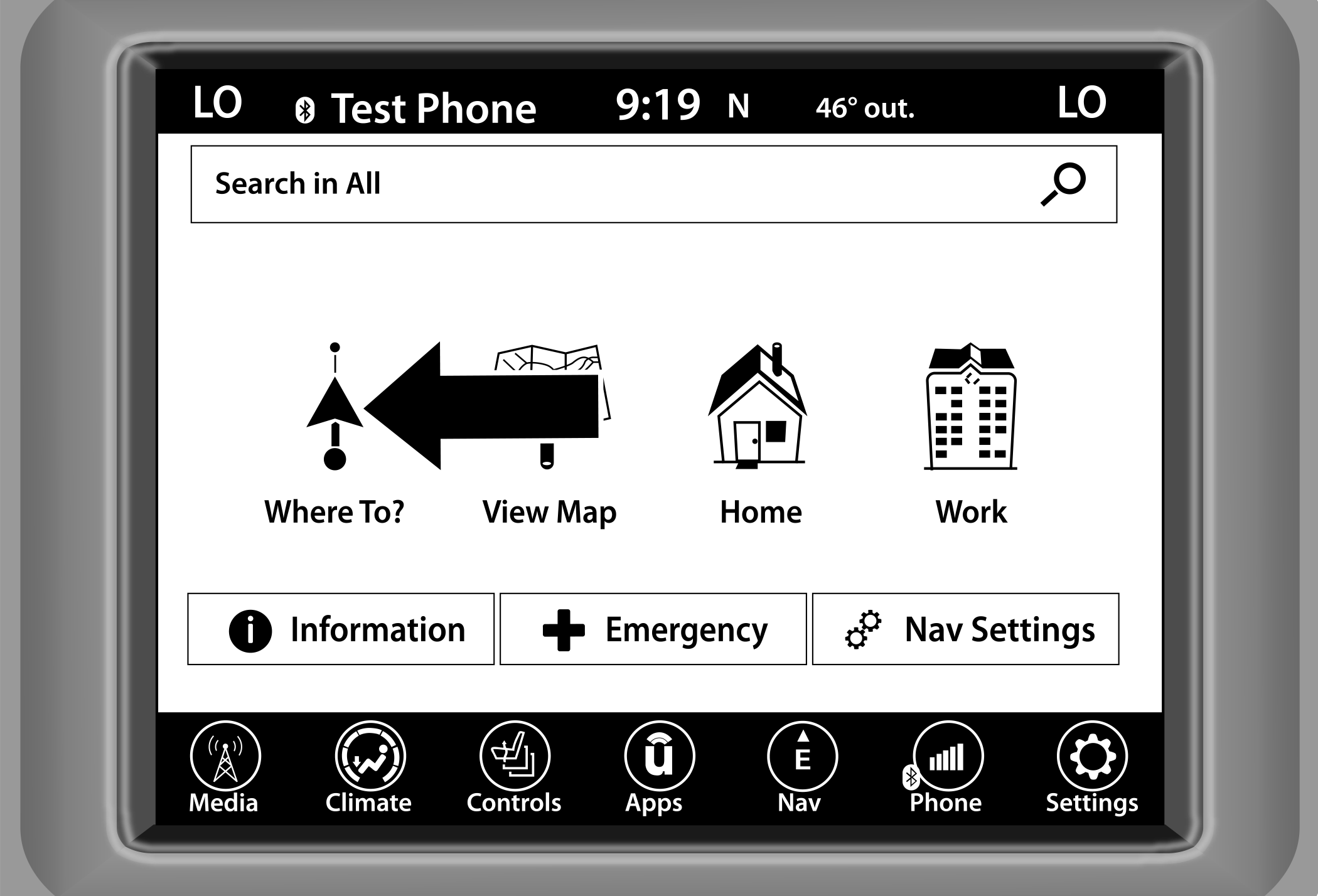
Where To? Button
From the Nav Main Menu, press the Where To? button and select one of the following methods to program a route guidance.
Note:
Refer to the individual section of the chosen option for further information.
|
Search All |
|
Press this button to search all “Where To?” categories for a location. |
|
Address |
|
Press this button to search by a street address or a street name with house number. |
|
Recent |
|
Press this button to access previously routed addresses or locations. |
|
Favorites |
|
Press this button to access previously saved addresses or locations. |
|
POI (Point of Interest) |
|
Press this button when you want to route to a point of interest. The POI database allows you to select a destination from a list of locations and public places, or points of interest. |
|
Trips |
|
Press this button to program a new trip or recall a saved trip. |
|
Intersection |
|
Press this button to enter in two street names as a destination. |
|
Point on Map |
|
Press this button to select a destination directly from the Map screen. By selecting a street segment or icon, you can quickly enter a destination without the need to input the city name or street. |
|
Home |
|
Press this button to program or confirm a route to the saved home address. |
|
Work |
|
Press this button to program or confirm a route to the saved work address. |
|
City Center |
|
Press this button to route to a particular city. The Navigation system will calculate a route with the destination at the center of the city. |
|
Closest Cities |
|
Press this button to route to a nearby city. The screen will display an alphabetical listing of nearby cities. The Navigation system will calculate a route with the destination at the center of the nearby city. |
|
Phone Number |
|
Press this button to route to a location or point of interest by the phone number. |
|
Geo-Coordinates |
|
Press this button to route to a Geo-Coordinate. A Geo-Coordinate is a coordinate used in geography. You can determine a Geo-Coordinate with the help of a handheld GPS receiver, a map, or the Navigation system. |
|
Trails |
|
Press the Trails button and select the option to start trail recording to track the route you are driving. Select the option to “stop trail recording” to end tracking. This gives you a point of reference for a particular route if needed. |
|
Edit Where To |
|
Press this button and select which “Where To?” categories you would like to appear in the “Where To?” menu, and which ones you don’t. |




WHERE TO? — SEARCH ALL, ADDRESS, RECENT, AND FAVORITE DESTINATIONS
Search All
-
Press the Search All button.
-
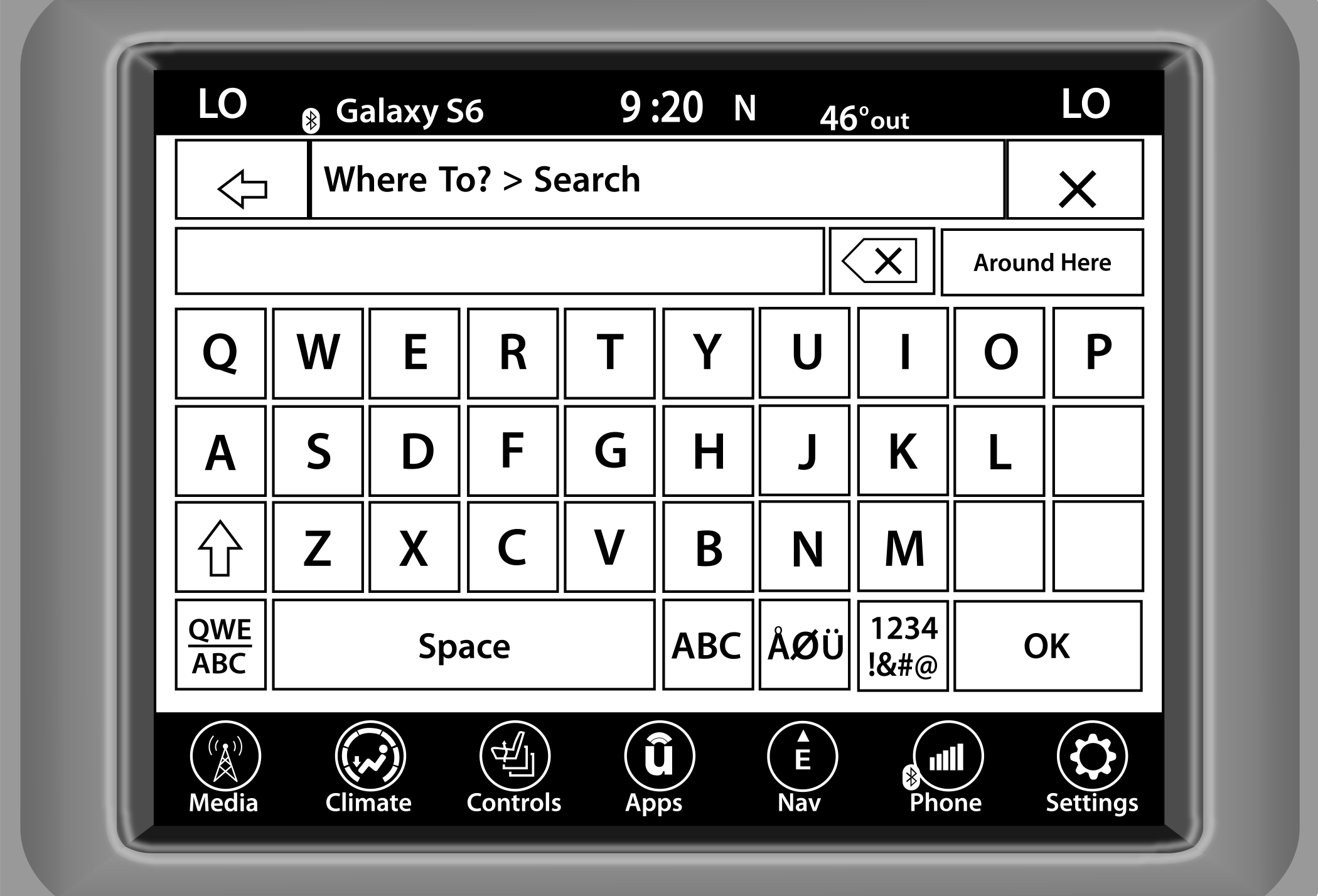
Enter the location name, street address, city, etc., you wish to search for, to search all “Where To?” categories for the entered location, and press “OK”.
Search
-
Select the desired location from the list of locations that appears. Once the correct location has been selected, you will be asked to confirm your route by pressing “Route To”.
-
Press the GO! button on the touchscreen to begin your route.
Address
-
Press the Address button.
-
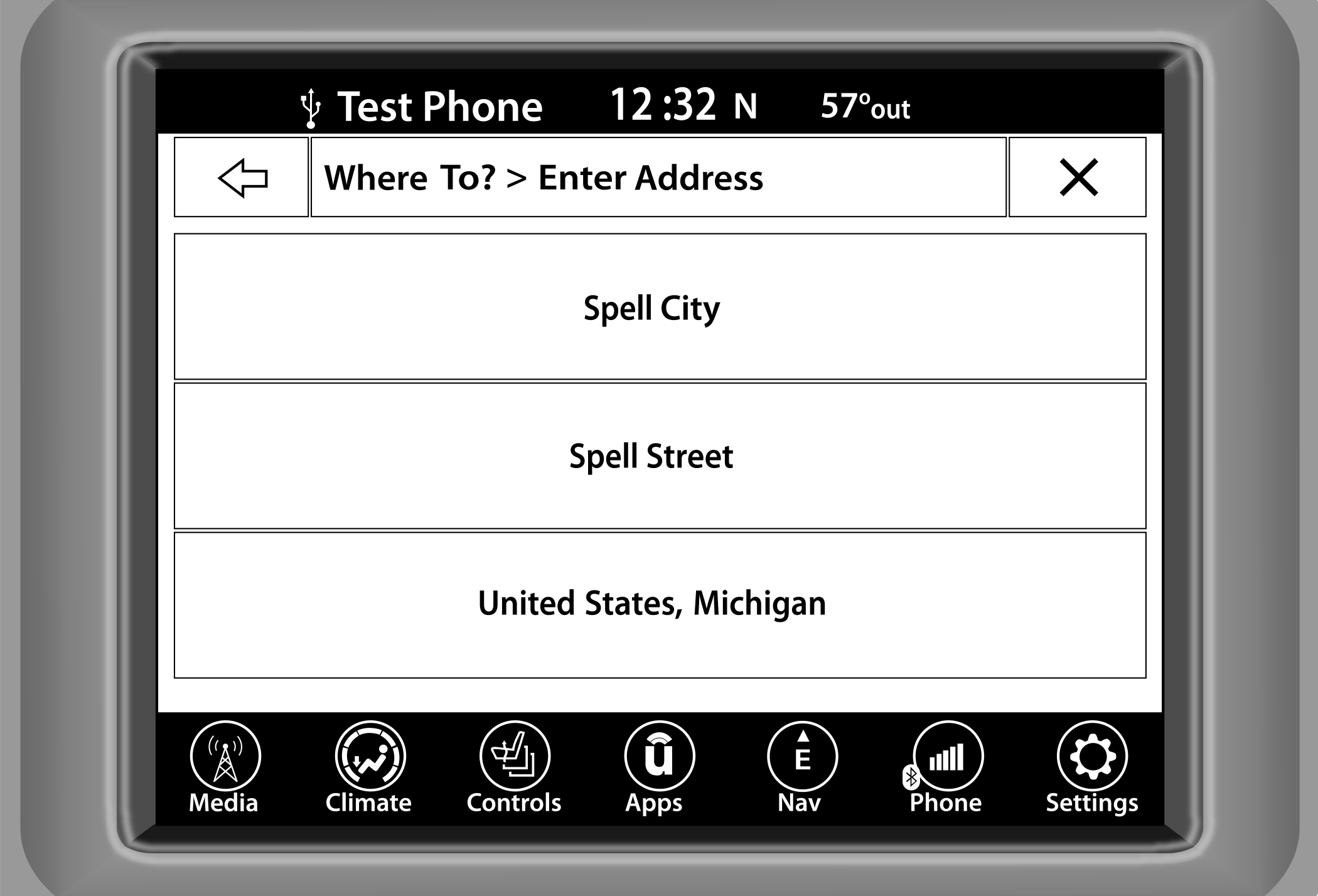
Press “Spell City” or “Spell Street” to begin entering the address of your destination.
Enter Address
If you press “Spell City”, you will have to enter and select/press the desired city name, followed by the desired street name, and then the house number.
If you press “Spell Street”, you will have to enter and select/press the desired street name in the correct city, and then you will have to enter the house number.
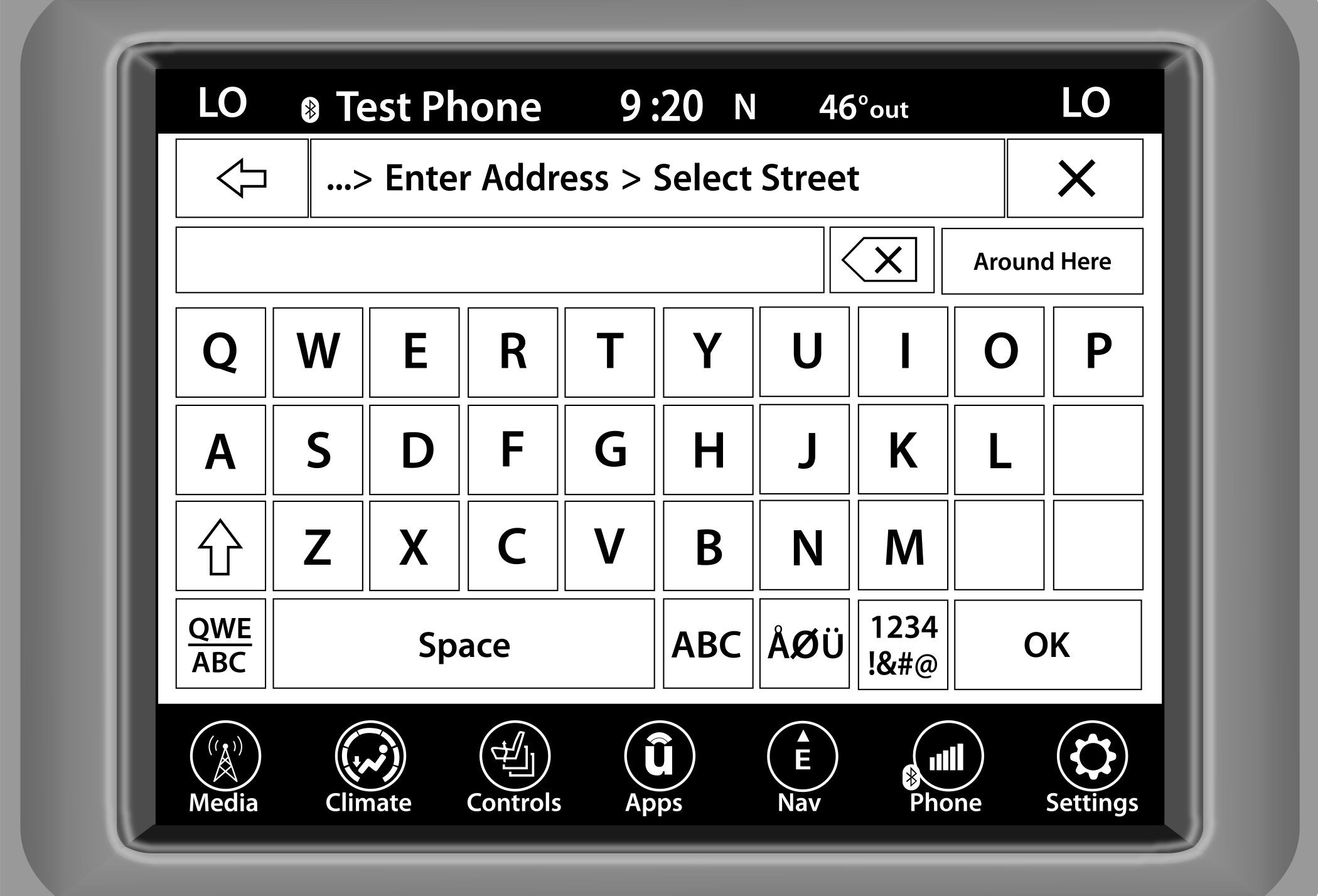
Select Street
To change the state and/or country, press the state and/or country button and follow the prompts to change the state and/or country.
Once the correct city, street and number have been entered, you will be asked to confirm your route by pressing “Route To”.
-
Press the GO! button to confirm your destination and begin your route.
Recent
-
Press the Recent button.
-
Press the button with the name of the desired destination.
To display the options for a destination from the list, press the Gear icon, which opens a pop-up menu with the options for that destination.
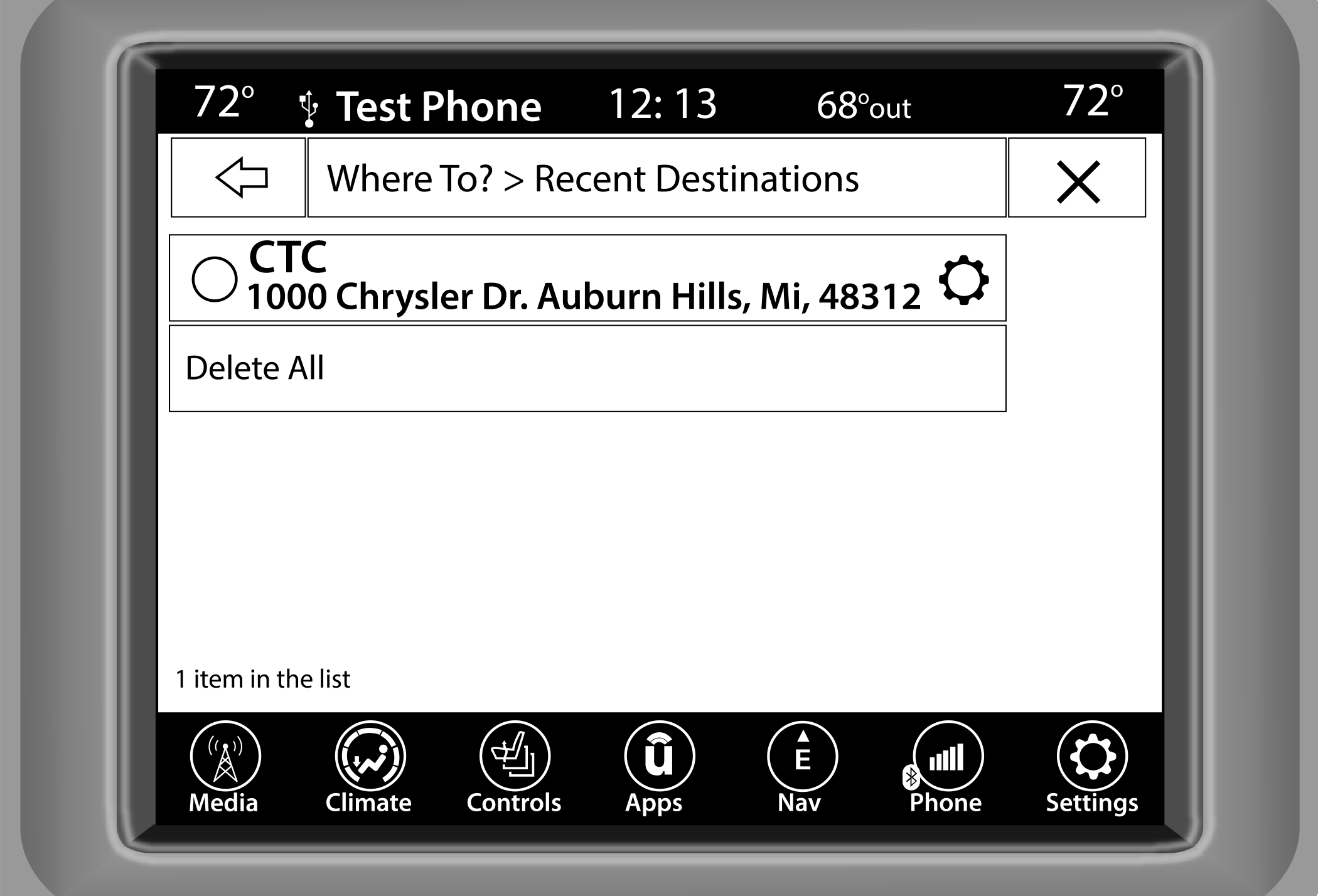
Gear Icon
To delete a destination from the list, press “Delete” in that pop-up menu.
The following options are available for each destination:
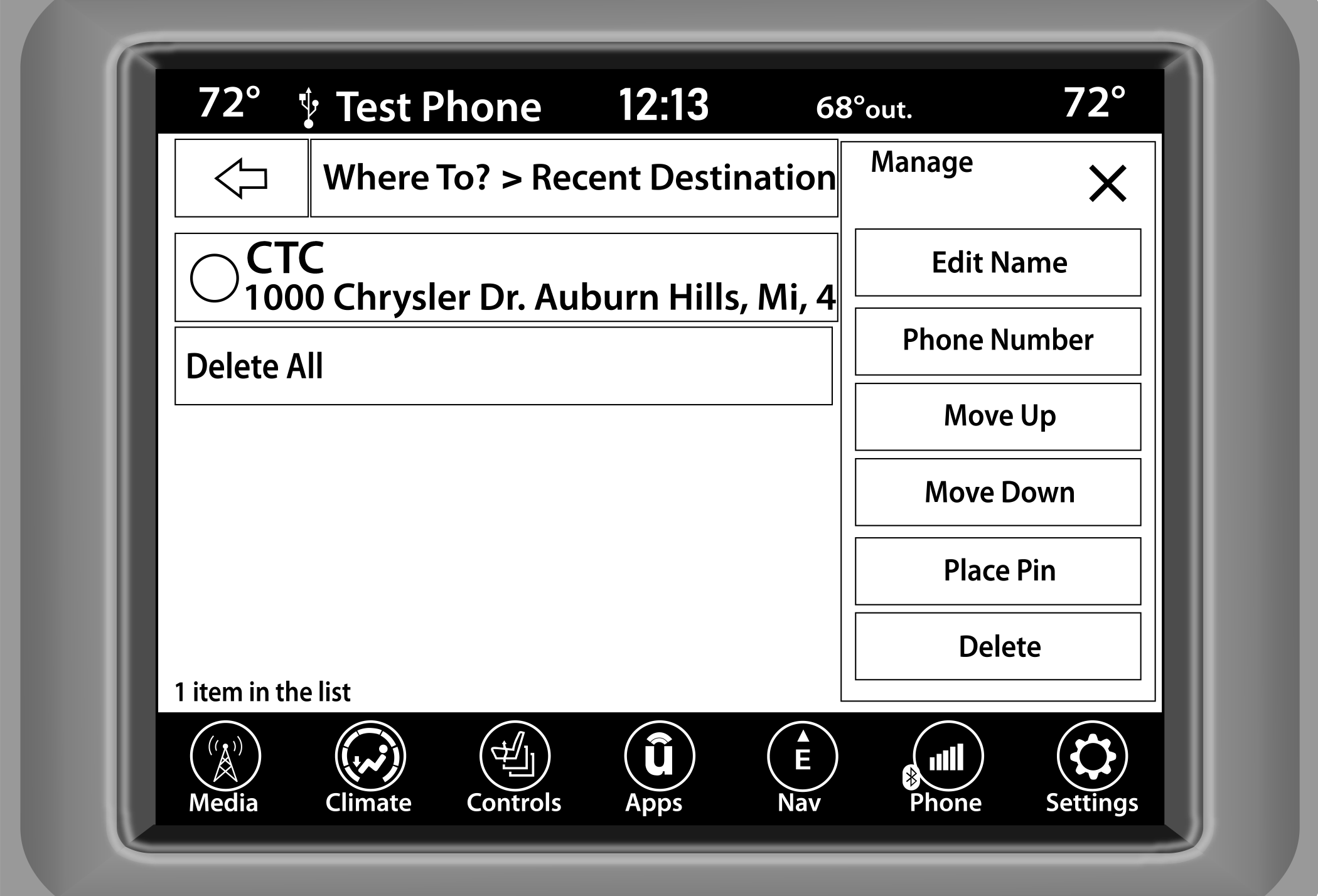
Manage Destinations
Edit Name
Phone Number
Move Up
Move Down
Place Pin (saves the spot on the list)
Delete
-
Select “Route To” to confirm your route.
-
Press “GO!” to confirm your destination, and begin your route.
If you are currently on a route guidance and you select “Recent”, the system will ask you to choose one of the following:
“Cancel Previous Route”
“Add to Current Route”
Within “Add to Current Route”, you can add the destination to your current route or set it as the final destination.
Note:
You can press the Back Arrow button to return to the previous screen or the X button to exit.
Favorite Destinations
-
Press the Favorites button.
-
To save a favorite destination, press the Add Favorite button and follow the steps to route a destination.
-
To delete a destination from the list, press the Gear icon next to the destination and select “Delete” in the pop-up menu on the touchscreen.
-
Press the button with the name of the desired favorite destination and confirm the route with “Route To”. Press “GO!” to confirm the destination, and start the route guidance.
-
To display the options for a favorite destination, press the Options icon that looks like a gear.
The following options are available for each favorite destination:
Edit Name
Phone Number
Move Up
Move Down
Delete
WHERE TO? — POINT OF INTEREST
To enter a destination by Point of Interest (POI), press the Where To? button from the Nav Main Menu, then press the POI Categories button.
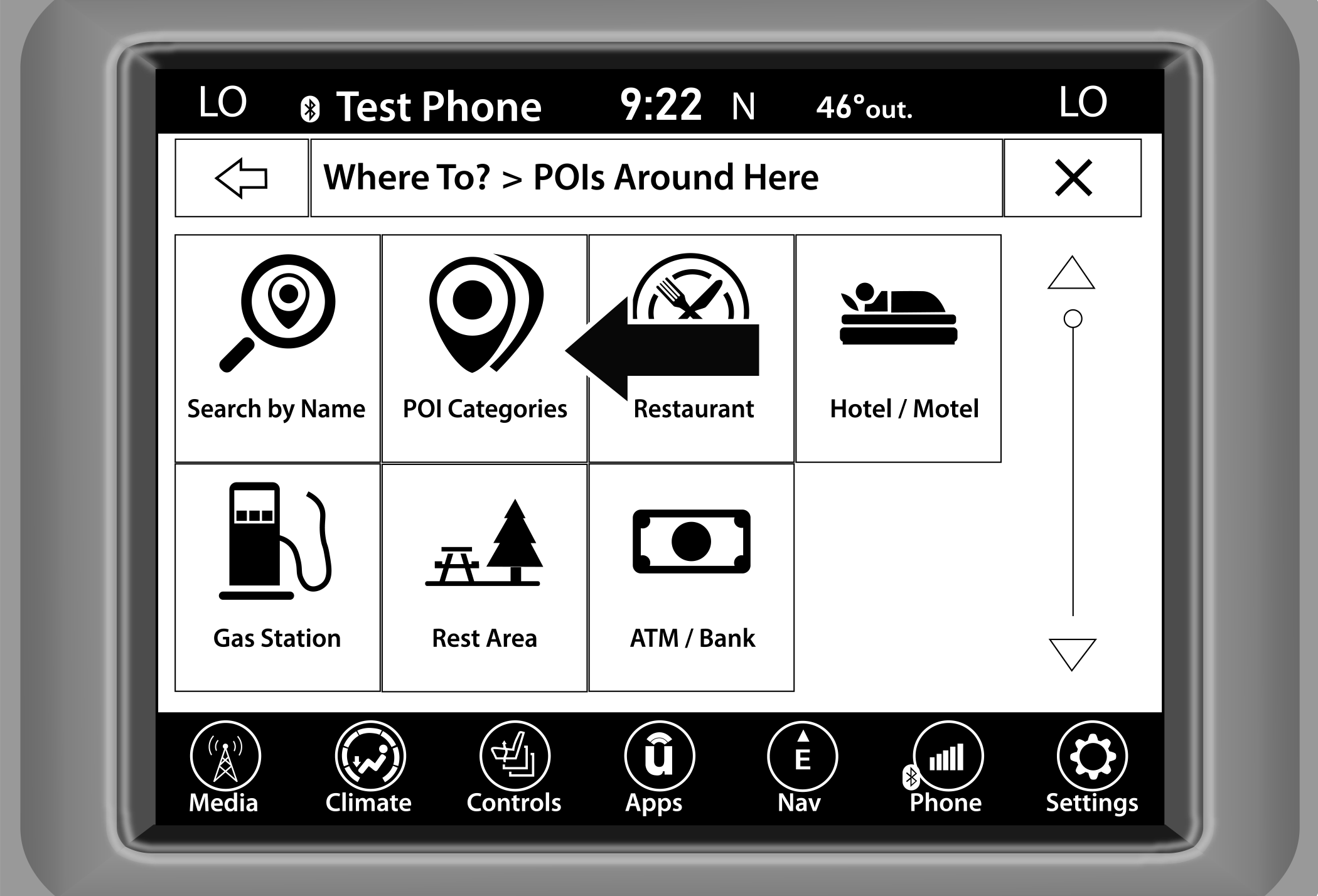
POI Categories Button
The Point of Interest database allows you to select a destination from a list of locations and public places, or points of interest.
You have the following POIs to choose from:
|
Search By Name |
|
|
POI Categories |
|
|
Restaurant |
|
|
Hotel/Motel |
|
|
Gas Station |
|
|
Rest Area |
|
|
ATM/Bank |
|
You can also change your POI search area by pressing any of the category buttons and pressing the Along Route button to access the Search Area option.
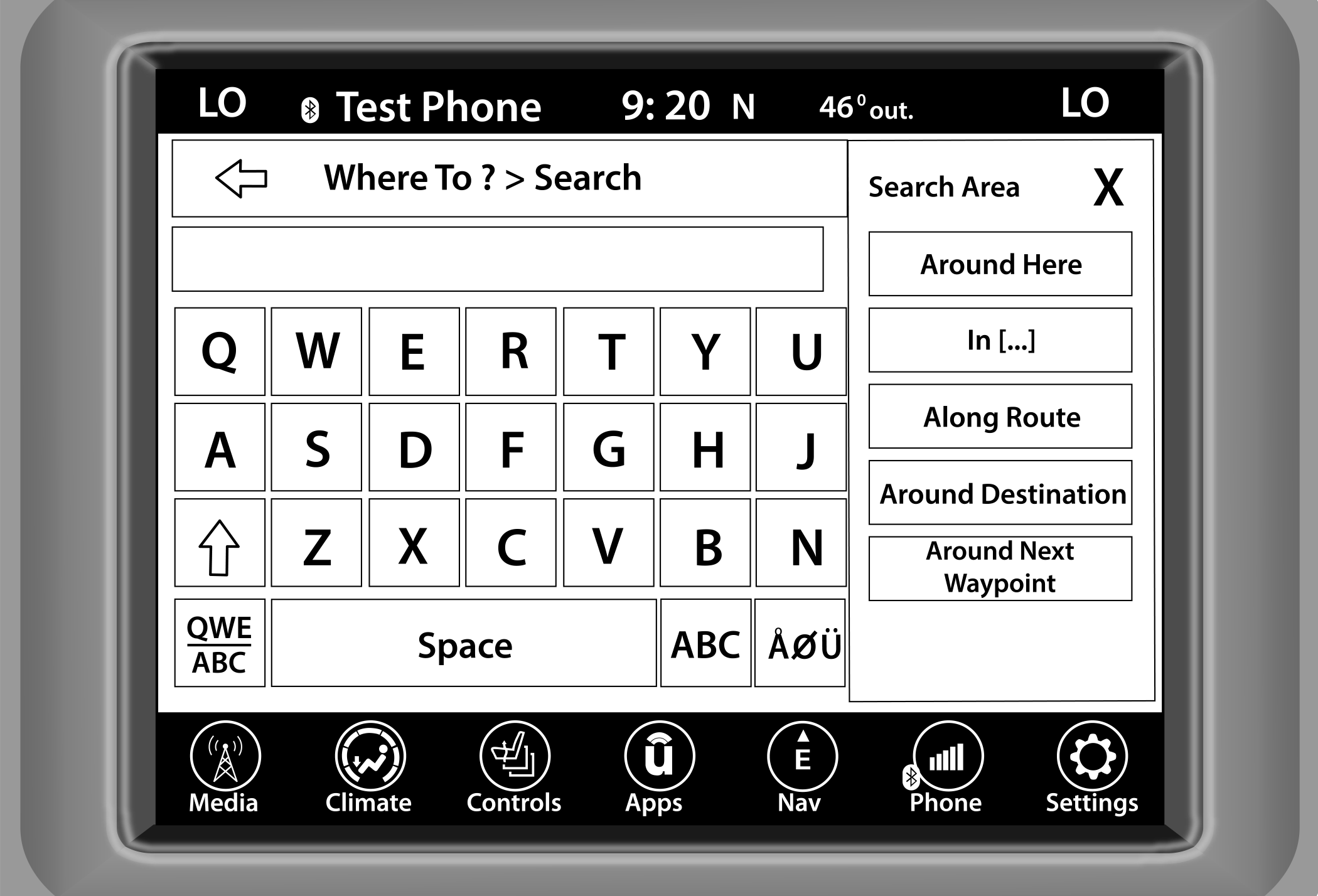
Search Area
You will have the following options to change your search area:
Around Here
In [...] (In a City or a Zip Code)
Along Route (only available during route guidance)
Around Destination (only available during route guidance)
Around Next Waypoint
POI — SEARCH BY NAME
-
Press the Search by Name button.
A keyboard will appear on the screen. Type in the POI that you want to search and press the OK button to display available items.
-
Press the desired POI and press “Route To” to confirm the route.
-
Press the GO! button to confirm the destination and begin the route.
POI — POI CATEGORIES
-
Press the POI Categories button.
You can search through the available POI categories to find your desired POI.
The available categories are:
List All POIs
Airport
ATM or Banking
Automotive
Coffee Shops
Community
Entertainment
Gas Stations
Highway Exit
Hospital
Hotels or Motels
Local Services
Medical
Parking
Parks and Recreation
Restaurants
Shopping
Travel and Transportation
Truck
-
Select a category and then select a subcategory if necessary. Press the ABC button to activate a keyboard to search within the POI categories.
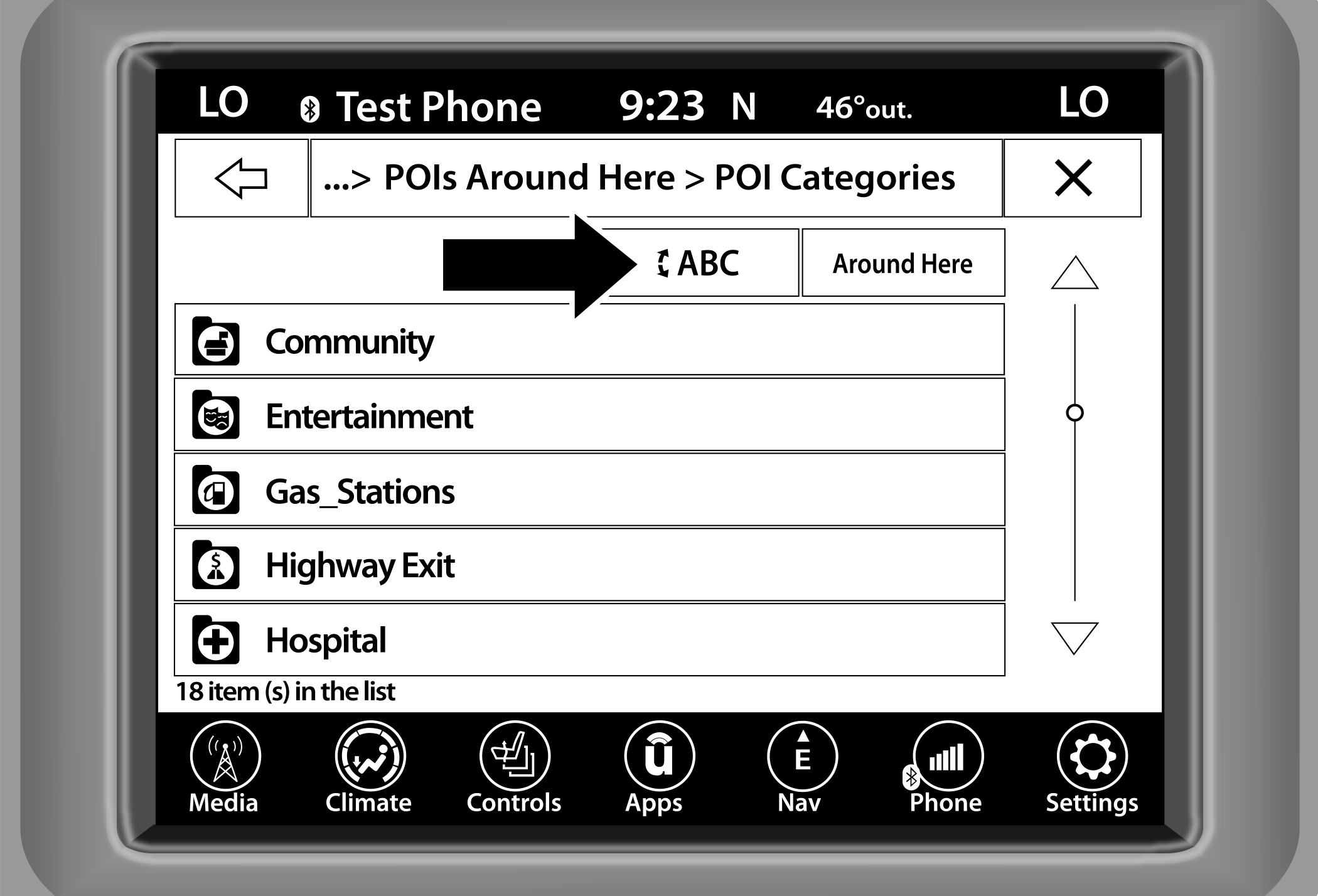
ABC Keyboard
-
Press the desired POI and press “Route To” to confirm the route.
-
Press the GO! button to confirm the destination and begin the route.
POI — RESTAURANT, HOTEL/MOTEL, GAS STATIONS, REST AREA, AND ATM/BANKING
-
Press the corresponding button for the POI category you would like to navigate to.
You can search for a POI by the following categories, which are button tabs at the top of the screen:
-
Name
Distance
ABC (Search)
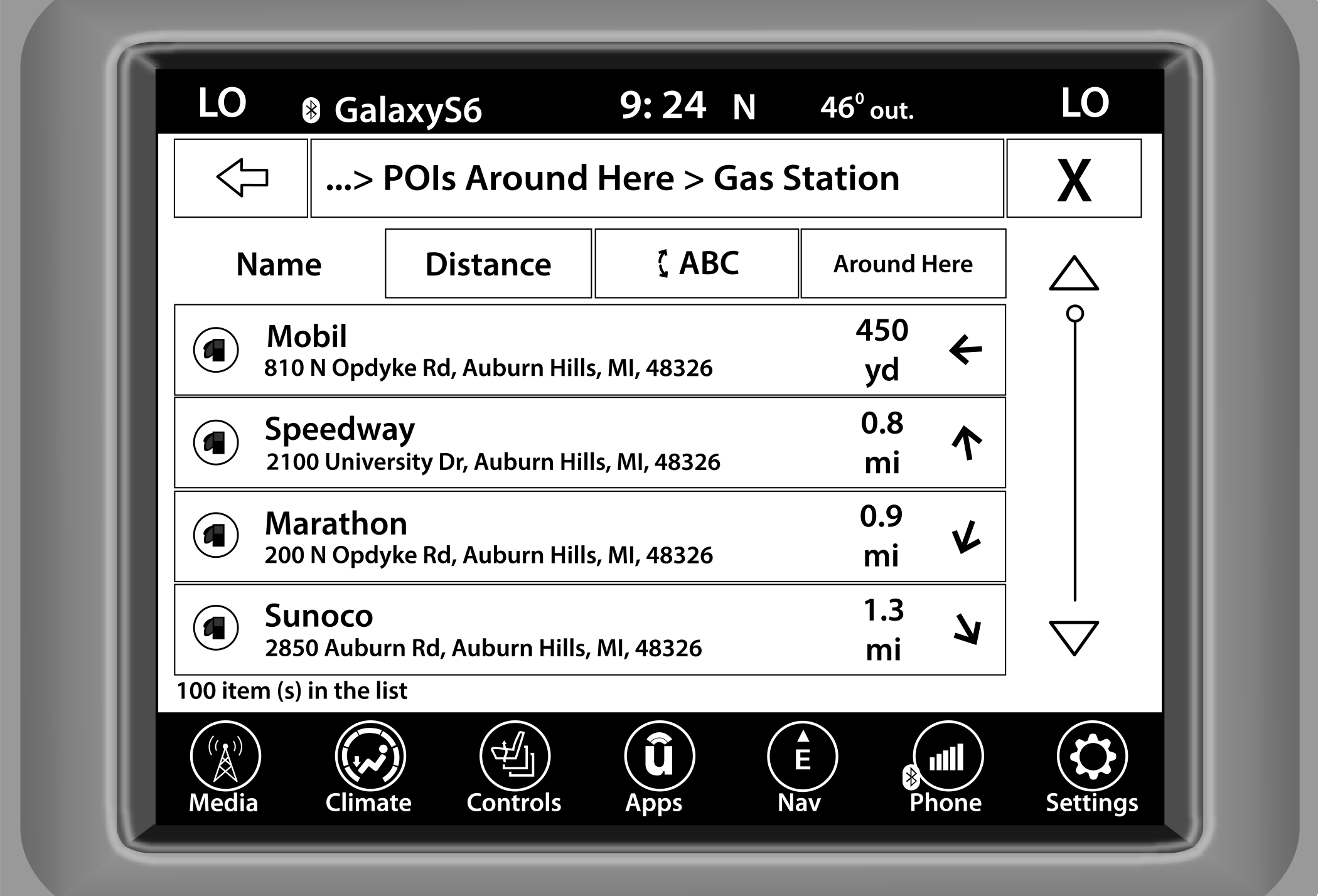
POIs Around Here
-
Press the desired POI destination and press “Route To” to confirm the route.
-
Press the GO! button to confirm the destination and begin the route.
WHERE TO? — TRIPS
-
Press the Trips button
-
To add a Trip, follow these steps:
-
Press the Create New Trip button.
-
Press the Destination button, and then press “Pick Destination”.
-
Press “Add Destination” or “Insert Final Destination” to add waypoints and destinations to your trip.
-
Choose from the following options to add a destination:
Address
Recent
Point of Interest
Favorites
Home
Intersection
Geo-Coordinates
Point on Map
City Center
Closest Cities
Phone Number
Note:
Refer to the individual section of the chosen option for further information.
-
To save your Trip, you must press “Calculate Route” and press “Save”.
-
Your new Trip will appear on the Trips list.
-
-
To route to a saved Trip, follow these steps:
-
Press the button with the name of the desired Trip and press the first destination in the list.
-
Confirm the route by pressing “Route To”, and then press “GO!” to confirm the destination and to start the route guidance.
-
-
To delete a Trip from the list, press the Gear icon and then select “Delete” from the pop-up menu.
-
To display the options for a trip, press the Gear icon.
-
The following Options are available for each trip:
Edit Name
Move Up
Move Down
Delete
WHERE TO? — POINT ON MAP AND INTERSECTION
Point On Map
-
Press the Point On Map button.
-
Use the touchscreen to drag over to the desired destination, and press the touchscreen to select a location.
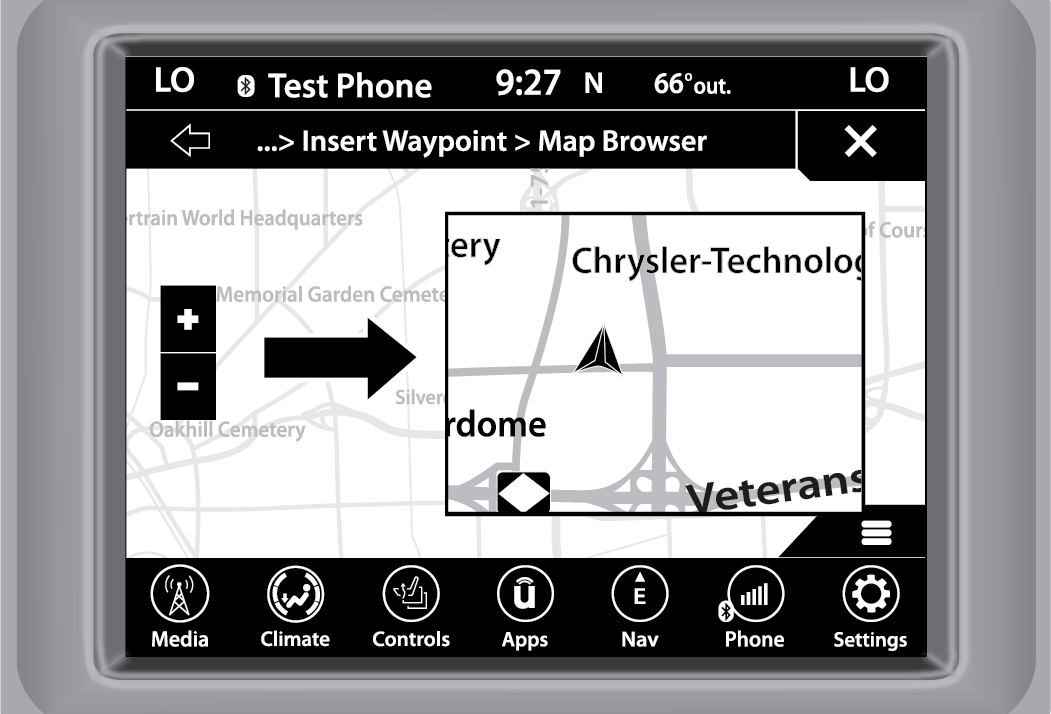
Point On Map
-
To enter a destination by Point On Map, follow these steps:
-
Once your cross is where you want it, press “Route To”, or select “Places Nearby” to select a nearby destination.
-
-
Press “GO!” to confirm the destination and begin route guidance.
Intersection
-
Press the Intersection button.
-
Press the Spell City, Spell Street, or Select Country button to enter the desired city, street name, or country.
Note:
If the system automatically recognizes the city, or street, it will populate a list of recognized cities or streets. If not, press the List button to select from the available options.
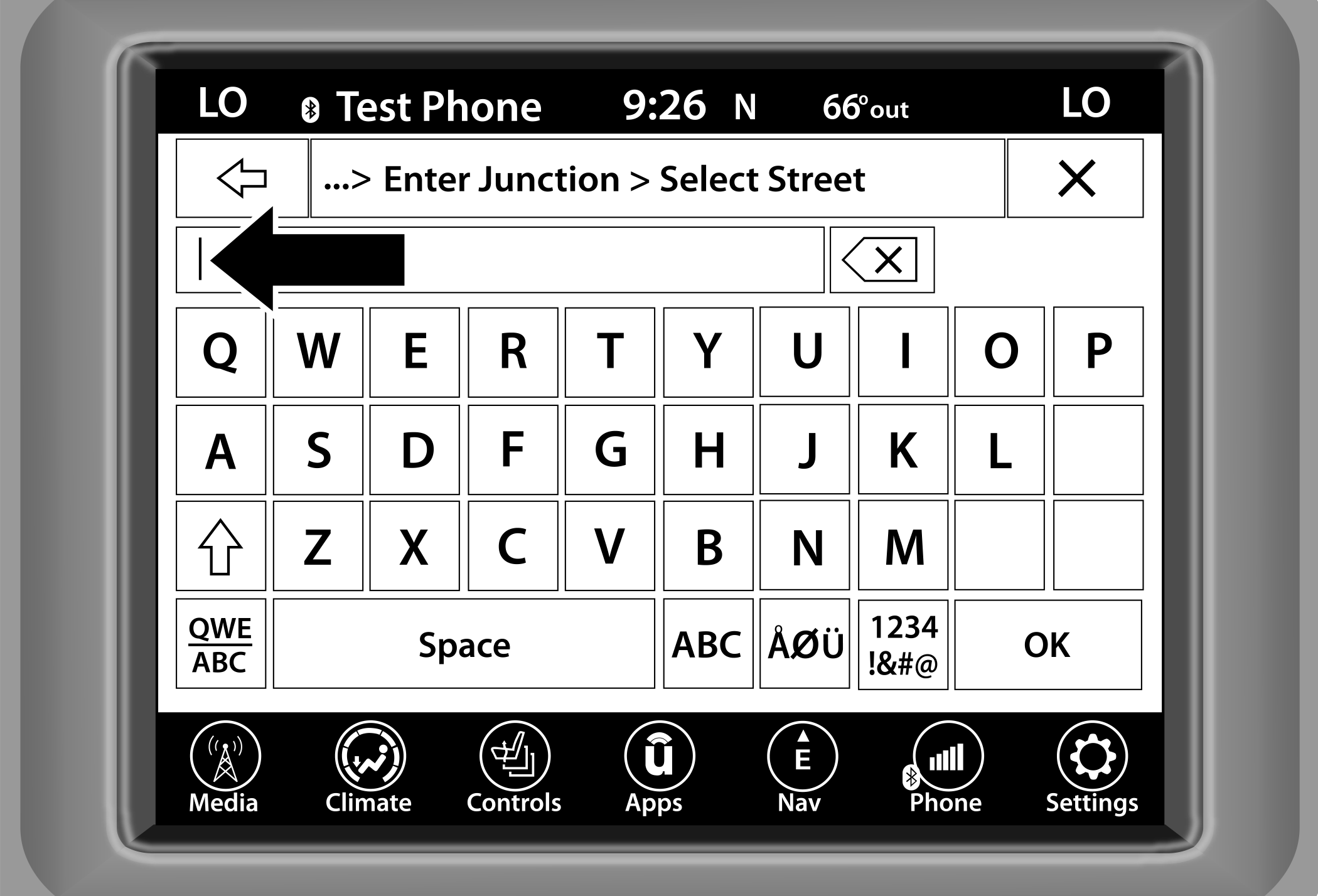
Select Street
-
If “Spell Street” was selected, you must select the correct street. You will then be asked to spell the intersecting street, and then the desired city.
-
Press the Route To button to confirm your route, and then press “GO!” to confirm the destination and begin your route.
WHERE TO? — HOME AND WORK
Home
-
Press the Home button. If there is no Home Address entered, press “Yes” to enter it now.
-
To enter your Home Address, choose one of the following options:
-
Spell City
Spell Street
Select Country
Note:
Refer to the individual section of the chosen option for further information.
Once you have generated your Home Address, you will be asked to Save it.
-
Press the Save Home button to confirm your destination and begin the route to your Home Address.
-
This address will be saved as your Home Address, and it can be accessed by pressing the Home button in the Where To? Menu.
-
-
To delete a saved Home location (or other saved locations), so you can save a new Home location, follow these steps:
-
Press the Nav button, and in the “Where To” screen, press “Edit Where To”.
-
Press the Home button.
-
Under the Manage screen, press the Reset Location button.
-
Note:
A confirmation screen will appear asking, “Are you sure you want to reset this location?”. Press “Reset” to confirm the deletion and then set a new Home location by following the previous instructions.
Work
-
Press the Work button. If there is no Work Address entered, press “Yes” to enter it now.
-
To set your Work Address, choose one of the following options:
Spell City
Spell Street
Select Country
Note:
Refer to the individual section of the chosen option for further information.
-
Once you have generated your Work Address, you will be asked to Save it.
-
Press the Save Work button to confirm your destination and begin the route to your Work Address.
-
This address will be saved as your Work Address, and it can be accessed by pressing the Work button in the Where To? Menu.
WHERE TO? — CITY CENTER AND CLOSEST CITIES
City Center
-
Press the City Center button.
-
To enter a destination by City Center, follow these steps:
-
Enter the name of the City you would like to route to.
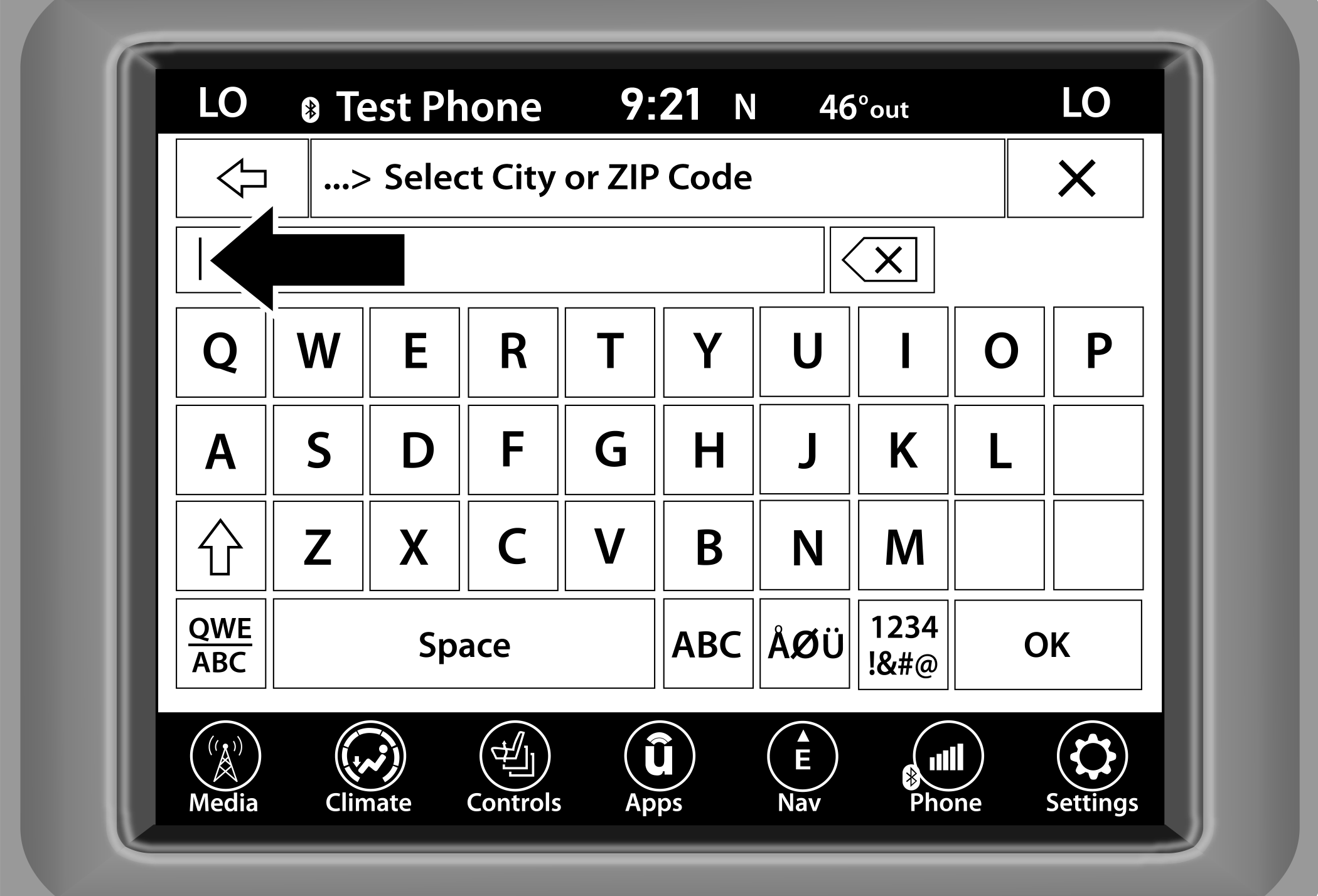
Select City Or Zip Code
-
Press the desired city from the list.
-
Press the Route To button to confirm your route, and then press “GO!” to confirm your destination and begin your route.
-
Closest Cities
-
Press the Closest Cities button.
-
Press the desired city from the list.
-
Press the Route To button to confirm your route, and then press “GO!” to confirm your destination and begin your route.
WHERE TO? — PHONE, GEO-COORDINATES, AND TRAILS
Phone
-
Press the Phone Number button.
-
To enter a destination by Phone Number, follow these steps:
-
Enter the Phone Number of the business you would like to route to.
-
Press the desired destination from the list.
-
Press the Route To button to confirm your route, and then press “GO!” to confirm your destination and begin your route.
-
Geo-Coordinates
-
Press the Geo-Coordinates button.
-
Enter the Latitude by typing in the numbers. Use the dial pad to select specific numbers in the location shown.
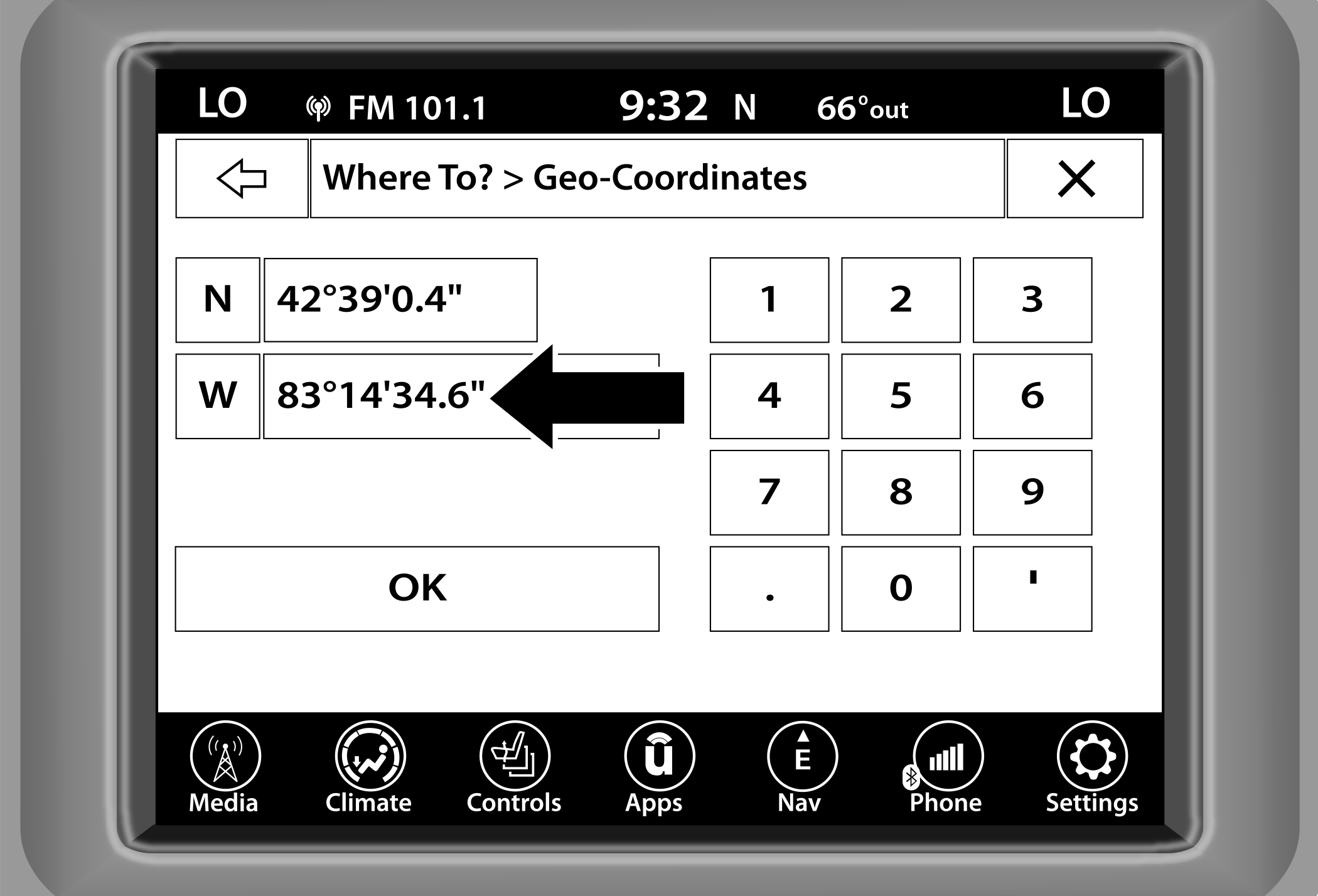
Geo-Coordinates
-
Press the OK button.
-
Enter the Longitude by typing in the numbers. Use the dial pad to select specific numbers in the location shown.
-
Press “OK” to confirm the destination.
-
Press the Route To button to confirm your route, and then press “GO!” to confirm your destination and begin your route.
Trails
-
Press the Trails button.
-
Press “Start Recording”.
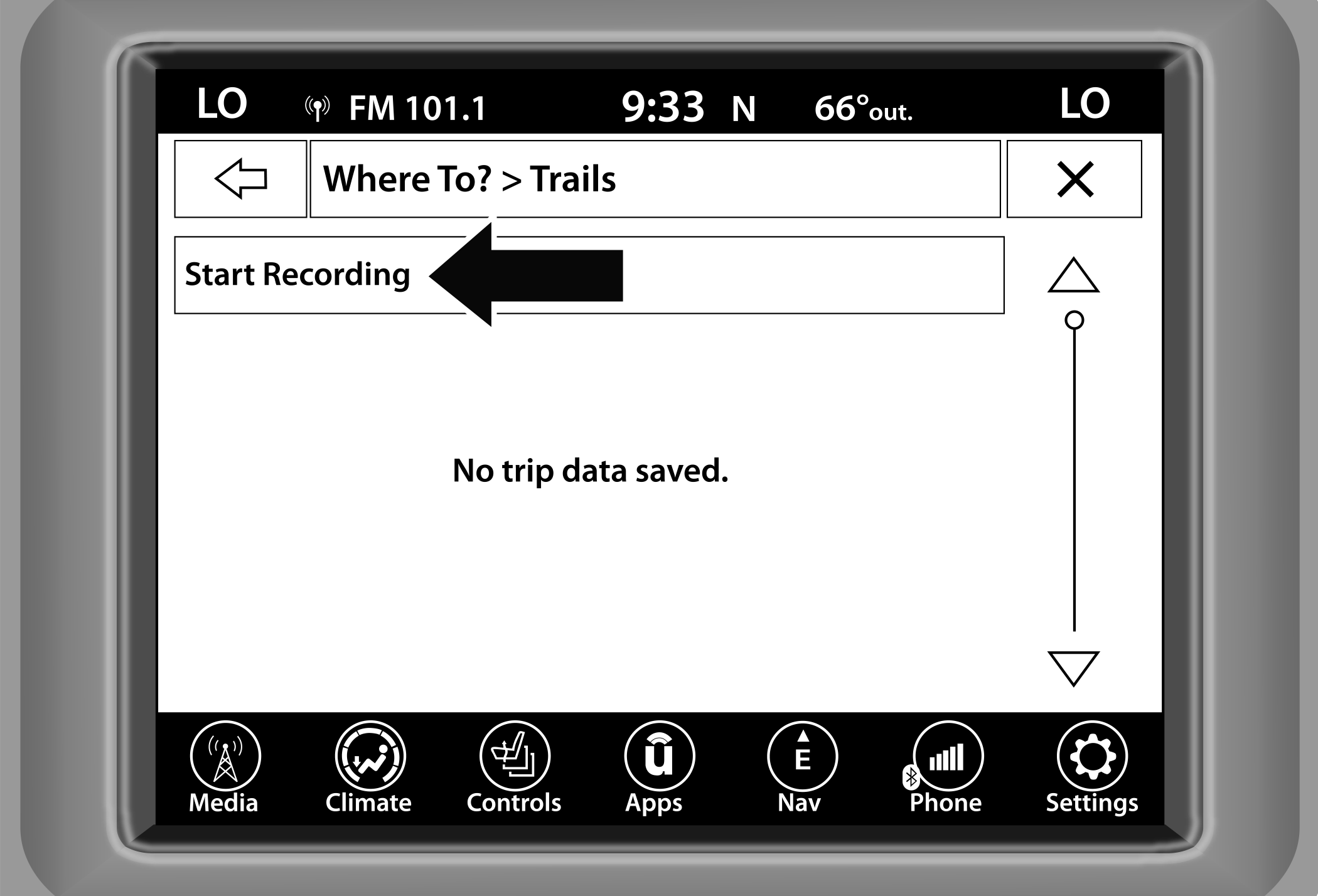
Start Recording Trails
-
When you want to end the recording of a route, press the Record button, and press “Yes” to confirm.
The trip you recorded will be added to the Recent Trails list.
BEFORE ROUTE GUIDANCE
Before confirming the destination with the GO! button, it is possible to select options different from the standard route settings.
Route Options — Press the Route Options button to display a list of options to alter your route. To make a selection, press and release the desired setting.
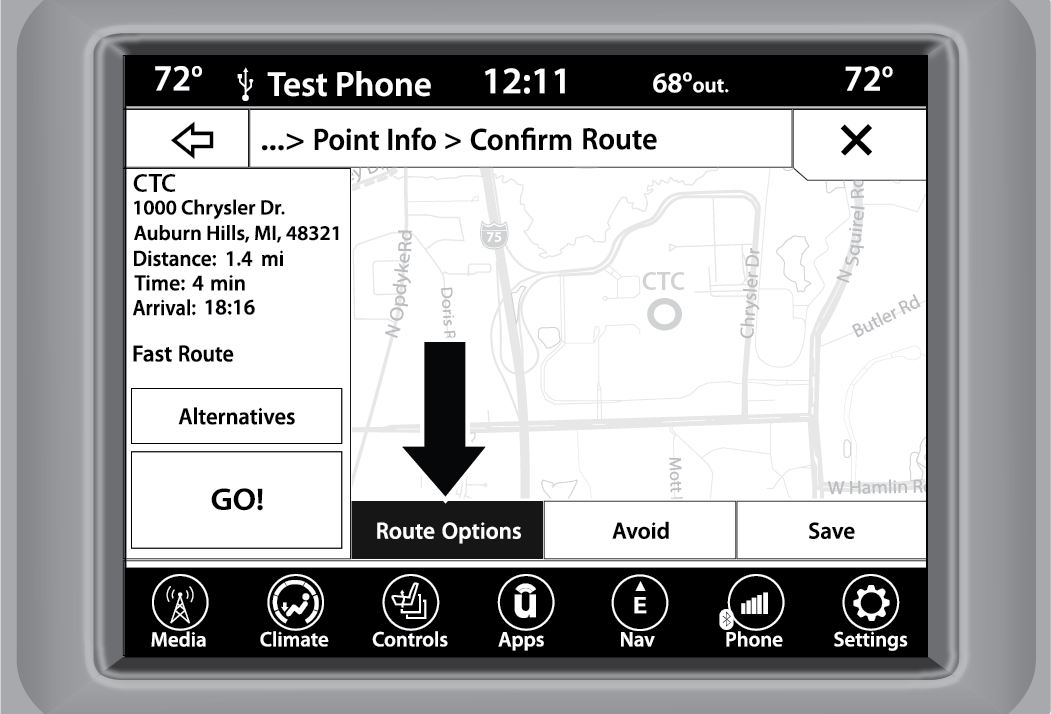
Route Options Button
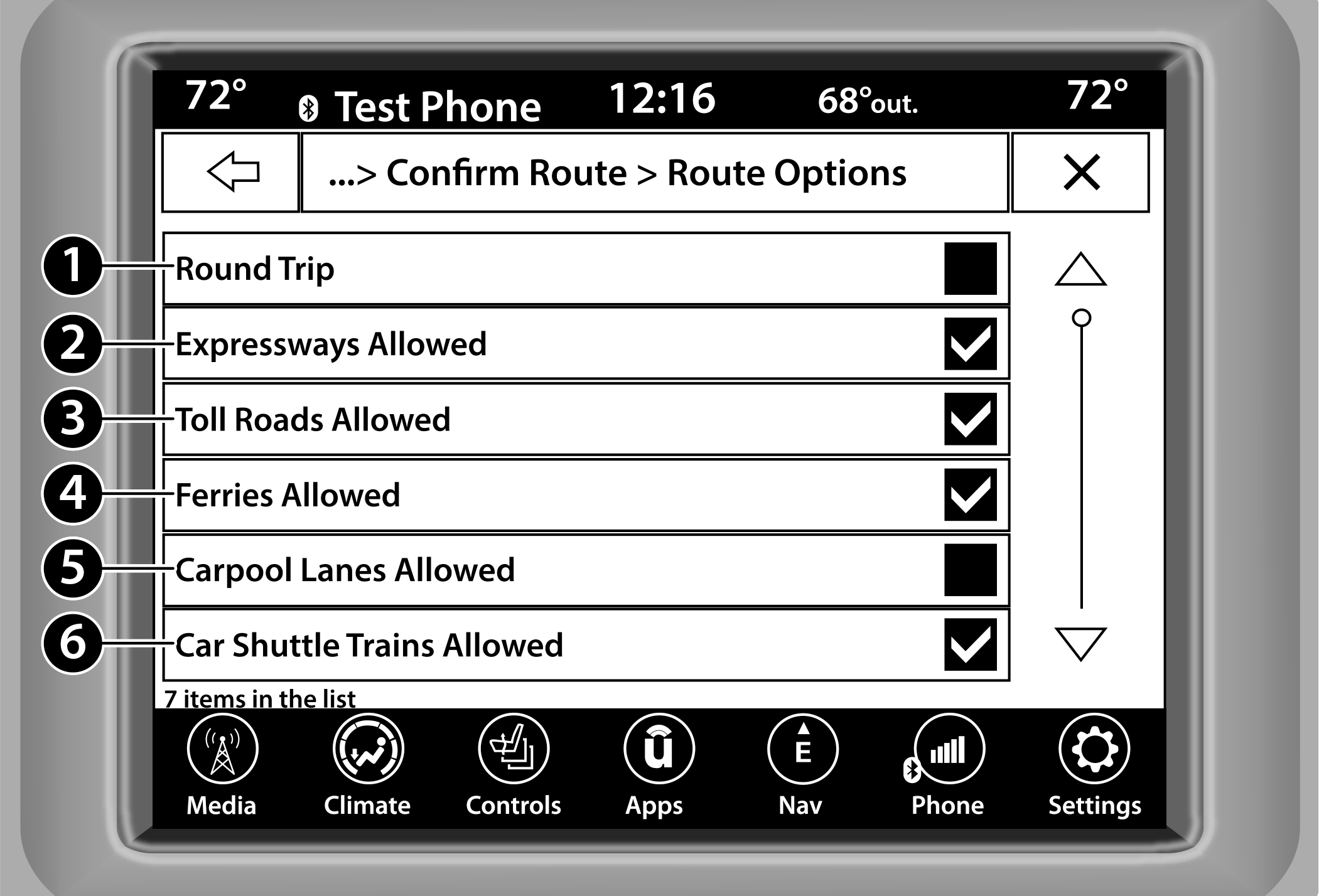
Route Options
|
1 — Round Trip |
|
2 — Expressways Allowed |
|
3 — Toll Roads Allowed |
|
4 — Ferries Allowed |
|
5 — Carpool Lanes Allowed |
|
6 — Car Shuttle Trains Allowed |
Avoid — Press the Avoid button to choose road types to avoid during your route. To make a selection press and release the desired setting.
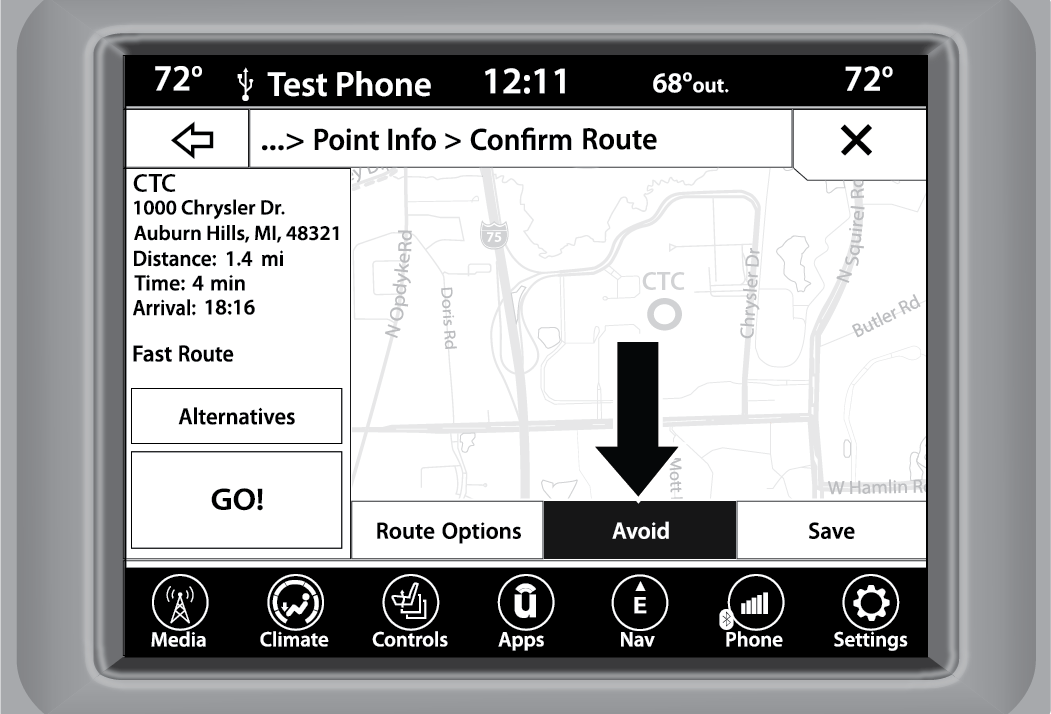
Avoid Button
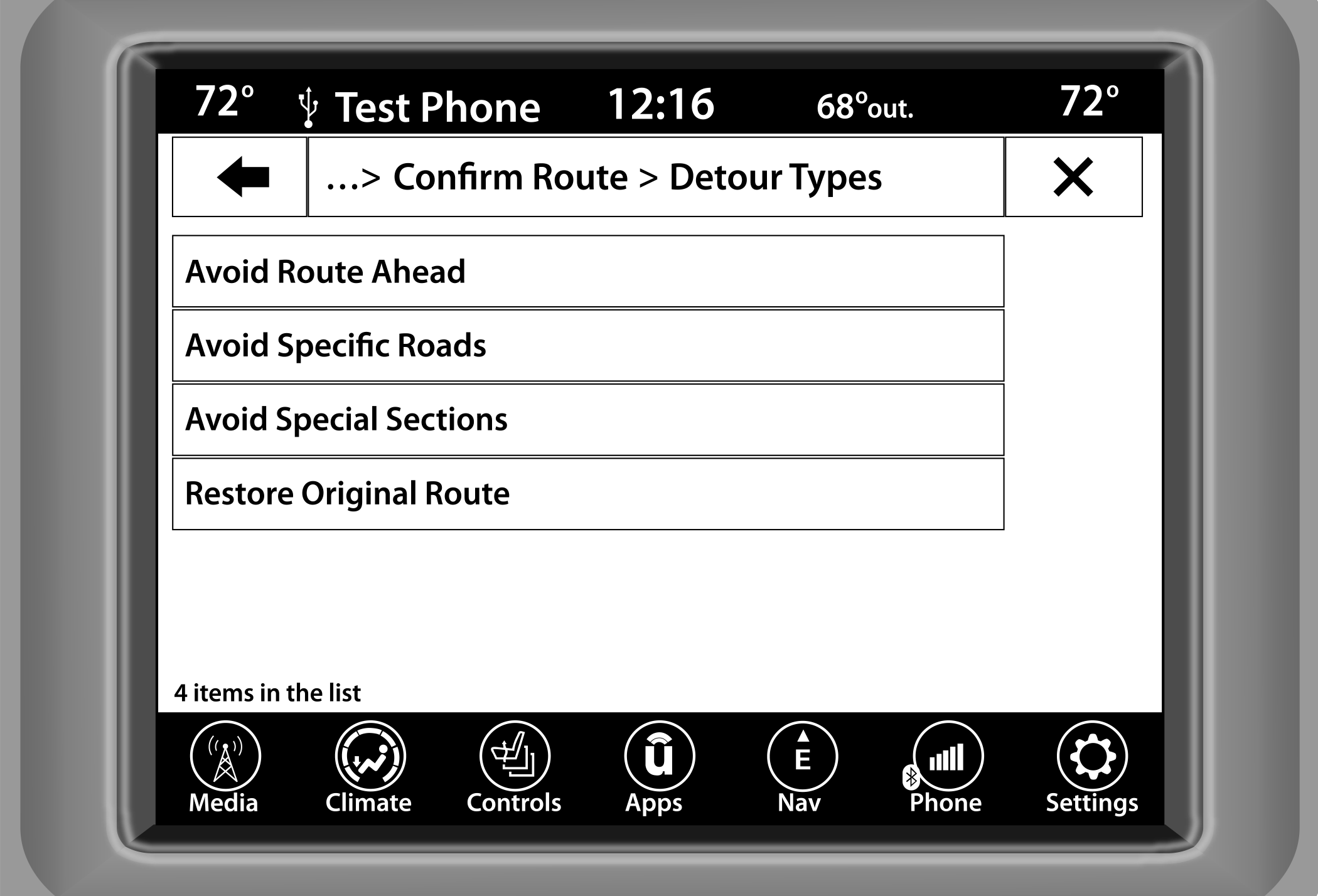
Detour Types
Note:
Since toll roads, tunnels and ferries are built for the purpose of shortening travel distances, avoiding these road types may increase distance and travel time.
Accept — Press the Accept button to confirm desired detoured route.
Save — Press the Save button to save the destination as a Trip.
Press the GO! button to confirm your destination and to start your route guidance.
VIEW MAP
VIEW MAP — MAIN MENU
Press the View Map button from the Nav Main Menu to display a map of your current position.
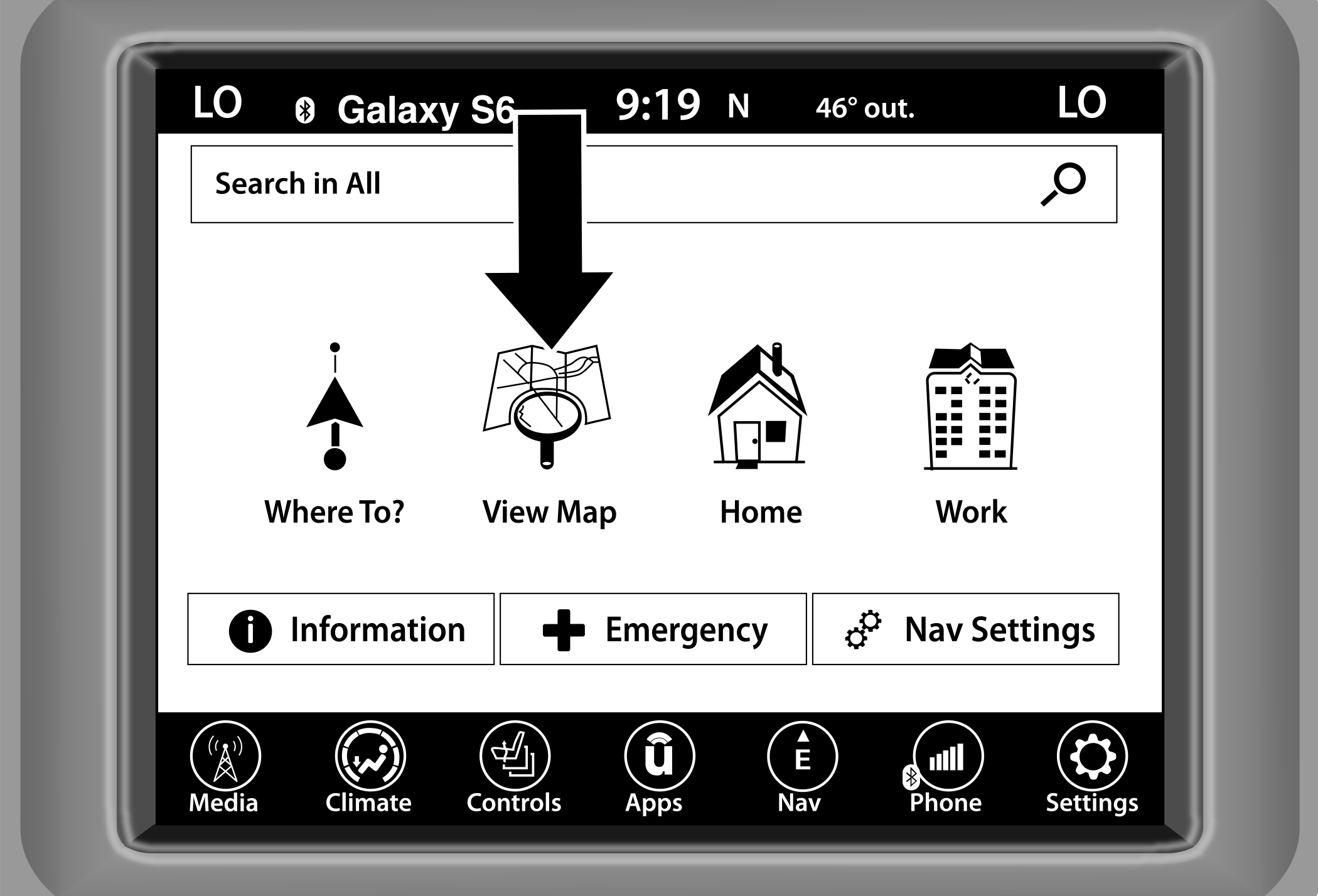
View Map Button
With the map displayed you have the following features available:
Menu
Press this button to return to the Nav Main Menu.
Zoom In +/Zoom Out –
Press the Zoom In (+) or Zoom Out (–) buttons to change the zoom level. Roads with lower functional classification are not shown in higher zoom levels (e.g., residential streets, lightly-traveled county roads).
Time of Arrival/Time to Destination/Distance (only during route guidance)
Press the button in the upper right area of the screen to the display items available. Press the desired option button:
Time of Arrival
Time to Destination
Distance
Turn List (only during route guidance)
Press the area in the upper center part of the screen that displays your next turn to see a Turn List for your current route.
Press a turn in the displayed Turn List for the following options:
Show on Map
Avoid Street
Options (only during route guidance)
Press the Options button to display the following options. Press the desired button:
2D North Up/Map View 2D/Map View 3D
Press this button to scroll between the three viewing options.
Repeat Directions
Press this button to repeat the current voice prompt.
Mute Guidance
Press this button to mute the voice prompts.
Stop Guidance
Press this button to stop route guidance.
Settings
Press this button to view all the available settings .
VIEW MAP — SETTINGS
With the Map displayed, press the button on the bottom right of the map that has three horizontal lines on it. Then press the Settings button.
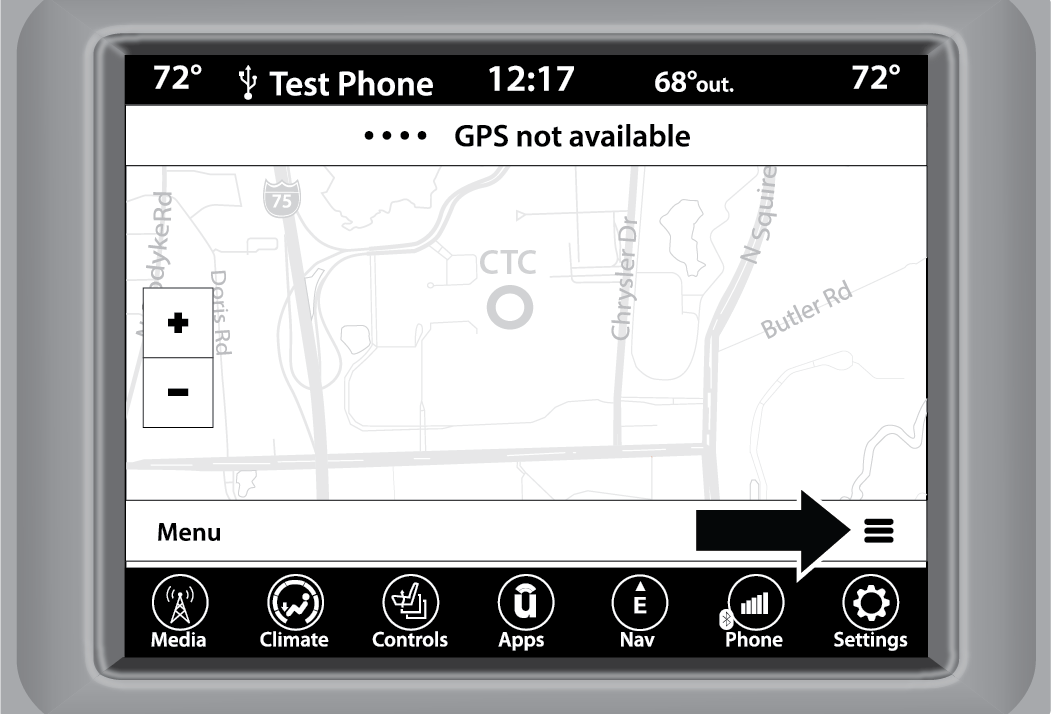
View Map Settings Icon
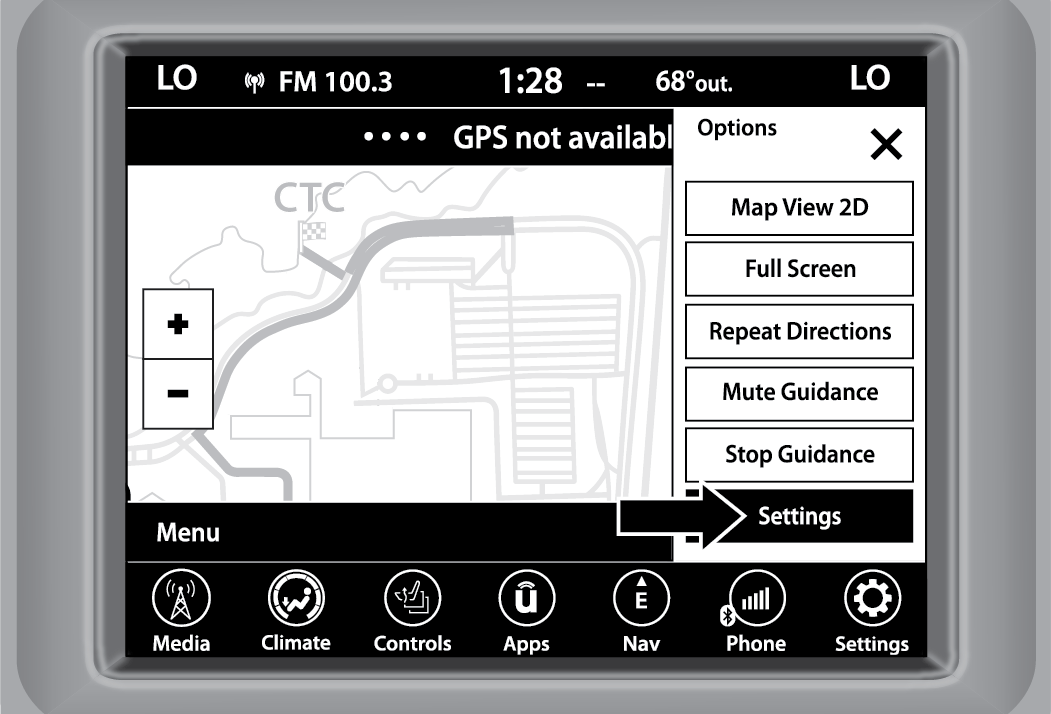
View Map Settings Button
The following Map Settings are available:
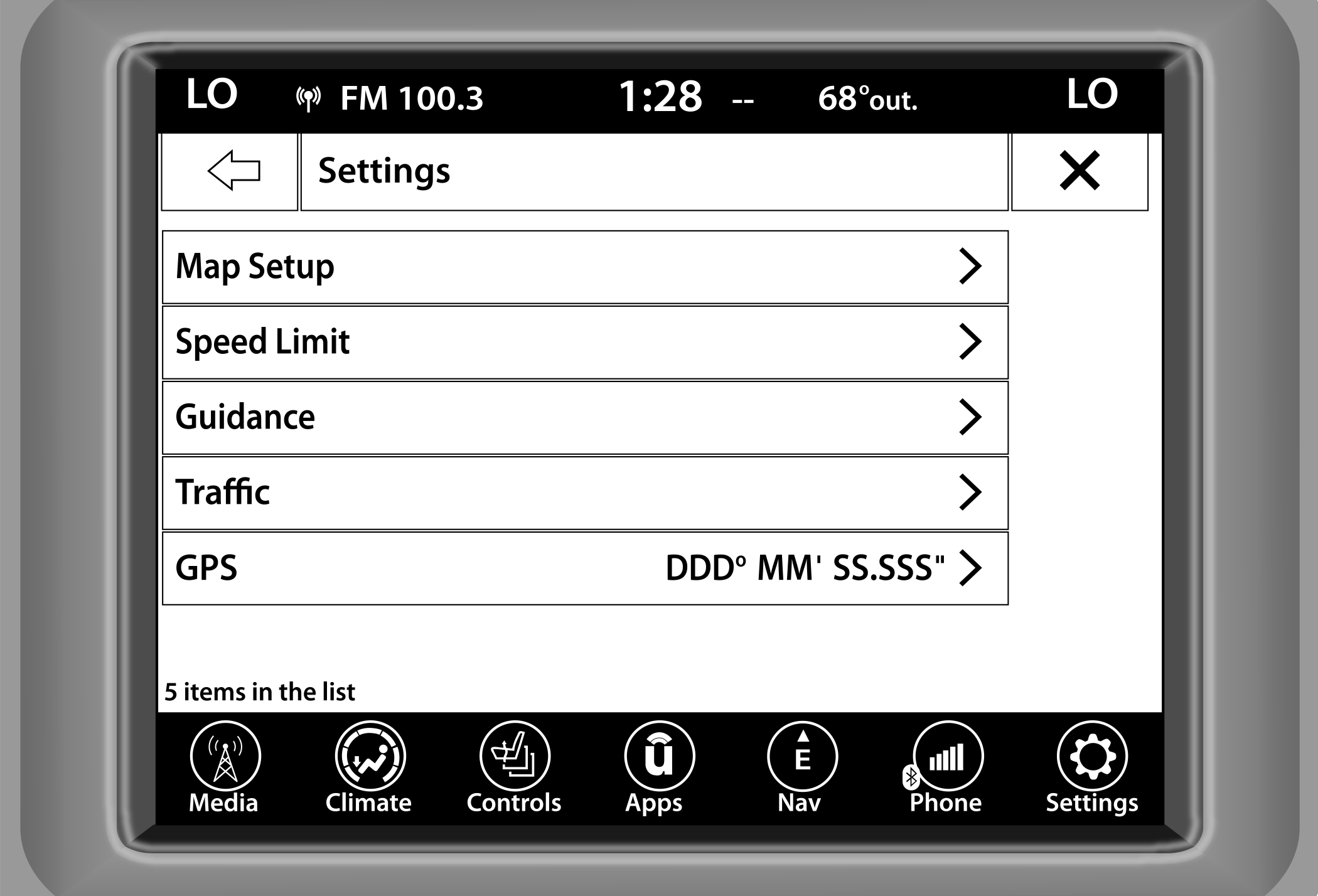
Map Settings
Map Setup — Press this button to display items to customize how your map is viewed .
Speed Limit — Press this button to turn on/off speed limit warning announcements and to enter a predefined speed limit for your route.
Guidance — Press this button to display items to customize your route guidance .
Traffic — Press this button to set how you receive traffic information updates.
GPS (DMS) — Press this button to change the GPS display. Press the desired button:
Decimal
Degrees-Minutes-Seconds (DMS)
Degrees-Minutes (DM)
Map Updates — Press the button to view map updates for the Navigation system.
About — Press the button to view information about the Navigation system.
SETTINGS — MAP SETUP
With the Map displayed, press the button in the bottom right corner of the map that has three horizontal bars on it, then press the Settings button and then the Map Setup button.
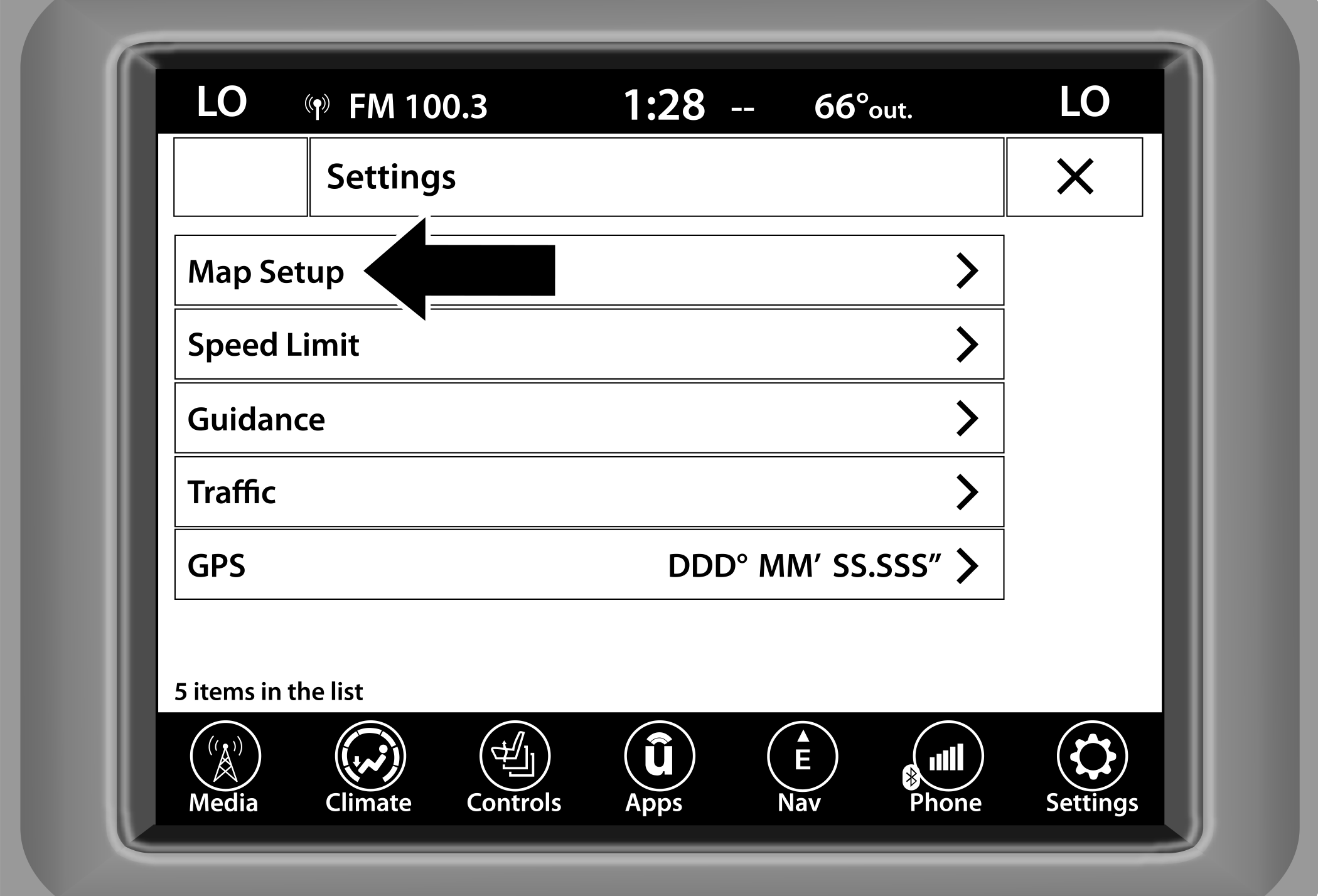
Map Setup
The following Map Setup options are available:
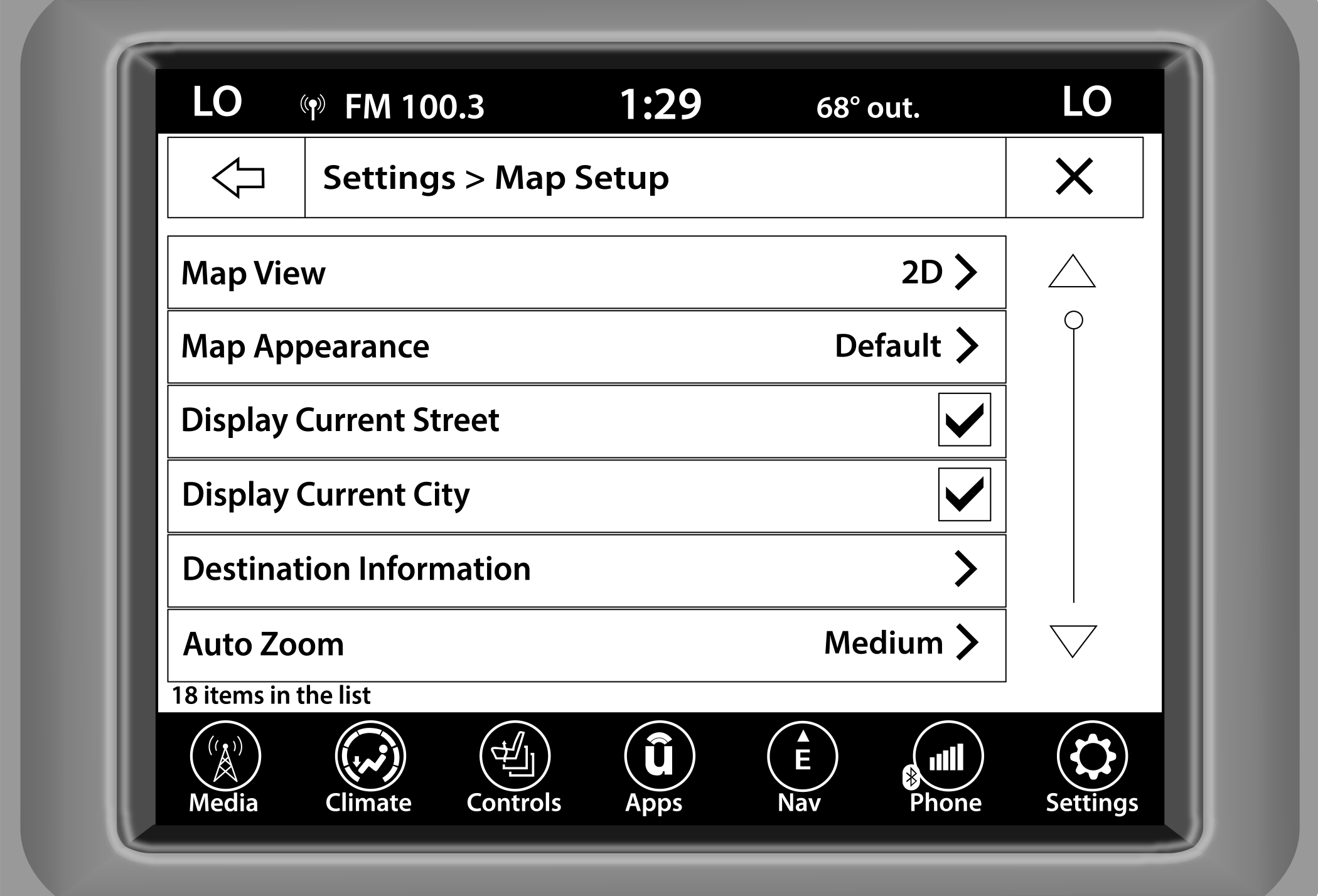
Map Setup Options
|
Map View |
Press this button to change how the Map View is displayed. Press the desired button: 3D (Must Select 3D City Models Or 3D Landmarks For 3D Map View To Display) 2D 2D North Up
|
|
Map Appearance |
Press this button to select different themes for your map. |
|
Display Current Street |
Press this button to turn on/off the current street display on the lower center of the Map View. Press and release the button until a check mark appears, showing the setting has been selected. |
|
Display Current City |
Press this button to turn on/off the current city display in the lower right of the Map View. Press and release the button until a check mark appears, showing the setting has been selected. |
|
Destination Information |
Press this button to change the Destination Information that is displayed in the upper right corner of the Map View. Press the desired button: Time of Arrival Time to Destination Distance
|
|
Auto Zoom |
Press this button to change how the Auto Zoom feature adjusts the zoom level during guidance in Map View. Press the desired button: Far Medium Low Off
|
|
Vehicle Icon |
Press this button to change the Vehicle icon that is displayed while in Map View. Press “Previous” or “Next” to view the available icons. Press the Back button when you've made your selection. |
|
Show POI Icons |
Press this button within the Map Setup screen to show the selected Point of Interest icons while in Map View. Press and release the button until a check mark appears, showing the setting has been selected. |
|
POI Categories |
Press this button within the Map Setup screen to display the available Point of Interest icons you would like displayed while in Map View. Press and release the desired selection until a check mark appears, showing the setting has been selected. |
|
Traffic Incidents — If Equipped |
Press the Traffic button within the Map Setup screen to show Traffic Message Channel (TMC) Incidents while in Map View. Press and release the button until a check mark appears, showing the setting has been selected. |
|
Speed And Flow |
Press the Speed Limit button within the Map Setup screen to show the Speed and Flow of traffic while in Map View. Press and release the button until a check mark appears, showing the setting has been selected. |
|
3D City Models |
Press the 3D City Models button within Map Setup screen to display 3D City Models while in Map View. Press and release the button until a check mark appears, showing the setting has been selected. |
|
3D Landmarks |
Press the 3D Landmarks within the Map Setup screen to display 3D Landmarks while in Map View. Press and release the button until a check mark appears, showing the setting has been selected. |
|
Digital Terrain Model |
Press this button within the Map Setup screen to display the area’s terrain while in Map View. Press and release the button until a check mark appears, showing the setting has been selected. |
|
Park Areas |
Press this button within the Map Setup screen to display Park Areas while in Map View. Press and release the button until a check mark appears, showing the setting has been selected. |
|
Railroads |
Press this button within the Map Setup screen to display Railroad Tracks while in Map View. Press and release the button until a check mark appears, showing the setting has been selected. |
|
City Areas |
Press this button within the Map Setup screen to display City Areas while in Map View. Press and release the button until a check mark appears, showing the setting has been selected. |
|
River Names |
Press this button within the Map Setup screen to display River Names while in Map View. Press and release the button until a check mark appears, showing the setting has been selected. |
SETTINGS — GUIDANCE
With the Map displayed, press the Options button, then press the Settings button and then the Guidance button. You can also access this menu by pressing the Settings button in the lower right of the Nav Main Menu.
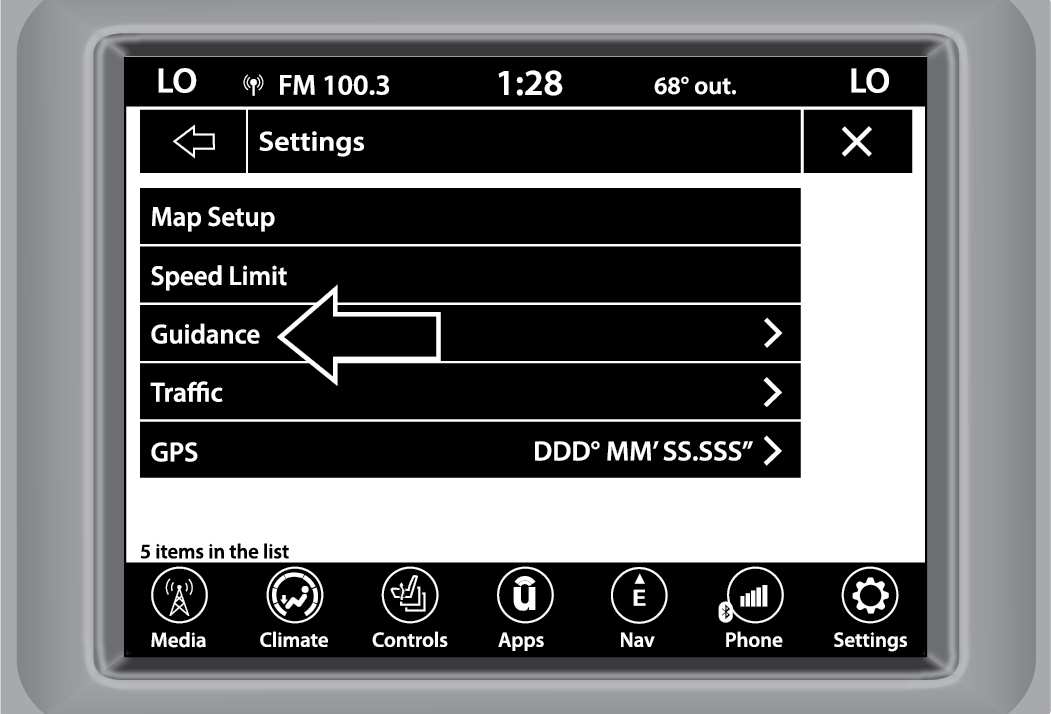
Guidance Button
The following Guidance options are available:
|
Play Voice Guidance |
Press this button to enable Voice Guidance prompts during route guidance. Press and release the button until a check mark appears, showing the setting has been selected. |
|
Nav Guidance Volume |
Press the + or - buttons to adjust the Nav Guidance Volume. |
|
Lane Recommendation |
Press this button to enable Lane Recommendation during route guidance. Press and release the button until a check mark appears, showing the setting has been selected. |
|
Junction View |
Press this button to enable Junction View during route guidance. Press and release the button until a check mark appears, showing the setting has been selected. |
|
TMC Route Mode — If Equipped |
Press this button to change how the Traffic Message Channel (TMC) Route Mode functions during route guidance. Select from: Automatic By Delay Time Manual Off |
|
TMC Avoidance Types — If Equipped |
Press this button to display the available Traffic Message Channel (TMC) Avoidance Types you would like displayed while in route guidance. Press and release the desired selection button until a check mark appears, showing the setting has been selected. |
|
Signposts |
Press this button to display the Signposts types you would like displayed while in route guidance. Press and release the desired selection button until a check mark appears, showing the setting has been selected. |
|
Route Progress Bar |
Press this button to display the Route Progress Bar while in route guidance. Press and release the selection button until a check mark appears, showing the setting has been selected. |
|
Route Options |
Press this button to determine which road types are OK to travel on while in route guidance. Press and release the desired selection button until a check mark appears, showing the setting has been selected. |
|
Highway Mode |
Press this button to activate Highway Mode. Selectable options are “On” and “Off”. Having this setting on will allow you to select the setting “Highway Services”. |
|
Offered Services |
Press this button to display the available Offered Services types you would like displayed while in route guidance. Press and release the desired selection button until a check mark appears, showing the setting has been selected. Available selections are “Gas Stations”, “Restaurants”, “Rest Area”, and “Auto Services And Maintenance”. |
|
Use Real Time Traffic |
Press this button to display Real Time Traffic Updates while in route guidance. Press and release the desired selection button until a check mark appears, showing the setting has been selected. |
|
Provide Detours on Traffic Events |
Press this button to display Detours On Traffic Events while in route guidance. Press and release the desired selection button until a check mark appears, showing the setting has been selected. |
|
Confirm Detours Manually |
Press this button to make it mandatory for you to have to Confirm Detours Manually while in route guidance. Press and release the desired selection button until a check mark appears, showing the setting has been selected. |
|
Provide Detours That Save More Than X Min. |
Press this button to allow the Navigation system to display the available detours if they save you a predetermined amount of minutes, while in route guidance. Press and release the desired plus or minus button until you have selected the desired number of minutes saved, from five minutes to one hour in increments of five minutes. |
INFORMATION
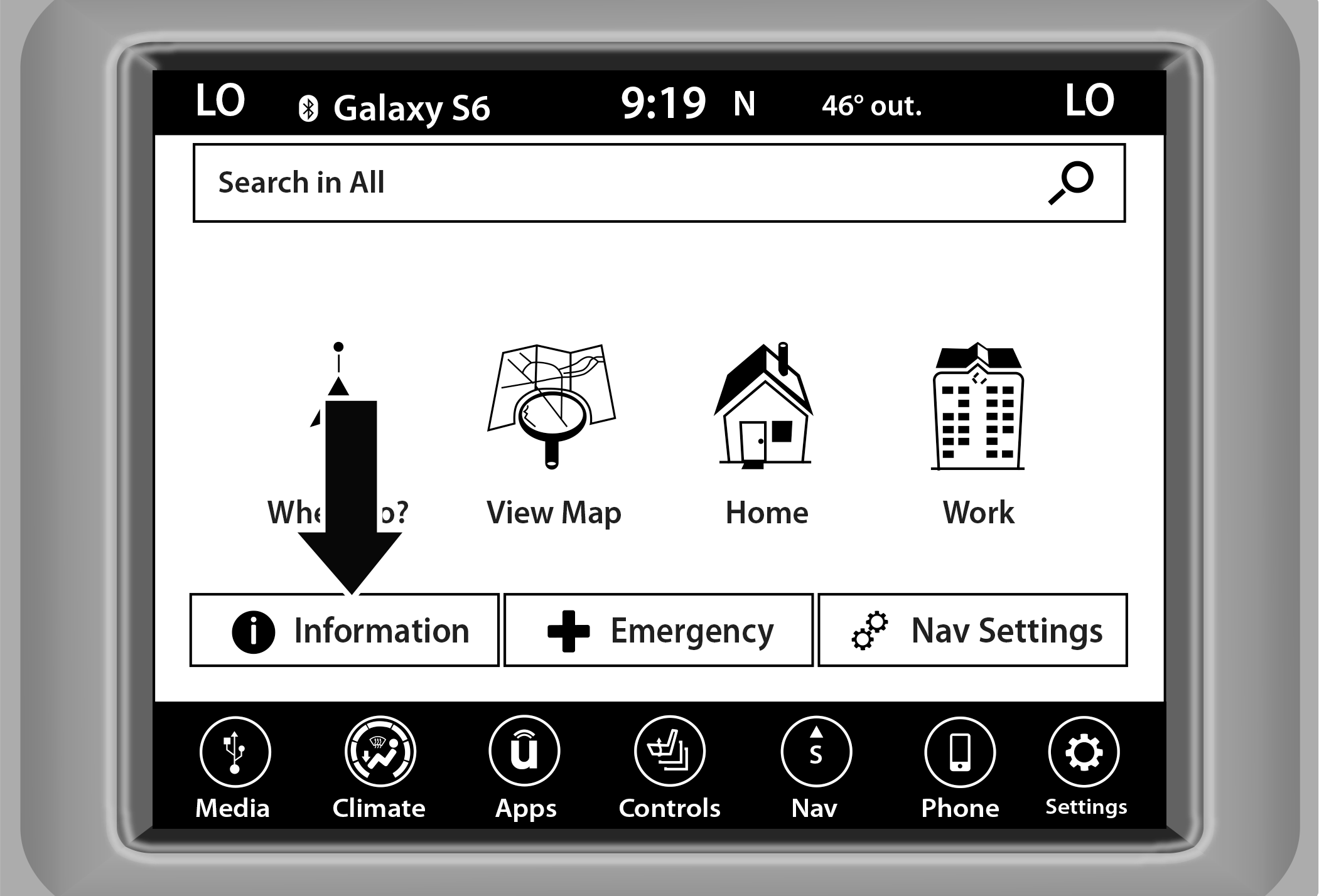
Information Button
From the Nav Main Menu, press the Information button and select one of the following options to view additional information:
|
Traffic |
|
“Traffic” displays detailed traffic information. |
|
Weather — If Equipped |
|
“Weather” displays detailed weather information about your current position. |
|
Where Am I? |
|
“Where Am I?” displays the address and Geo-Coordinates of your current location.
|
|
Country Info |
|
Select the desired country on the touchscreen. Information, such as average speed limits and specific phone number country codes, will be provided about the selected country. |

EMERGENCY
From the Nav Main Menu, press the Emergency button and press one of the following options to search and route to a specific location.
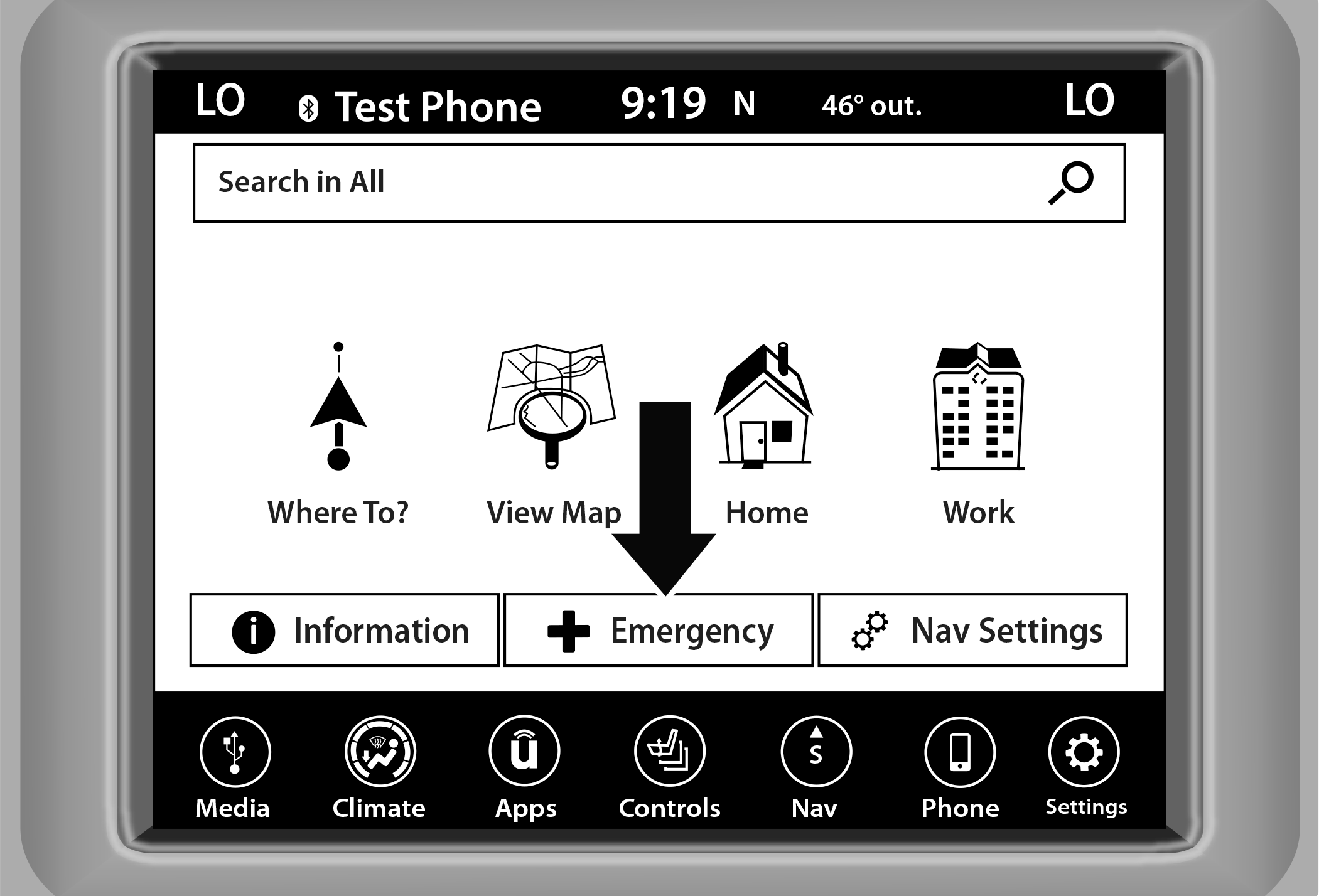
Emergency Button
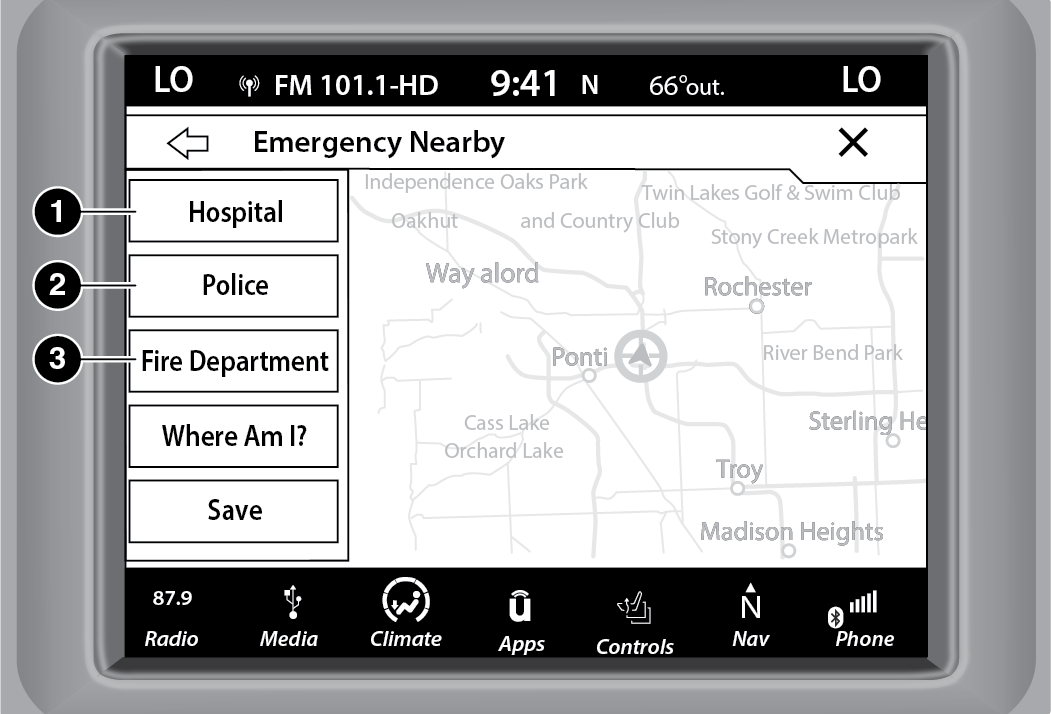
Emergency Nearby Options
|
1 — Hospital |
|
2 — Police |
|
3 — Fire Department |
Press the “Where Am I?” button to display your exact current location.
Press the Save button to save your current location in Favorites.
You can search for a Hospital, Police Department, or Fire Department by the following categories, which are button tabs at the top of the screen:
Name
Distance
ABC (Search)
Note:
In case of emergency, please contact the facility to verify their availability before proceeding.
Select the desired Hospital, Police Department, or Fire Department and press “Route To” to confirm your route, and then press “GO!” to confirm the destination and begin route guidance.
MAP UPDATES
The map data available in your vehicle is the most up-to-date information that was available when your vehicle was built. Map data is updated periodically as map information changes. Follow these steps if you wish to obtain an update for your vehicle:
-
Please visit to obtain your map update. At the top of the page, click the brand of your vehicle. Then, at the drop down menu, select your vehicle model and its model year. You will then be directed to a page that will let you know if your vehicle needs a map update or not.
-
Or, visit (US) or (Canada) and follow these steps:
Under the “Help & Support” tab, select your vehicle brand, model, and year. Then, click “SYSTEM UPDATES.” Simply follow the steps and place your order.
-
Or, if you wish, you can also visit your dealer or place a phone call to request your Map Update. US/CAN General Consumer Support:
888-628-6277
FCA US LLC Dealer Garmin Support:
877-628-4480
FCA US LLC Consumer FreshMaps:
866-422-8171
SIRIUSXM® TRAVEL LINK
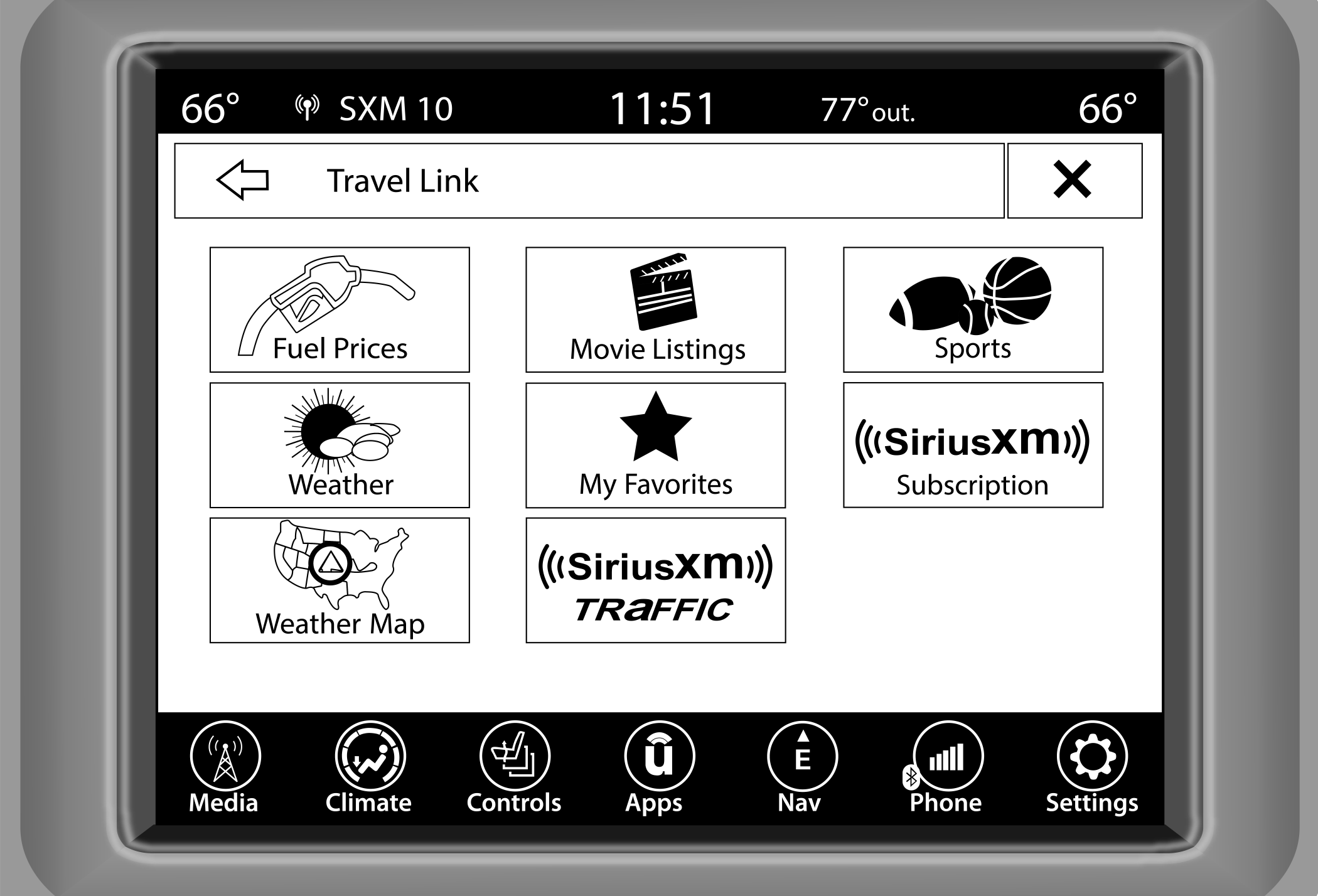
SiriusXM® Travel Link
In addition to delivering over 160 channels of the best sports, entertainment, talk, and commercial-free music, SiriusXM® offers premium data services that work in conjunction with compatible navigation systems. SiriusXM® Travel Link brings a wealth of useful information into your vehicle and right to your fingertips.
Weather — Check variety of local and national weather information from radar maps to current and five day forecast.
Fuel Prices — Check local gas and diesel prices in your area and route to the station of your choice.
Sports Scores — In-game and final scores plus weekly schedules for your favorite team.
Movie Listings — Check local movie theaters and listings in your area and route to the theater of your choice.
SiriusXM® Travel Link feature is seamlessly integrated into your vehicle, so you can stay in the know while you’re on the road. A few minutes after you start your vehicle, Travel Link information arrives and updates in the background. You can access the information whenever you like, with no waiting.
To access SiriusXM® Travel Link, press the Apps button on the touchscreen, then the SiriusXM® Travel Link button.
Note:
SiriusXM® Travel Link requires a subscription, sold separately after the trial subscription included with your vehicle purchase.
SIRIUSXM® TRAFFIC PLUS
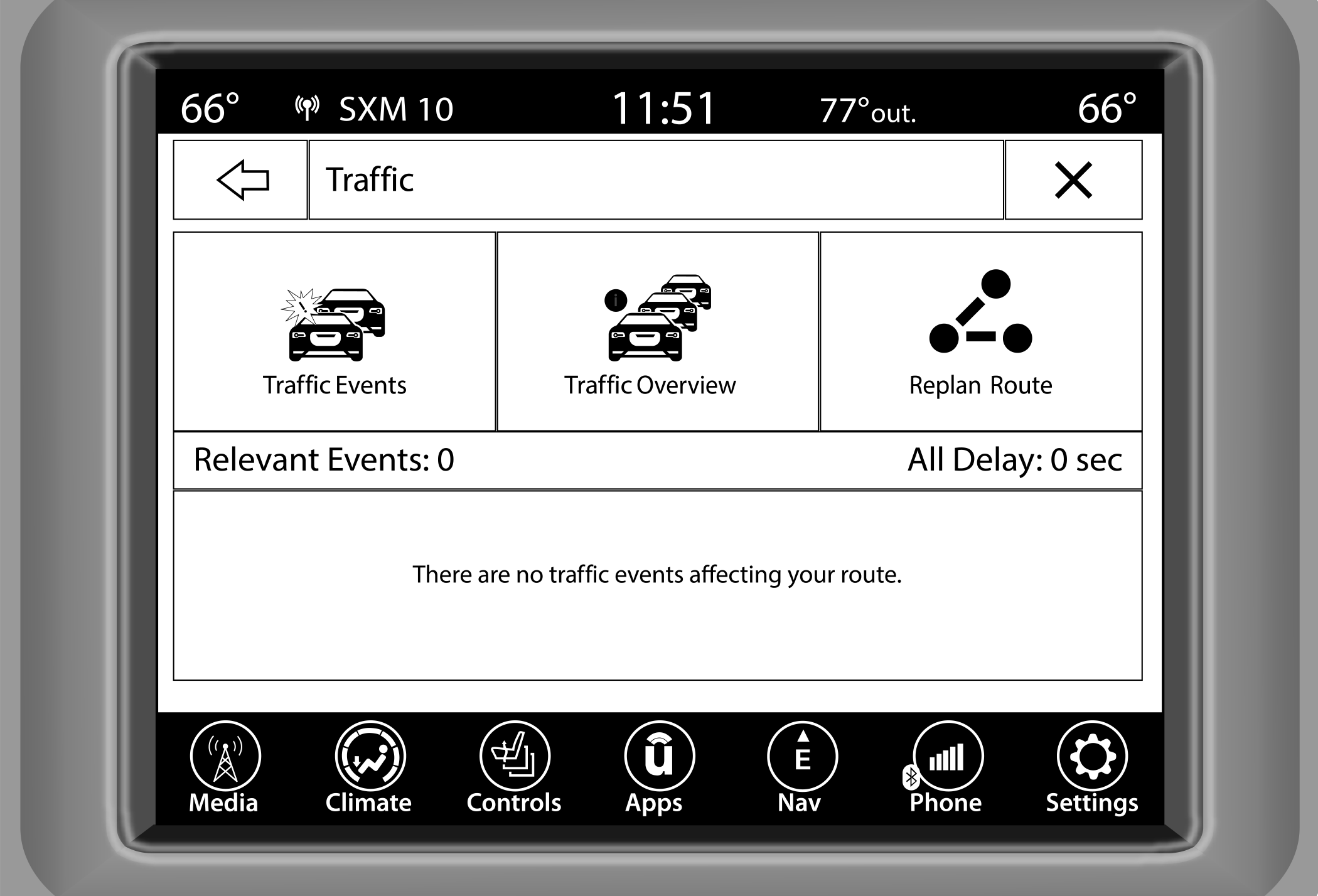
SiriusXM® Traffic Plus
Avoid traffic before you reach it. By enhancing your vehicle's Navigation system with the ability to see detailed traffic information, you can pinpoint traffic incidents, determine average traffic speed and estimate travel time along your route. Since the service is integrated with a vehicle's Navigation system, SiriusXM® Traffic Plus can help drivers pick the fastest route based on traffic conditions.
-
Detailed information on traffic speed, accidents, construction, and road closings.
-
Traffic information from multiple sources, including police and emergency services, cameras and road sensors.
-
Coast-to-coast delivery of traffic information.
-
View conditions for points along your route and beyond.
Download Manual